I’m going to show you how to generate images using eggs AI. Once you have an account, you can test it and start creating images right away.
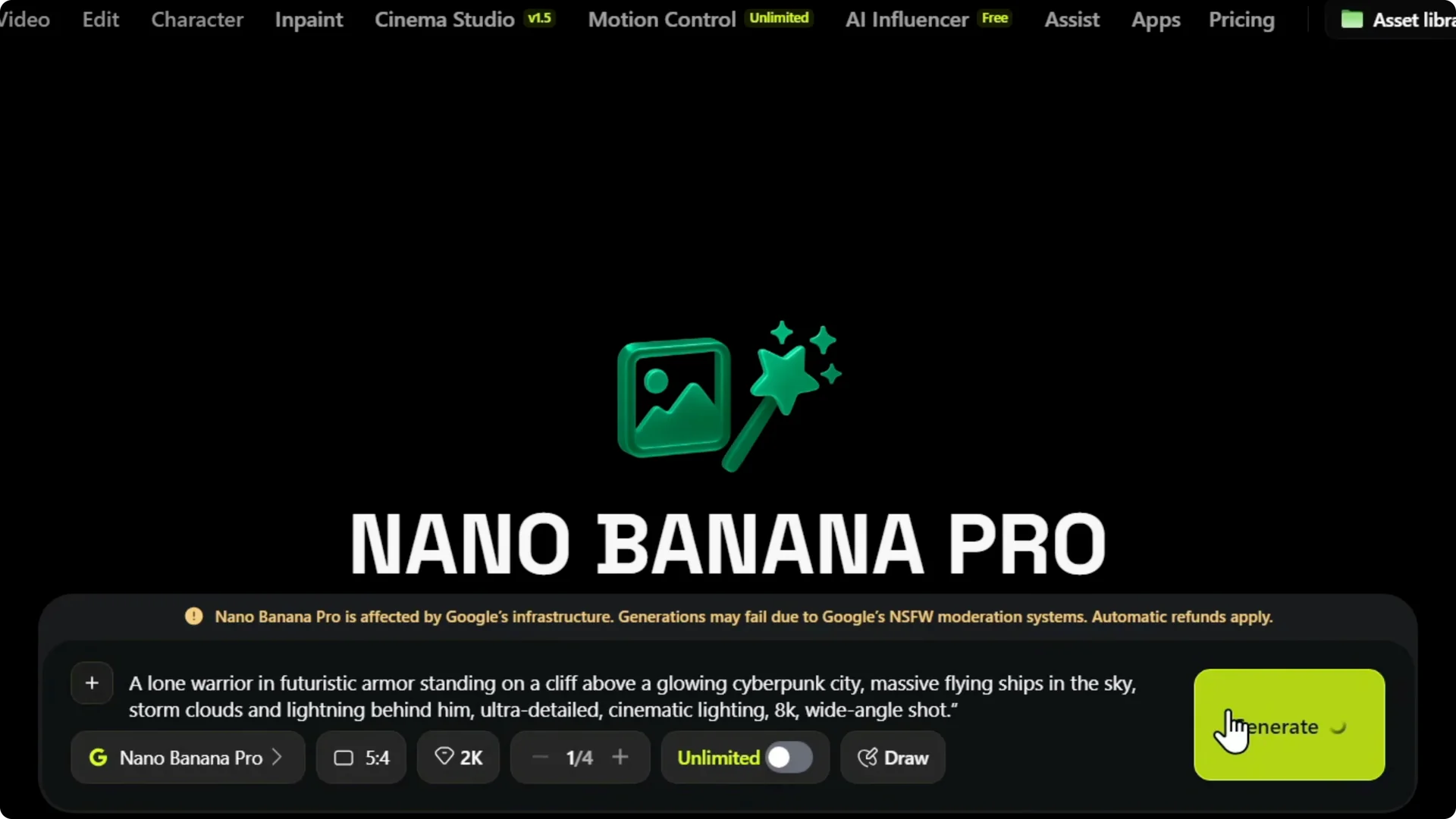
You can enter a prompt, pick a model, set the aspect ratio, select quality, and generate.
I’ll share the exact steps I use, along with animation and download options.
Getting Started with Higgsfield AI Image Generation
Create an image
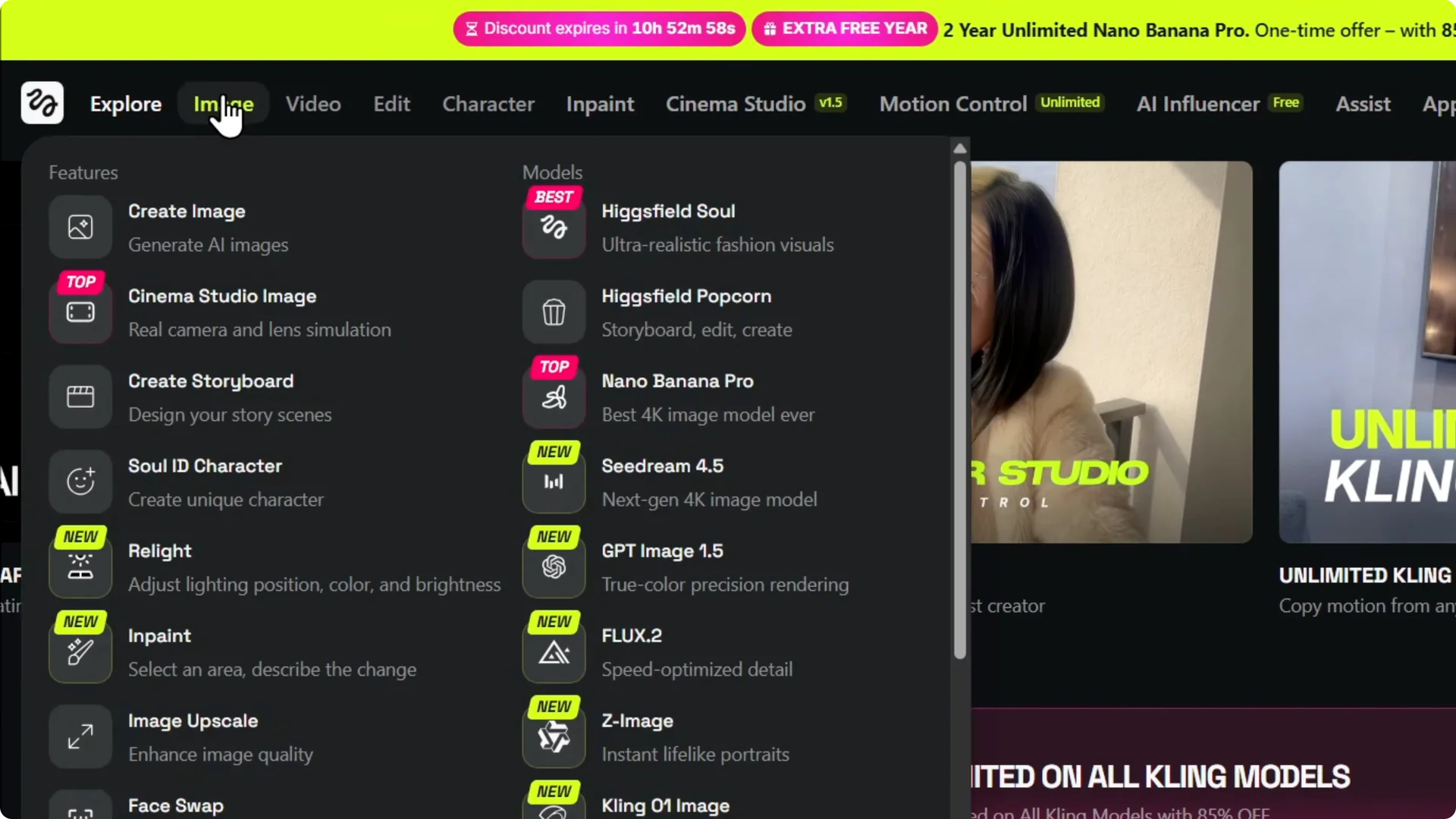
Step 1: Hover over Images on the upper left and click Create Image.
This opens the image generator where you will set everything up.
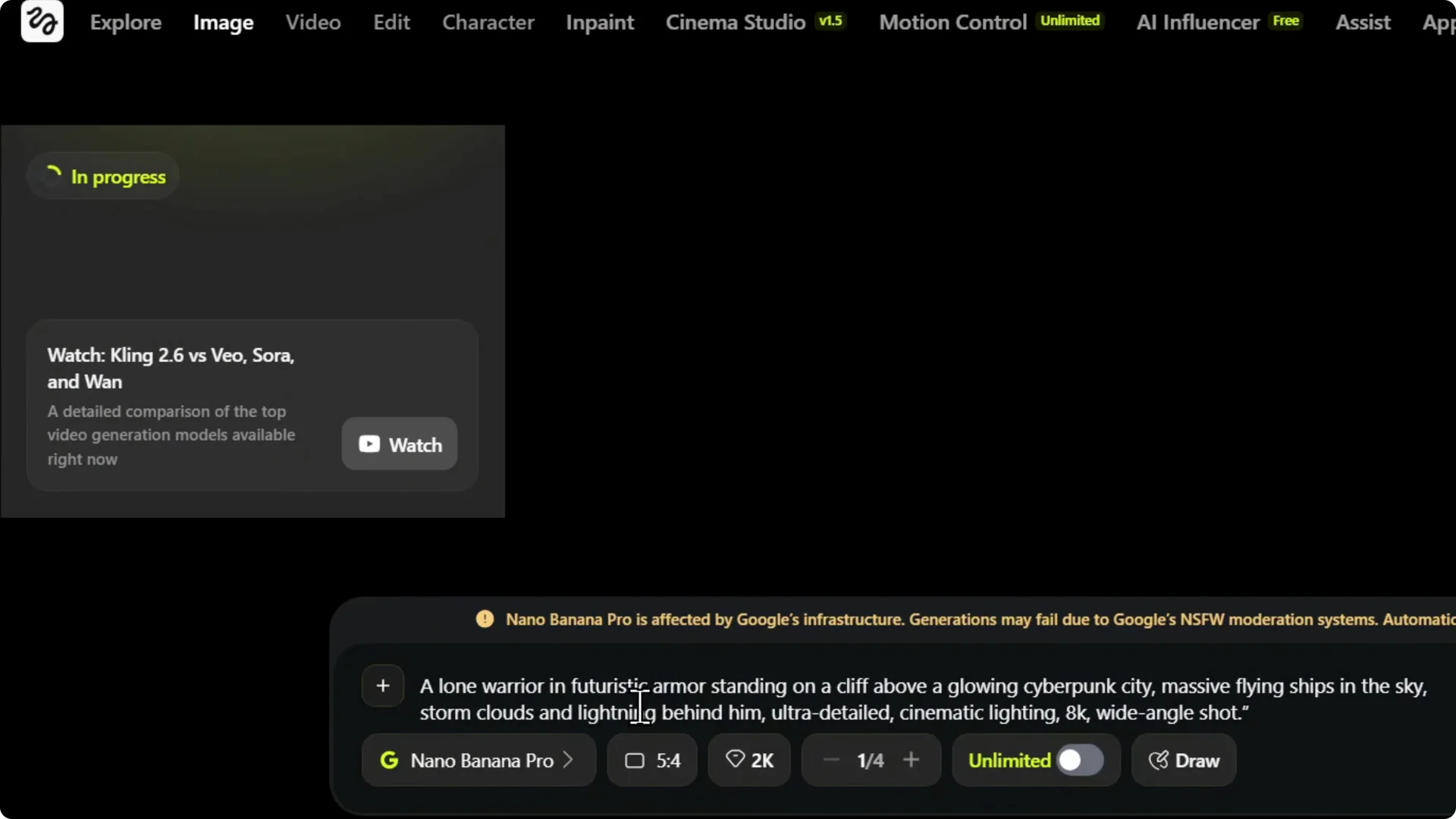
Step 2: Enter the prompt you want.
For example, I used: a lone warrior in futuristic armor standing on a cliff.
Choose models and settings for Higgsfield AI Image Generation
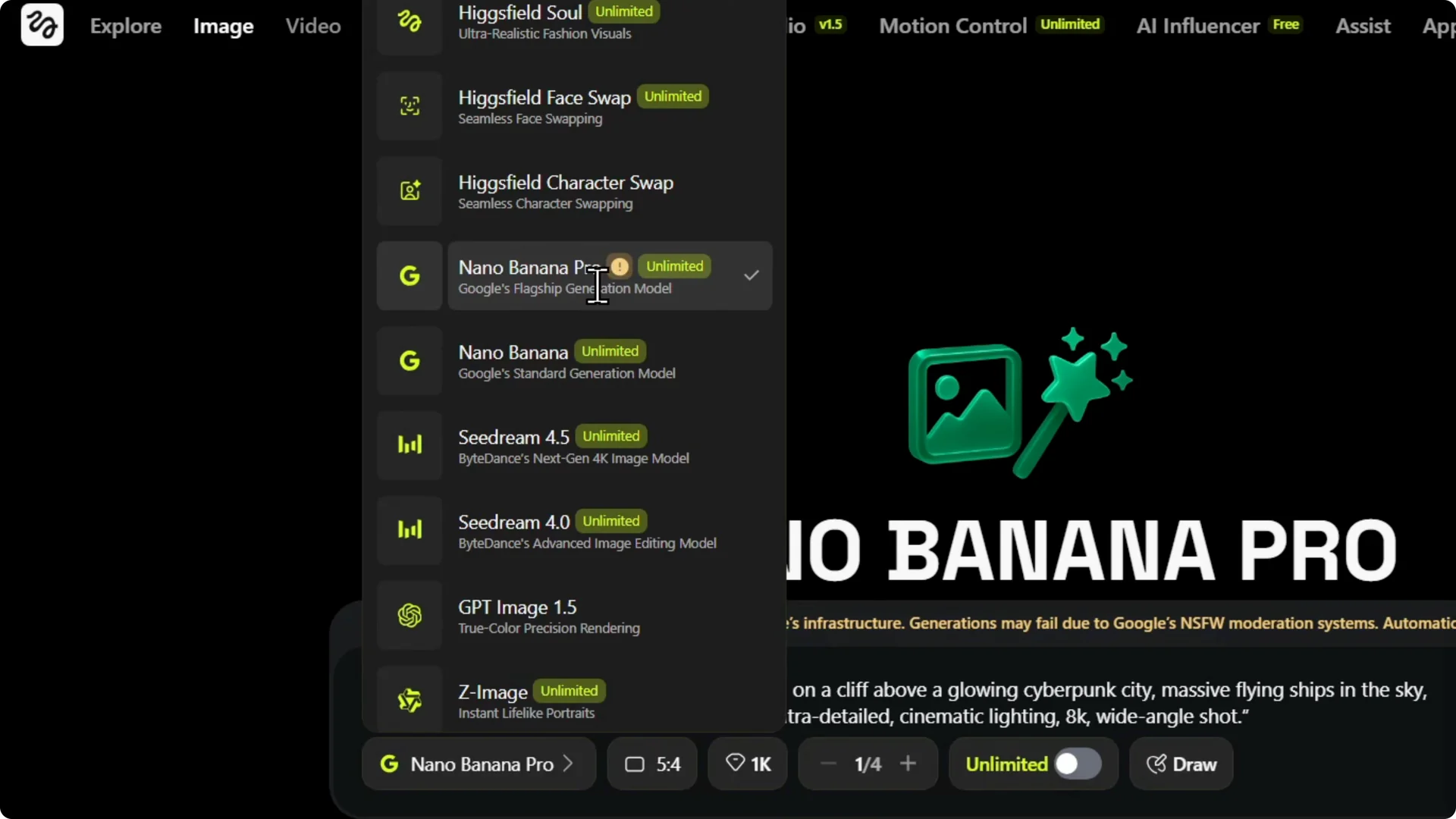
Step 3: Choose a model from the list. I chose Nano Banana Pro.
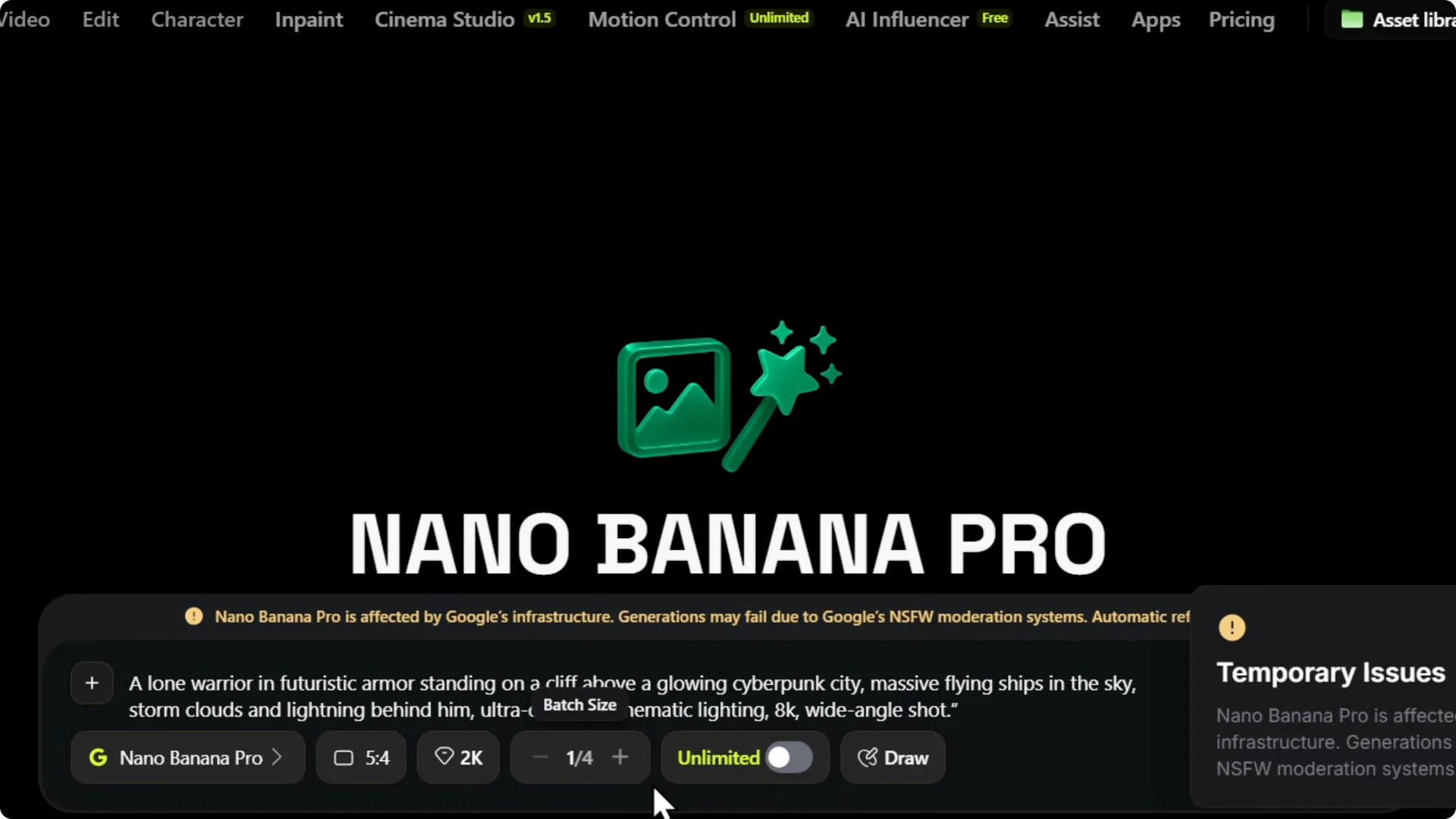
Step 4: Set the aspect ratio you want. Adjust this before generating to match your final use.
Step 5: Choose the image quality. You can pick 1K, 2K, or 4K, and I set mine to 2K to see what it does.
If you plan to upscale results later, see tips to avoid quality loss during upscaling. It helps keep detail when moving from lower to higher resolutions.
Generate and review in Higgsfield AI Image Generation
Step 6: Click Generate. Your job may show In Queue or In Progress while it renders.
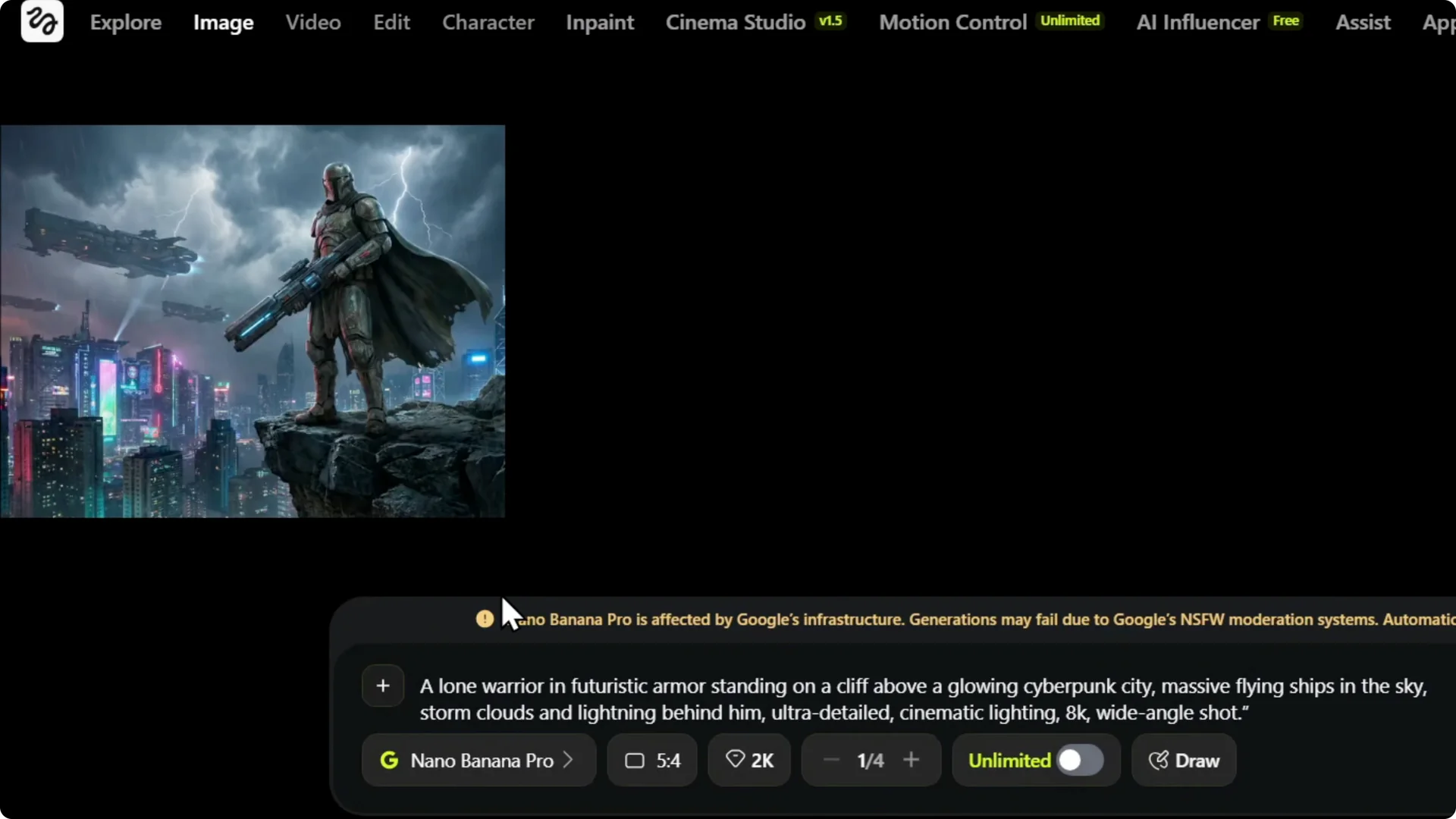
Step 7: Wait for the image to finish. Higher resolutions like 2K can take a little time.
Step 8: Review the output once it appears. This is where you confirm the prompt did what you expected.
Animation and downloads in Higgsfield AI Image Generation
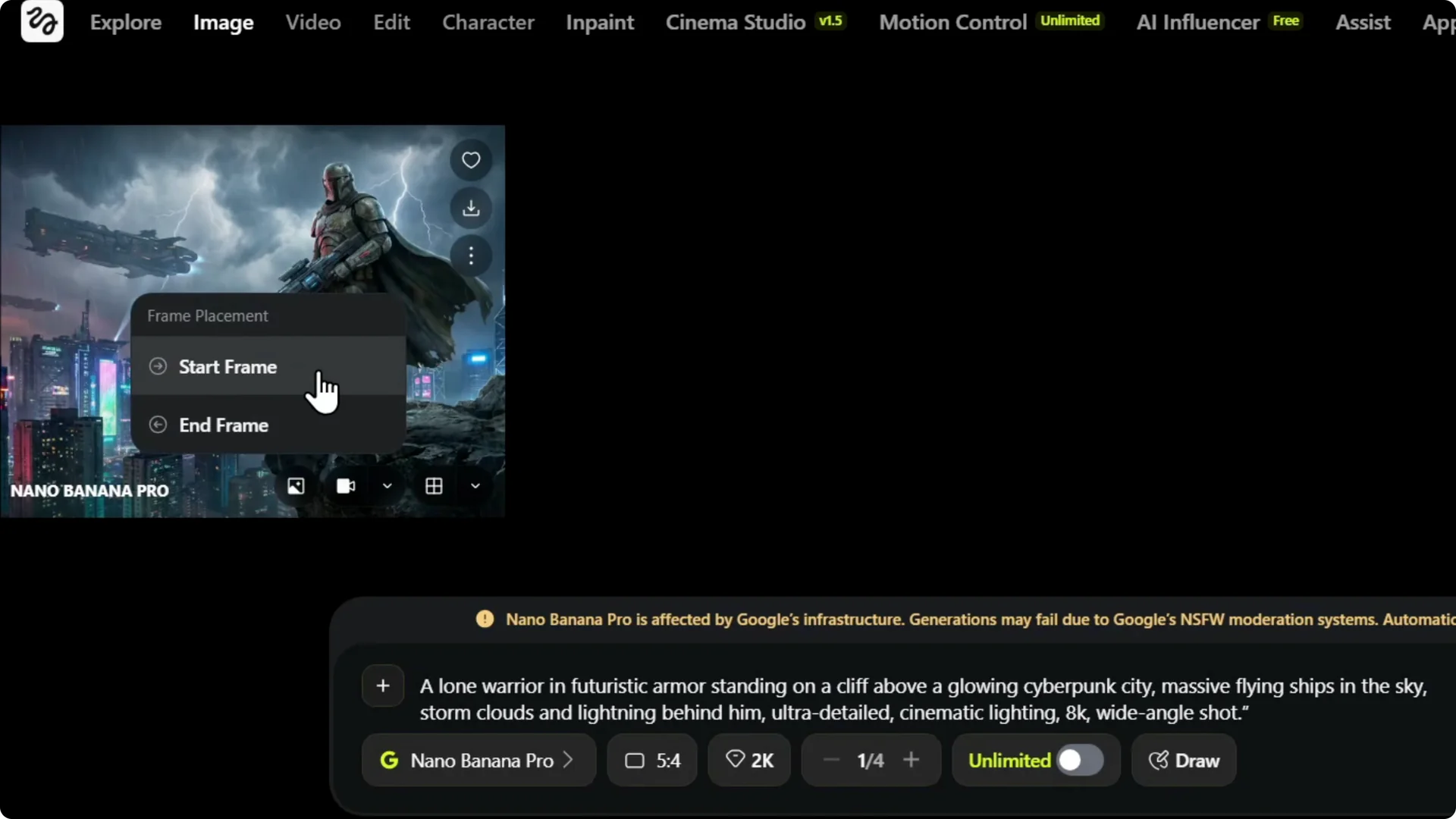
Step 9: Convert your image into animation if you want motion. You can set it as a start frame or an end frame based on your idea.
For full workflows that turn stills into motion, check this images-to-videos guide. It walks through options for transforming images into video clips.
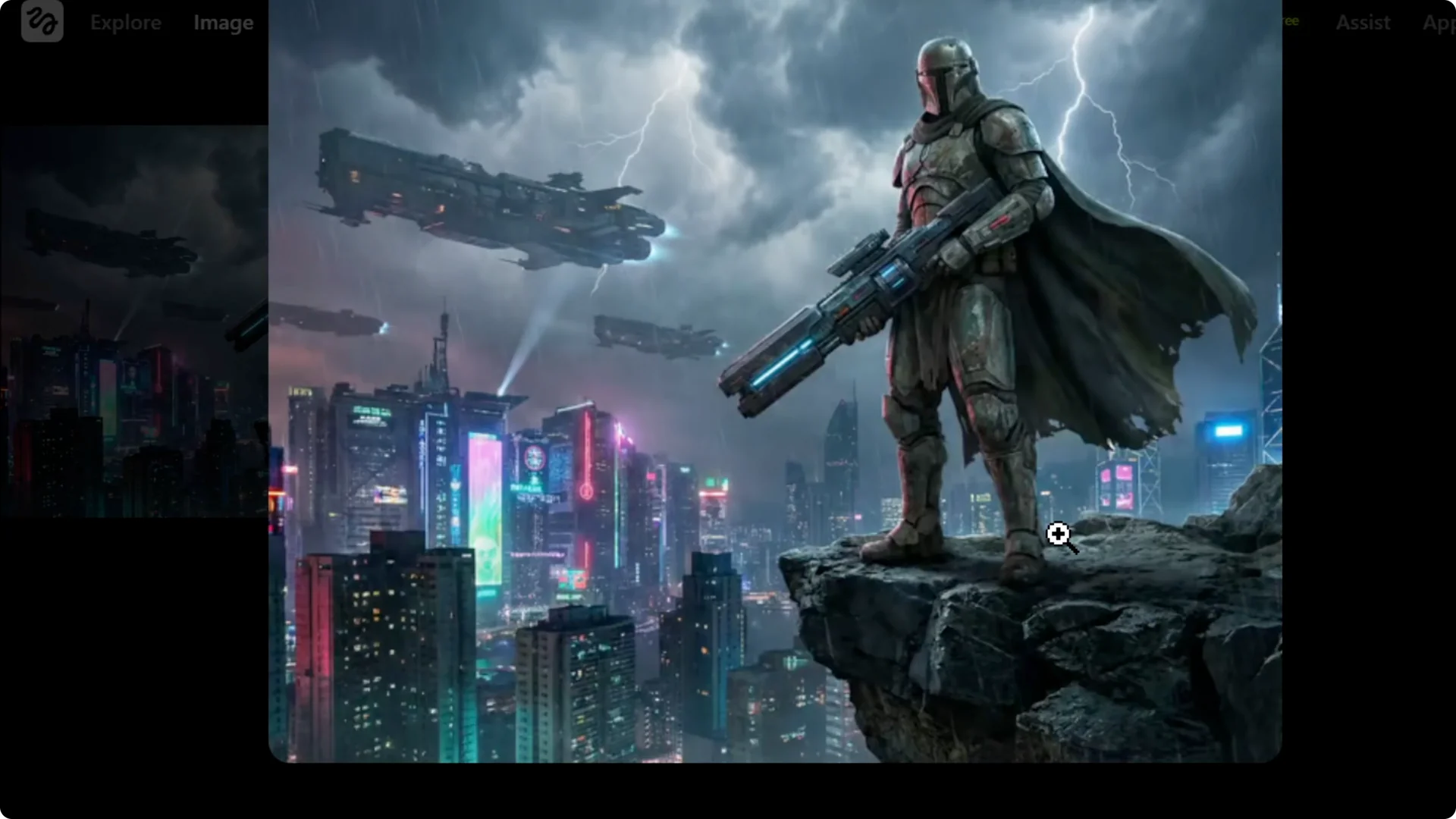
Step 10: Download your image. Click Download, and it will save to your computer within seconds.
Manage your images in Higgsfield AI Image Generation
If you need to remove outputs from your account later, follow these steps to delete images. Keeping your library tidy makes it easier to find recent work.
Final Thoughts
Enter a clear prompt, pick the right model, set aspect ratio and quality, then generate. Use animation for motion and download your results for quick sharing. If you upscale or manage outputs, the linked guides above will help you keep quality high and your account organized.