If you are using Higgsfield AI and want to organize your assets, here is how you can create folders and keep everything tidy. The steps below show how I create, rename, and fill folders with images or videos. Follow along and you will have a clean library in a minute.
Higgsfield AI Asset Organization: Open the Assets Library
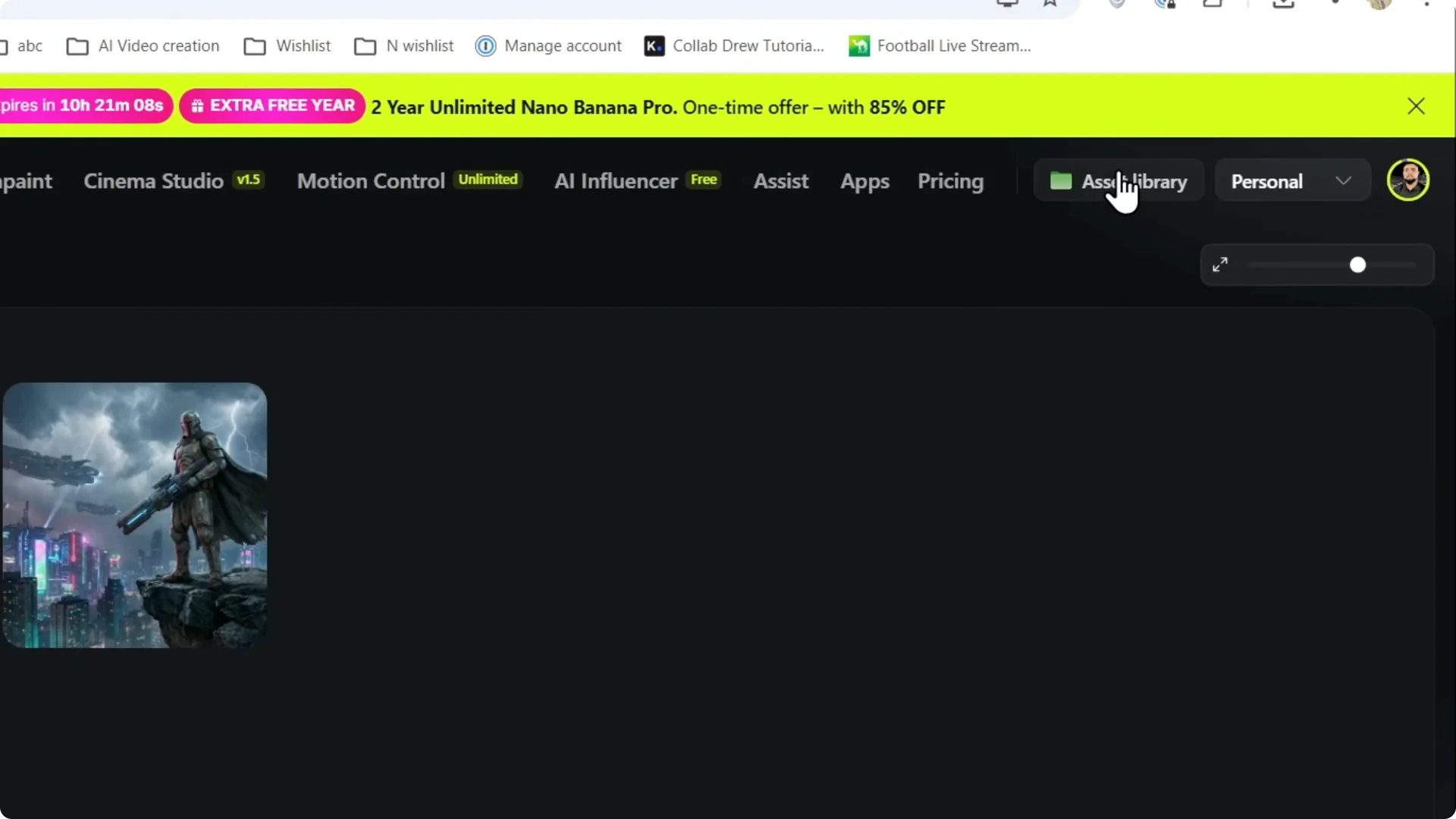
Step 1: Look to the upper right and click Assets Library.
Step 2: This is where you will find your generations and manage them.
While you are in your workspace, it can help to check your available credits so you know how much you can generate as you organize.
Higgsfield AI Asset Organization: Create and Name a Folder
Step 1: On the left side, find Personal Project. Click the plus icon to add a new folder.
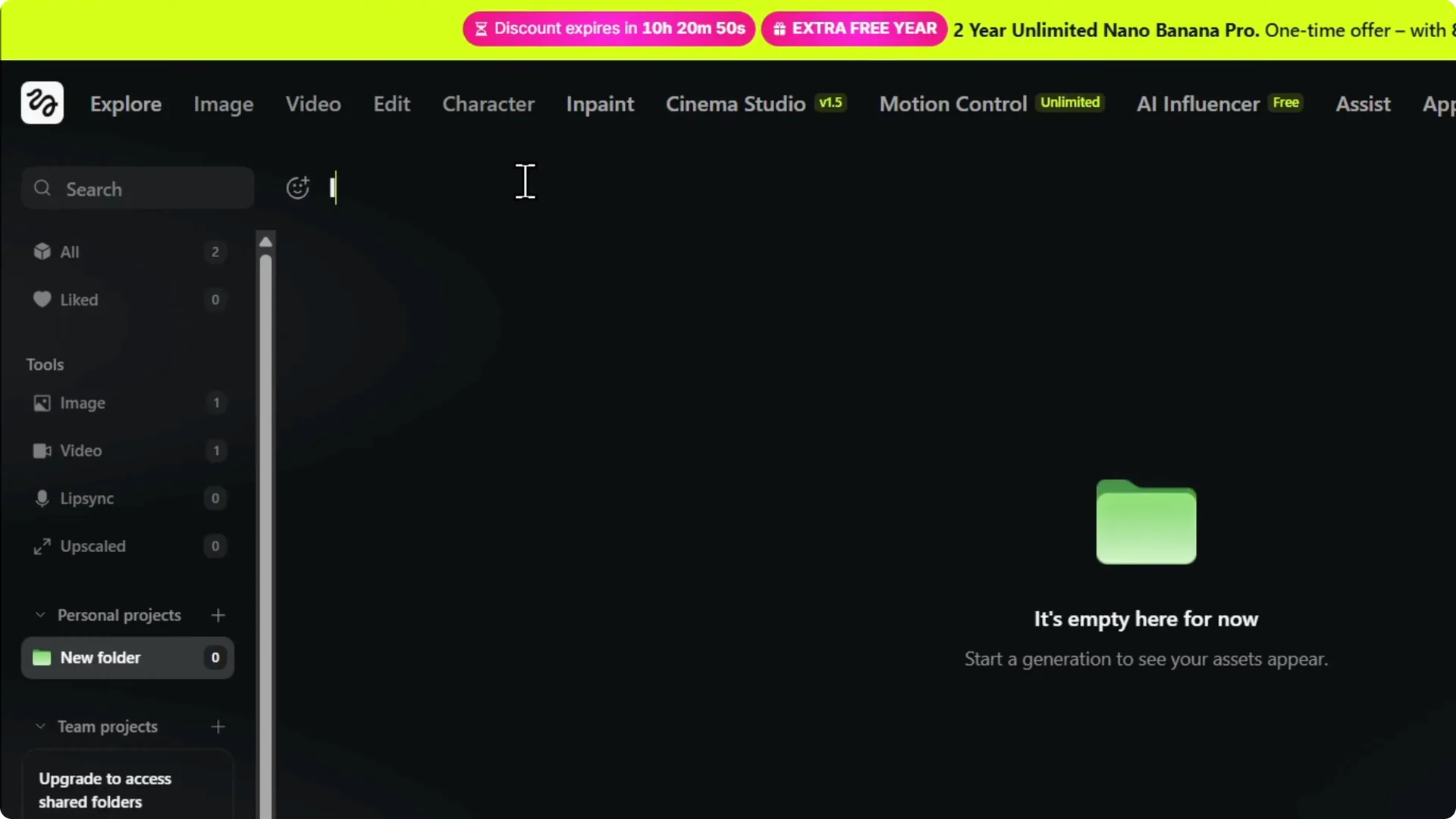
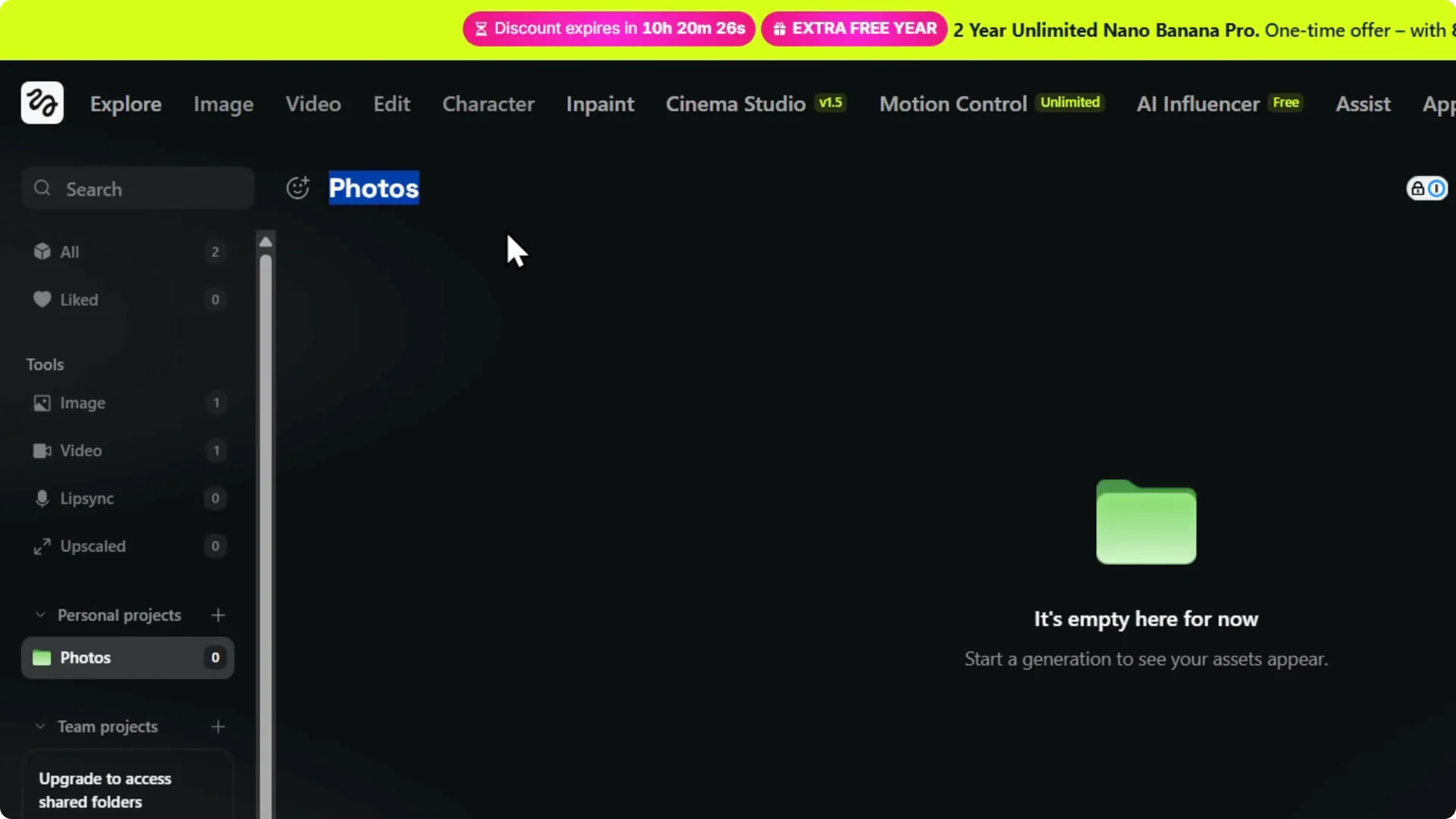
Step 2: To change the folder name, click on the folder. It opens for editing, and you can type any name you want.
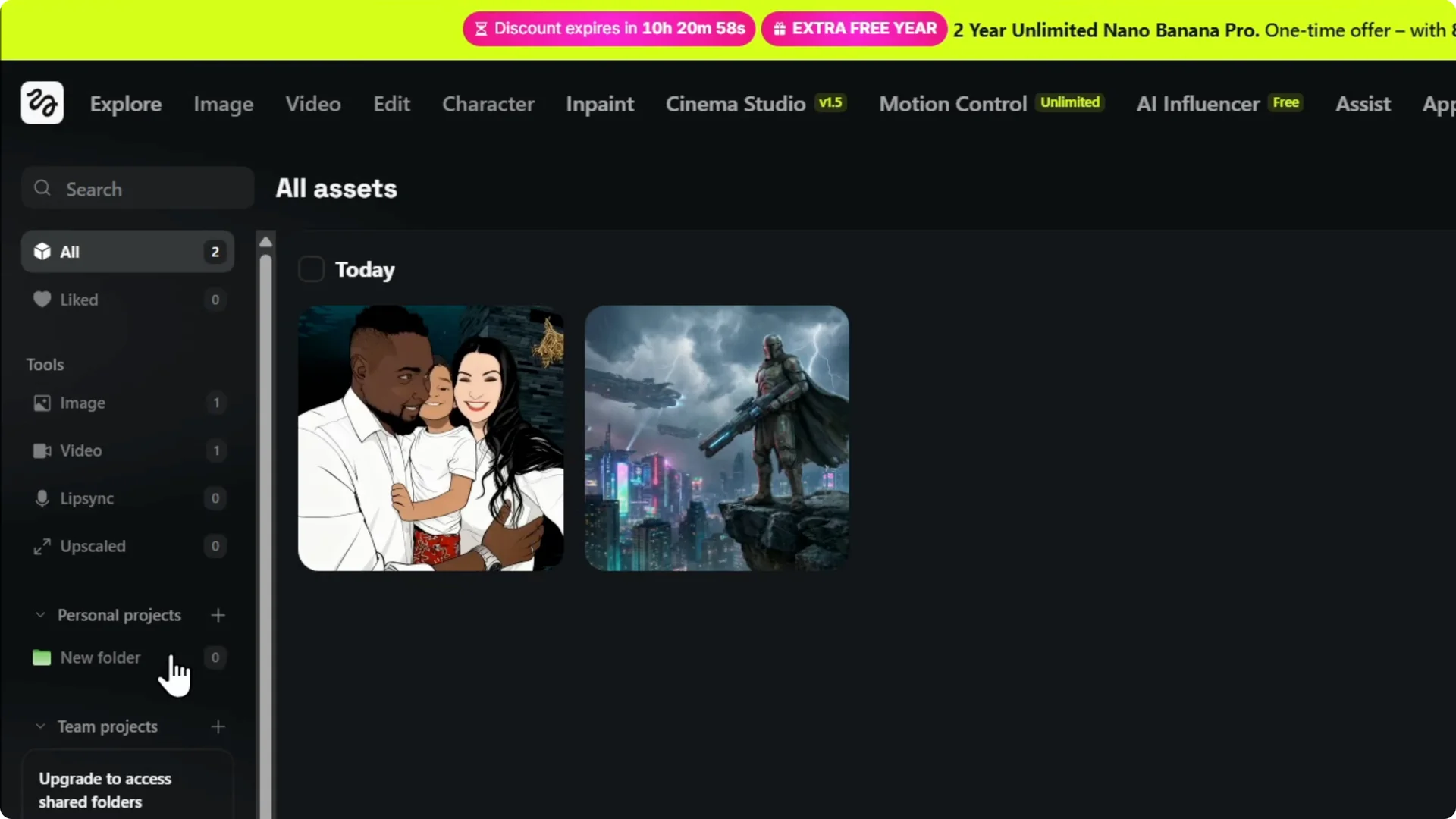
Step 3: Click away to save. The name changes immediately and the folder is ready.
Step 4: If you want a folder for images, type a name like Images and save.
Higgsfield AI Asset Organization: Rename Folders Anytime
Step 1: Click the three dots on the folder. Choose Edit.
Step 2: The name is selected, so type the new name and confirm by clicking away.
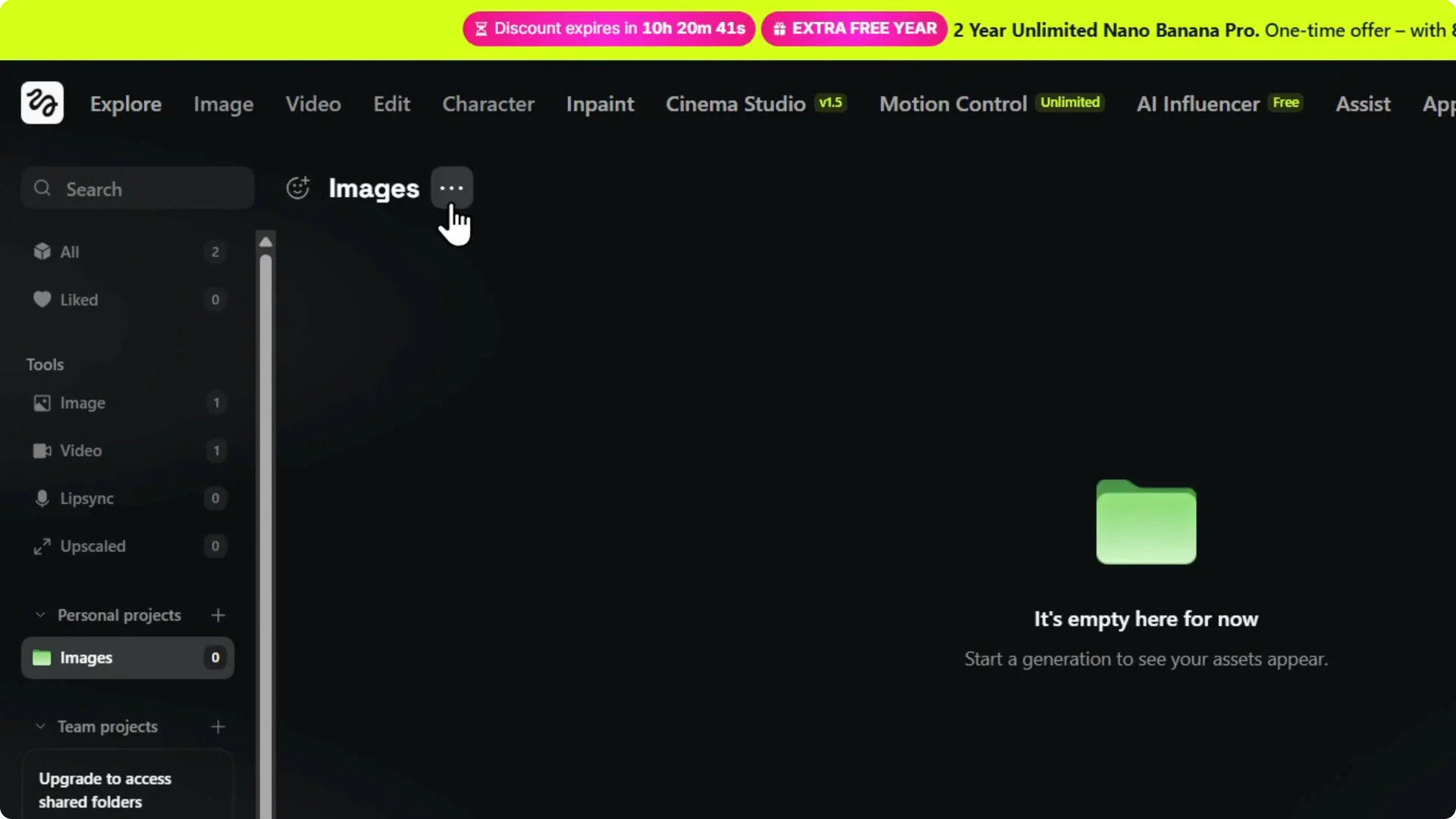
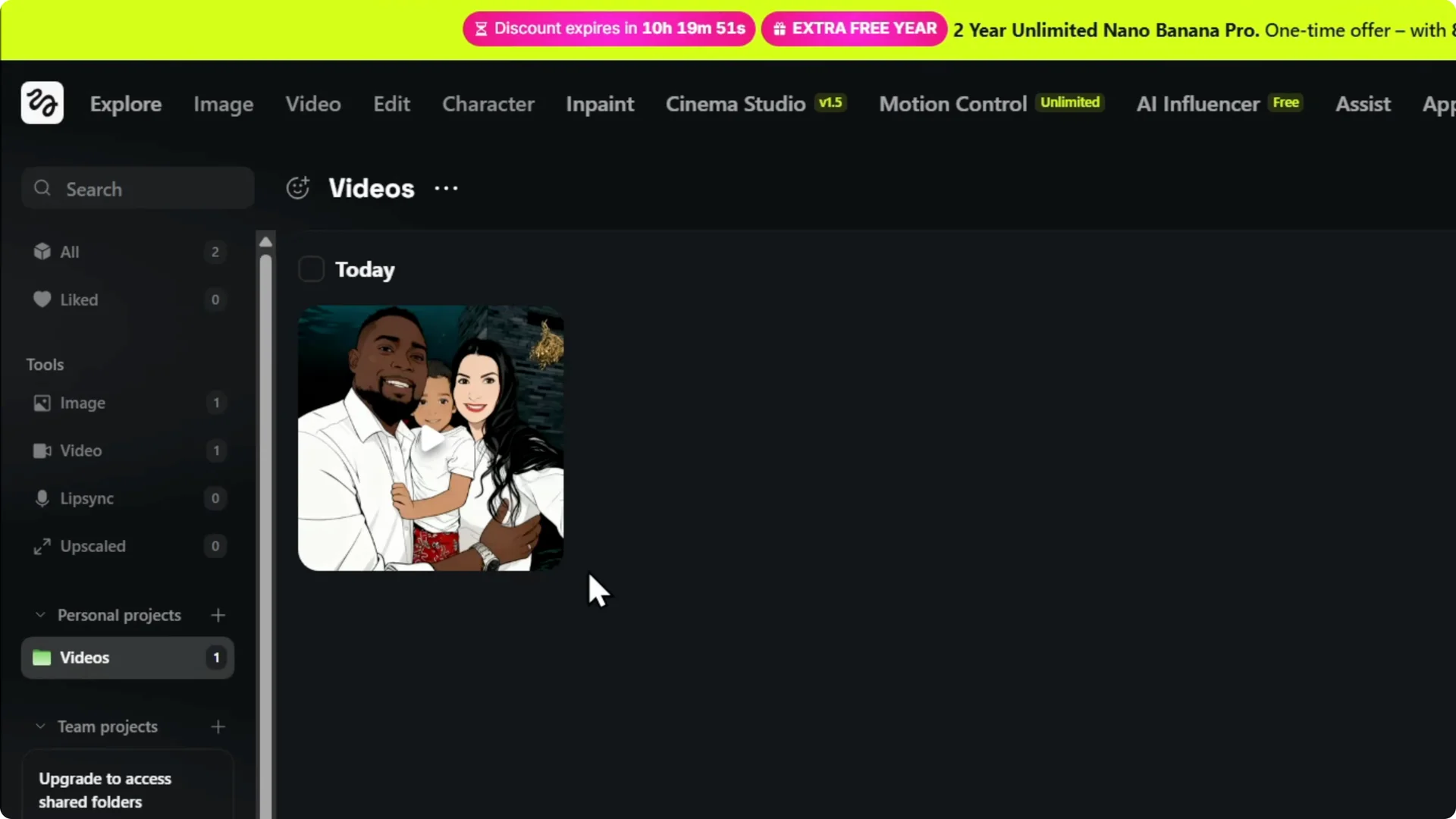
You can rename a folder to Videos if that is what you plan to store there. It saves right away and updates on the left sidebar.
While tidying your library, you might also want to update your profile picture to keep your account details fresh.
Higgsfield AI Asset Organization: Add Assets to a Folder
Step 1: Go back to All to see everything that was generated. Find the videos or images you want to organize.
Step 2: Hover over an asset, click the three dots, and choose Add to folder.
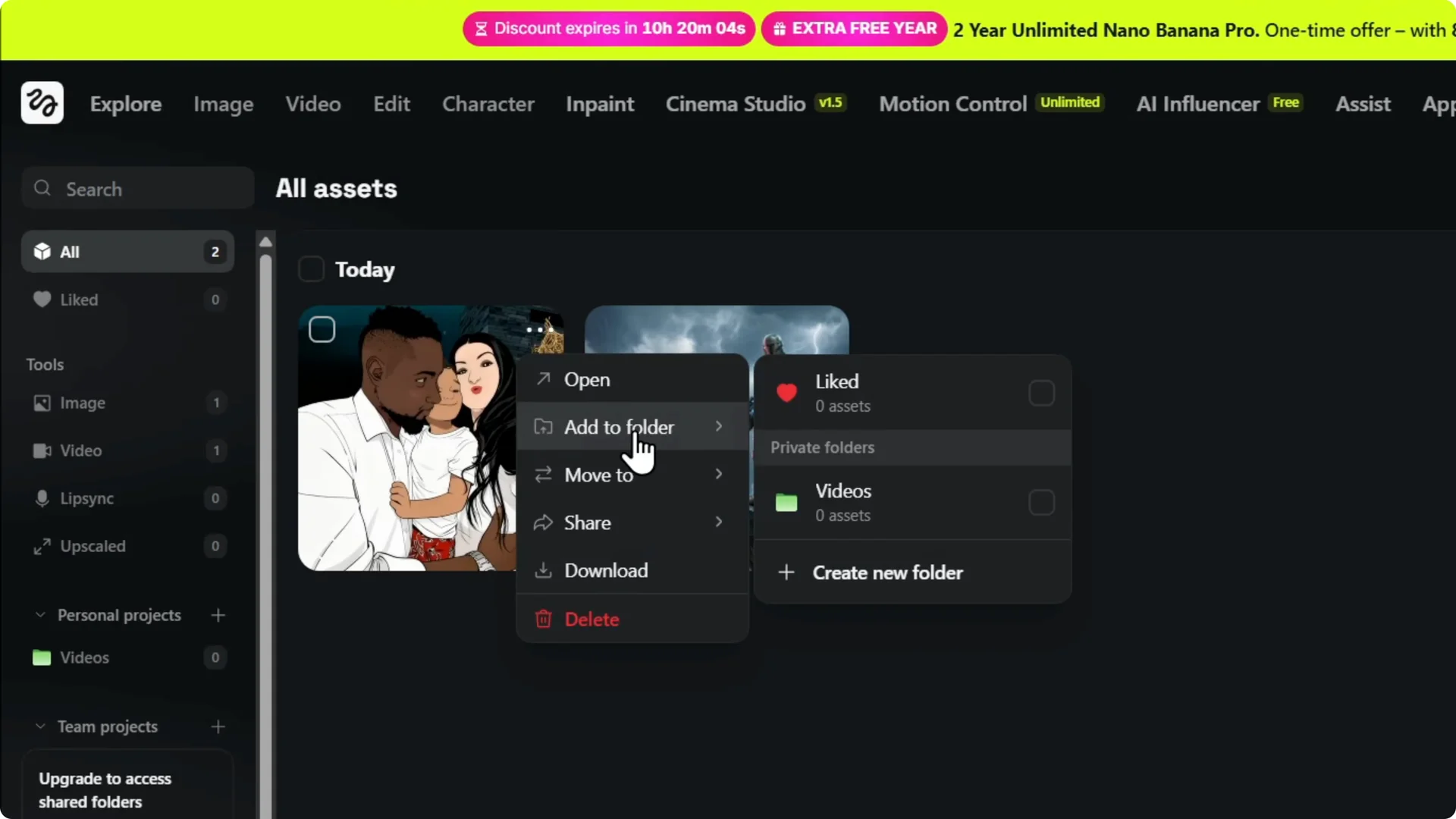
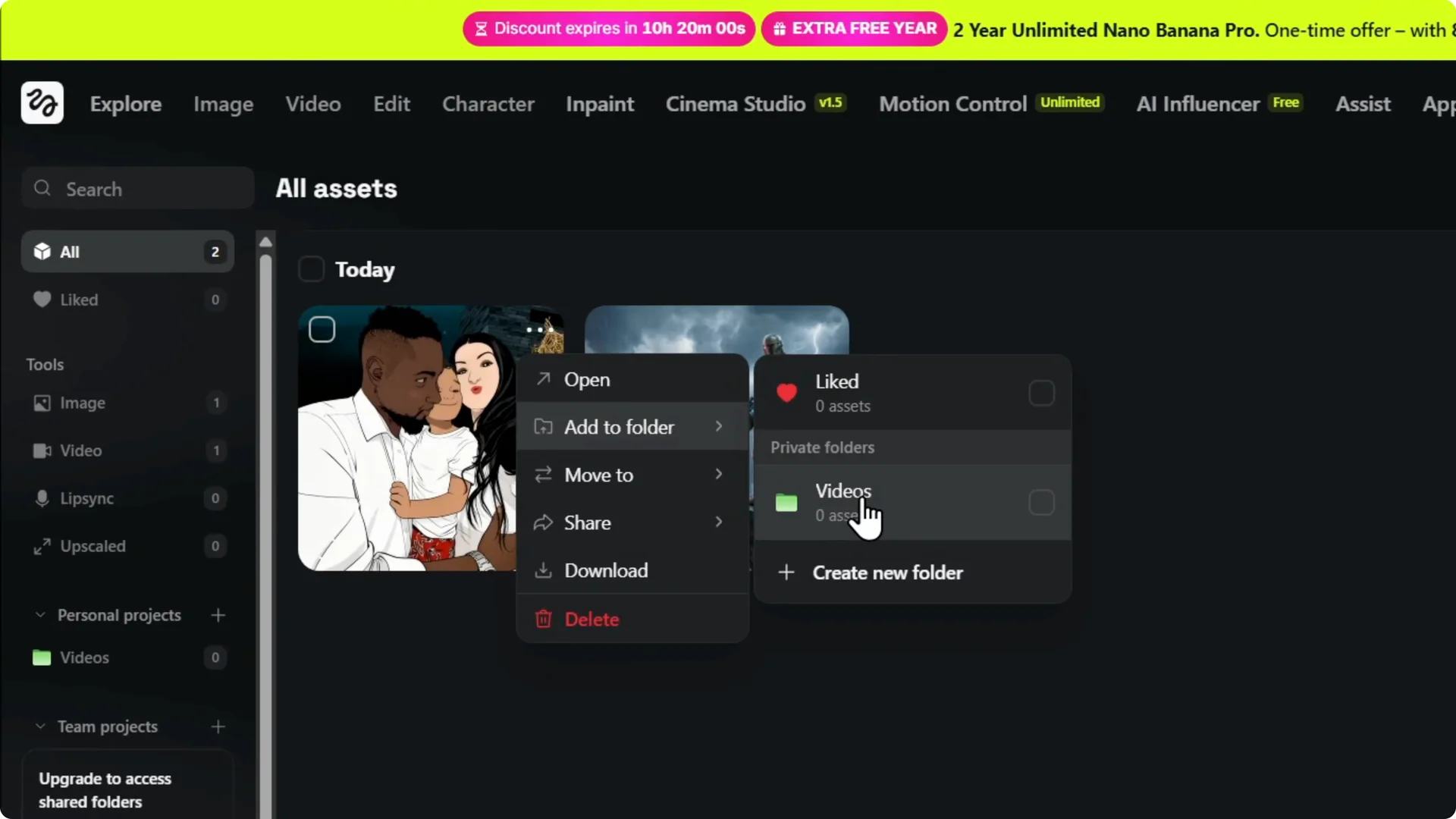
Step 3: Select the folder you created and click it.
The asset moves to that specific folder.
If you are managing lots of generations, it helps to review your plan seconds so you can keep track of usage as you sort.
Higgsfield AI Asset Organization: Find Your Organized Items
Click any folder on the left to see what you added to it.
Everything you moved will be there and ready to open or manage.
Final Thoughts
Creating folders in Higgsfield AI is quick: open Assets Library, add a folder on the left, name it, and move your assets with Add to folder. Renaming is just the three dots and Edit, then click away to save. With a few clicks, your images and videos stay organized and easy to find.