I am going to show you how to translate your video in Filmora using AI. There is a new feature that automatically adjusts lip movement to match the new language. It makes the video feel more authentic.
First, insert a video into your project. I drag and drop a clip into the timeline. The person is speaking English, and I will translate it to a different language.
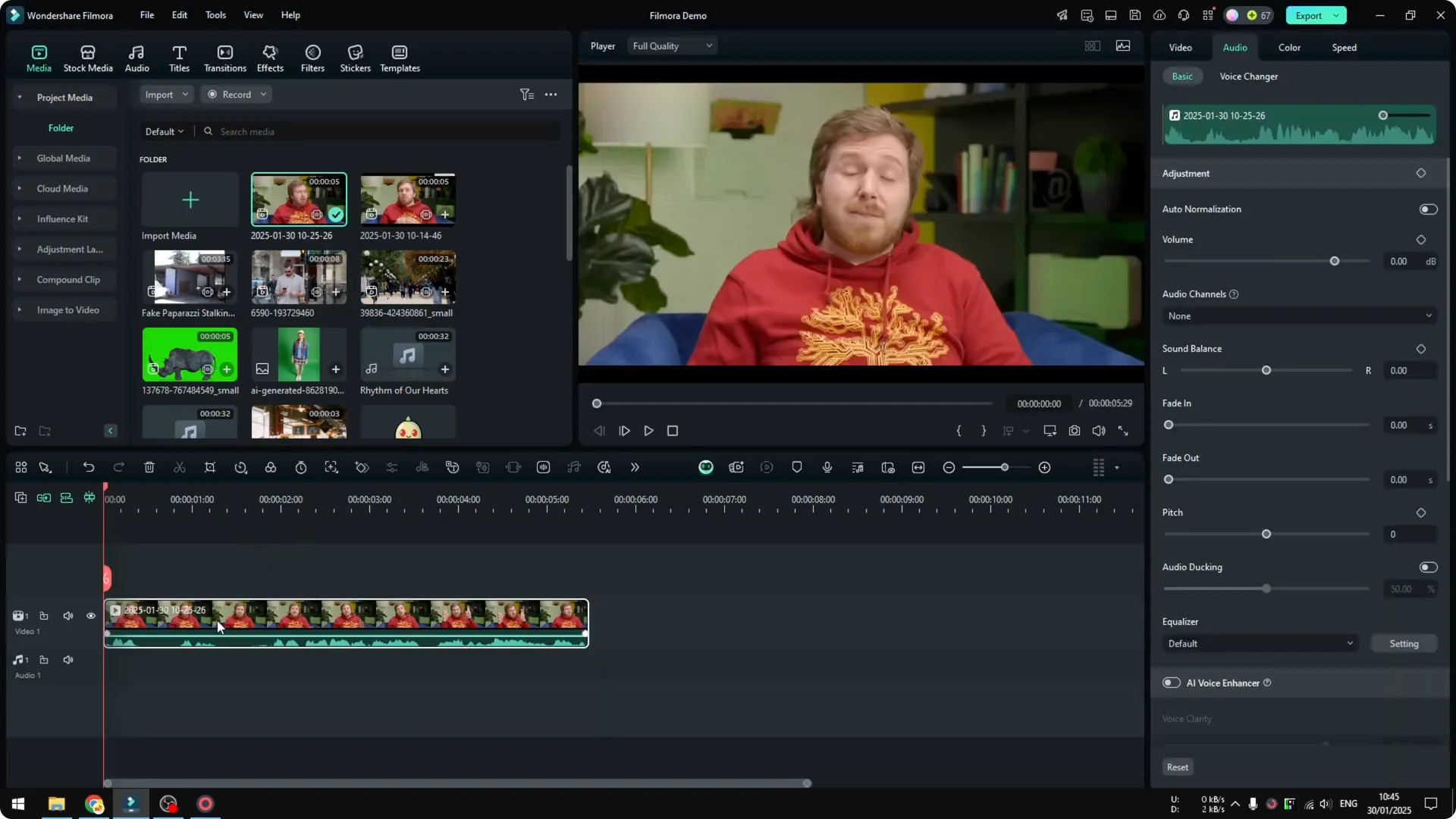
Select the clip you want to translate, right click, and choose AI Translation. This opens the menu you need. Make sure you are on the latest version of Filmora so the option is available.
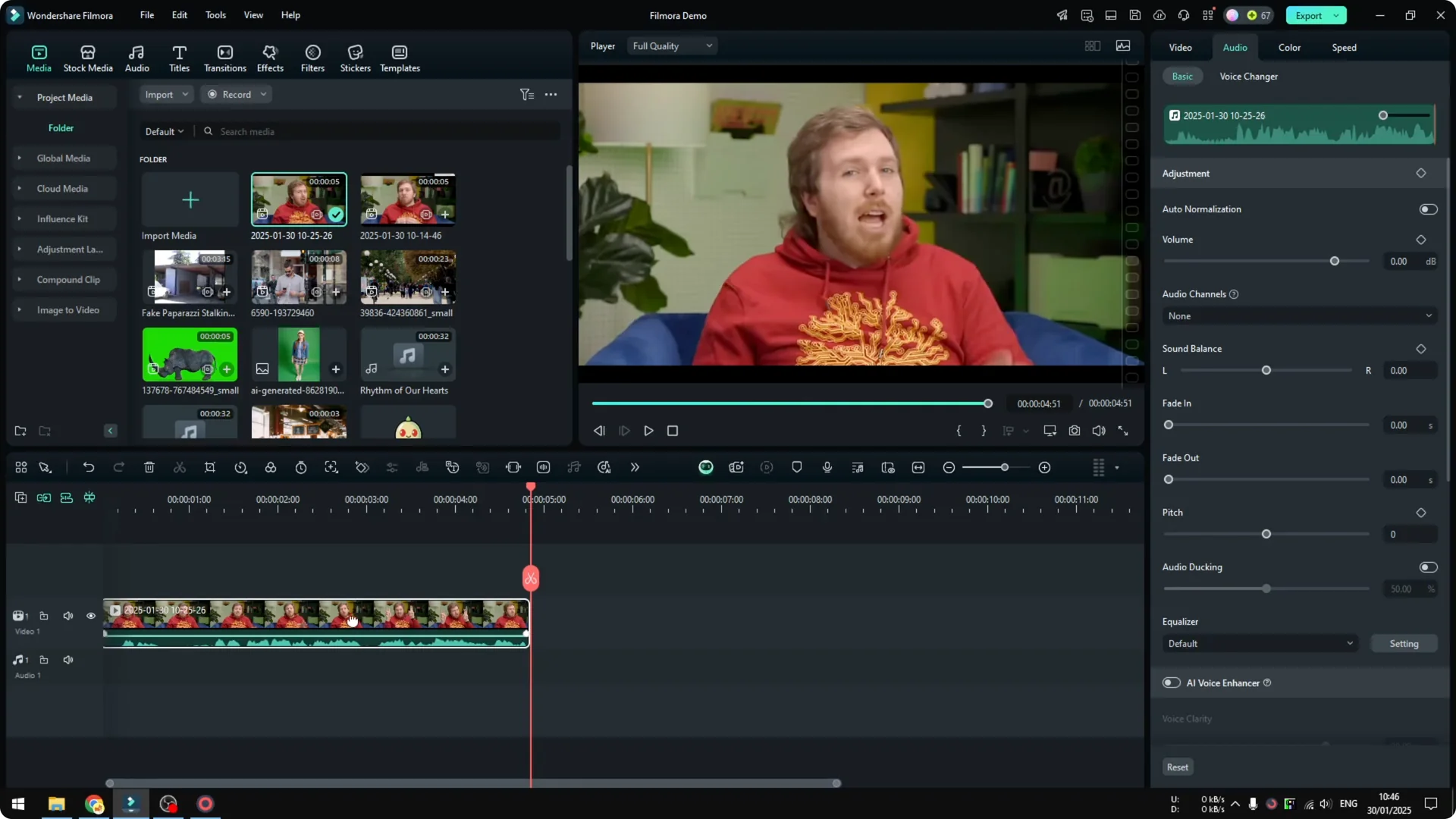
If your footage is shaky, you can stabilize it with AI inside Filmora. For a quick walkthrough, check this AI stabilization guide.
Getting started with Filmora AI Video Translation
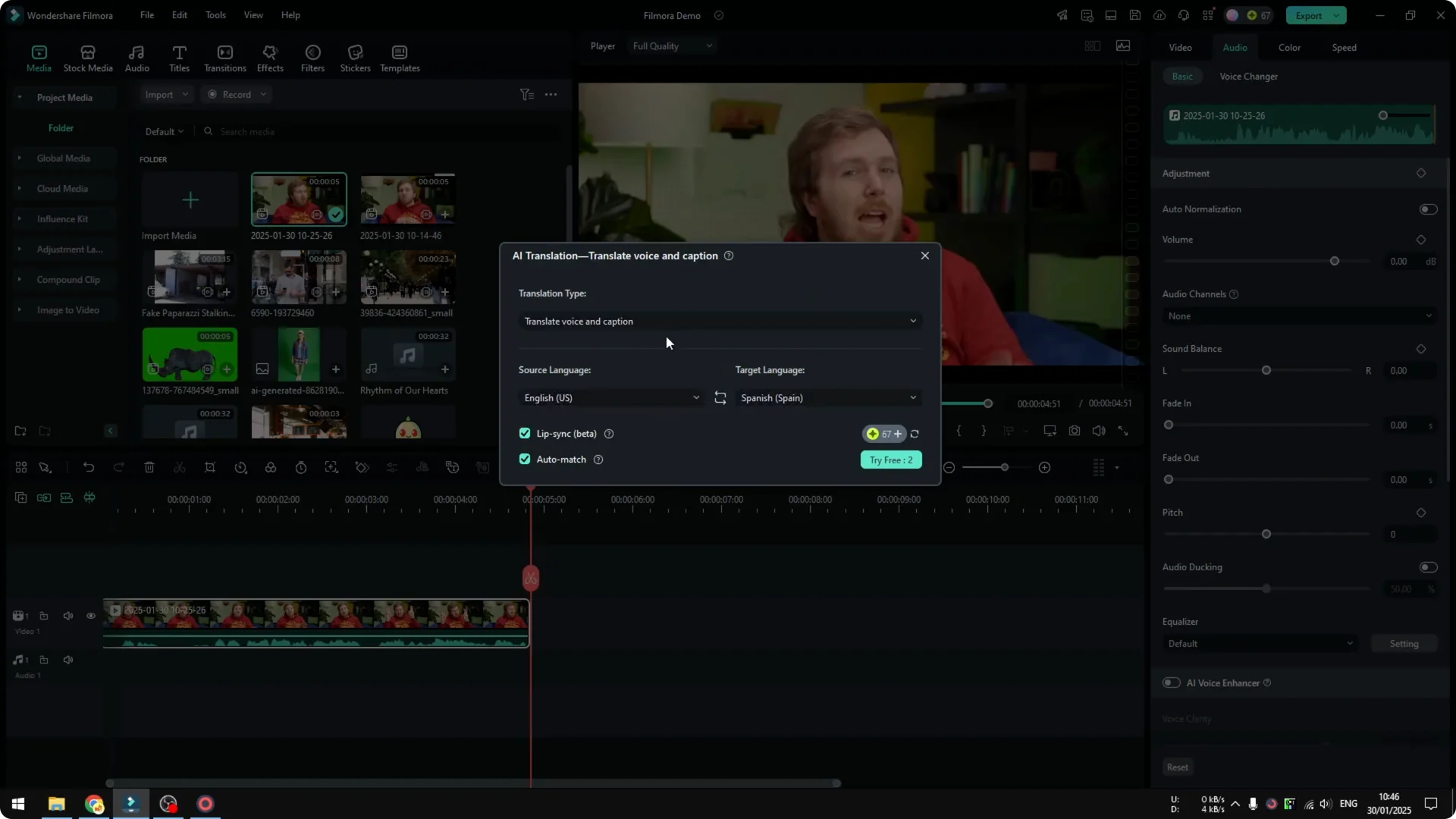
You will see a box for the translation settings. For the source language, pick the language in your video, for me that is English. For the target language, select what you want, for example Spanish.
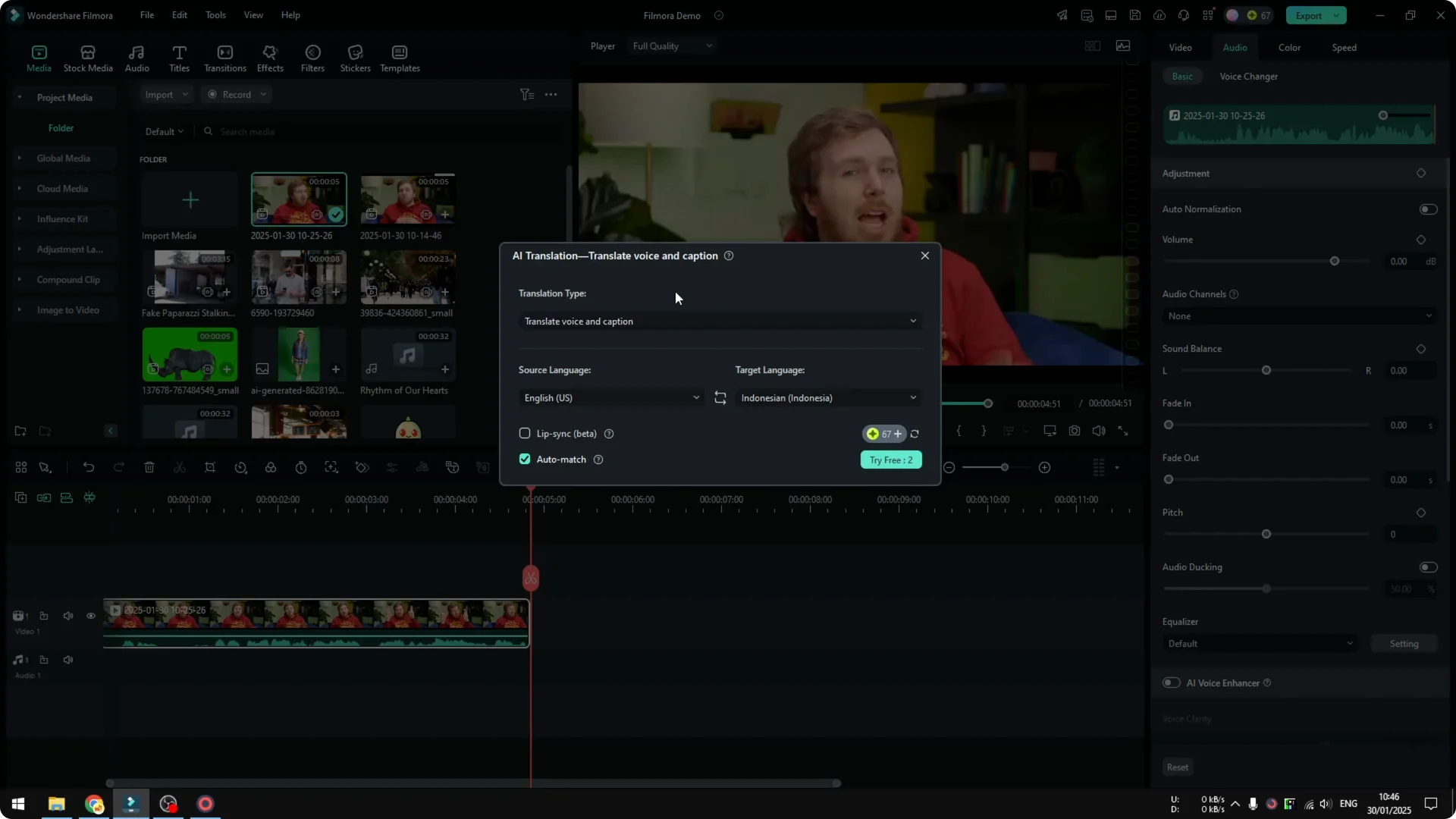
Set languages in Filmora AI Video Translation
Confirm the source and target languages carefully. Filmora will translate the dialogue based on these settings. Picking the correct source language helps accuracy.
Enable lip sync in Filmora AI Video Translation
There is a lip sync feature, and it is still in beta. It might not be perfect, but I am eager to try it. Turn on lip sync before you start.
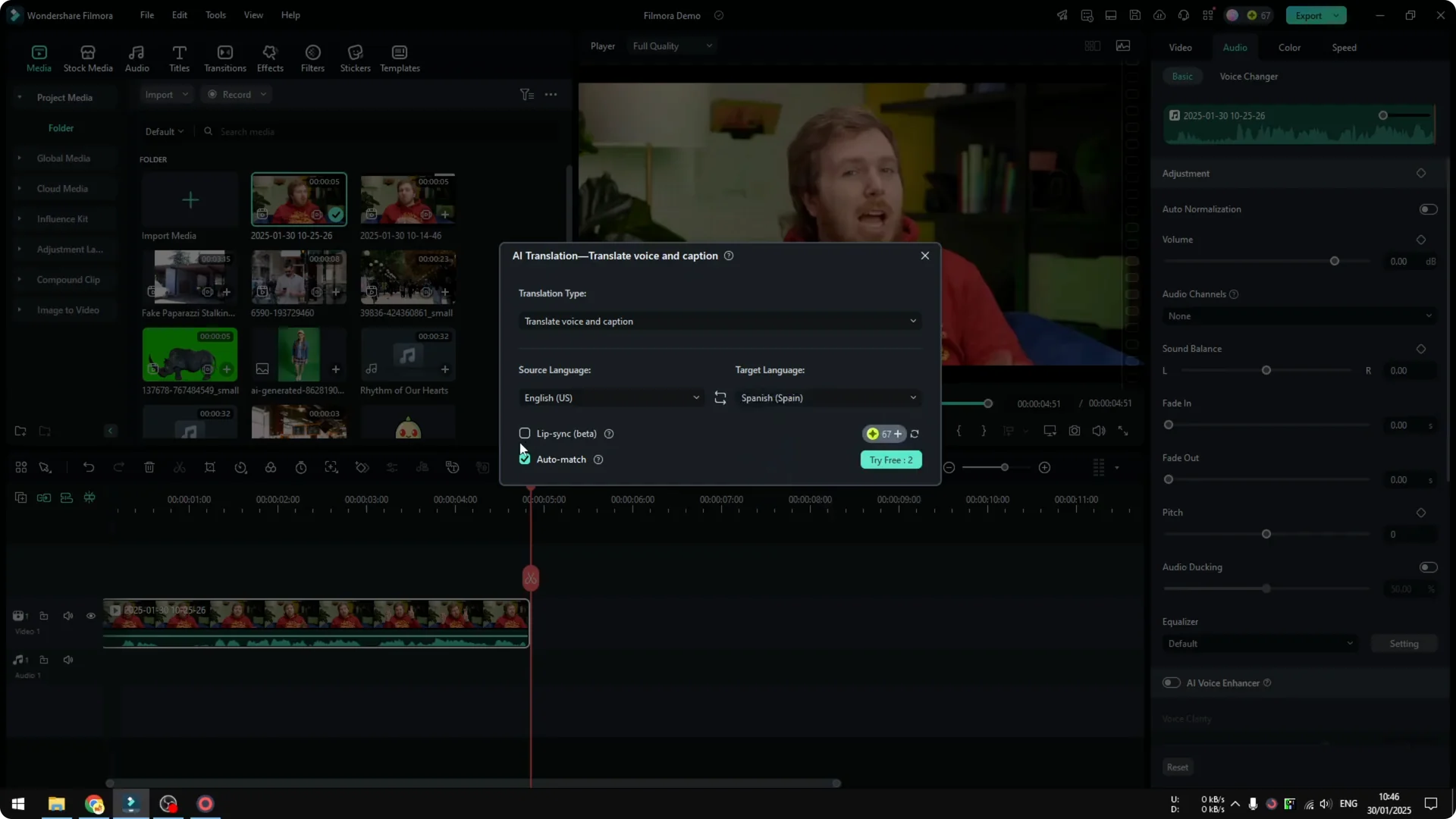
Click the button to start translating the video. Wait until it finishes. It uploads the video to the cloud, processes it, and returns the translated version.
Processing time depends on your connection and the size of the video. In my test, it finished in under five minutes for a short clip. That was a pleasant surprise.
If you want a smooth slow motion segment ready while it processes, you can set that up with Filmora AI. See this quick guide on turning any video to slow motion.
Timeline changes after Filmora AI Video Translation
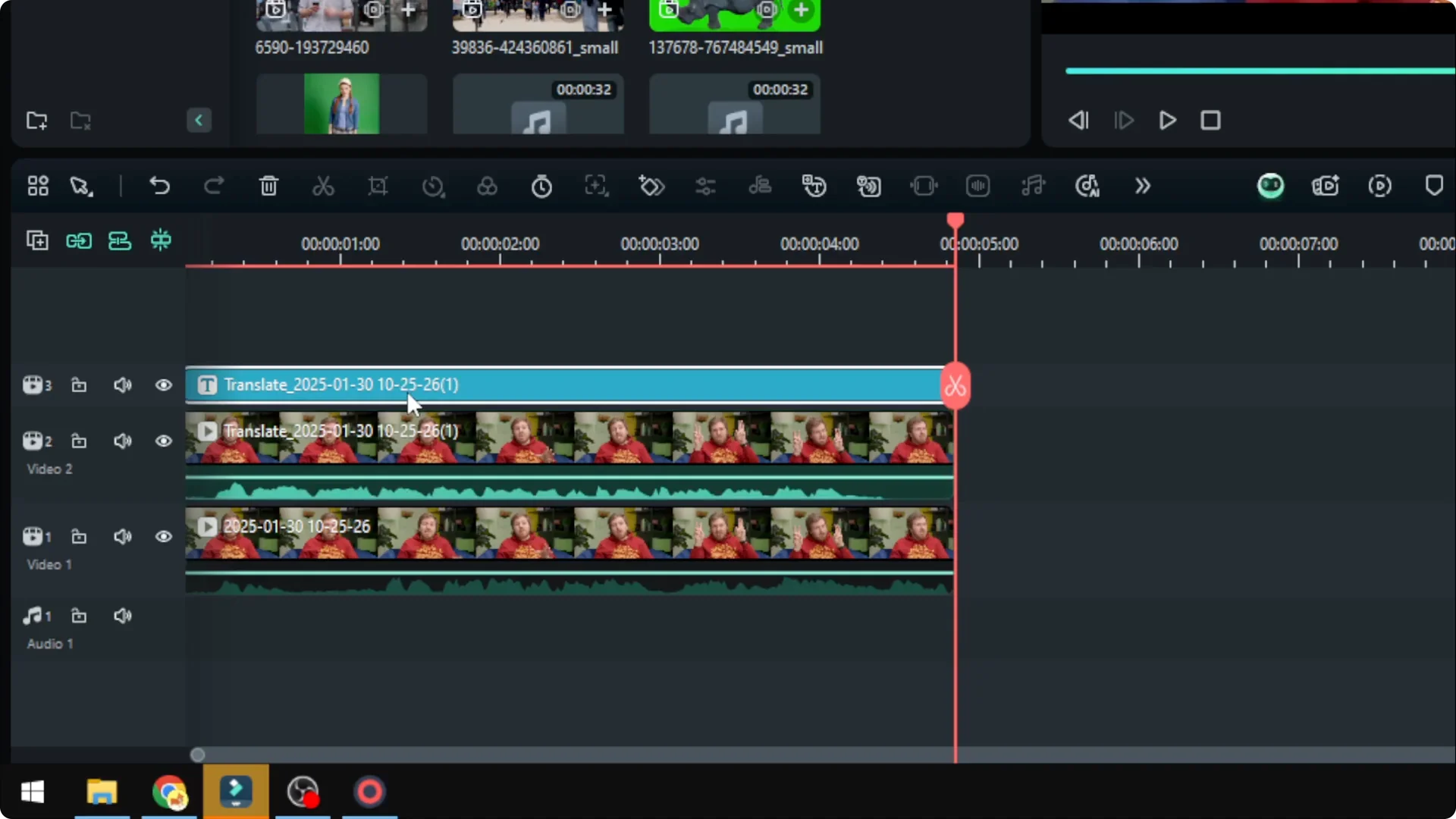
The translated result is applied to the timeline automatically. Filmora mutes the original audio track for you. You get the new language audio ready to preview.
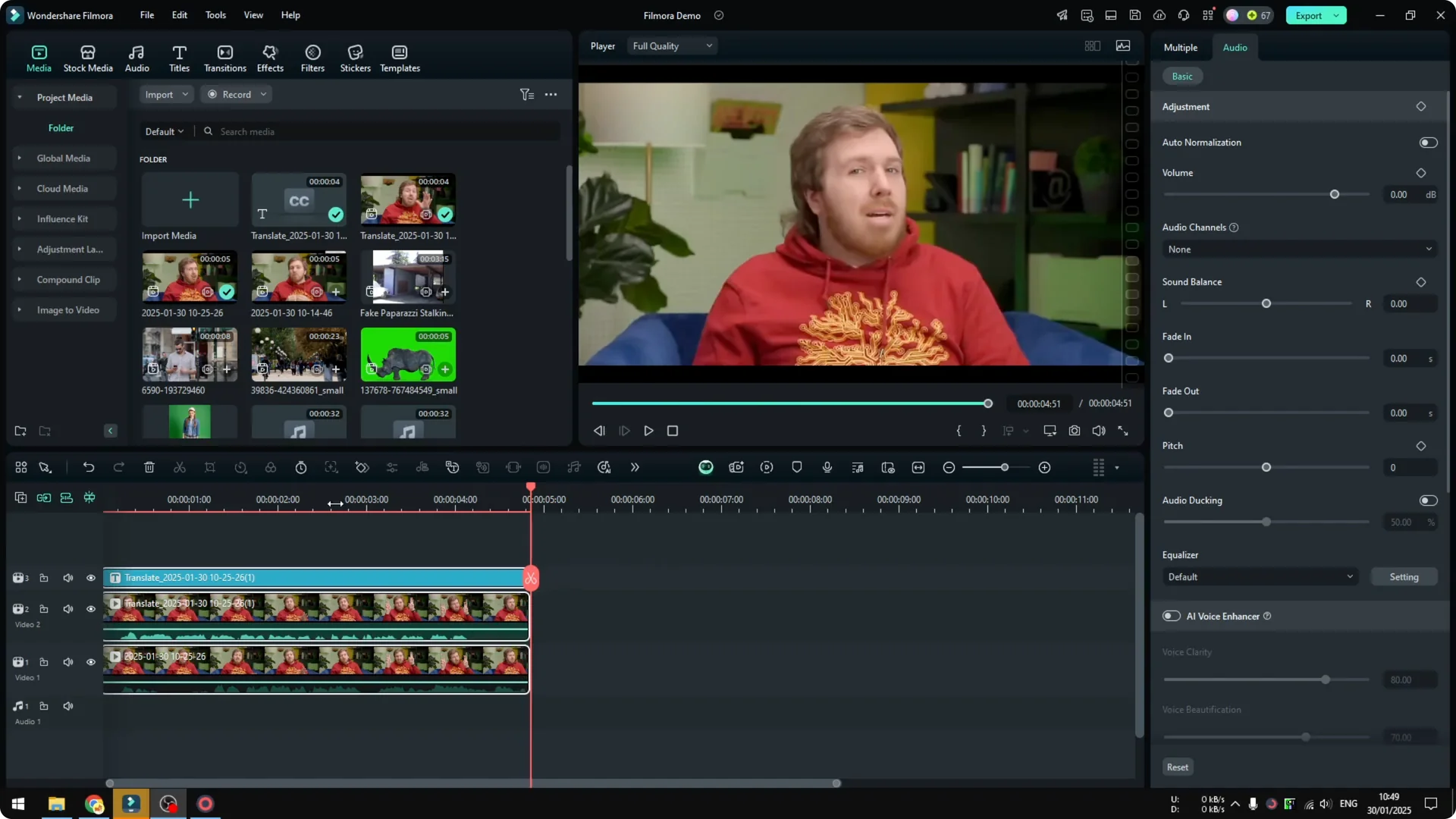
I also see two additions in my project. One appears to be text, and the other is the translated version of the video. If you prefer to generate narration, you can also try AI text to speech in Filmora.
Results and realism
On playback, I notice something a little weird about the mouth. It follows the words almost perfectly, but it is not fully there yet. It sits close to the uncanny valley.
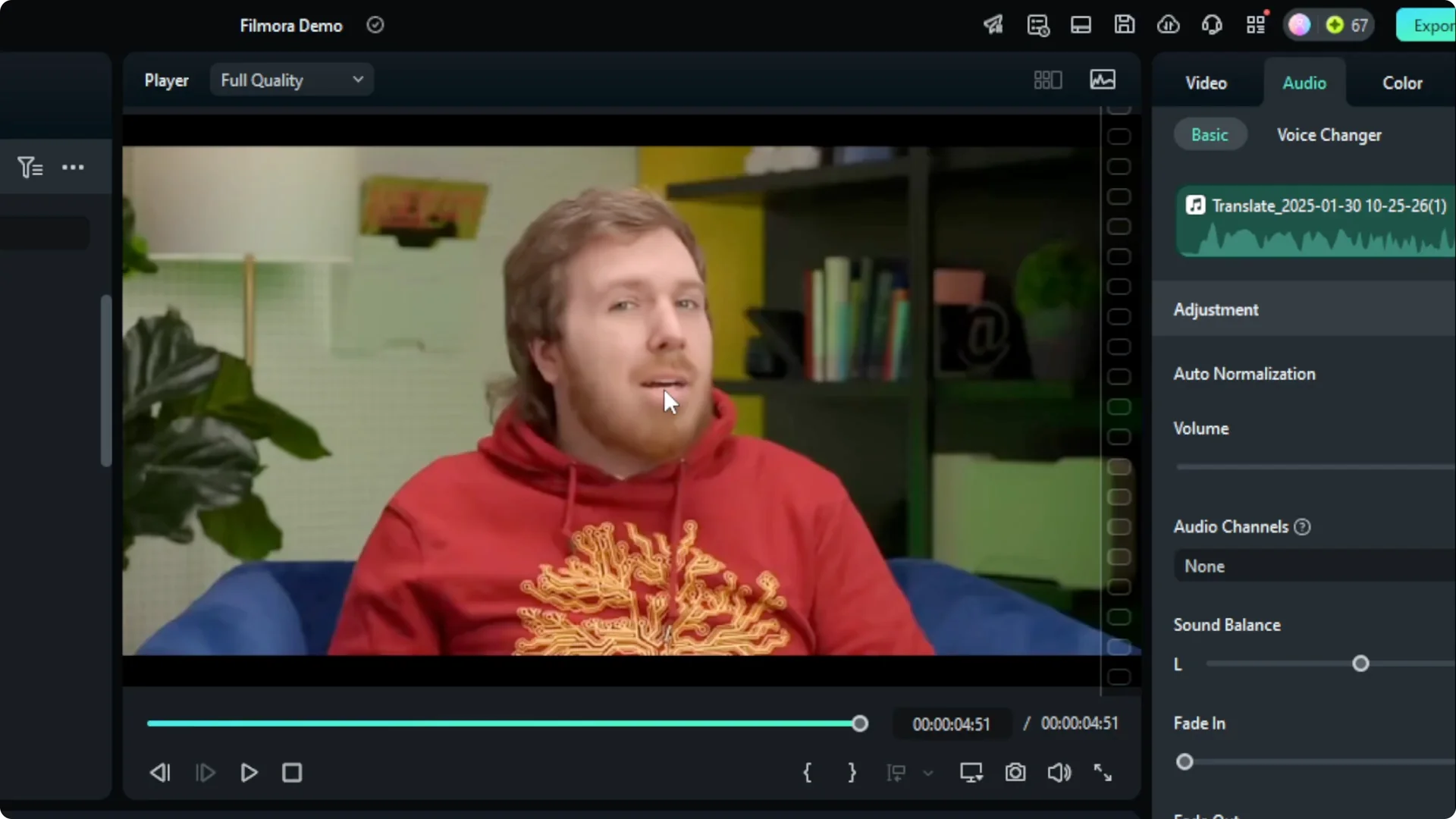
It reminds me of Henry Cavill’s mustache removal in Superman, where the mouth looks a bit off due to CGI. It is visible if you look closely. If you are okay with that compromise, the results are really good.
Final thoughts
I call it a win. This is an amazing feature if you want to share a video with people who do not speak your language. I recommend using Filmora AI translation when you need fast multilingual versions.