How to Use Quick Split Tool in Filmora to Cut Video

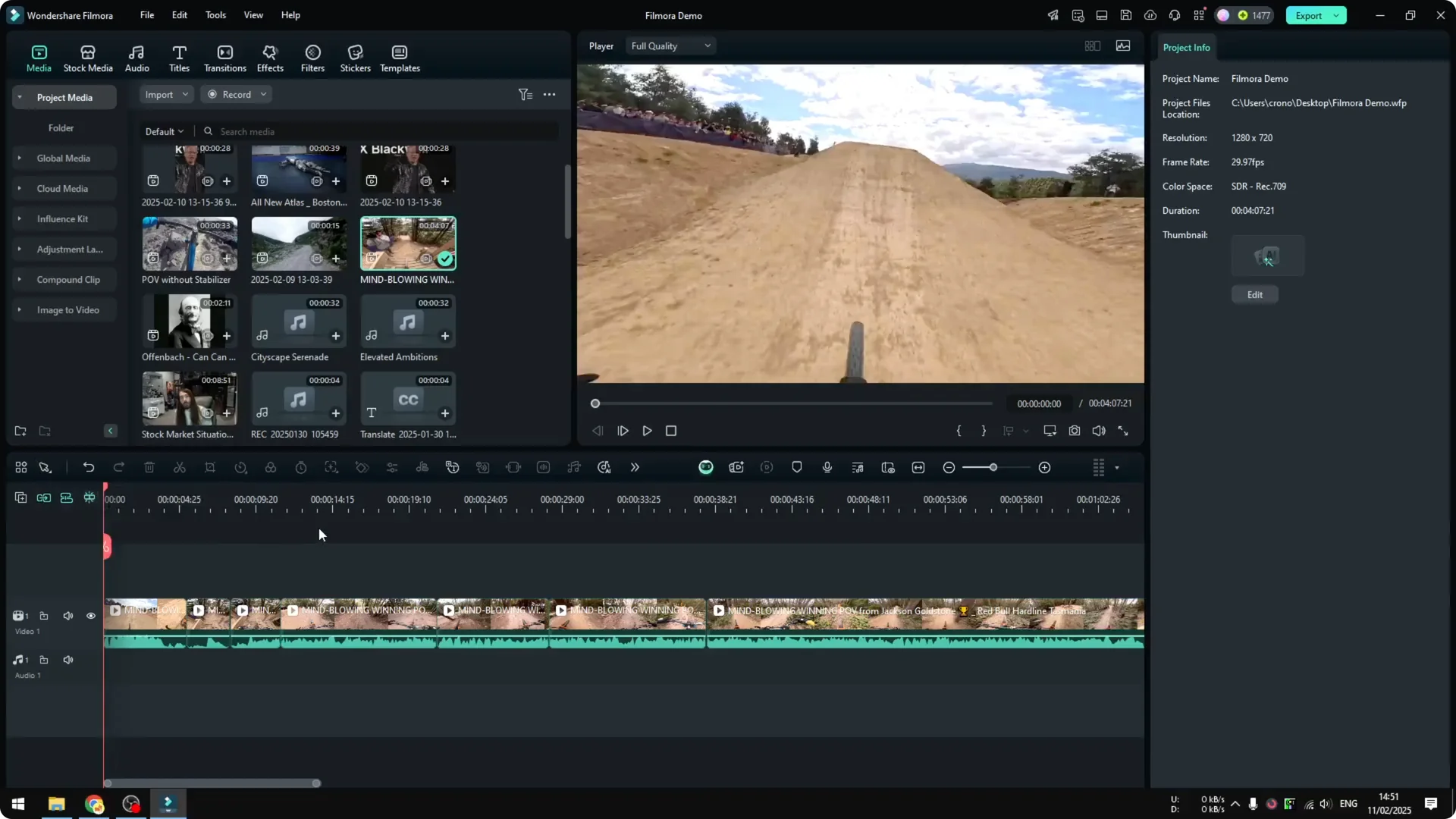
This is how you can use the Filmora Quick Split Tool to easily and quickly split your clip with a simple click. You have the opportunity to preview the frame, so you will know which part of the video you just split.

Filmora Quick Split Tool: Step-by-Step

Enable Quick Split Mode
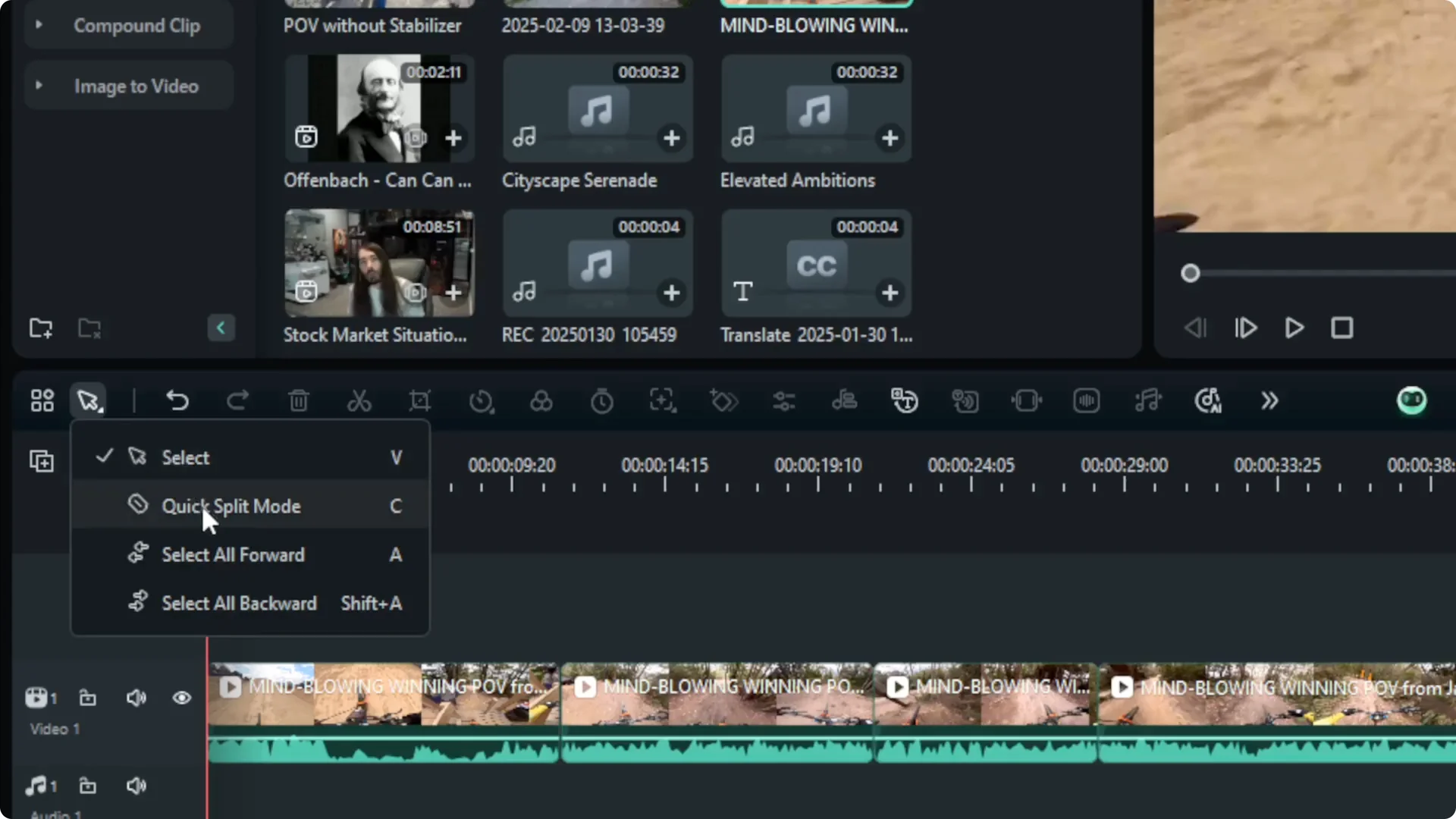
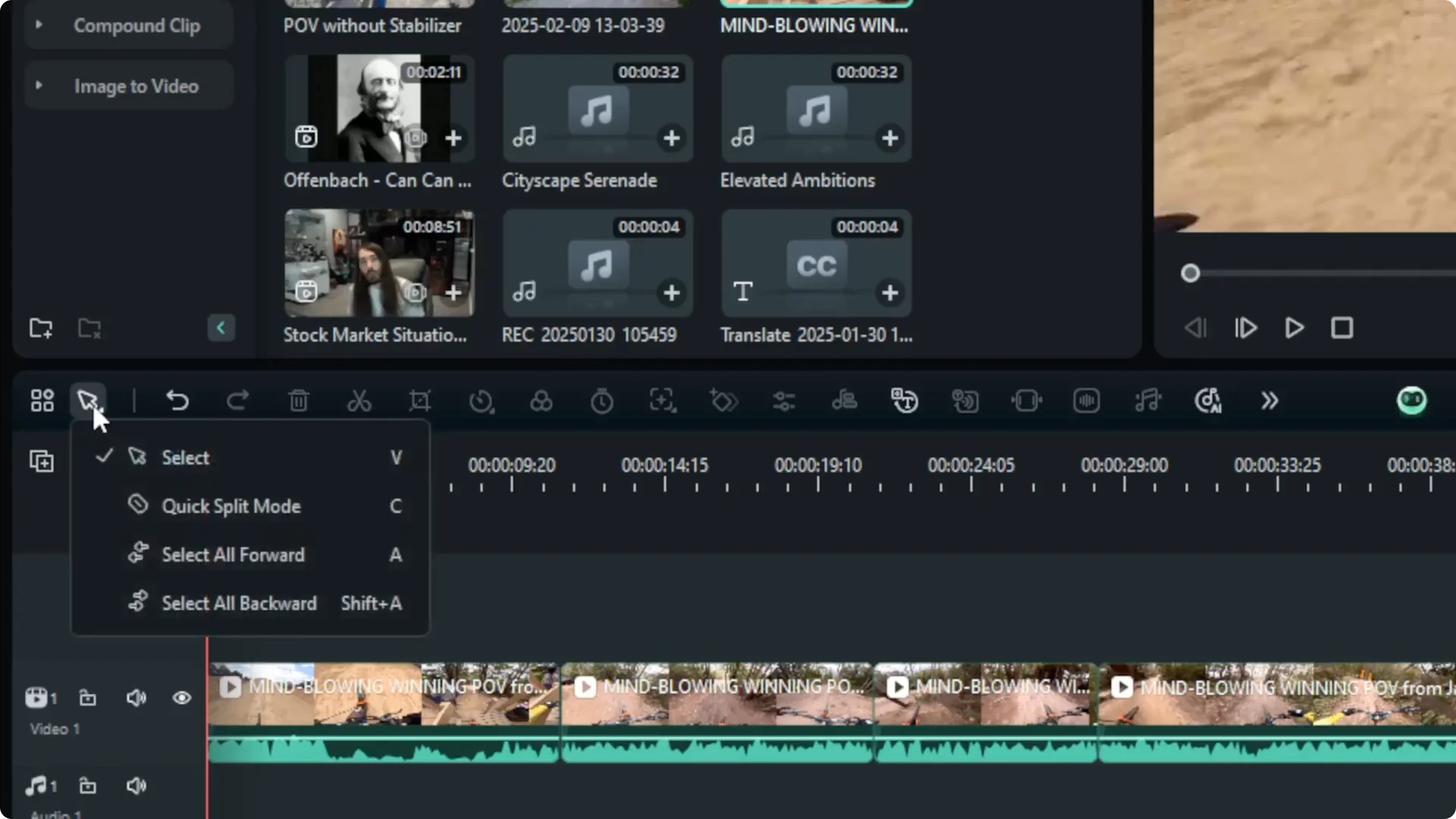
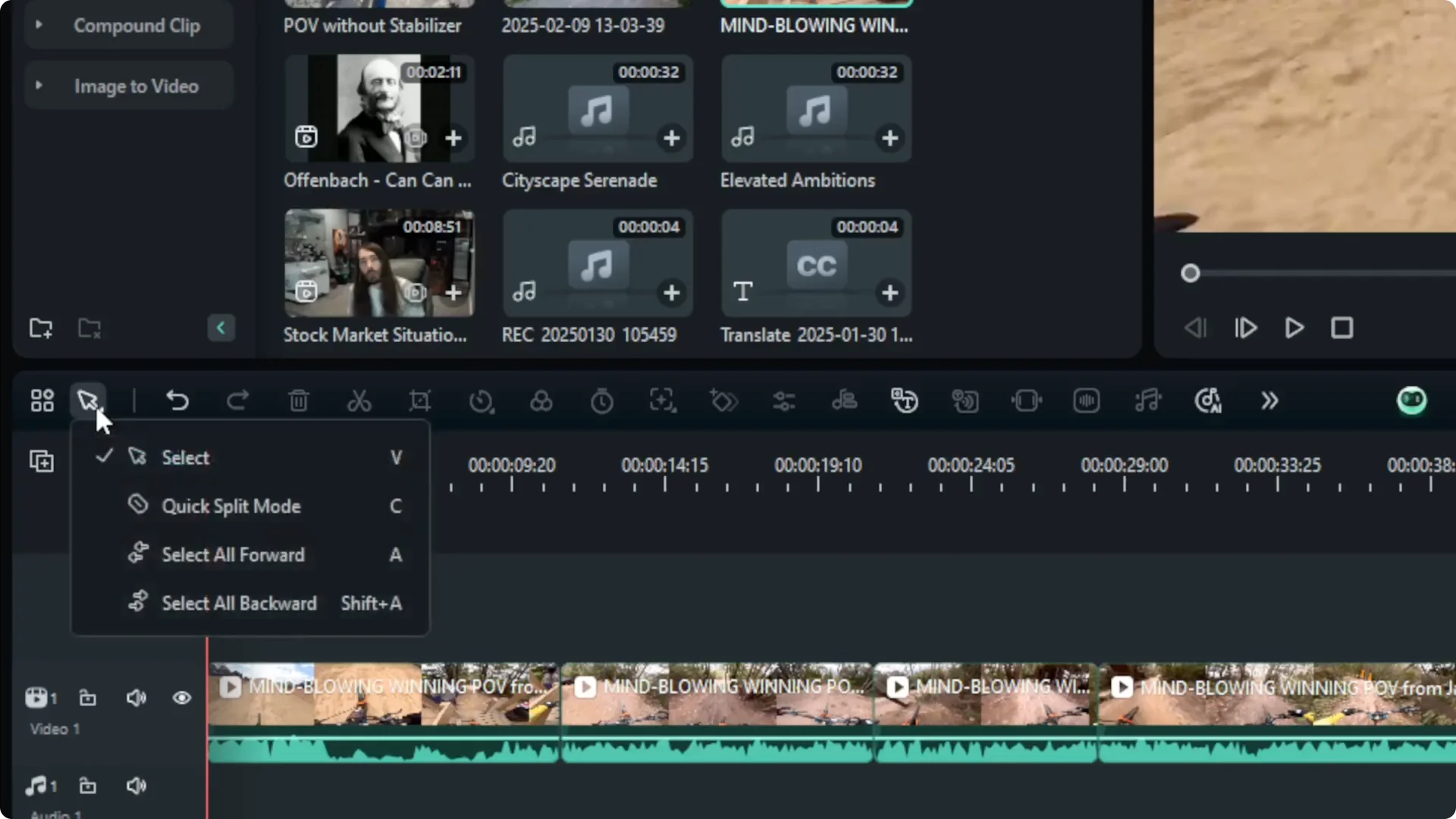
  • Click the cursor icon to reveal the menus.
  • Click Quick Split Mode, or use the keyboard shortcut C to enable it.
  • How to Use Quick Split Tool in Filmora to Cut Video screenshot 3

    How to Use Quick Split Tool in Filmora to Cut Video screenshot 2

    How to Use Quick Split Tool in Filmora to Cut Video screenshot 1

    Split the Clip with Frame Preview
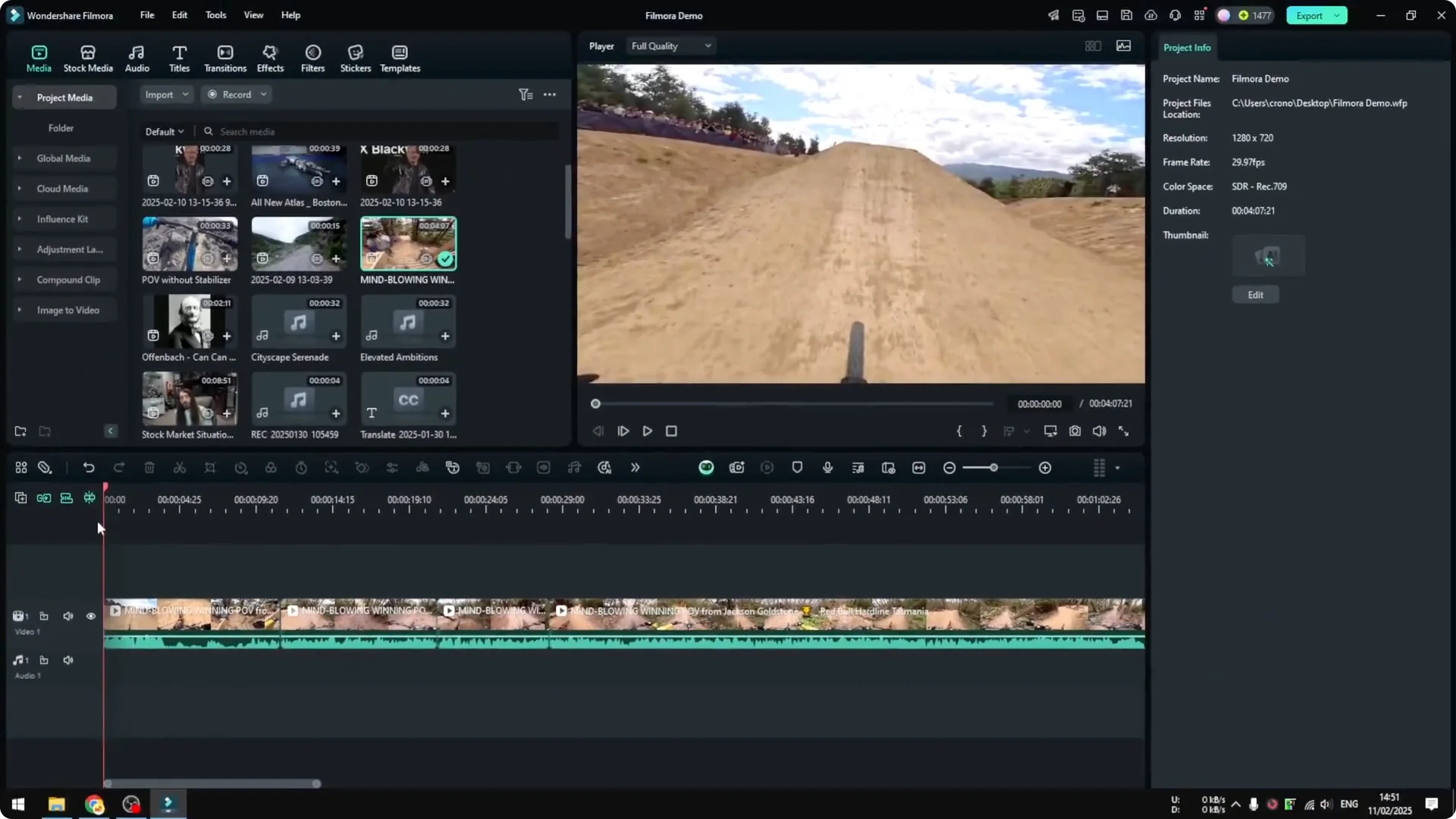
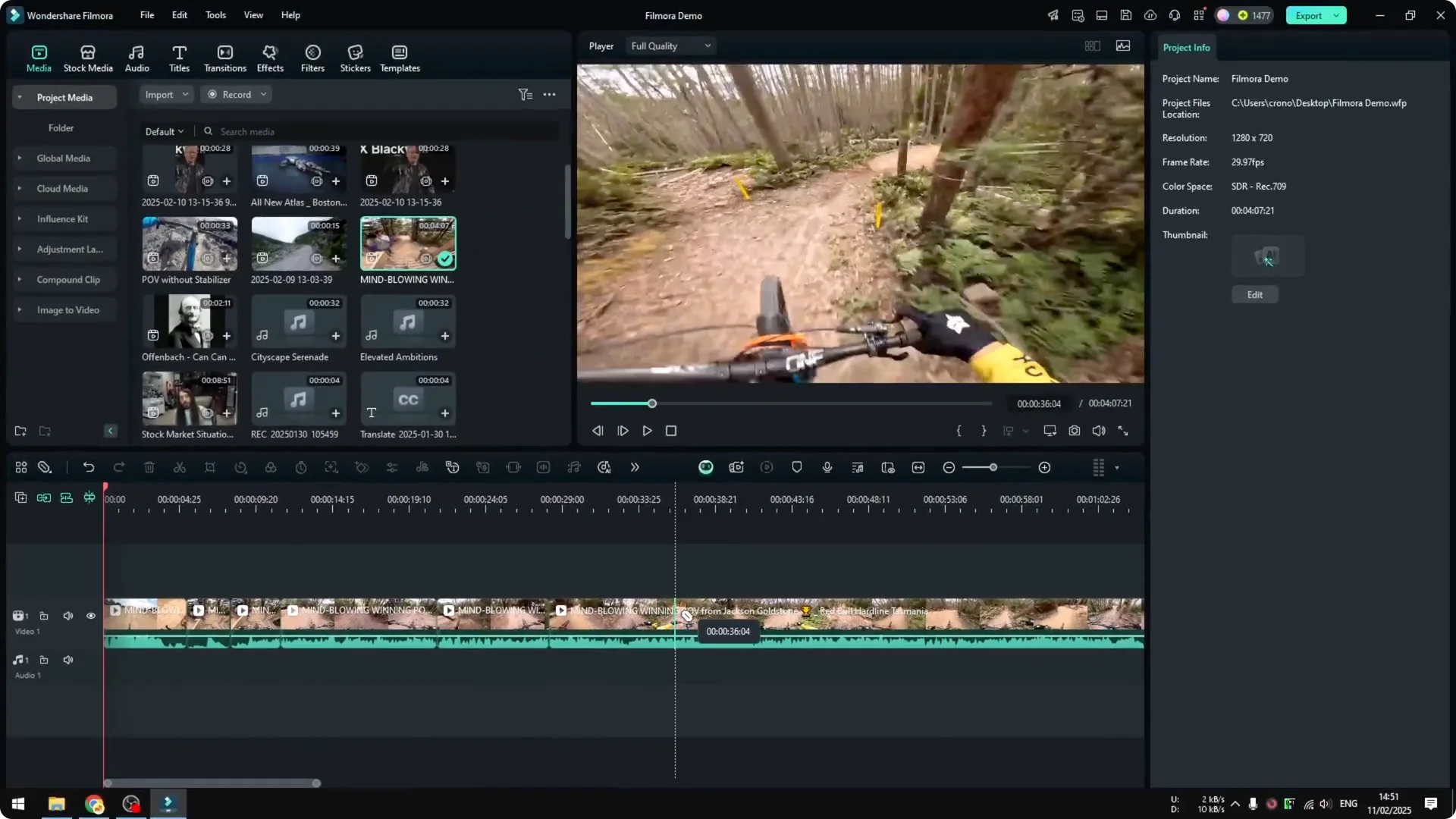
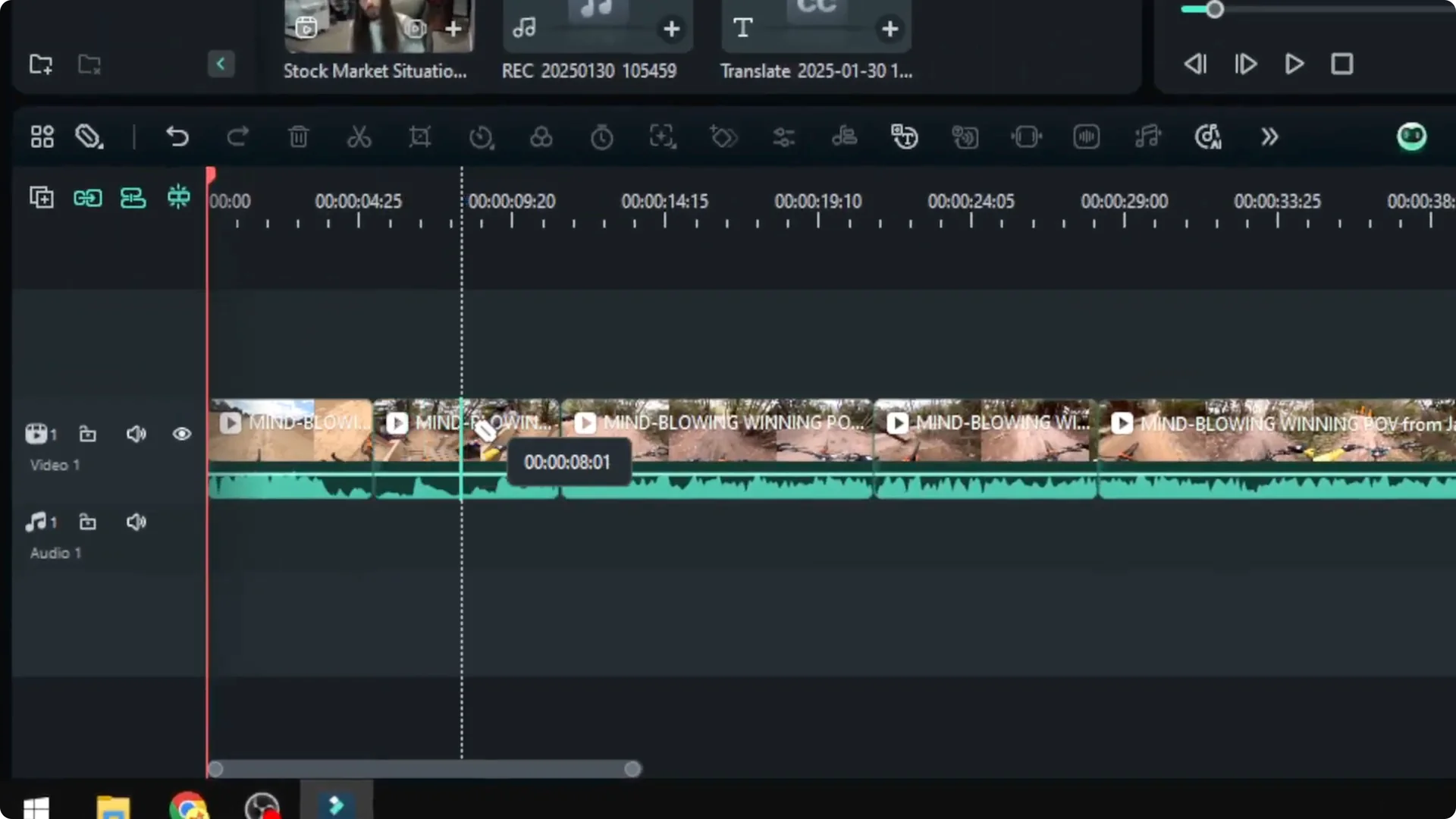
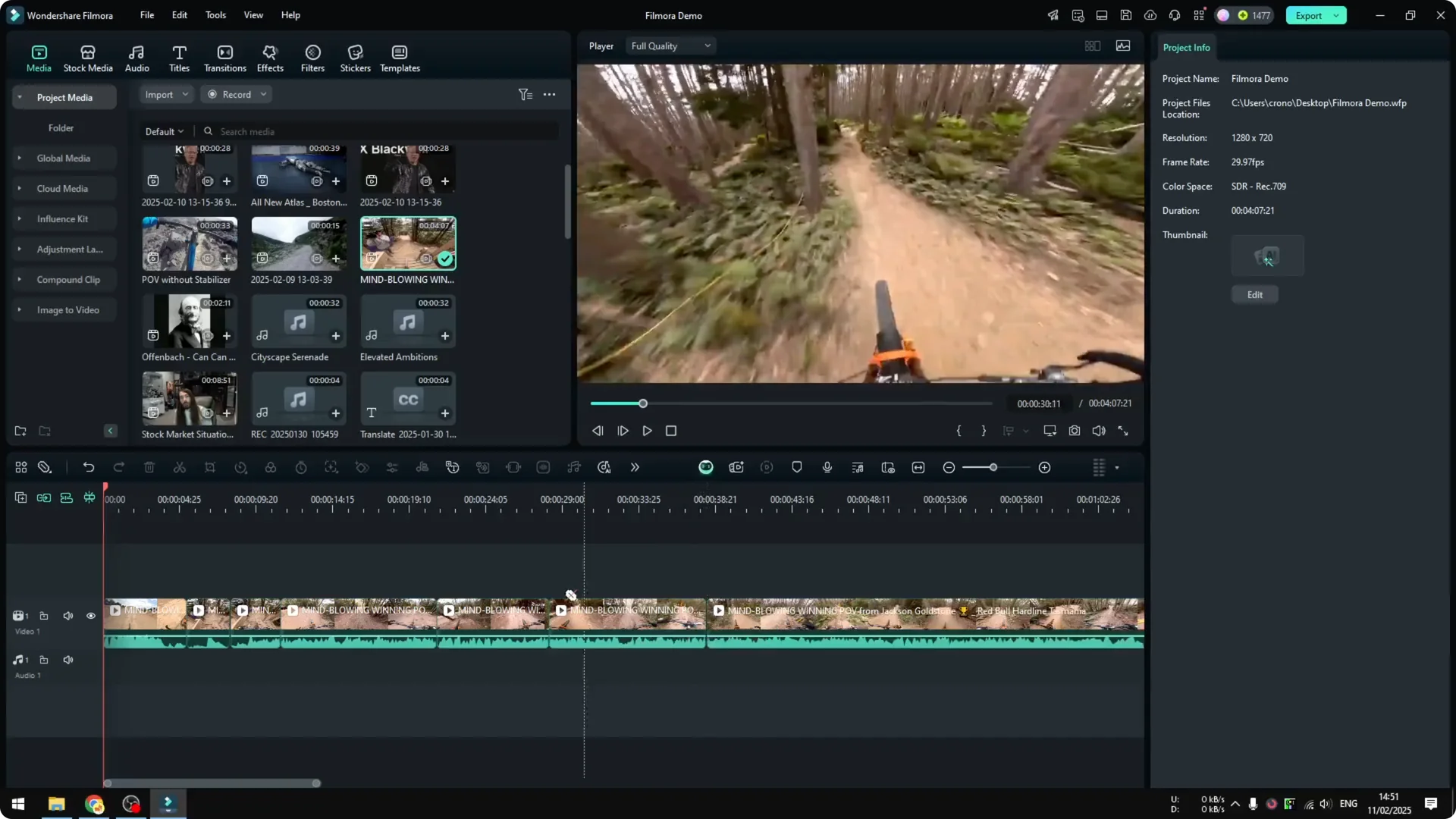
  • Click on the area you want to cut, and it will split the video.
  • It’s very simple. You can see what’s going on in the frame, so you can accurately split the part of the video.
  • How to Use Quick Split Tool in Filmora to Cut Video screenshot 6

    How to Use Quick Split Tool in Filmora to Cut Video screenshot 5

    How to Use Quick Split Tool in Filmora to Cut Video screenshot 4

    Return to Selection Mode

  • Go back to the same menu and enable the Select option, or use the keyboard key V to enable selection again.
  • How to Use Quick Split Tool in Filmora to Cut Video screenshot 8

    How to Use Quick Split Tool in Filmora to Cut Video screenshot 7

    Filmora Quick Split Tool: Result

    You will have multiple clips created from a single video clip.
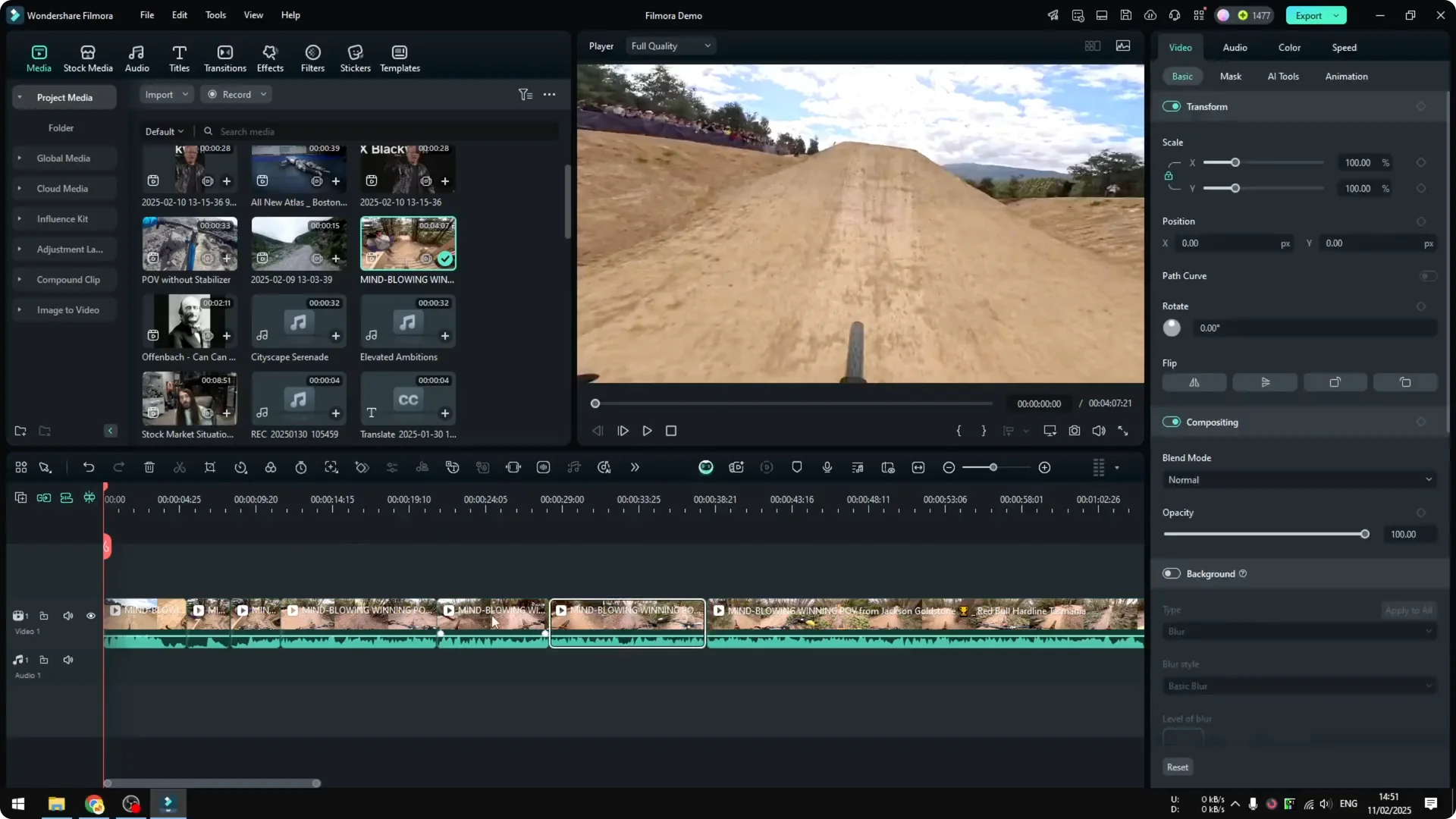
    How to Use Quick Split Tool in Filmora to Cut Video screenshot 9

    Final Thoughts

    That’s how you can use the quick split method in Filmora.

    Leave a comment