You generate an image in Higgsfield AI and want to convert it into a video or animation. It is easy to do and it works fast. Here is the simple workflow I use.
Getting started with Higgsfield AI Image-to-Video
Go to higgsfield.ai. Generate any image.
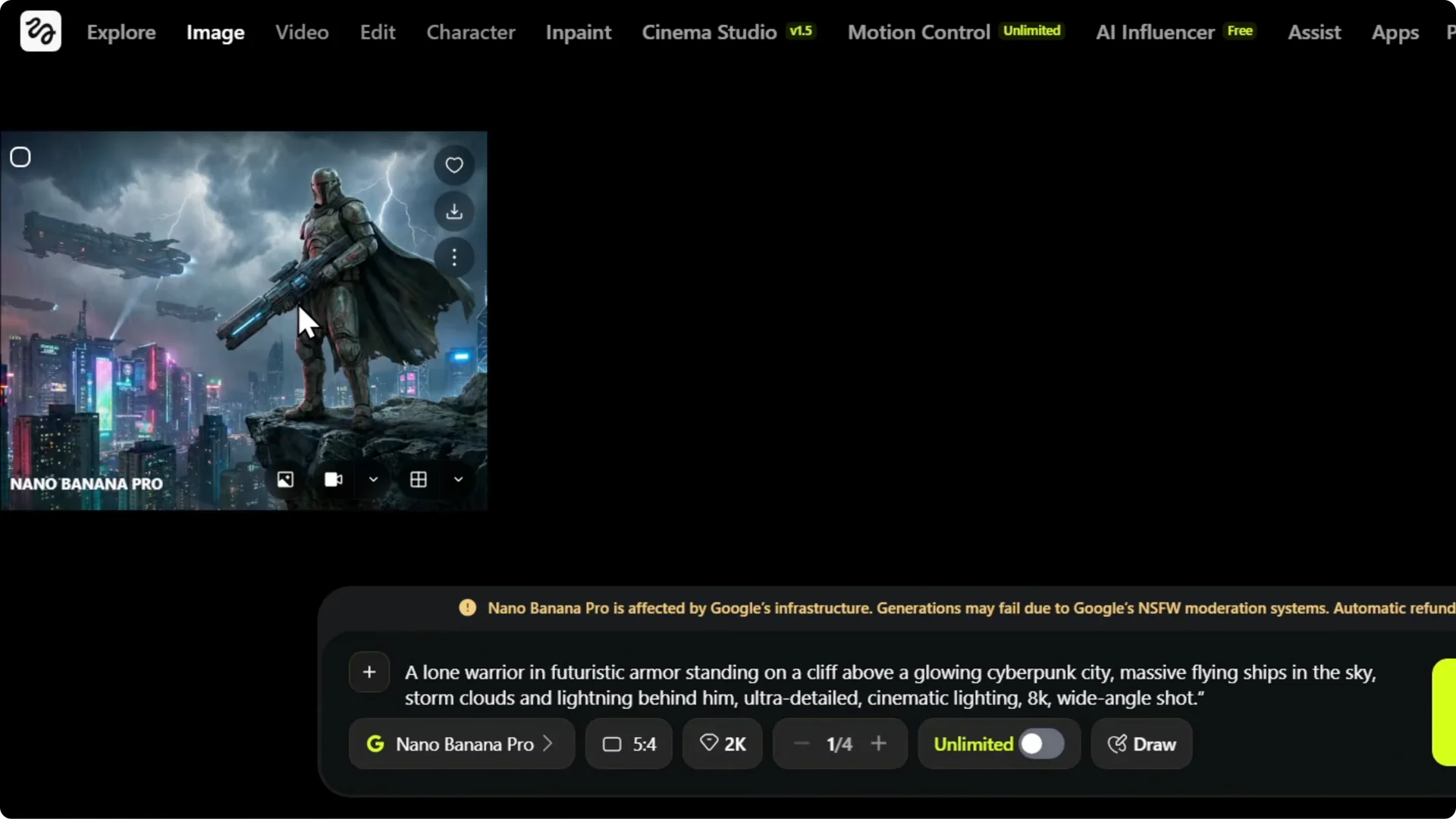
After you generate your image, hover over it and look for the video icon labeled Animate.
Click it, or click the image to expand it and choose Animate there. That opens the animation panel.
If you are still improving your base image, see this guide to create strong AI images in Higgsfield.
A cleaner starting image makes the animation look better. Then move on to the animation step.
Step-by-step
Step 1: Generate your image in Higgsfield AI. Use your preferred prompt and get the look you want. This becomes the source for the animation.
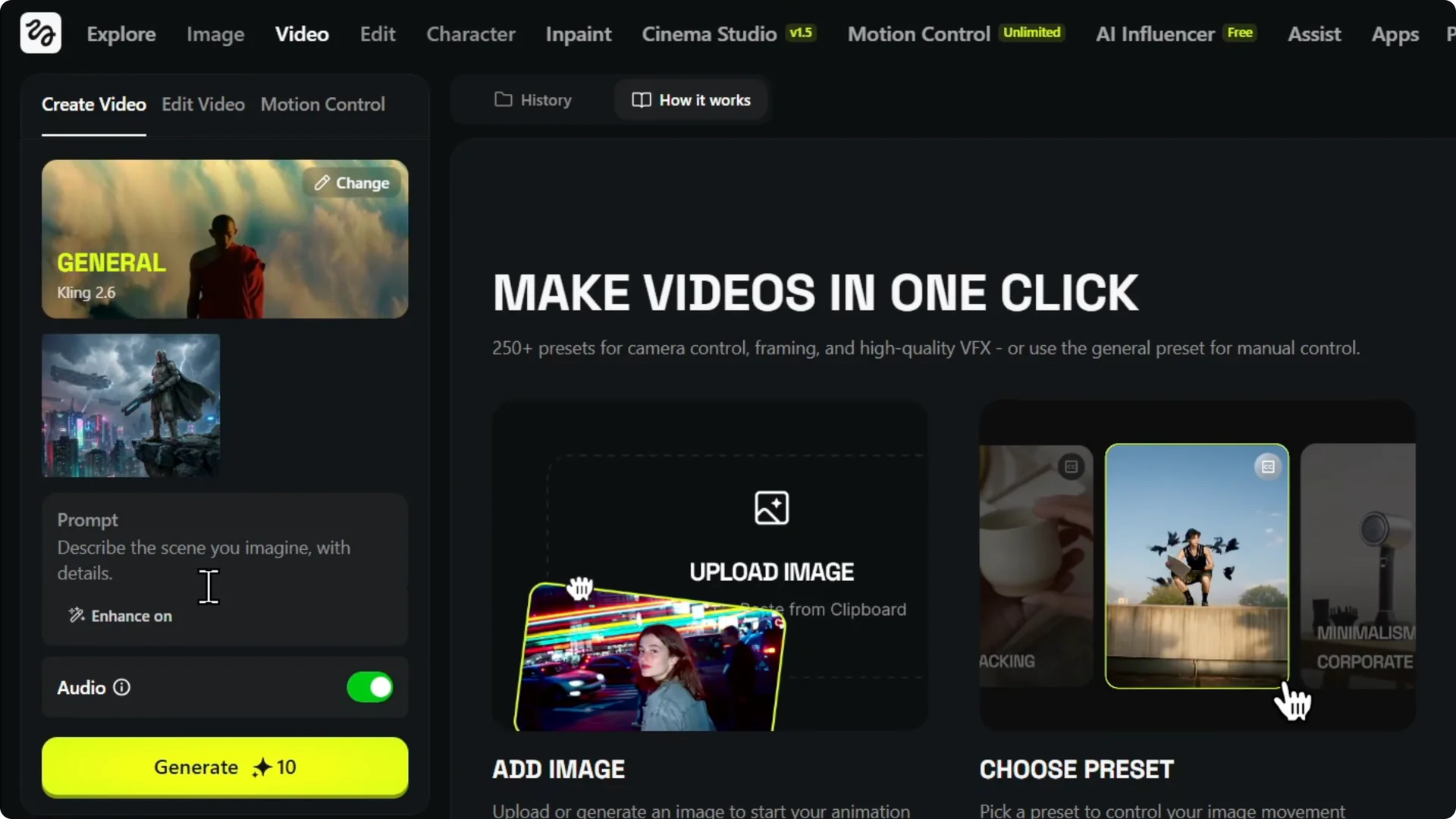
Step 2: Hover over the finished image and click Animate, or open the image and choose Animate. This brings up the animation prompt box. You are ready to describe the motion.
For more on turning images into videos and what to expect, see this Higgsfield AI image-to-video walkthrough. It covers the flow from prompt to output in detail. It pairs well with the steps here.
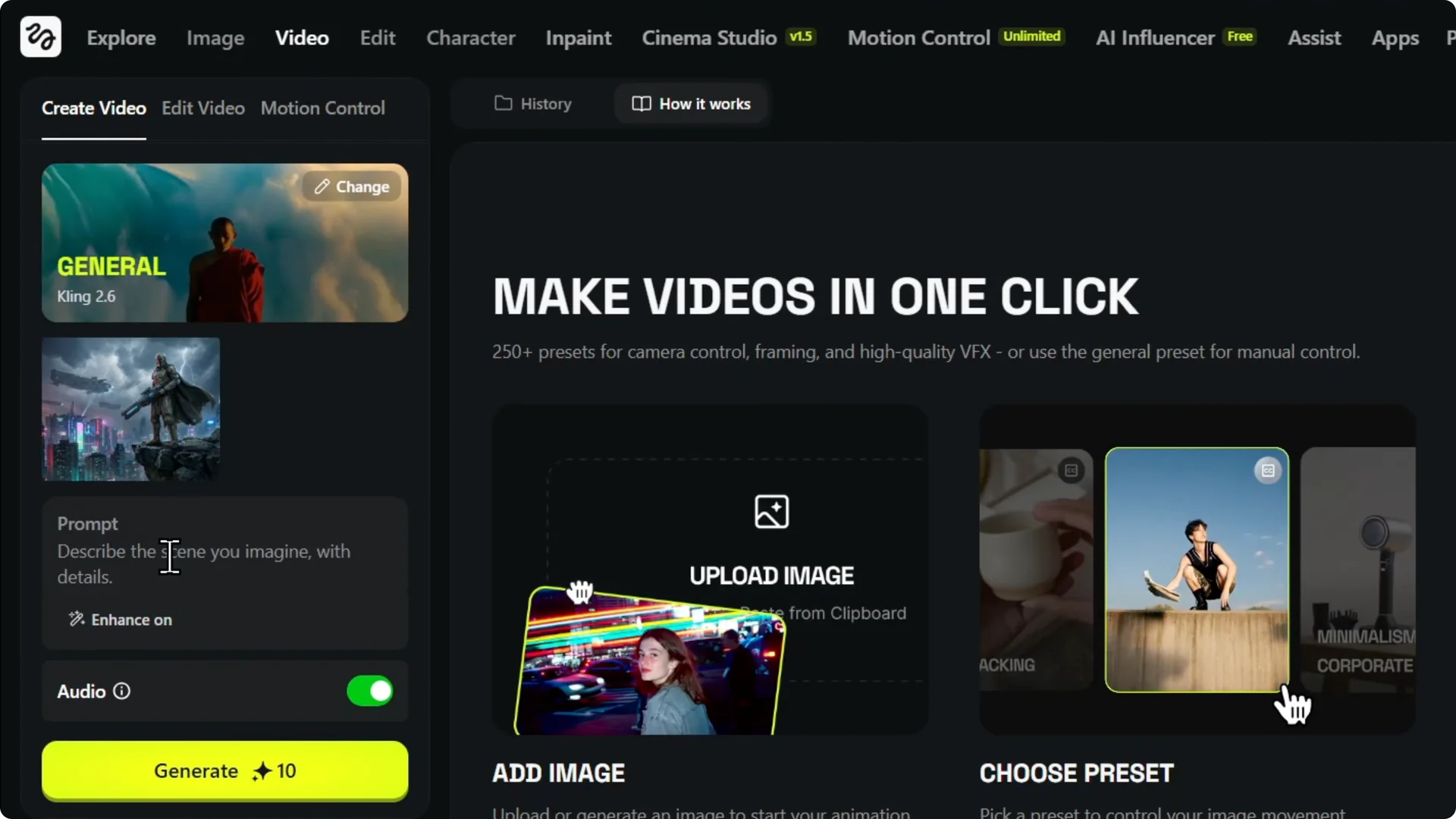
Step 3: In the prompt box, describe what you want the animation to do and the scene.
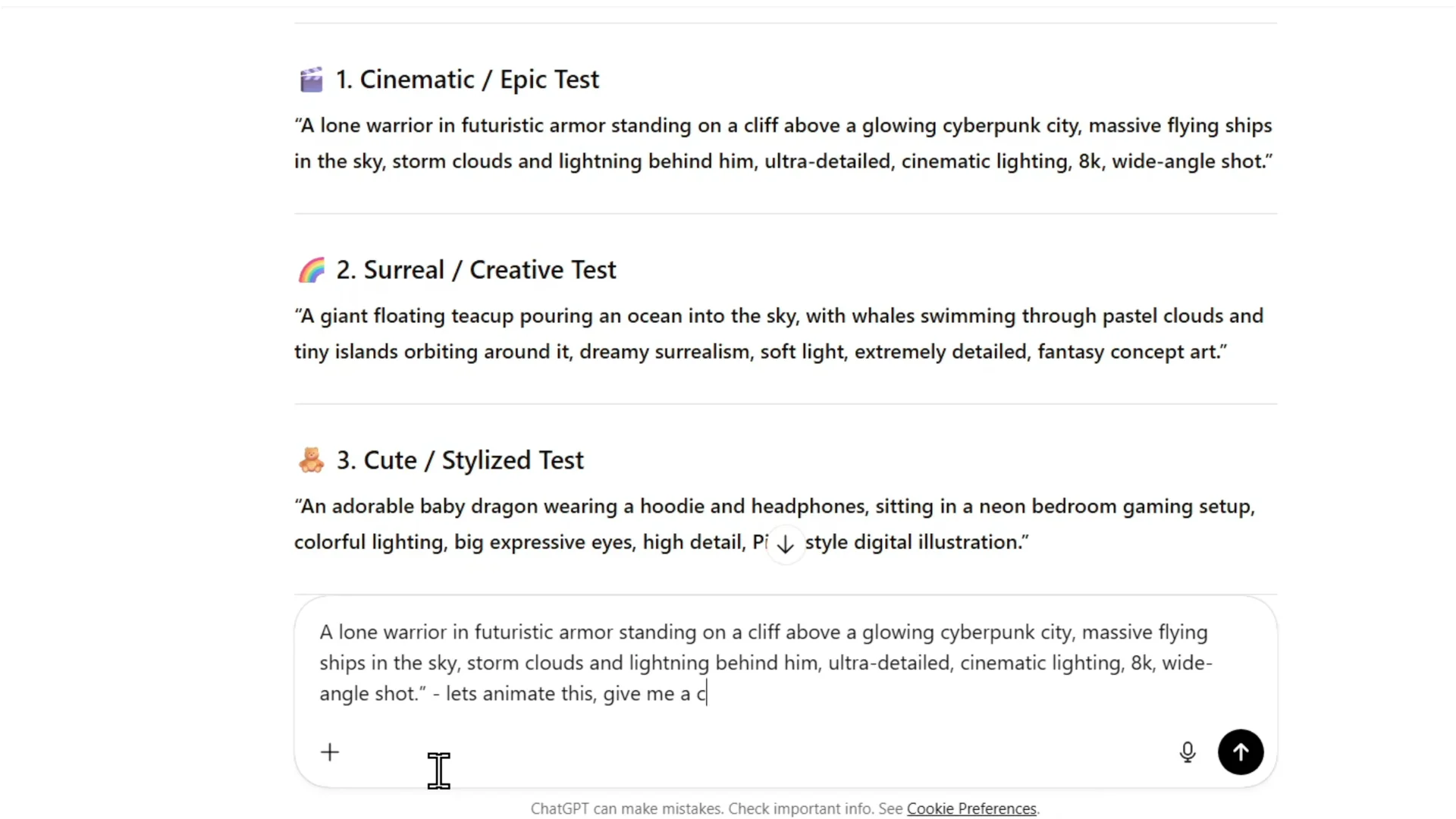
I sometimes take the same prompt I used to create the image and say to ChatGPT, “Let’s animate this. Give me a prompt,” then paste that into Higgsfield.
Step 4: Click Generate. It costs 10 credits. I run it to see what it does with the animation.
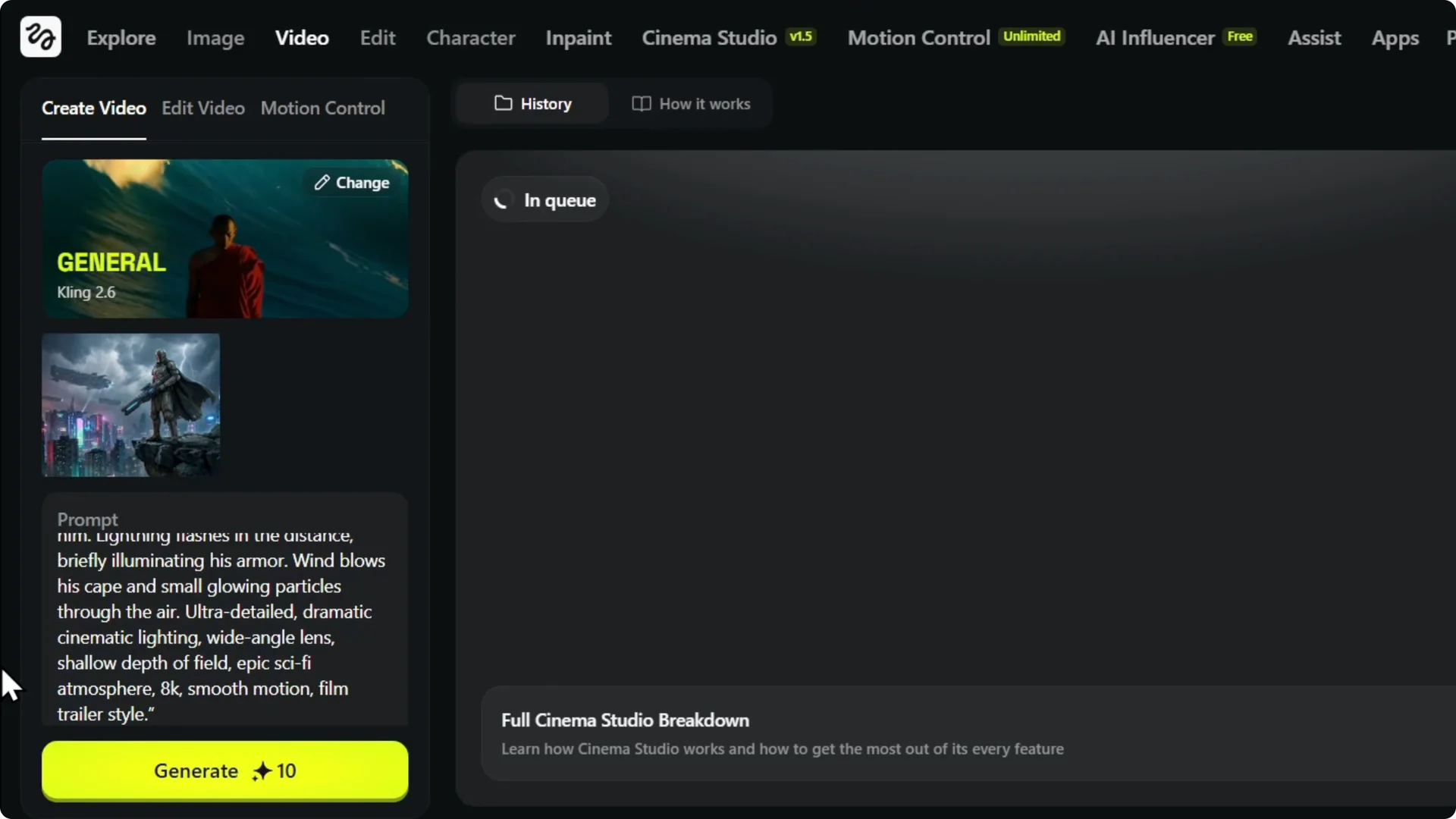
Step 5: Wait for rendering and check the result. I like to read through the prompt details and compare them to the video. This helps me decide what to adjust next.
Results with Higgsfield AI Image-to-Video
The animation finished quickly in my test. The result matched the detailed prompt and looked great. You can turn any image into a short video in just a few steps.
Read More: Upscale images in Higgsfield without quality loss. If you need sharper inputs for animation, this is helpful. It keeps your details crisp.
Final thoughts on Higgsfield AI Image-to-Video
If you generate images in Higgsfield AI, you can turn them into videos with just a few clicks. Write a clear animation prompt, pay the small credit cost, and let it render. Comparing the prompt to the output helps you iterate for even better results.