
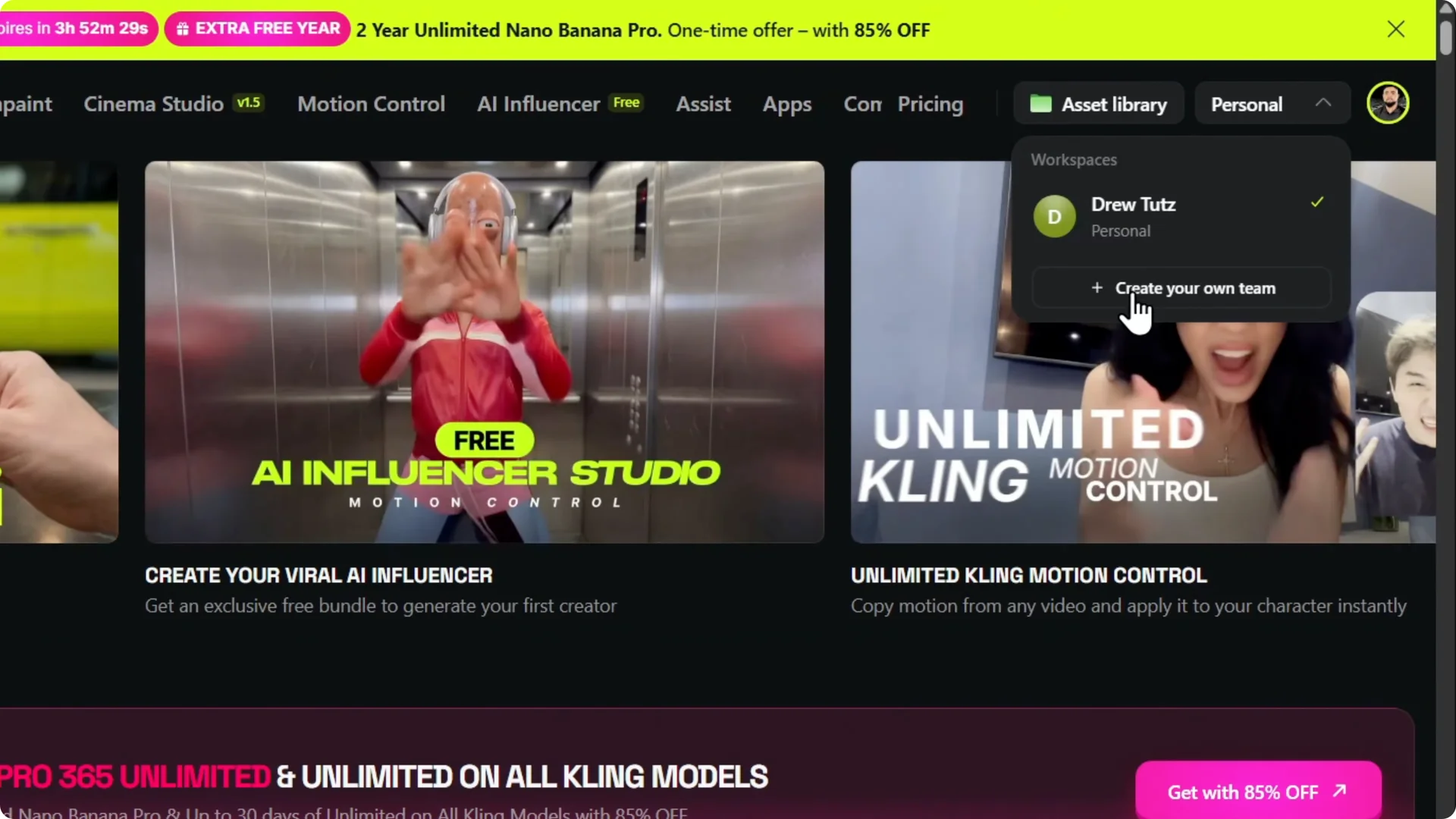
If you have the most expensive plan on Higgsfield, you can create a team. You can find the option under Personal in the upper right.
Click Create your team to get started.

Higgsfield will prompt you to choose the Teams Pro plan or the Enterprise plan.
For Enterprise you will need to contact Higgsfield.
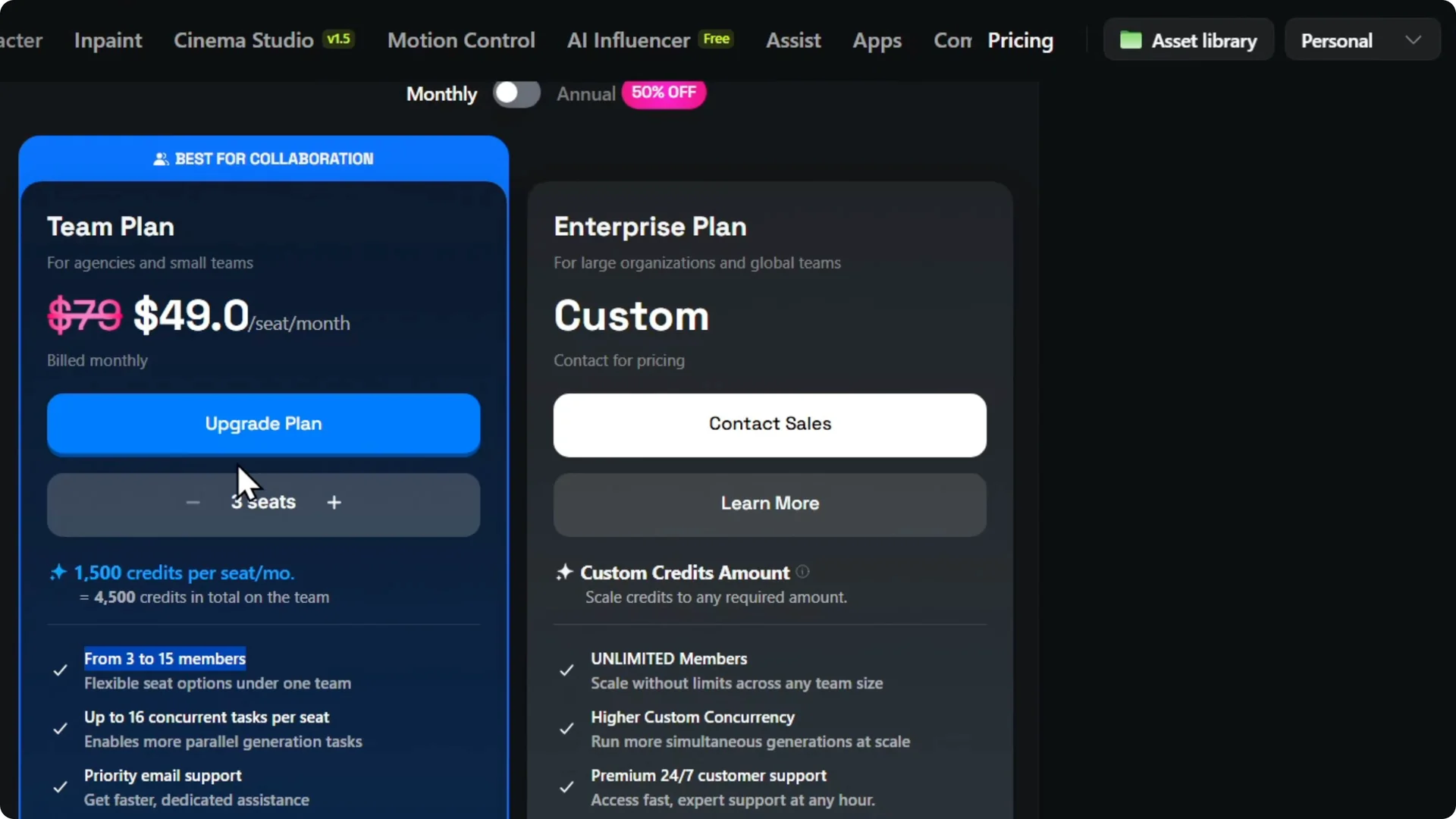
For Teams Pro you can pay 49 dollars per seat right on the page.
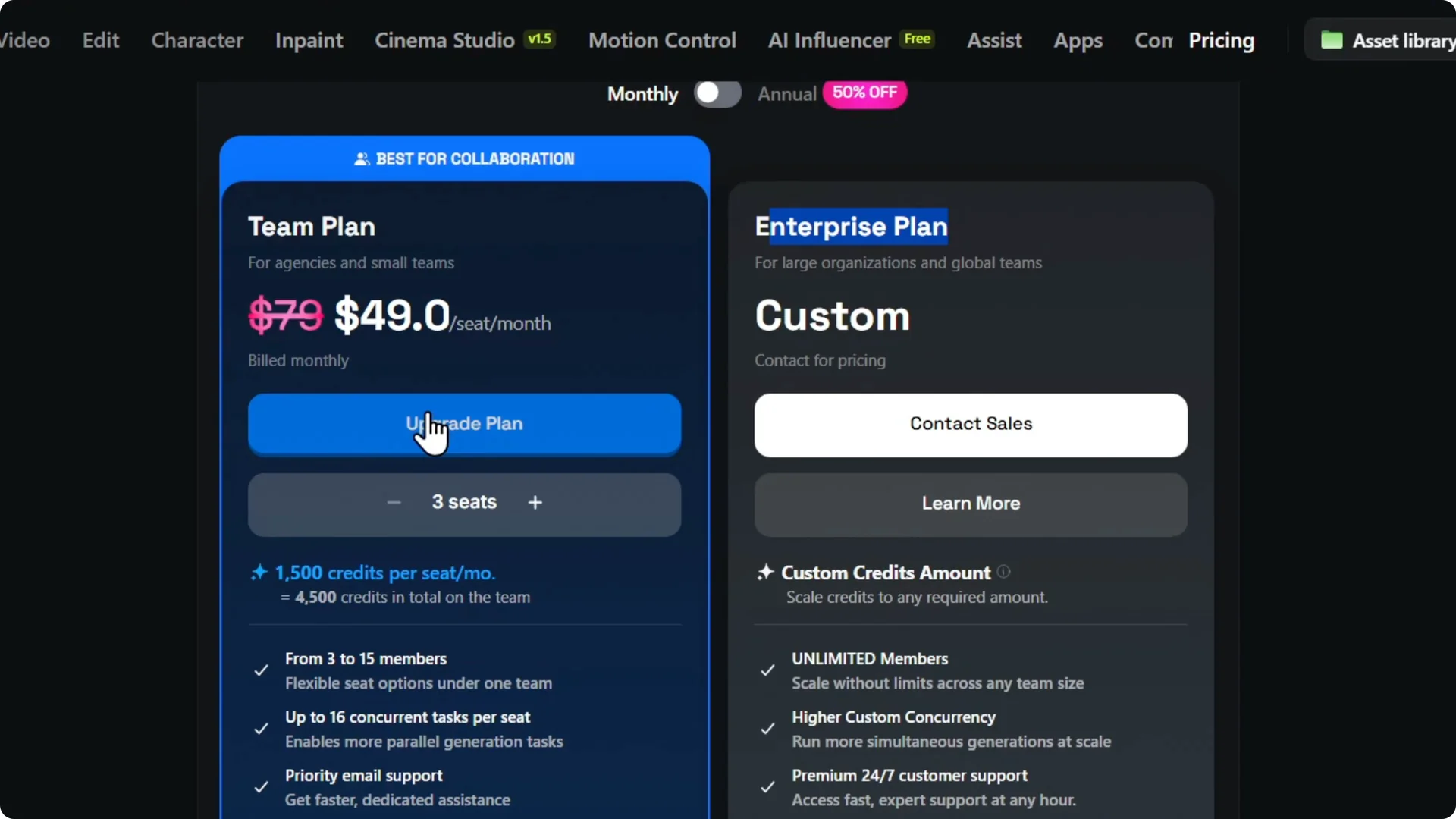
Higgsfield AI Team Setup: Plans and pricing
Seats are billed per person. You can pick from 3 to 15 members for a team.
The page shows the monthly rate and the yearly rate for each seat.
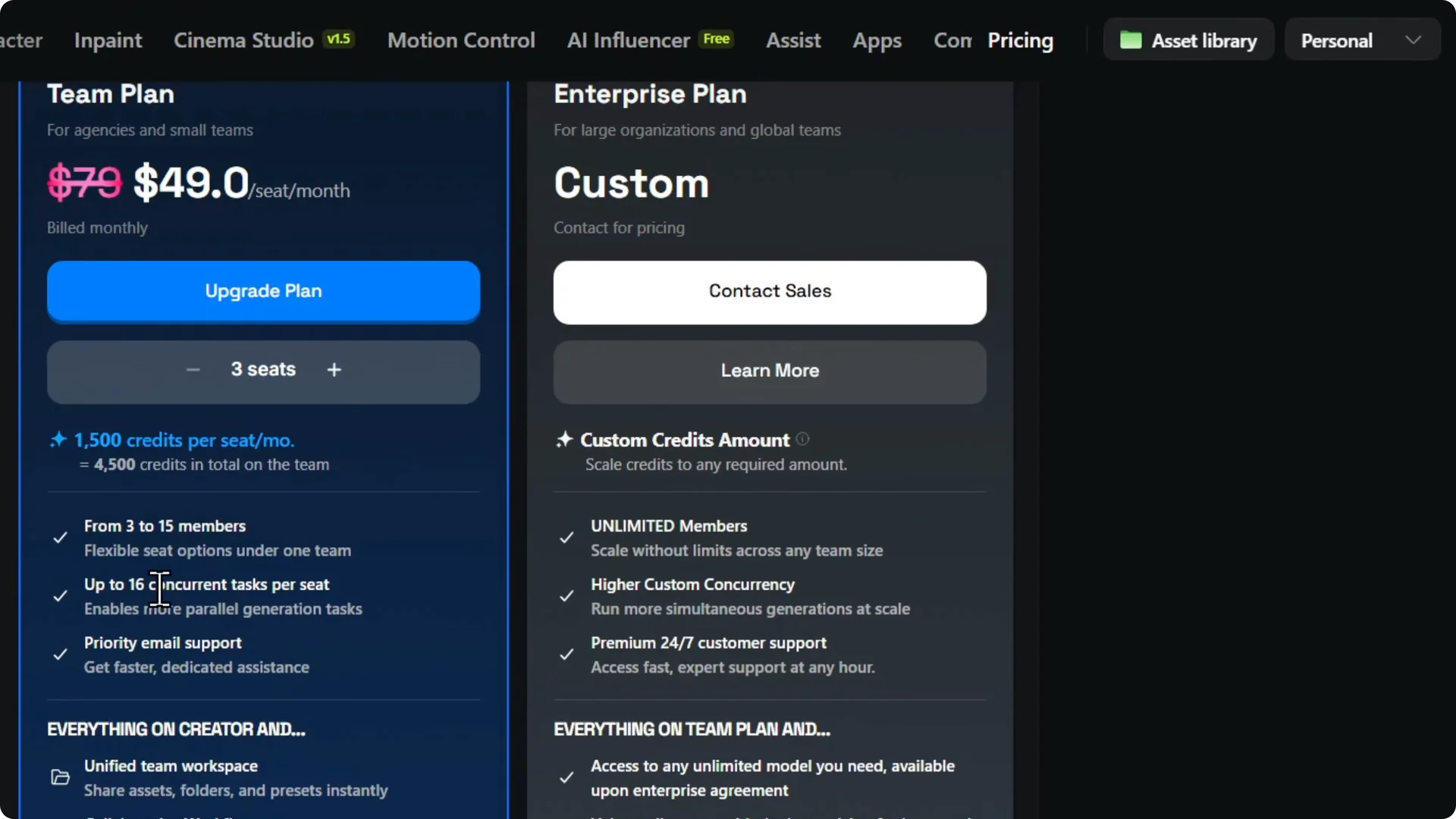
After you confirm the plan, you can proceed with payment and continue. If your team will work on image creation, check out our AI images guide to get more from the tools. It pairs well with a team setup.
Higgsfield AI Team Setup: Upgrade from your account
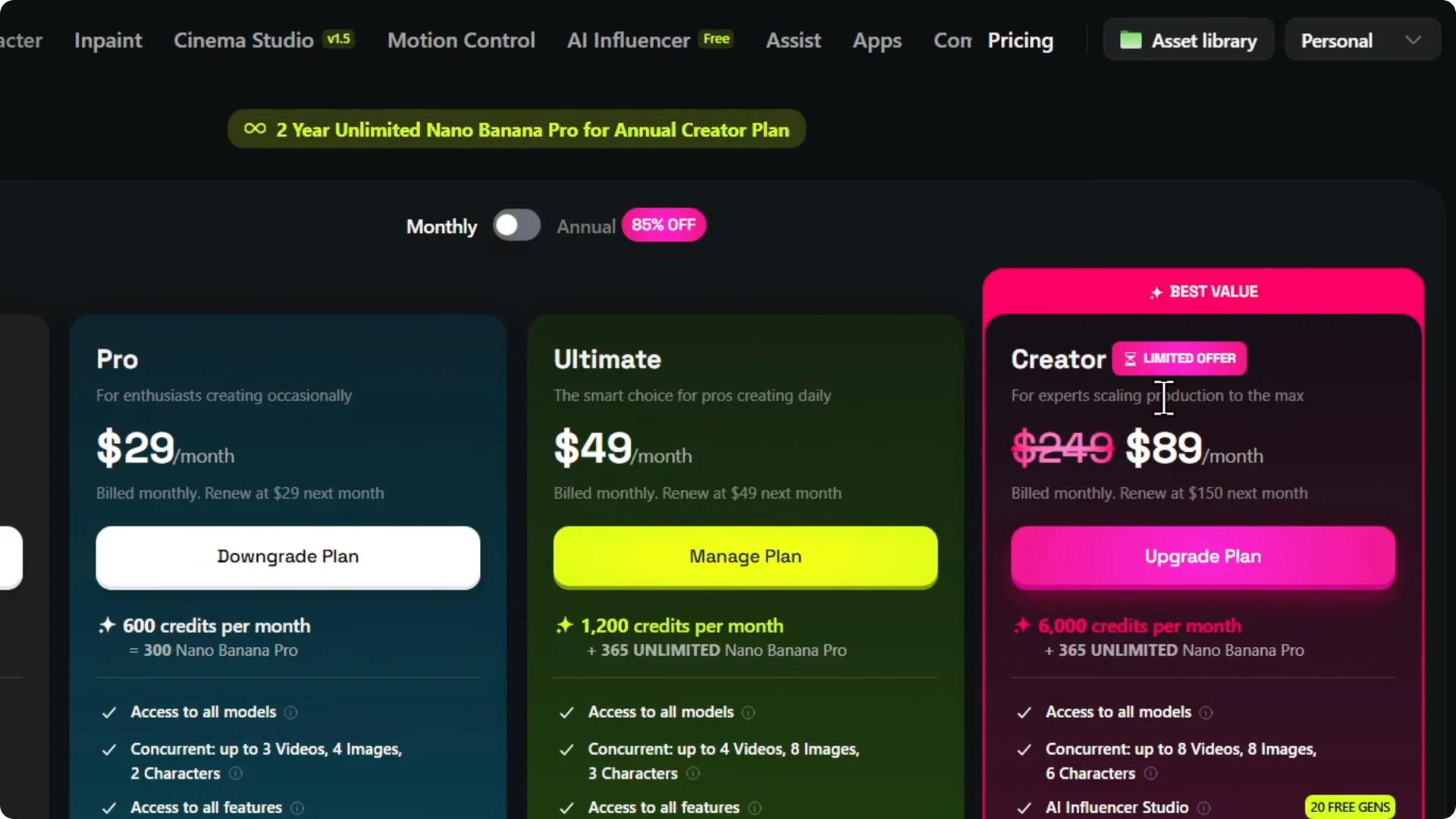
In your account, open Subscription to see your current plan.
Click Upgrade to review more options. You can switch to monthly to preview the payments.
You can see what you get with the creators tier. Whichever plan you choose, you can add a team later, but you will pay for the members. That charge is still per seat.
Creators often build social content with Higgsfield. For that workflow, see this AI influencer tutorial. It shows how to set up assets your team can reuse.
Higgsfield AI Team Setup: Create and add members
Step 1: Open the Personal menu in the upper right and choose Create your team. Higgsfield will check your plan and prompt for Teams Pro or Enterprise. Choose the plan to continue.
Step 2: Set the seat count from 3 to 15 members. Pick monthly or yearly billing for each seat. Confirm the price shown.
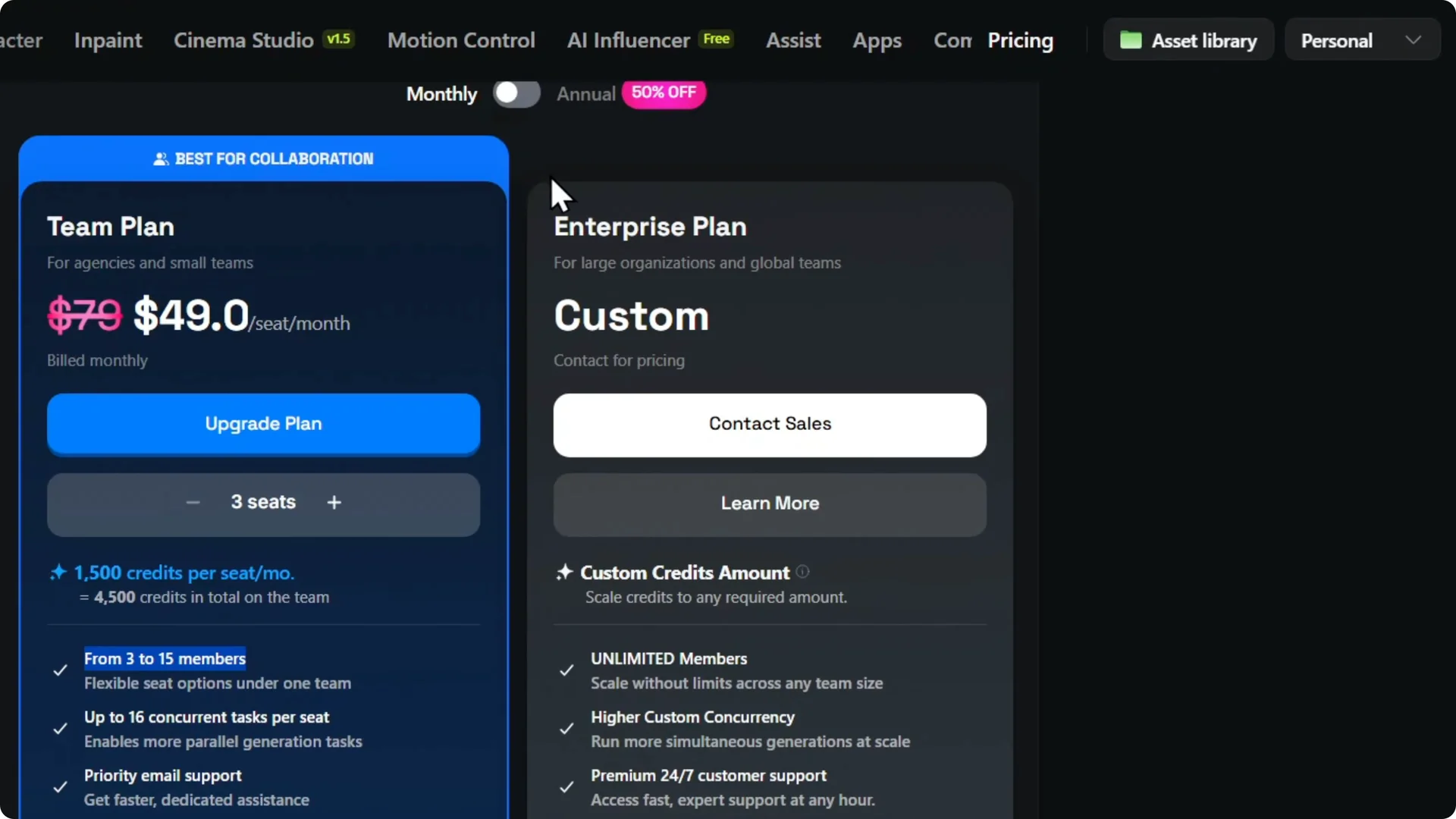
Step 3: Complete the payment. Create the team and add each person to a seat. You can then collaborate with that person.
Once your team is active, keep your files tidy. Use folders to organize prompts, media, and outputs so everyone can find what they need. For a simple approach, see how to organize assets in Higgsfield with folders.
Higgsfield AI Team Setup: Final thoughts
Teams are available on the top plans and are billed per seat. Choose Teams Pro for a quick upgrade or contact Higgsfield for Enterprise. Set your seat count, pick billing, pay, and invite members.
You can start from the Subscription page or from the Personal menu. Both paths lead to the same team creation flow. Once paid, you can add members and work together right away.