
Let me show you how you can remove social media profiles on your Xfield account. This is easier than you think.
Remove Social Media Profiles: Open Account Settings
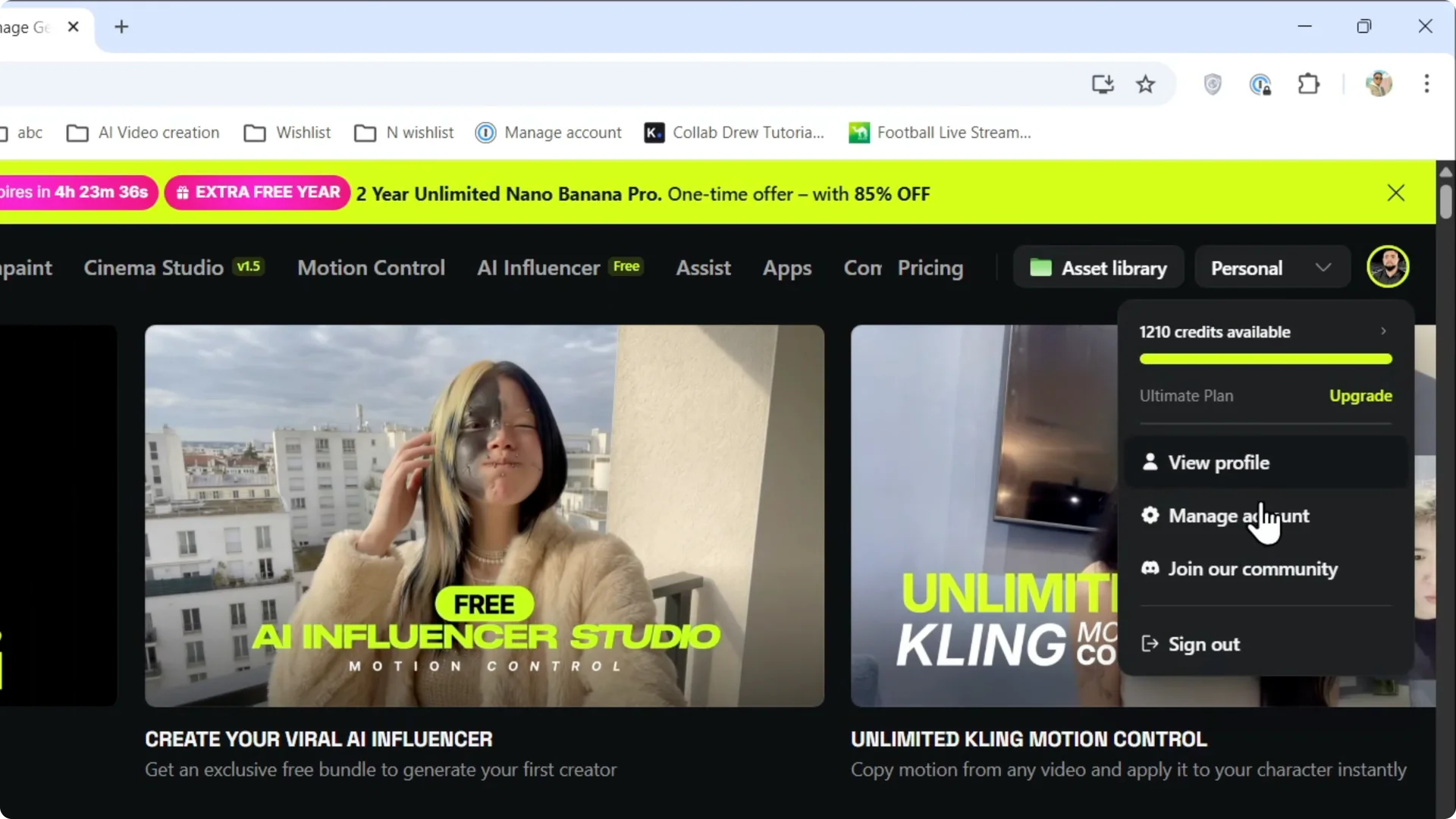
Step 1: Hover over your account on the upper right and click on Manage account.
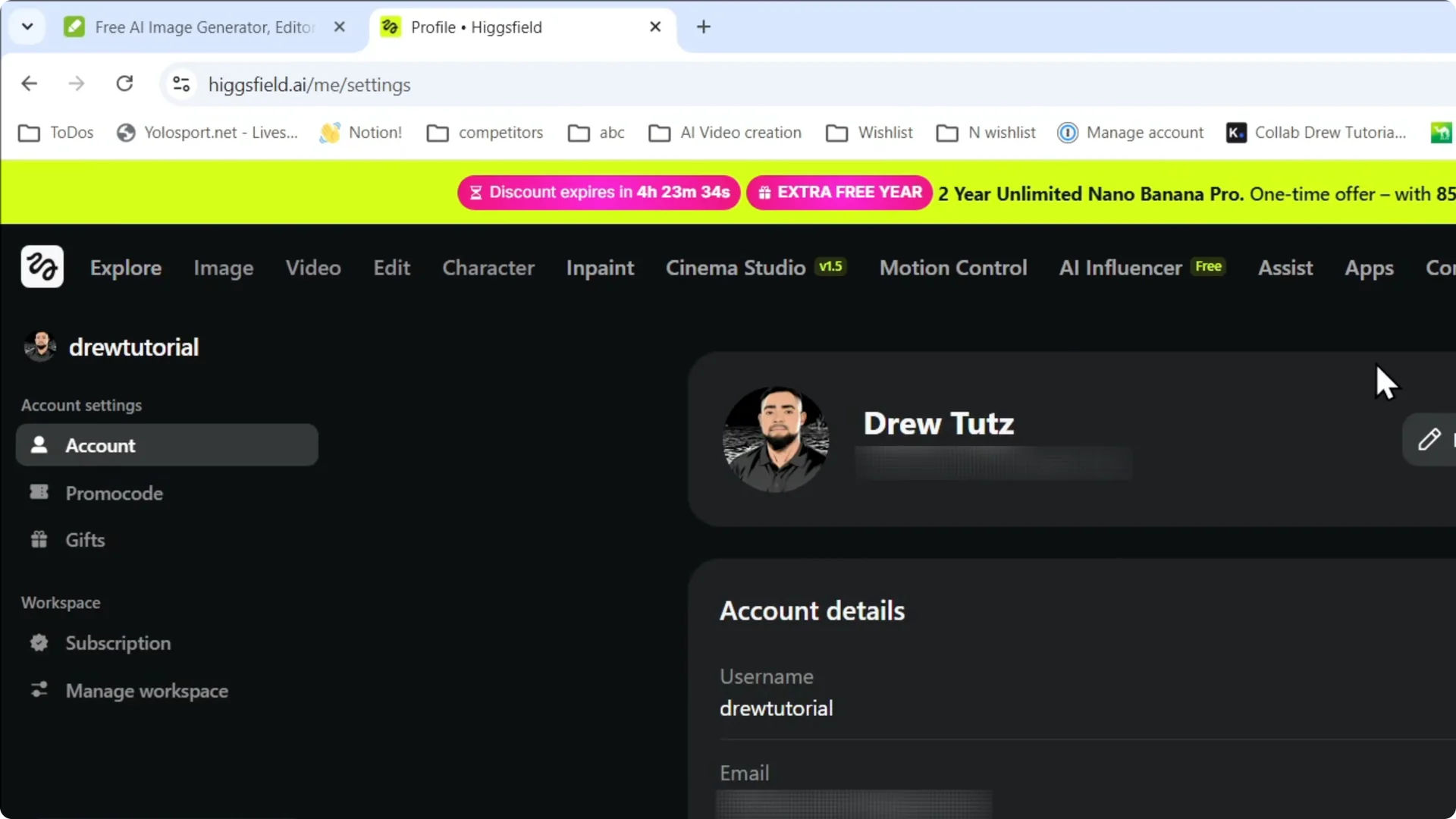
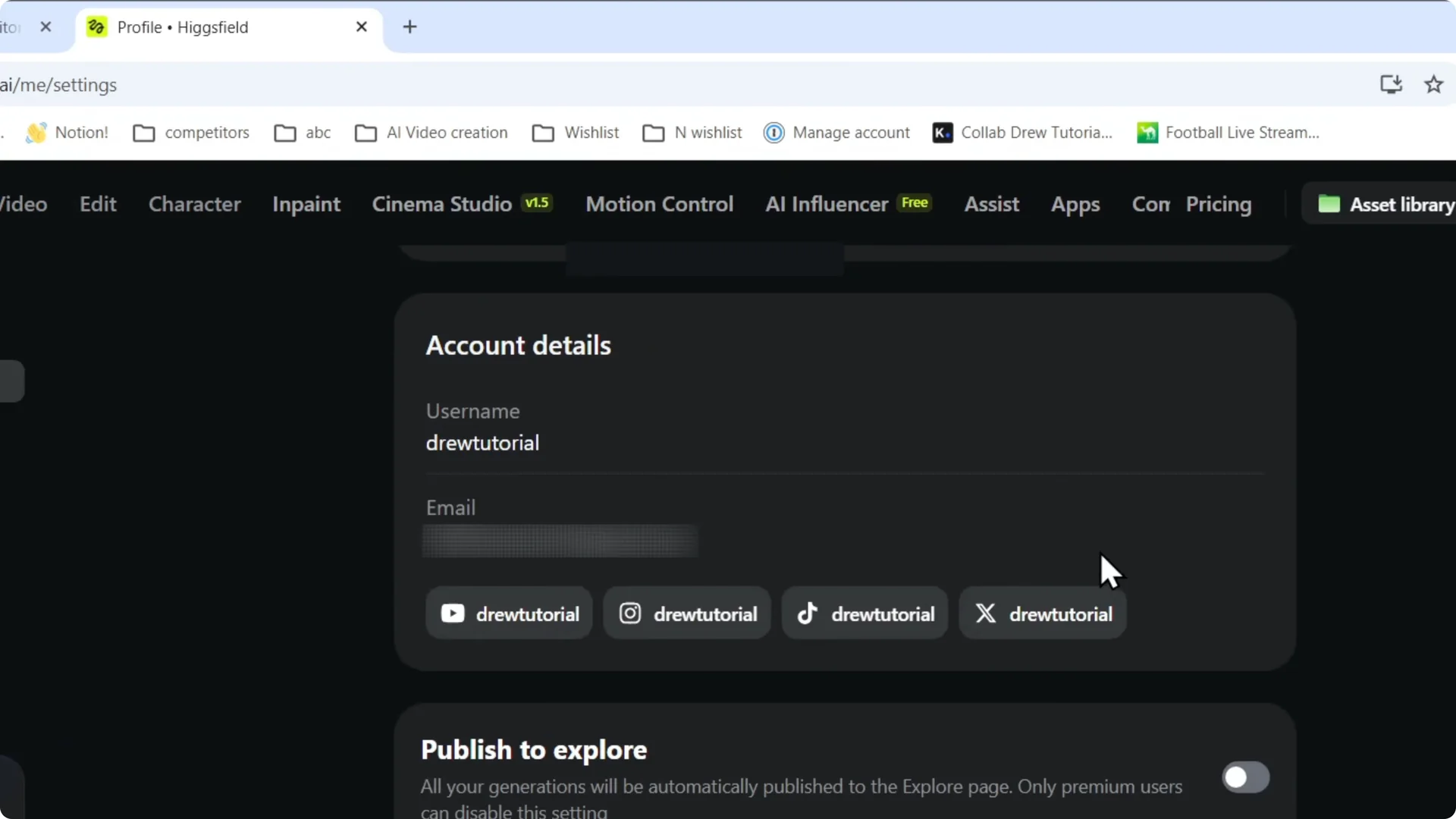
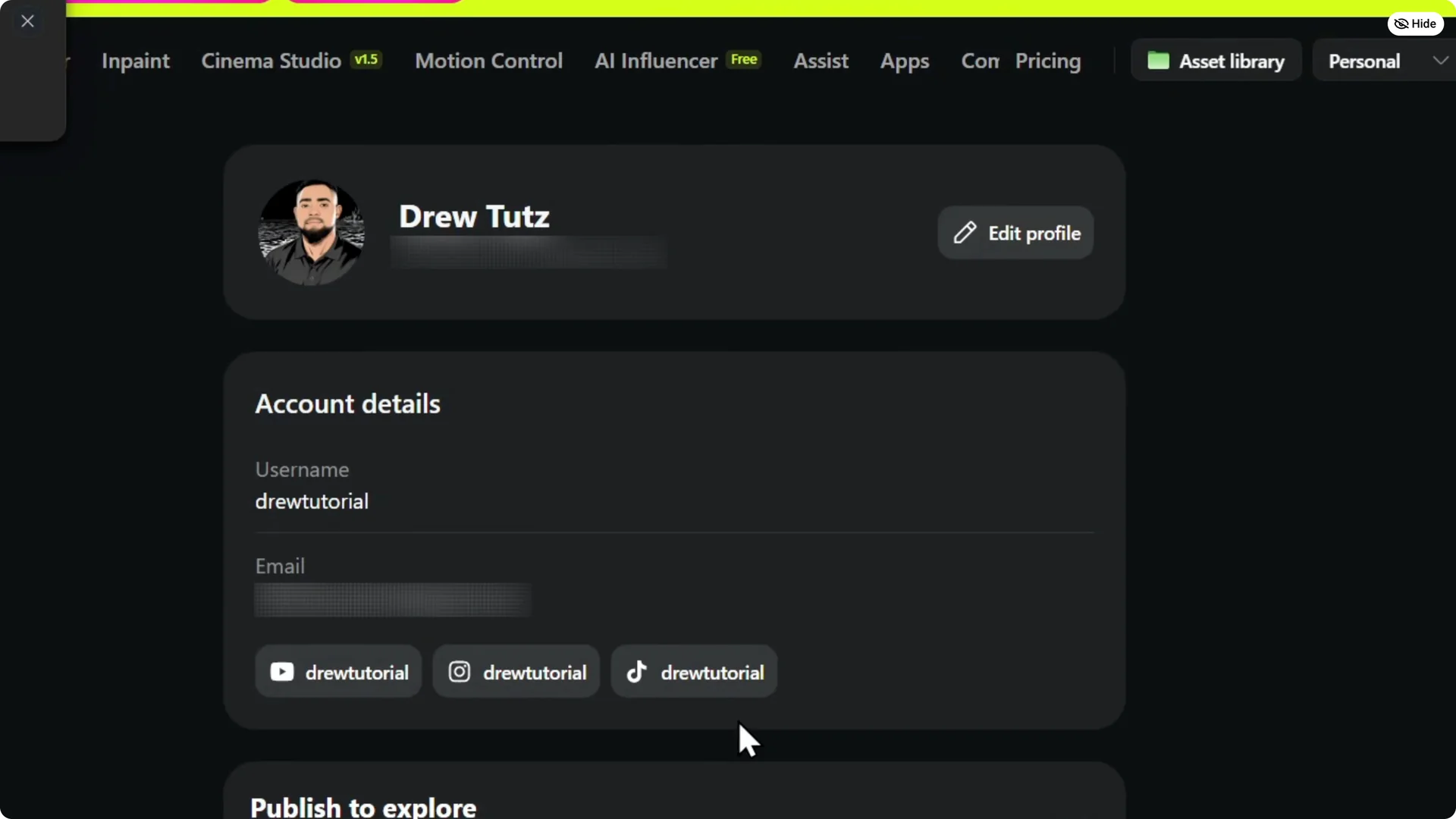
Here you will find your account and a section called Account details.
Step 2: Click on Edit profile at the top.
Read More: Create a Higgsfield account
Remove Social Media Profiles: Locate Profiles
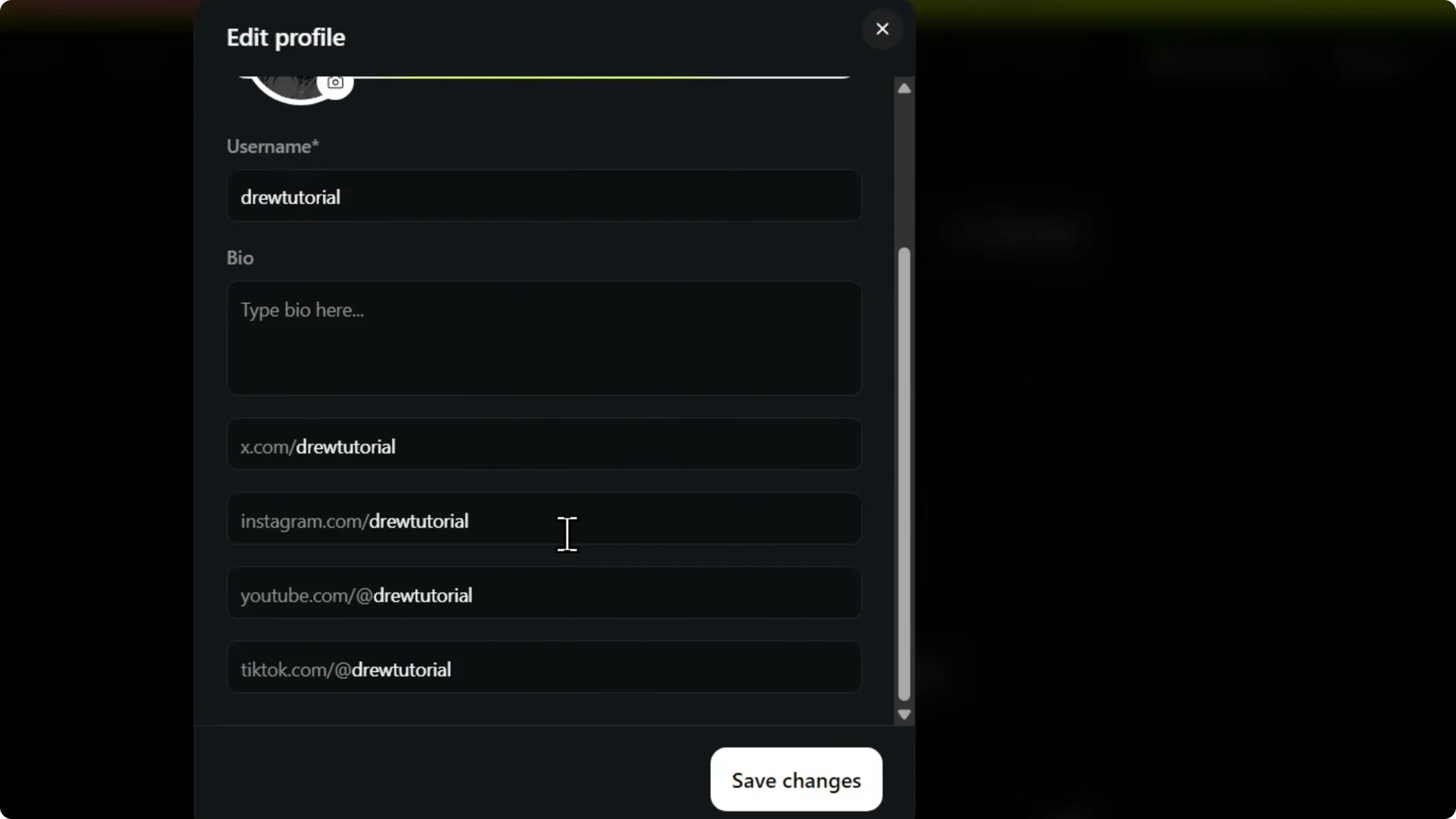
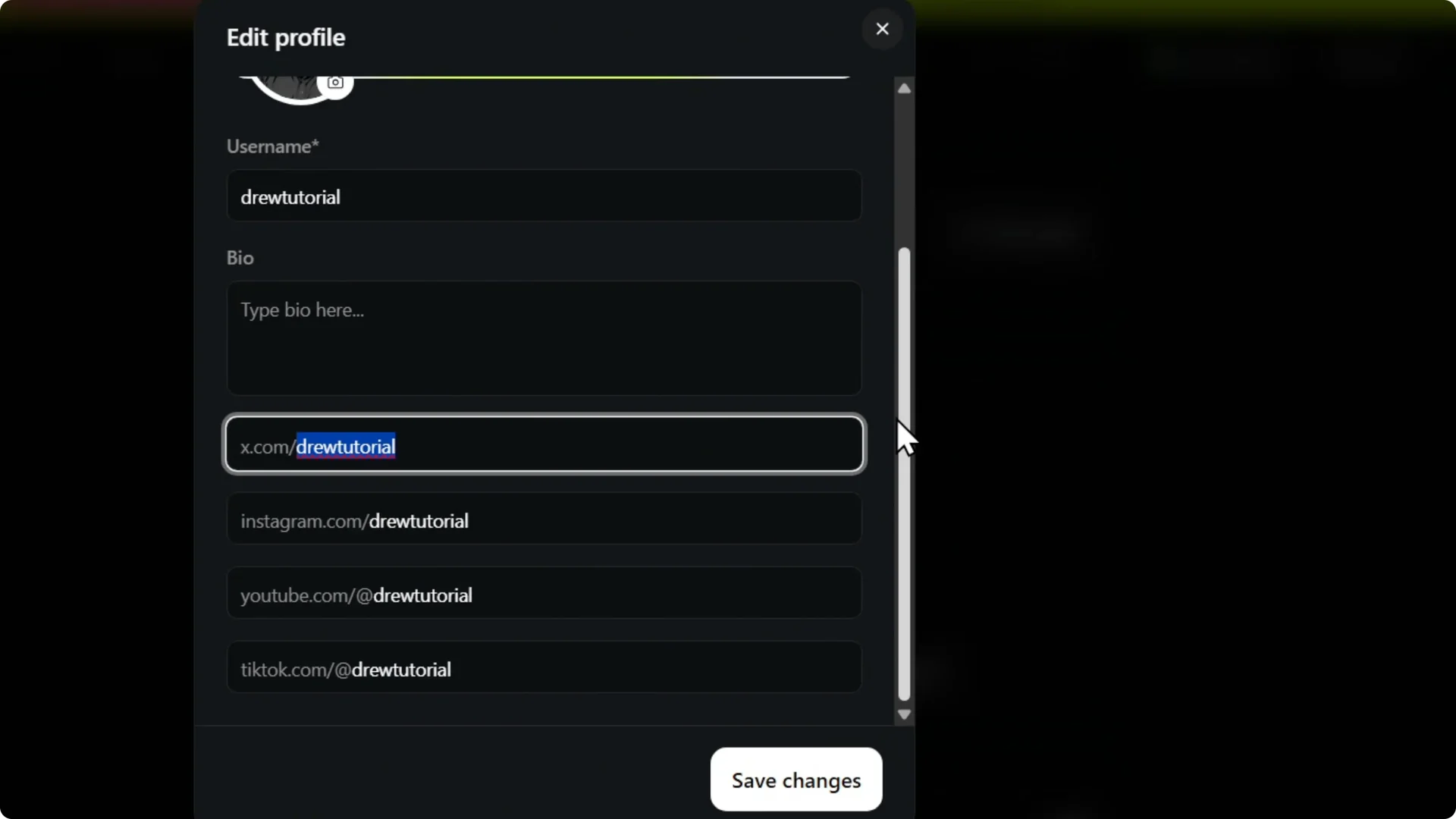
Step 3: Scroll down and you will find them.
Remove Social Media Profiles: Delete and Save
I want to remove X.
Step 4: Highlight the username, remove it, and then click on Save and it is going to remove it.
It is removed from here.
Read More: Build a team in Higgsfield
Remove Social Media Profiles: Finish
That is it.
Final Thoughts
Go to Manage account, open Account details, and use Edit profile to access your social profiles. Remove the username for the profile you no longer want and save your changes. That is all you need.
Read More: Make smoother videos with Higgsfield