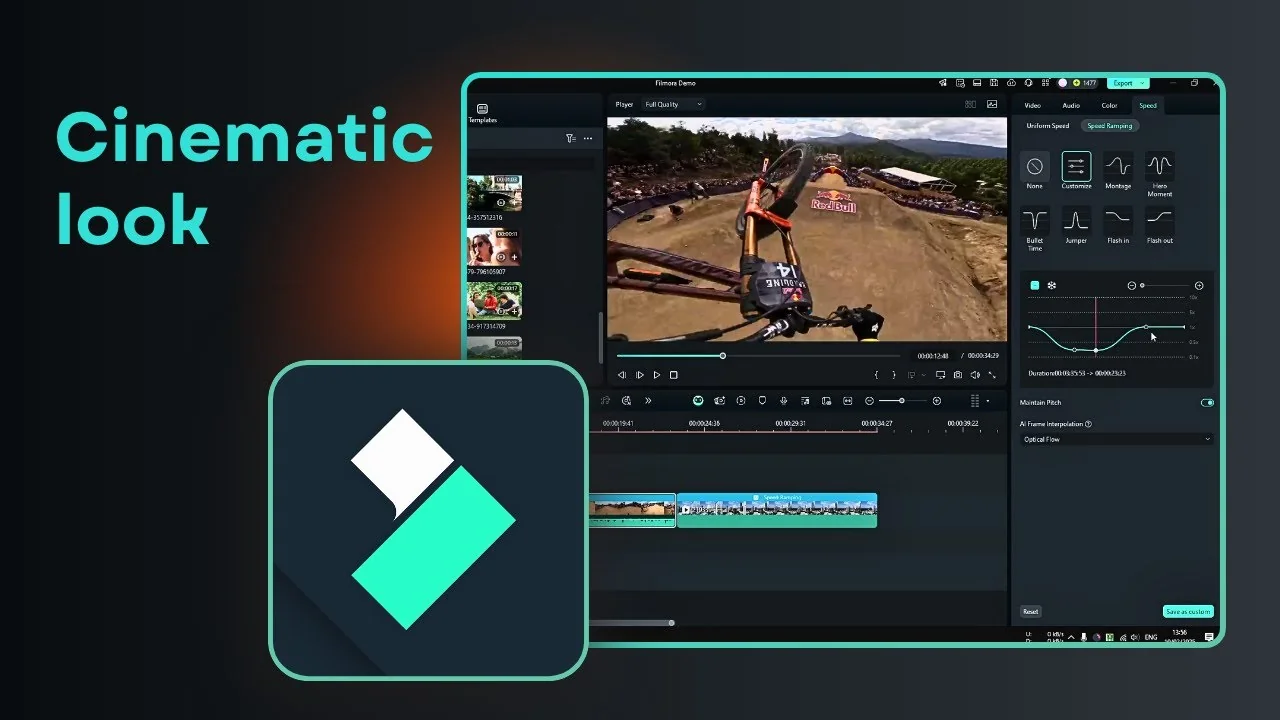
Speed ramping in Filmora is a simple effect to apply, and the result can make a video feel much more cinematic. You can speed up a clip or slow down time to create smooth slow motion that looks amazing. It is easier to show the effect with examples, and these steps explain exactly how I apply it.
What Filmora Speed Ramping Does
Speed ramping lets a clip accelerate and decelerate in a controlled way. The effect can take a standard shot and make it feel more dynamic by changing speed across different moments.
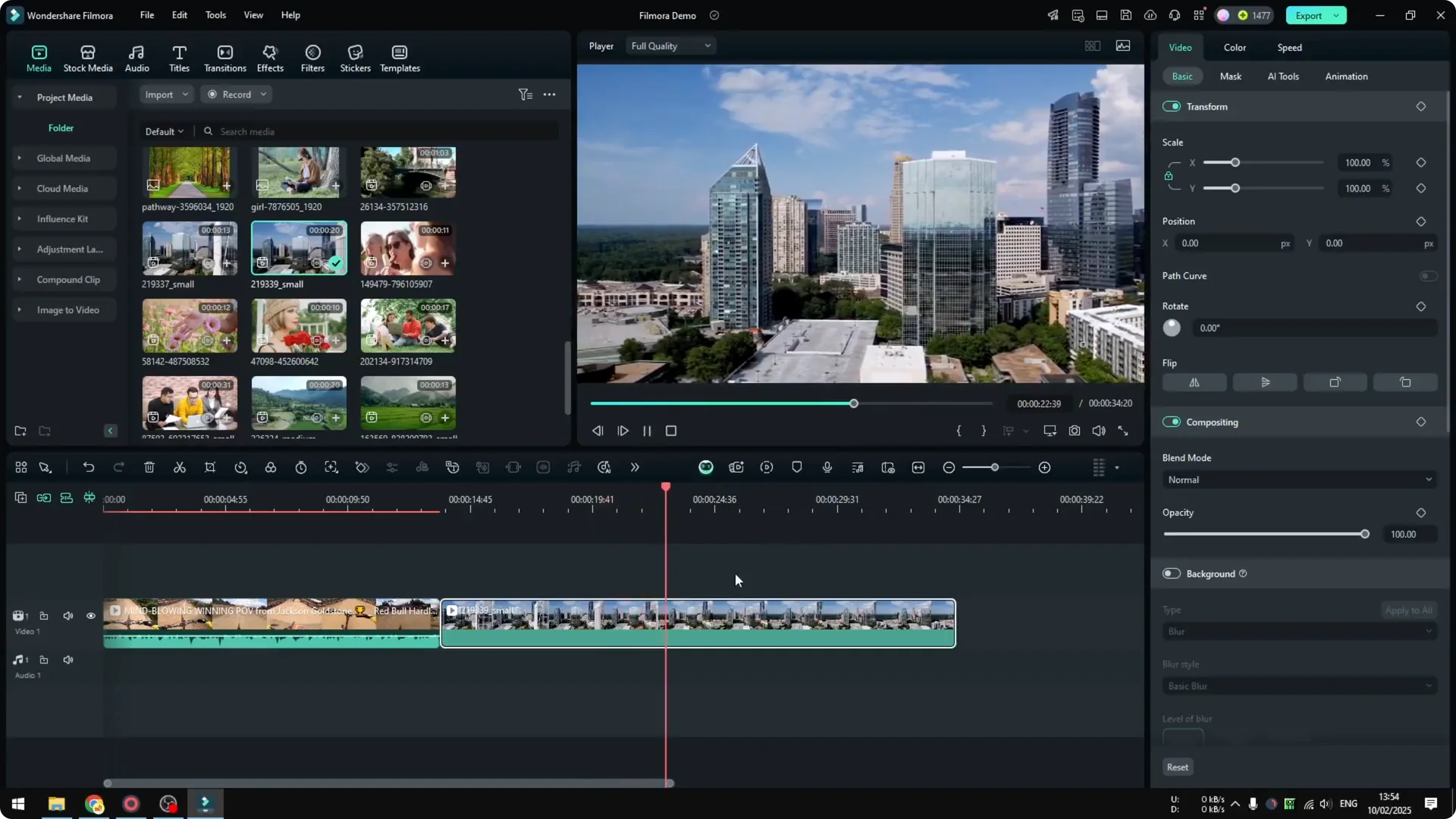
A drone shot passing buildings is a good example. It might look like a standard pass, but applying Filmora Speed Ramping makes it more interesting. The key is how the speed follows the curve you set in the Speed Ramping panel.
Read More: How To Speed Up Or Slow Down Video In Filmora With Cinematic Look
Apply Filmora Speed Ramping Presets
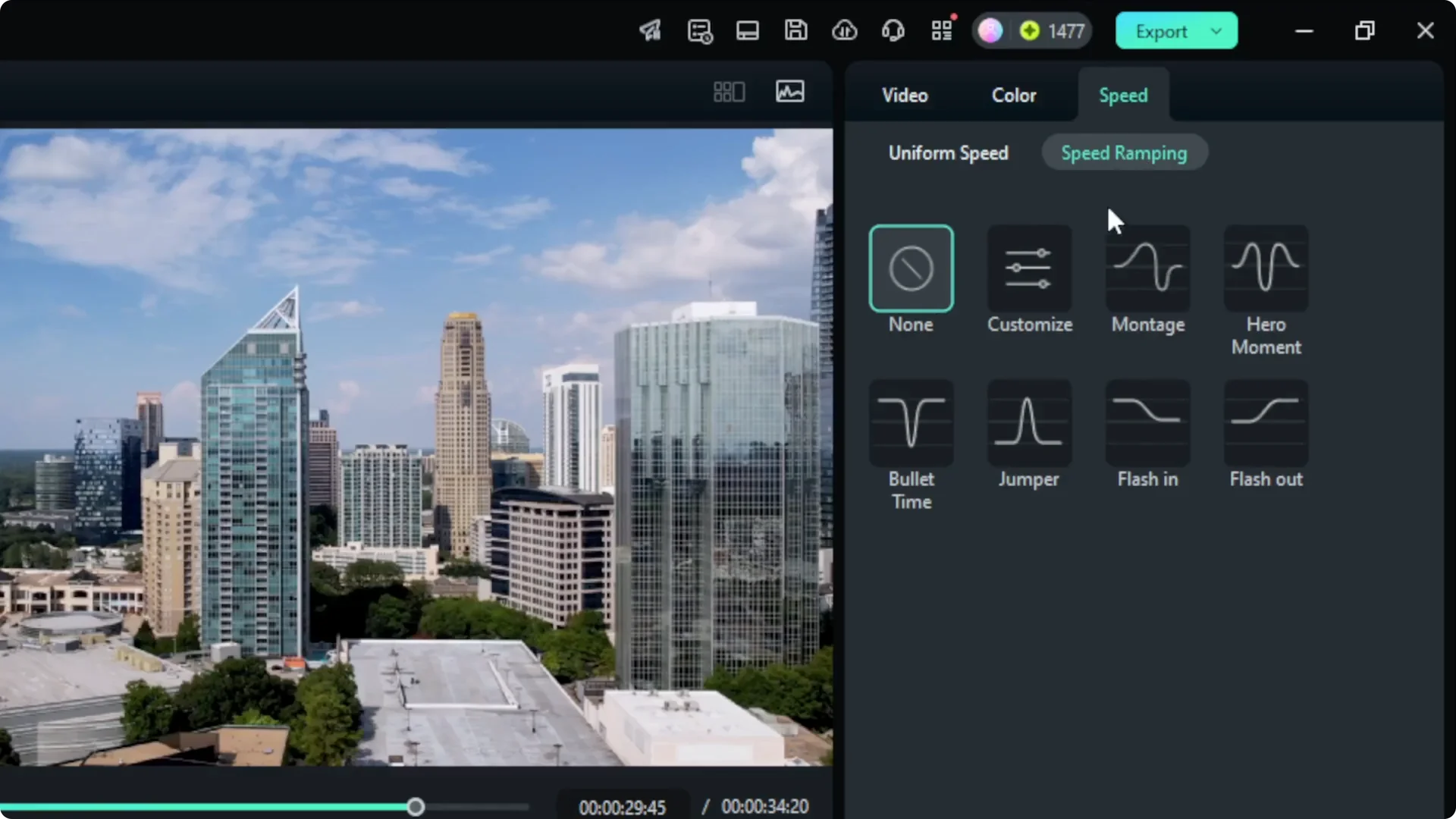
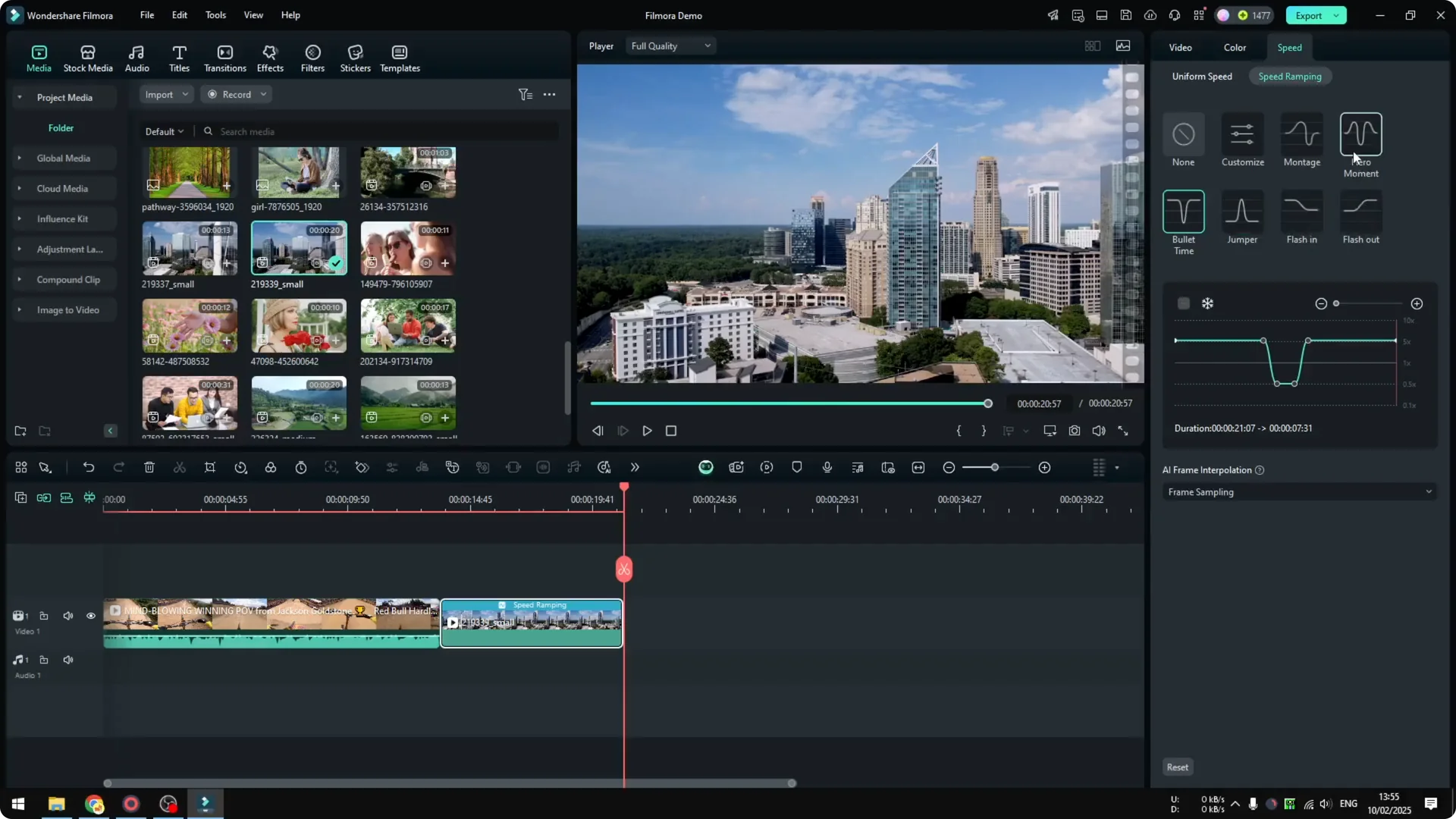
Click the clip you want to modify. Go to Speed in the top bar, then choose Speed Ramping. Pick a preset to preview how the clip changes over time.
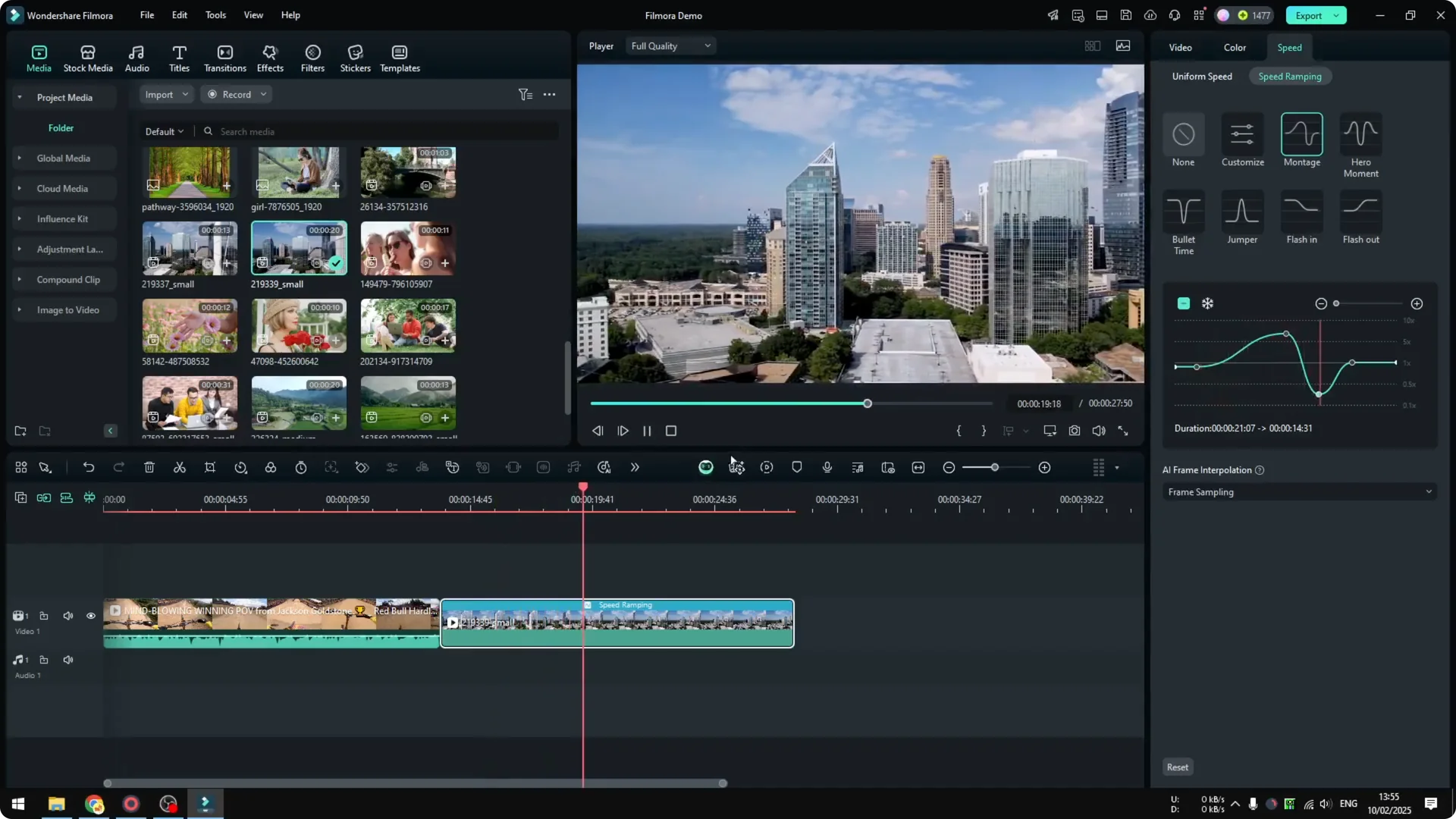
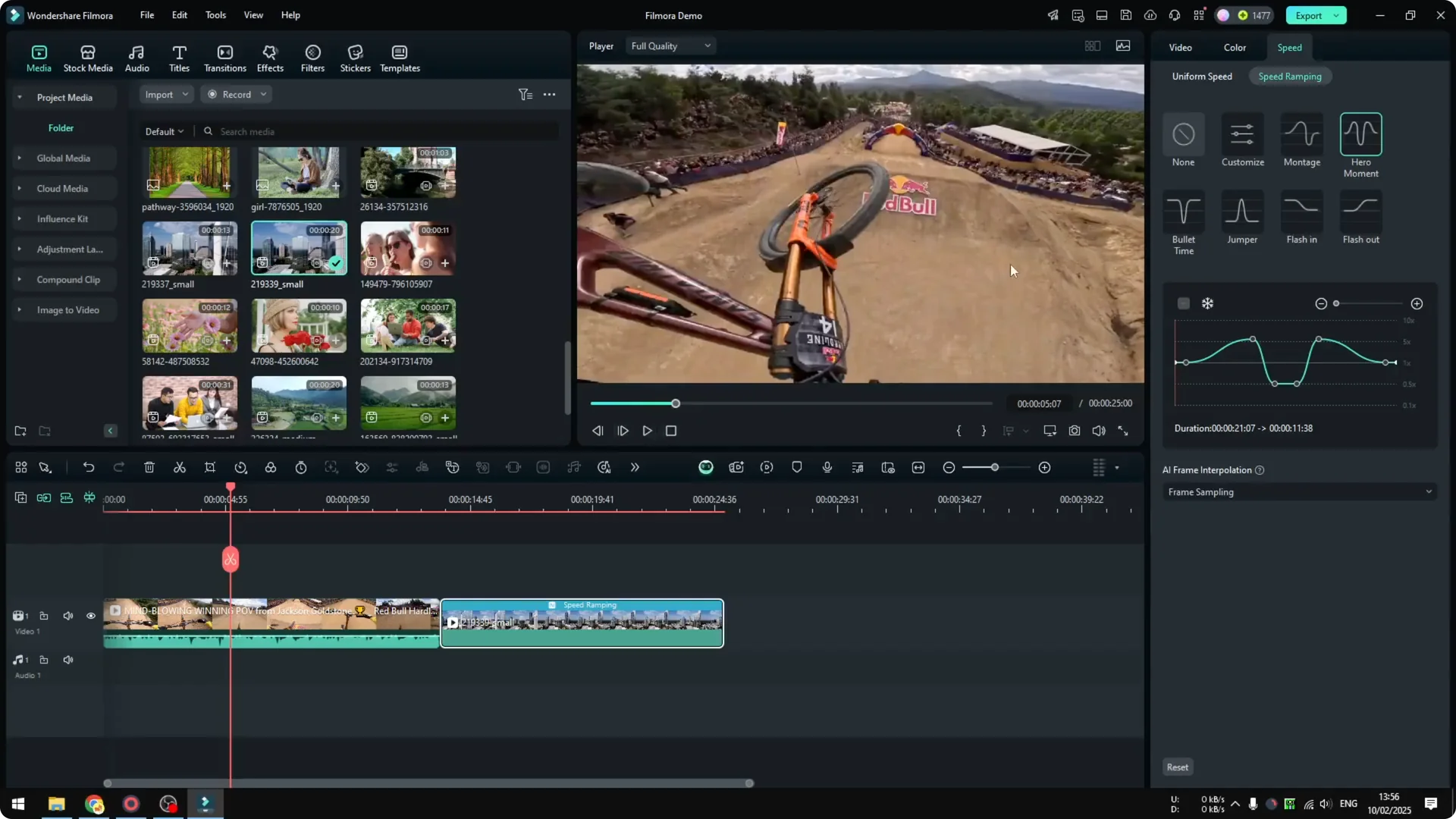
I like the Montage preset here. It speeds up, then drops back down, which creates a very interesting effect. You can see the movement reflect the curve shown in the Speed Ramping panel.
Other presets include Jumper and Bullet Time. Choose the option that fits your clip. You can always switch to Customize if you want a different style.
Customize Filmora Speed Ramping for Precise Moments
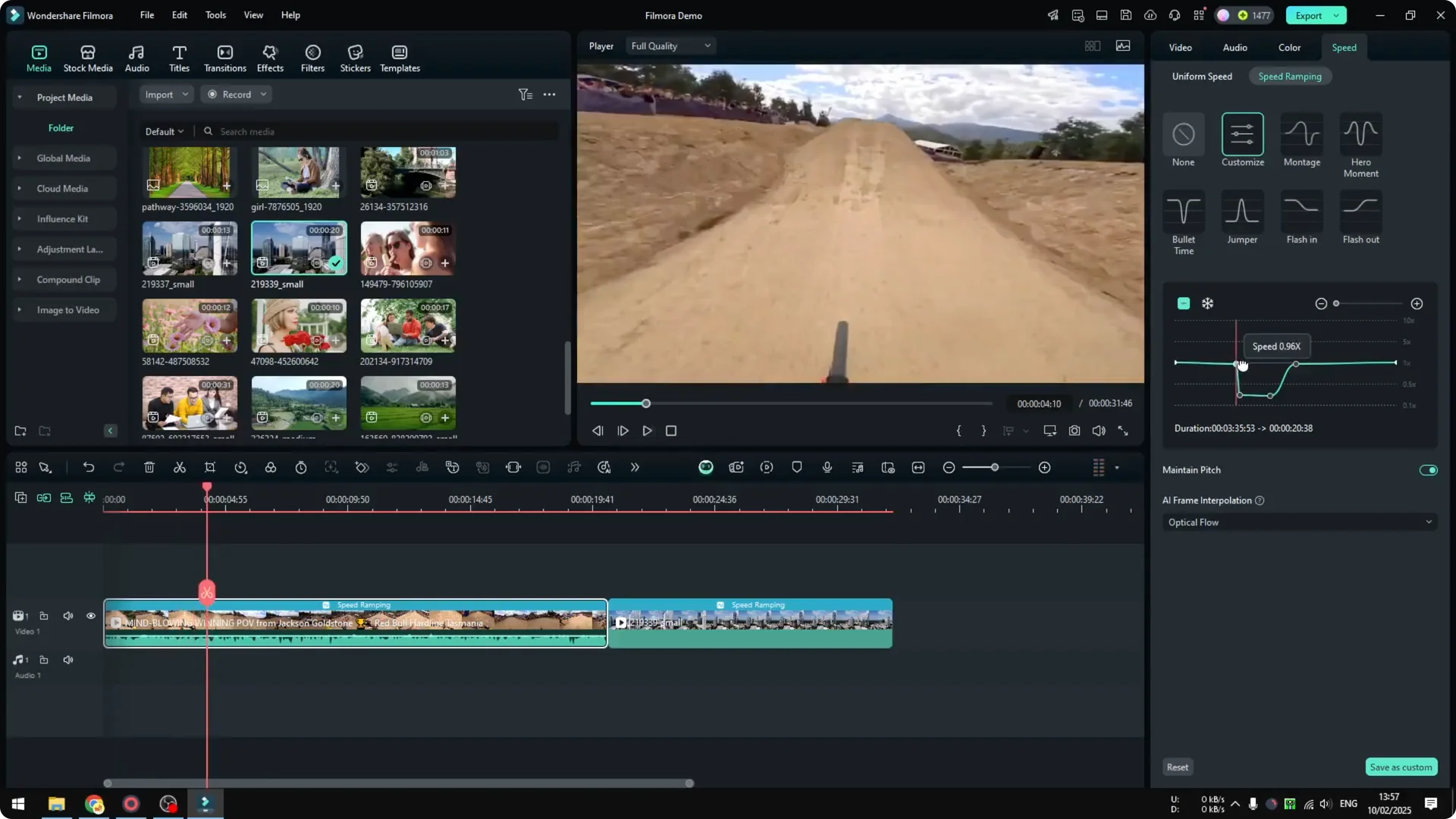
I want to add slow motion when a rider is jumping in a point of view cycling clip. The idea is to slow it down in the air, then return to normal speed after landing. Filmora Speed Ramping makes this easy to control.
Click the clip, go to Speed, open Speed Ramping, and select Customize. Set a key point near the start of the jump. Drag the ramp down at that point to slow the video.
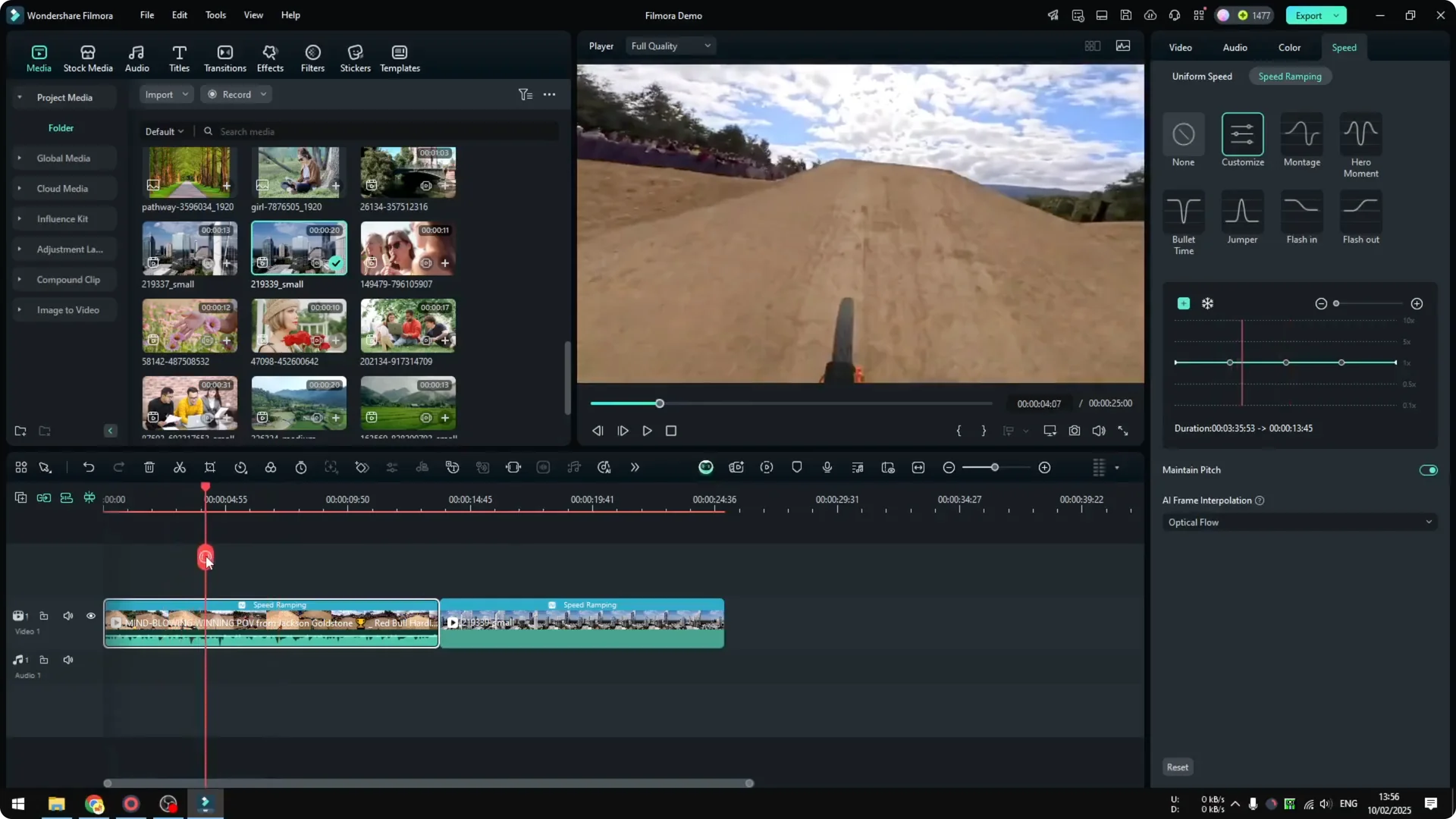
If the curve goes down, the video slows. If it goes up, the video plays faster. Add more points to fine tune the timing.
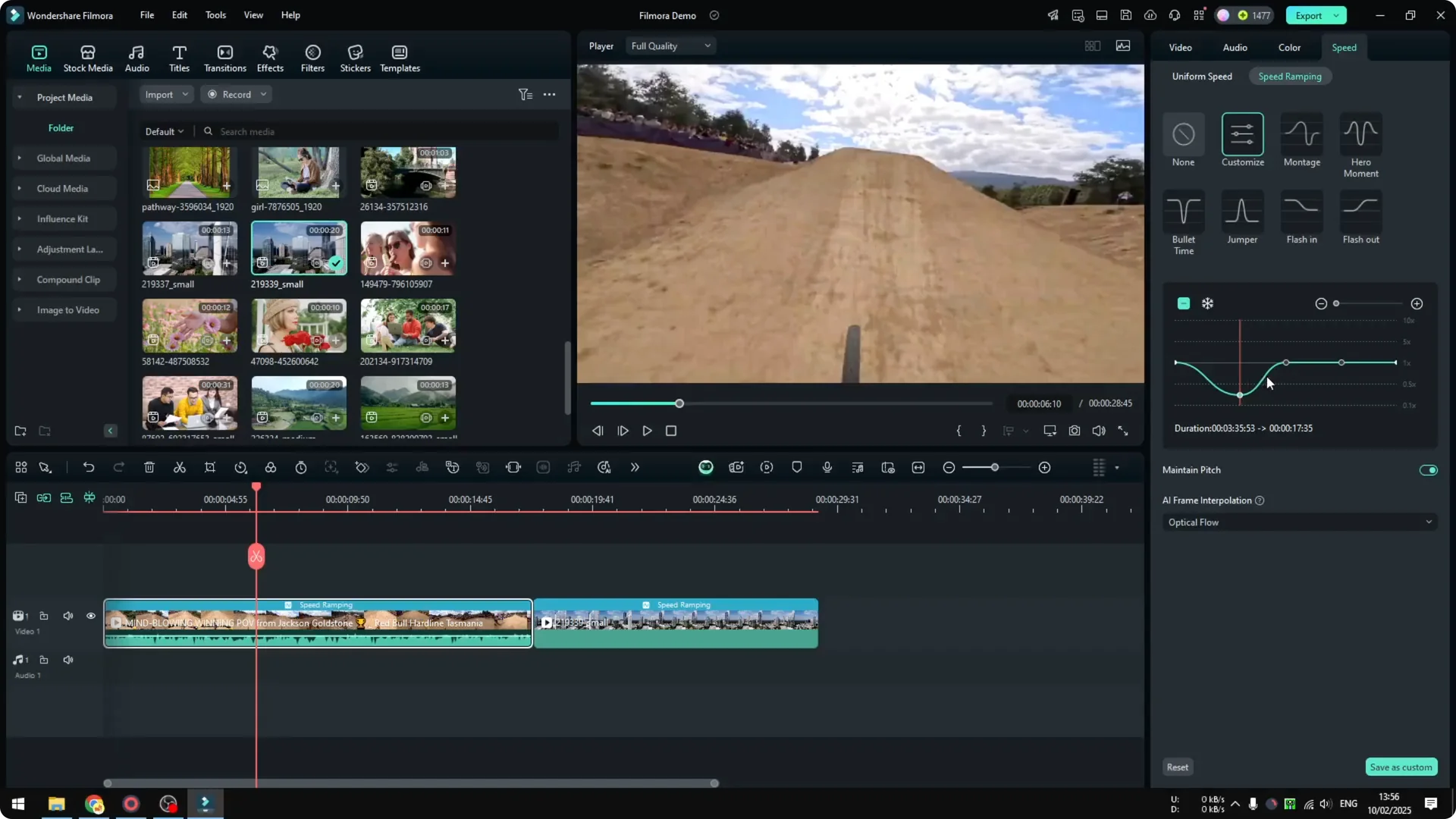
Play it back and adjust the points if the slow motion starts too early or too late. Move a point closer to the jump to make the timing feel right. Keep testing until the motion lines up with the jump.
Read More: Reverse Video Filmora
Extra Options in Filmora Speed Ramping
Freeze Frame in Filmora Speed Ramping
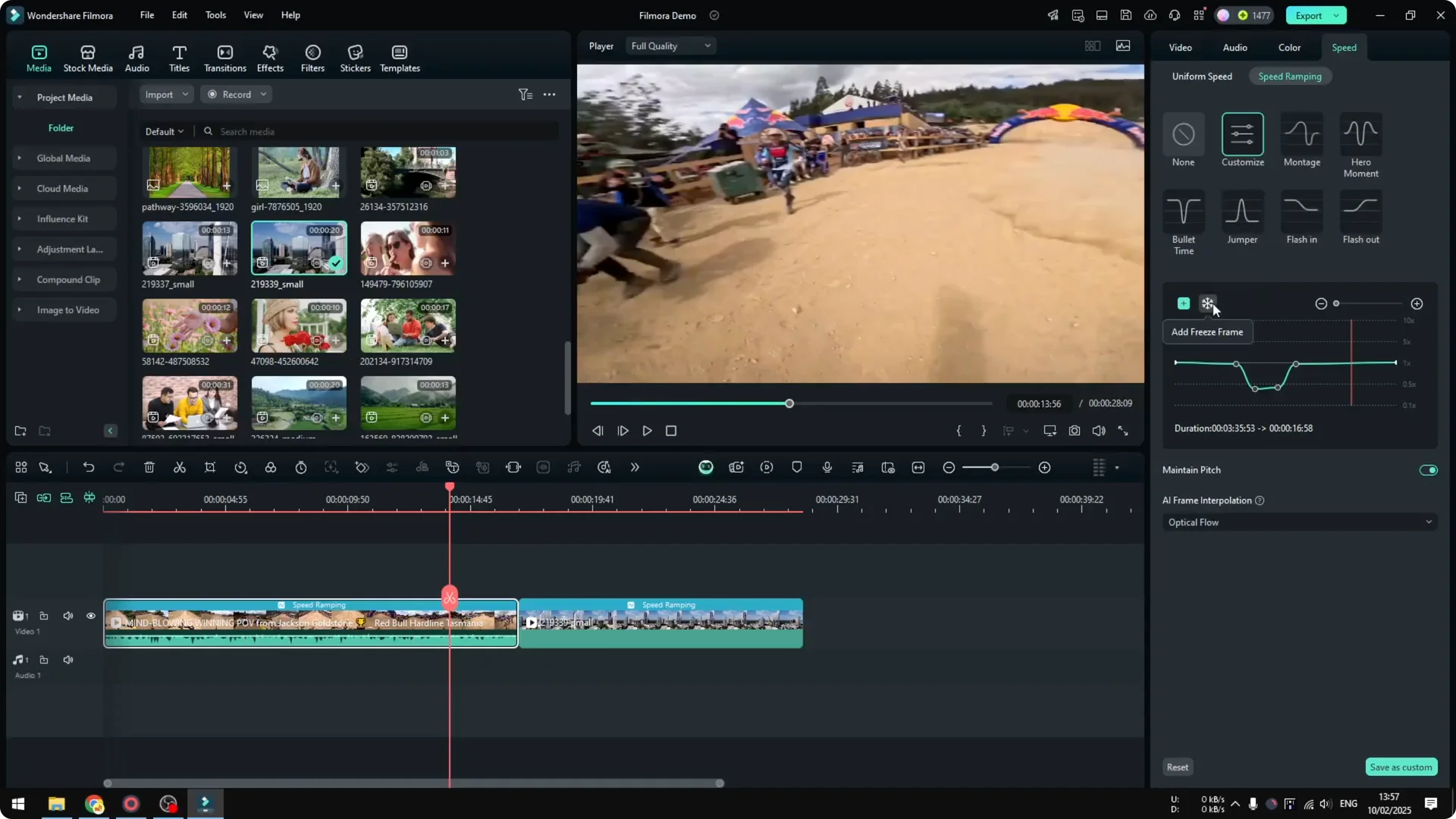
There is a Freeze option to stop the action on a specific frame. Use it if you want to pause time for a moment. It pairs well with a ramp that slows into the freeze, then speeds out.
AI Frame Interpolation in Filmora Speed Ramping
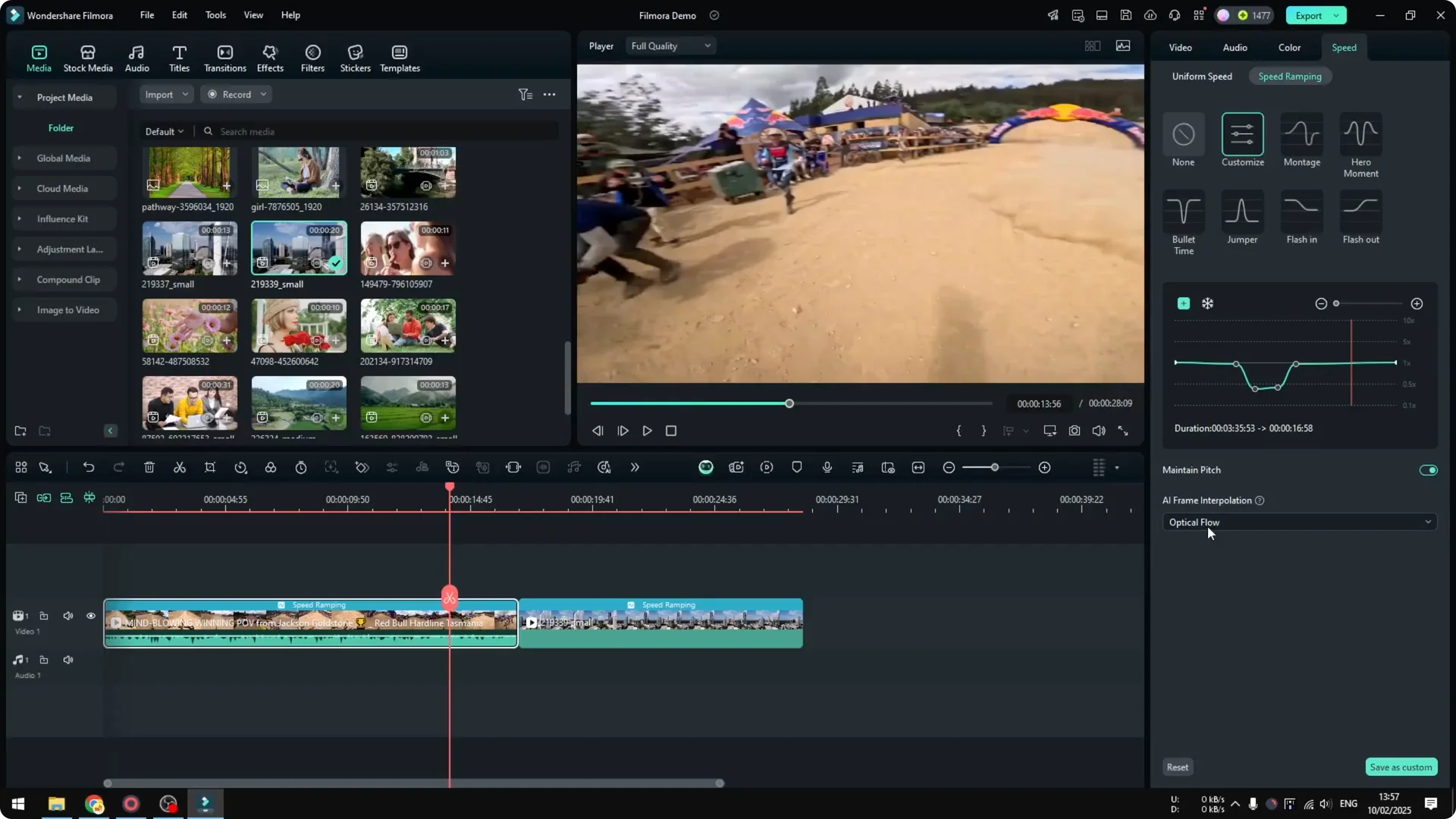
AI Frame Interpolation helps when you create a slow motion section. Filmora uses AI to fill in missing frames so the result stays smooth. Turn it on if your slow motion looks choppy.
Read More: How To Use Ai Text To Speech In Filmora Video Editor
Final Thoughts
Filmora Speed Ramping can make a clip feel very cinematic by controlling where it speeds up and slows down. Presets are a quick start, and Customize lets you set precise points for the best timing. Experiment with Freeze and AI Frame Interpolation to polish the motion even more.