I am going to show you how to track a moving object in your video using AI in Filmora. Make sure you are on the latest version of the program. Motion Tracking is available in Filmora 11, 12, 13, 14, and likely newer versions.
I have a clip of a robot from Boston Dynamics moving forward, and I want to track the head area. I want to add content beside the head, but that only works well if I track the head first. The goal is to track this element of the video accurately.
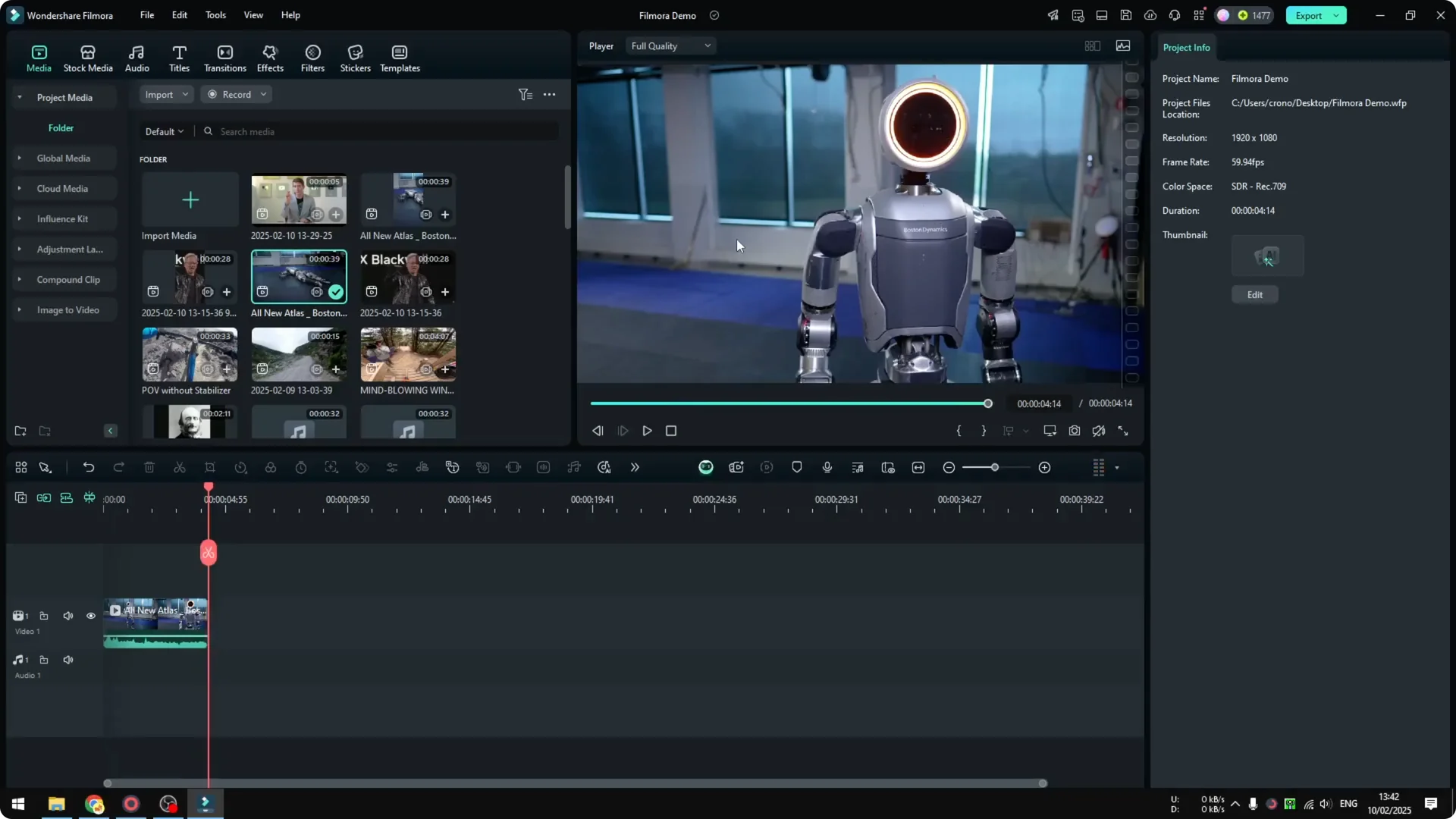
Prepare for Filmora AI Motion Tracking
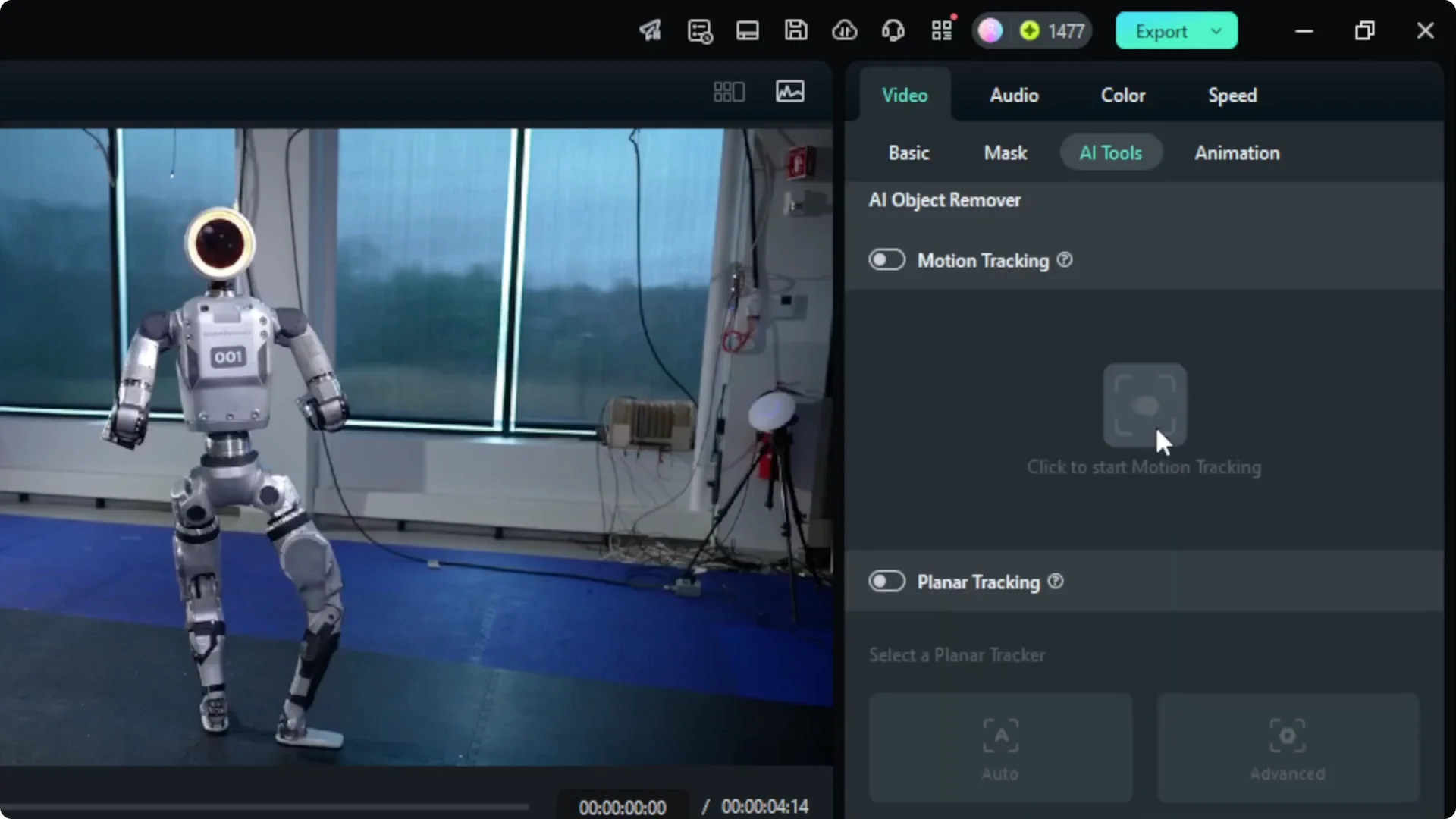
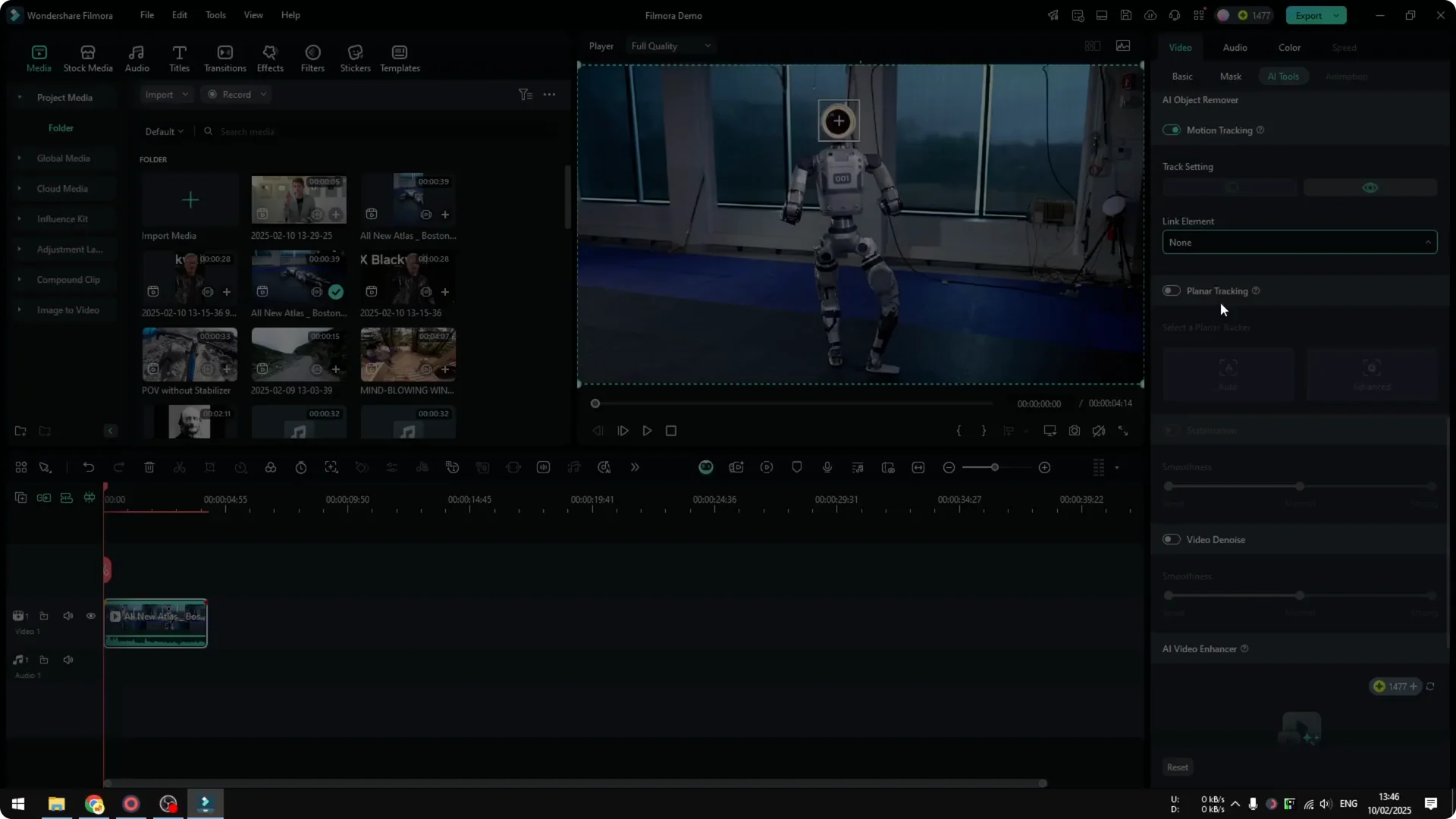
Click the clip that you want to track, then go to Video and open AI Tools. Scroll down and enable Motion Tracking. This is the feature that handles the tracking.
Accuracy tips for Filmora AI Motion Tracking
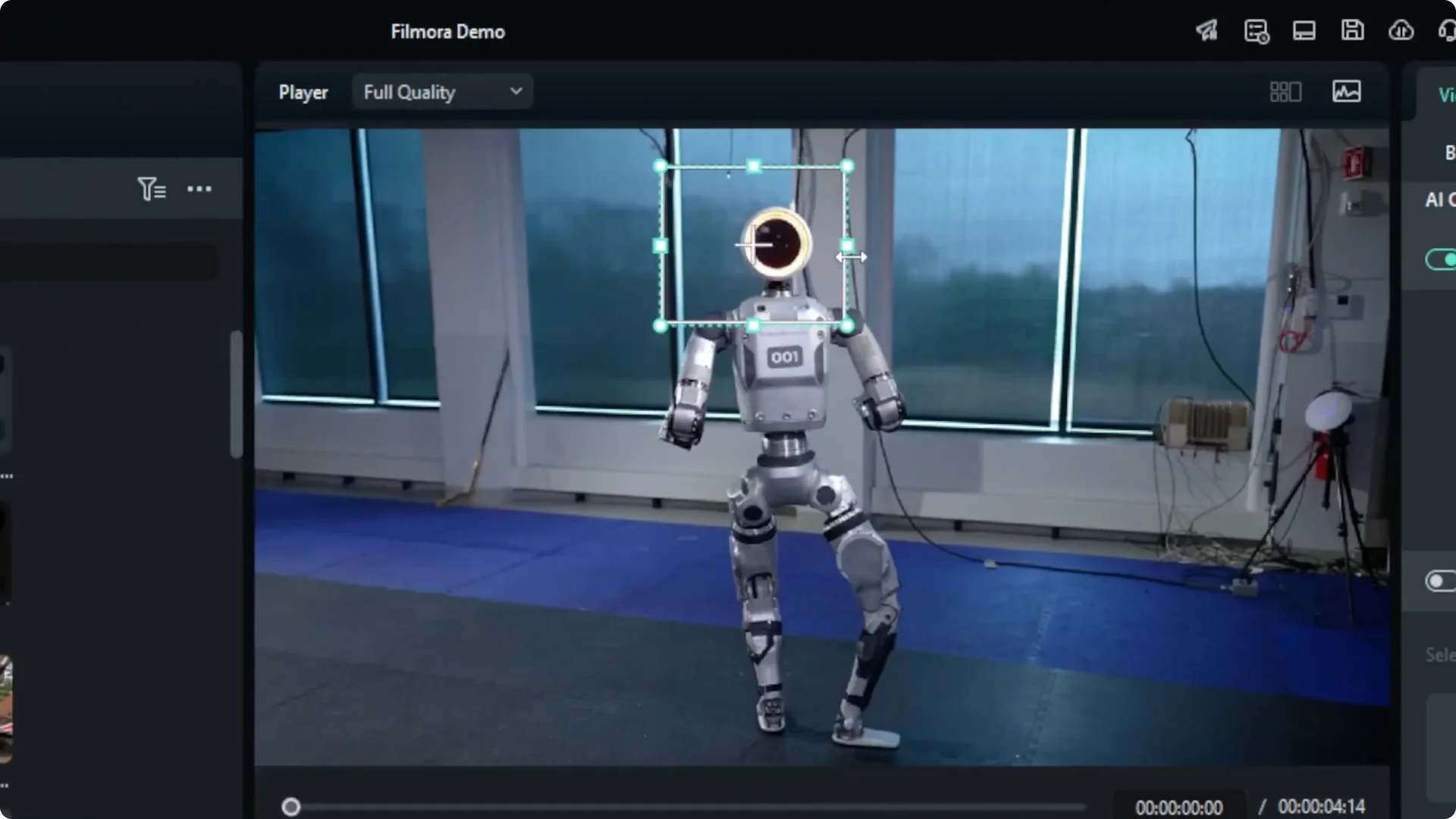
Specify the object you want to track by placing a box over it. I set the box around the head of the robot and made it precise. It helps a lot if the footage is high quality with good contrast and color, because that makes tracking easier and more accurate.
Read More: How To Remove Moving Watermark Using Filmora Ai
Set up Filmora AI Motion Tracking
Before you click Start Motion Tracking, move the playhead to the very beginning of the video. If you place the playhead in the middle, it will not track the earlier section. If you want to track the entire video, always start at the beginning.
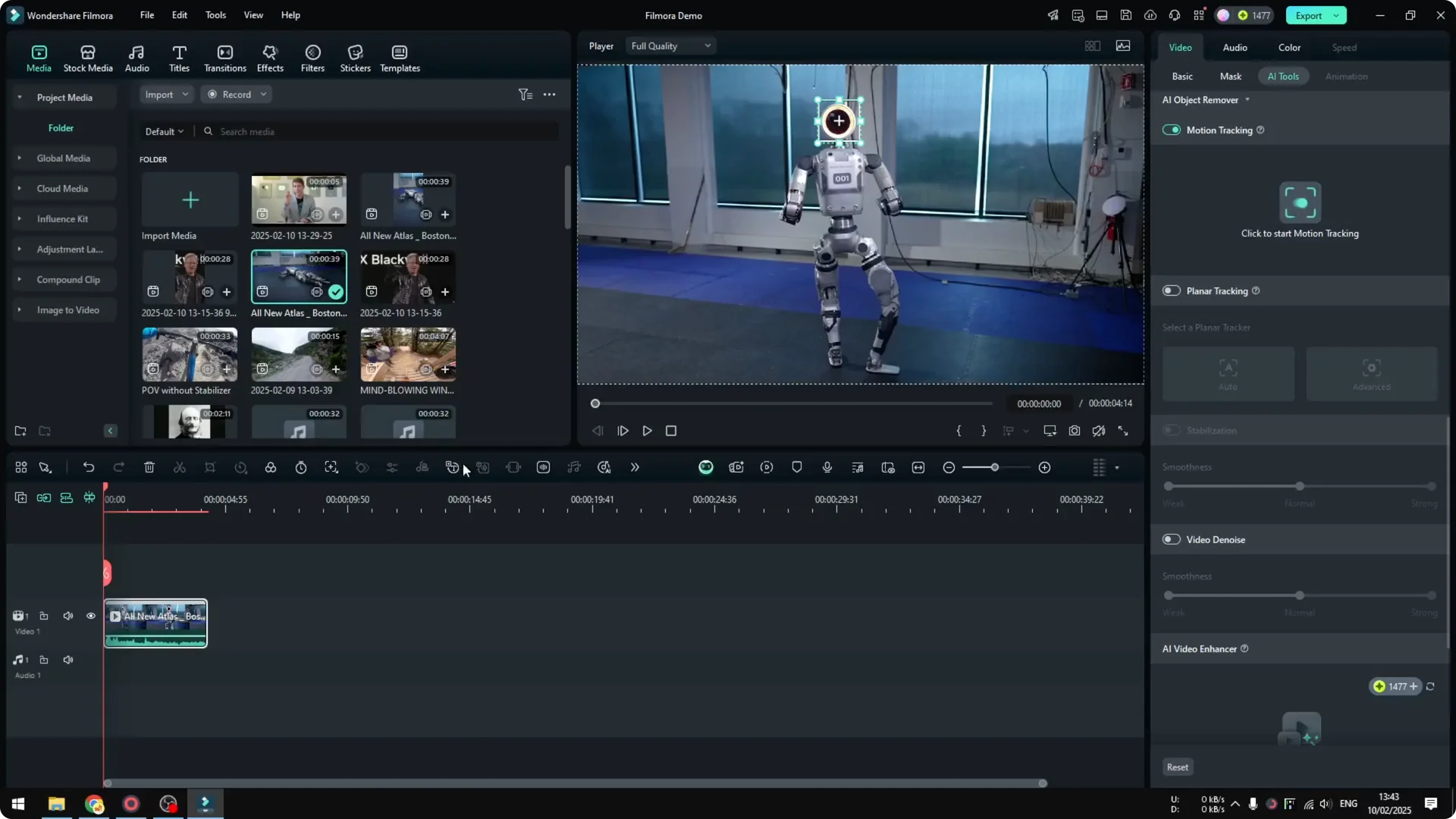
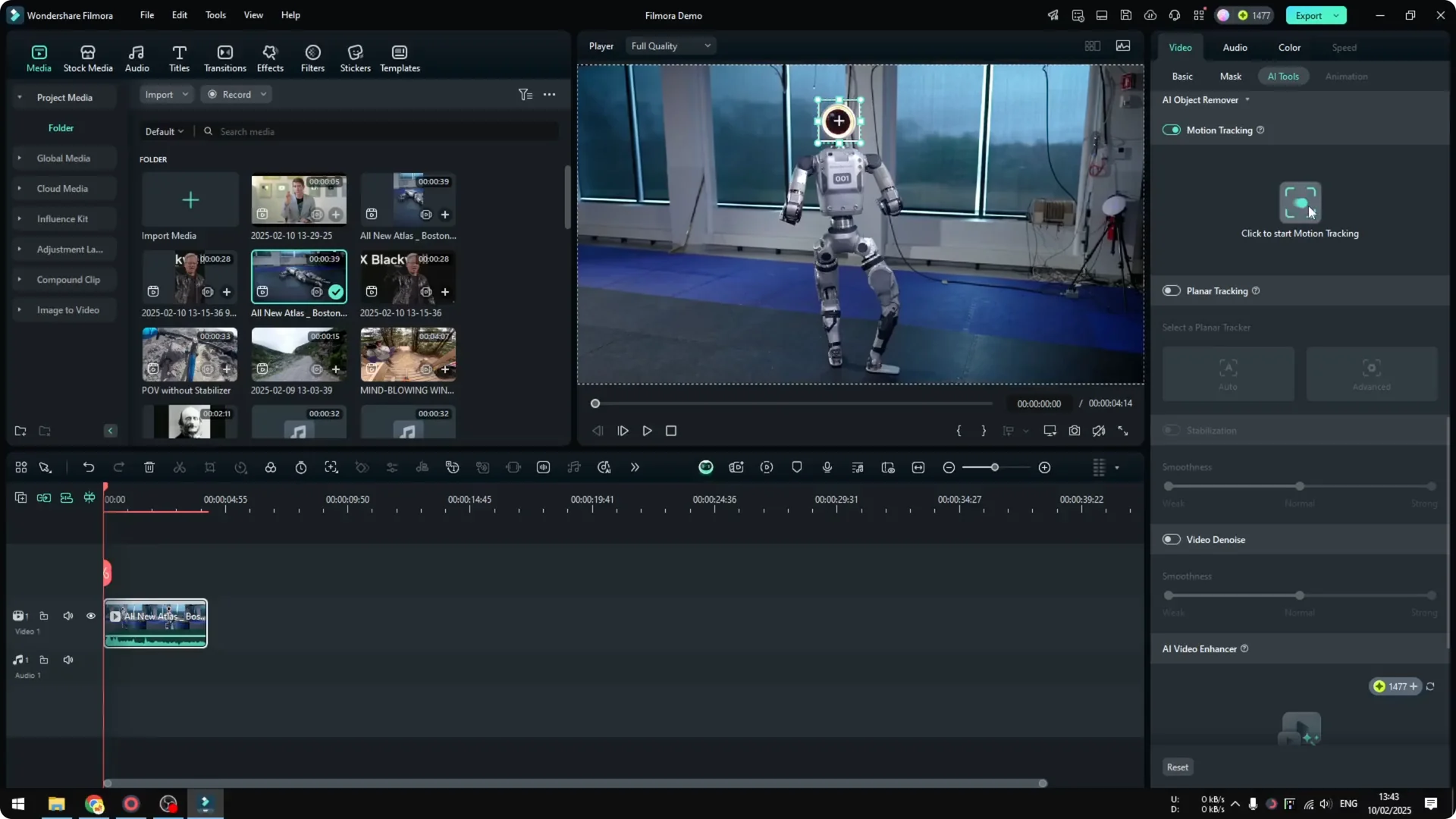
Click Start Motion Tracking and let Filmora process the clip. This usually takes from a few seconds to a few minutes depending on the video length. When it finishes, play the video to confirm that the box stays on the object.
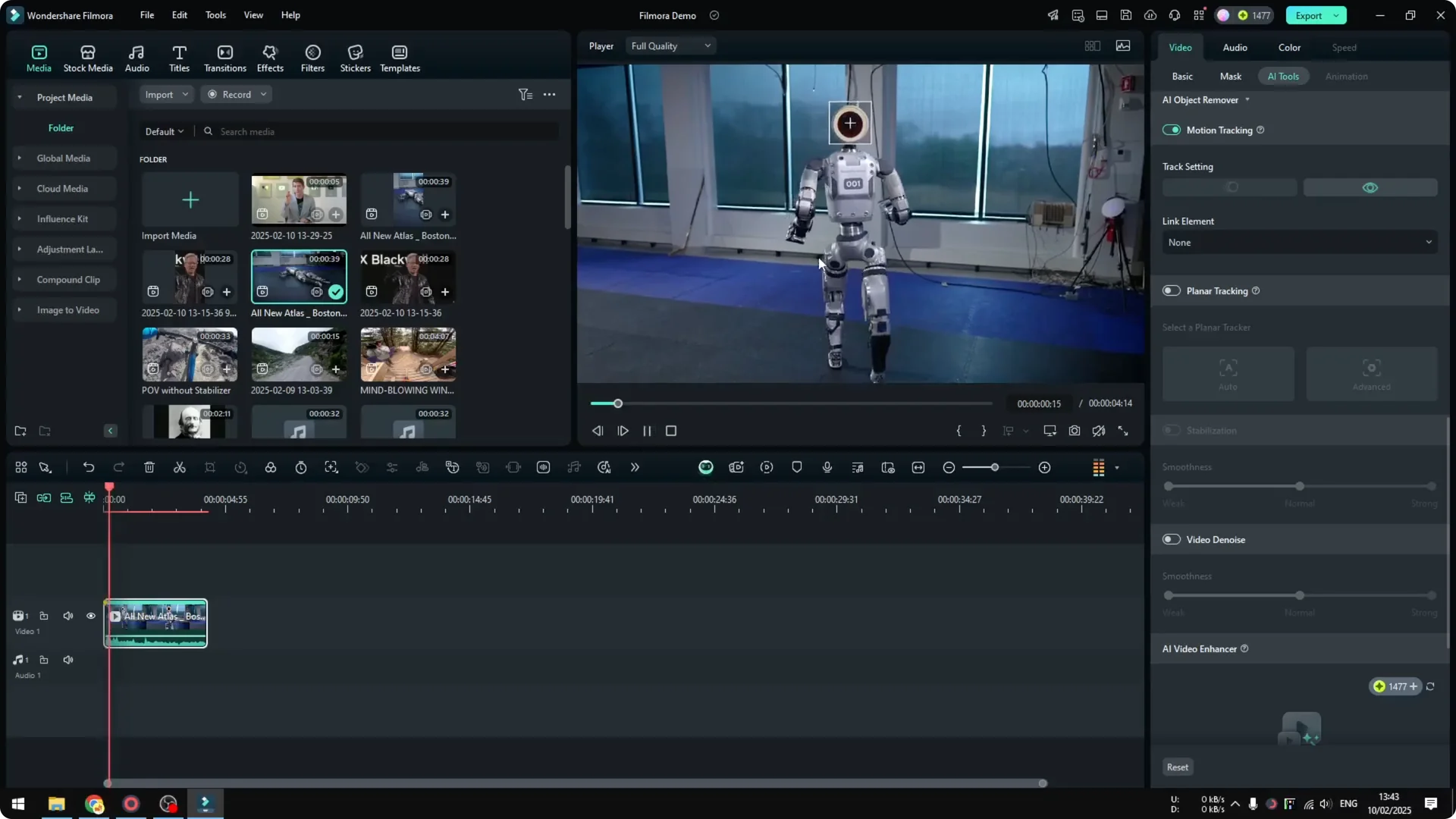
Verify tracking in Filmora AI Motion Tracking
If the box stays locked to the object as it moves, the tracking worked. You should see the box follow the head across the frames. That confirms you can link other elements to it.
Read More: How To Convert Long Videos Into Viral Clips Using Filmora Ai
Link elements with Filmora AI Motion Tracking
Click Link Element to attach something to the tracked box. You can add a picture or apply Mosaic, which is useful if you need to censor a face. For this example I wanted to add something next to the robot head.
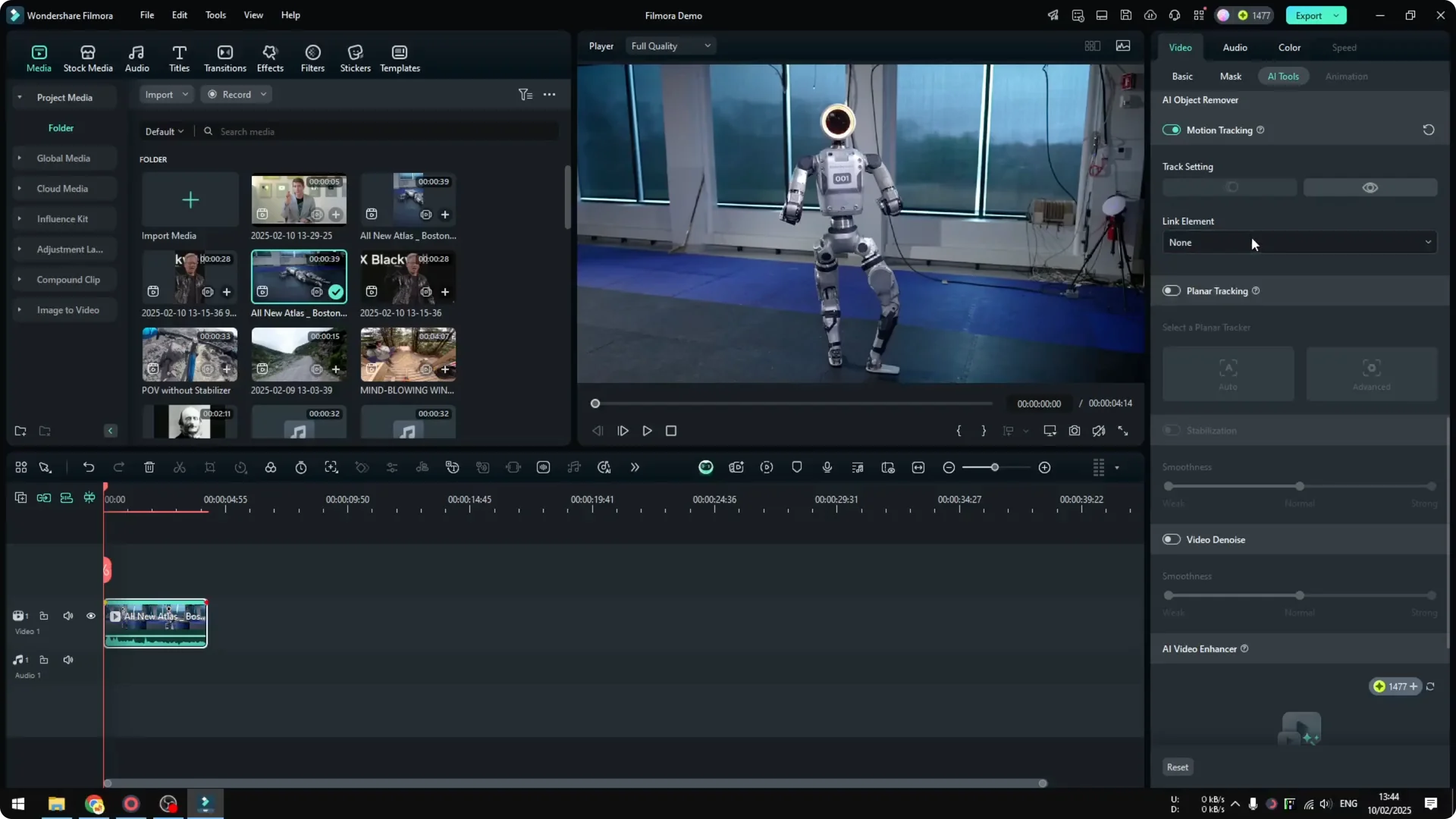
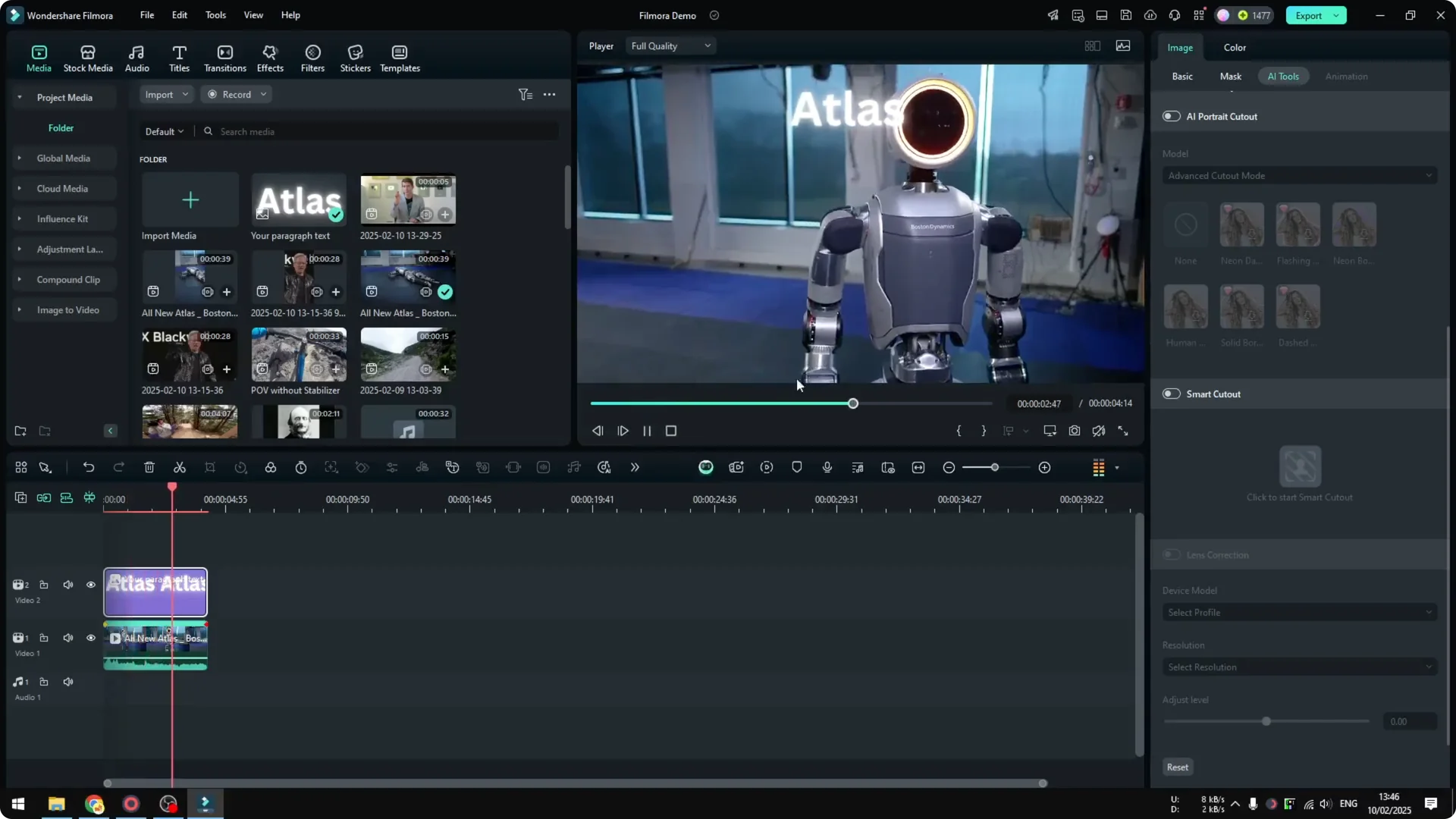
Click Link Element, then choose Import From Computer. I added a text image, resized it to make it smaller, and placed it next to the robot head. Play the video to see the result.
The text moves alongside the head and stays in position relative to the tracking box. That is exactly what I wanted from Motion Tracking. It is a quick way to attach graphics or effects to moving subjects.
Read More: How To Add Ai Audio Visualizer In Filmora
Final thoughts on Filmora AI Motion Tracking
Track the object first, position the playhead at the start, and keep your selection box precise. High quality footage with strong contrast helps the AI lock on better. Once tracking is set, linking text, images, or a mosaic to a moving subject becomes fast and reliable.