I am going to show you how to stabilize a shaky video using AI in Filmora. For a quick test, I used a POV of someone cycling on a mountain without a stabilizer, and it is very shaky. With AI, I can make the movement a little smoother.
I clipped the footage to the first 5 seconds and duplicated the clip, so I can compare before and after applying the stabilization effect. This keeps the test short and clear.
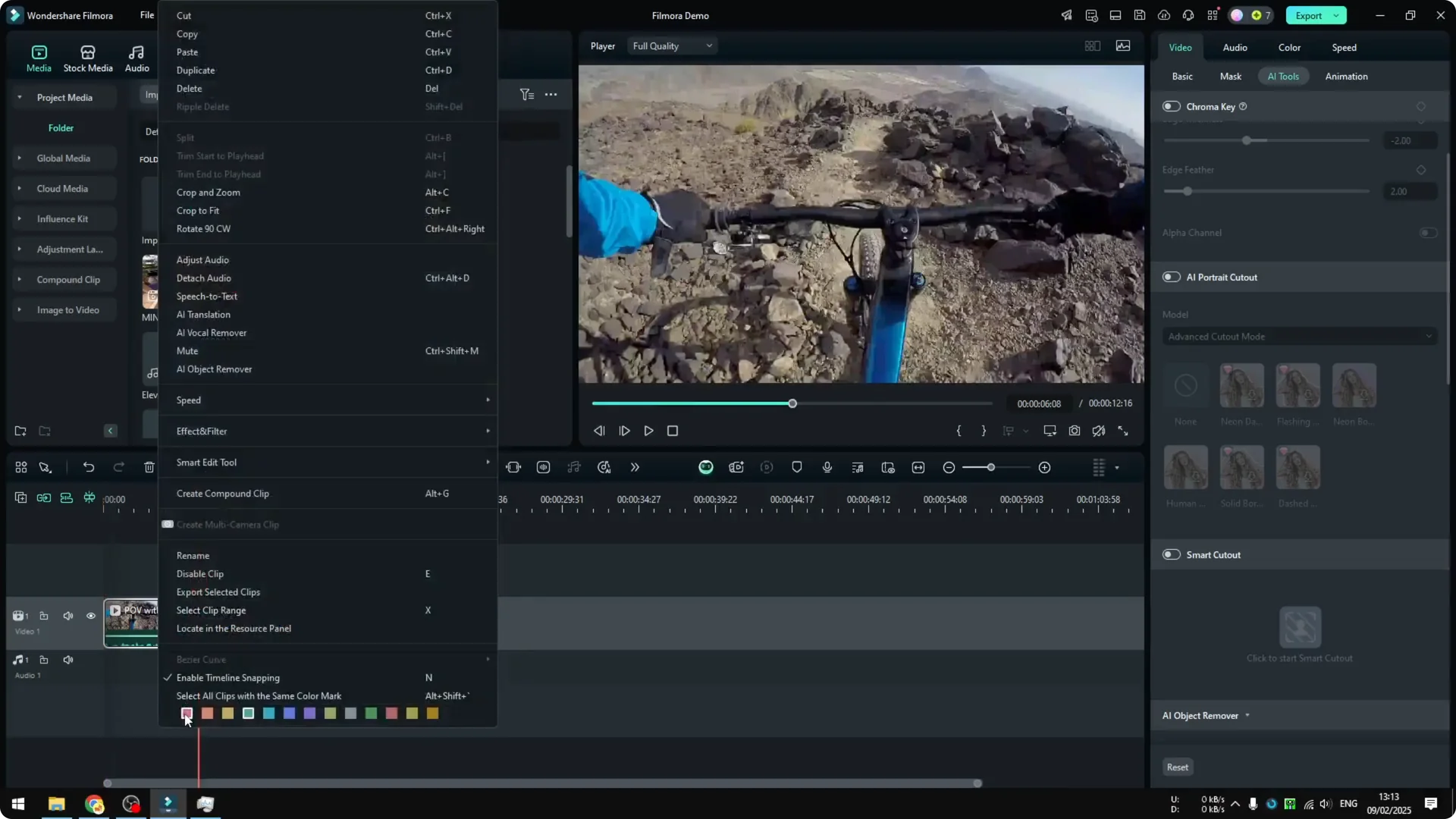
Getting started with Filmora AI Video Stabilization
Make sure you are running Filmora 13 or 14. I am not sure about 12 or 11, but as far as I know this feature is available in Filmora 13 and 14.
Apply the effect in Filmora AI Video Stabilization
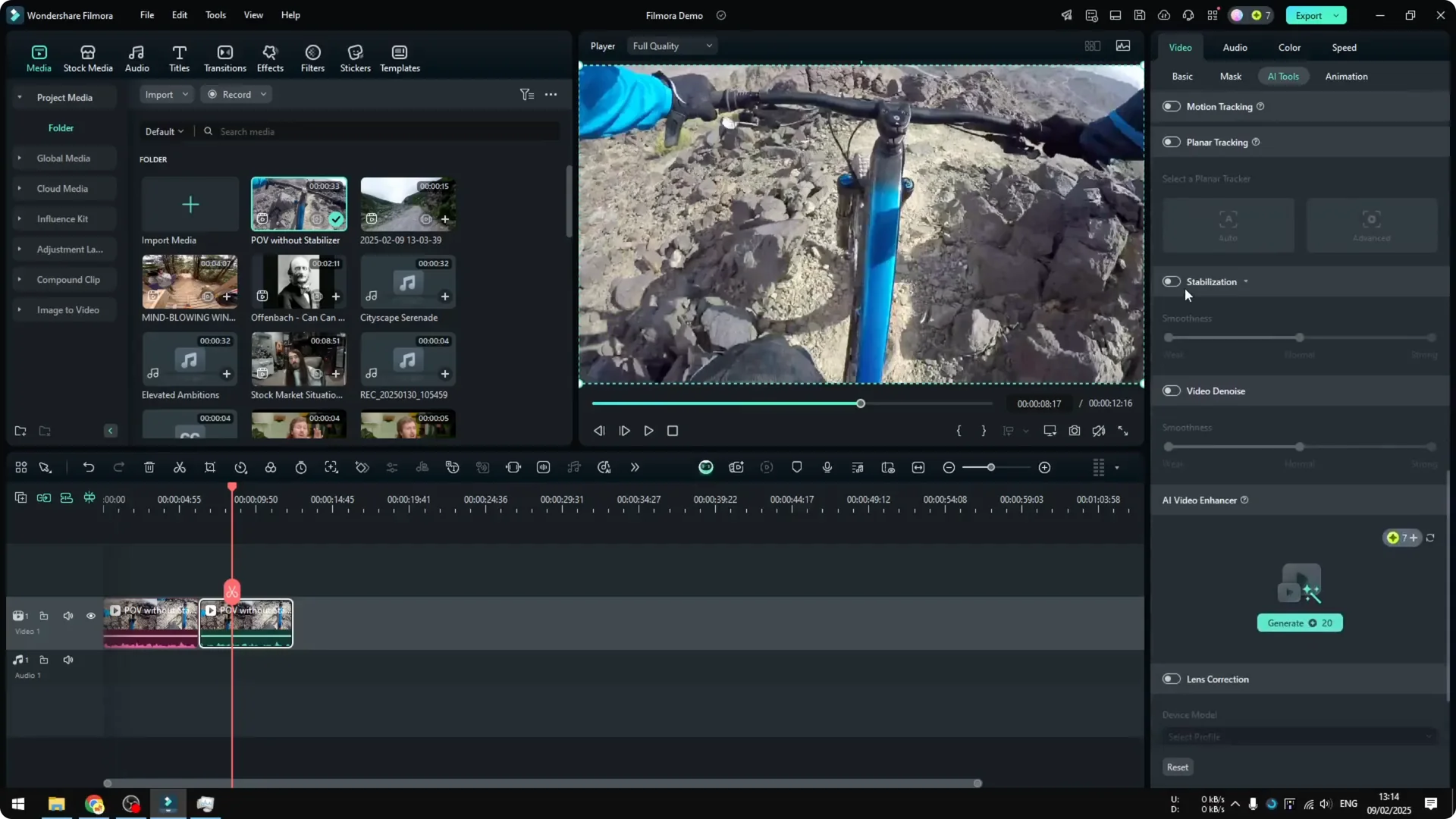
Double click the clip you want to modify to open the menu on the right. Go to Video, open AI Tools, and find Stabilization. Enable it to start processing.
It will process the video. On my system it takes more time than I expect because it uses the CPU instead of the GPU.
CPU is not very efficient for this kind of task.
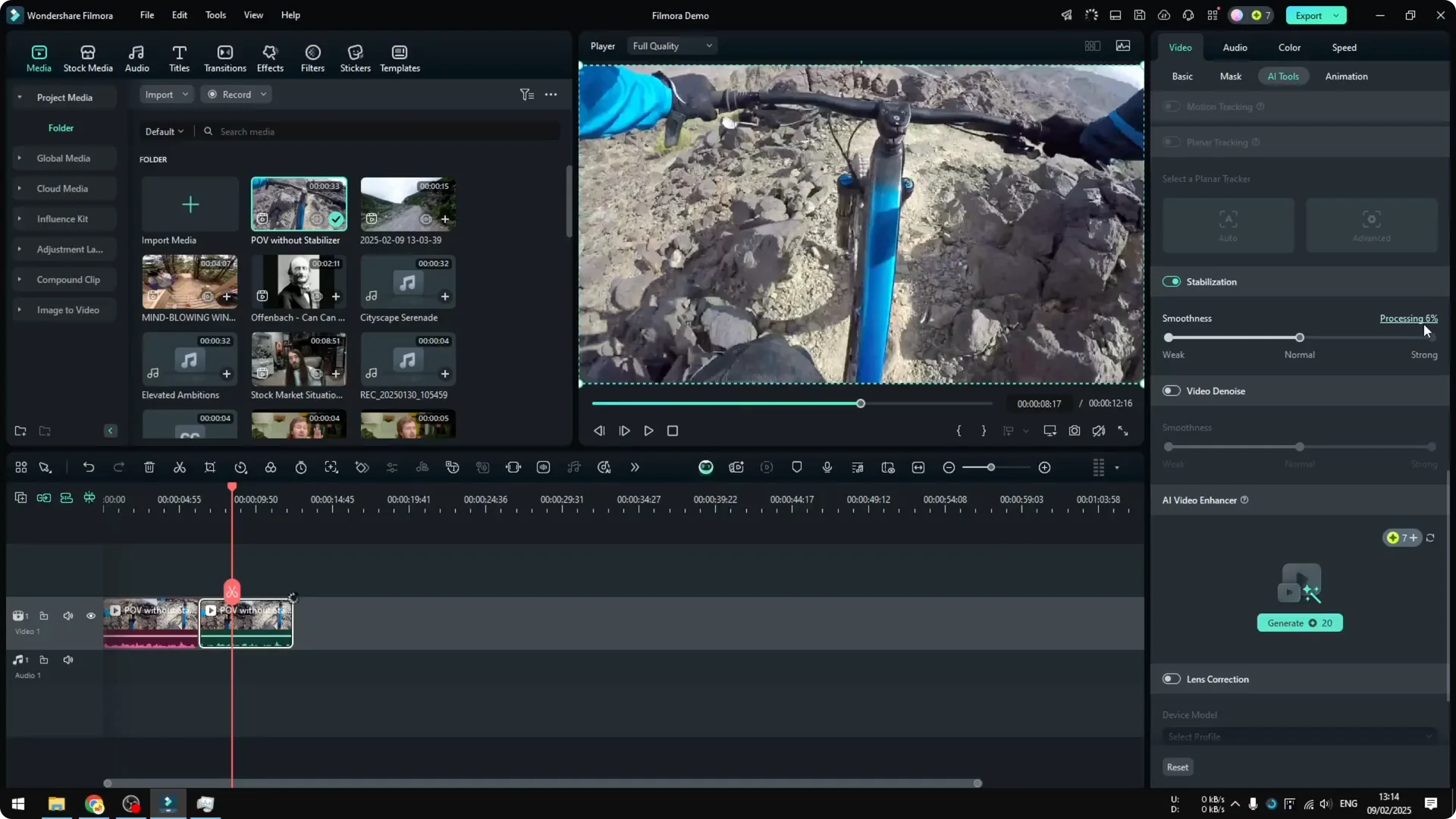
I hope Filmora updates this feature to use the GPU so we can get results faster. Until then, be patient while it runs.
I highly recommend you to not do anything during this process.
Do not edit the video and do not even play it, or the process will stop and start all over again.
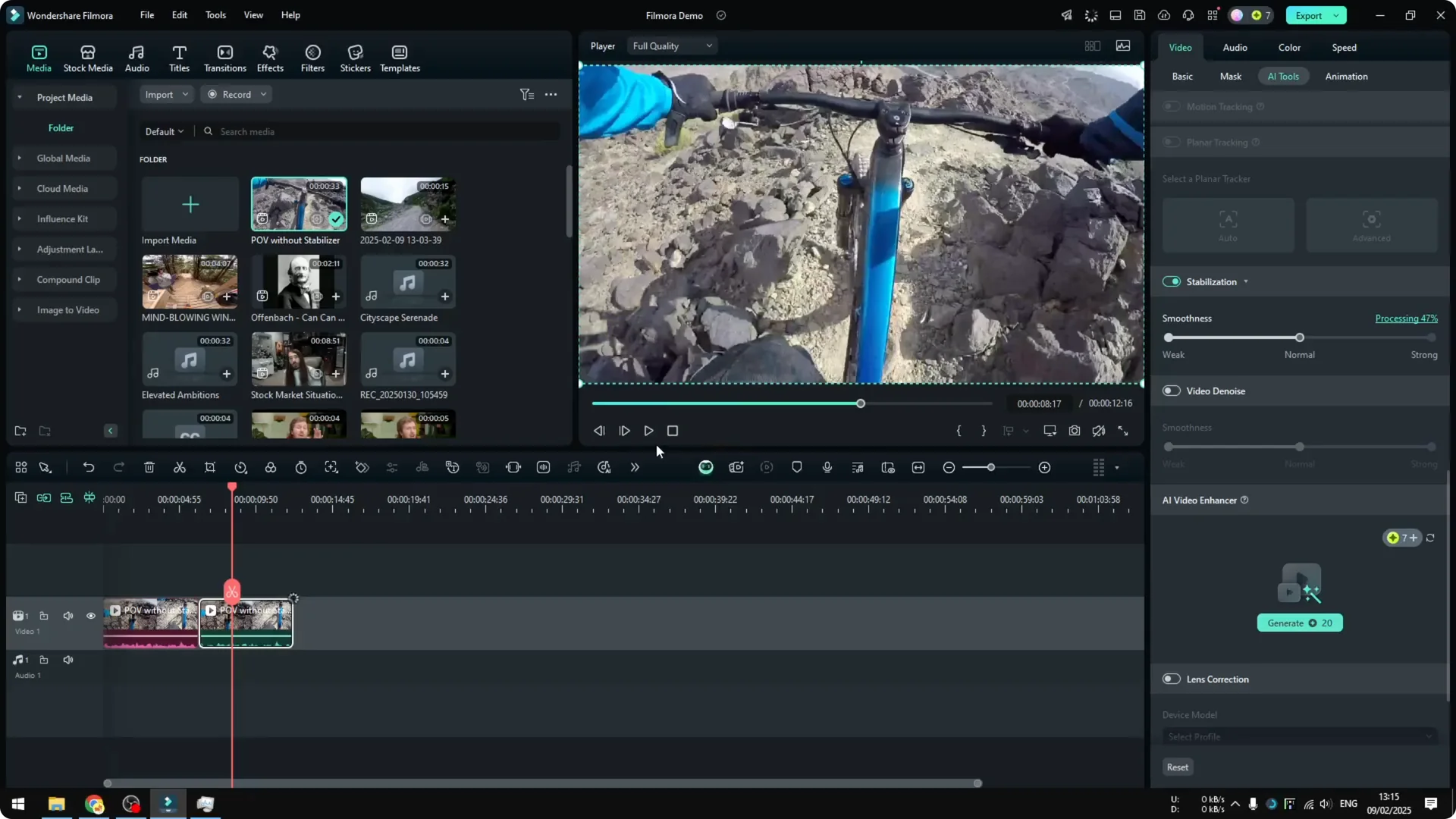
I learned this the hard way when working on a very long video. Even for a short clip, you can see it takes a lot of time to finish.
If you are cutting longer footage after stabilization, you may find it helpful to convert long videos into viral clips using Filmora AI.
Compare results with Filmora AI Video Stabilization
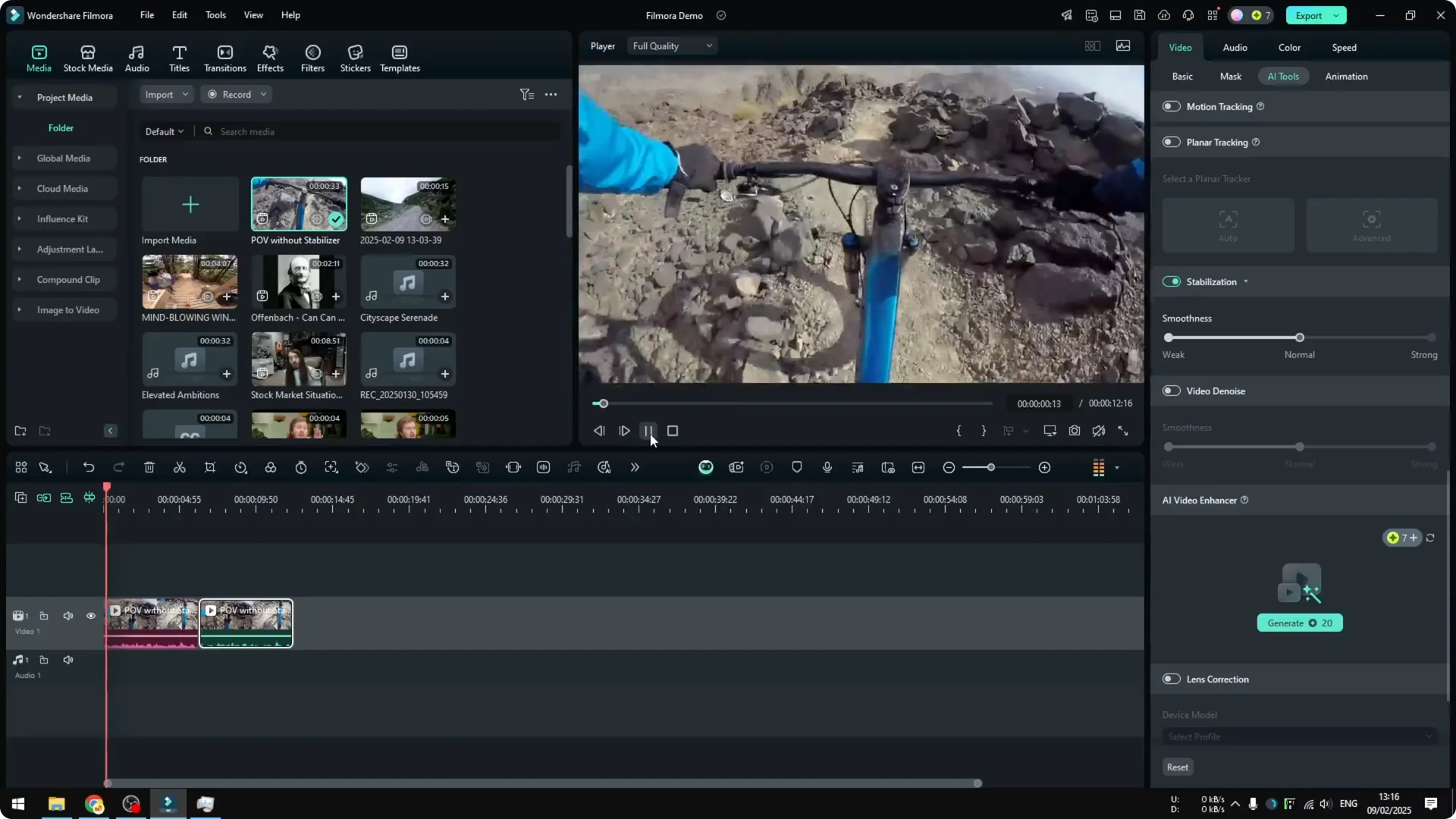
After processing, I play the original clip first, then the stabilized version to compare. It is a bit smoother than the original video.
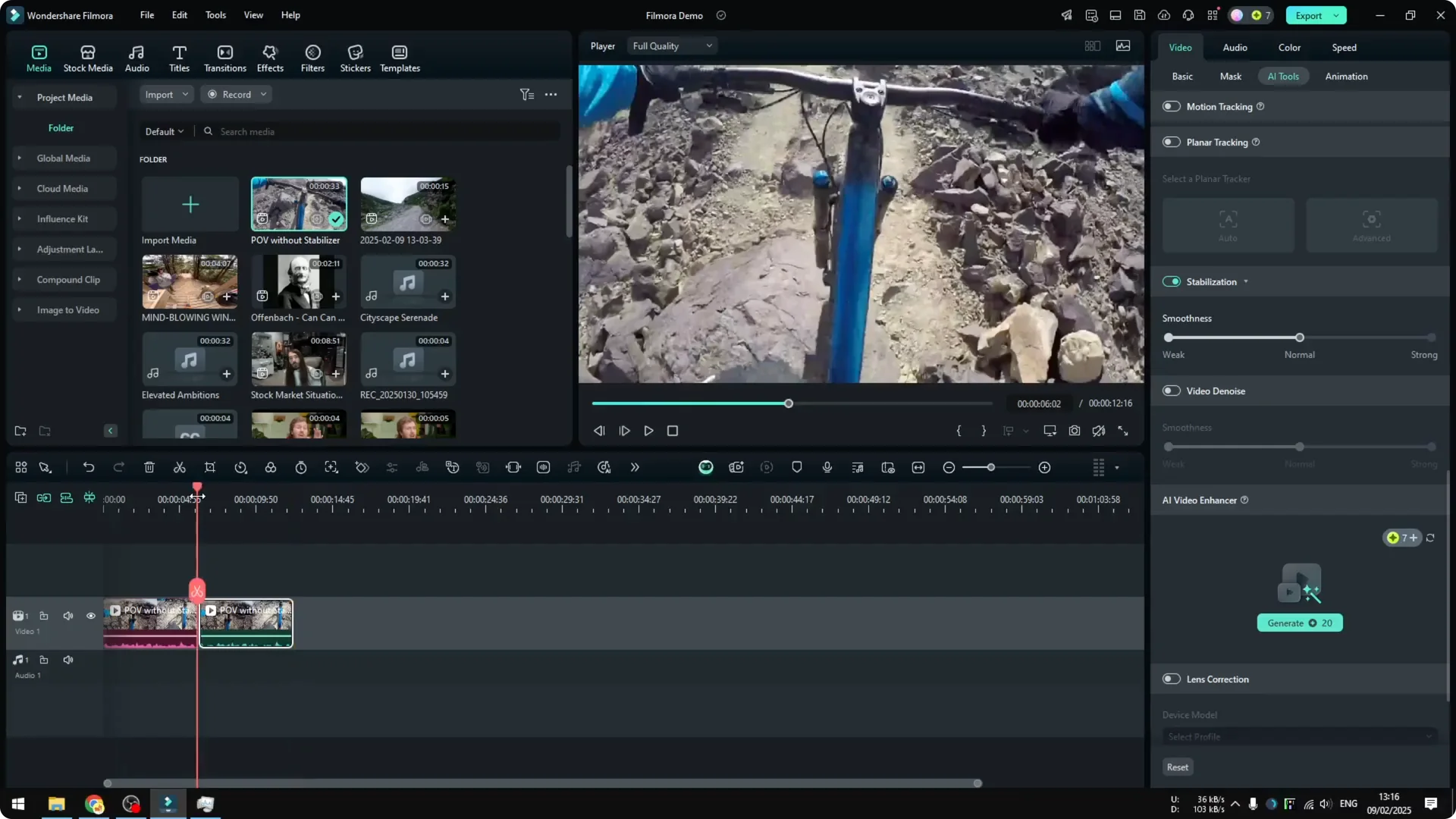
The original was very shaky, especially in the first few seconds.
The stabilized version shows fewer abrupt movements and looks a lot smoother.
Adjust smoothness in Filmora AI Video Stabilization
You can change the level of smoothness to Weak, Normal, or Strong.
If you want the maximum effect, go to Strong.
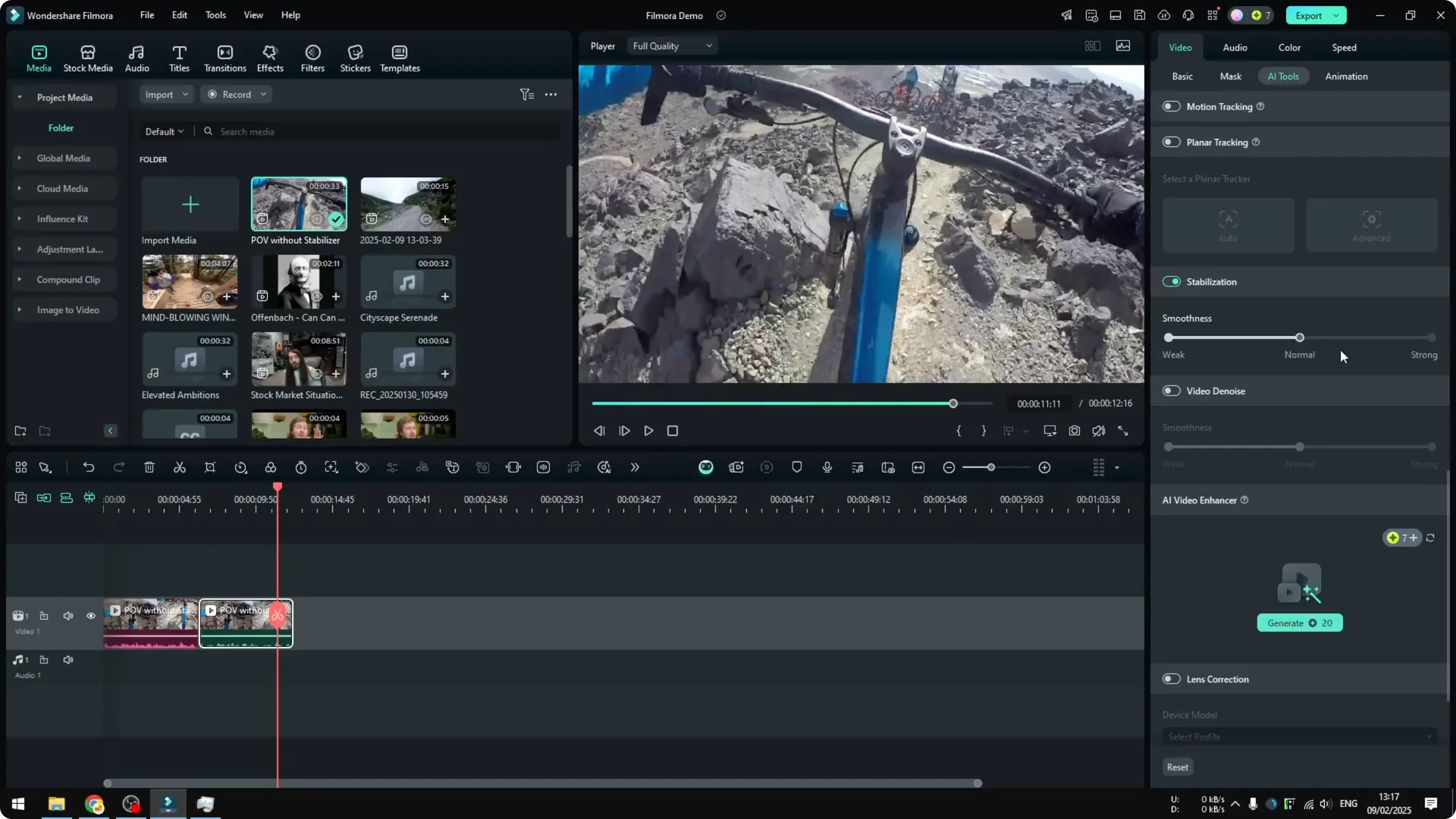
It will take time to process the clip again after you change the level. The process is simple, and you do not have to do anything while it runs.
If you also need slow motion for a specific moment, see how to turn a video to slow motion with Filmora AI.
Extra notes for Filmora AI Video Stabilization
Right now the feature relies on the CPU, which makes processing slower. I hope future updates enable GPU use to speed it up.
Avoid touching the timeline until stabilization finishes. That prevents a restart on long projects.
If your clip includes a moving watermark, you can also remove a moving watermark using Filmora AI.
Final Thoughts on Filmora AI Video Stabilization
Filmora AI stabilization can make shaky footage smoother. The key steps are enabling Stabilization in AI Tools, waiting for the process, and adjusting the smoothness to taste.
Expect CPU bound processing times and avoid any edits while it runs to prevent restarts. For quick comparisons, trim a short segment and duplicate it to see before and after.