I show how to mirror, flip, or rotate a video in Filmora. The process is very simple. I insert a clip of a woman facing right and I want her facing left.
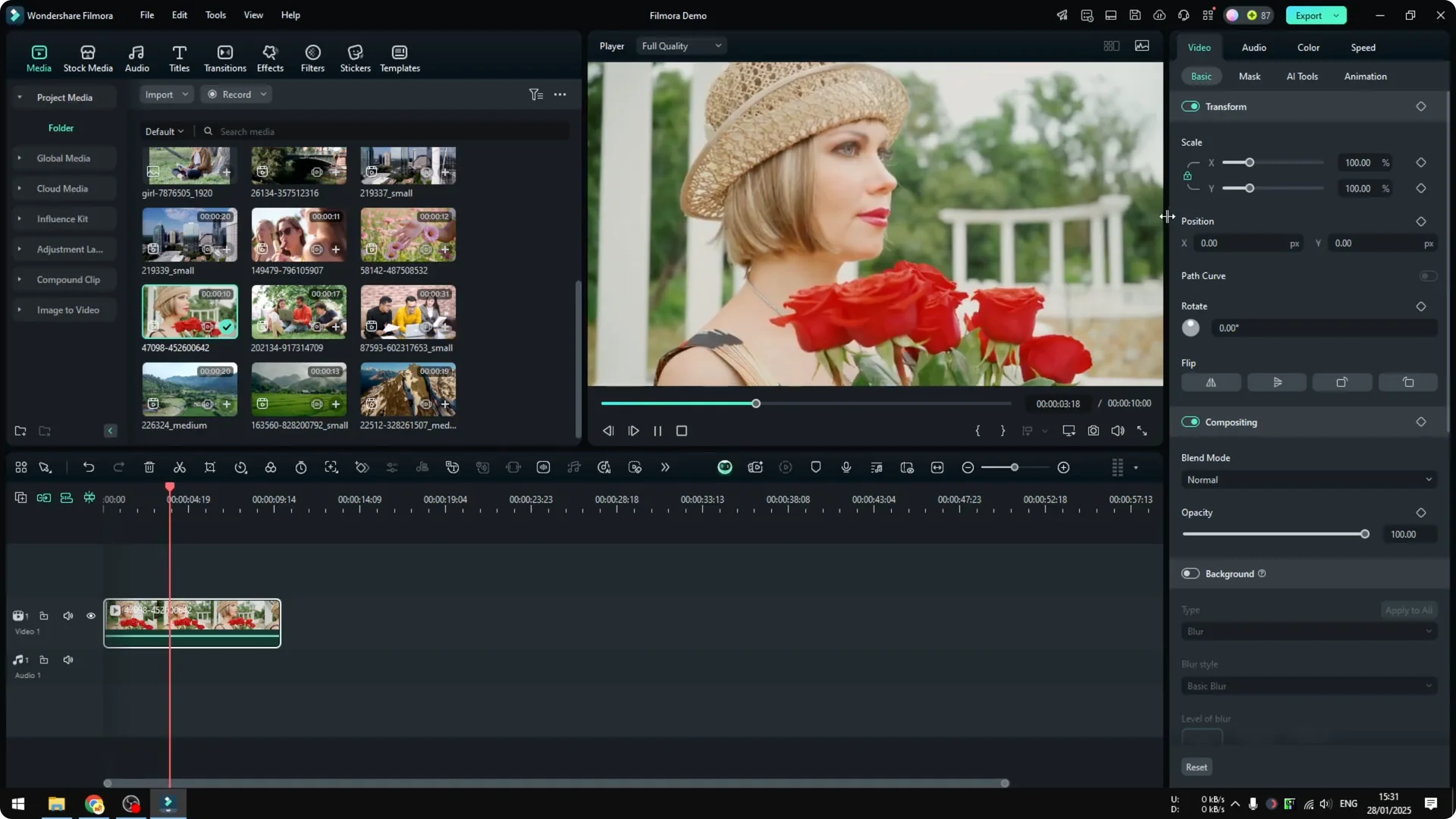
Filmora Video Mirroring and Rotation
Flip a single clip
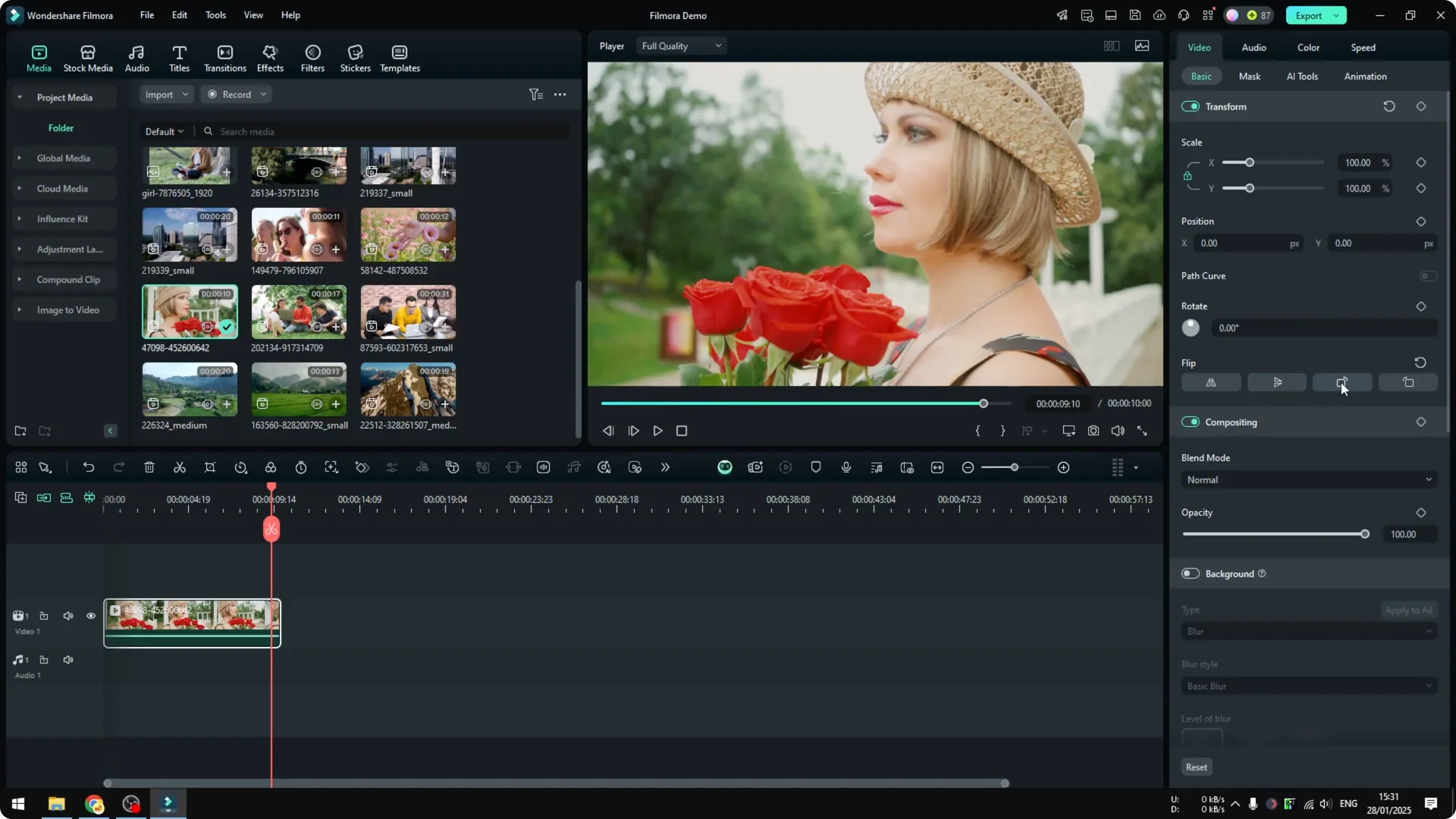
Select the clip in the timeline. In the Video section under Basic, open the Rotate and Flip menu.
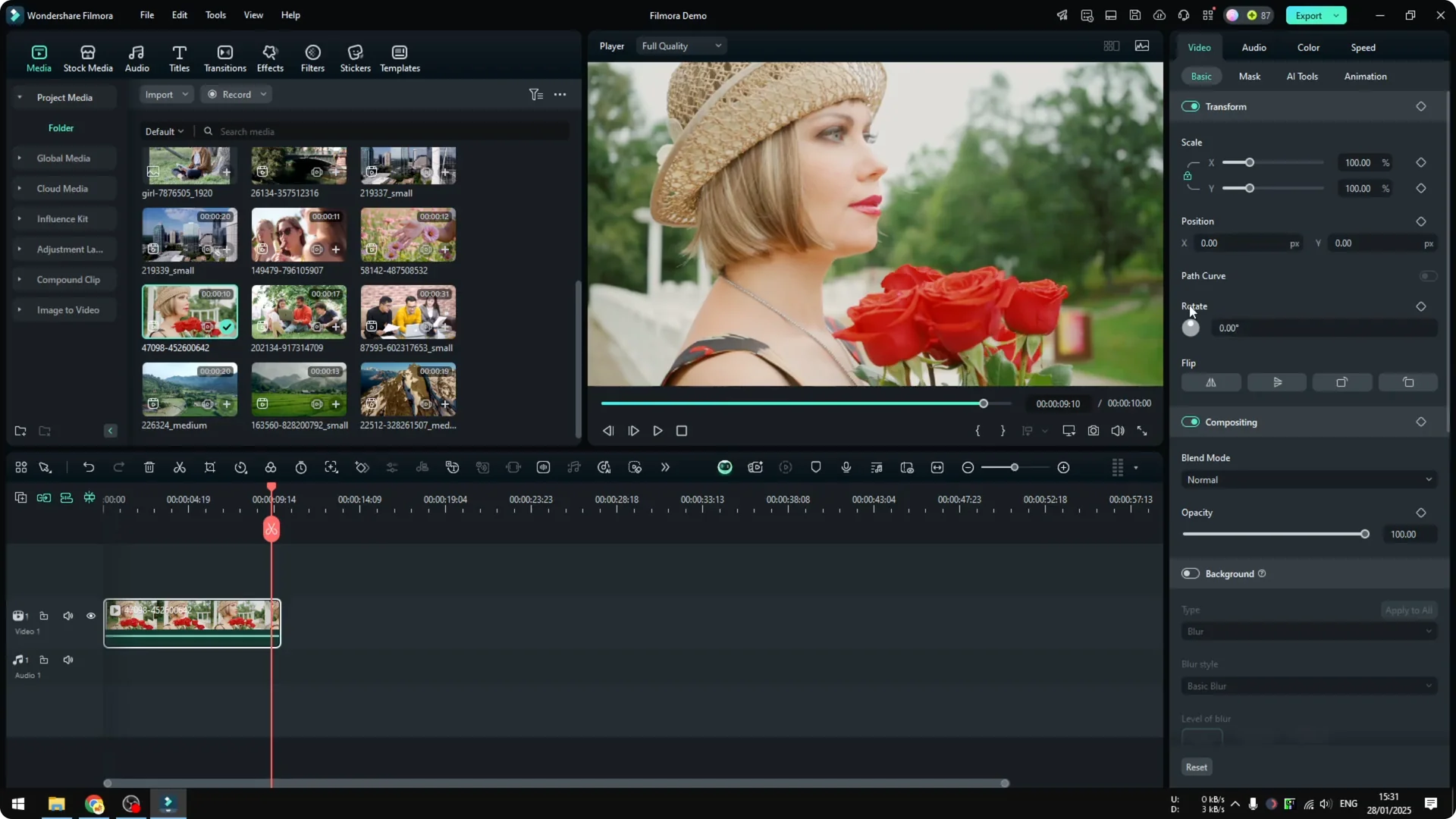
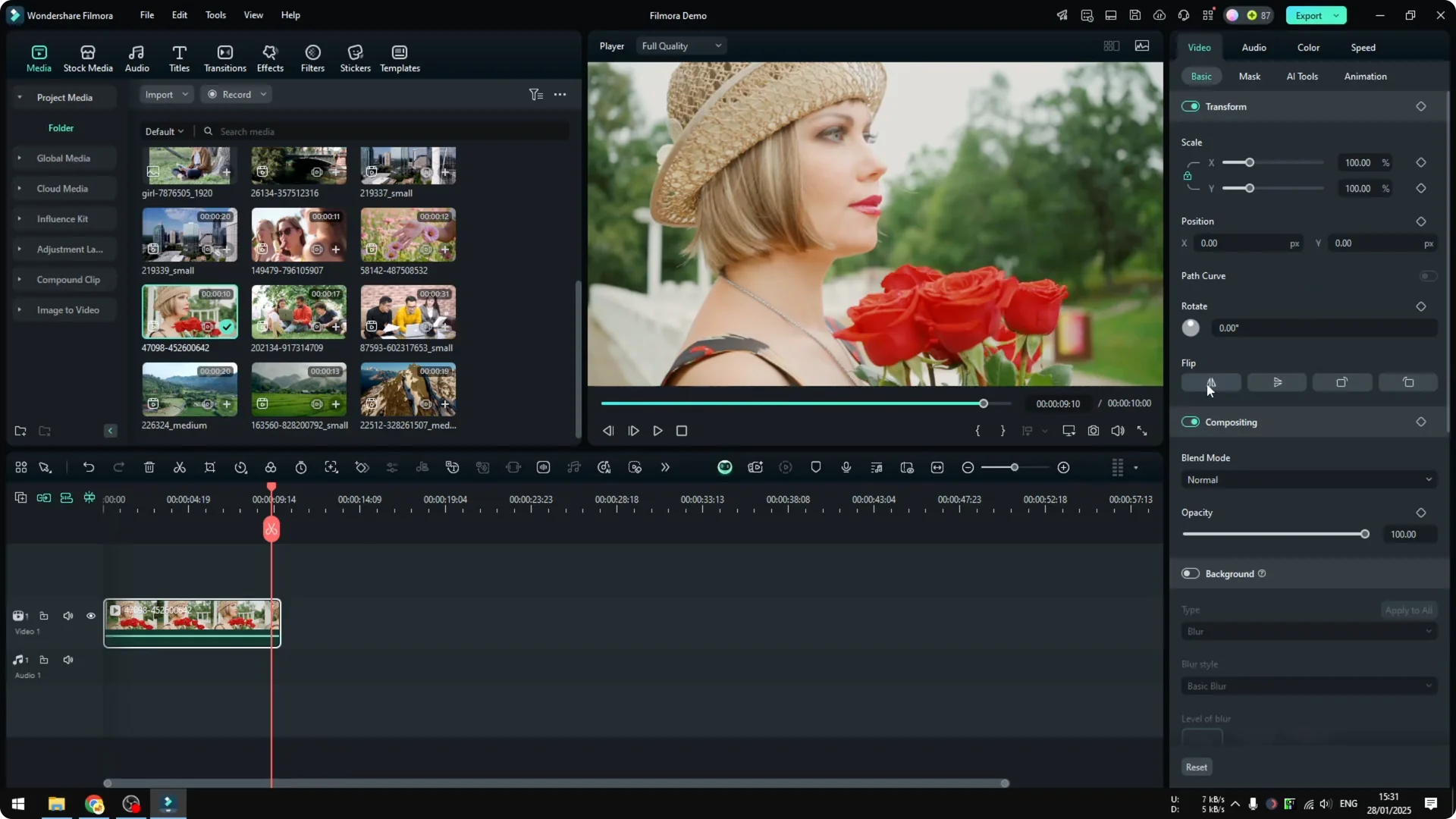
Click Flip Horizontally to make her face the left direction. It is really as simple as that.
Read More: How To Edit Video Using Text In Filmora
Other flip options
You can also use the other flipping or mirroring method. Click Flip Vertically if you want the top and bottom to invert.
Fine rotation control
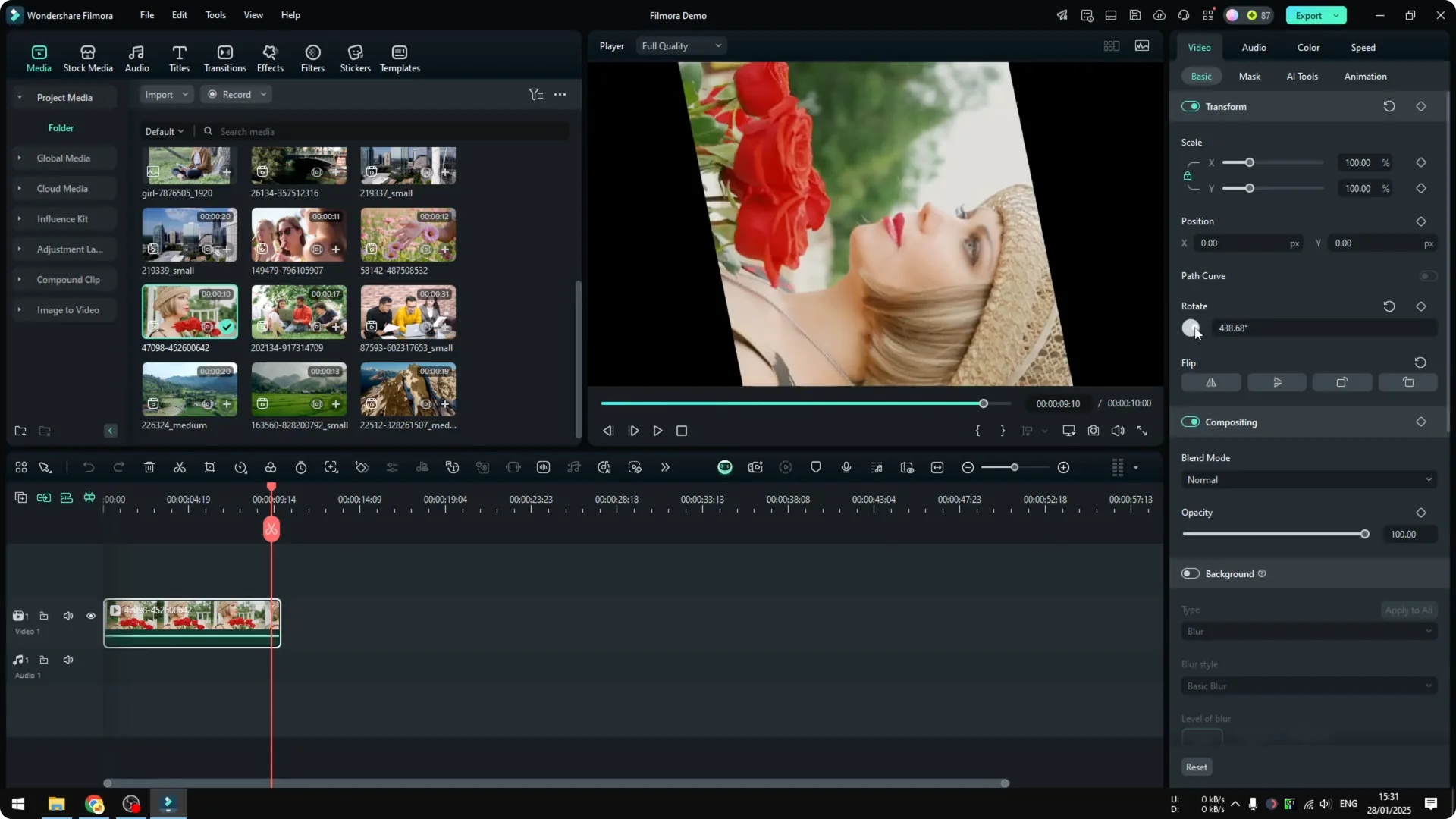
You can rotate the video if you want. Use the Rotate knob for better control.
If you want finer adjustments, this is the option to try.
Read More: How To Stabilize Shaky Video Using Ai In Filmora
Apply settings to multiple videos
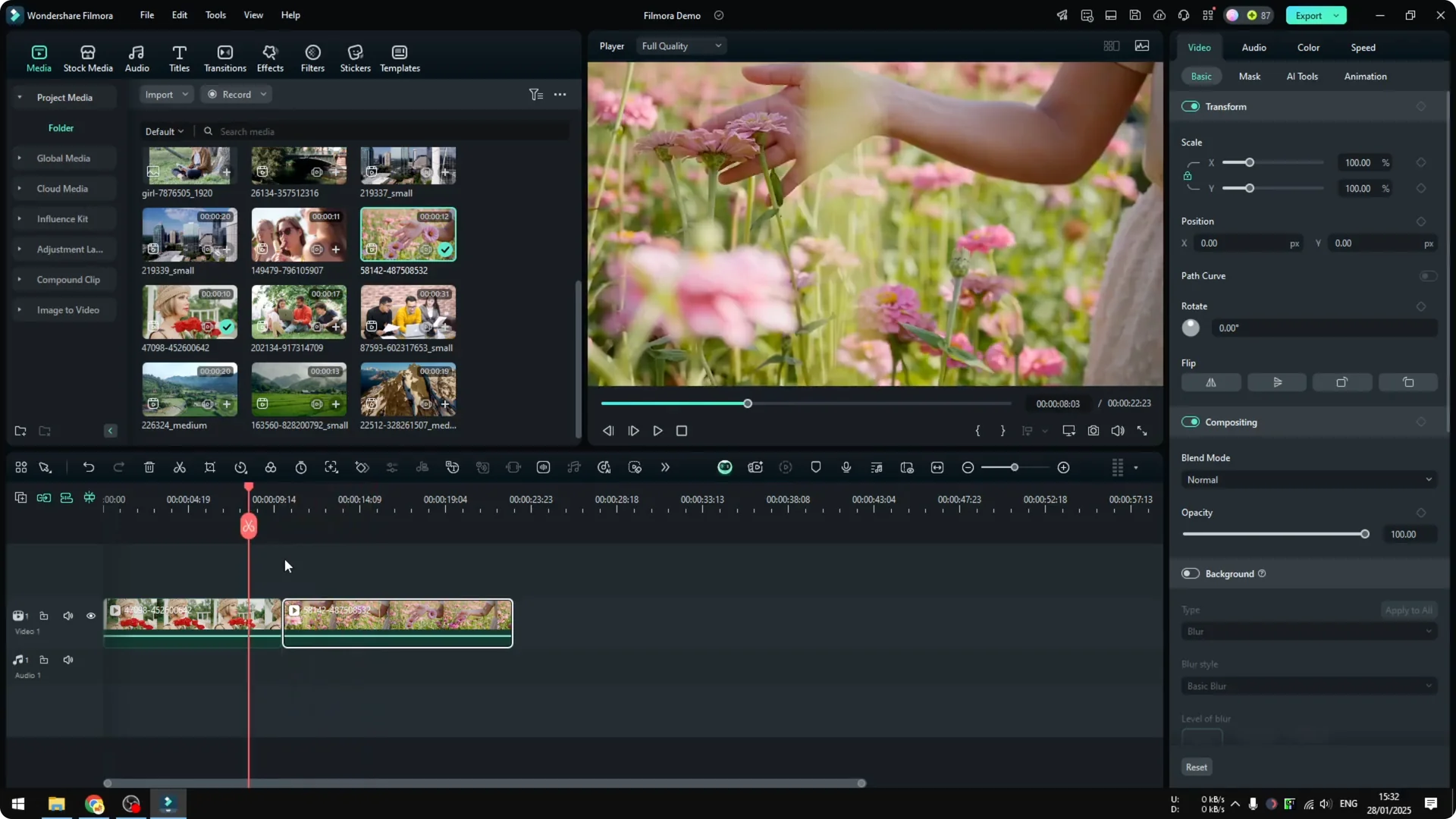
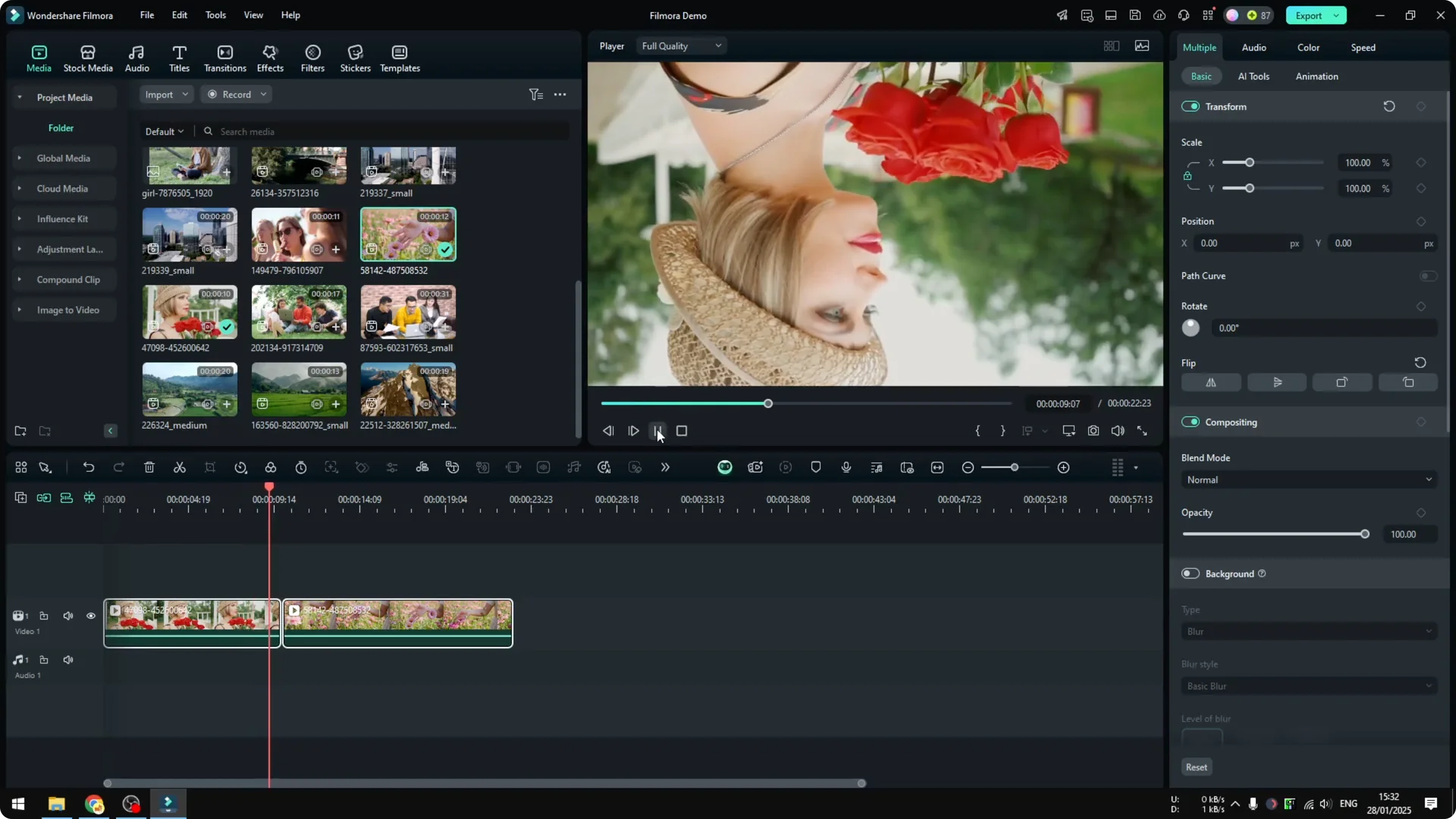
You can apply the setting to multiple videos. Add another video, for example a person walking on a flower field, and select both clips.
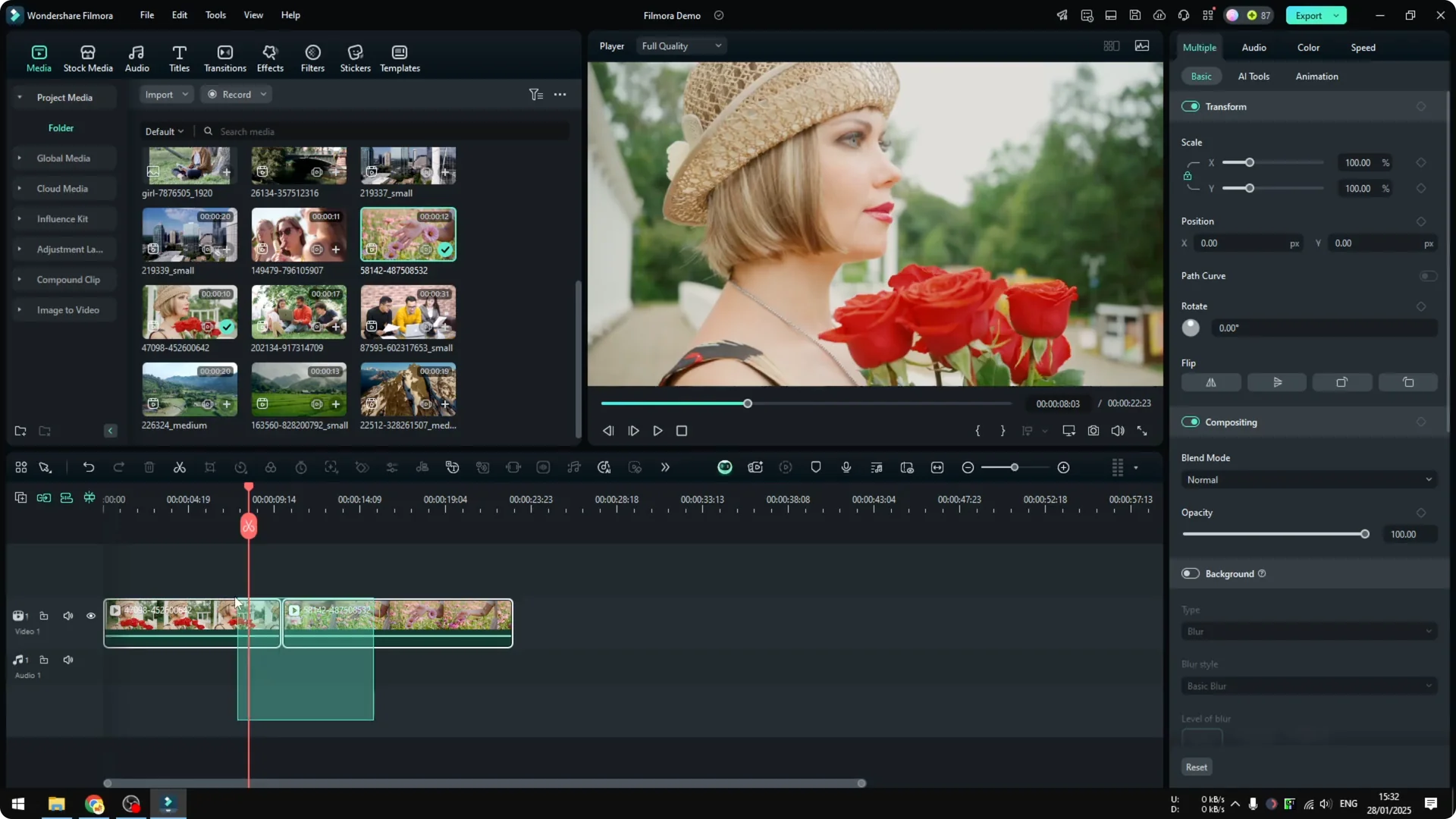
Click and drag your cursor so two videos are selected. Flip them vertically so the result is more obvious. Play it back and you will see that the two videos are flipped with just one click.
Read More: How To Ai Translate Video In Filmora
Final Thoughts
That is how to flip, mirror, or rotate a video using Filmora. Select the clip, open the Rotate and Flip controls, choose Flip Horizontally, Flip Vertically, or adjust with Rotate, and apply to one or many clips. It is quick and effective.