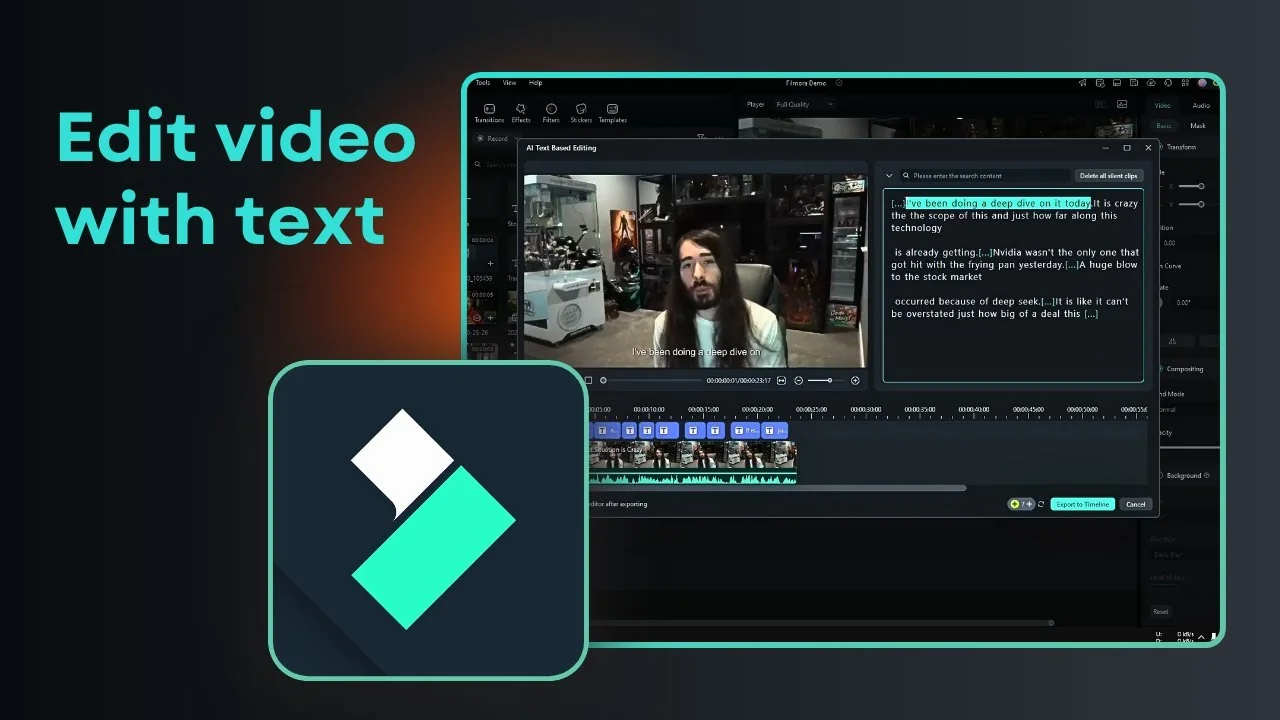
I am going to show you how you can use AI text based editing in Filmora. The premise is simple. It transcribes a video, generates the spoken text, and makes that text available for editing.
If there is a word or section you want to remove, you delete it like normal text. The matching part of the clip is removed as well. This is very useful for very long videos and makes the process faster and simpler.
If your project also needs narration, see how to set up AI text to speech in Filmora to keep everything in one workflow.
How Filmora AI Text-Based Editing Works
I will demonstrate the process with a simple talking head clip that usually does not involve a lot of cuts. I will insert the clip into the timeline, play it back, and then edit the video using text based controls.
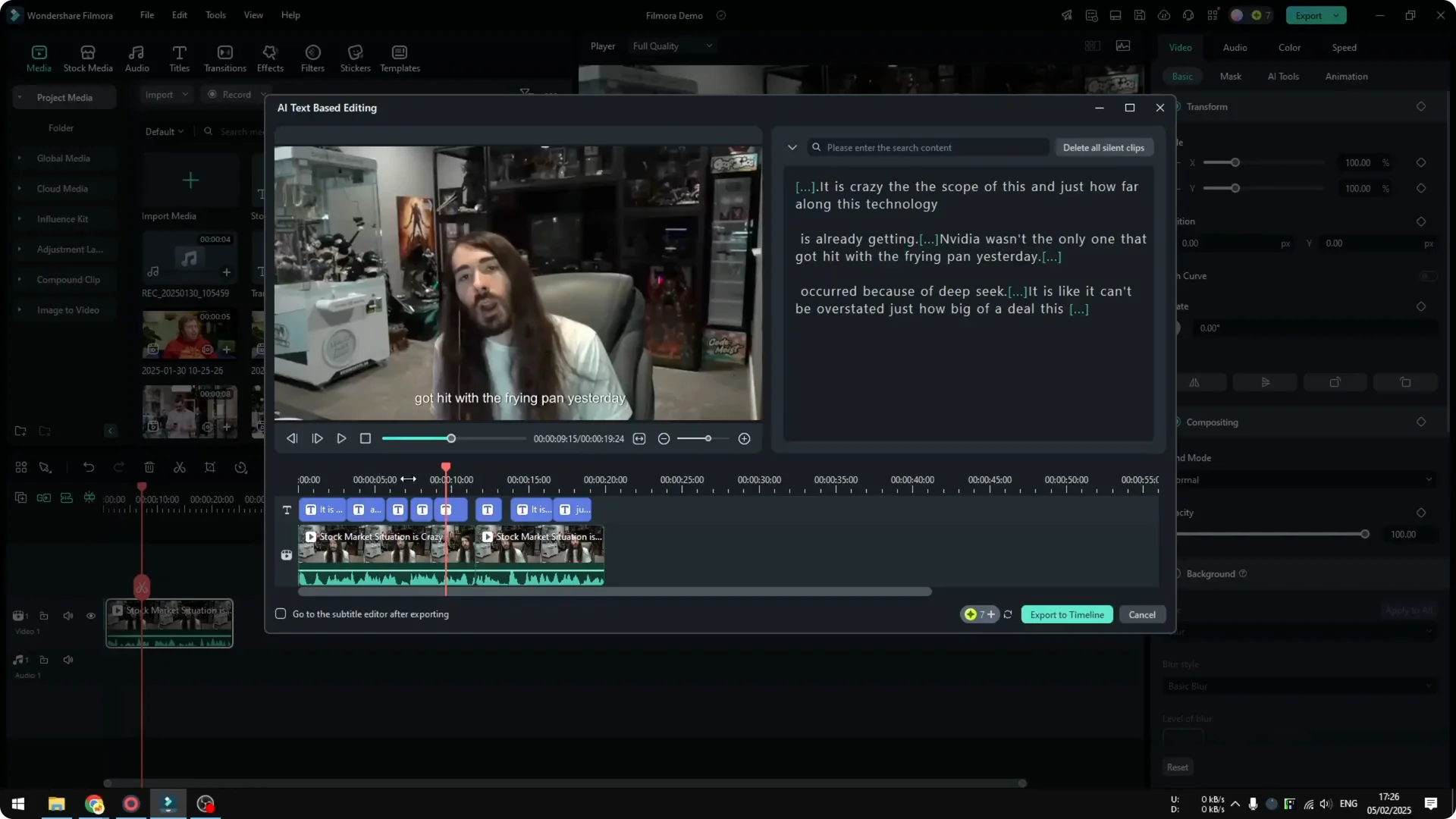
Make sure you are using the latest version of Filmora. The feature is available in the menu. Open the menu and click AI Text-Based Editing.
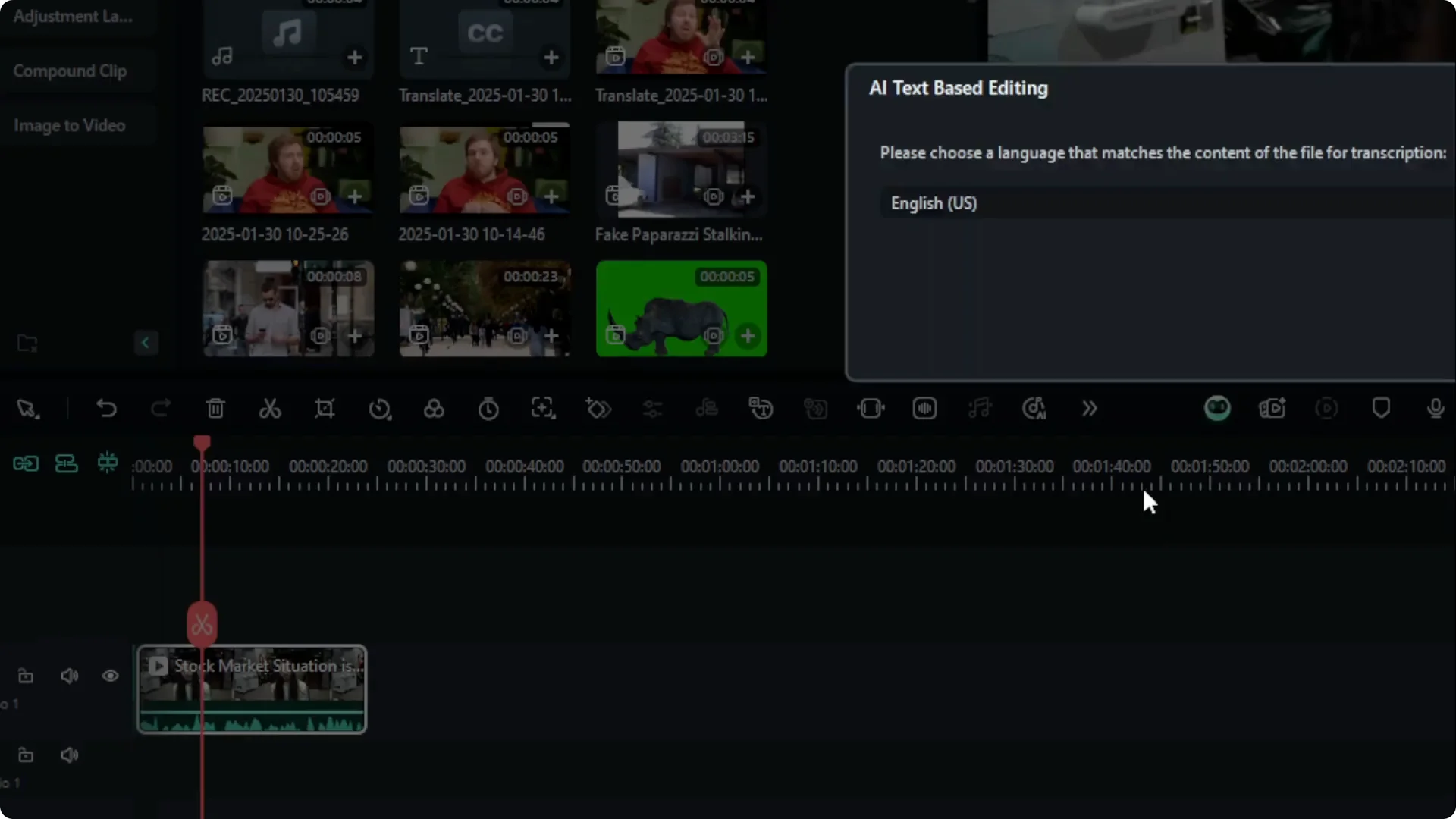
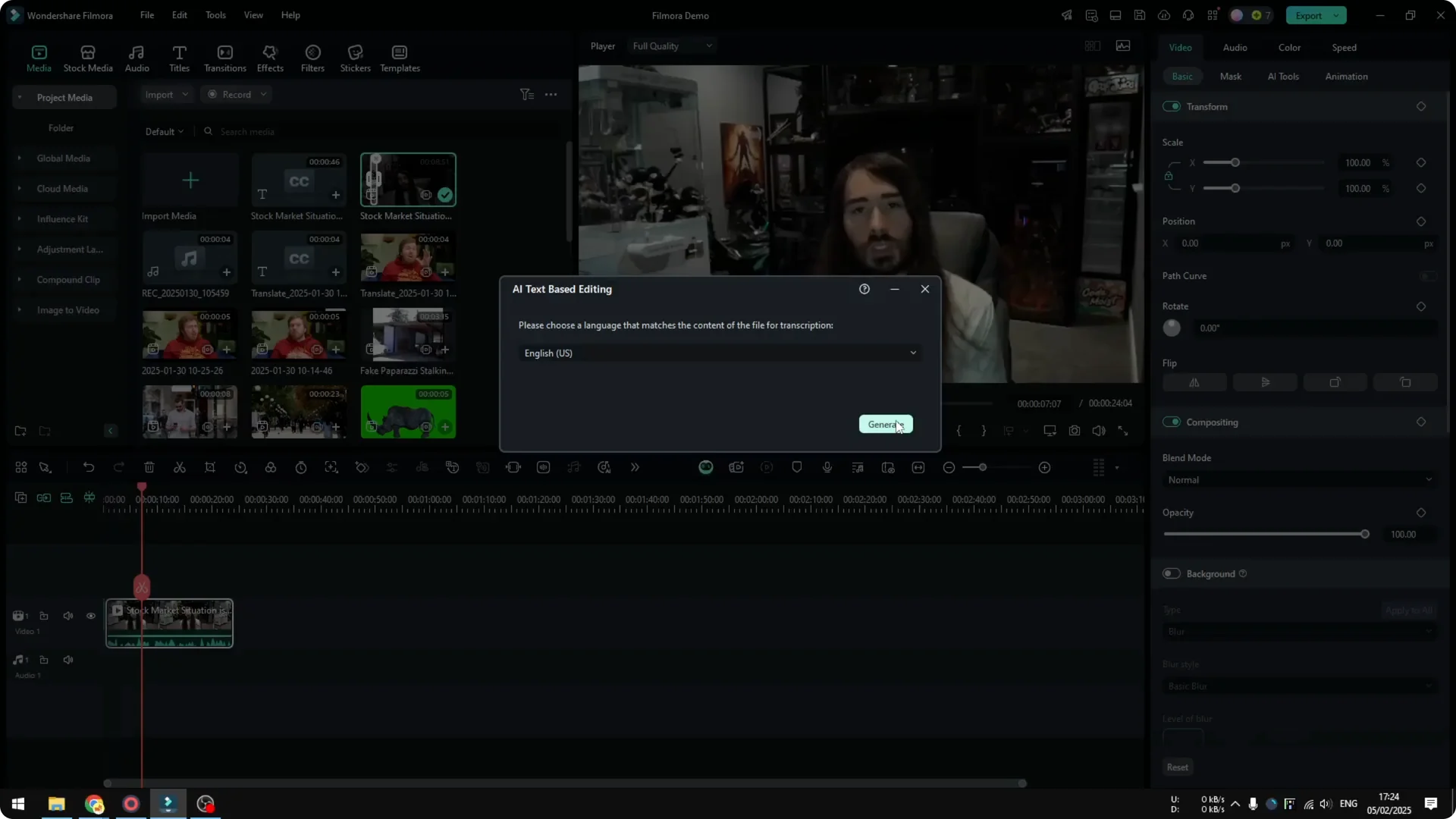
If you do not see it in that list, it may be in another panel in the same area. Open the menu there and select AI Text-Based Editing. Select your language. In this example it is English US.
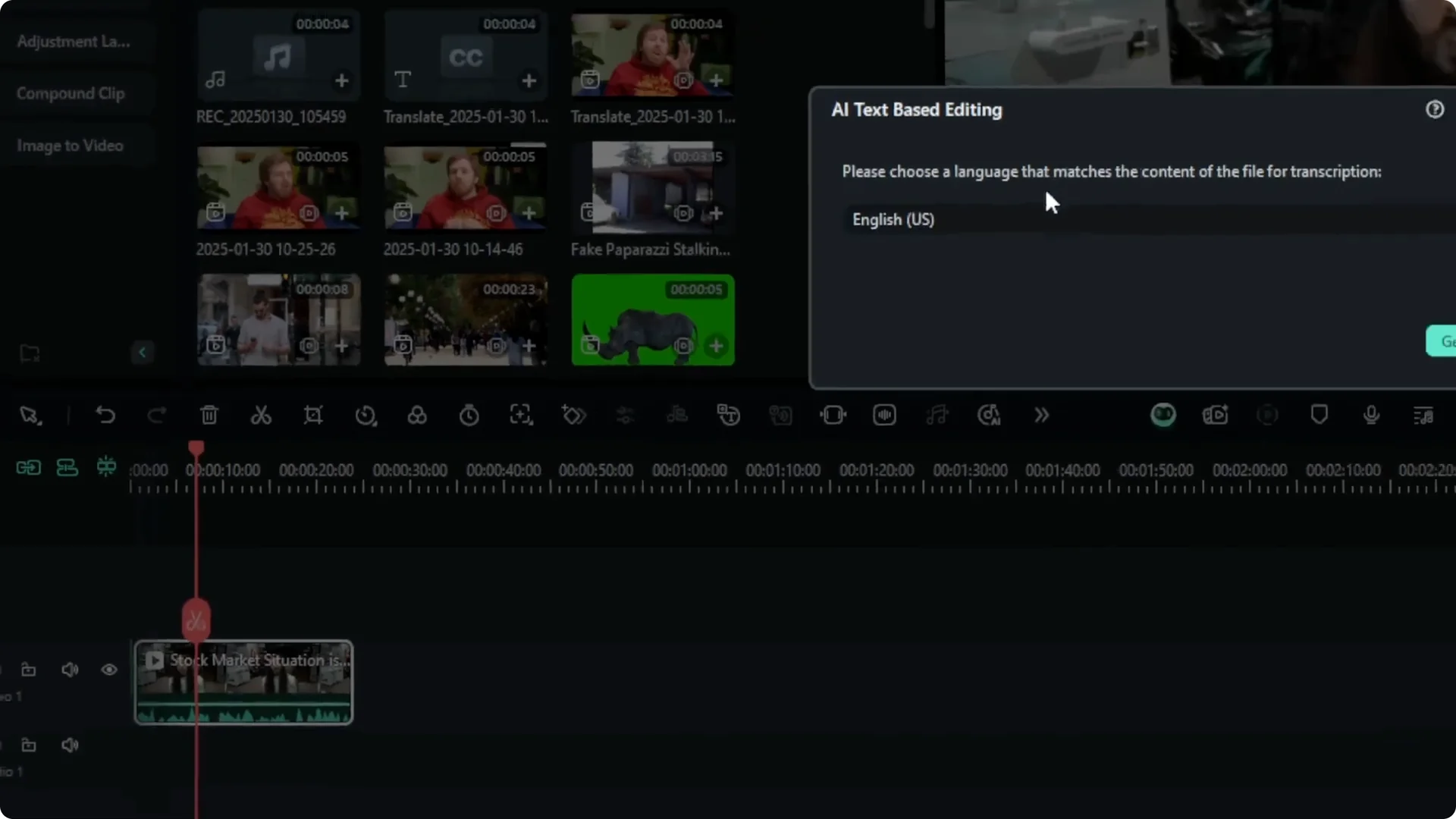
Click Generate. This is an AI feature, but it does not consume your AI credit in Filmora. The conversion is not very slow, but also not very fast.
When the transcript appears, you can start editing. You can remove a word or a section and the corresponding part of the video will be removed.
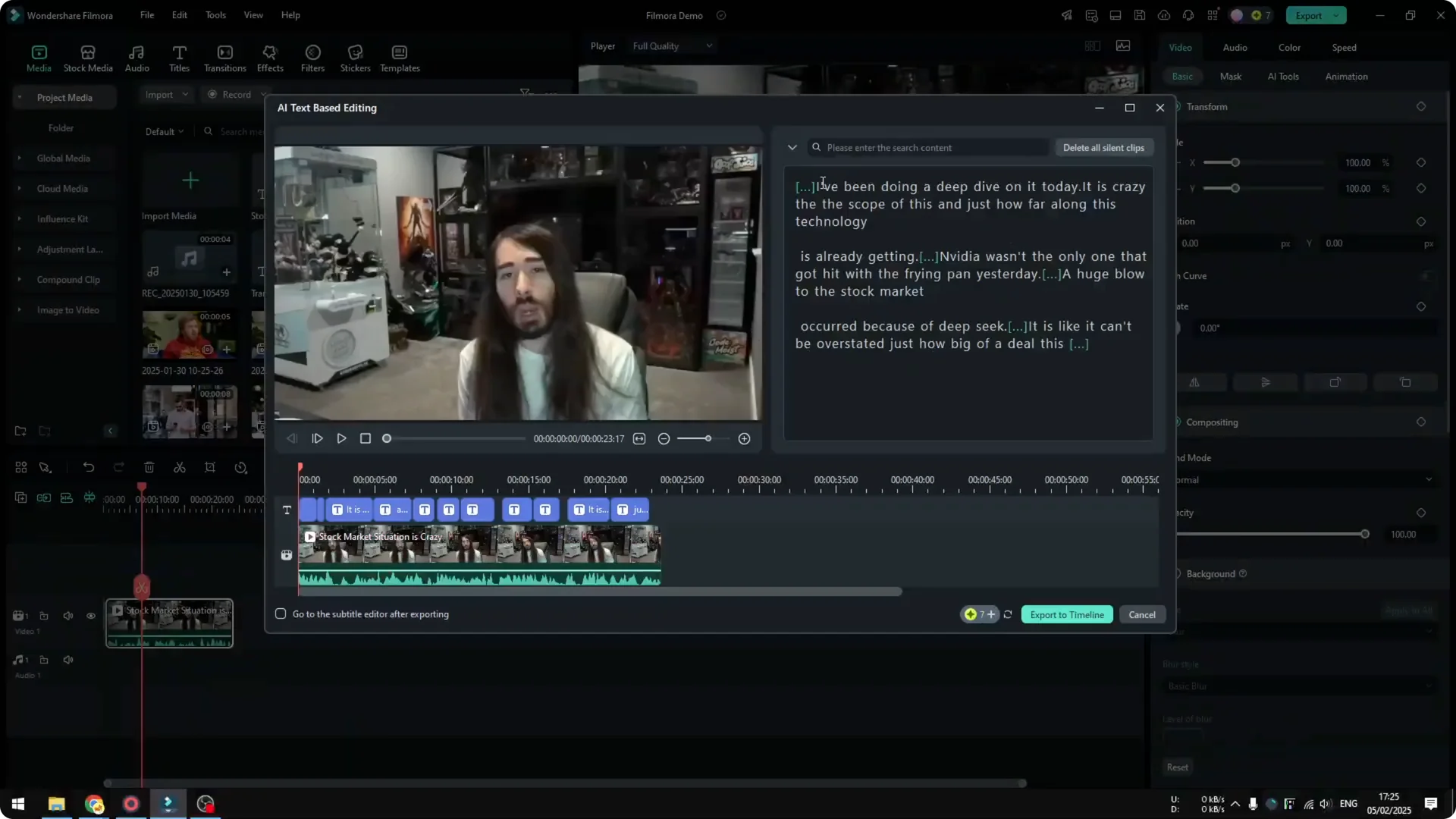
Edit With Filmora AI Text-Based Editing
I will remove a small section to show the effect. Select the words in the transcript and press Backspace on your keyboard. Play the video, and you will see that section is missing.
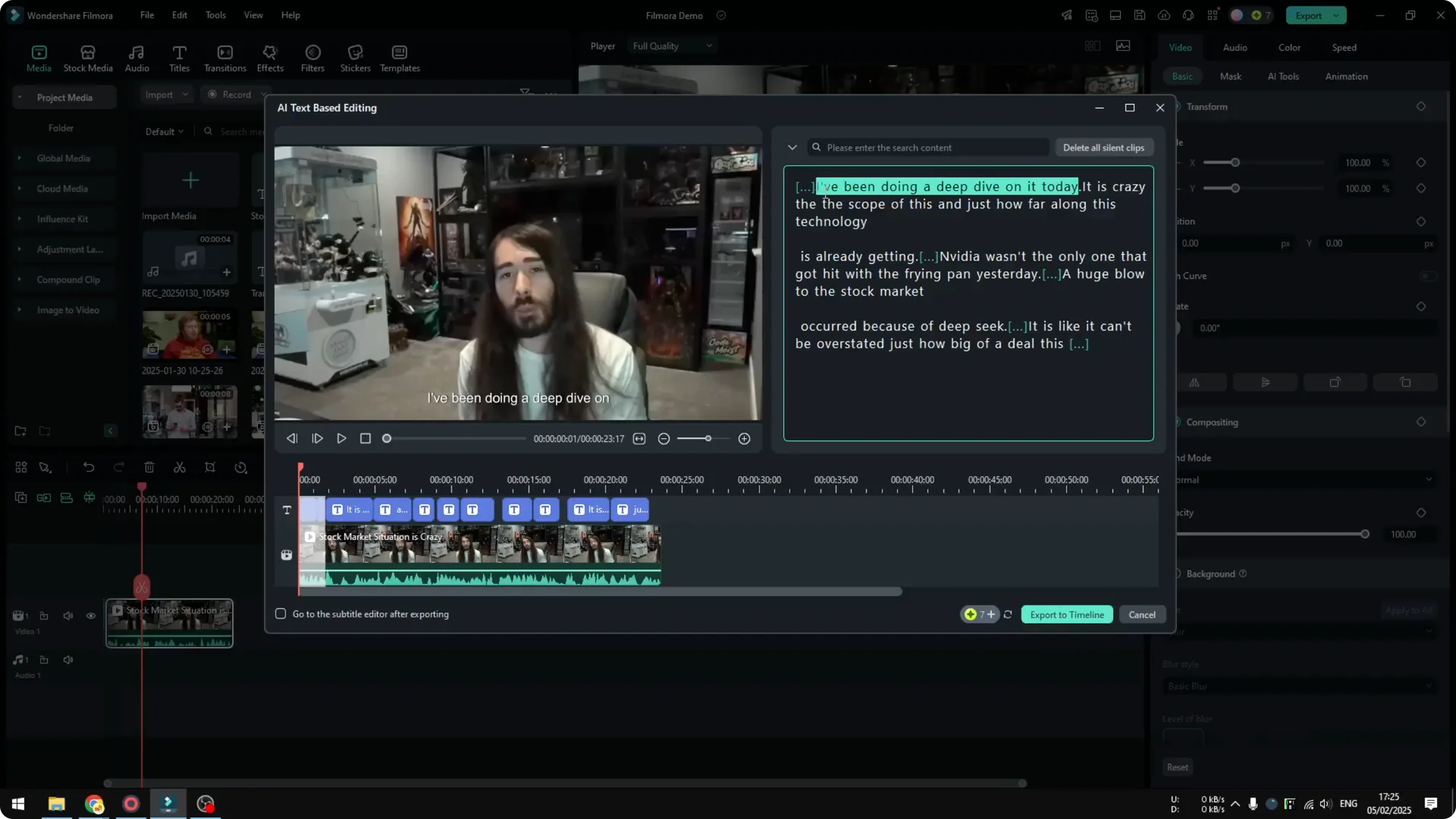
You can also remove a section in the middle of the video. Select it, delete it, and preview the result. There is going to be a cut.
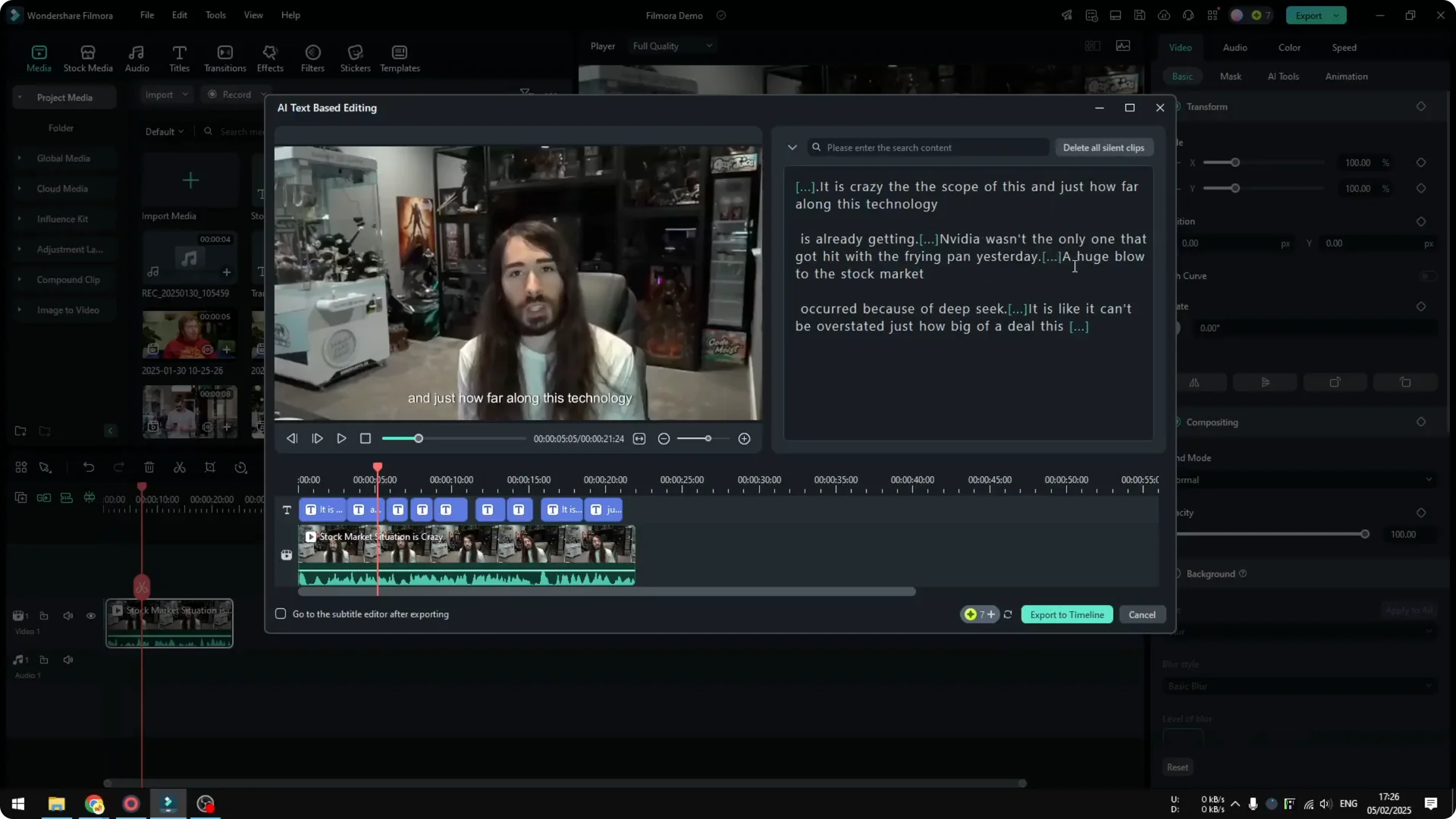
This is not typical for a clip that usually has no cuts, but you can see the edit clearly. It helps you punch out pauses, stutters, or extra lines quickly. It is especially useful for long talking videos.
If your footage also has shake from a handheld shot, you can fix that separately. See how to stabilize shaky video in Filmora with AI for cleaner results.
Export From Filmora AI Text-Based Editing
When you are done with your text edits, click Export to Timeline. Filmora sends the edits to your main timeline.
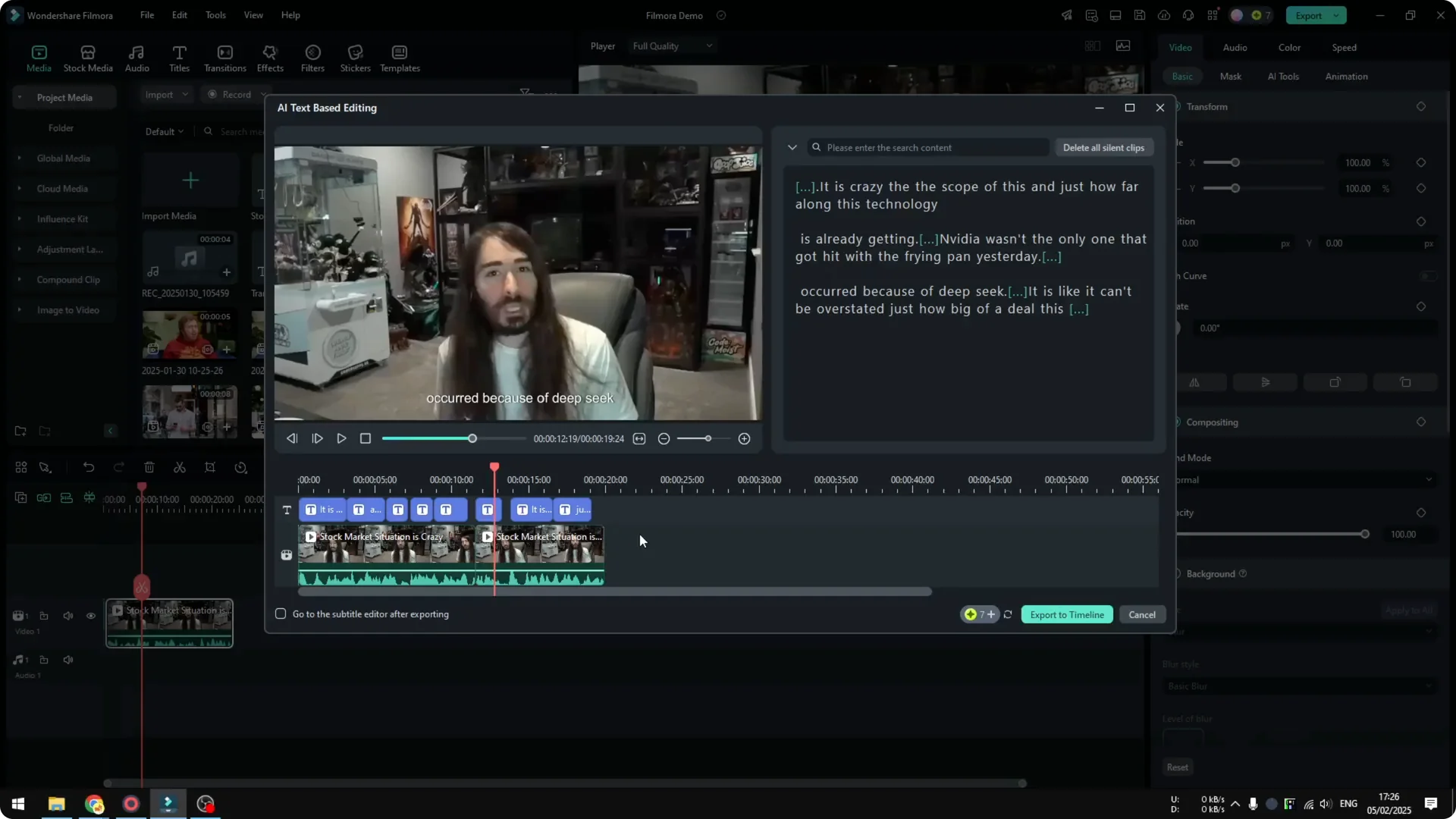
There may be an extra caption track that is not necessary. Remove it if you do not need captions. Play the result and confirm the timing of your cuts.
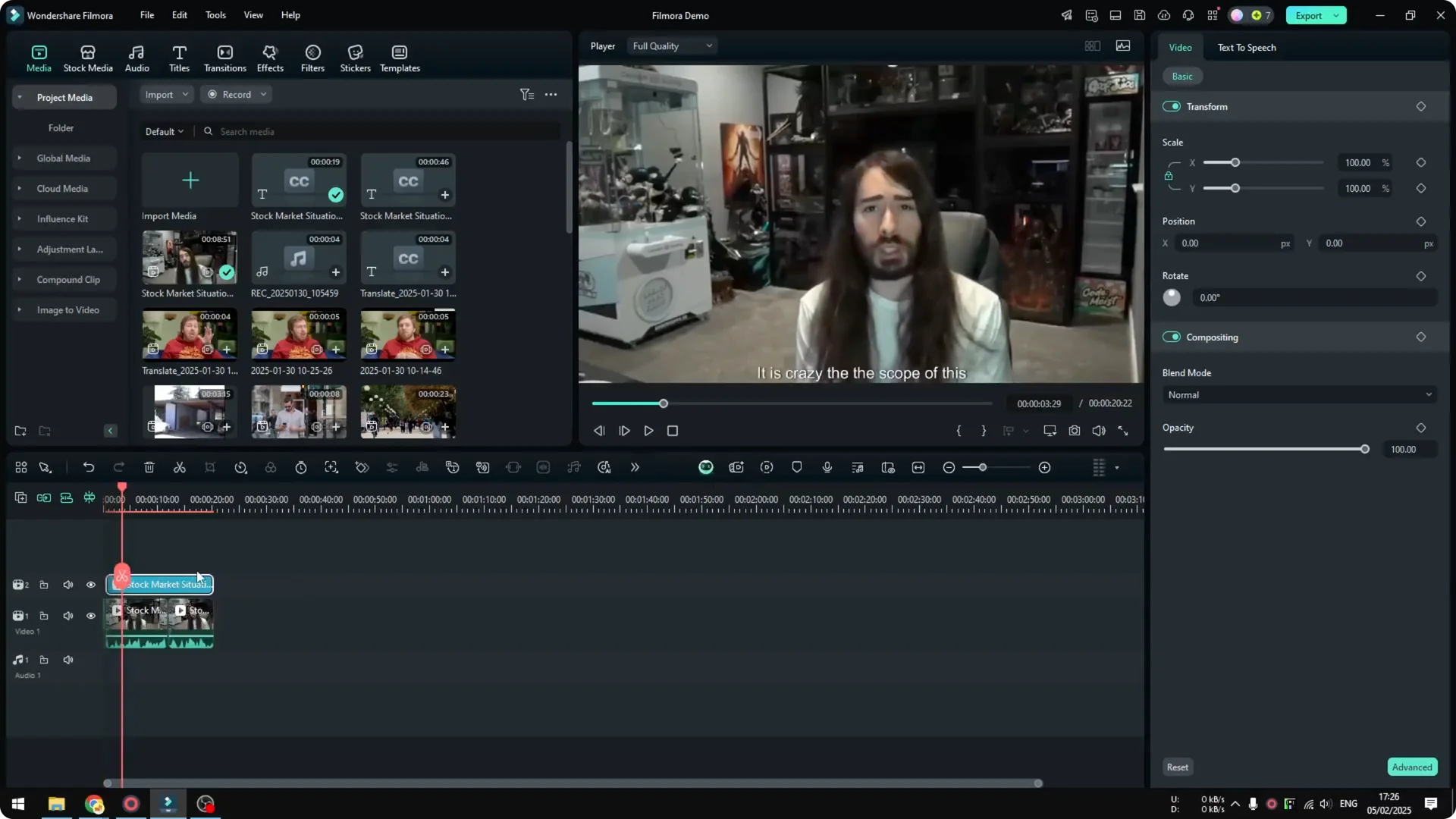
There will be a cut where you deleted text. That is expected. It is useful for editing a long video where it is mostly just a person talking.
For on-screen typography created with AI, you can also embed text in video using Pika Labs and combine it with your Filmora timeline.
Final Thoughts on Filmora AI Text-Based Editing
Filmora AI Text-Based Editing lets you work directly from a transcript, delete words, and instantly remove those parts from the video. It speeds up polishing long recordings that are mostly dialogue. Export the edits to the timeline, clear any extra captions, and you are done.