I’m Santiago, and here is a straightforward tutorial on swapping a face into any image using Heistfield. In Heistfield, you can create images from prompts and edit those images with new prompts. I am using one of the paid plans.
For a quick primer on the tech behind this feature, see how it works in this Higgsfield AI face swap overview.
Getting started with Higgsfield AI Face Swap
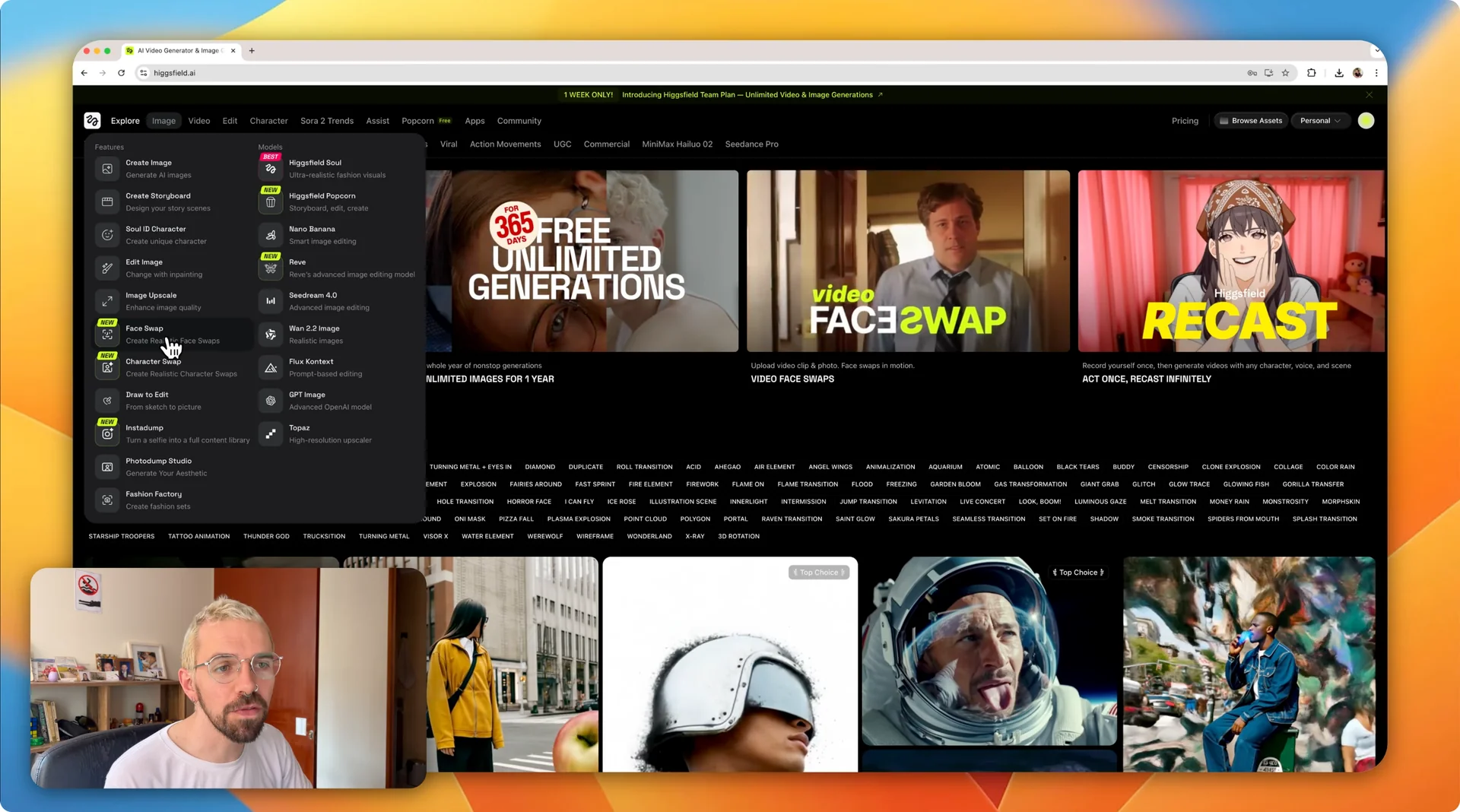
Step 1: Open the image tools and choose Face Swap where it says create realistic face swaps. You will see two upload areas for your source face and a target image.
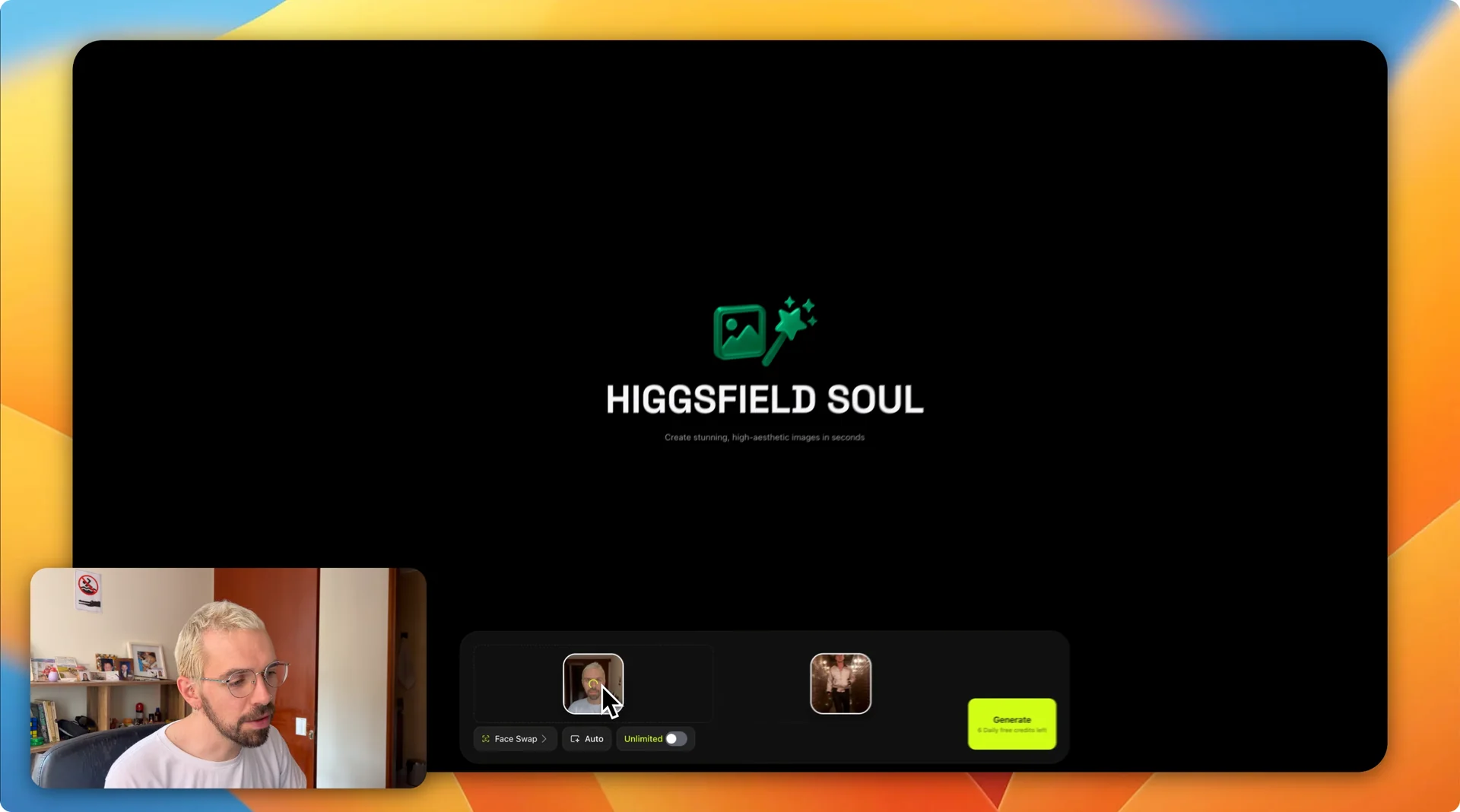
Step 2: Upload your photo for the face you want to use. Then upload a target image, for example Ryan Gosling in the movie Drive.
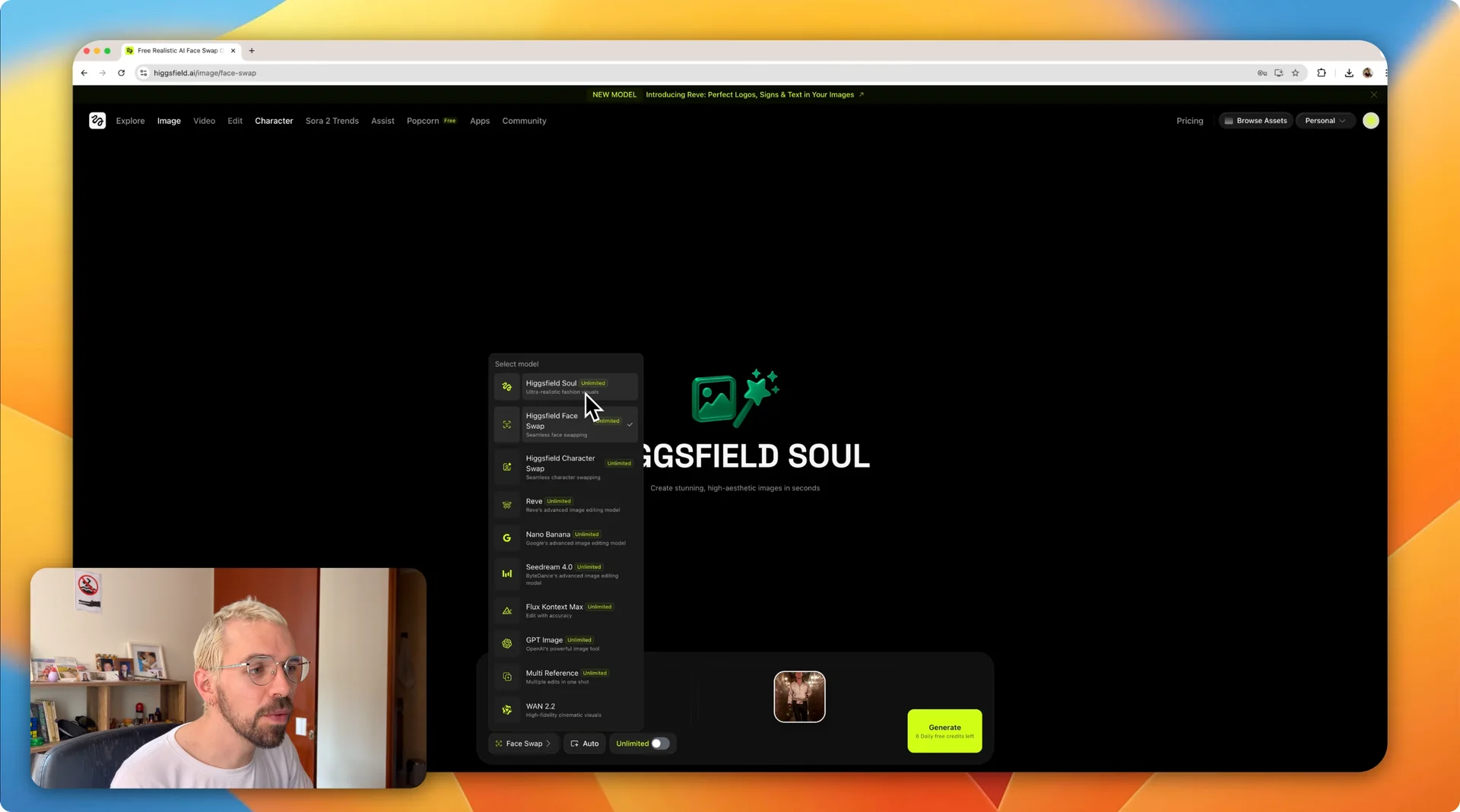
Step 3: Review the options at the bottom. If you click on the face swap option, you can change it for high heist soul for ultra realistic fashion visuals or switch to character swap and select different engines.
Step 4: Set the aspect ratio. Auto will match the target image, or you can pick one for your use case like 9 by6 for short format video, 16 by9 for long format video, or one by one for a post.
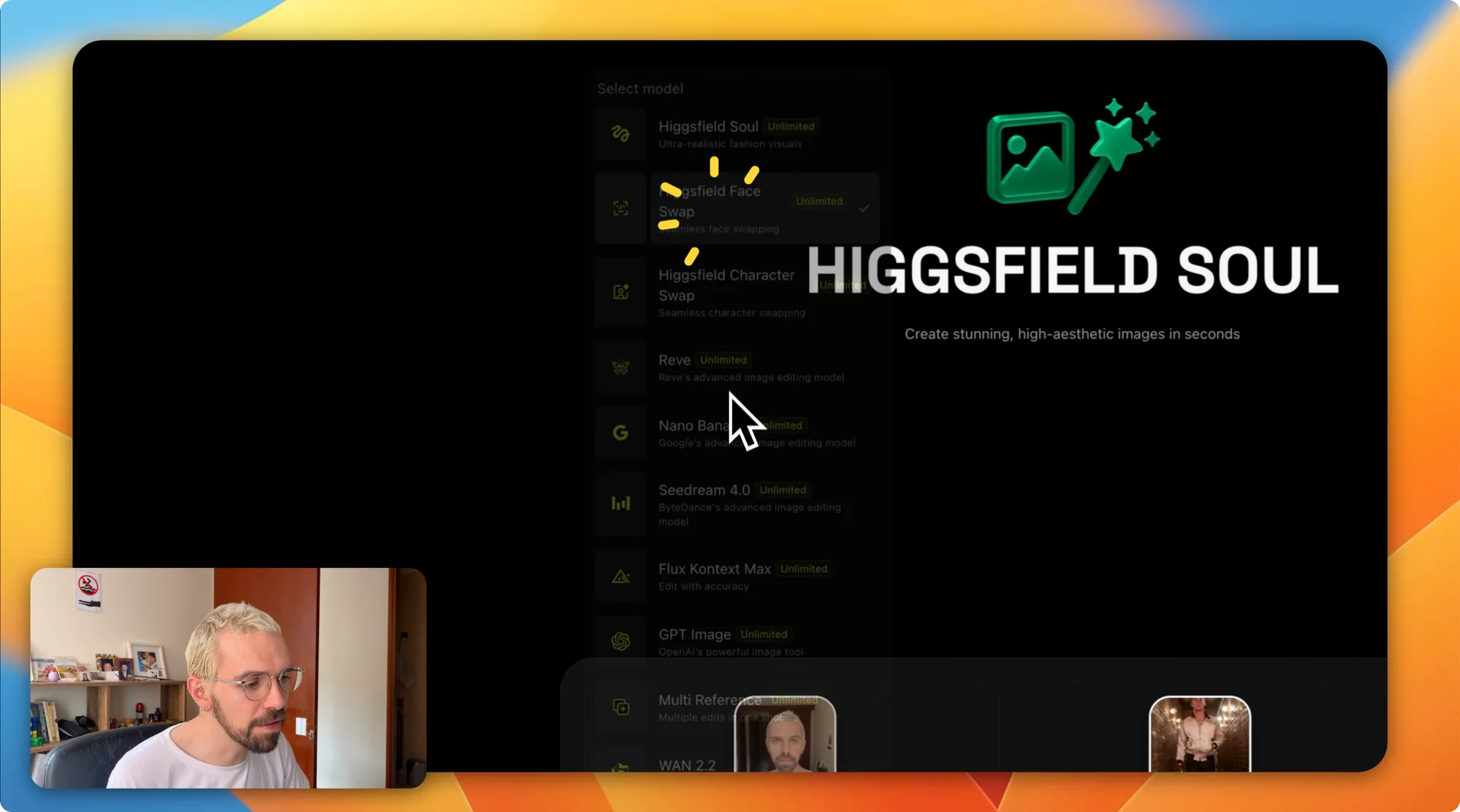
Generate and refine in Higgsfield AI Face Swap
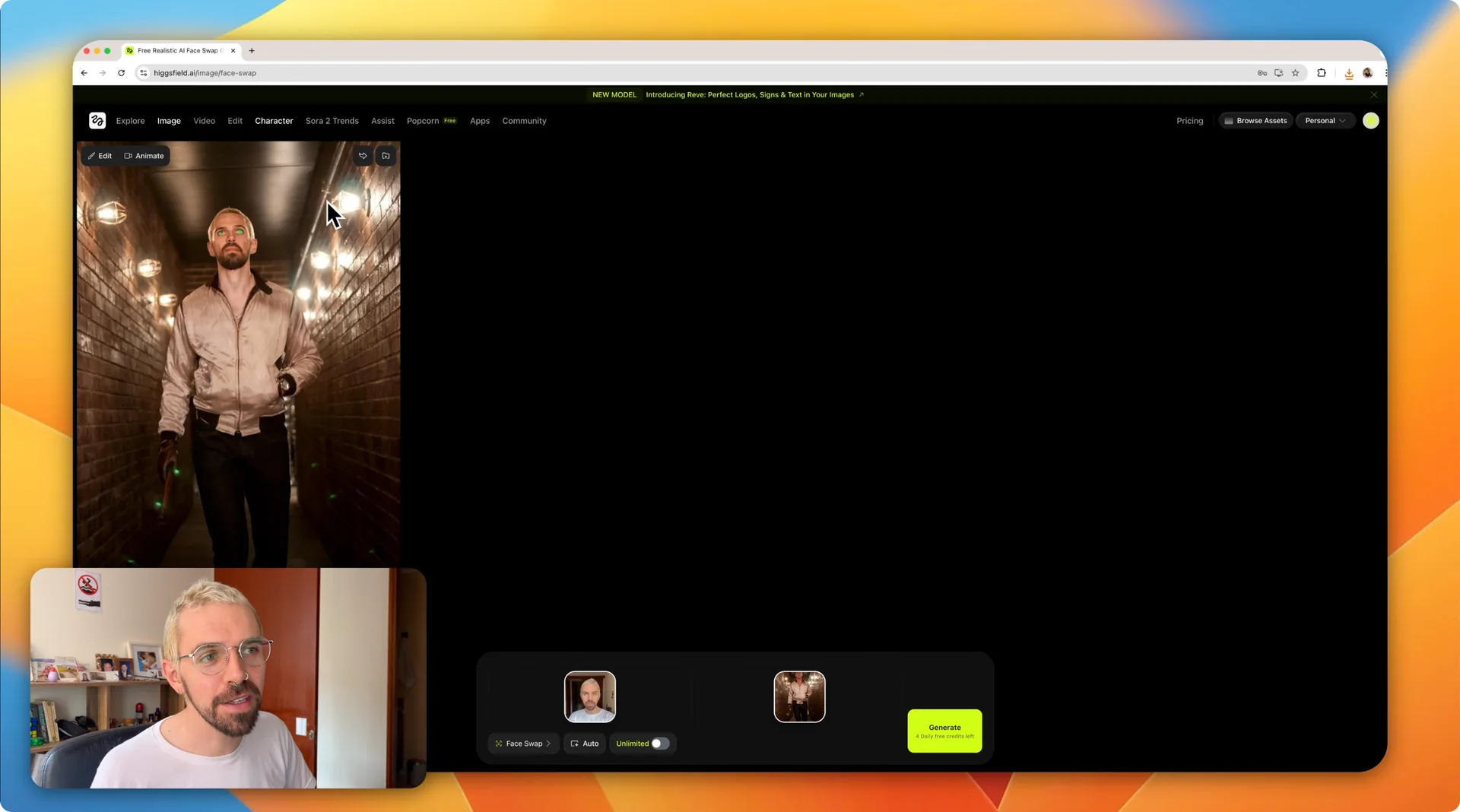
Step 5: Click Generate and wait a bit while it queues and creates your image. The result will swap your face onto the target.
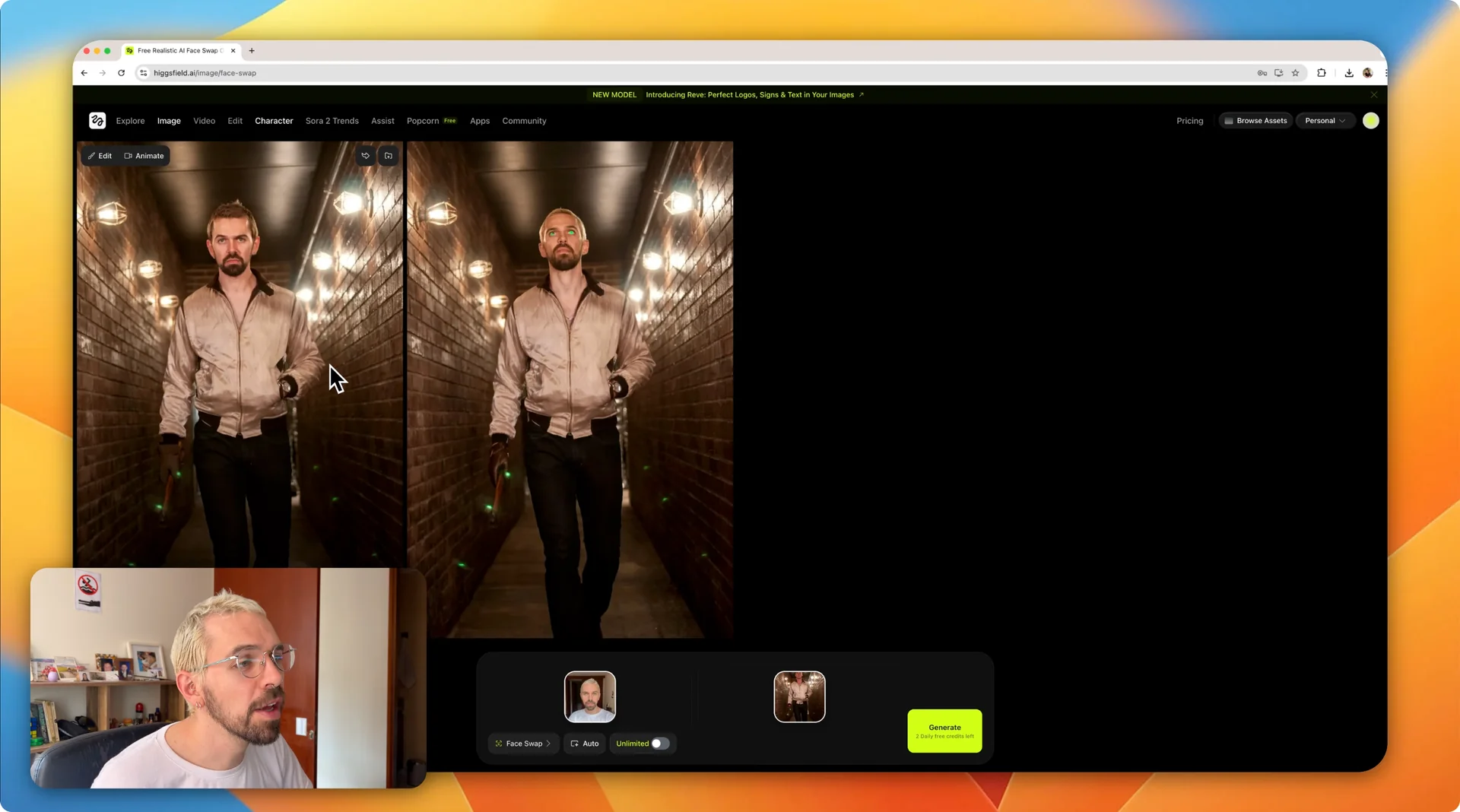
Step 6: Evaluate and iterate. There are some errors in the image, such as the green eyes. If you do not like the result, click the recreate option next to the download button and generate again.
The second time around, the software did a much better job. My face is very well used and it really looks like me, imposed into Ryan Gosling’s character.
Animate your result with Higgsfield AI Face Swap
You can animate the new image. You can make a video out of that image, make the image speak, make a UGC clip for product videos, or draw inside the video.
Step 1: Click the video option. Describe what you want to have in the scene, for example I wrote character walking.
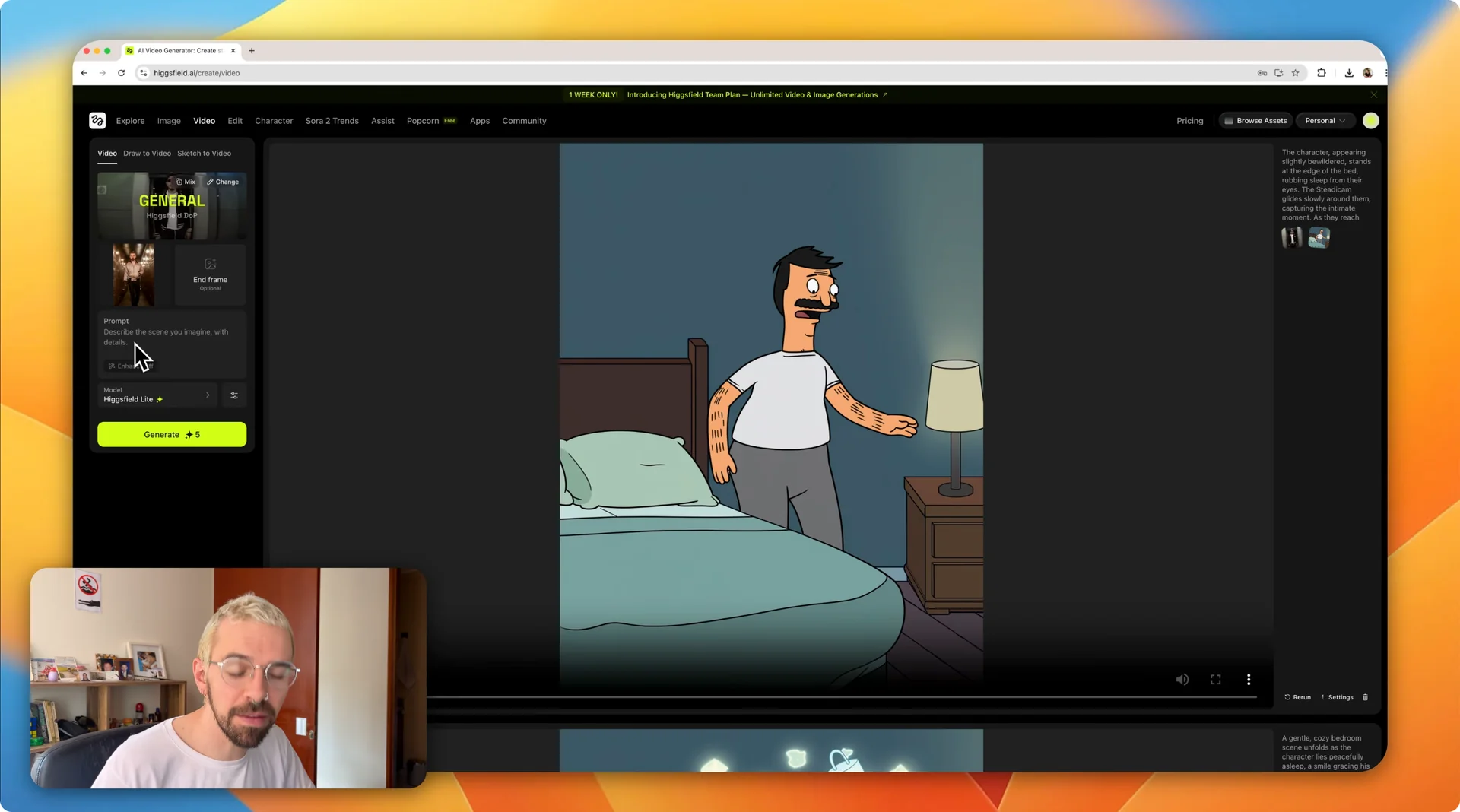
Step 2: Choose the model to use. I find that the heights field model is really good and accurate, and you can set the duration to 3 seconds or 5 seconds.
Step 3: Set extra controls if needed. You can set random, pick a seed, choose how many steps it takes, and add an end frame to control where the video ends.
Step 4: Click Generate and wait a couple of minutes. The prompt can be refined automatically, turning a short cue like character walking into a longer description such as “A character strides purposely down a dimly lit alley, his confident demeanor contrasting with the oppressive shadows.”
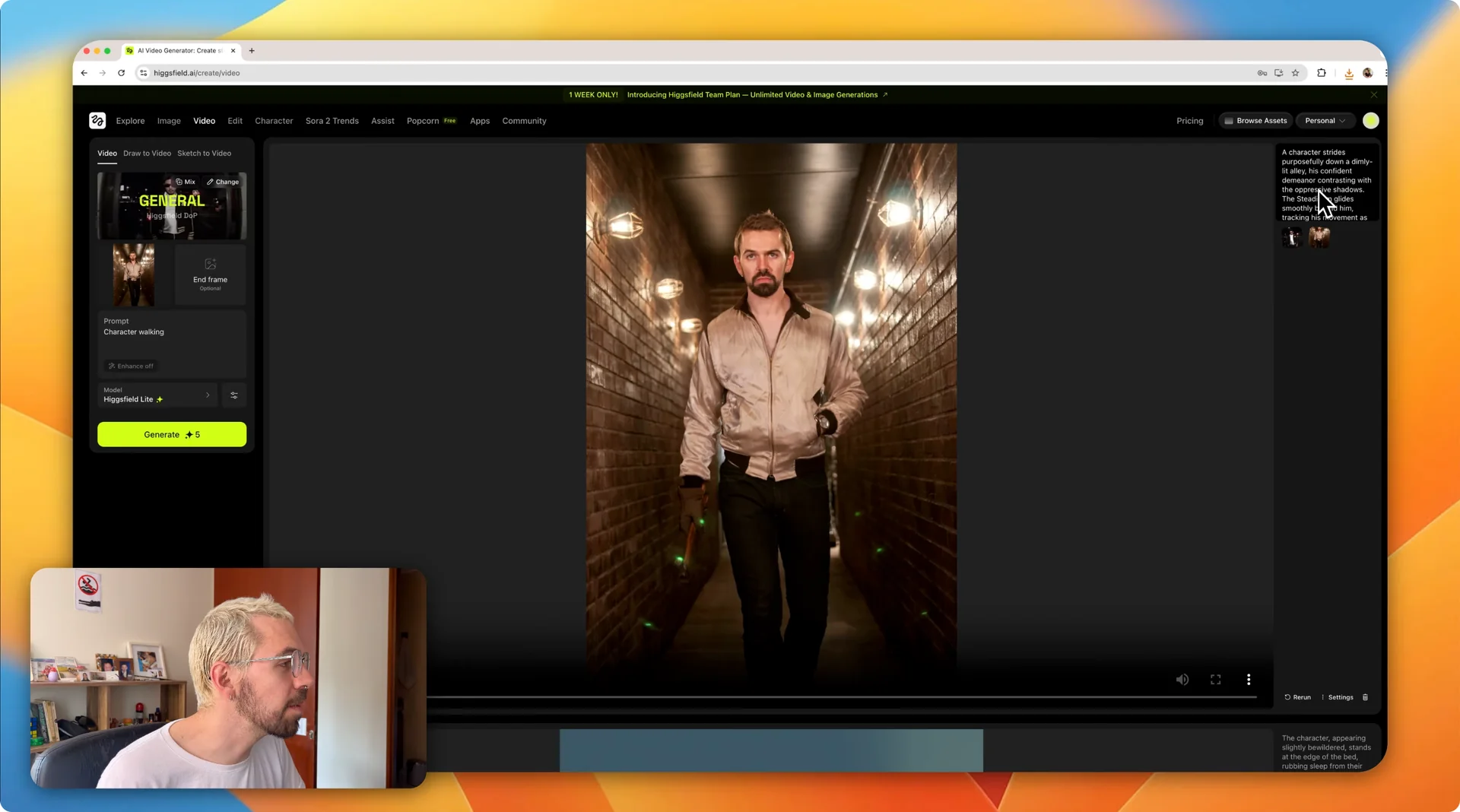
It created a short video of myself walking. There are parts you could refine, for example how the eyes look in the final video, but the tool makes it easy to animate a video after a face swap.
For keeping the same identity across different images and shots, see this guide to consistent character creation in Higgsfield.
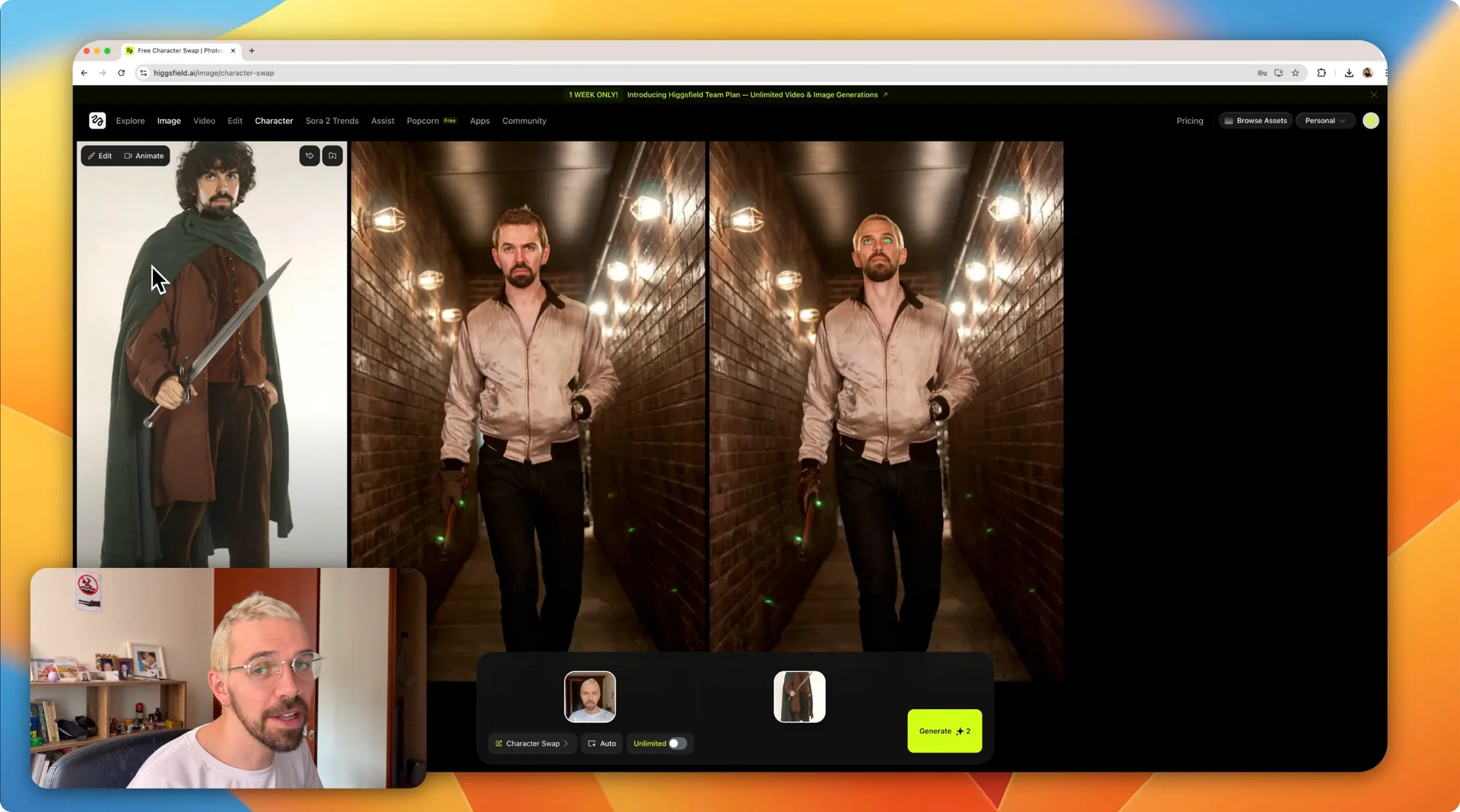
Another target image in Higgsfield AI Face Swap
I tried another character with my face as the source and Frodo from The Lord of the Rings as the target. Generate the image and review the result.
The final image looks great, and that is exactly the way my hair looks when it is longer. The whole process takes less than 5 minutes. You can face swap your face into any target image you want and then use that image in a multitude of scenarios.
If you need to hide or blur a face in editing instead of swapping it, here is a quick tutorial on censoring a face with AI in Filmora.
Final thoughts
Face swapping in Heistfield is quick to set up and gives solid results with simple iteration. Upload a clear source face, pick a good target, set the aspect ratio, and regenerate if any details look off. Animating from the swapped image adds a fast way to produce short video clips with your face placed into different characters and scenes.