Transitions are extremely useful if you have multiple clips and you want to move from one scene to another very very smoothly without disrupting the flow. I have two different clips: one is snowy mountain and the other is tropical mountain with a lot of forest and a lot of trees. Right now it is a basic cut with no transition, and it is okay, but adding a transition makes the video more smooth and more engaging.
Set up for Filmora Video Transitions
Make sure the two clips are together. You cannot add gaps between them.
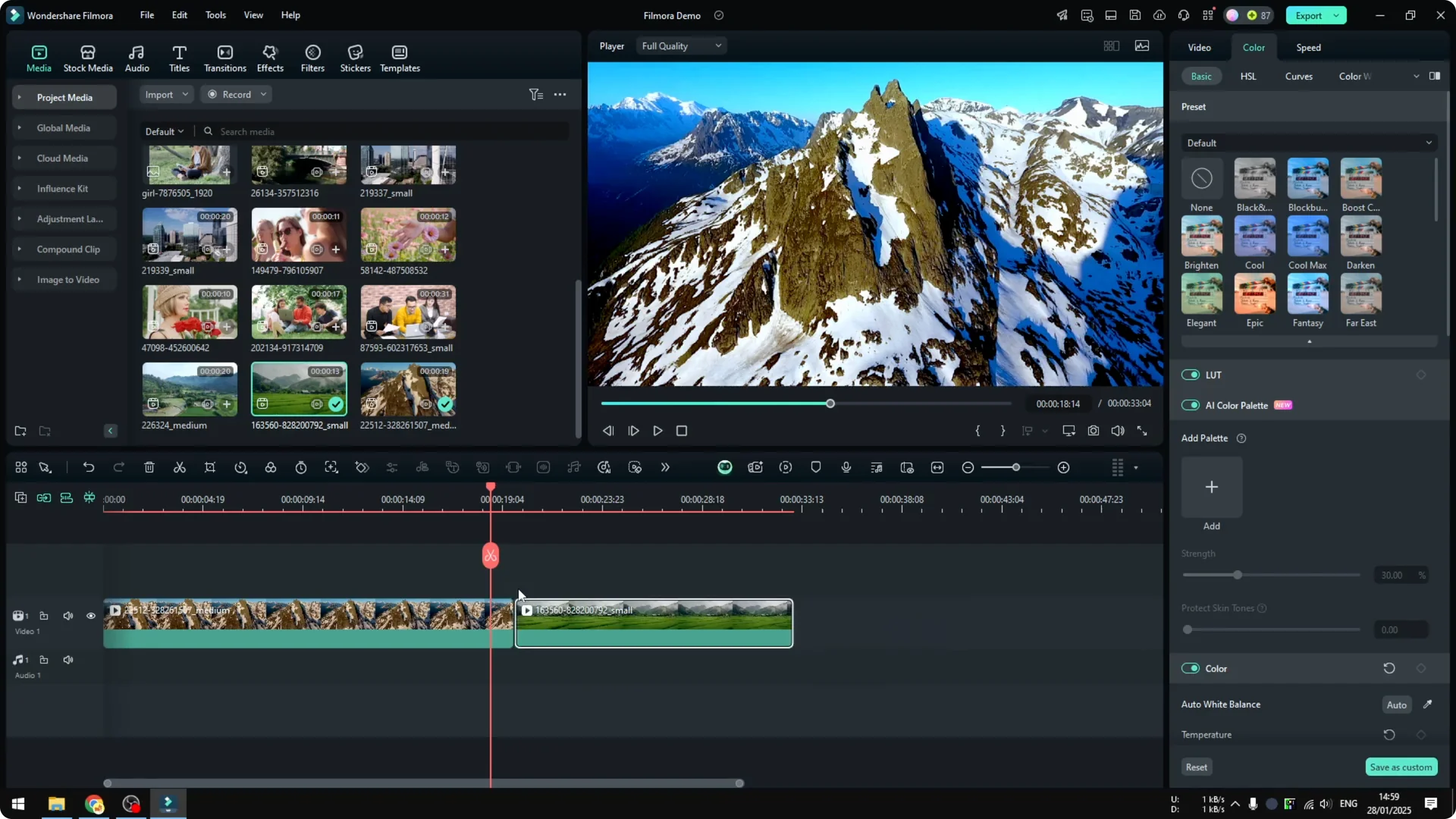
Make sure these two clips are together so they are connected.
Choose and test Filmora Video Transitions
Go to Transitions. In the Transitions menu you will see plenty of different styles that you can apply to your video.
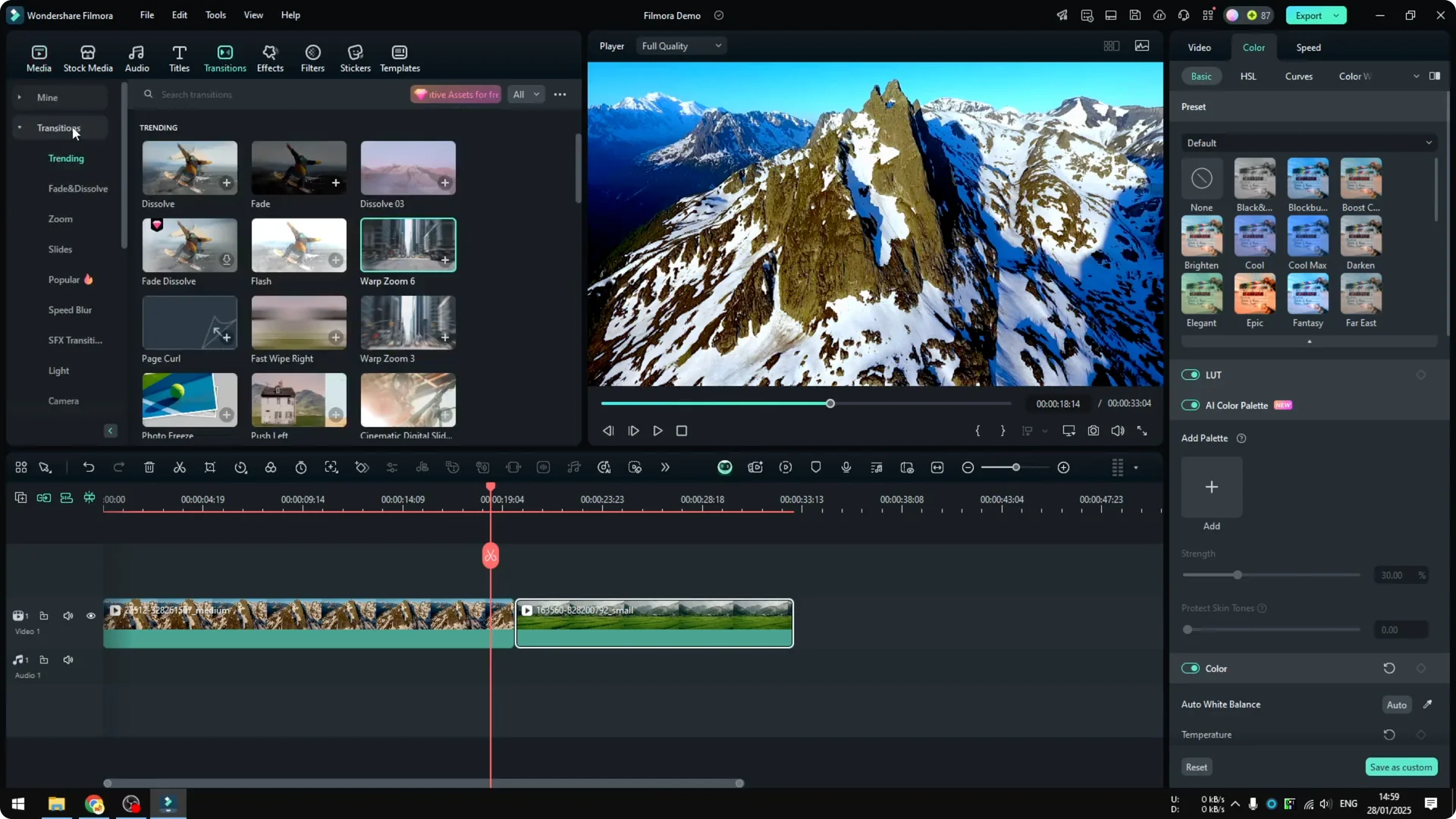
Regarding which ones you should use, it is up to you. It is always a good idea to try multiple different transition effects and see which one is the most appropriate for this video.
Read More: How To Add Smooth Zoom In Effect In Filmora
Start with a simple option
I could try something like Sol, which is a very simple style. When you play it, it transitions between one video to another smoothly.
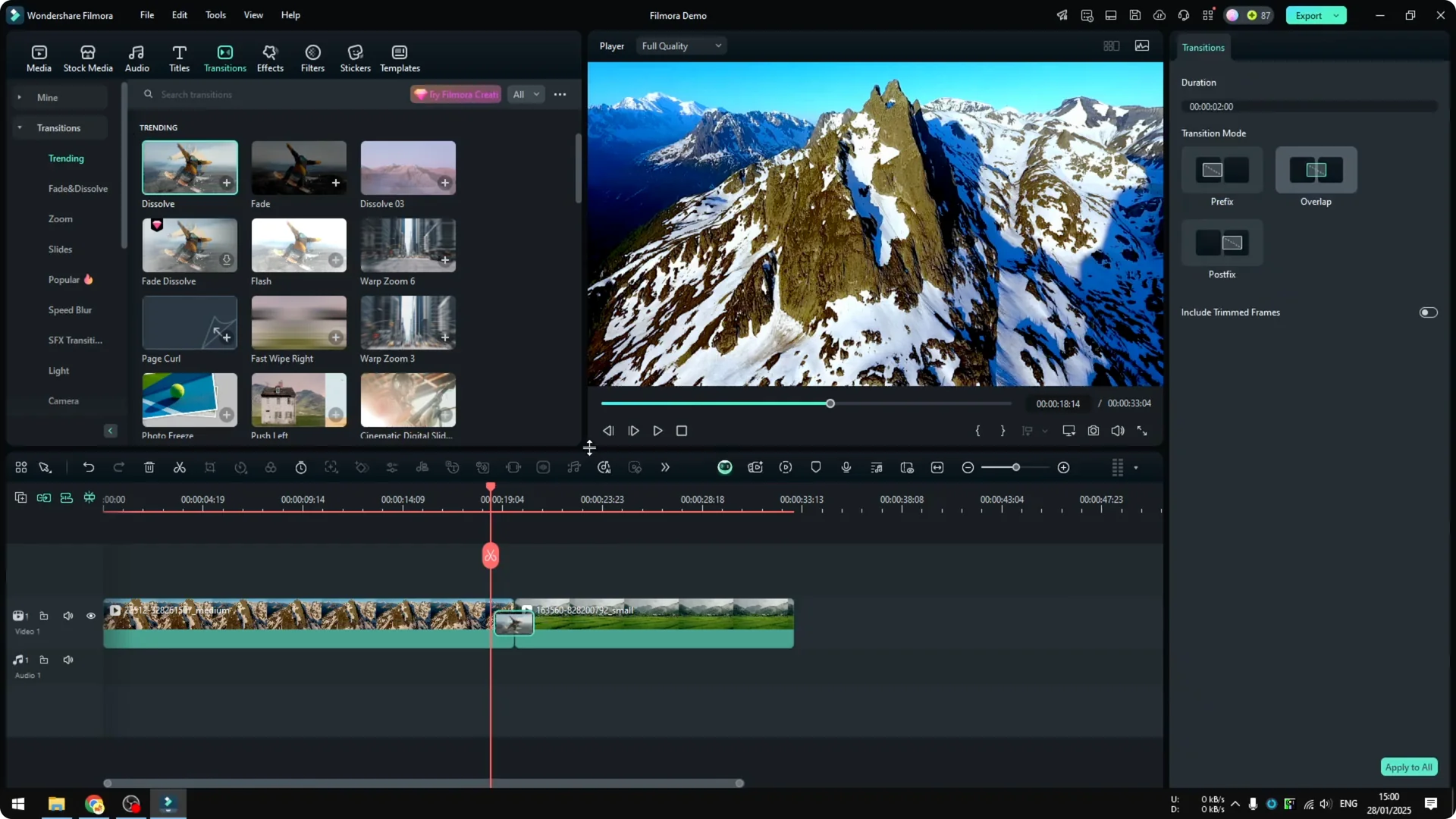
I want to try something more appropriate to the video, so I am going to remove this.
Match the effect to your footage
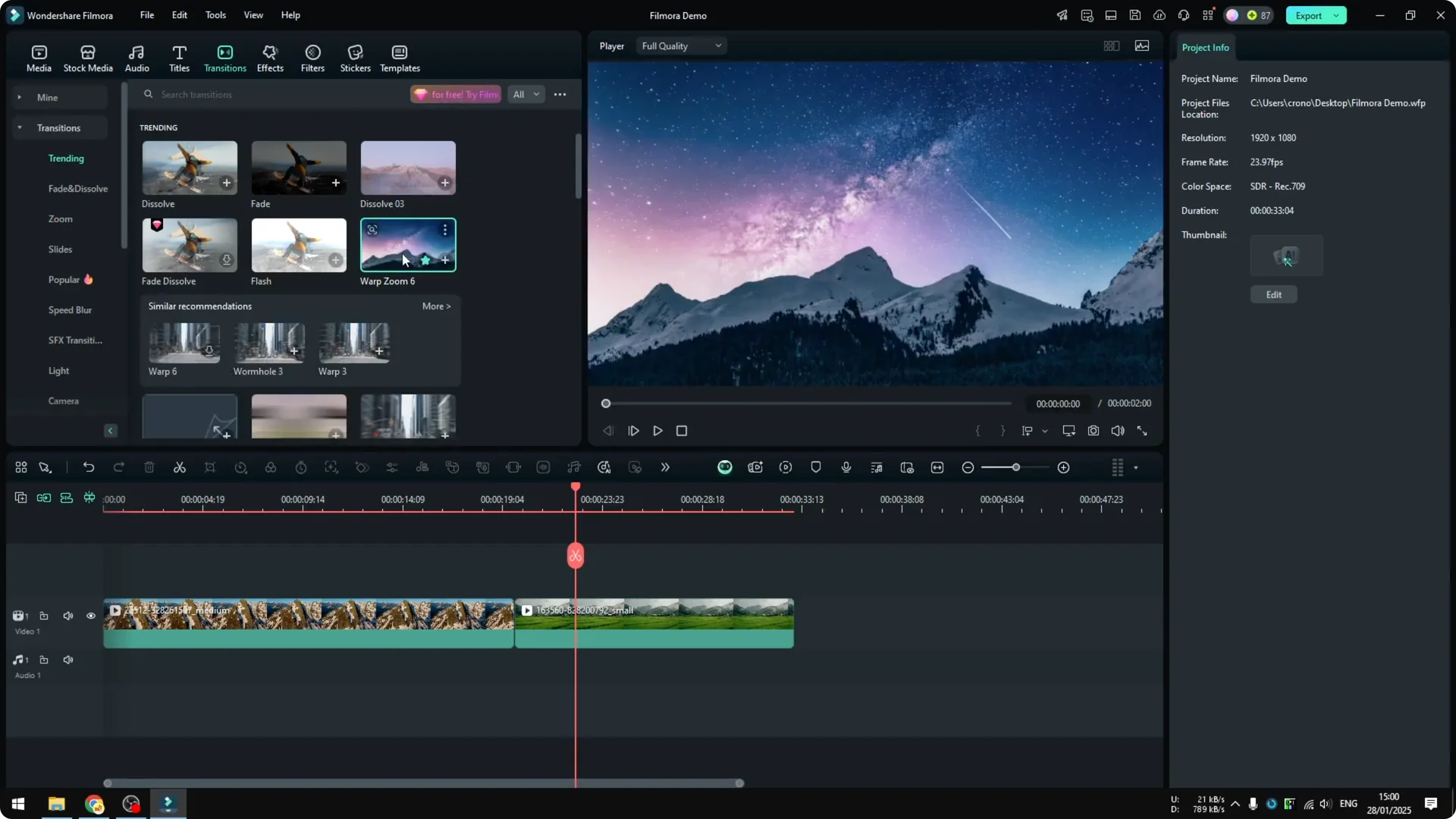
I want to try War Zoom number six. This video is a drone shot and it is going backward, and the other video is also a drone shot going backward.
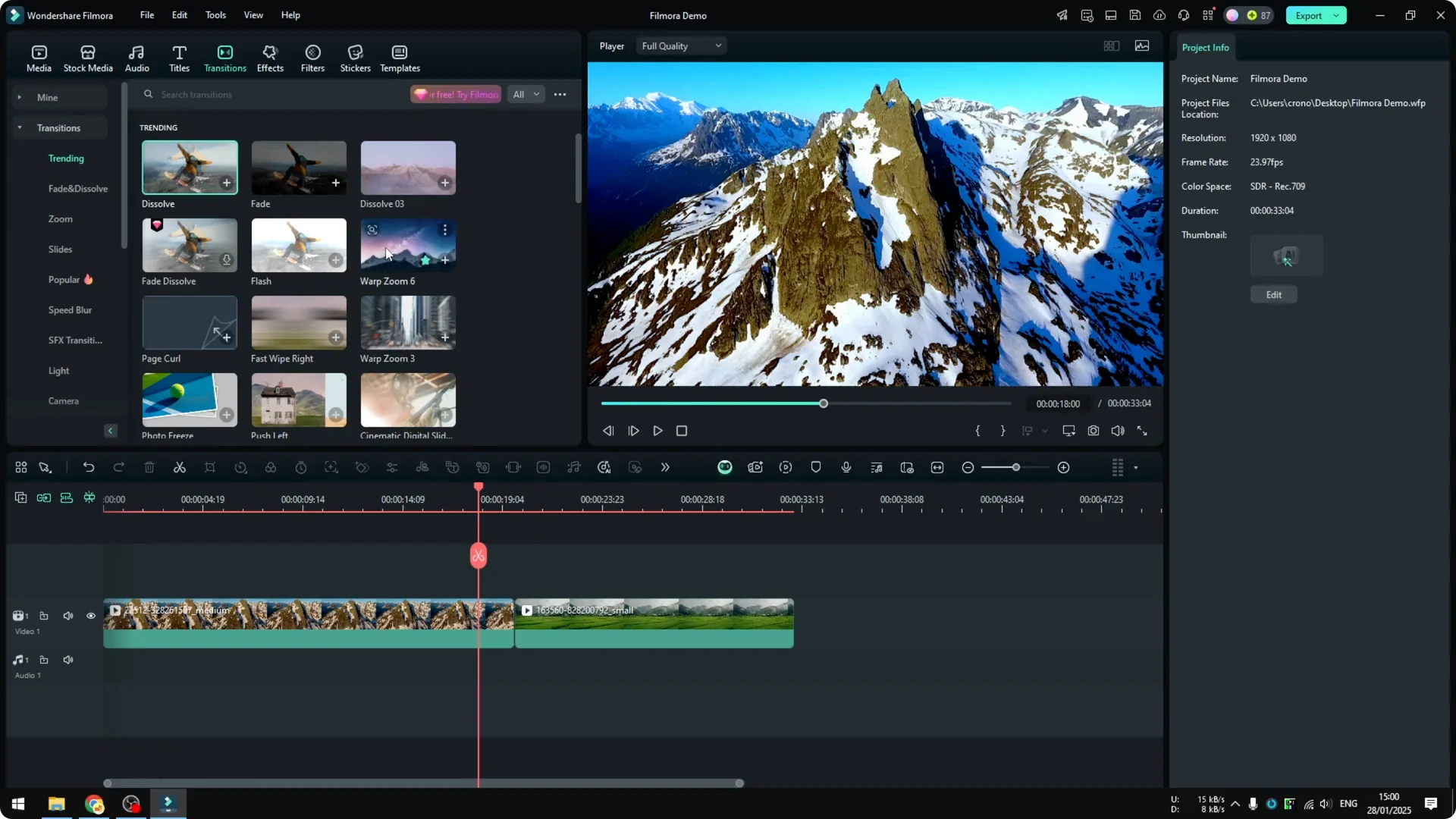
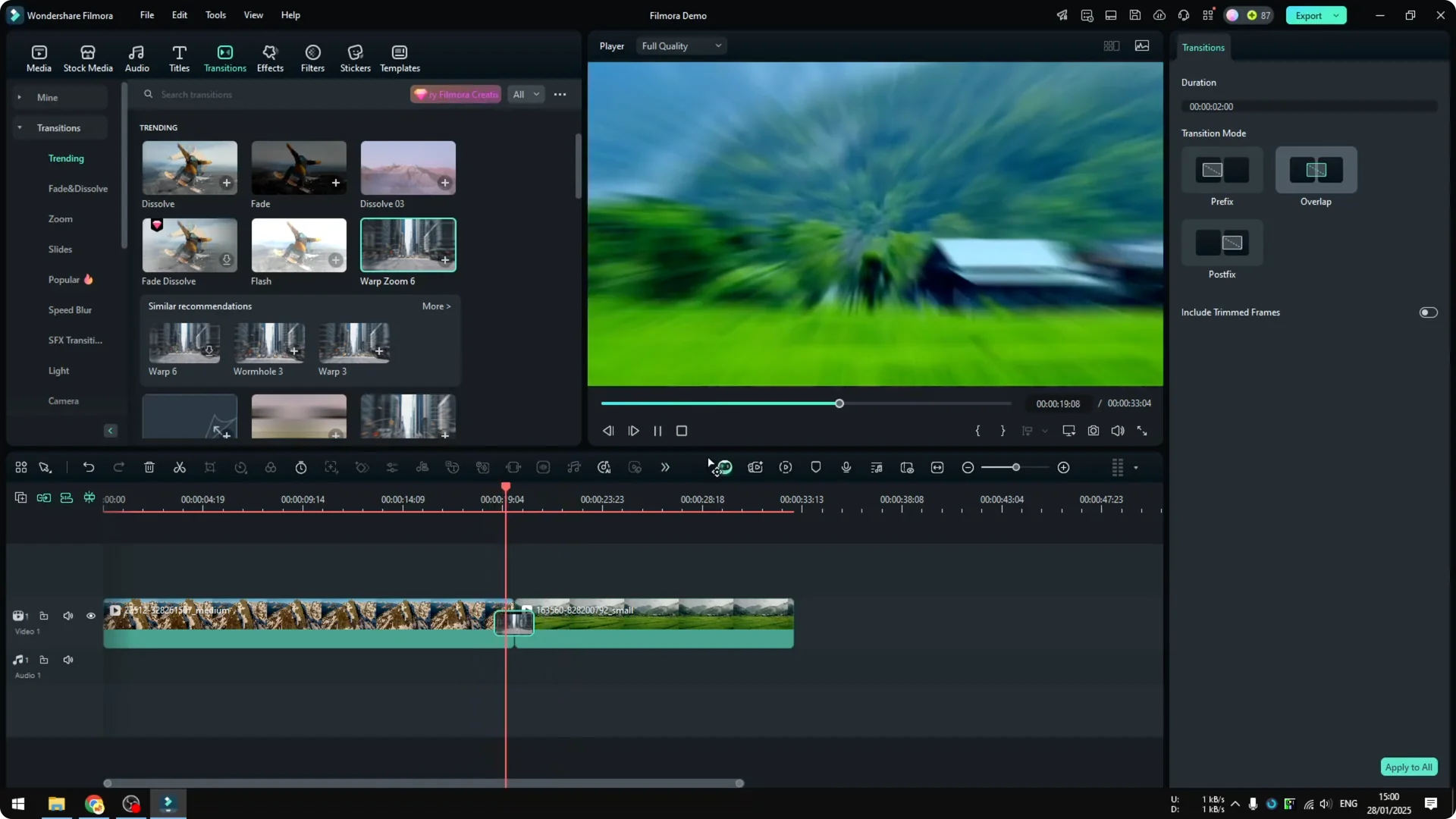
I want to apply this W Zoom because the zoom is similar to the video itself. When you preview and apply it, it creates a really nice transition effect.
It is very very smooth. It almost feels like we enter a portal and then we are in a different location.
Read More: How To Add Cool Glitch Transition Effect In Filmora
Add audio to Filmora Video Transitions
I sometimes add a sound effect in the transition. Go to Audio, and navigate to Sound Effect, and you will see plenty of different short sound effects that you can apply to your clip.
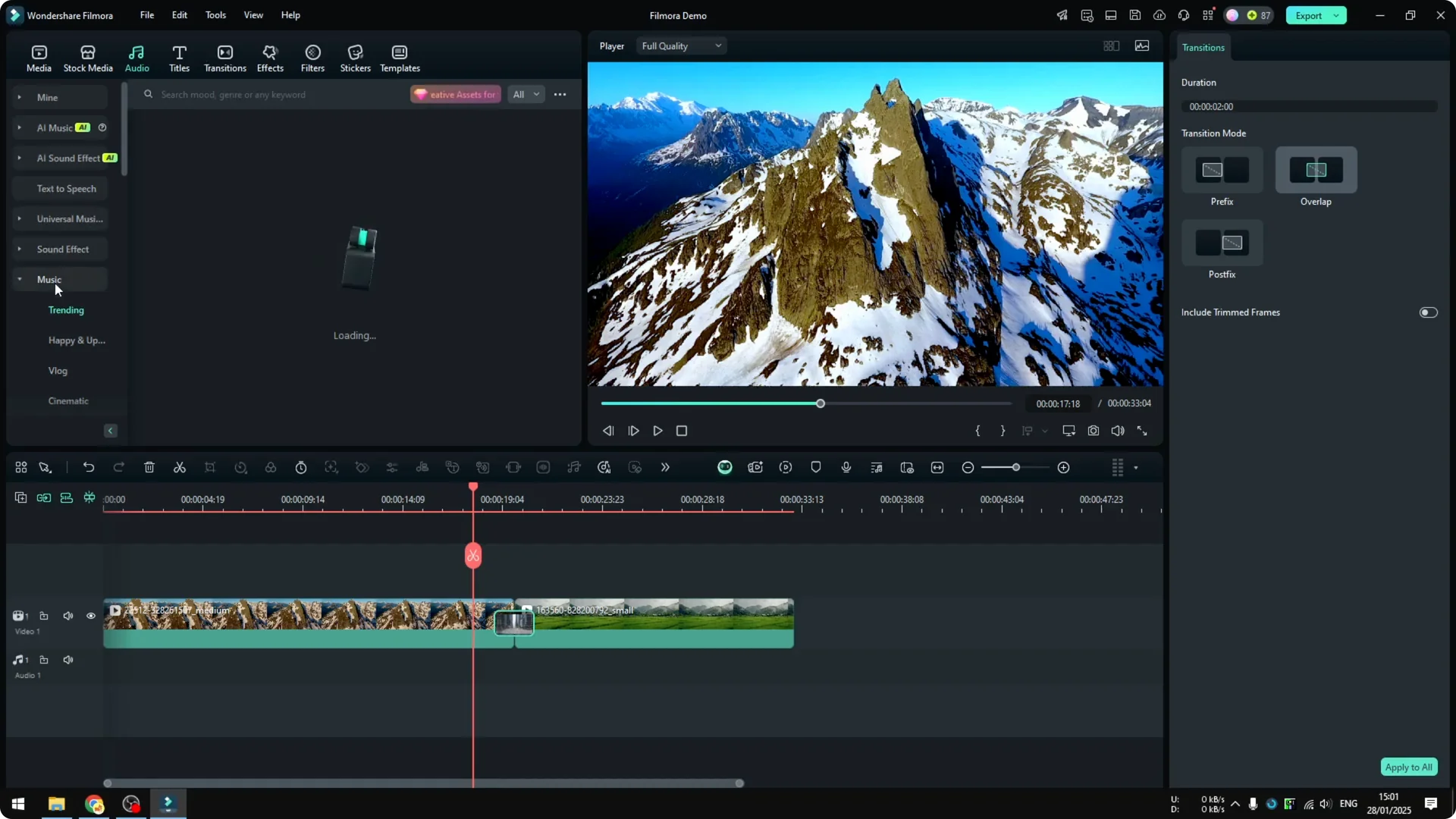
I want to try a simple wo effect. Click it and drag it to the timeline roughly in the middle.
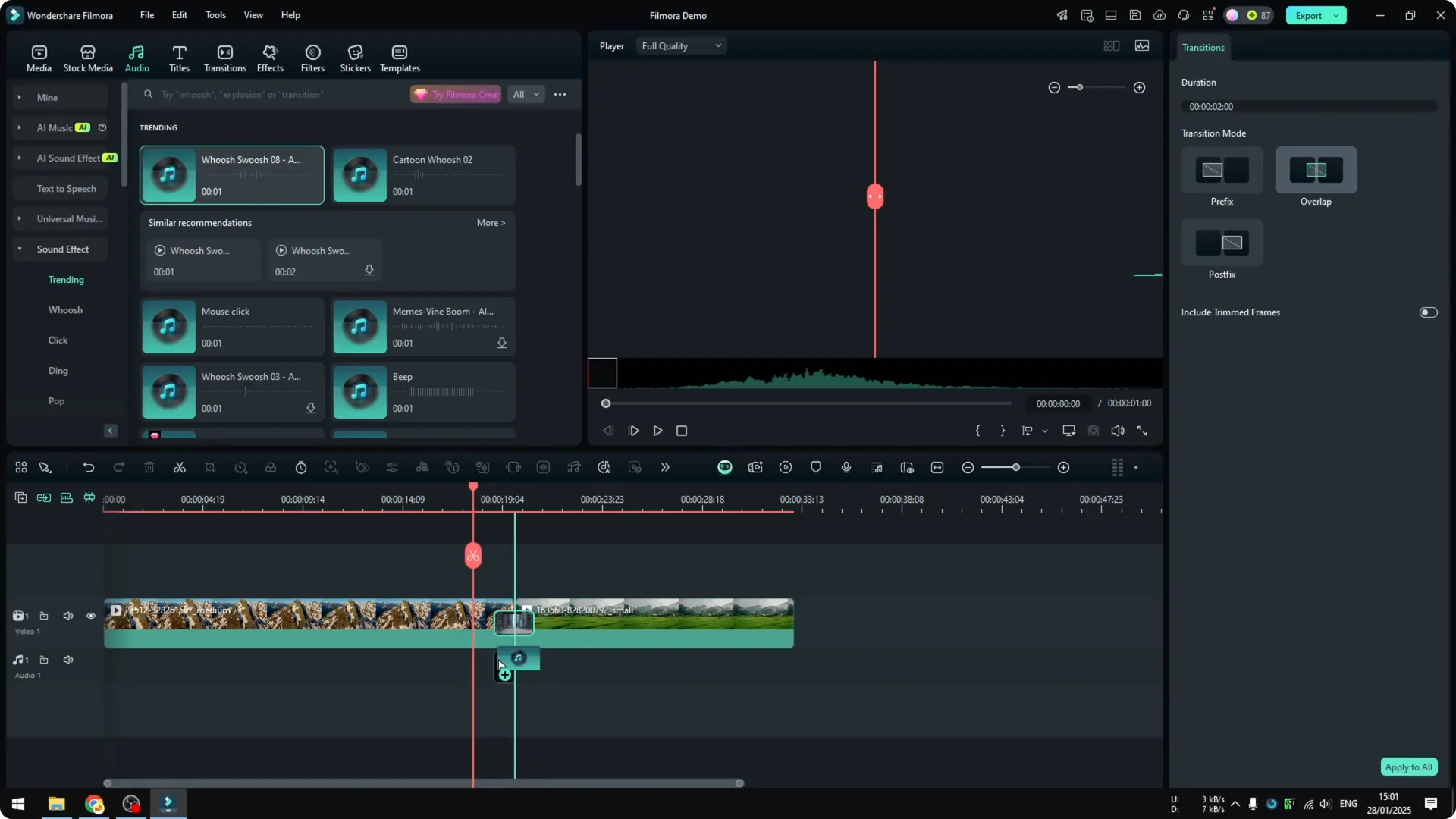
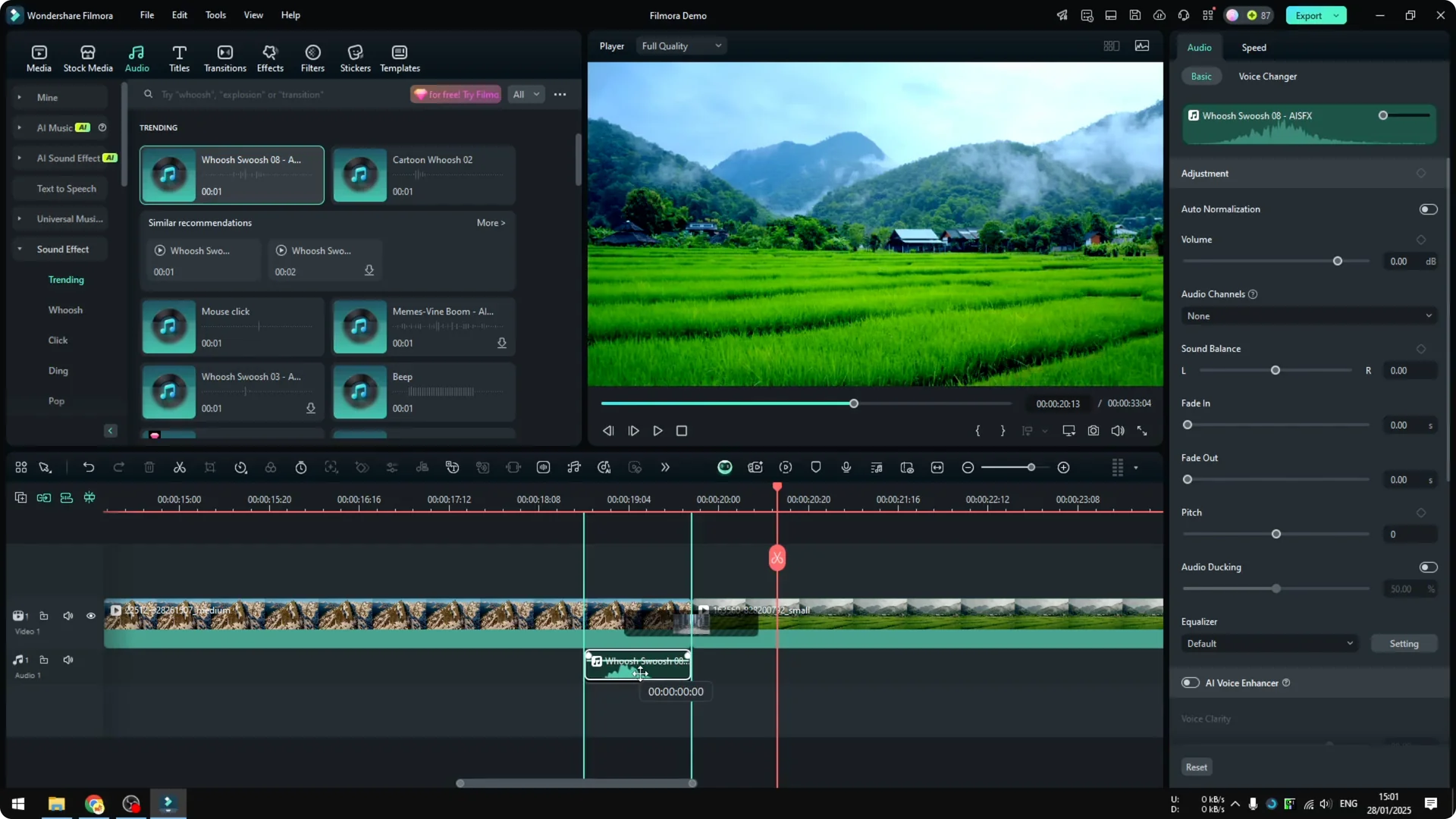
Make sure it is playing exactly when the transition happens. If needed, start it a bit earlier.
You can also make the transition a bit shorter to accommodate the short duration of the animation. That is definitely a lot better.
Read More: How To Add Animations To Text In Filmora
Final Thoughts on Filmora Video Transitions
Keep your clips together, test a few transitions, and pick one that matches the motion in your footage. Add a short sound effect and align it to the moment the transition hits. These small tweaks make the cut feel smooth and engaging.