Skip to content

Pika Labs AI

  • Home
  • Text To Video
  • Pika Prompt Generator
  • Pika 2.5
  • Pikaffects
  • Discord

Blog

Your blog category

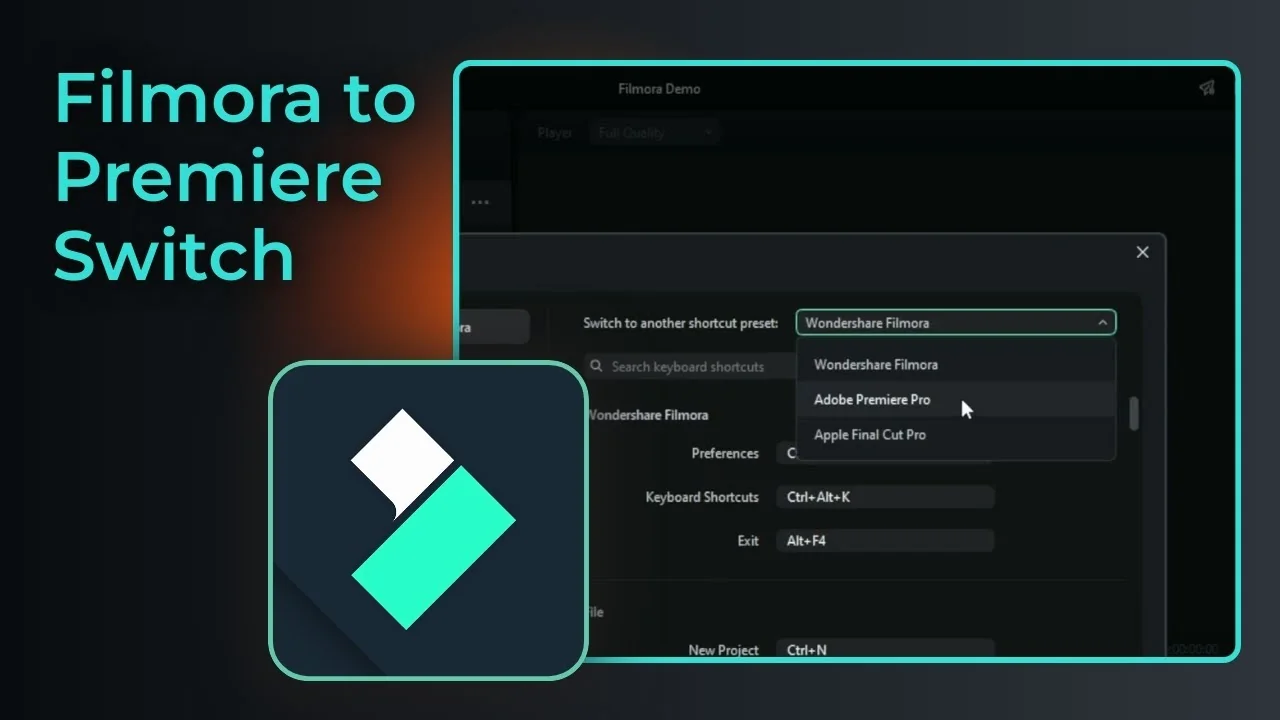
How to Switch Filmora Keyboard Shortcut to Adobe Premiere Pro

23 January 2026 by pikalabsai.org
How to Switch Filmora Keyboard Shortcut to Adobe Premiere Pro - Featured Image

Here is how you can easily change the keyboard presets in Filmora if you’re coming from other software like Adobe Premiere Pro or Apple Final Cut Pro. You can make the shortcuts in Filmora behave the same way as in those programs. Premiere Pro Shortcuts in Filmora There are many shortcuts available in Filmora, and … Read more

Categories Blog Leave a comment

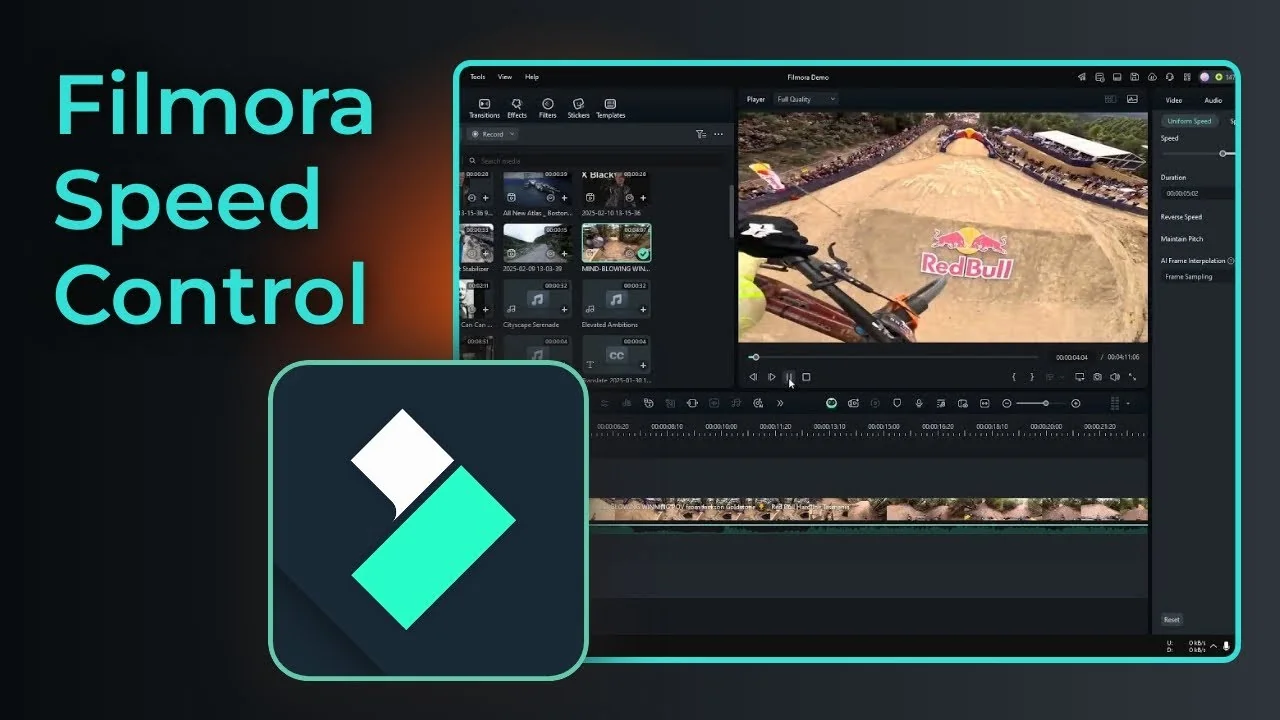
How to Speed Up or Slow Down Video in Filmora with Cinematic Look

22 January 2026 by pikalabsai.org
How to Speed Up or Slow Down Video in Filmora with Cinematic Look - Featured Image

This is how you can speed up or slow down a video in Filmora. I start with a basic slowdown on a specific section, then show how to make it look a lot cooler with cinematic speed ramping. Filmora Speed Ramping: Basic speed changes on a section I have a video of someone riding a … Read more

Categories Blog Leave a comment

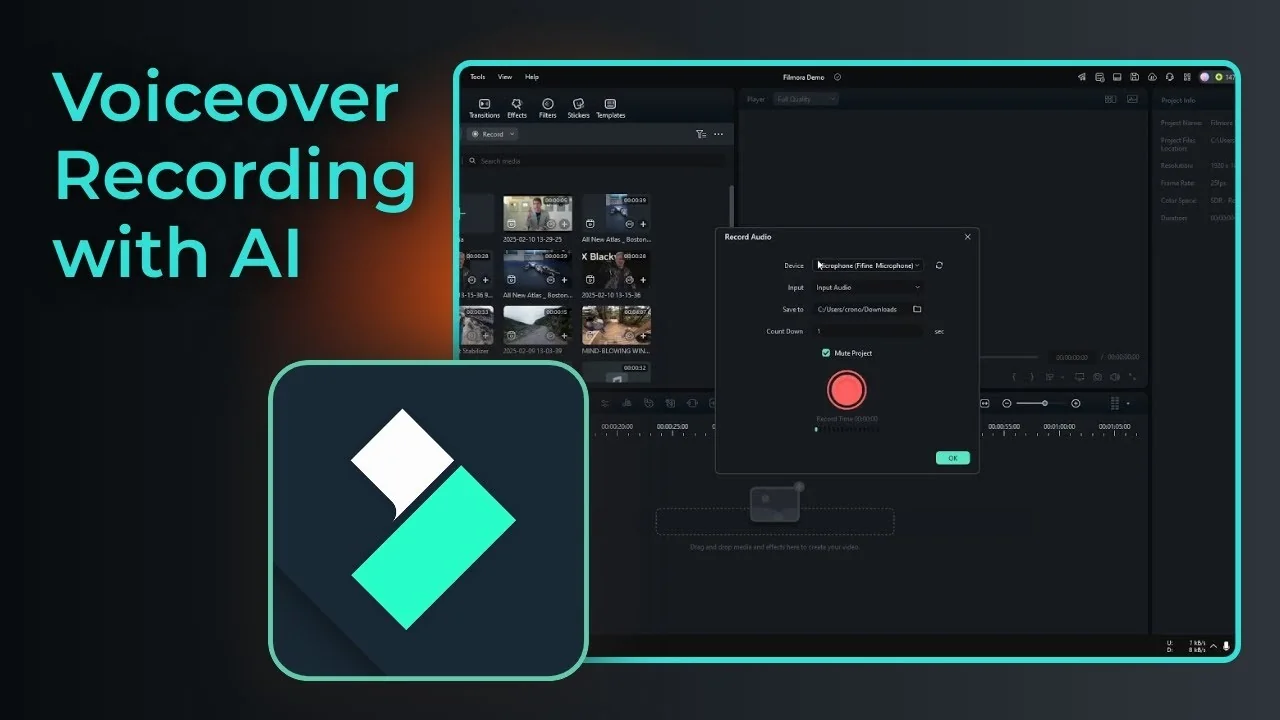
How to Record Your Own Voice in Filmora and Enhance it with AI

22 January 2026 by pikalabsai.org
How to Record Your Own Voice in Filmora and Enhance it with AI - Featured Image

This is how you can record your own voice in Filmora and make it sound better with the AI voice enhancer. I recommend a simple setup that works well and keeps things clean. Filmora Voiceover AI Enhancement – Record Your Voice Go to the File menu, click Record Media, then click Record Voiceover. The Record … Read more

Categories Blog Leave a comment

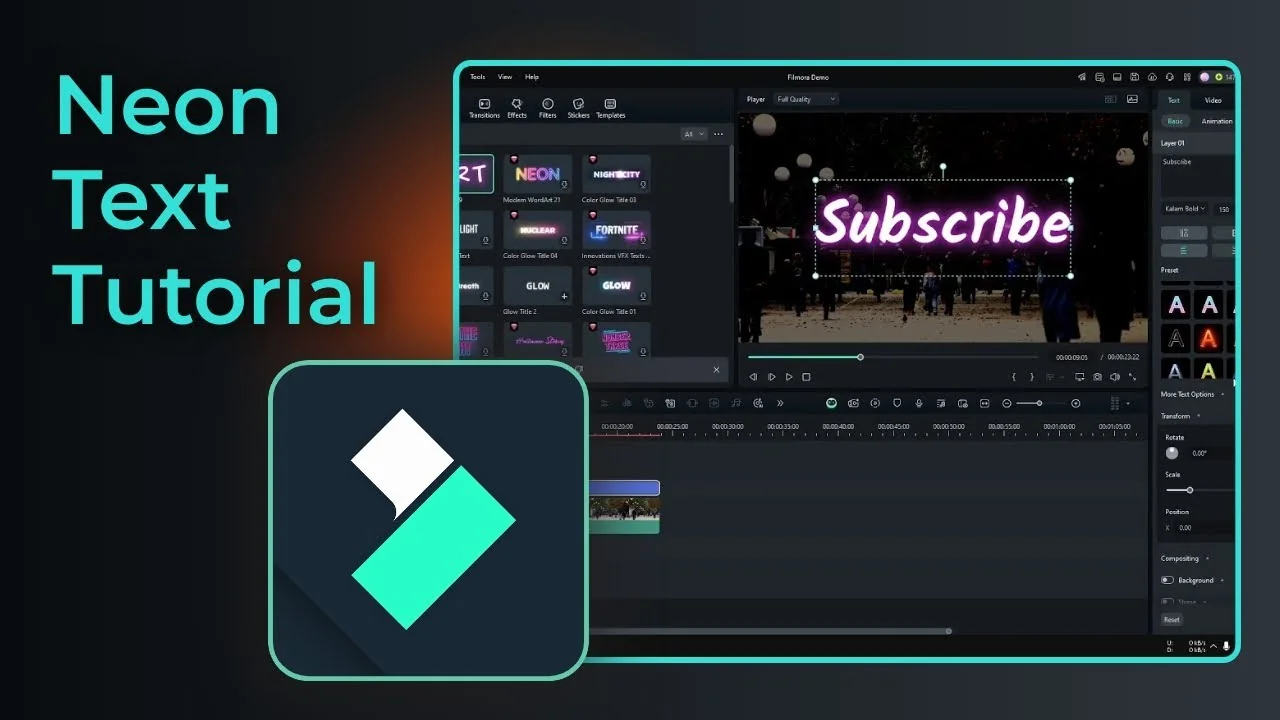
How to Add Glowing Neon Text Effect in Filmora

22 January 2026 by pikalabsai.org
How to Add Glowing Neon Text Effect in Filmora - Featured Image

This is how you can add a neon text effect in Filmora. I’m going to be using a video clip for the background, and the background is a bit too bright, so I’ll change the brightness to minimum so the text or the neon effect will be more visible. Prepare the background for the Filmora … Read more

Categories Blog Leave a comment

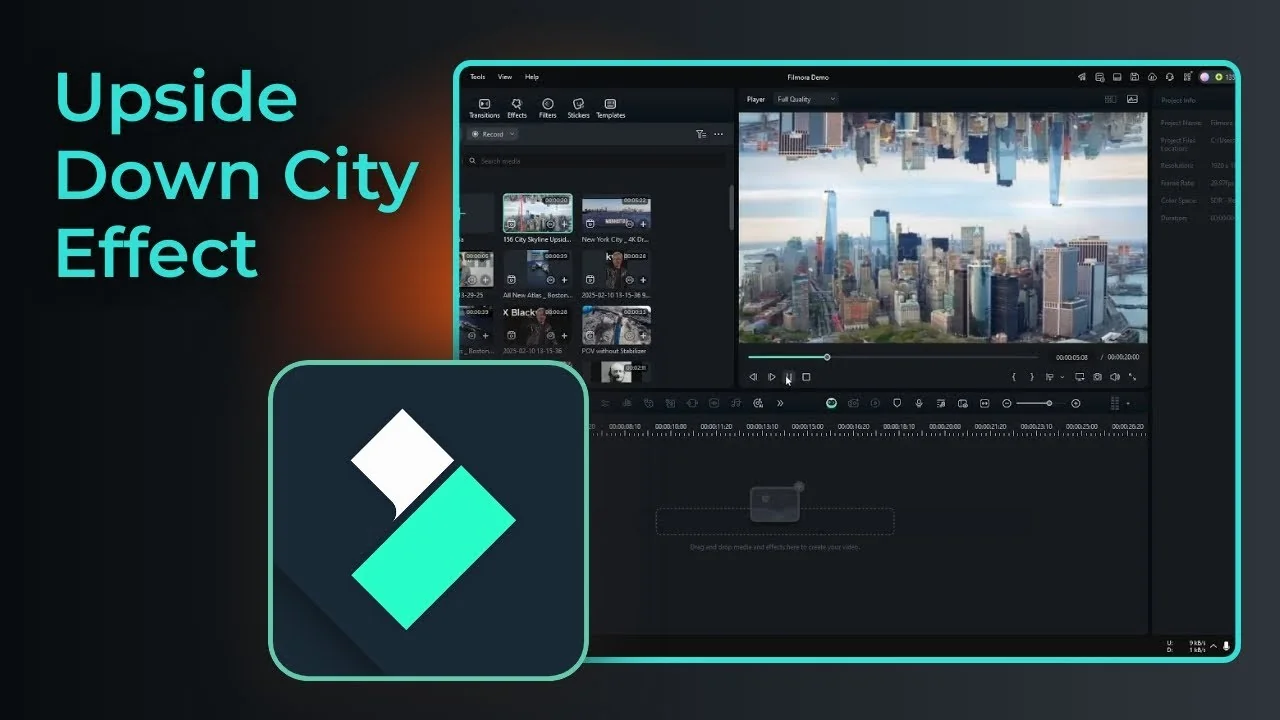
How to Create Cool Upside Down City Effect in Filmora with AI

21 January 2026 by pikalabsai.org
How to Create Cool Upside Down City Effect in Filmora with AI - Featured Image

I call it the Upside Down City effect, and I think it looks really cool. You have probably seen this kind of footage in movies like Doctor Strange or Inception. It is a drone shot of a city, but instead of one city there are two identical cities, one at the bottom and another at … Read more

Categories Blog Leave a comment

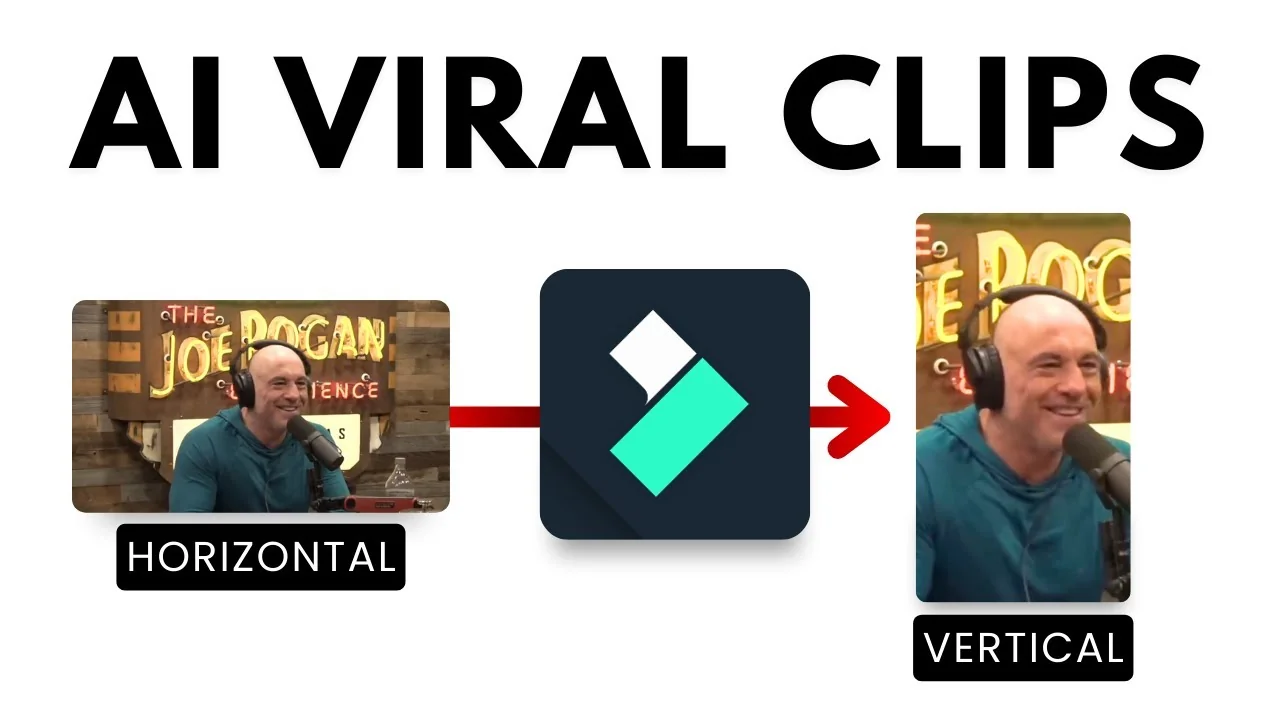
How to Convert Long Videos into Viral Clips Using Filmora AI

21 January 2026 by pikalabsai.org
How to Convert Long Videos into Viral Clips Using Filmora AI - Featured Image

Short-form vertical clips are a popular format. You can feed a long-form video like a podcast or interview into AI tools that convert it to 9:16 for YouTube Shorts, Instagram Reels, and TikTok, but those are usually paid services. If you already use Filmora, you can combine built-in features to achieve the same result. It … Read more

Categories Blog Leave a comment

Turn Any Video to Slow Motion – Filmora AI

20 January 2026 by pikalabsai.org
Turn Any Video to Slow Motion - Filmora AI - Featured Image

How do you create a nice and smooth slow motion video? First, record a video with at least 120 frames per second and preferably 240 frames per second. The problem is a lot of people don’t realize this setting, and even though their camera or smartphone is probably enough to record a slow motion video, … Read more

Categories Blog Leave a comment

Filmora AI Voice Cloning: What Most Users Don’t Realize

20 January 202620 January 2026 by pikalabsai.org
How to Clone Your Voice in Filmora AI - Featured Image

One thing that I like about the Filmora video editor is that this jewel is very prolific at adding more and more AI features. I really like it because it makes editing a lot smoother and easier. But sometimes the AI tools in Filmora are not as good as third party options. We have AI … Read more

Categories Blog Leave a comment

How to Remove Moving Watermark Using Filmora AI

20 January 202619 January 2026 by pikalabsai.org
How to Remove Moving Watermark Using Filmora AI - Featured Image

I have this video of Mr. Beast testing various vehicles and I edited it to have two watermarks: one at the top and another at the bottom. The bottom one is a static watermark. The one at the top is moving and looping throughout the video, so sometimes it changes position. Here’s how I remove … Read more

Categories Blog Leave a comment

Turn Text Into Natural Voice in Filmora Using AI (Step-by-Step)

19 January 202619 January 2026 by pikalabsai.org
How to Use AI Text to Speech in Filmora Video Editor - Featured Image

Here is how I use AI text-to-speech in the Filmora video editor. You provide narration or text and let Filmora create audio based on that text. Make sure you are running the latest version of Filmora. Insert your video into a project timeline. Filmora AI Text-to-Speech: Prepare Your Text I add text for the video … Read more

Categories Filmora, Blog Leave a comment
Older posts
Newer posts
← Previous Page1 … Page6 Page7 Page8 … Page15 Next →
  • Kling Avatar 2.0: Make Your Own AI Avatar in Minutes
  • Kling Avatar 2.0 Full Beginner Tutorial – Image to Avatar - Featured Image
    Kling Avatar 2.0 Full Beginner Tutorial – Image to Avatar
  • Kling Motion Control 3.0 Full Tutorial Create ANY Character - Featured Image
    Kling Motion Control 3.0 Full Tutorial Create ANY Character
  • How to Use Kling Motion Control 3.0? - Featured Image
    How to Use Kling Motion Control 3.0?
  • pika-directors-suite
    Pika Director’s Suite: AI Agent That Thinks Like a Filmmaker
  • Home
  • Text To Video
  • Pikaffects
  • PikaFrames
  • Pikadditions
  • Pikamemes
  • PikaTwists
  • Pika Social App

Latest Posts:

  • Kling Avatar 2.0: Make Your Own AI Avatar in Minutes
  • Kling Avatar 2.0 Full Beginner Tutorial – Image to Avatar
  • Kling Motion Control 3.0 Full Tutorial Create ANY Character
  • How to Use Kling Motion Control 3.0?

Pika Labs Model

  • Pika 1.0
  • Pika 1.5
  • Pika 2.0
  • Pika 2.1
  • Pika 2.2
  • Pika 2.5
  • Official Discord
  • Privacy Policy
Disclaimer: Pikalabsai.org is an unofficial educational blog. We're not affiliated with Pika.art, don't request any payments, and give full copyright credit to Pika.art. Our goal is to promote and share information only. | 7789 Broadway #202, San Francisco, CA 94111, United States