Do you also want to make Venom effect videos? If yes, I’ll guide you through the step-by-step process of creating an incredible VENOM transformation using Pixverse AI.
How to create Venom Effect using Pixverse AI?
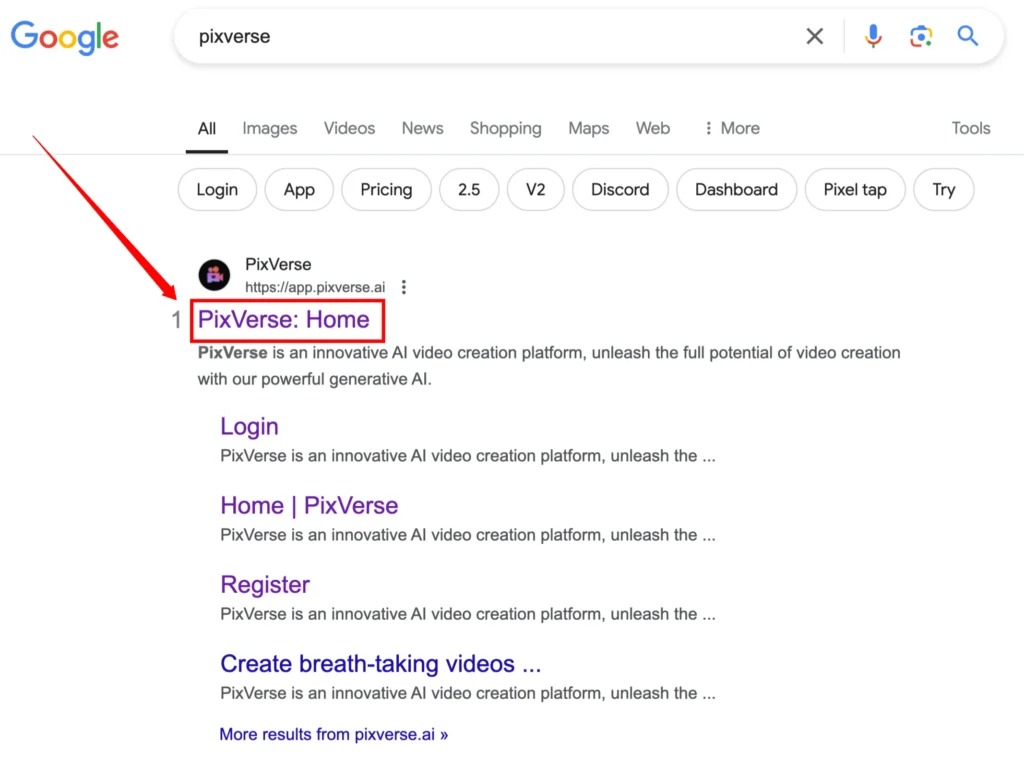
Step 1: Open Your Chrome Browser
The first thing you need to do is open your Chrome browser on your device. Once it’s open, follow these steps:
- Go to the search bar.
- Type Pixverse AI and hit enter.
Step 2: Access Pixverse AI
After performing the search, you’ll see a list of results. Click on https://app.pixverse.ai/ and the Pixverse AI website will open.
Step 3: Navigate to the Pixverse AI Interface
Once the Pixverse AI website is open, here’s what to do next:
- On the homepage, you’ll find an option labeled “Try Pixverse.”
- Click on it to proceed.
You’ll now be redirected to the Pixverse AI application interface.
Step 4: Sign In to Pixverse AI
To start using the application, you need to sign in. Here’s how:
- Look for the sign-in option at the top of the page.
- Use your preferred method to log in.
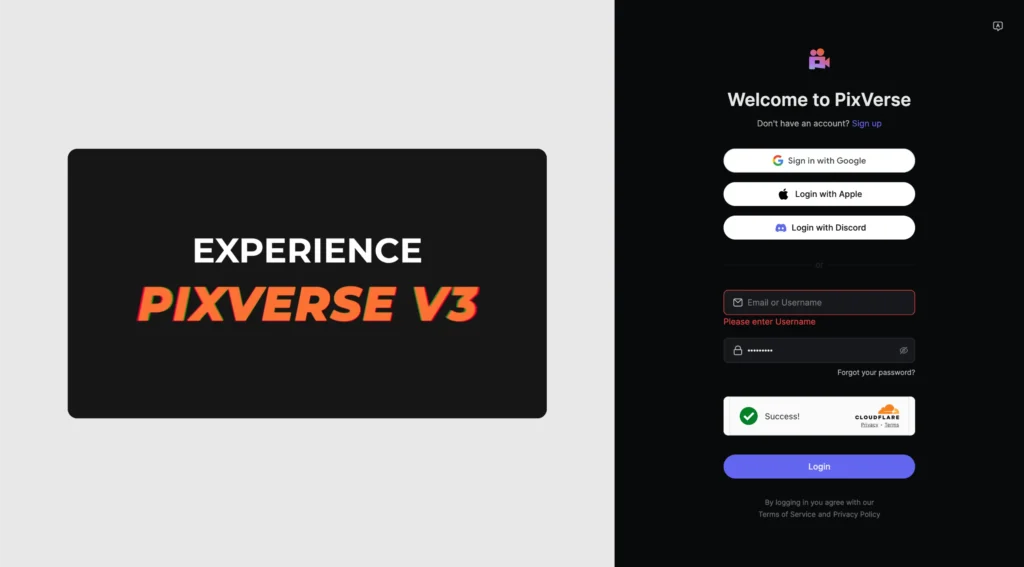
After signing in successfully, you’ll gain access to various AI effects.
Step 5: Explore the Effects
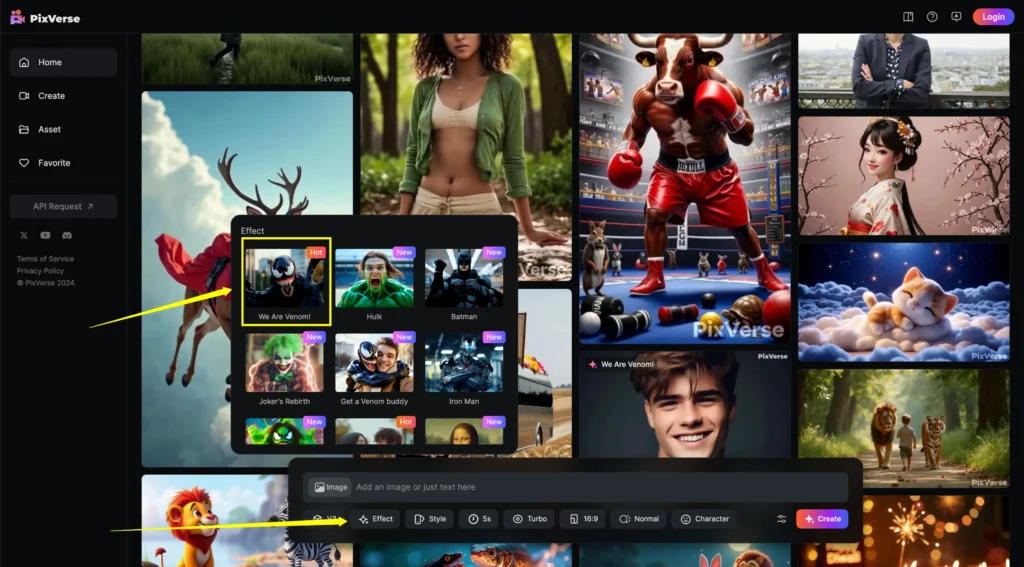
Pixverse AI offers a wide range of effects. Scroll through the list to see the options available. For this tutorial, I’ll be using the “We are VENOM” effect.
Step 6: Select the VENOM Effect
- Locate the “We Are VENOM” effect from the available options.
- Click on it to open the effect interface.
Step 7: Upload Your Image
To transform your image with the VENOM effect, follow these steps:
- Click on the “Upload an Image” button.
- This will open your device’s gallery or file manager.
- Select the image you want to transform.
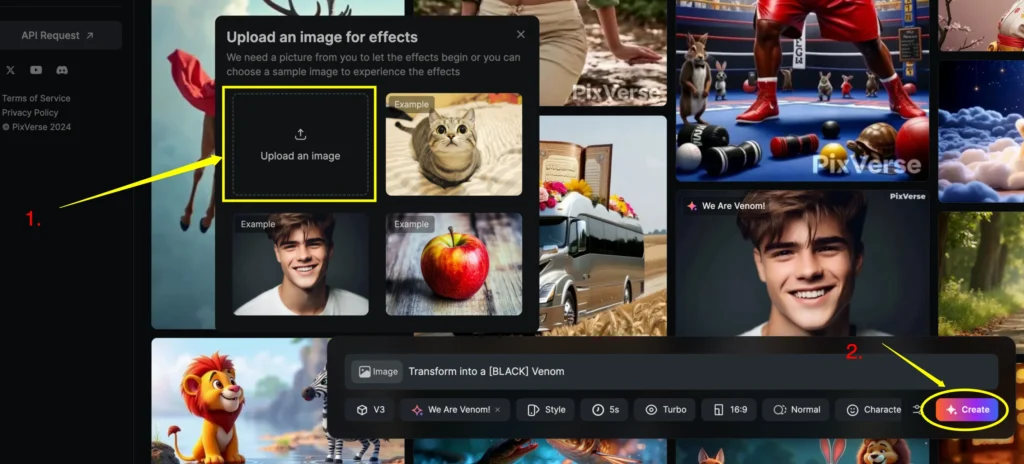
Once selected, your image will start uploading. The upload process typically takes just a few seconds.
Step 8: Create the VENOM Effect
After your image has been uploaded, look for the “Create” button at the bottom of the screen. Here’s what to do:
- Click on the “Create” button.
- The application will begin transforming your image into a VENOM-inspired video.
This process only takes a short while.
Step 9: Download Your Video
Once the transformation is complete, you’ll see a preview of your VENOM-inspired video.
- Click the “Download” button to save the video to your device.
- Play the video to see the amazing effects added to your image.
Step 10: Showcase Your Creation
Your transformed VENOM video is now ready to share! The effects are truly incredible and can captivate your audience. Use these videos to create engaging content and boost your views.
Comparison of Pixverse AI Features
| Feature | Free Version | Premium Version |
|---|---|---|
| Number of Effects | Limited | Full access |
| Video Quality | Standard | High Definition |
| Watermark | Yes | No |
FAQs:
1. Is Pixverse AI free to use?
Yes, Pixverse offers a free version with limited effects. However, you may need to upgrade for additional features.
2. Can I use any image?
For the best results, use high-quality images with clear facial details.
3. What formats are supported for download?
The final video is usually available in standard formats like MP4, ensuring compatibility across platforms.
Final Thoughts
This tutorial shows how easy it is to add stunning. veonom effects to your images using Pixverse AI. I hope you enjoyed this guide and found it helpful. Try it out and see how amazing your creations can turn out.