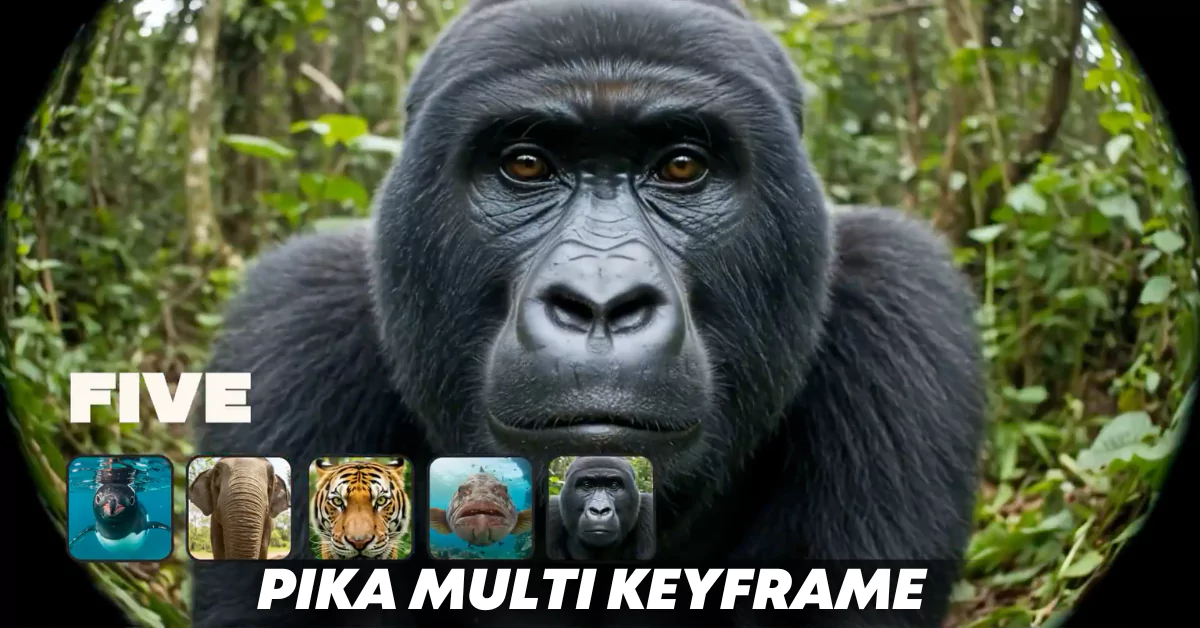
I’m excited to share something new and really useful for those of us working with Pika.art. If you’ve been using Pika Labs and enjoying its creative features, you’ll be excited to know it now includes the even more powerful Multi KeyFrame tool.
I’ve been testing it out, and I’m here to walk you through exactly how it works, how to use it, and what kind of output you can expect.
What is the Multi KeyFrame Tool in Pika Labs?
The Multi KeyFrame feature allows you to upload up to five different images as keyframes. These frames will then be used to generate transitions and motion across a video of up to 25 seconds in length.
Previously, Pika Labs only let you use a start and an end frame called Pikaframes. While that was great, it limited how much story or visual detail we could pack into a single video.
Now, we can break down the video into multiple scenes or transitions using more than just two frames.
This gives us the ability to:
- Show a gradual transformation or movement.
- Tell more detailed visual stories.
- Improve pacing and animation quality.
- Add emotion or visual interest at more points in the video.
Multi KeyFrame Highlights:
| Feature | Description |
|---|---|
| Keyframes Supported | Up to 5 frames |
| Maximum Duration | 25 seconds total |
| Transitions | Custom prompt for each transition |
| Platform | pika.art |
| Visual Control | Better animation between moments |
How I Used the Multi KeyFrame Tool?
So here’s what I did. I went to pika.art, and once I logged in, I saw the new option to add multiple keyframes.
I uploaded five images to experiment and see how the transitions would look. I didn’t type in a long prompt — I just wanted to see how the visuals would move between frames.
It was such a funny moment watching the animation shift across each keyframe with smooth motion.
Step-by-Step Guide to Using Multi KeyFrame
Let’s break this down so you can try it yourself right now.
Step 1: Go to Pika.art
- Go to http://pika.art
- Log in to your account
- If you don’t have one, signing up is quick and free
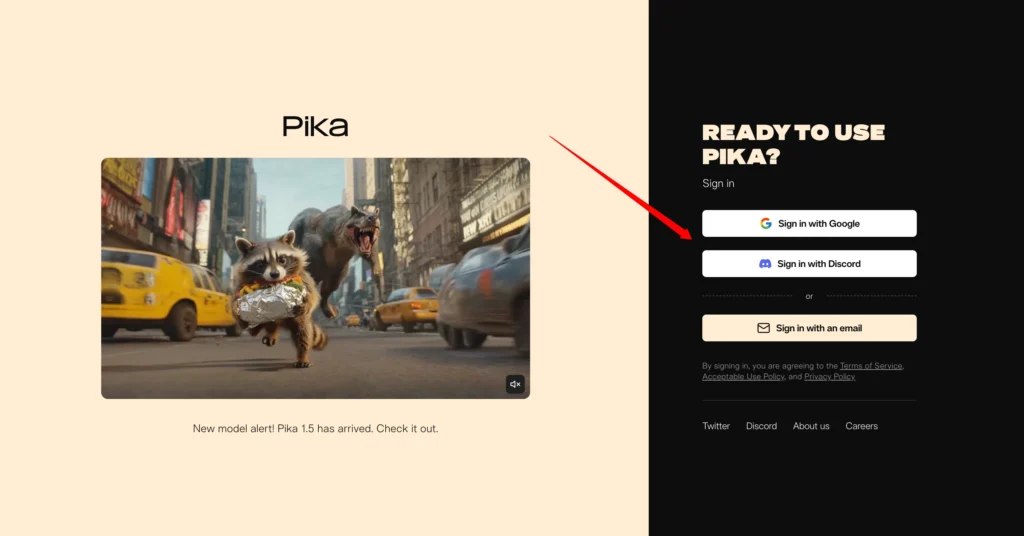
Step 2: Start a New Project
- Click on the “Create” button or the New Video option
- You’ll now see the Pikaframes tab at the top
Step 3: Upload Your Keyframes
- You can upload up to 5 images
- Each image will represent a turning point or scene in your video
- Pika will automatically space out the time for each transition
For example:
| Frame # | Purpose |
|---|---|
| Frame 1 | Starting point |
| Frame 2 | Mood shift or object entry |
| Frame 3 | Big visual transformation |
| Frame 4 | Add depth or scene evolution |
| Frame 5 | Final outcome or resolution |
You don’t need all five — you can try with just two or three and still get great results.
Step 4: Add Prompts for Transitions (Optional)
- You can guide the animation between keyframes using prompts
- For each transition (from Frame 1 to Frame 2, 2 to 3, etc.), you’ll be able to enter a short description
- For example:
- “zoom into character’s eyes”
- “sunset turns to night”
- “tree blossoms into flowers”
Step 5: Choose Duration
The full video can be up to 25 seconds
If you use all five keyframes, each transition will last 5 seconds.

With fewer frames, transitions will be longer
Here’s a quick breakdown:
| Number of Frames | Total Duration | Seconds per Transition |
|---|---|---|
| 2 | 5 seconds | 5 |
| 3 | 10 seconds | 5 |
| 4 | 20 seconds | 5 |
| 5 | 25 seconds | 5 |
Step 6: Hit Generate
- Once you’re ready, click Generate
- Wait a few seconds while the video is processed
- You’ll see your multi-scene animation
Tips for Better Results
Here are some tips I learned from playing around:
- Use consistent style: Make sure your keyframes have a similar visual tone, so the transitions feel smooth.
- Plan your story: Even if it’s short, think about the story your five frames are telling.
- Use strong visual prompts: If you do decide to type something in for the transitions, keep it visual and simple.
Pika Multi KeyFrames Common Use Cases
Here are a few ways people (myself included) are starting to use this:
1. Short Animations
Create quick, 25-second shorts for social media using five important scenes. This is perfect for:
- Product teasers
- Visual storytelling
- Concept videos
2. Character Movement
Upload multiple views or emotions of a character and animate between them:
- Smiling to serious
- Idle to action
- Arrival to transformation
3. Mood or Style Shifts
Show shifts in lighting, mood, or style:
- Day to night
- Calm to chaotic
- Cartoon to photorealistic
Why I Like Multi KeyFrame?
It’s honestly just fun to use.
Here’s what makes it stand out to me:
- You get more storytelling options
- Your videos feel more complete
- You don’t need to manually edit transitions
- The visuals look smoother and more natural
Final Thoughts
I’ve always wanted more than just a start and end frame in AI video generation. Being able to direct how the story moves from moment to moment changes how we can build scenes, moods, and motion.