I am going to show you how to improve audio quality in Filmora for voice recordings and for music. I will start with the voice workflow, then move to a simple process for music.
I will also compare manual settings with the AI voice enhancer so you can pick what fits your project best.
Filmora AI Audio Enhancement for voice recordings
Manual settings that work for my voice
Open the clip, go to Audio, then Basic. There are many options, but from my experience we only need a few.
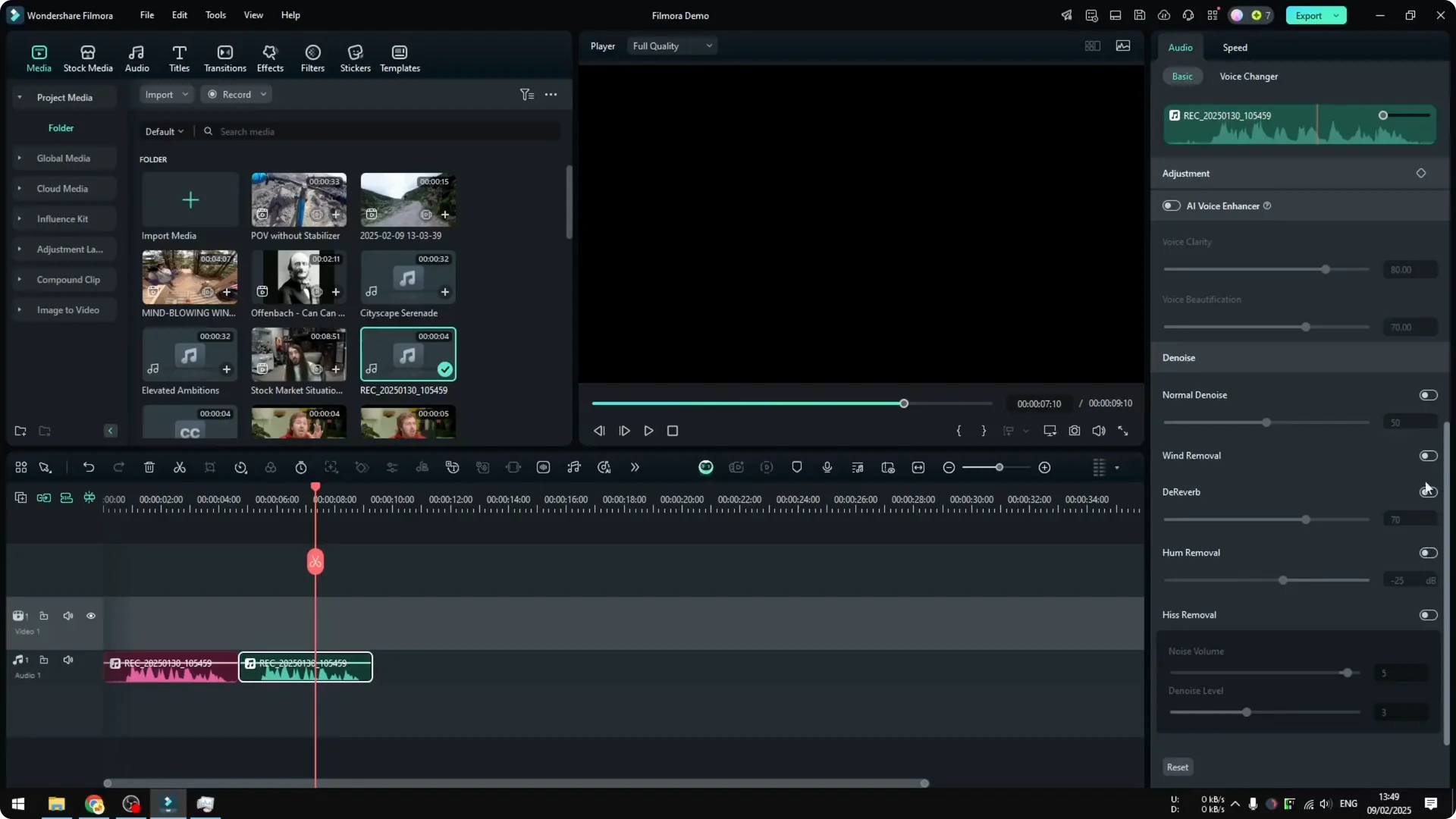
Enable Auto Normalization to keep levels consistent across the clip. I usually raise Volume by about 2 dB.
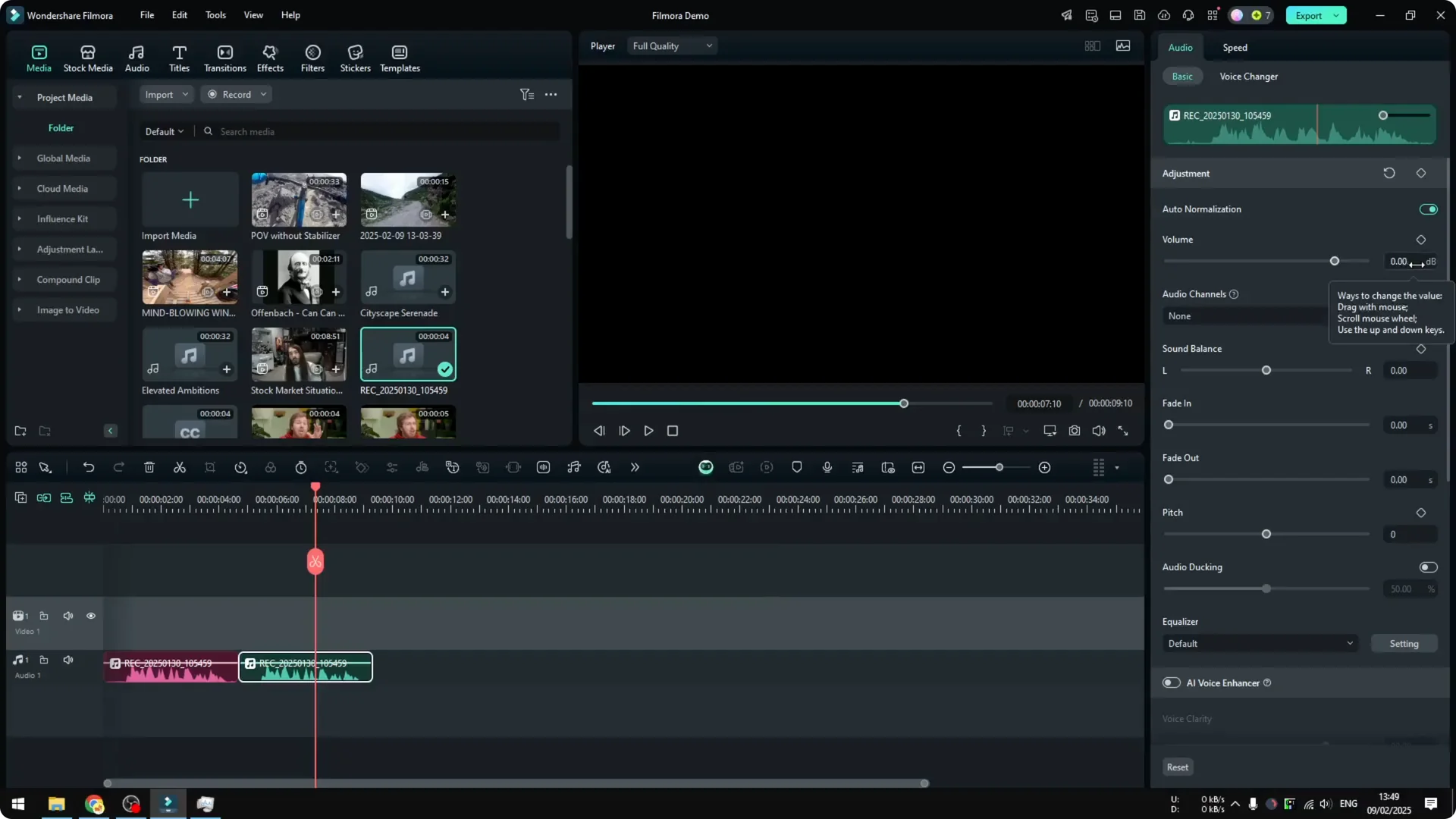
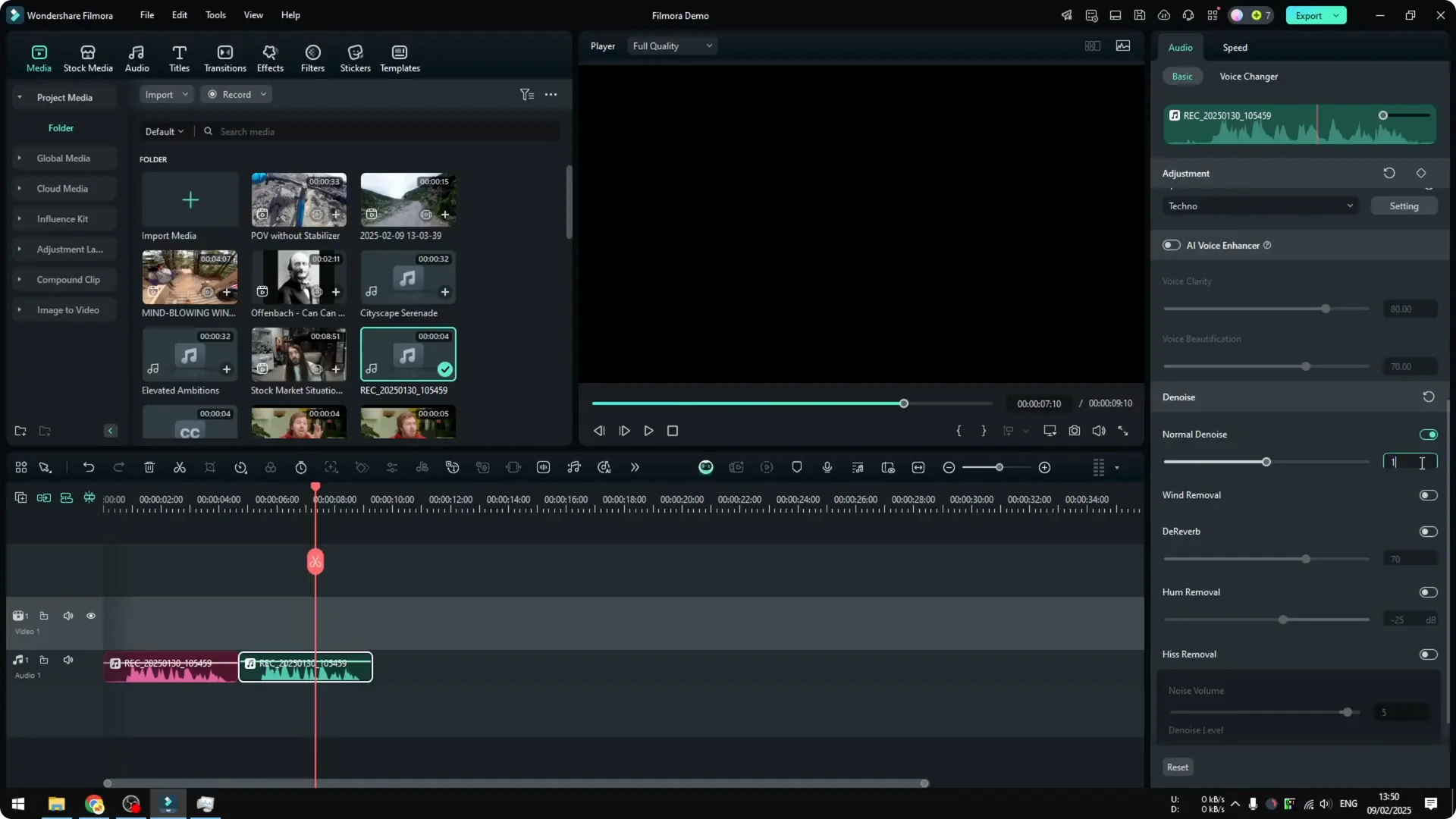
Turn on Equalizer. It is meant for music, but it can help a voice, and the presets that work best for my voice are Sparkle, Rock and Roll, and Techno.
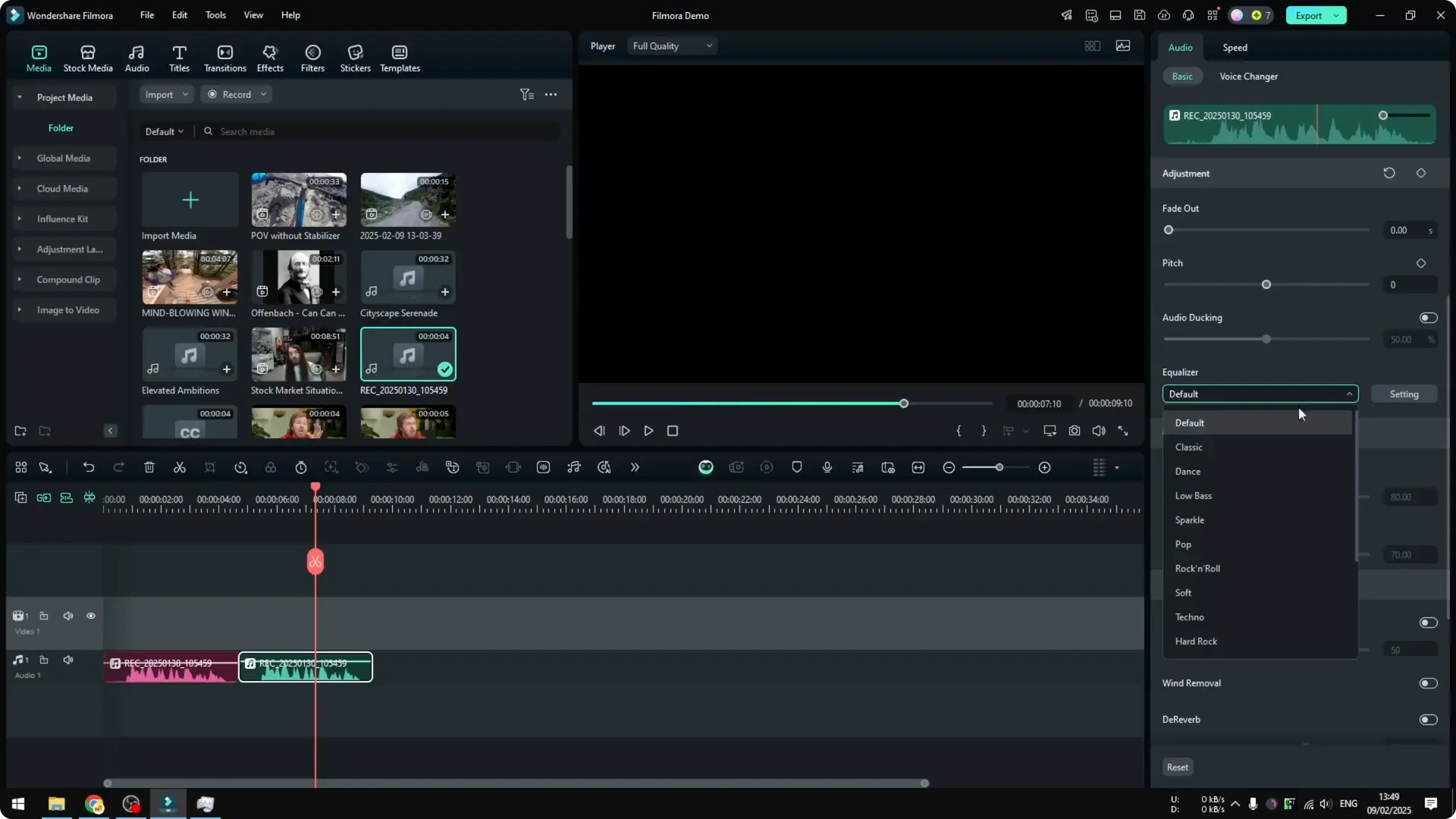
If your room is already quiet, set Normal Noise removal very low, around 10 percent. Enable Wind Removal if you recorded with a window open or felt any breeze.
AI voice enhancer in Filmora AI Audio Enhancement
You can speed things up with the AI Voice Enhancer under Audio then Basic. Turn it on, then adjust Voice Clarity and Voice Beautification or just try the defaults.
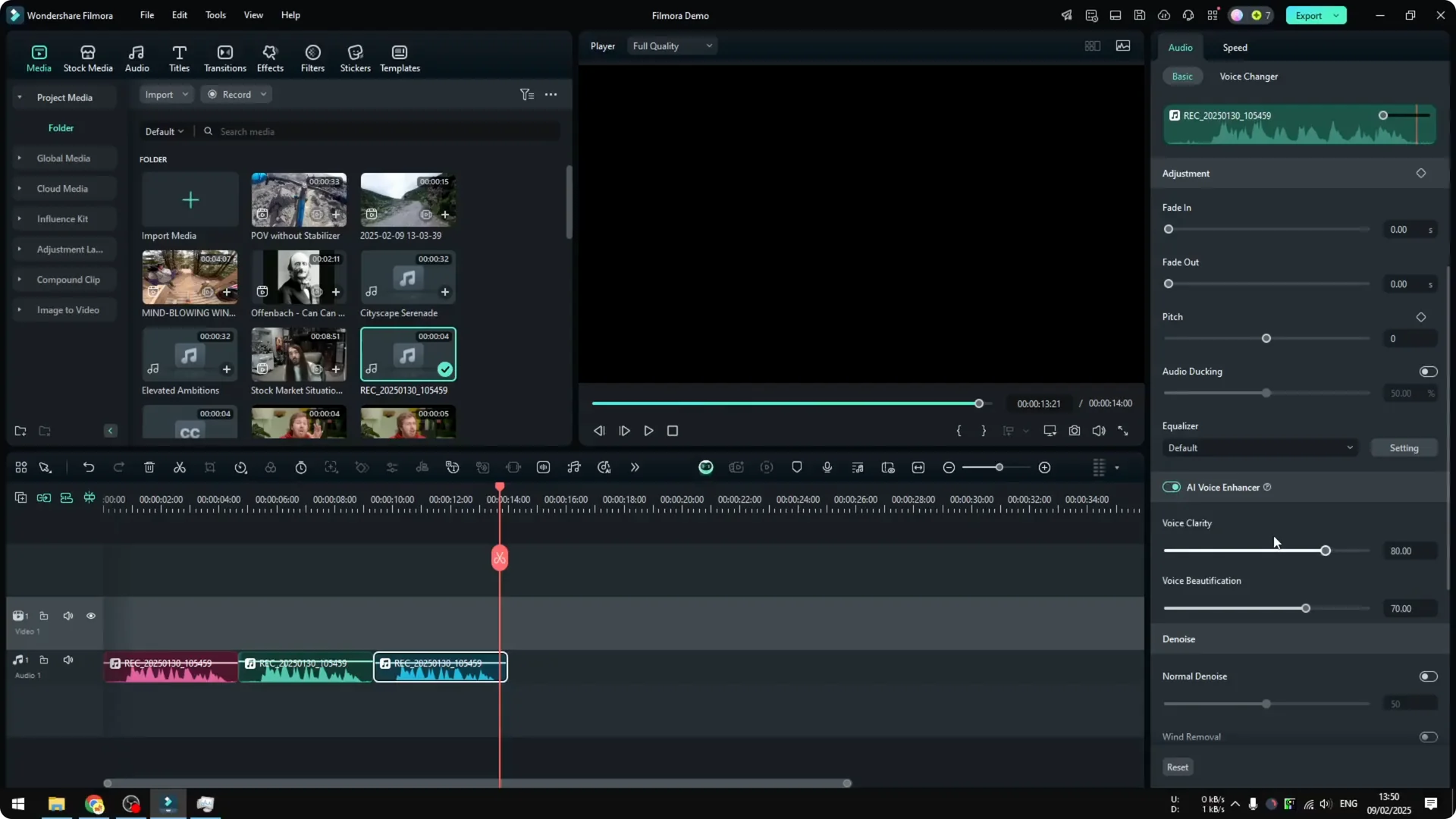
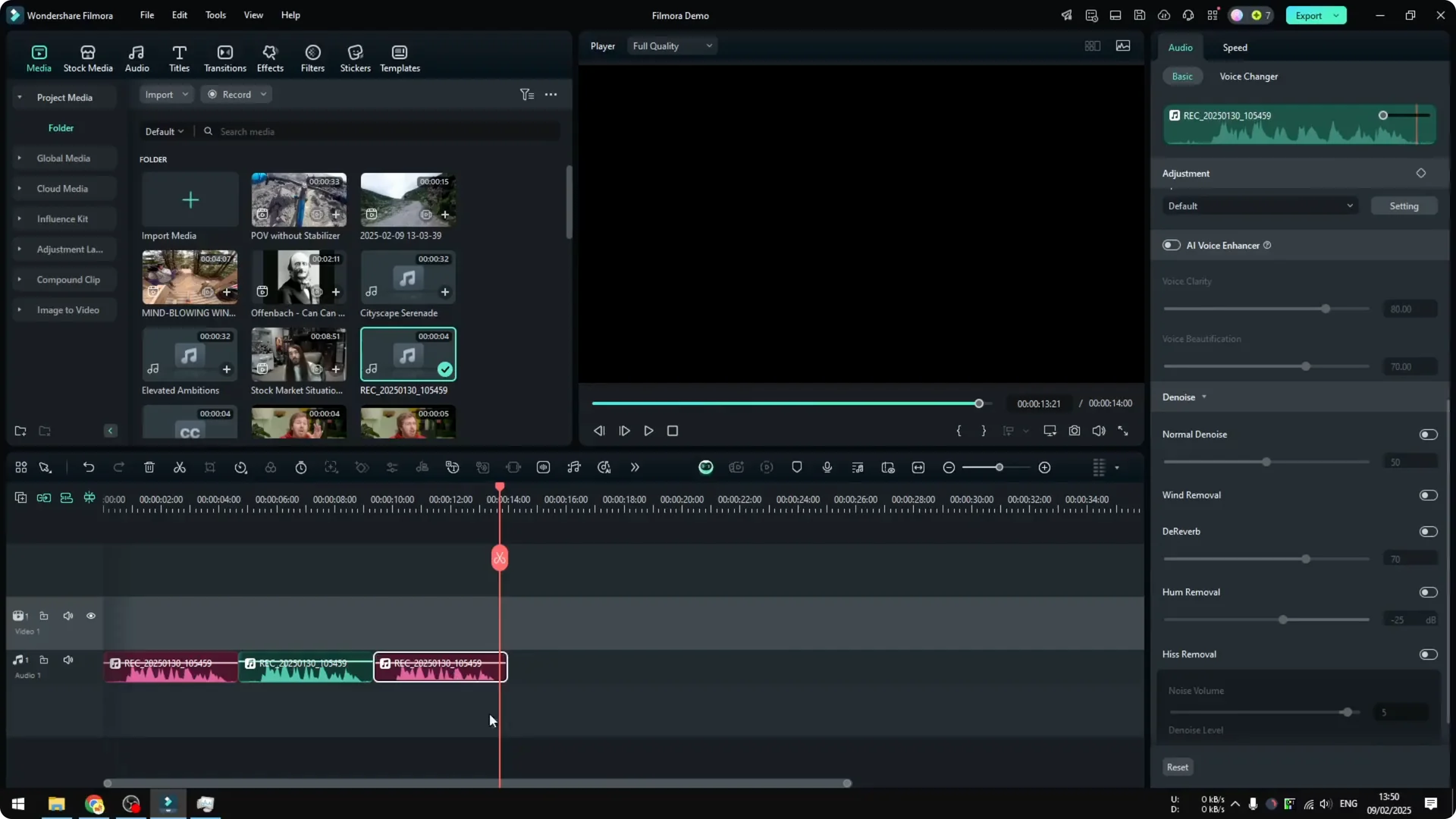
I compared the original, my manual settings, and the AI option. Both manual and AI settings are fine, and the choice is subjective, but I prefer my manual setup because I can control exactly what to improve.
If you are polishing both audio and footage in the same edit, it can help to stabilize shaky video using AI in Filmora before you finalize the mix.
Filmora AI Audio Enhancement for music
Core settings for music clips
For music, open the audio clip and enable Auto Normalization again. I also increase Volume by about 2 dB.
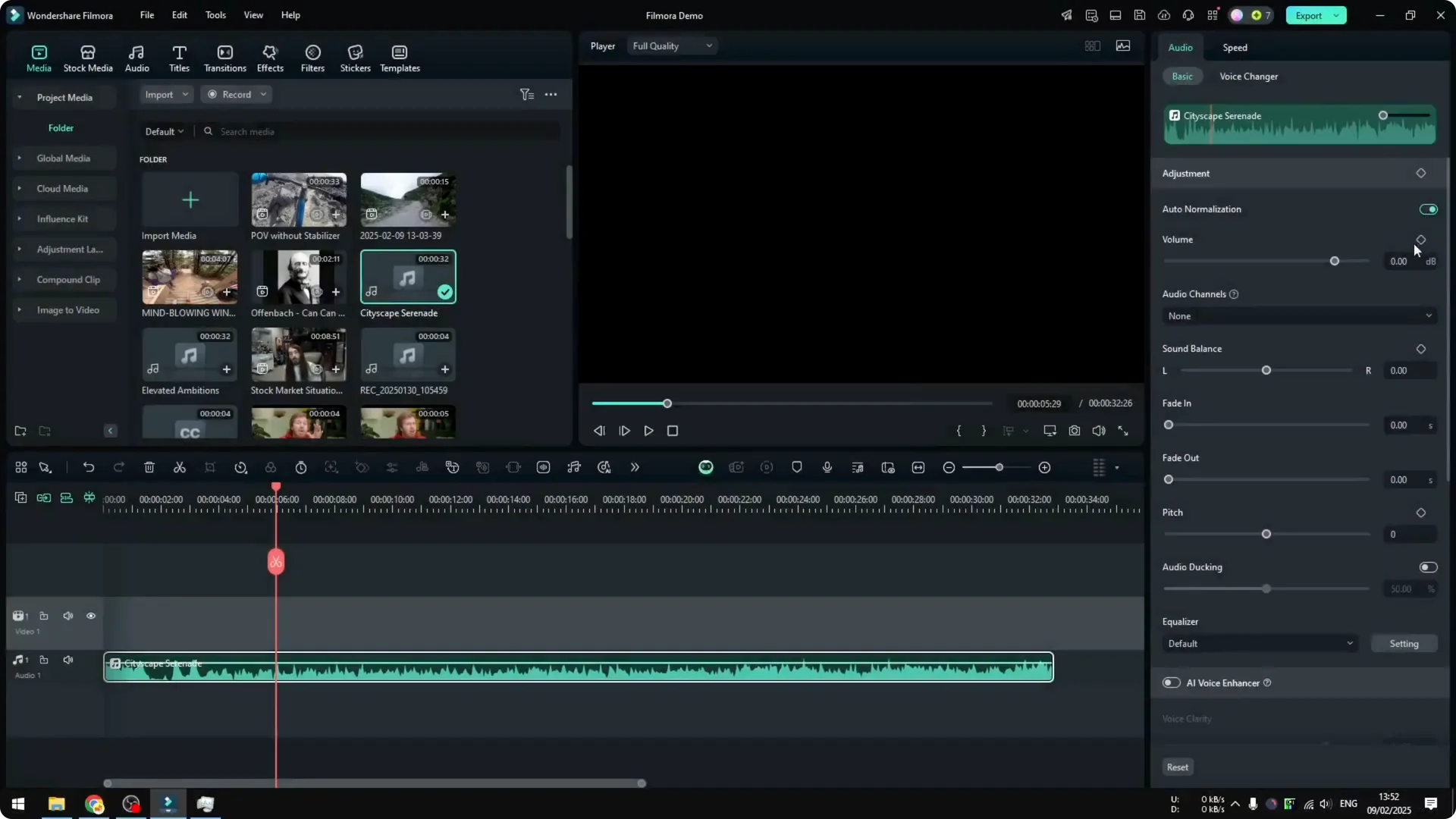
AI Voice Enhancer is usually not needed for instrumental tracks. Even with vocals, I do not recommend it for full mixes.
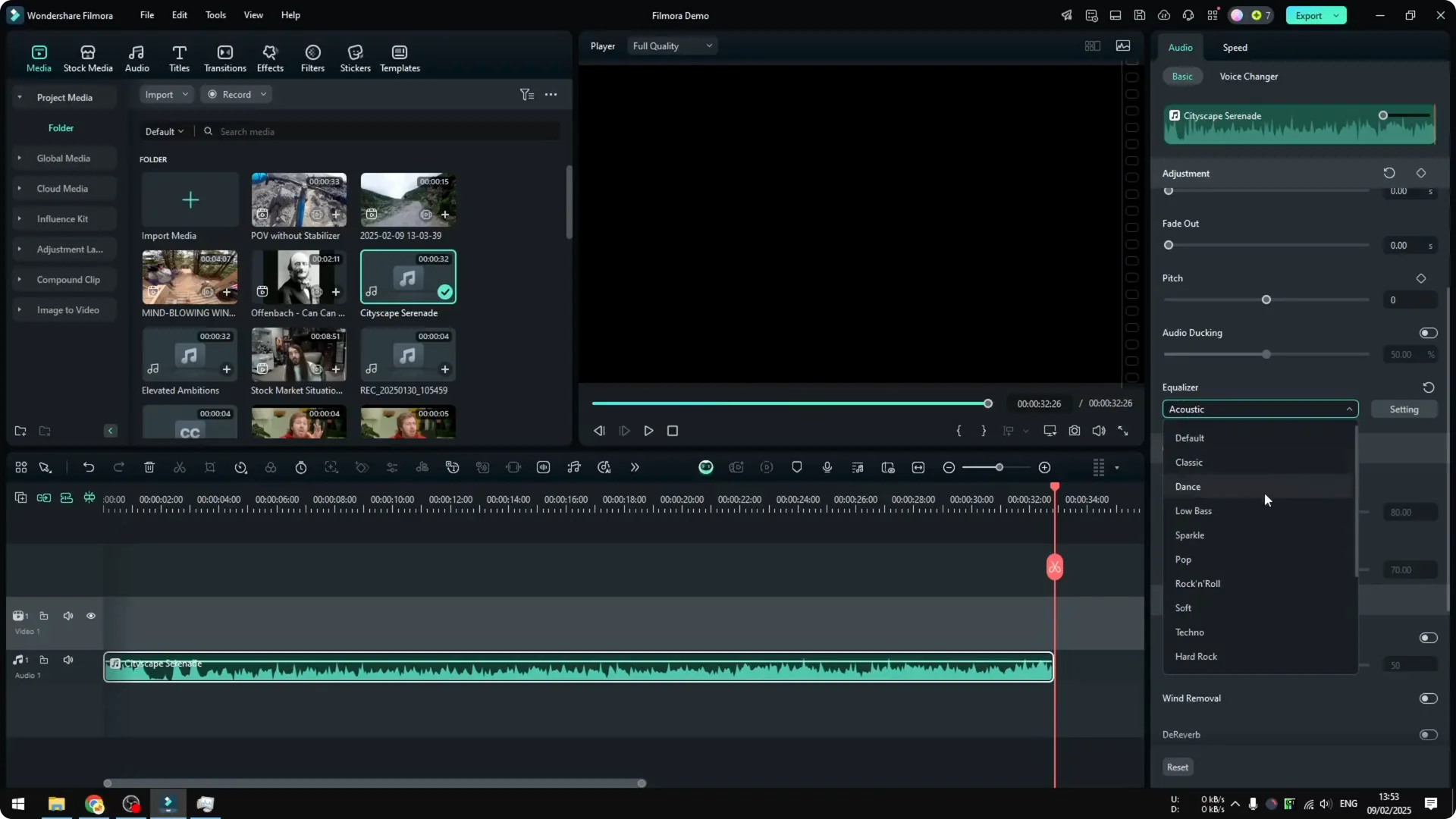
Noise removal and Wind Removal are not necessary for clean music sources, especially AI generated tracks. The Equalizer is what you want to experiment with here.
I play the track and switch EQ presets to hear the difference in real time. For my example song, the Dance preset sounded better to me, but this will vary by track.
If you plan to showcase your song with reactive graphics, see our AI audio visualizer guide to build a polished presentation.
Final thoughts on Filmora AI Audio Enhancement
For voice, a quick manual chain of Auto Normalization, a small volume lift, light noise and wind control, and an EQ preset can deliver a clean result. The AI Voice Enhancer is a solid shortcut if you want something fast.
For music, focus on Auto Normalization, a modest volume bump, and careful EQ selection. If your edit includes motion heavy scenes, you can also track a moving object in Filmora using AI to keep visuals locked while you refine the audio mix.