Selecting multiple clips in Filmora is very useful if you have a setting that you want to apply but you do not want to apply the setting manually to every clip in your project. You can apply the setting once and that setting will be applied to all clips that you select. This speeds up the whole editing process.
If you are exploring AI tools in Filmora for faster workflows, check out this practical guide to turn long recordings into shareable moments with AI. See how to convert long videos into viral clips using Filmora AI.
Why Selecting Multiple Clips in Filmora Matters
You might want to adjust scale, color, speed, audio, animation, or apply chroma key across a set of clips. Selecting them together lets you apply those edits once. It keeps your timeline consistent and saves time.
Methods for Selecting Multiple Clips in Filmora
There are multiple ways to select multiple clips in Filmora. The simplest one is by using the Control or Command key on the keyboard. You can also use Shift to select a range or click and drag to draw a selection box.
Control or Command for precise picks
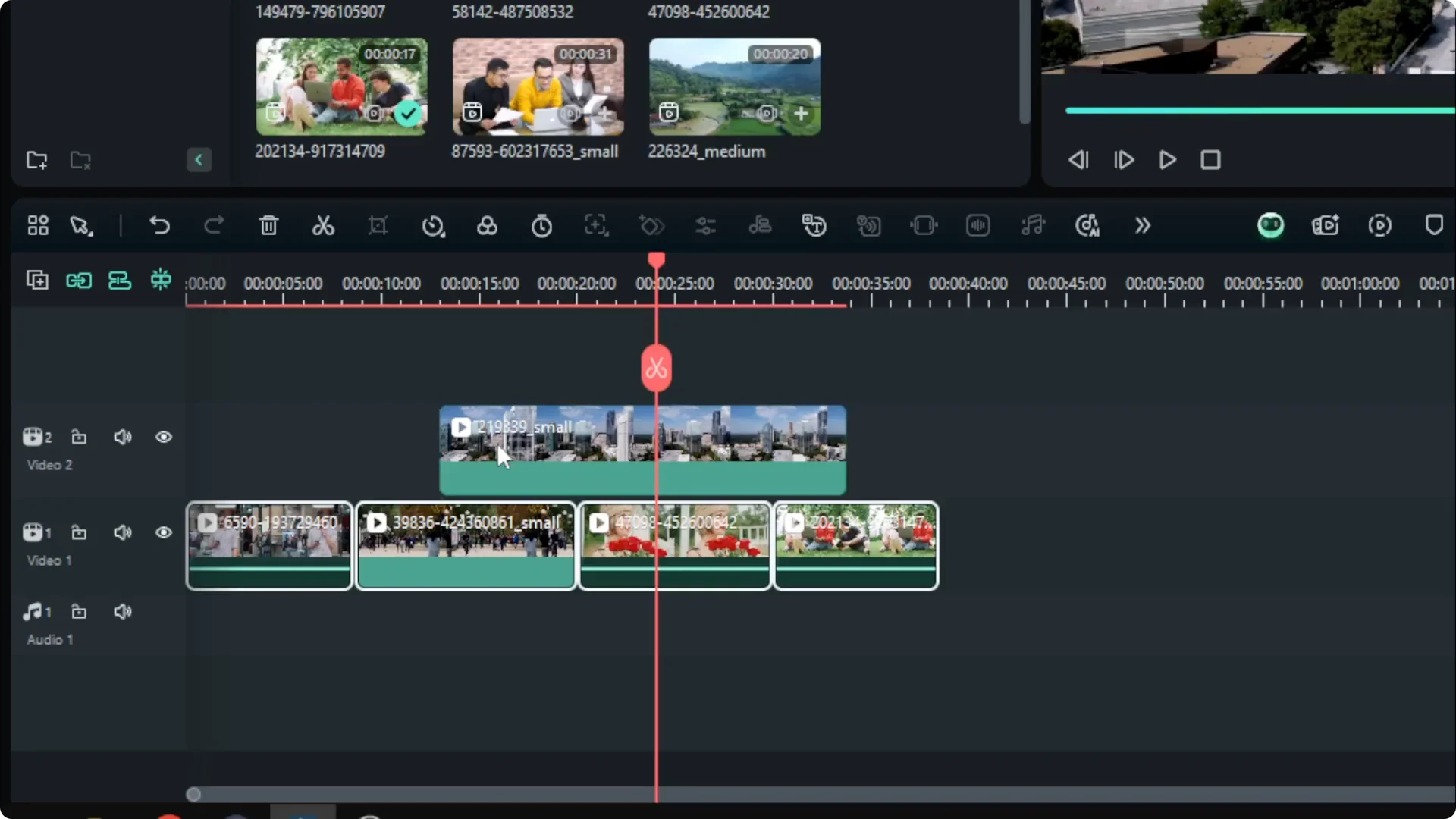
The simplest one is by using the Control or Command key on the keyboard. Press Control on Windows or Command on Mac and hold it, then click each clip you want to select. This is useful if you have a project with multiple tracks and want to pick clips across different tracks.
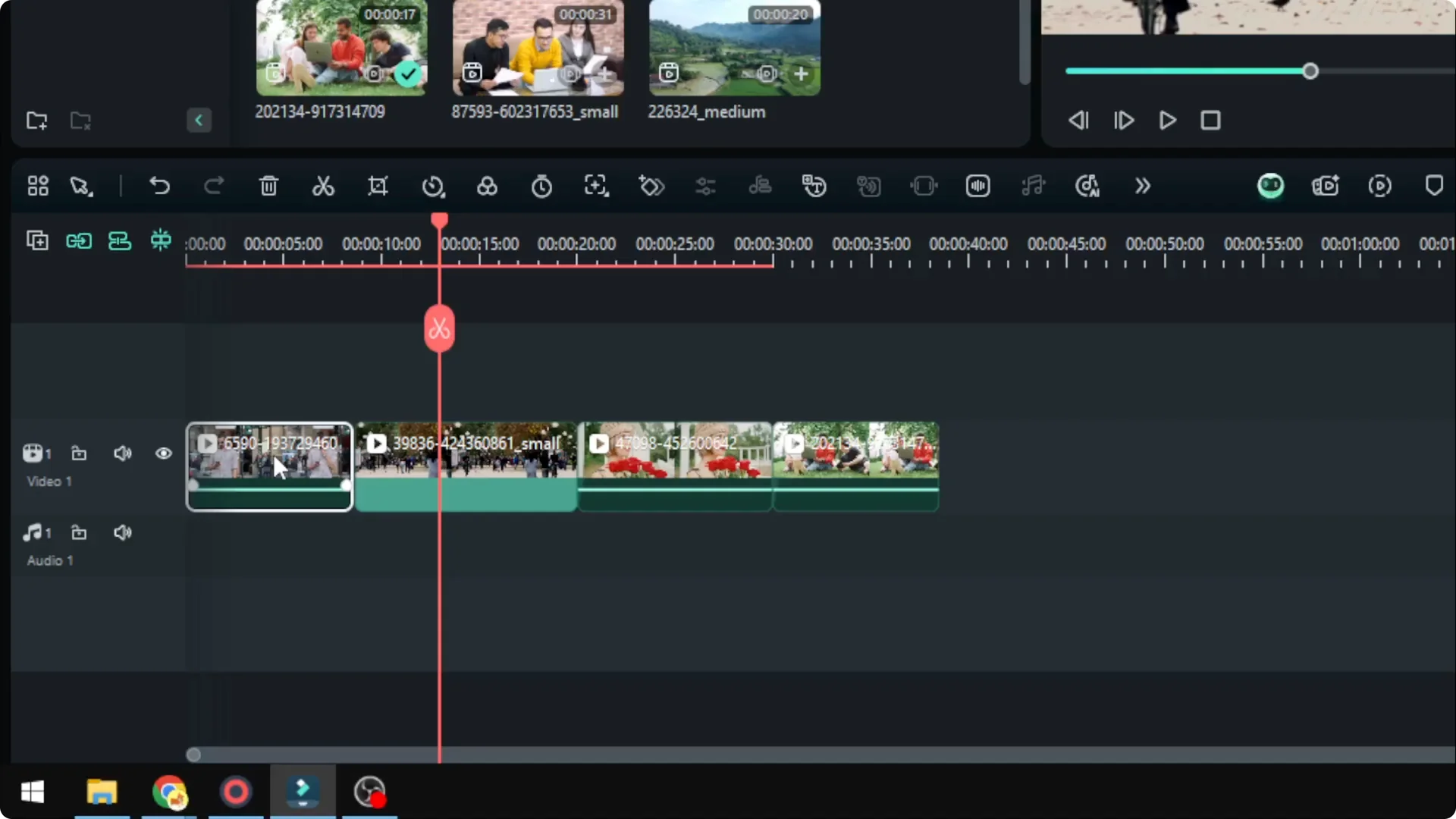
Release the key when you are finished. You will see all highlighted clips ready for batch editing. This method gives you precise control over non adjacent clips.
Shift to select a range in one track
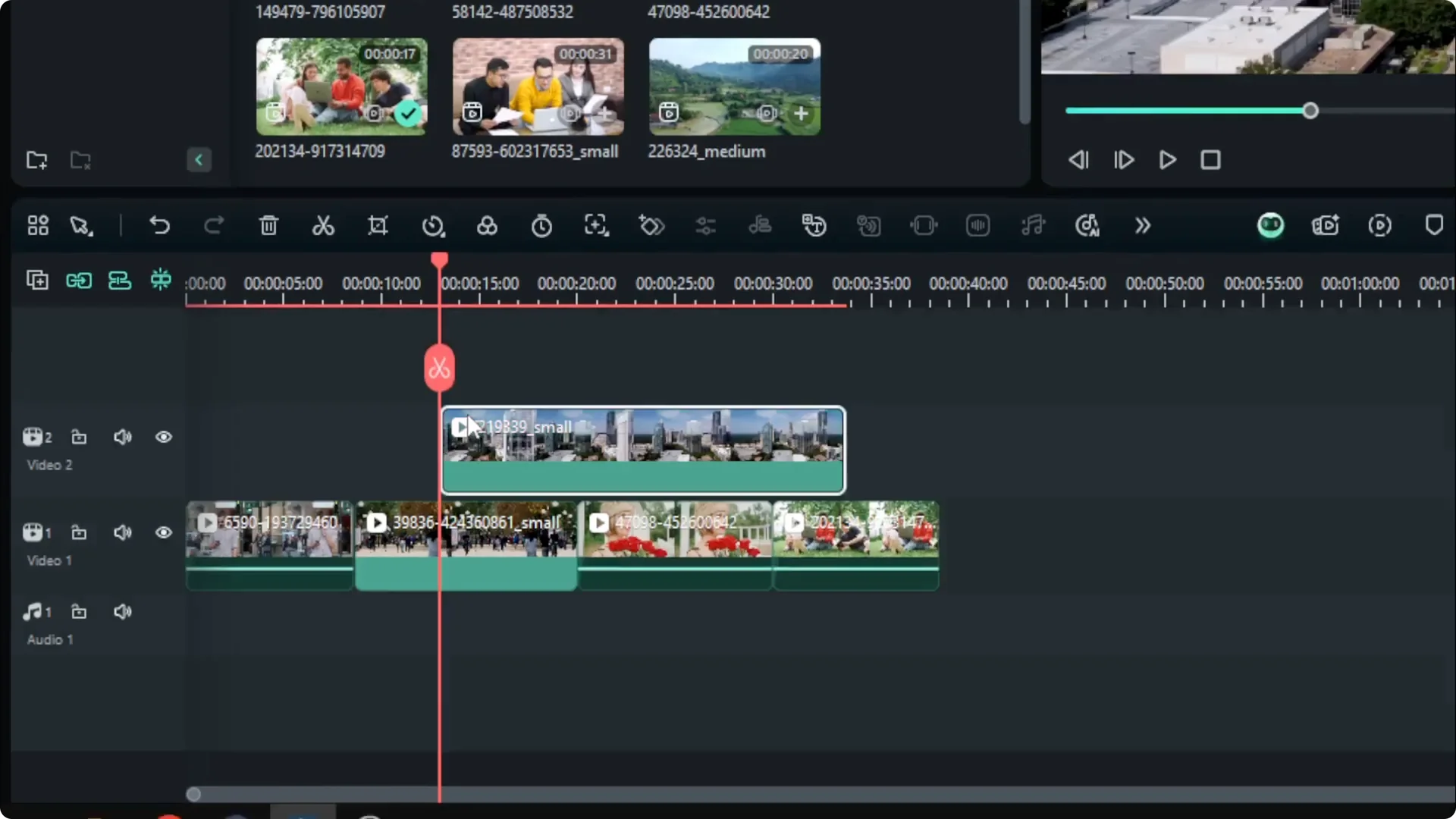
Another technique is by using the Shift key on the keyboard. Click the first clip, press and hold Shift, then click the last clip and the clips in between will be selected. The same is true if you select a different pair in the same track to grab that entire span.
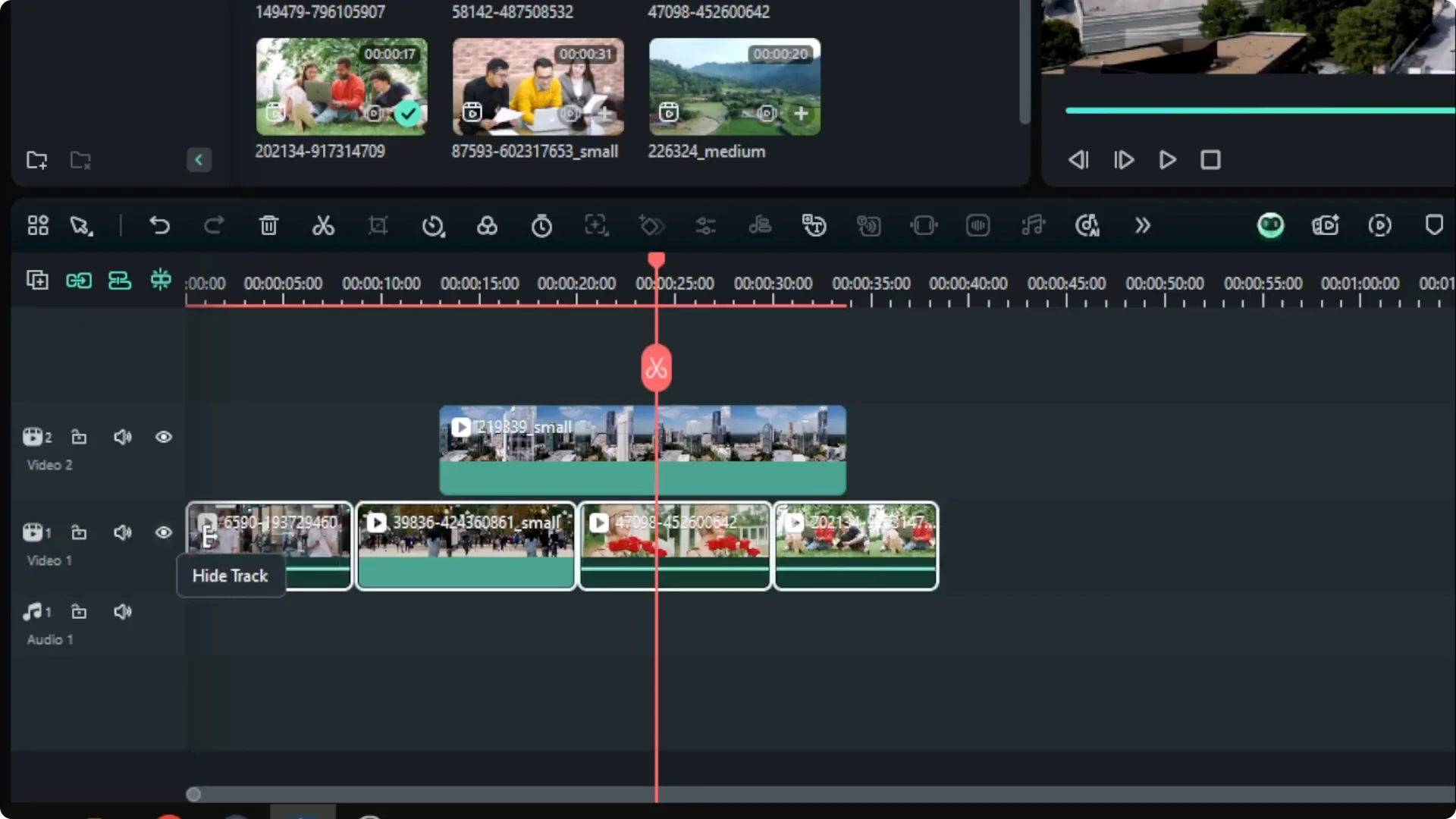
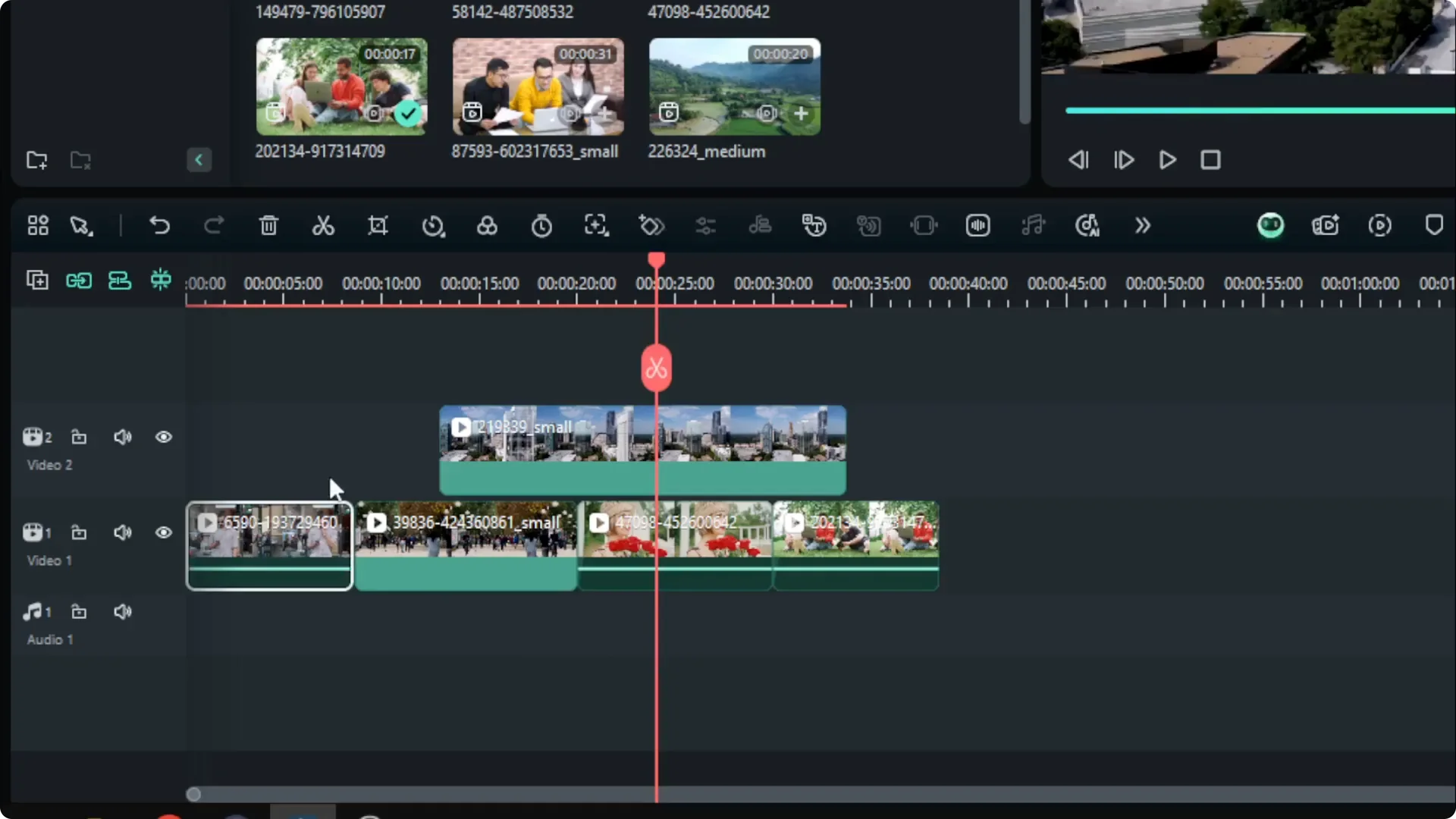
This only affects the current track. Clips on other tracks will not be selected by this range method. Use this when you want a continuous block in one track.
Click and drag to box select
You can use the cursor to click on an empty area of the timeline and then drag until you create a rectangle that covers the clips you want to select. Release the mouse and all clips inside the box will be selected. It is quick and simple for grouped selections.
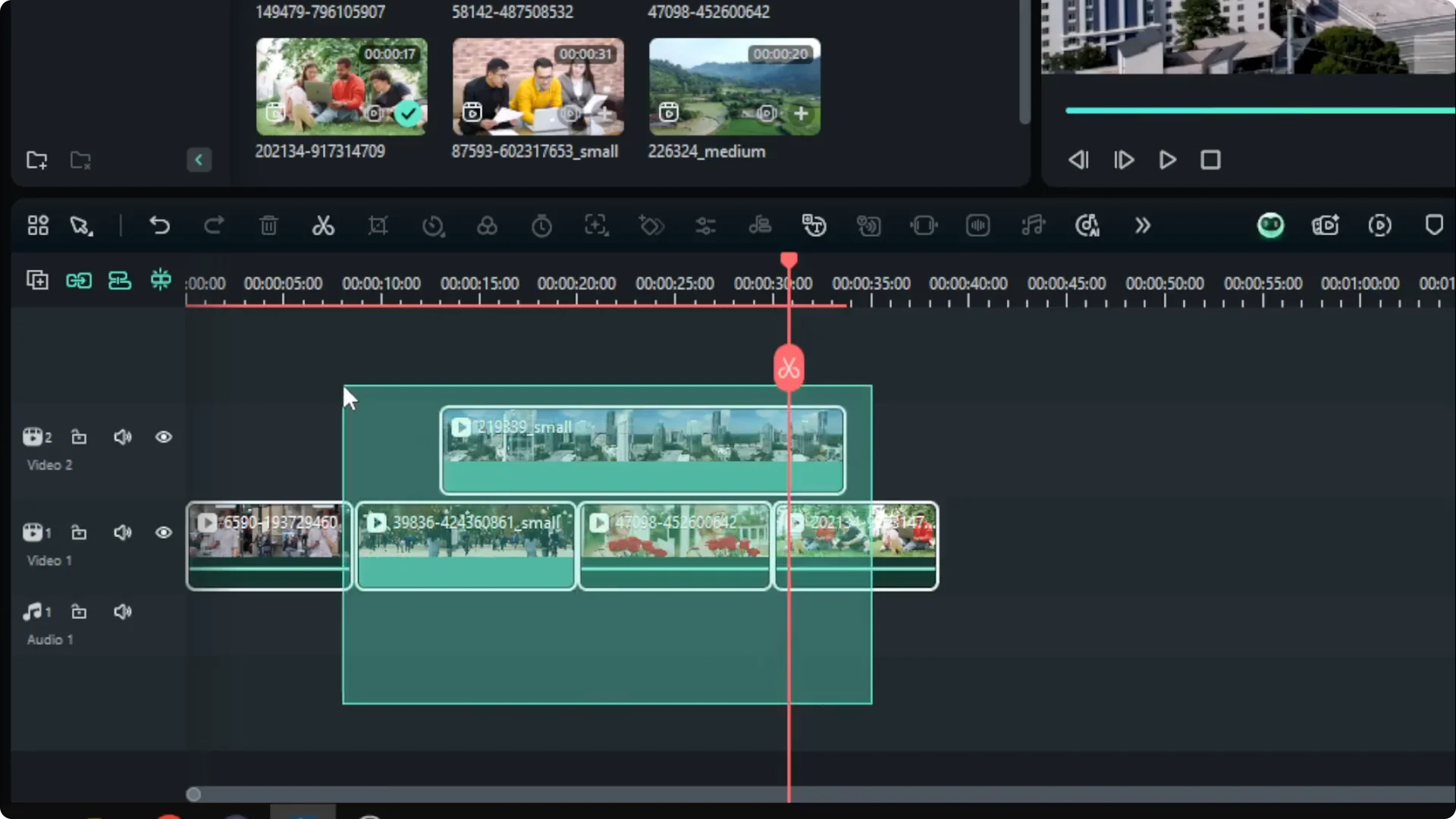
Use this when the clips are clustered in one area. You can adjust the box to include or exclude items as needed. It works across tracks based on what the rectangle covers.
Apply Edits After Selecting Multiple Clips in Filmora
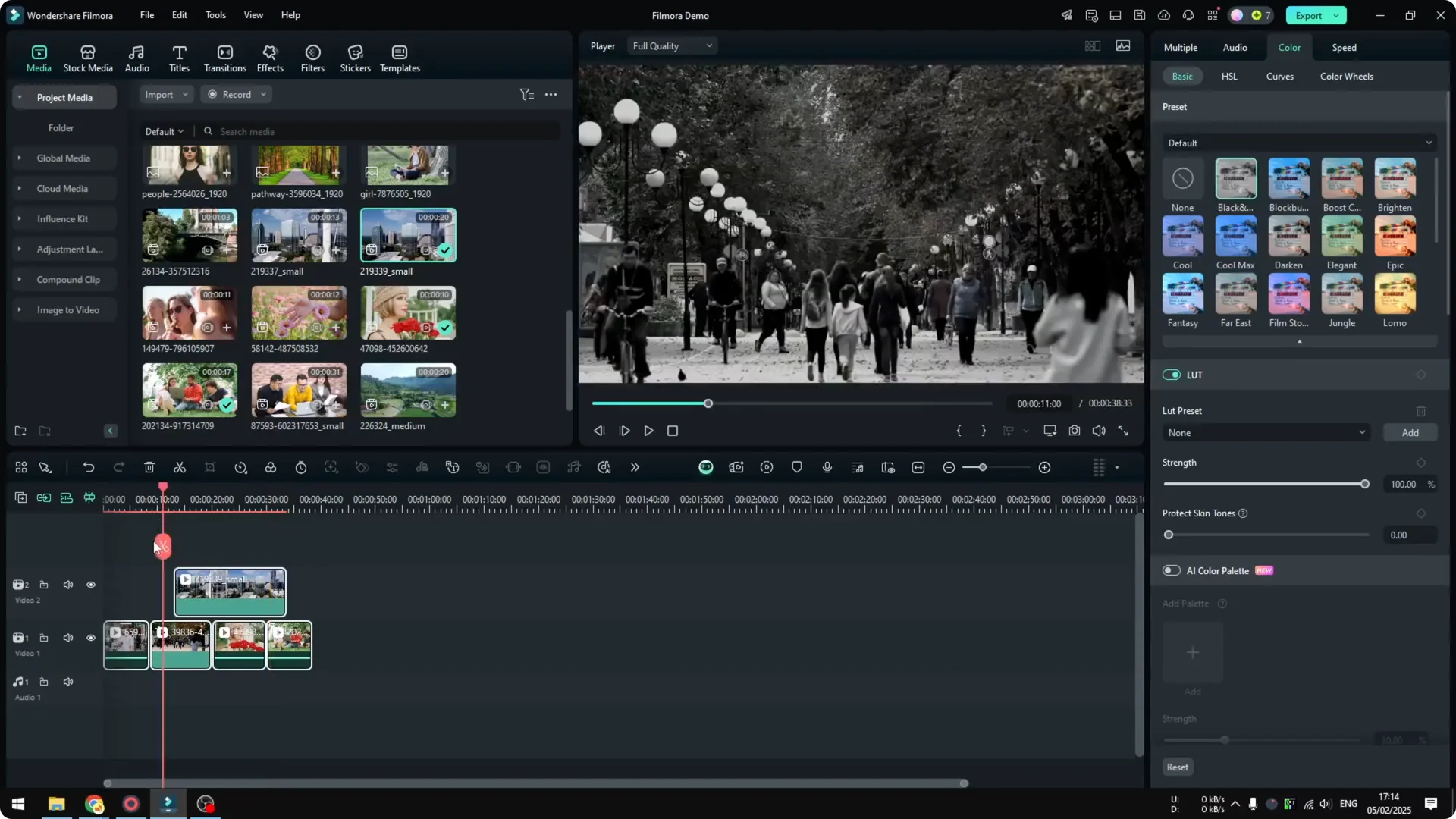
After you are done selecting the clips, open the editing menu. You will see many things you can apply, including scale, AI settings, chroma key, animation, audio, speed, and coloring. Pick the setting you want and apply it once.
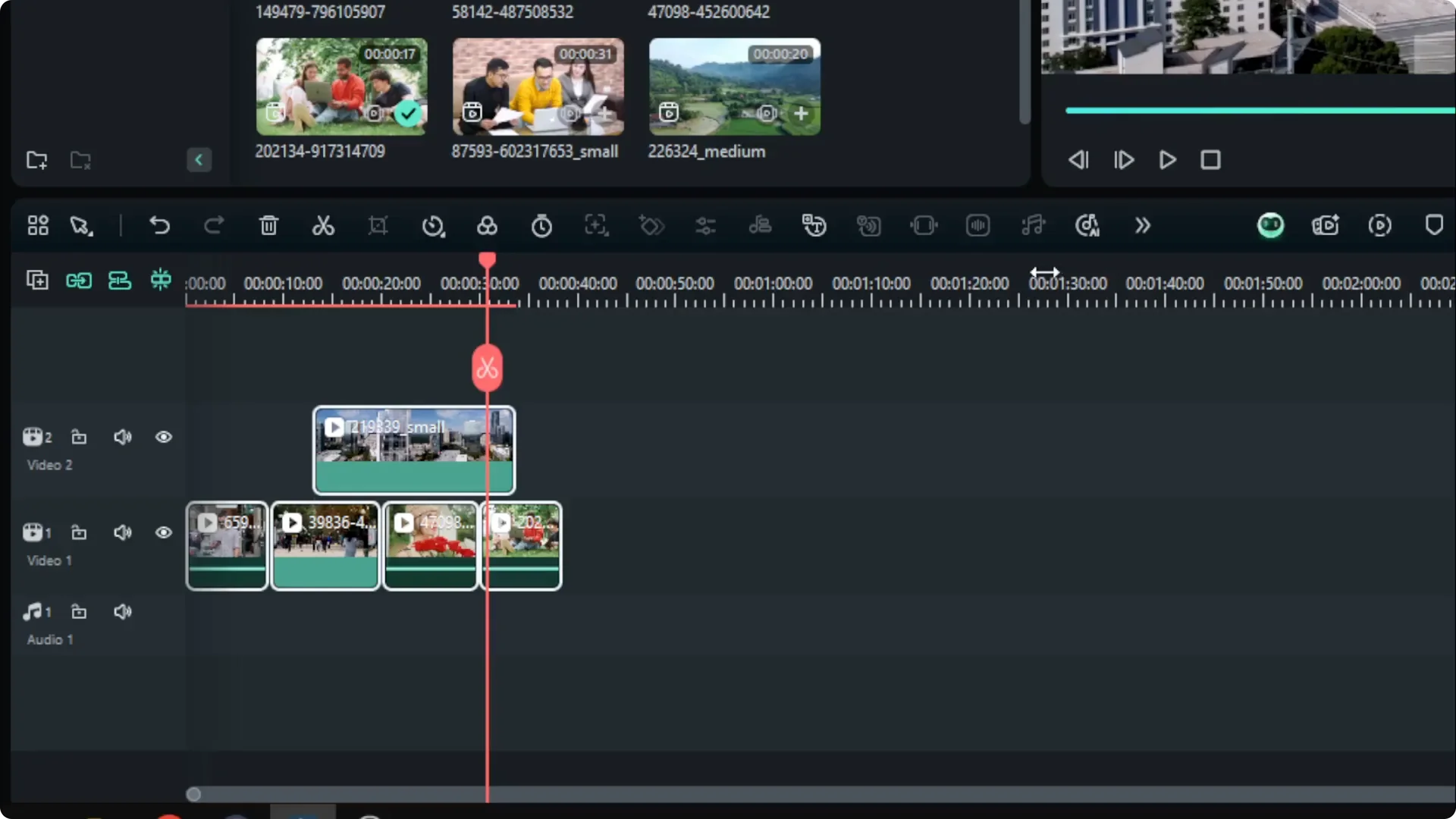
I will change the color to black and white. All the clips I selected now have the black and white look. This shows the benefit of multiple selection for consistent edits.
If shaky footage is slowing you down, see how AI tools can help you clean it up fast. Learn the simple process here: stabilize shaky video using AI in Filmora.
Quick step by step for batch edits
Select your clips using one of the methods above. Open the editing menu and choose the setting you want to apply. Confirm the change and review your timeline for consistency.
You can repeat the process for other settings such as speed changes or chroma key. Group selection keeps your edits uniform. It also reduces repetitive clicks.
For audio reactive text and motion, you can connect visuals to your soundtrack. Follow this tutorial to make your titles pulse or animate with the beat. Try it here: make text effects respond to audio in Filmora.
Final Thoughts on Selecting Multiple Clips in Filmora
There are three fast ways to select multiple clips in Filmora. Use Control or Command for precise picks, Shift for a range in one track, or click and drag to box select. Apply your edit once and keep your project consistent while saving time.