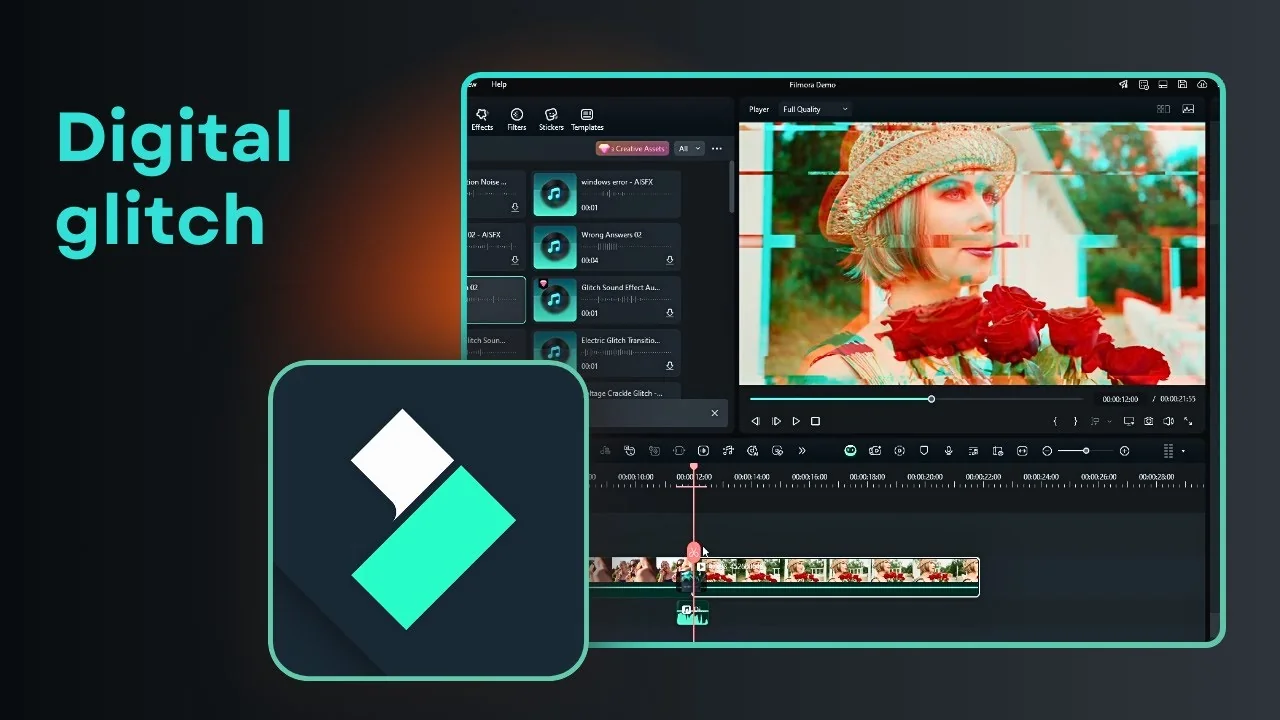
I’m going to show you how to create a really cool and popular glitch transition effect in Filmora. There’s a digital glitch effect transitioning between one scene to another, and it looks great. Many videos are using it, and it’s good for increasing engagement so people stay on your video.
You can create it in less than a minute. If you also want standout titles to match the vibe, check out this glowing neon text effect tutorial for Filmora.
Add the Filmora Glitch Transition
Insert two clips into your project. Play them and you will see that there is no transition, it just cuts from one clip to another, and it can feel a bit boring.
Add a transitional effect to make it more interesting.
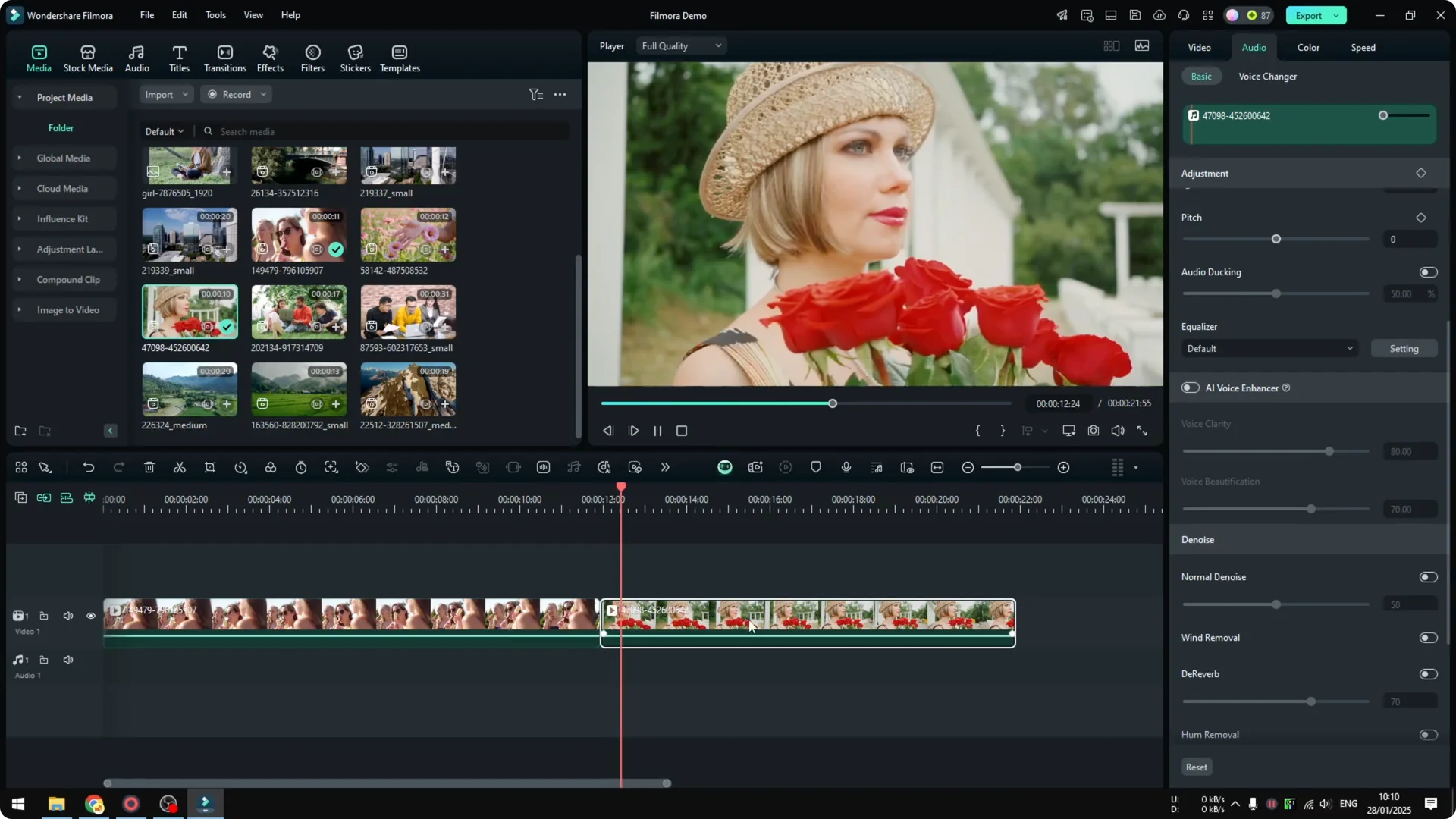
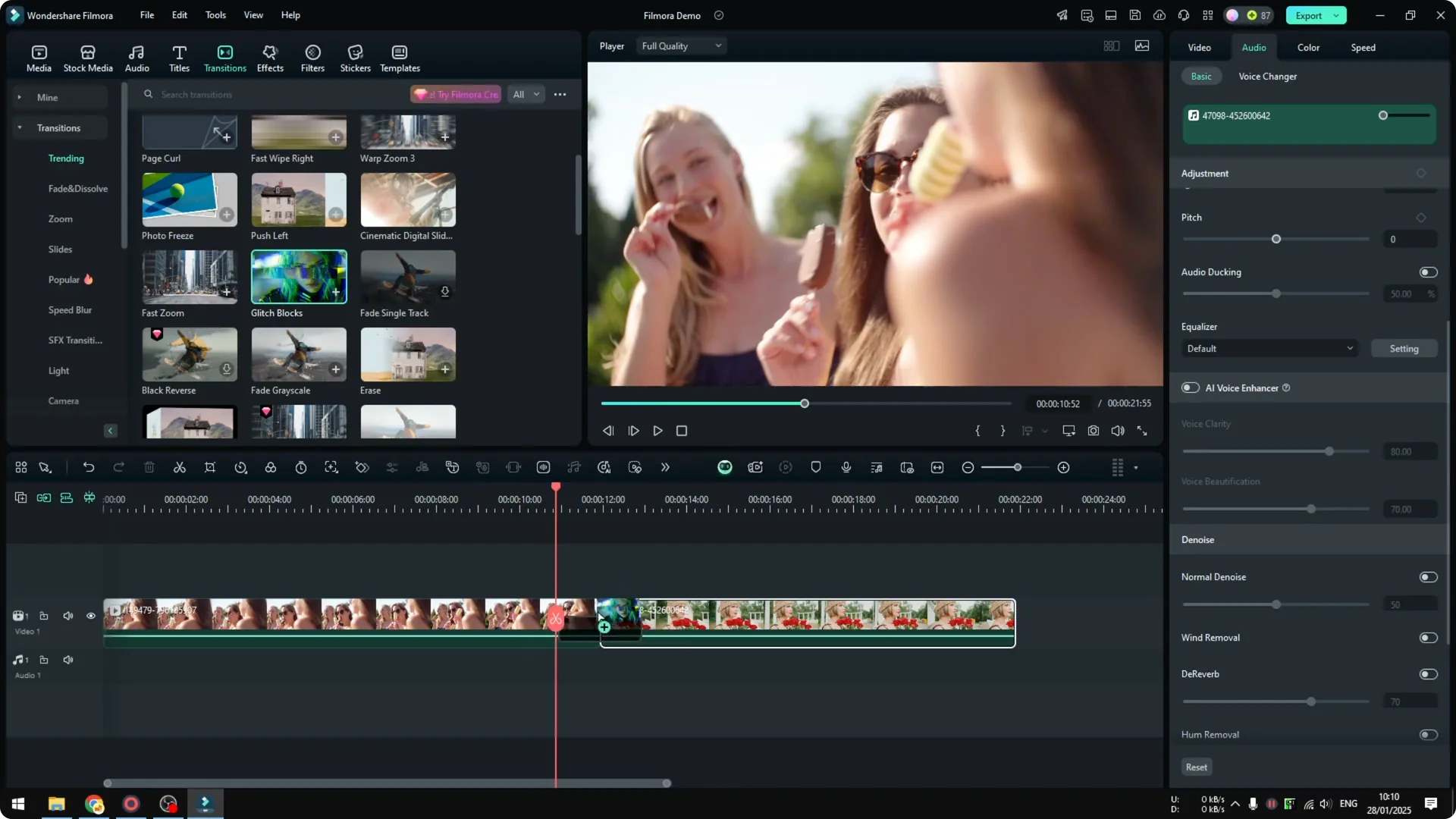
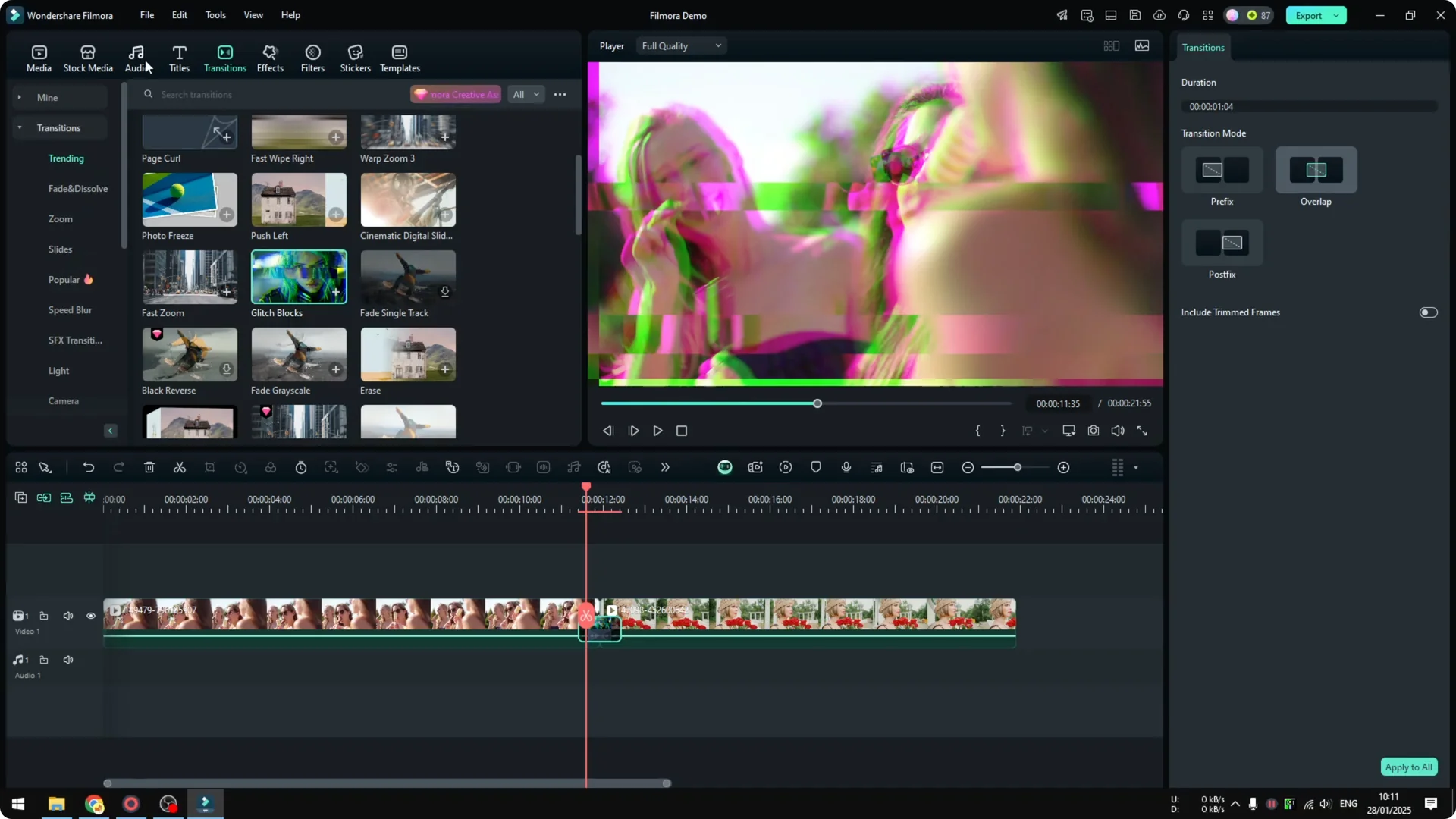
Navigate to Transitions. There are many options you can try, but the one I want to use is called Glitch Blocks.
Drag and drop it between the two clips, then play it back to check the result.
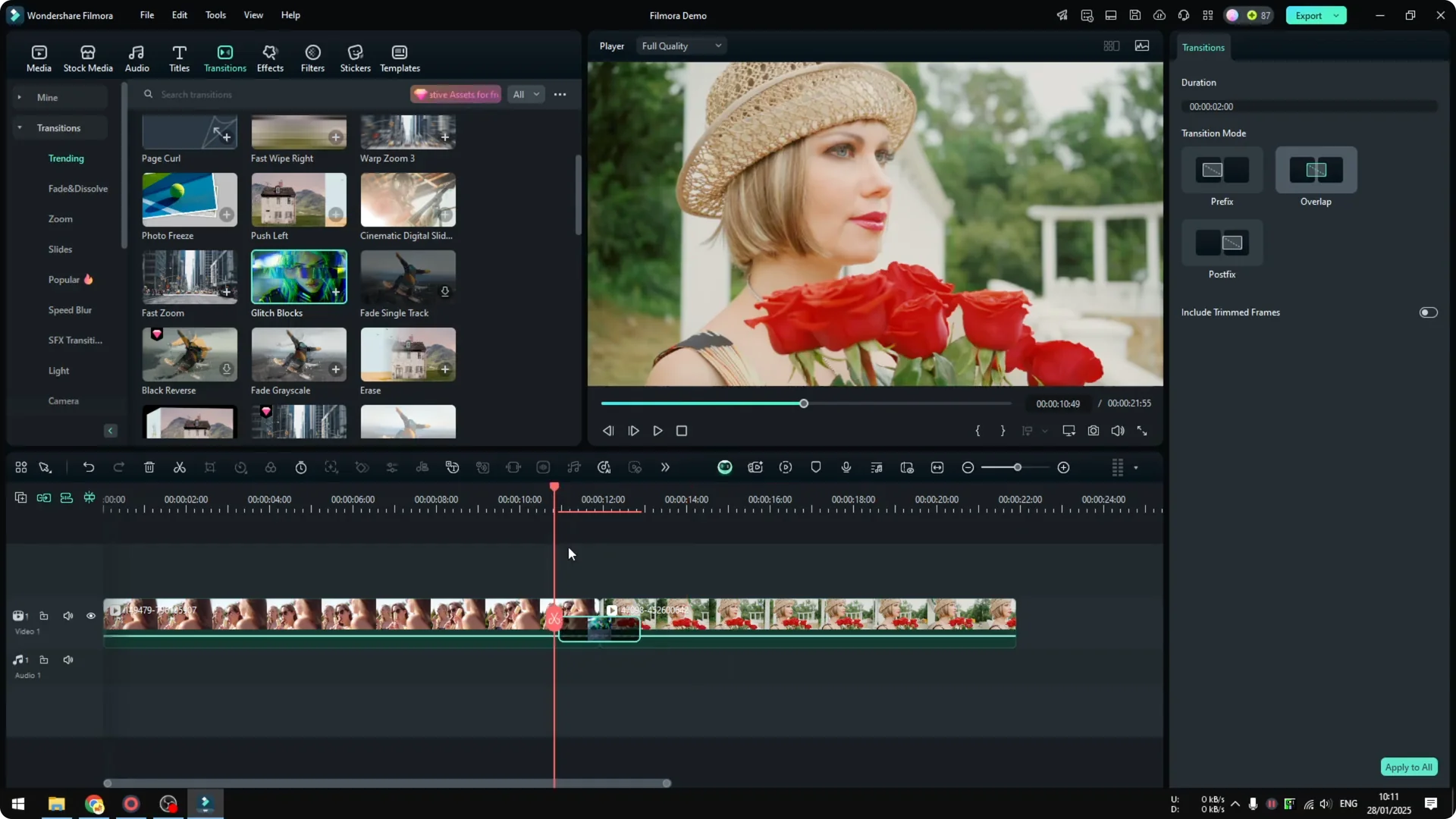
Adjust duration
What I usually do is reduce this transition.
I think 2 seconds is a bit too long, so set it to around 1 second. It will be faster and feel much more realistic.
Add sound to the Filmora Glitch Transition
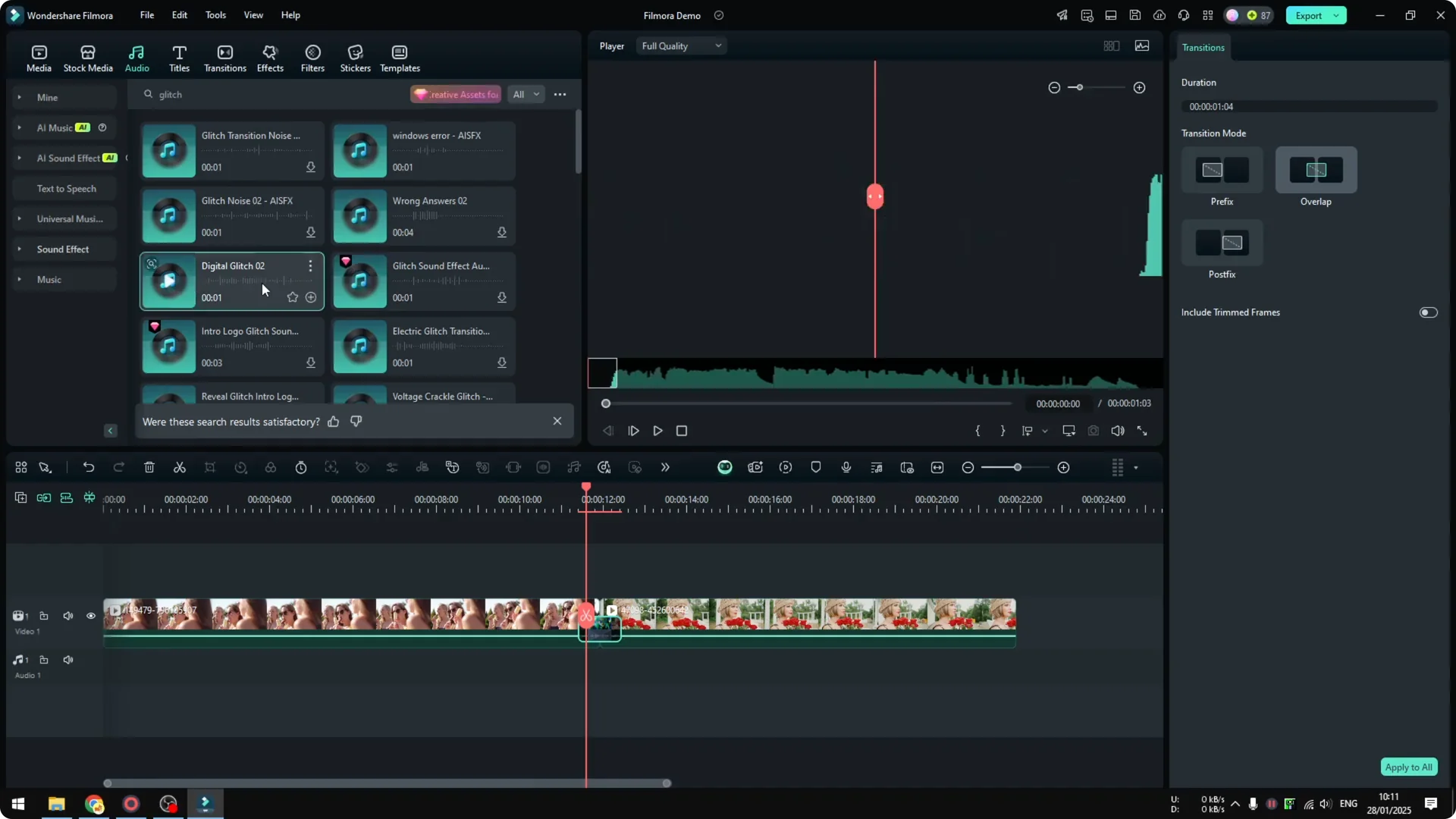
Go to Audio. Visit Sound Effect and search for “glitch” or something similar.
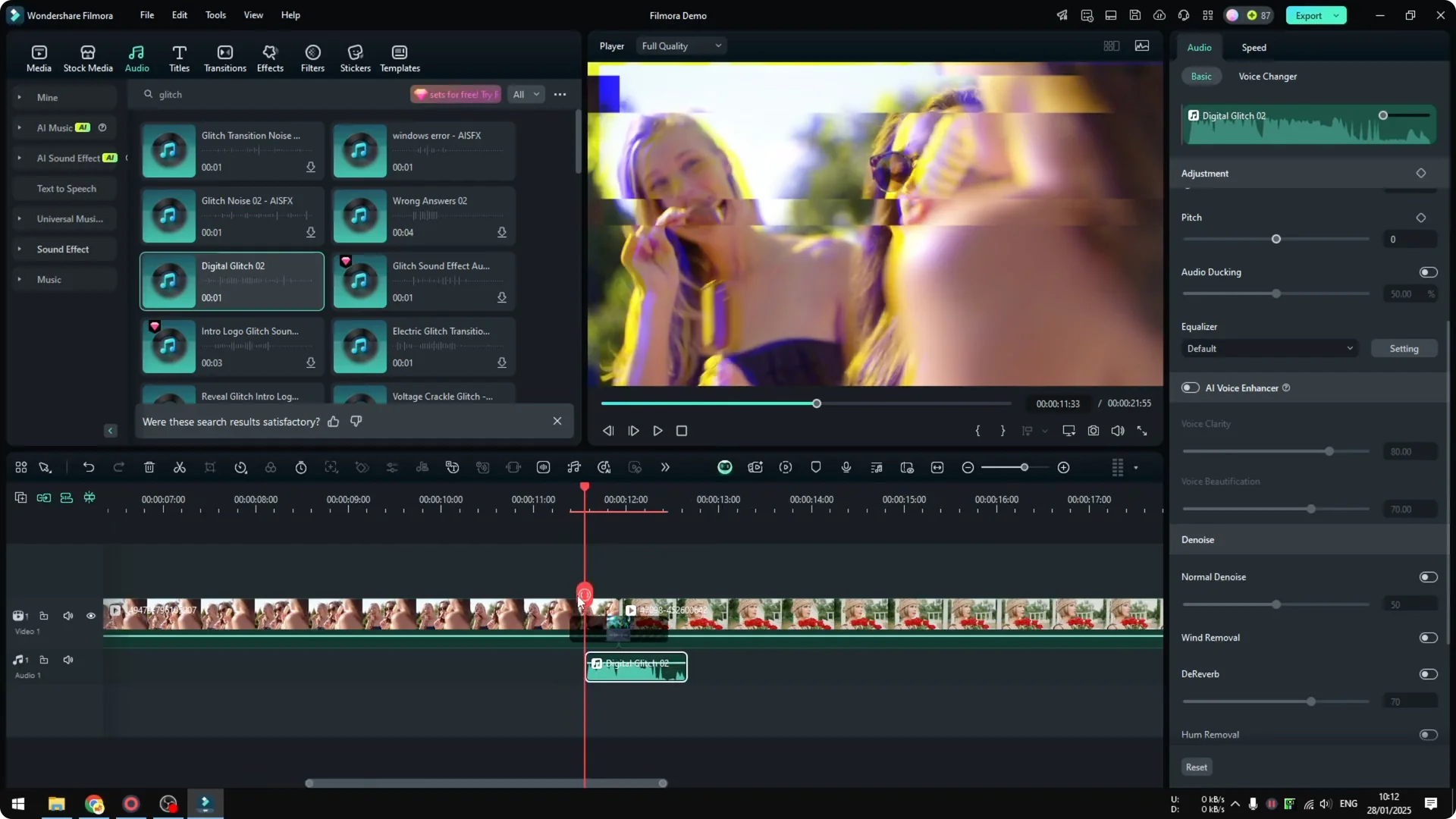
Choose something like Digital Glitch and put it exactly under the transition so the audio plays at the same time.
Align timing
Some audio does not start from zero and begins after a few milliseconds.
Make sure it plays exactly when the transition happens.
Preview and nudge it so the impact lines up.
Balance volume
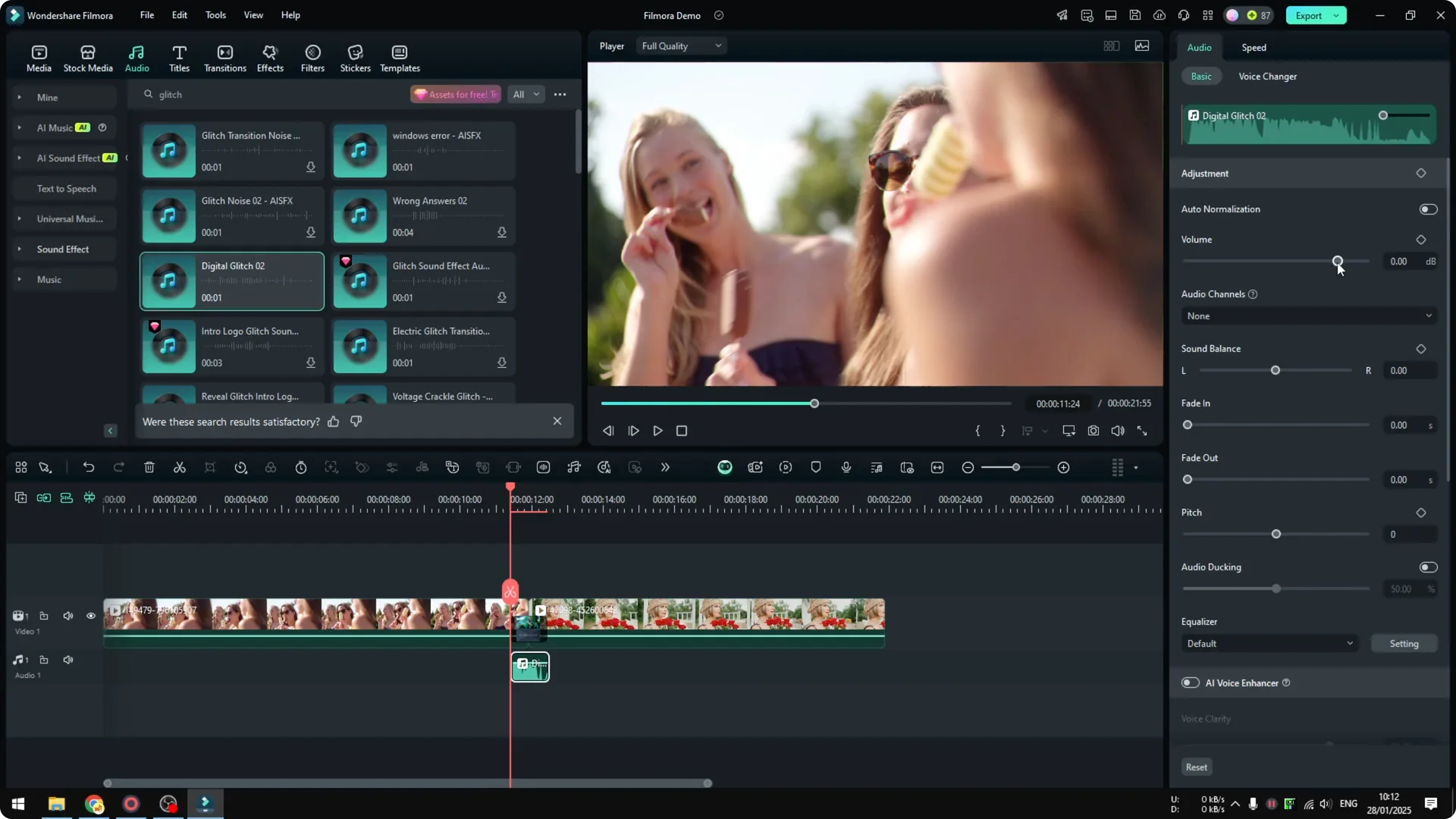
Maybe reduce the audio a bit, because the volume can be too loud, especially if there is a person talking. Go to Audio and reduce the volume by about 5 to 6 dB for this case.
Depending on the loudness of the clip, you might use a different setting, but -5 dB is often good enough.
If your clips have speech or music around the cut, you can also smooth the edges using an audio crossfade in Filmora.
Final thoughts on the Filmora Glitch Transition
That’s essentially how you can create a really cool digital transition effect when moving from one clip to another. You can use different transition animations and different audio, because there are many options available in Filmora. Test, experiment, and see which one fits your style.
For another creative look in the same project, try this Filmora tutorial on creating an upside down city effect with AI.