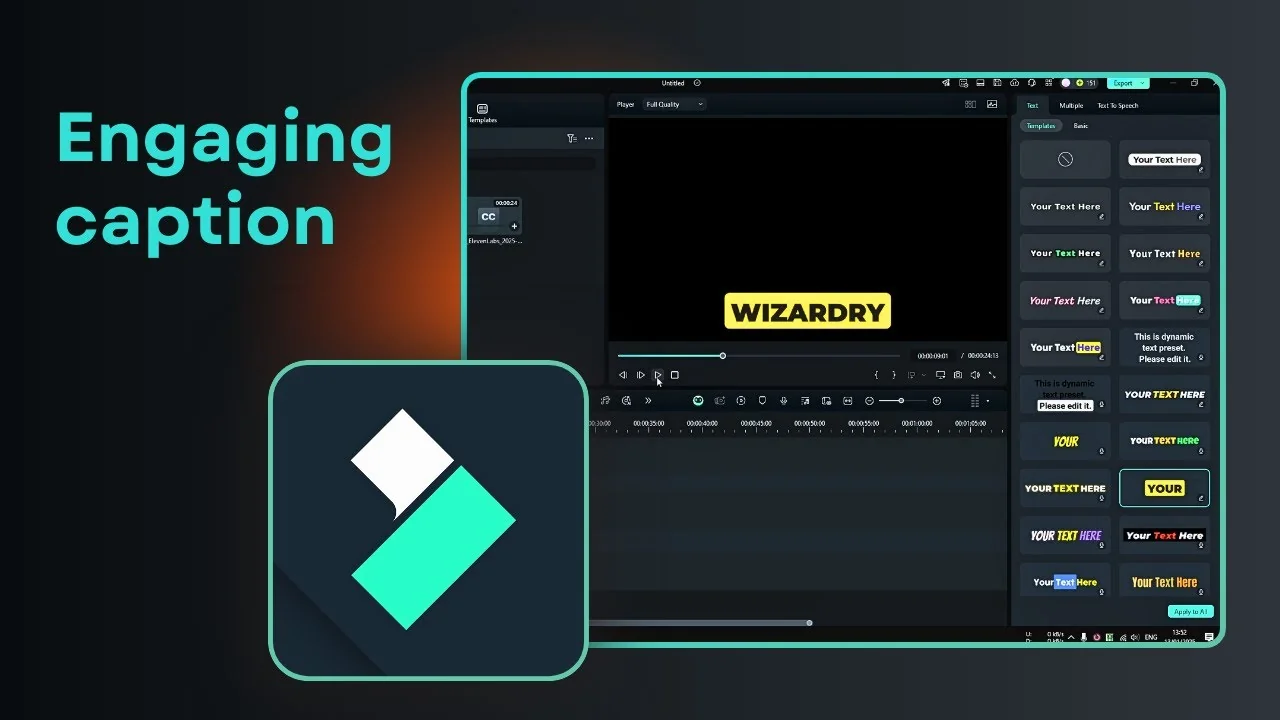
I am going to show you how to add a really cool and engaging caption to your Filmora video. You have probably seen videos on YouTube, Instagram, and TikTok where each spoken word in the caption is highlighted. This is great for engagement and helpful for people who have a problem with their hearing or prefer to read, or who want to enjoy content in public without turning up the volume.
Filmora has an AI feature that allows you to do this. Here is how you can use it to create Dynamic Captions that highlight words as they are spoken.
Why Filmora Dynamic Captions
Dynamic Captions highlight words in sync with the narration. It looks almost like a subtitle, except this is a caption designed for internet videos. It makes your narration clearer and keeps attention on key words as they are mentioned.
Prepare Your Media for Filmora Dynamic Captions
First, prepare a video or an audio file. I used a short narration that is less than 25 seconds. You can follow along with any clip you want to caption.
To keep your narration and music transitions smooth, see this quick guide to the audio crossfade effect in Filmora. Clean audio helps captions feel more natural.
Generate Filmora Dynamic Captions
Add to the timeline
Step 1: Put the video or audio into the timeline. Make sure the clip you want to caption is selected.
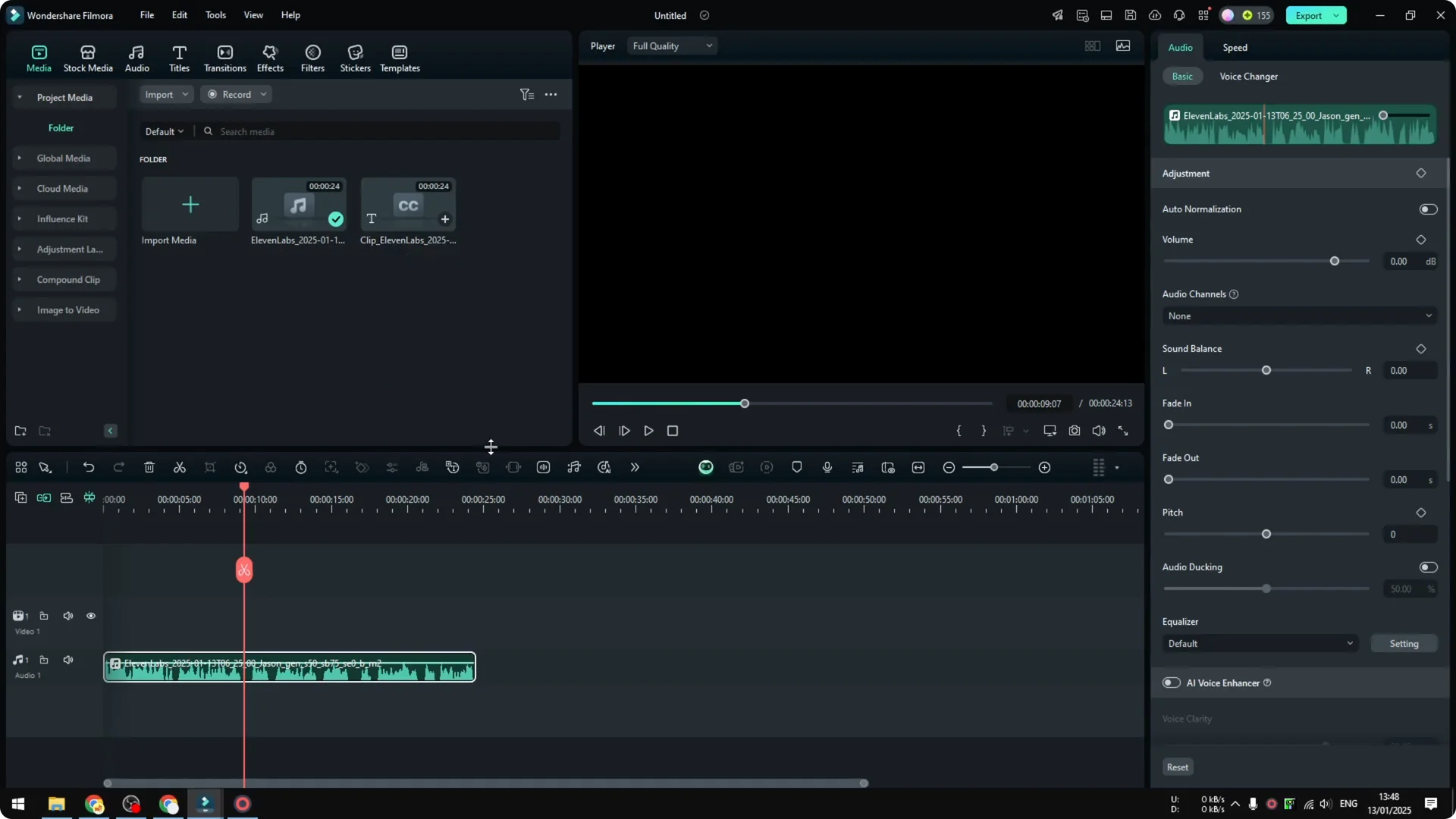
Open the tool
Step 2: Go to Speech to Text. You will see two options, Speech to Text and Dynamic Captions.
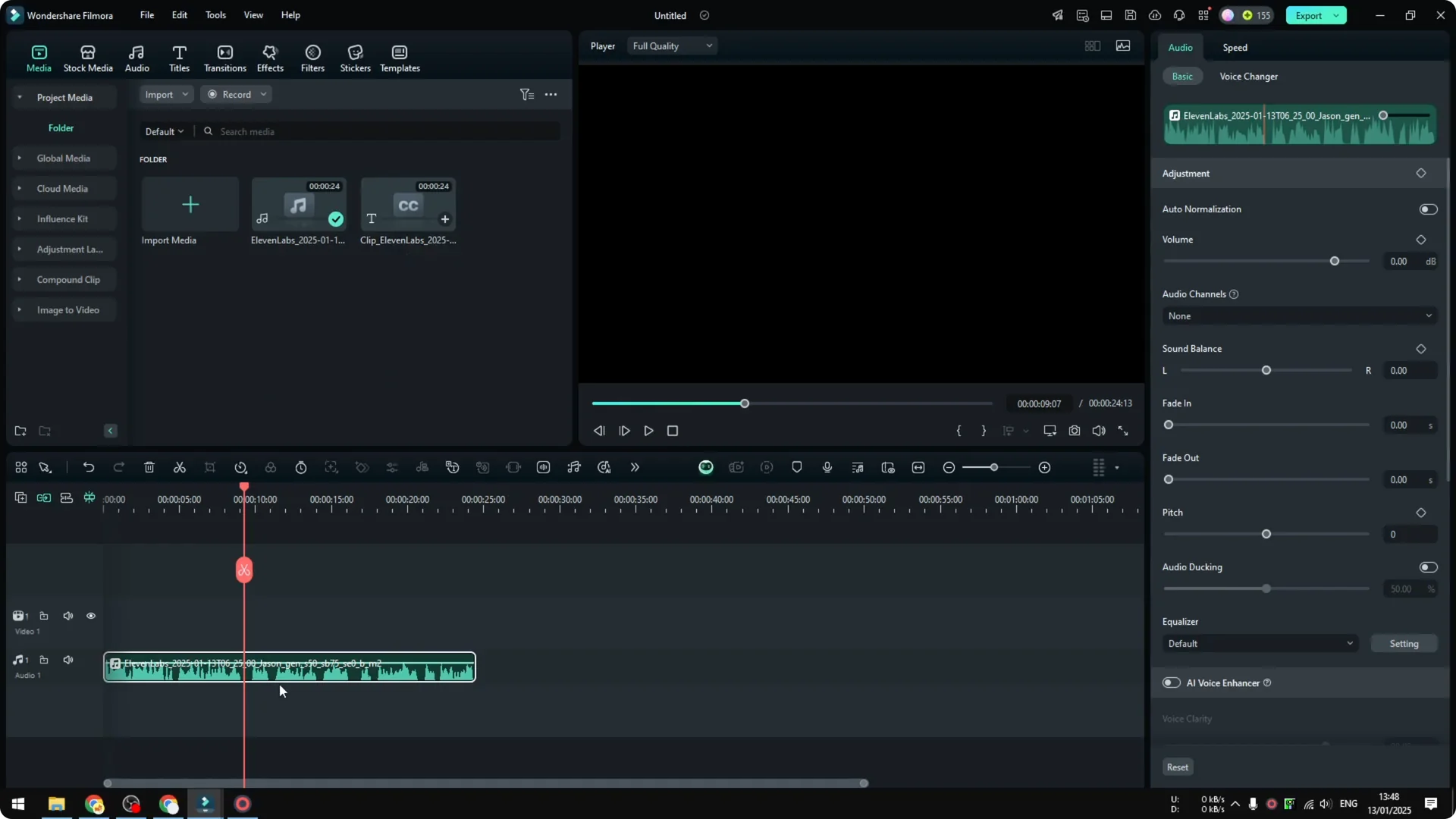
Step 3: Select Dynamic Captions. If you want a traditional subtitle like in movies, use the other option, but for internet videos Dynamic Captions is better.
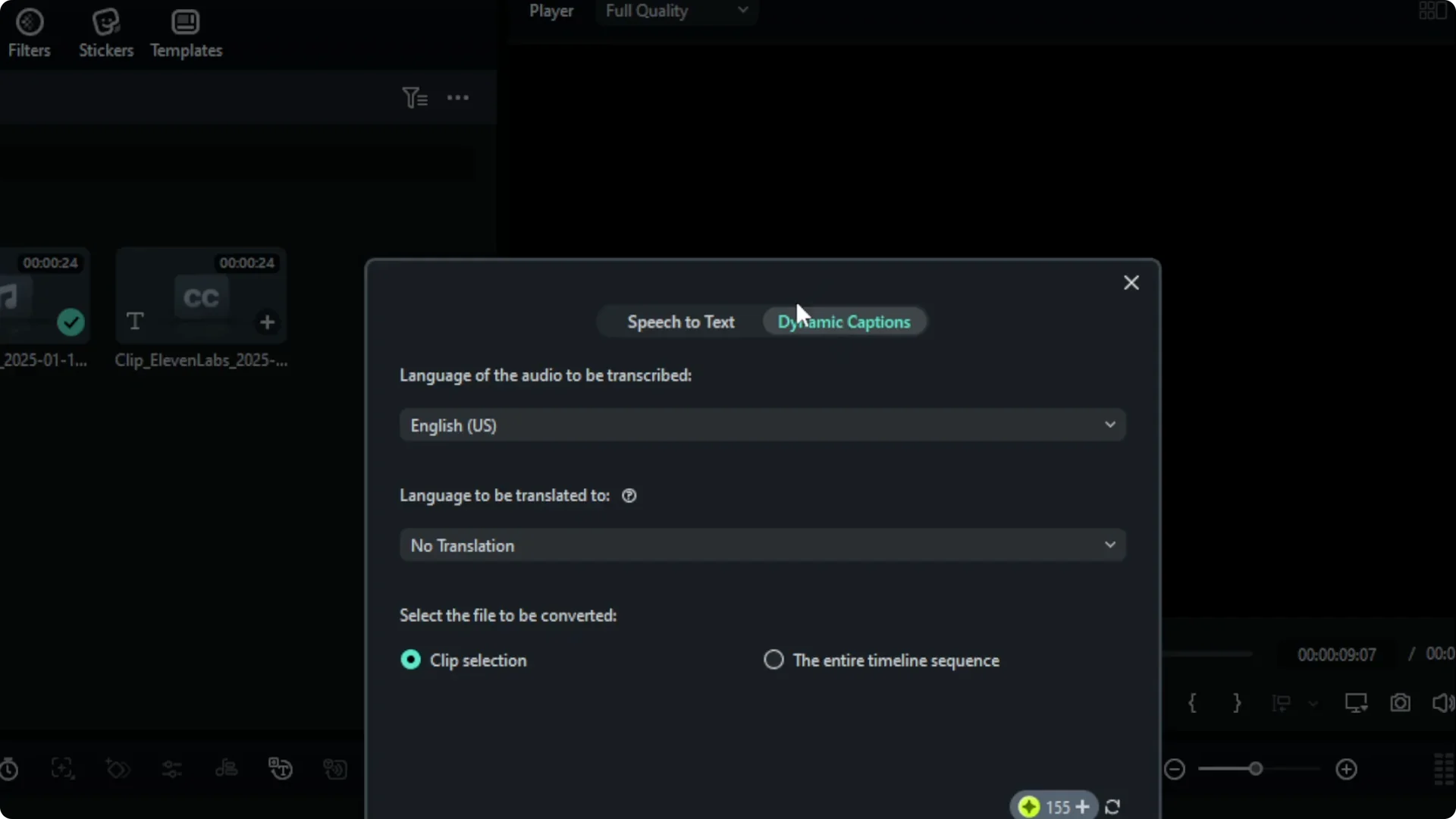
Choose settings
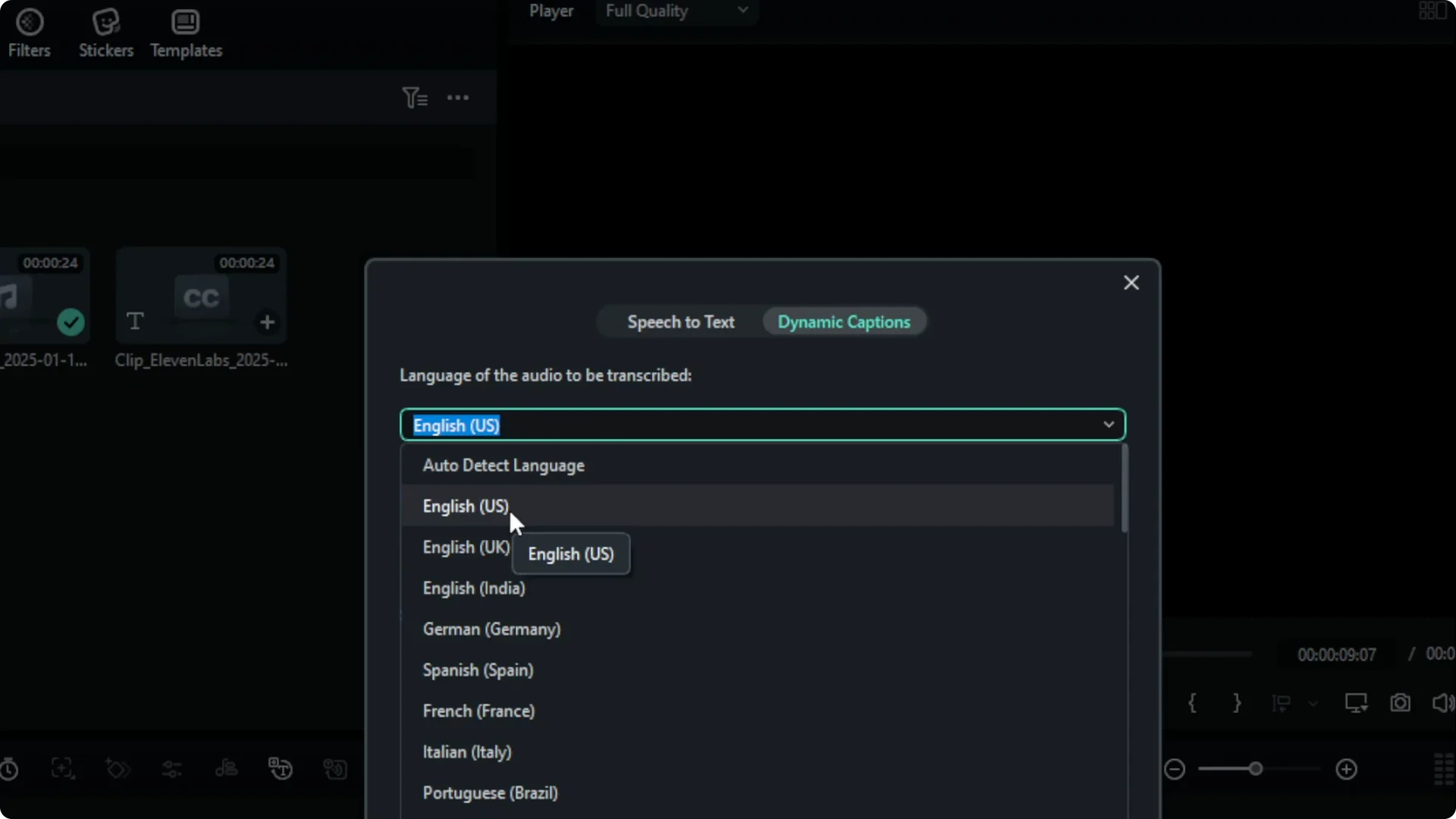
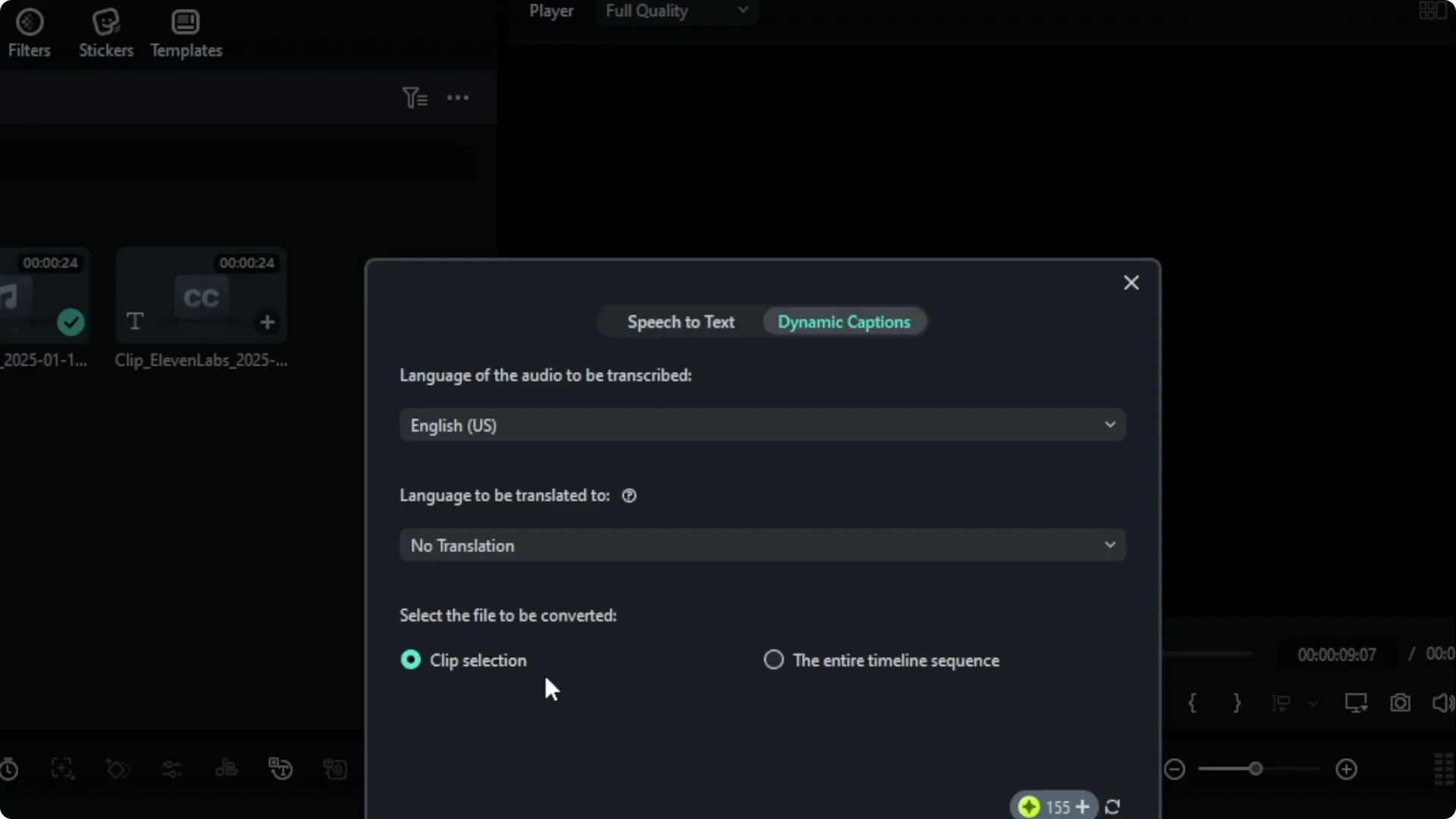
Step 4: Select the audio language. You also have the option to translate the audio if you want to create translation subtitles, but in this case it is not necessary.
Step 5: Choose the clip to be converted. You can select just the current clip or the entire sequence of the video.
Generate and credits
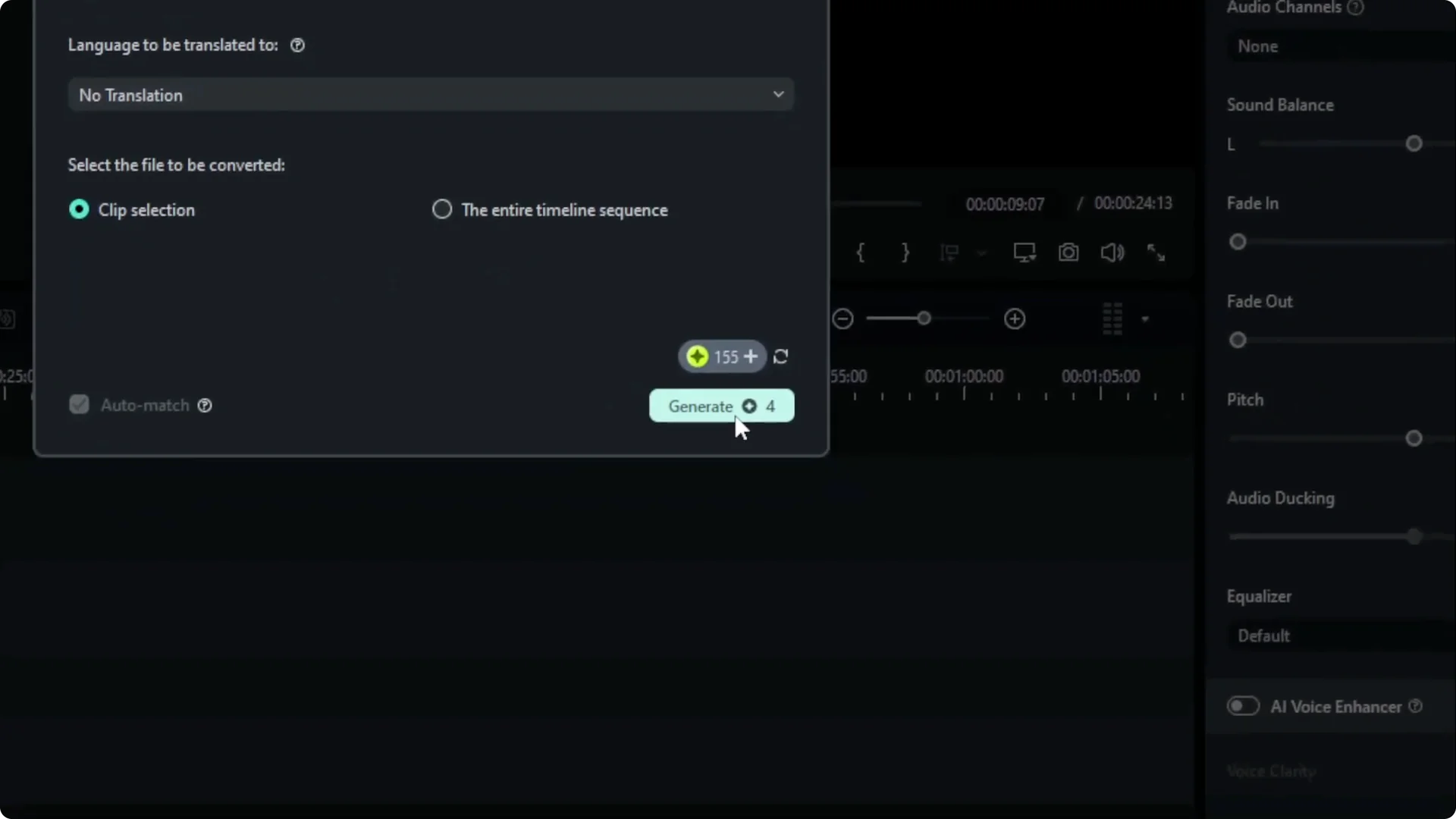
Step 6: Click Generate. Keep in mind that it will cost credits, so make sure you have enough credits to use Dynamic Captions in Filmora.
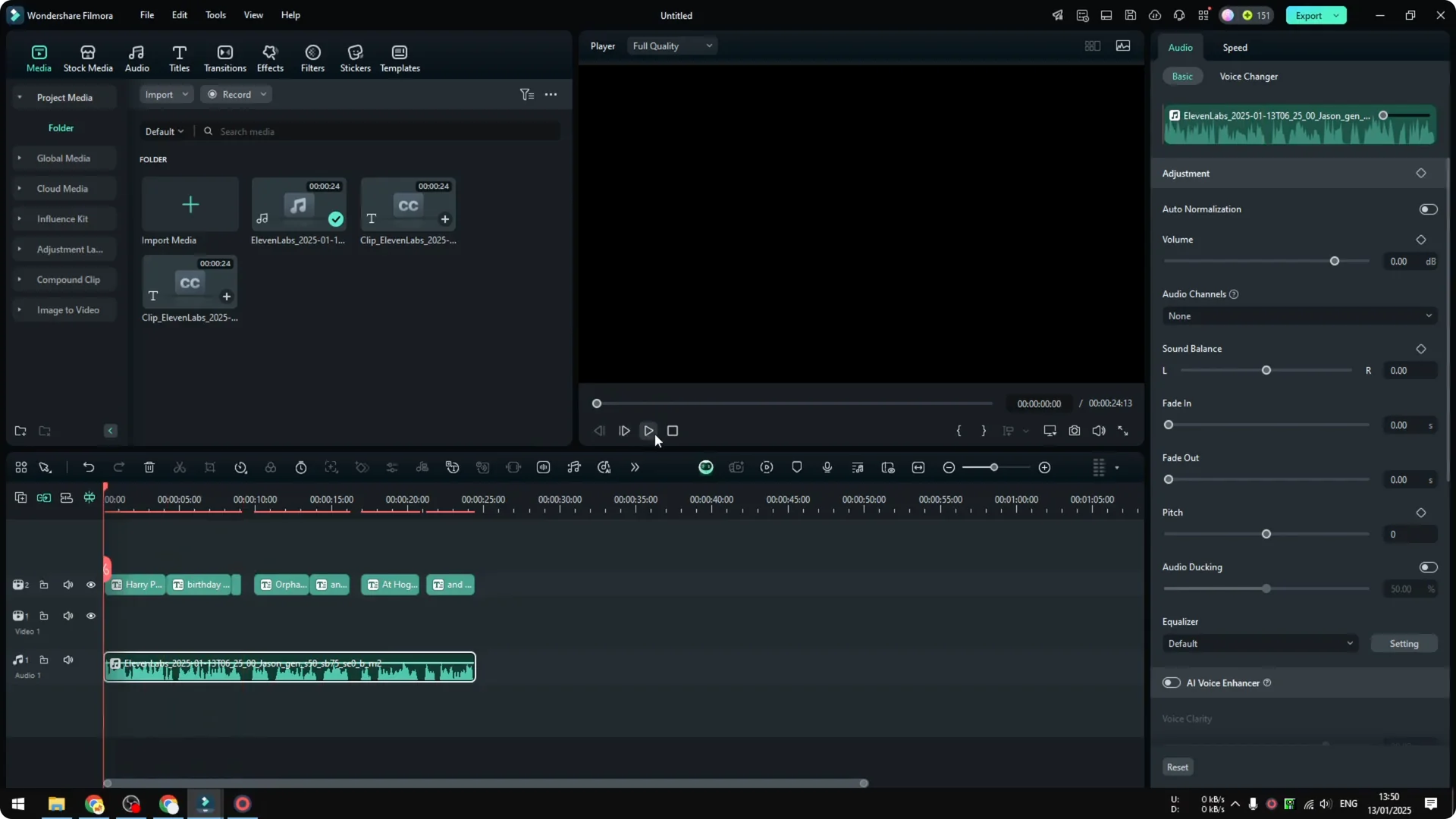
Filmora will read the content, turn the speech into text, and match the text with the timing of the audio. When certain words are spoken, the text will appear and each word will be highlighted. It is almost like a subtitle, but this is a caption.
If you also want cuts or title moves to match the rhythm of your soundtrack, check out Auto Beat Sync in Filmora AI. Learn it here: Auto Beat Sync guide.
Customize Styles in Filmora Dynamic Captions
Select your captions
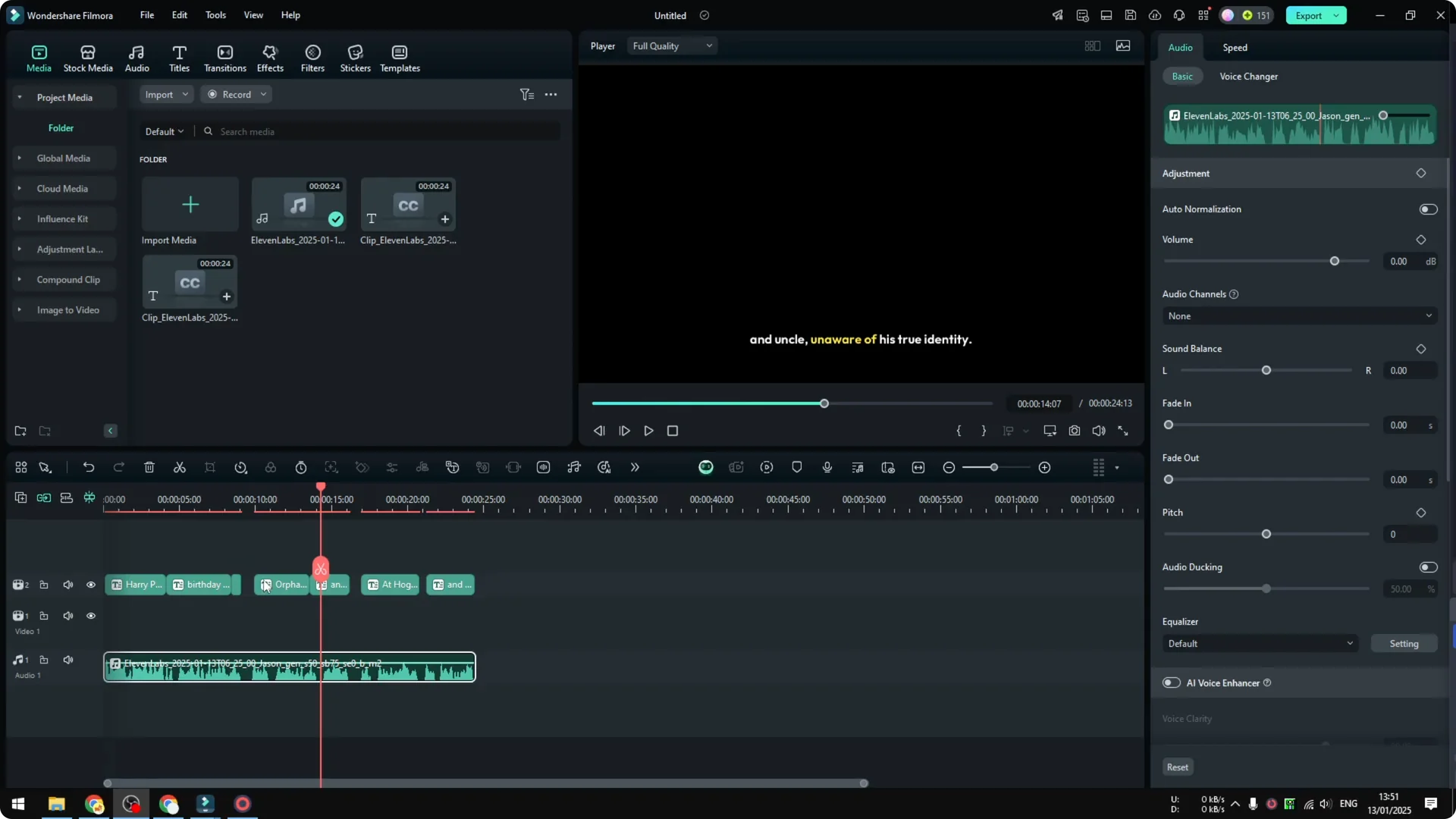
Click on the caption on the timeline to open styling controls. You can also select all of them if you want to change every caption at once.
Pick a style
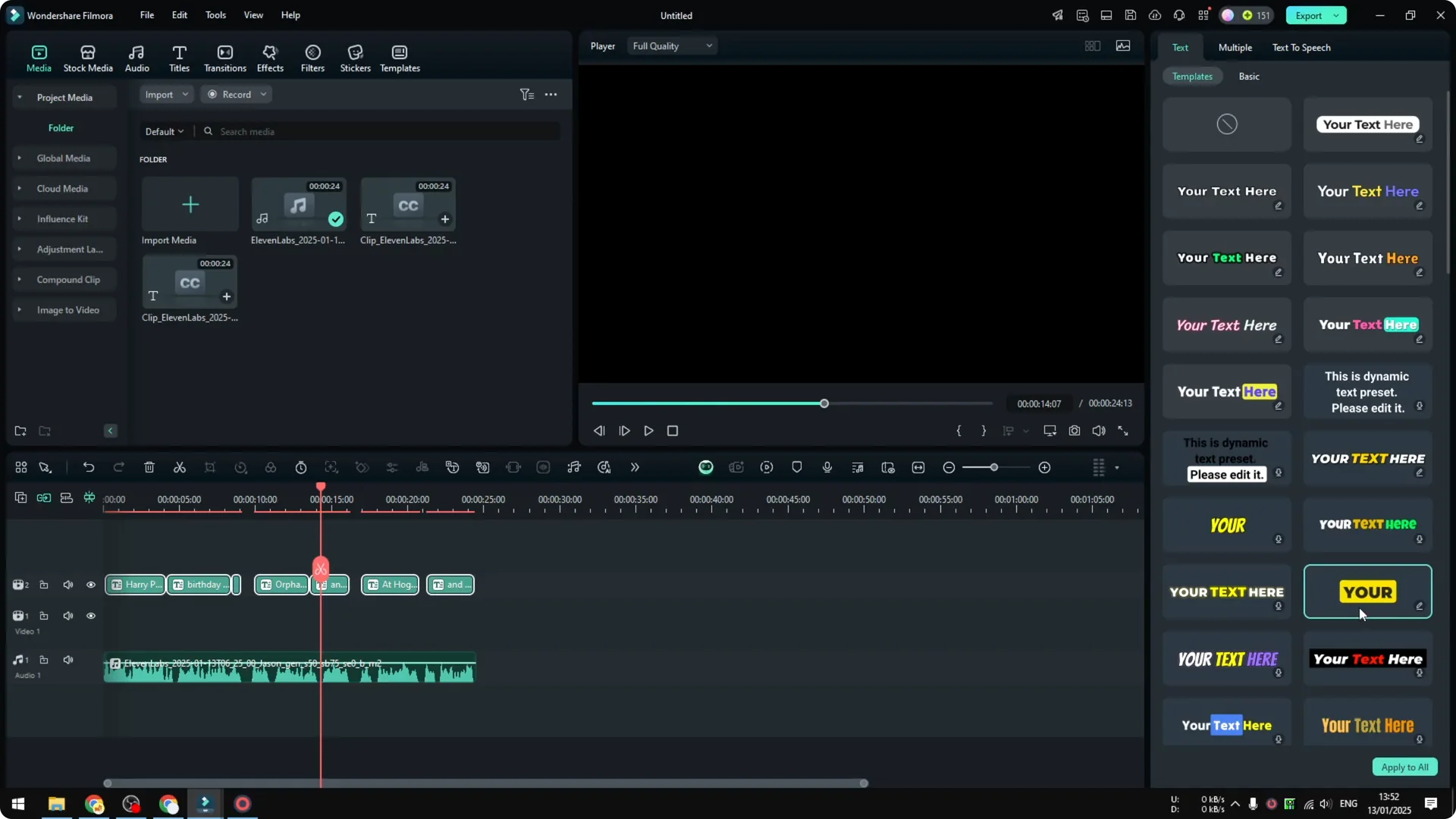
On the right side panel, you will find many styles to select for your video. There are different font sizes and color themes you can try.
Some styles are simple. Some popular styles show only one word at a time with a clear highlight on each spoken word.
Apply and review
Click a style to preview, then click Apply to All if you want it across the entire sequence. It may apply without any confirmation dialog, so just play the timeline to confirm.
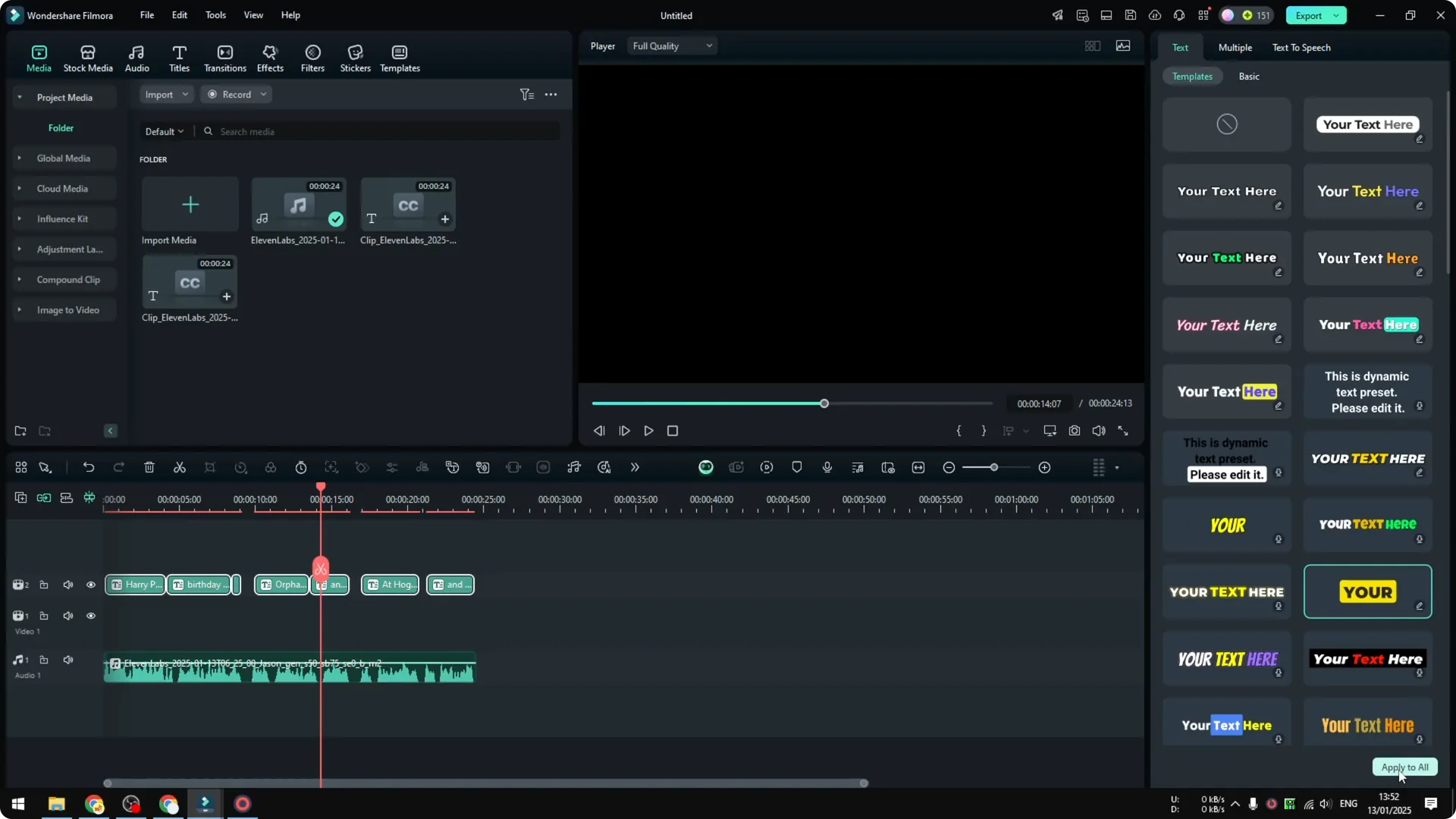
If it looks good, you are set. That is essentially how you can create auto captions in Filmora and turn them into something more engaging using the templates in the right panel.
For a creative visual to pair with captions, take a look at this tutorial on the upside down city effect using Filmora AI. It adds a striking look to short social videos.
Final Thoughts
Filmora Dynamic Captions make narrated content clearer and more engaging, especially for audiences watching without sound. Import your clip, open Dynamic Captions, select language and scope, then generate and style the captions to match your brand. With a few clicks, you get word by word highlights that keep viewers focused on what matters.