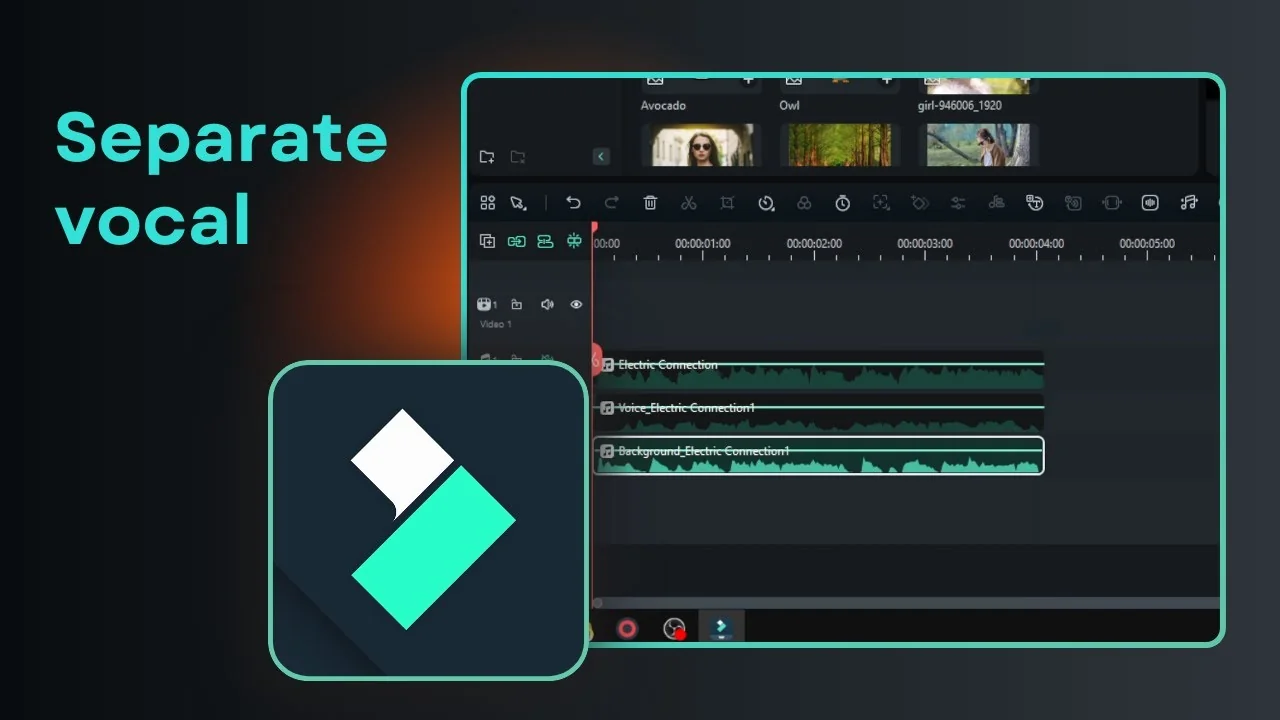
I am going to show you how you can separate vocals from instrument in a music or song using Filmora. There is an AI feature in Filmora that makes it easy to do this.
At the end you should be able to get either the vocal or the instrument of the audio, which is useful if you want to get some karaoke files.
I am using Filmora 14 and this feature is only available as far as I know in Filmora 13 and 14 at the moment. I am not so sure about Filmora 12 or 11.
If you are using Filmora, it is always encouraged to use the latest version.
Filmora AI Vocal Removal setup
First you have to insert an audio or video file into your project timeline. I have a song that was generated by AI and I am going to separate the vocal from the instrument. You can tell that there is vocal and instrument in this particular file.
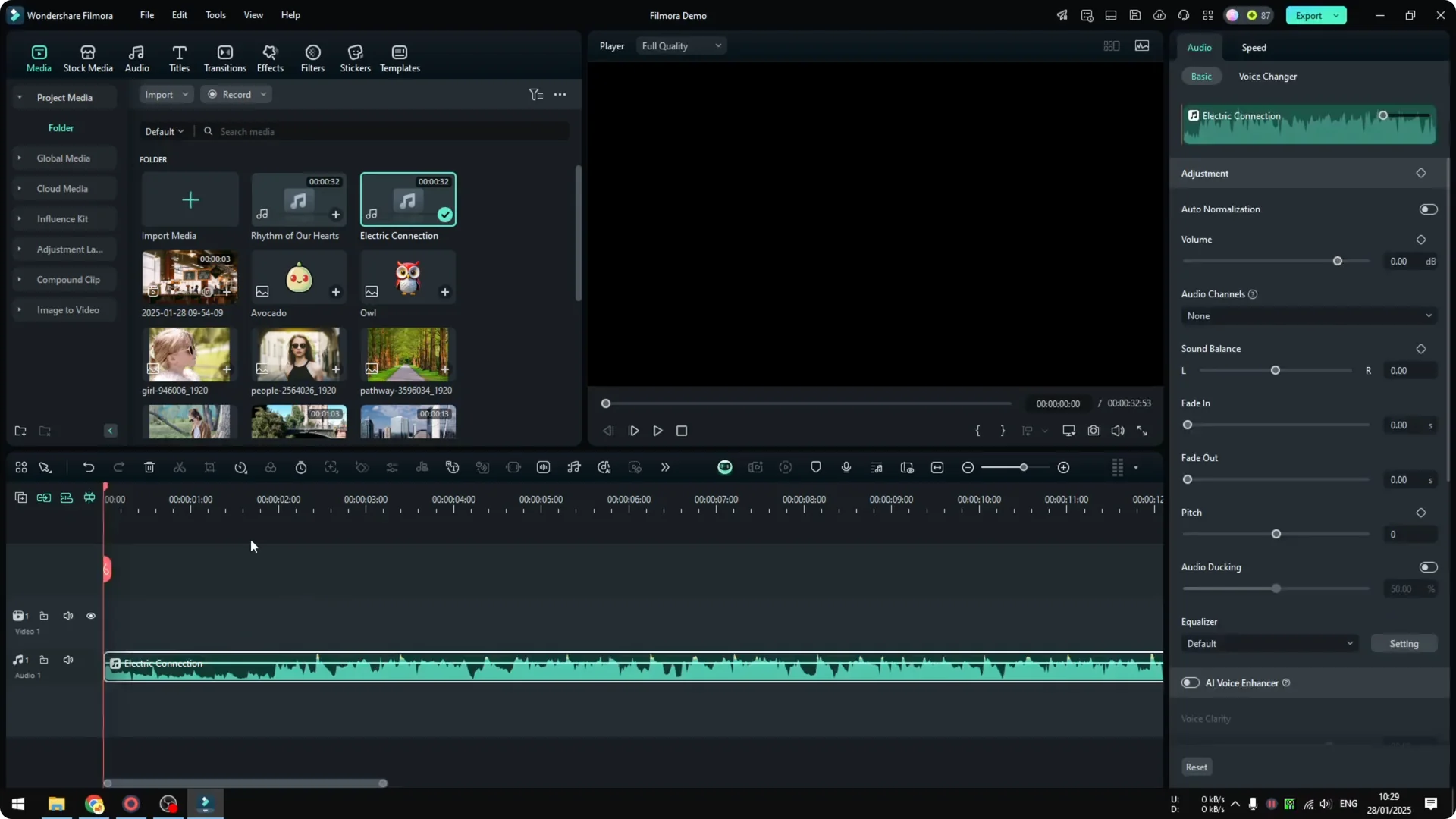
I actually have tested this, and the audio was too loud.
I enabled auto normalization because the audio was just too loud.
It is totally optional and you do not have to do auto normalization.
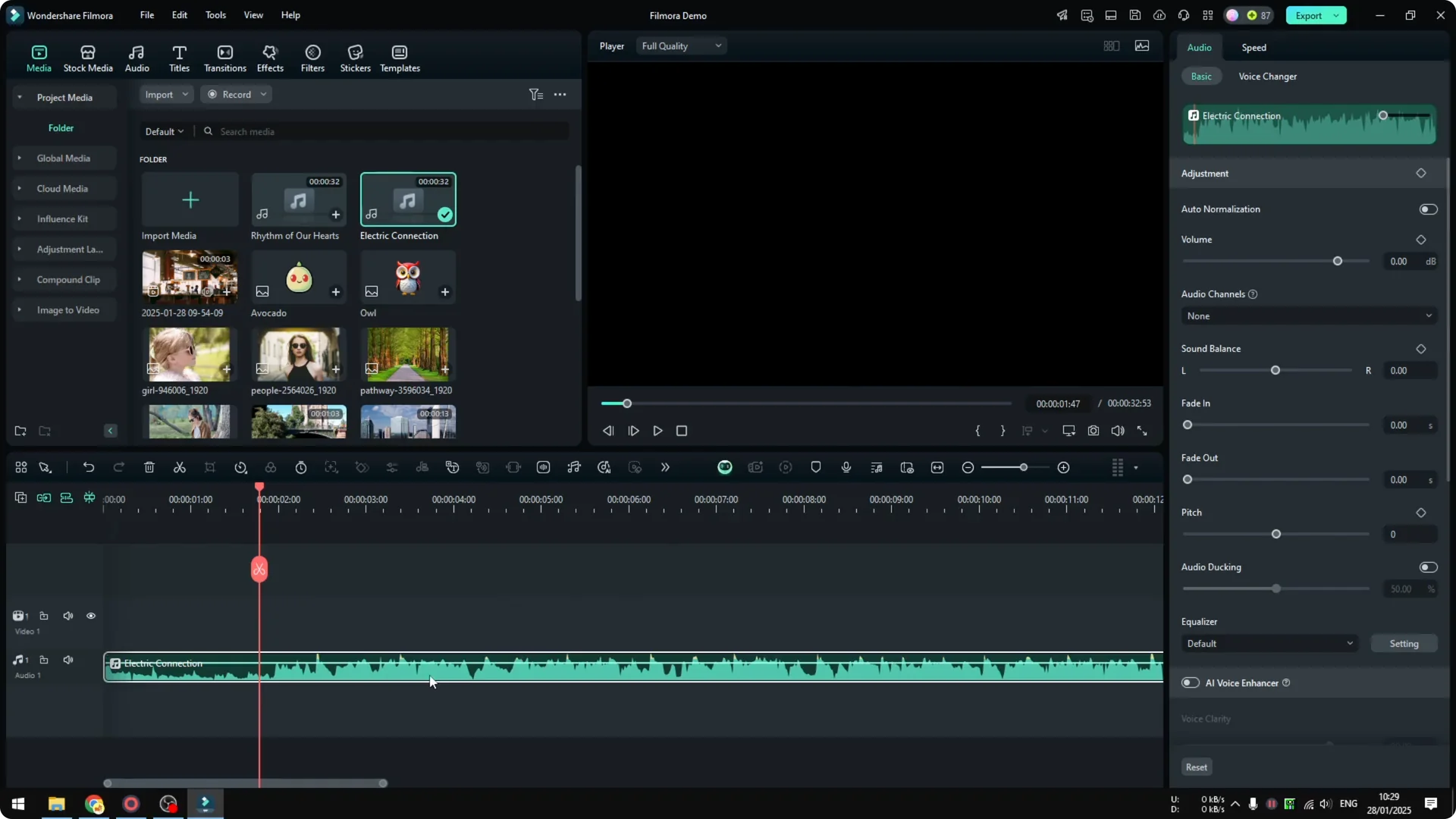
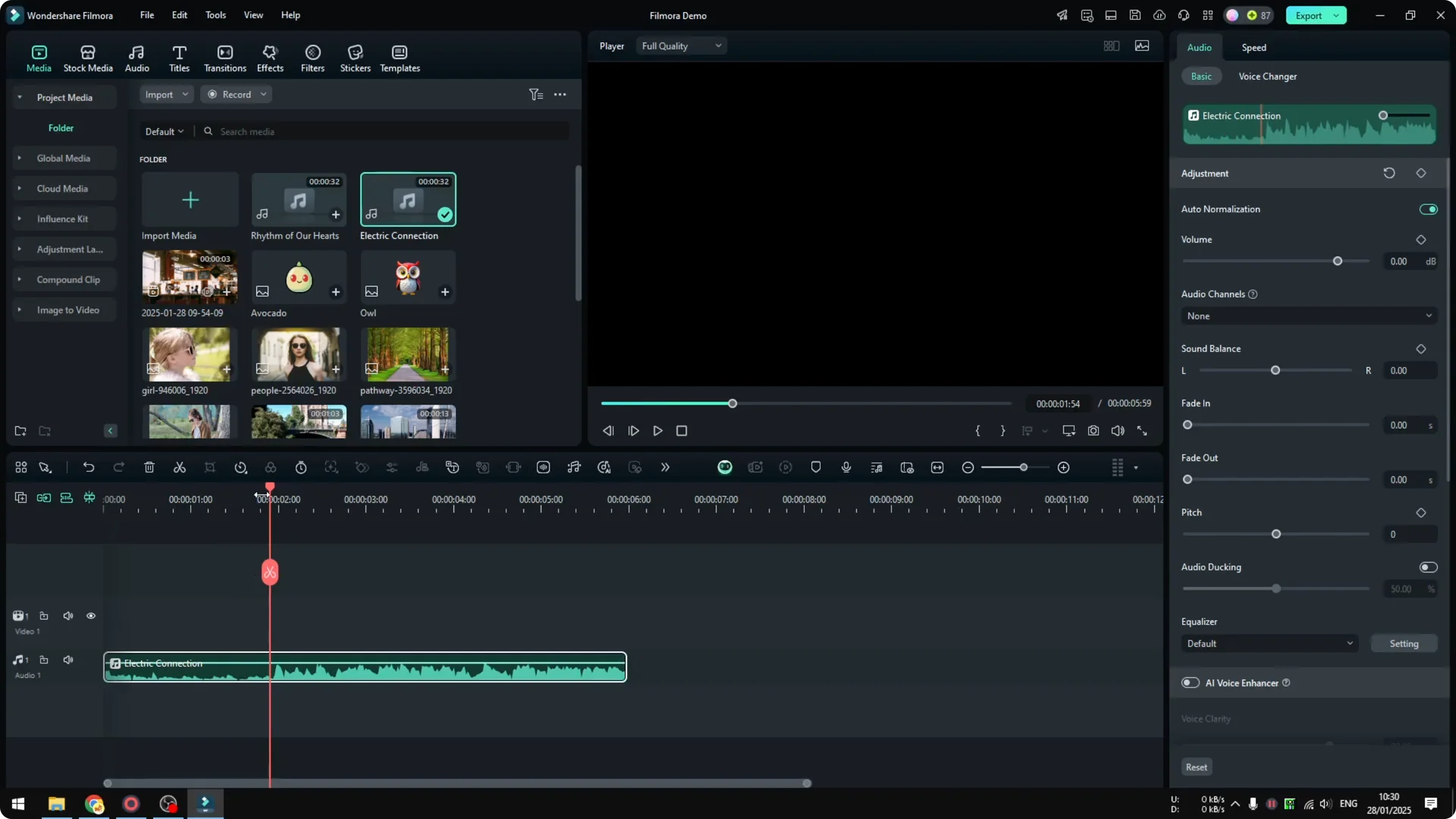
To save time, I split the clip so I only process a few seconds at a time.
You can remove the rest and leave only a short section to work on. That way you do not wait on the full track.
Read More: Remove awkward silences with Filmora AI
Run Filmora AI Vocal Removal
Click on the audio file. Right click and choose AI Vocal Remover.
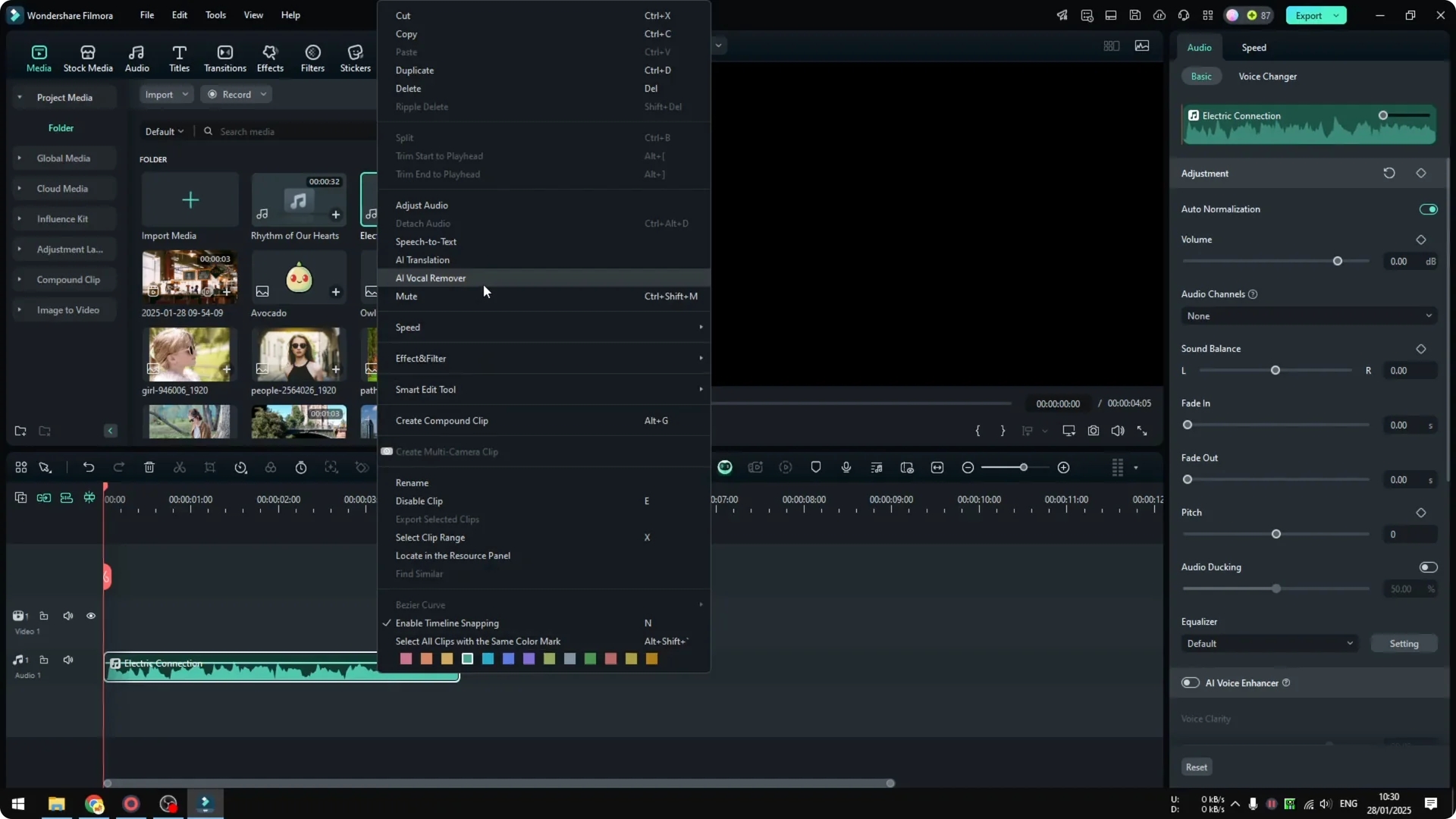
You can also go to Tools, then Audio, and choose AI Vocal Remover from there.
Wait until it finishes. It is using AI but it is not consuming your AI credit.
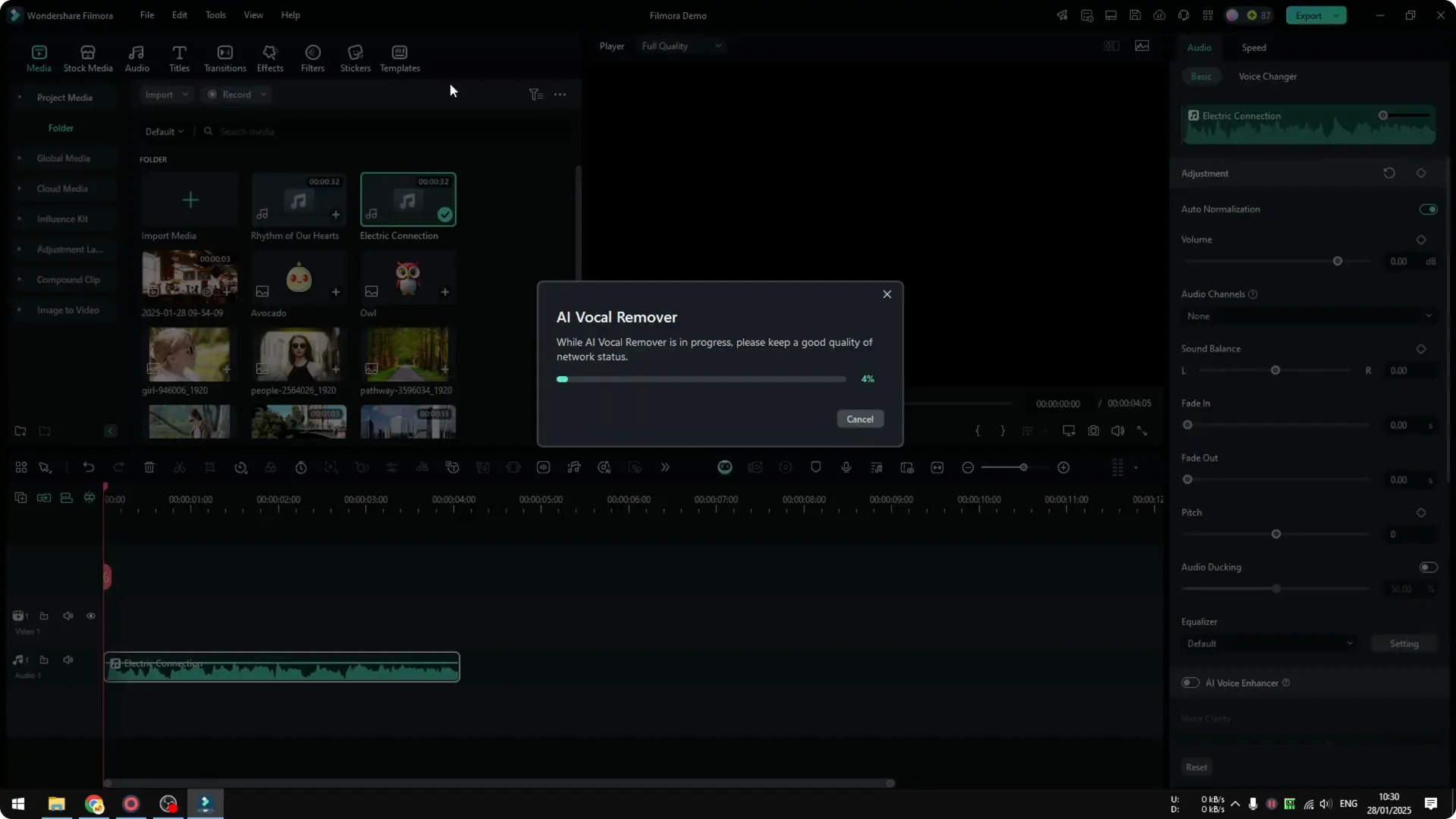
It does not consume your AI credit because it runs on your computer.
Your credit balance stays the same.
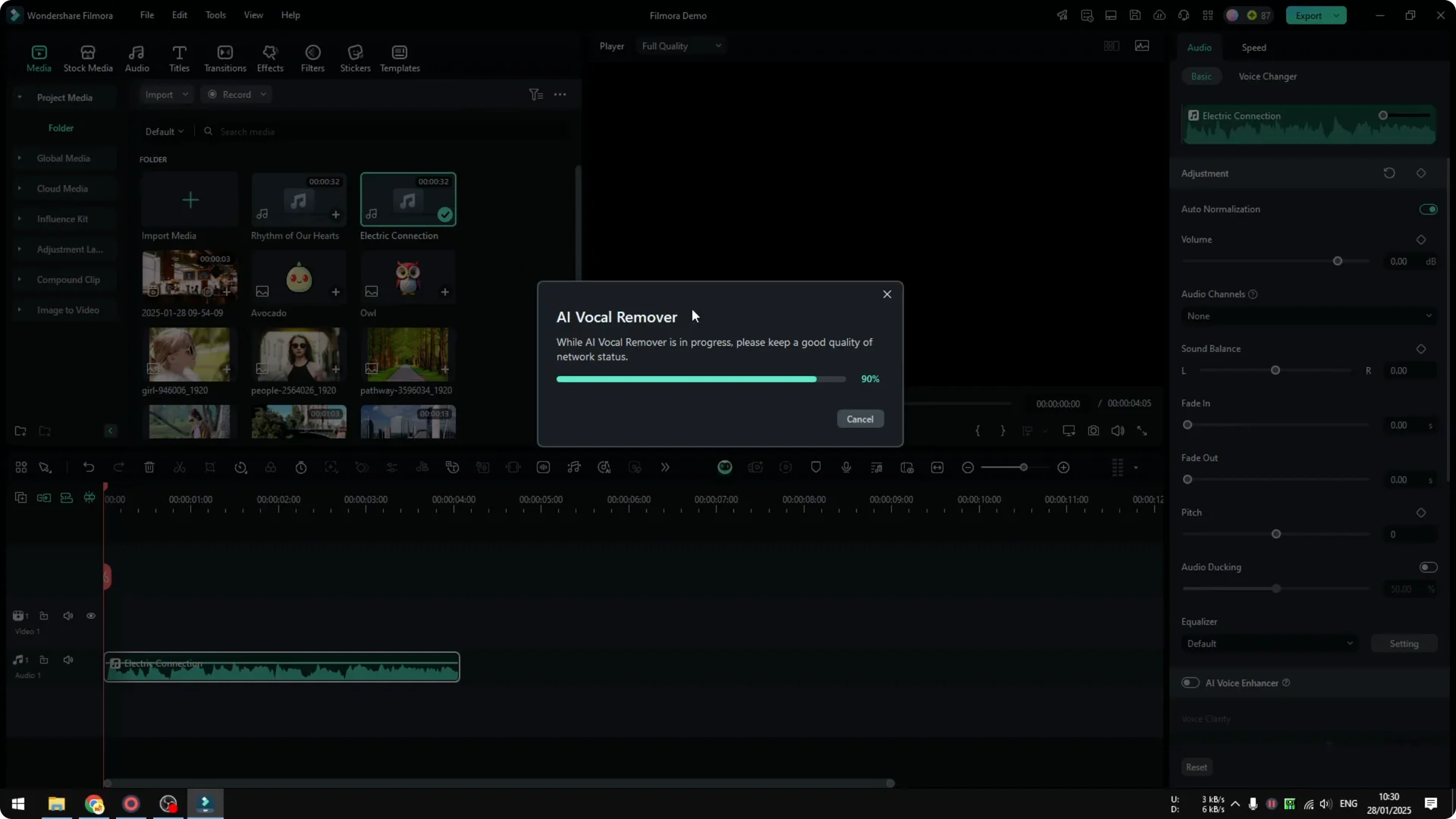
Let it process until you see the new files appear.
Read More: Fix a moving watermark with Filmora AI
Filmora AI Vocal Removal results
After the separation completes, you will see two more files created. This is the original, this is the voice, and this is the background or the instrument of the song.
You get a clean vocal and a clean instrument stem.
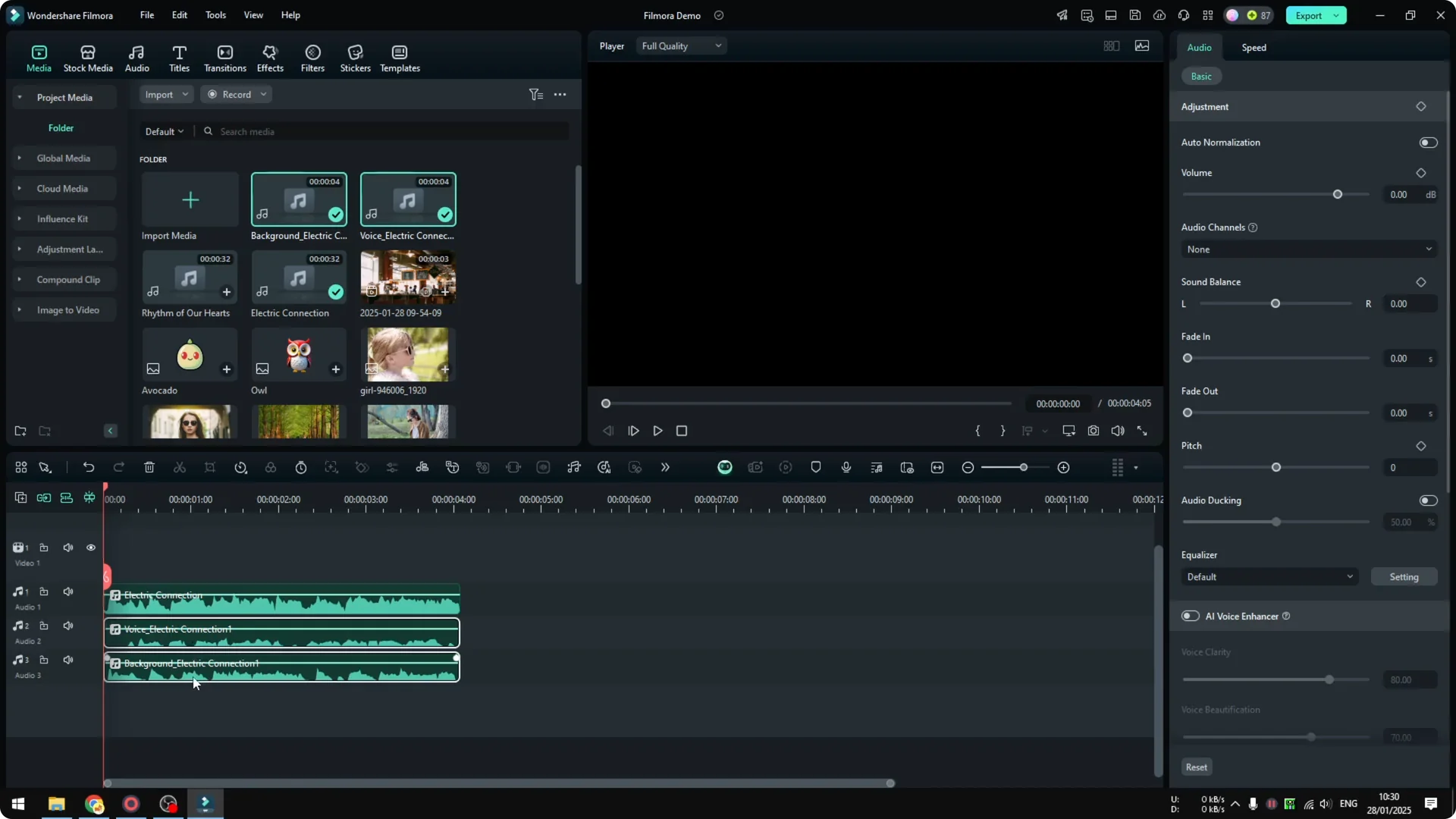
Mute the music and leave only the vocal if you want to hear just the singing.
If you mute the vocal and enable only the instrument, you will hear the backing track. That is basically it.
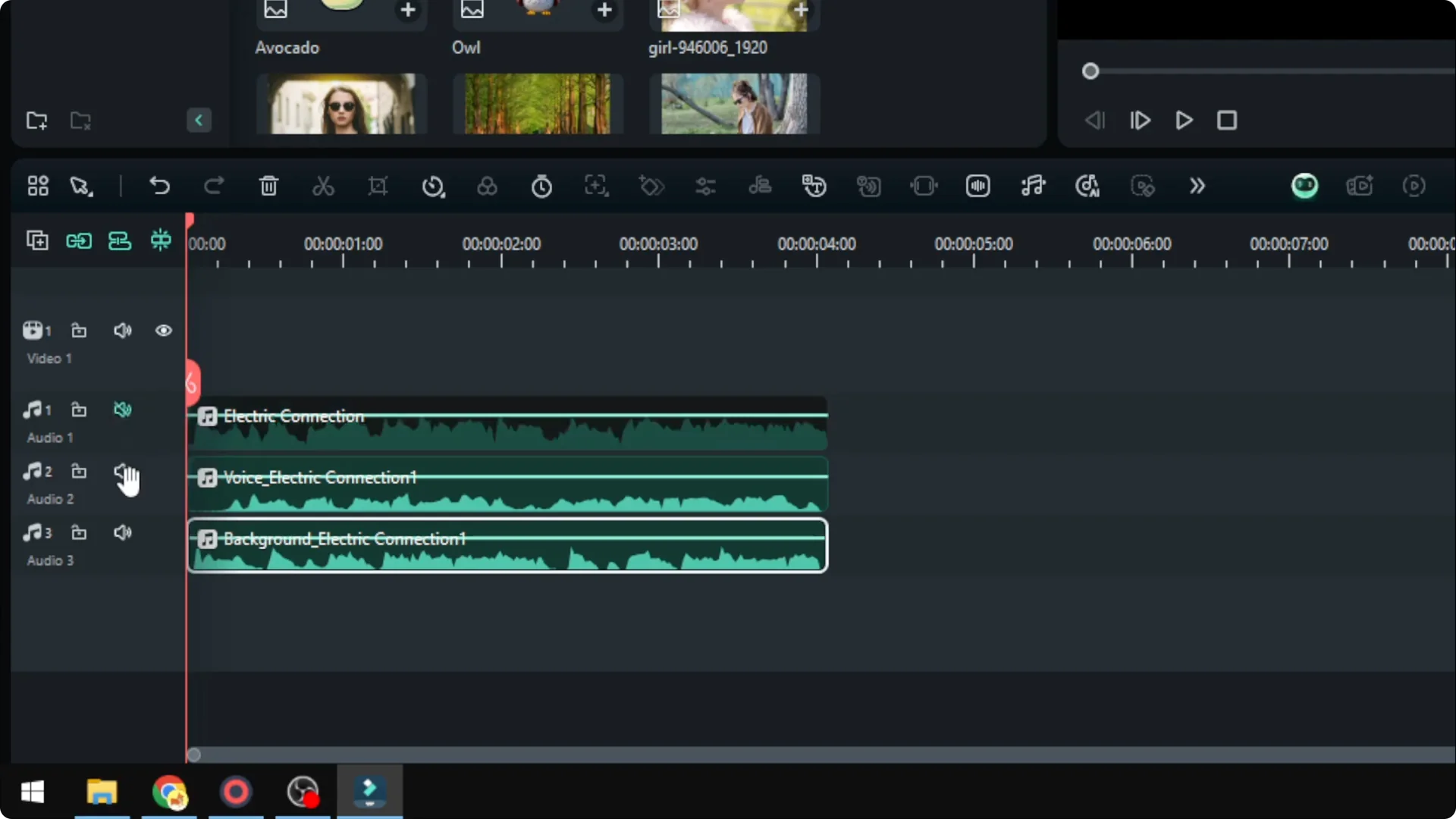
You can do whatever you want with these files. You can only keep the vocal or you can just keep the instrument.
Those are the two files that you get after separating the vocal from the instrument.
Read More: Quick AI color grading in Filmora
Final thoughts
Filmora AI Vocal Removal makes it simple to split a song into a vocal and an instrument track. Import your audio, run AI Vocal Remover, then keep the stem you need. It is fast, local, and does not use your AI credit.