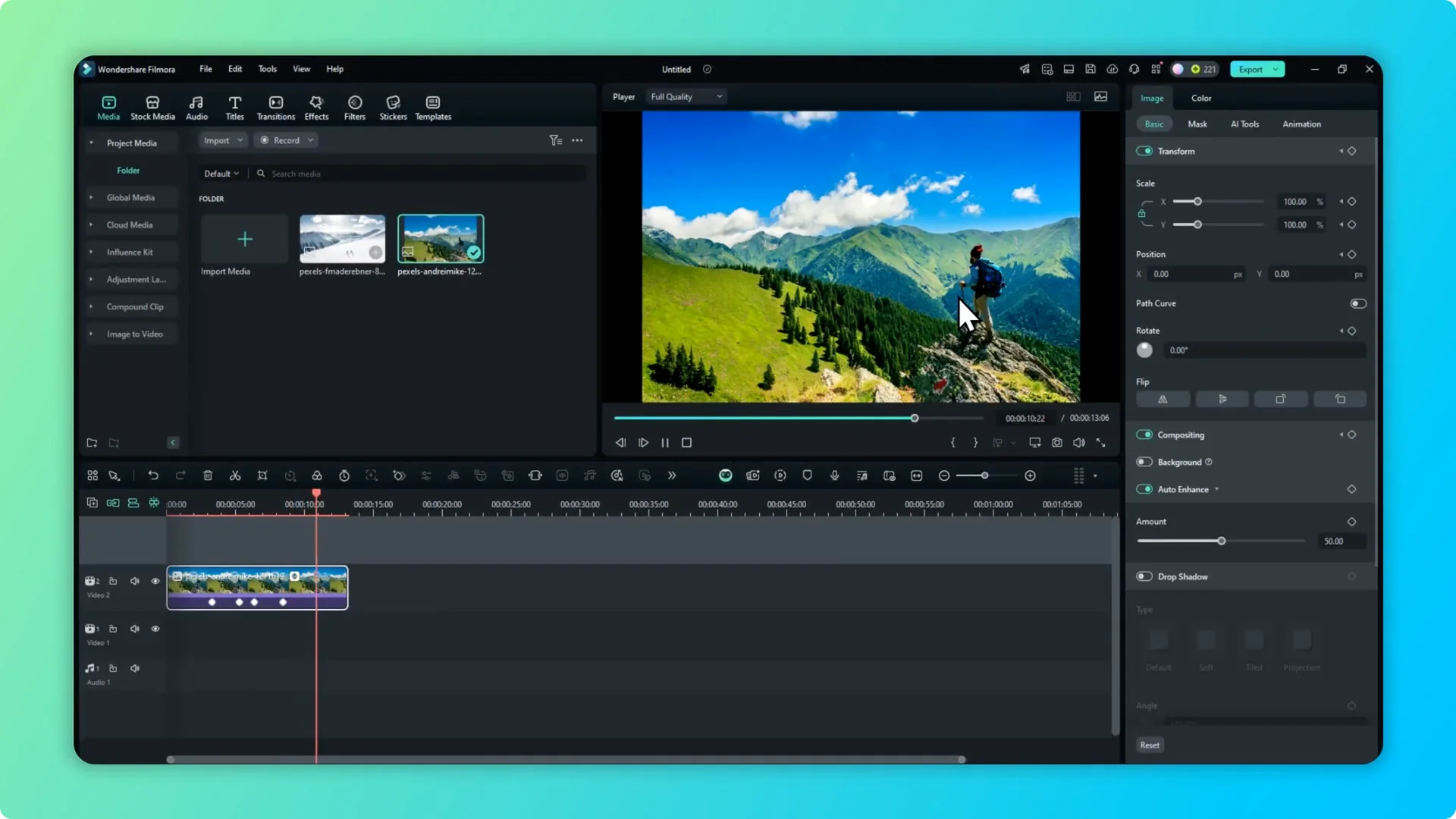
Here is how to replace a picture with a different picture in your Filmora project.
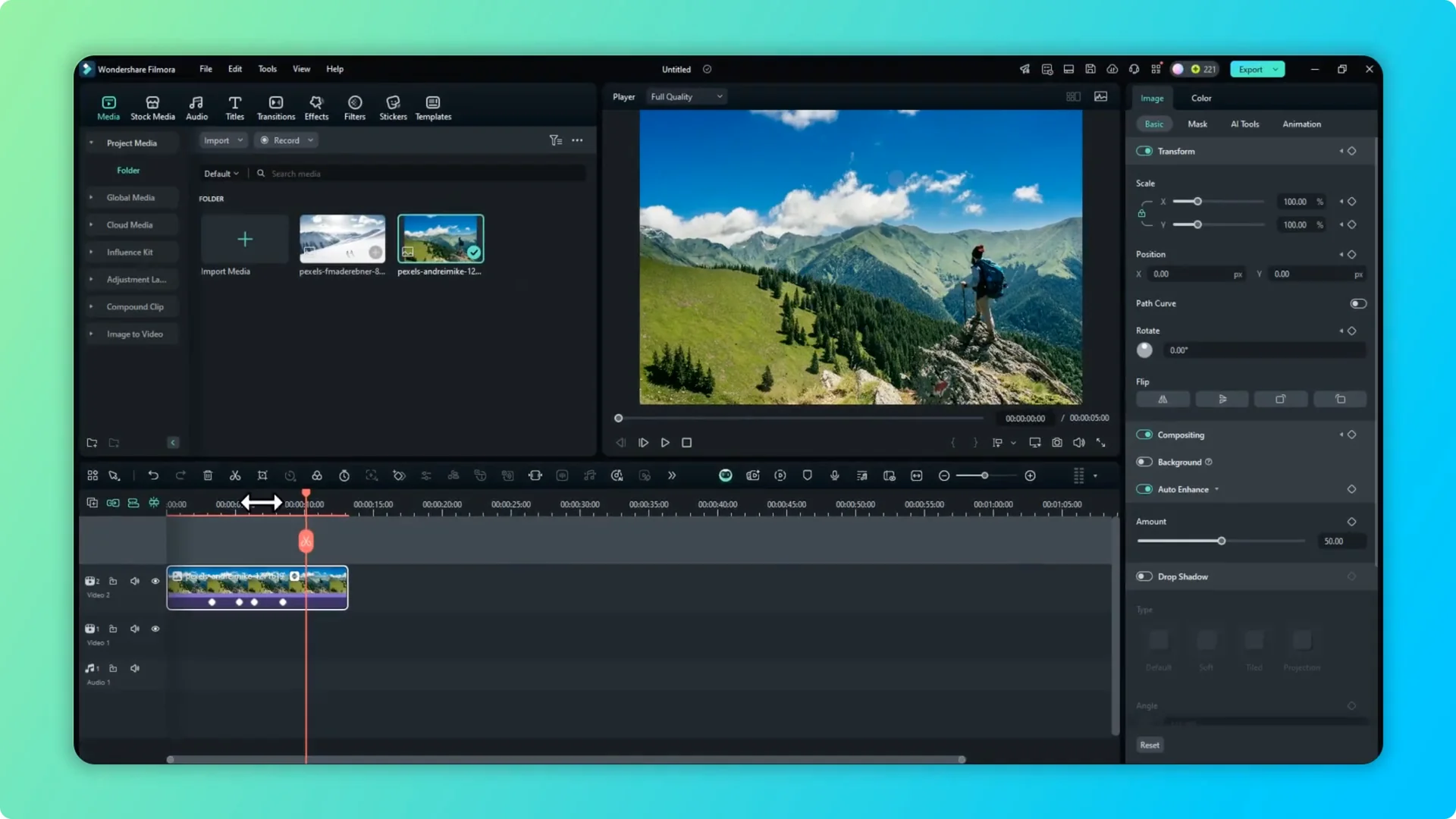
I have a photo on the timeline with many settings applied, including keyframes. It is not the picture I want to use. I want to swap it with another image that looks very different.
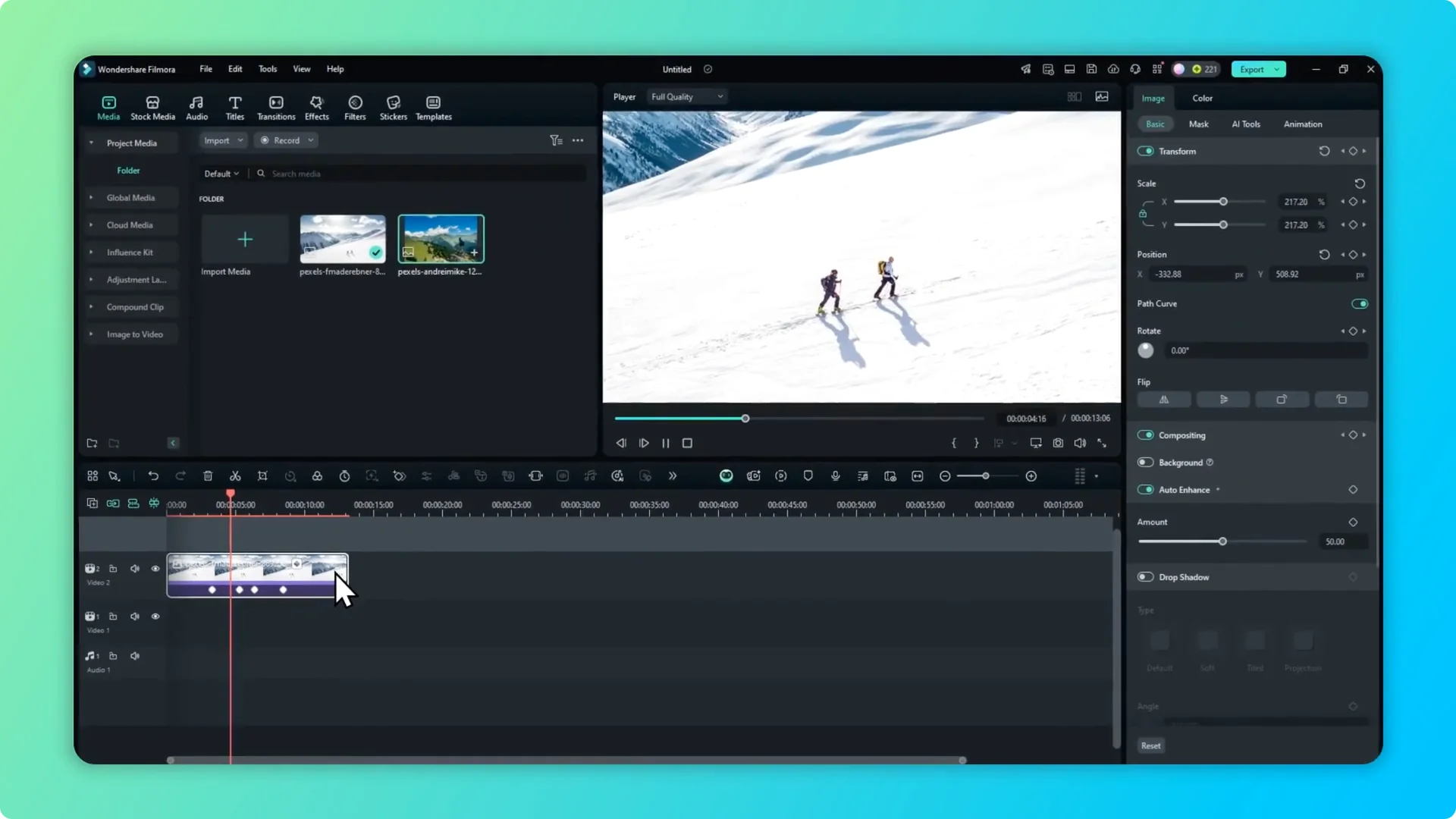
Photo Replacement in Filmora
Step by step
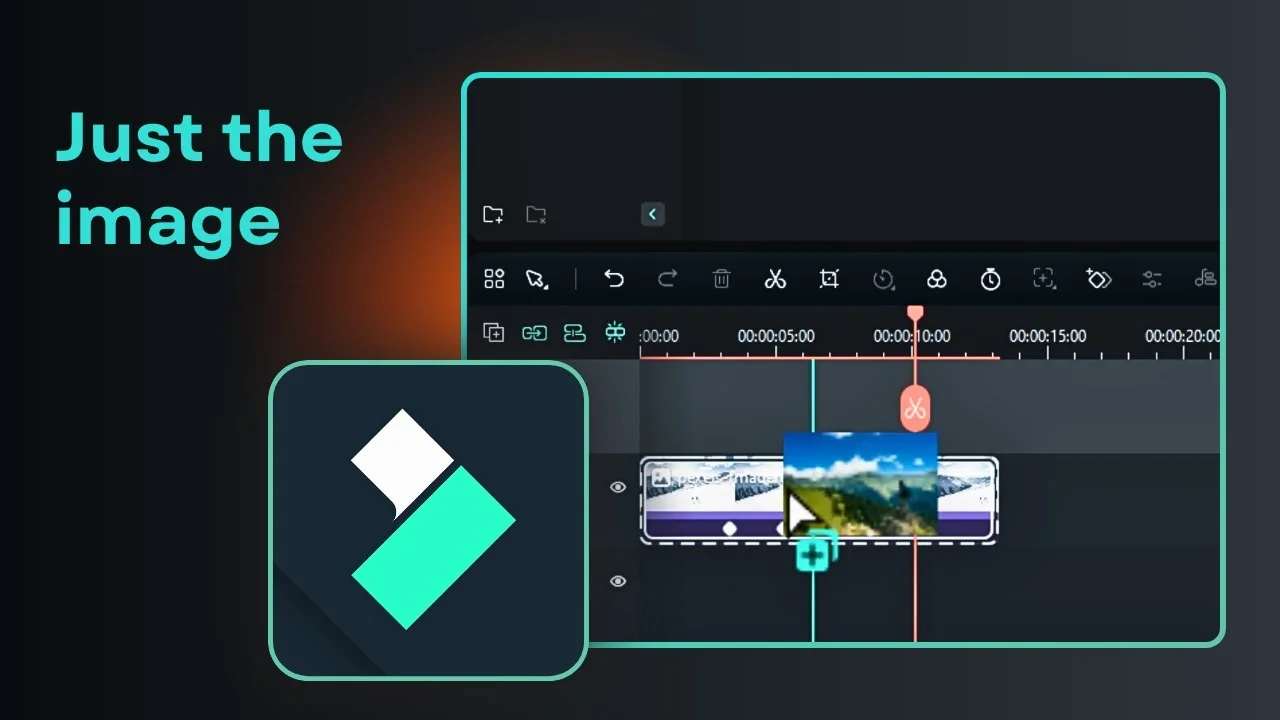
Step 1. Press and hold the Alt key on your keyboard. The Alt key is next to the space bar on Windows, Mac, and Linux.
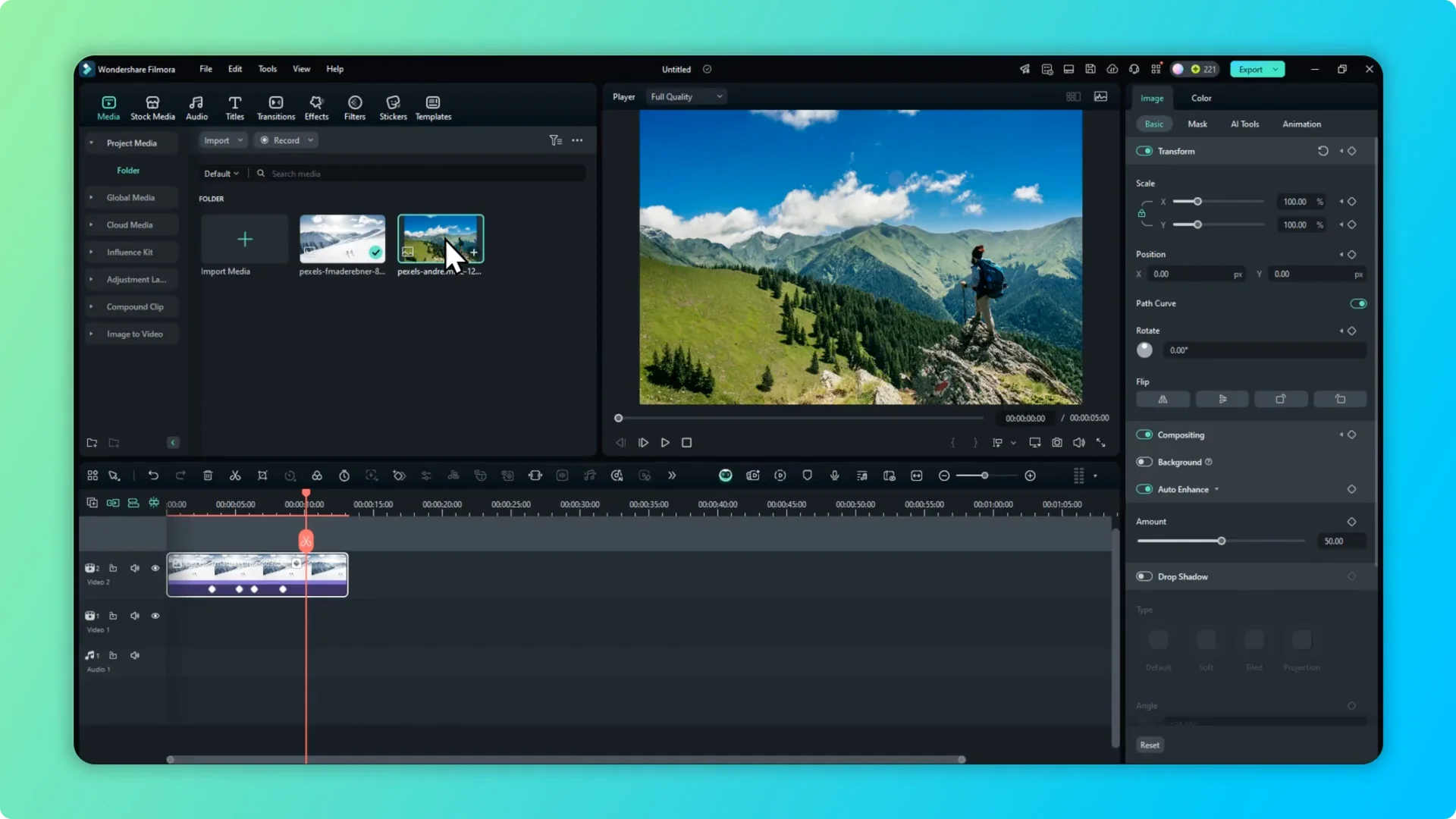
Step 2. While holding Alt, click the picture you want to use and drag it onto the picture on the timeline. Drop it on top of the existing photo to replace it.

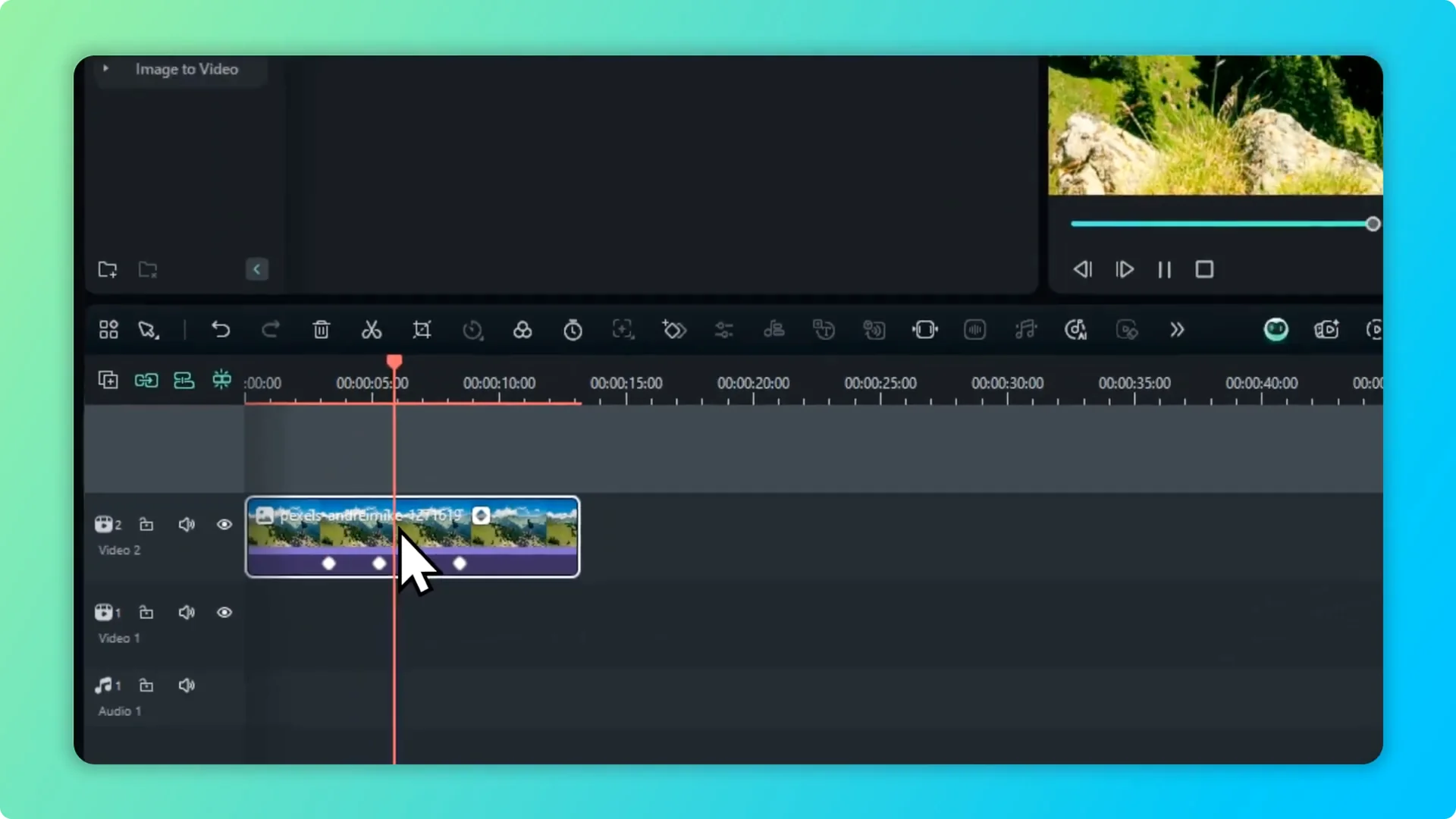
Step 3. Release the mouse and release the key. The new picture is applied to the timeline, replacing the previous picture. Your edit stays in place.
If you want to add a burst of style after the swap, try this glitch transition effect tutorial.
Keep edits in Photo Replacement in Filmora
The replaced picture keeps the same keyframe settings and other adjustments. Play the timeline to confirm the motion and effects are preserved. It looks great and saves time.
For audio polish in the same project, see this guide on removing vocals in Filmora with AI.
Final Thoughts
Hold Alt, drag the new picture onto the old one, and release. The photo is replaced and all keyframes and settings carry over. To speed up captioning in the same workflow, check out speech to text in Filmora.