Filmora just released a new AI thumbnail generator right in the video editor. If you are using Filmora 14 or above, you can create a video and use AI to generate an enticing and eye catching thumbnail using the built in feature. When you export a video you will get the video file and also the image for the video thumbnail.
First of course you have to have a video. I do have a demo video and this is probably not the best demo because AI will work best if you have some context, some audio voice, or information that the AI can learn. This video is just silent video with no context at all, but it is good enough to demonstrate how you can use the AI thumbnail generator in Filmora.
If you want quick narration to add context, you can add speech with AI inside Filmora. For a simple walkthrough, see how to use AI text to speech in Filmora.
Getting started with Filmora AI Thumbnail Generator
Step 1. Export the video. Click Export in the editor to open the export panel.
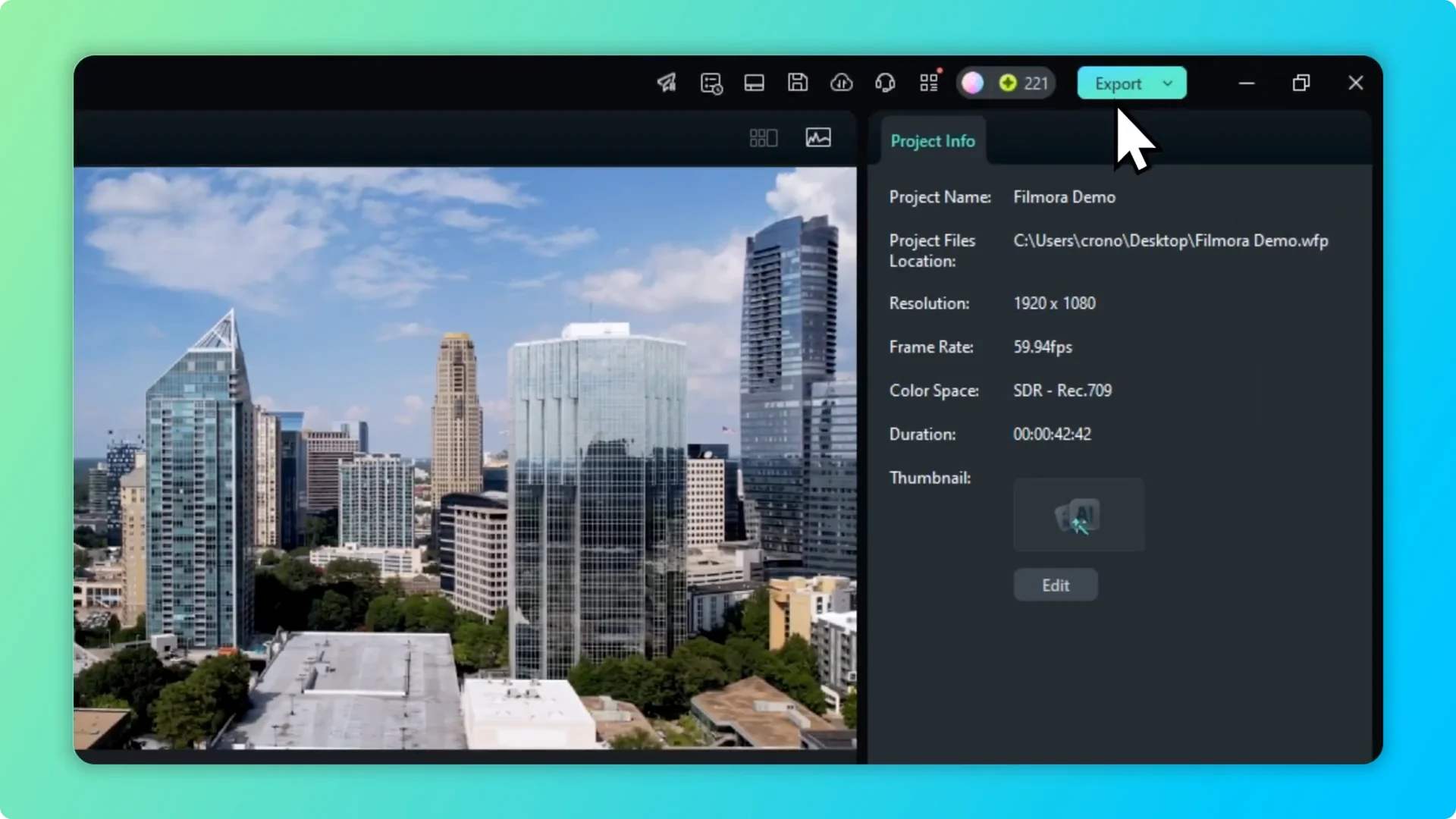
Step 2. Open the thumbnail maker. In the Thumbnail section click Edit to launch the Filmora AI Thumbnail Generator.
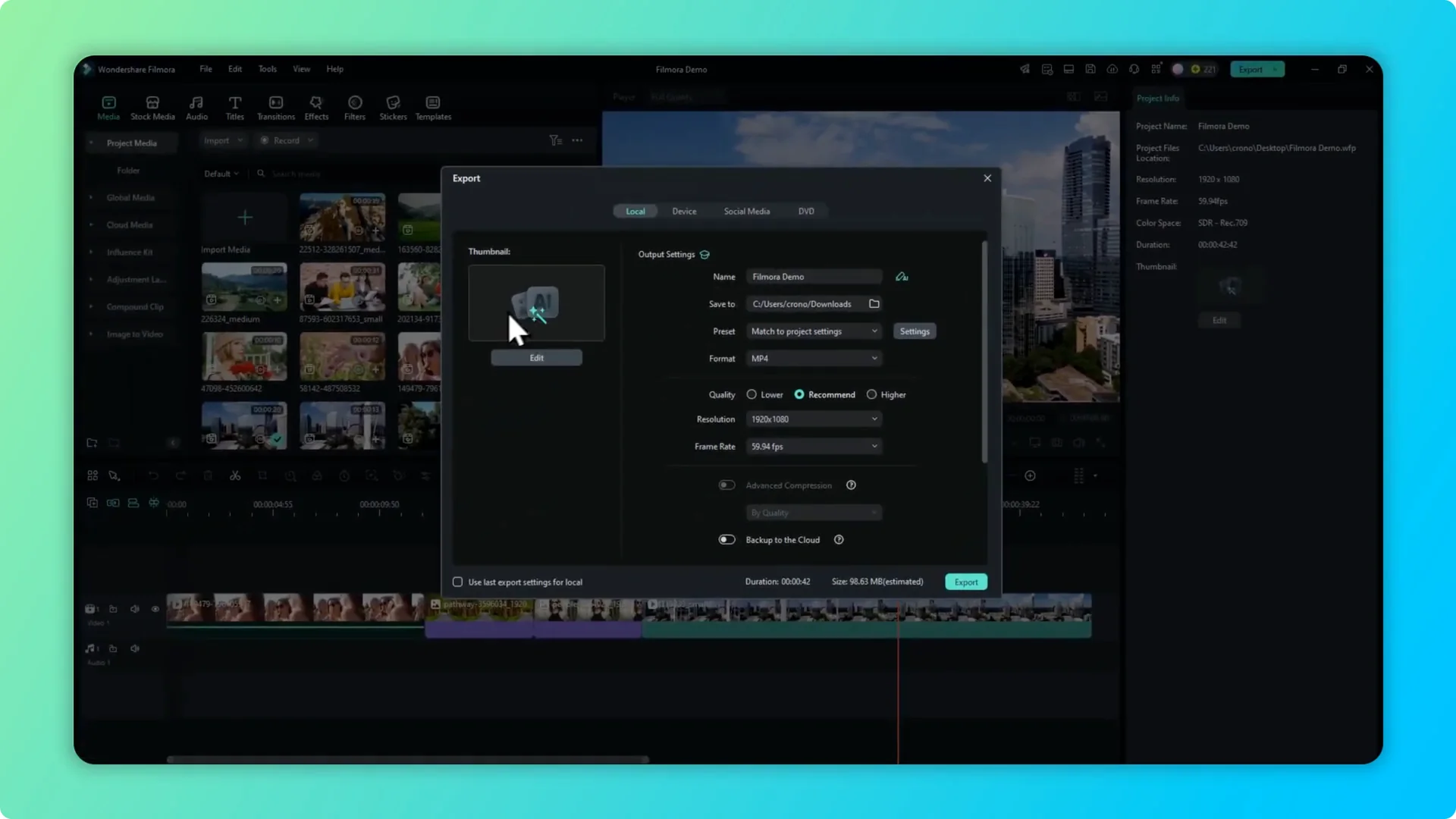
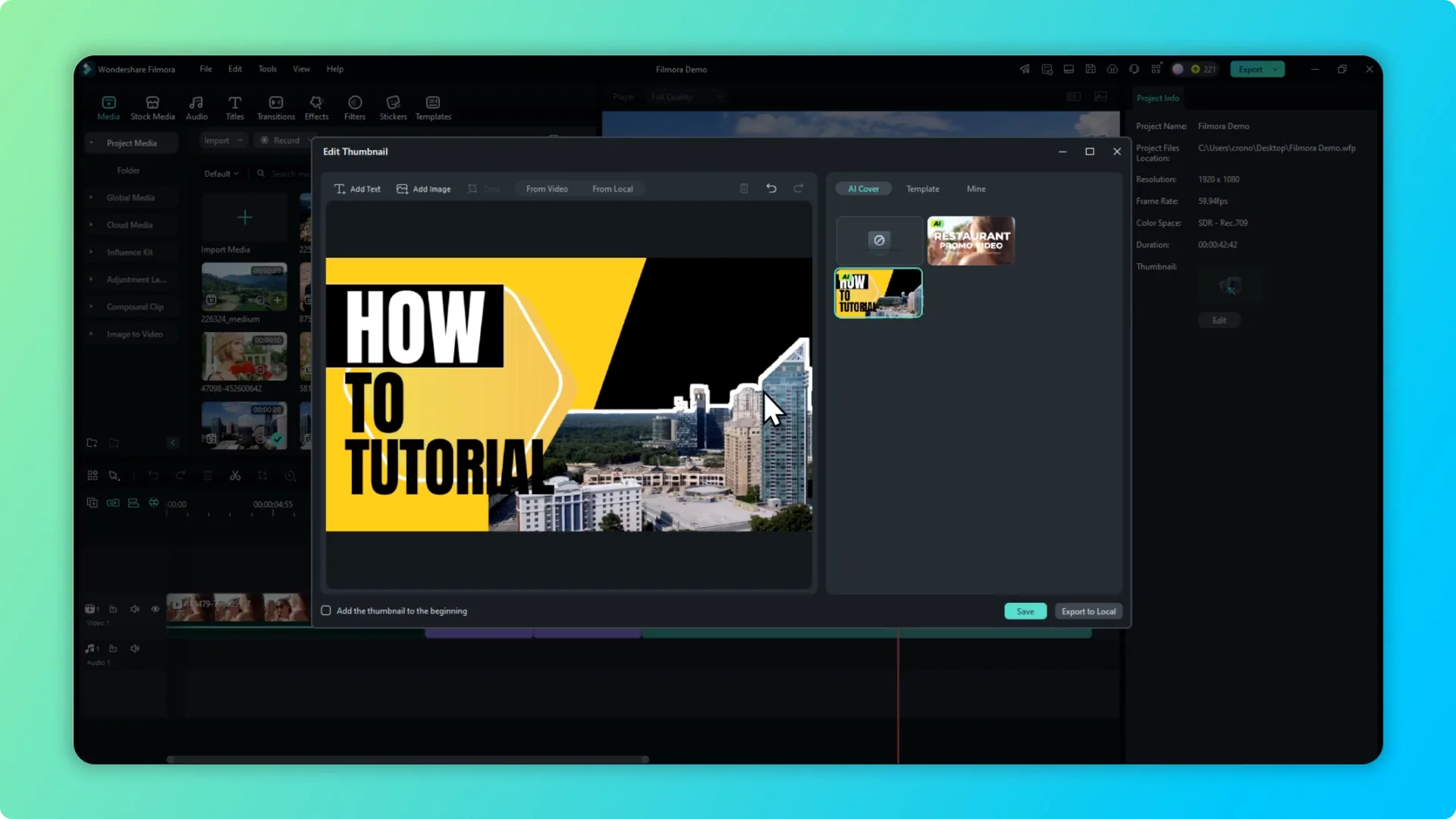
Step 3. Let Filmora generate options. It will generate up to three different thumbnails based on the video.
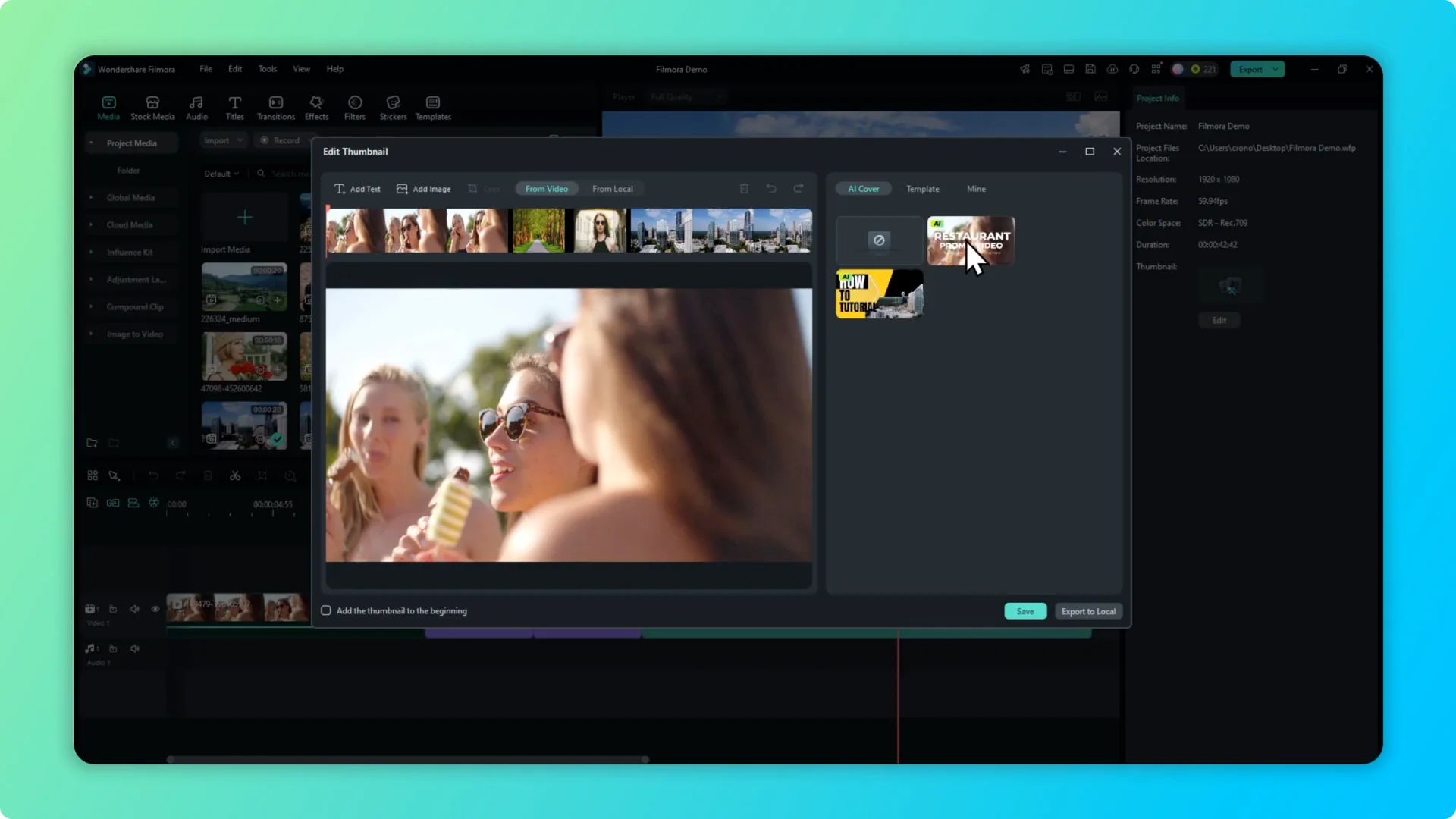
It does not have information about what the video is about, so you may see random text like Restaurant promo video, which makes sense because there are people eating. There is also a thumbnail that is interesting because the photo is based on footage of a building and they actually crop the sky with automatic background removal.
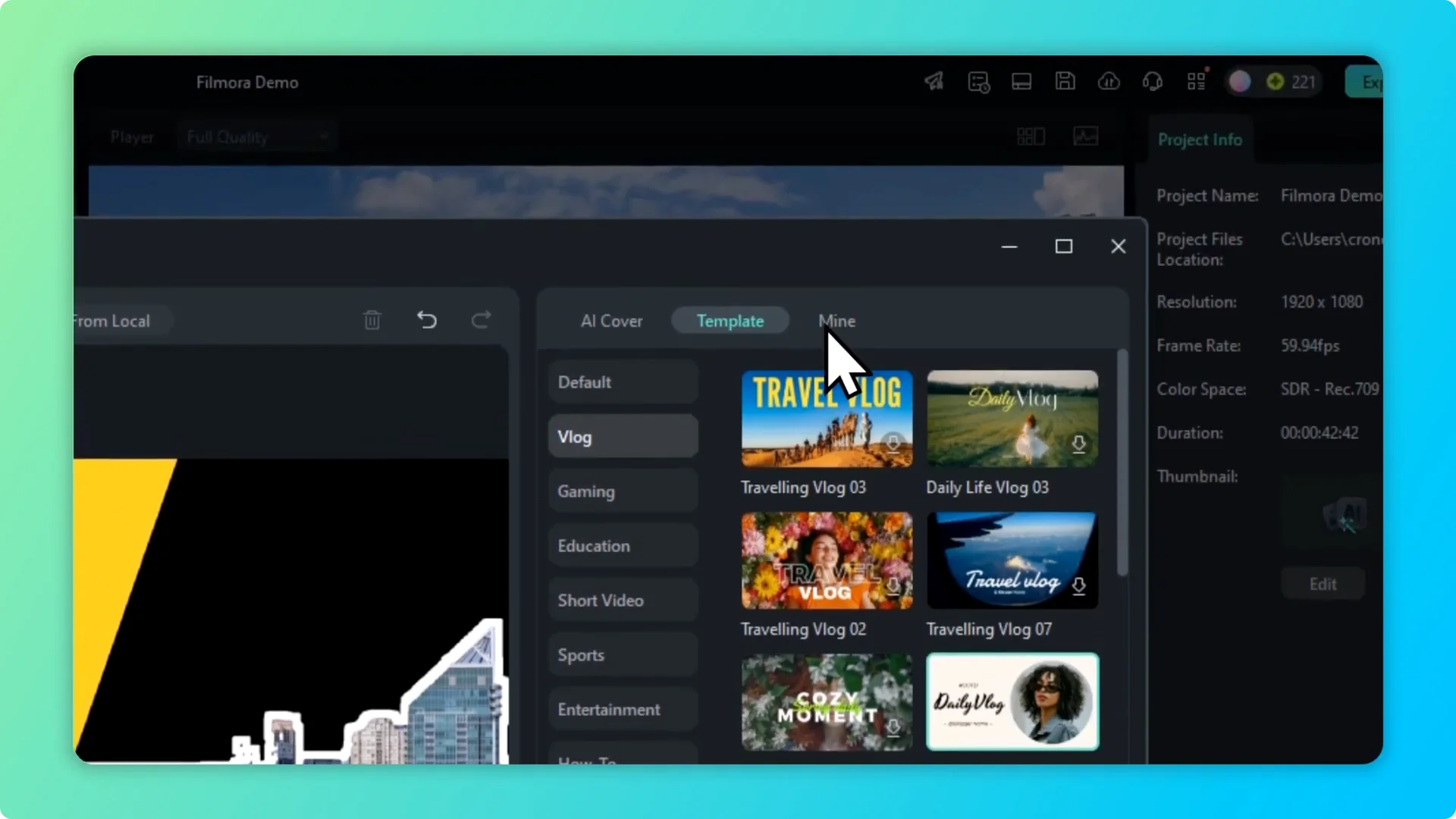
Templates in Filmora AI Thumbnail Generator
Go to the Template section and you will see plenty of different styles and different formats of the thumbnails that you can use. Select one of them and apply it to your video.
I am going to go to Vlog and try Vlog Daily Vlog 05. I click on it and download this format, then I go to the Mine section and there is the new format I just downloaded, and I click on it.
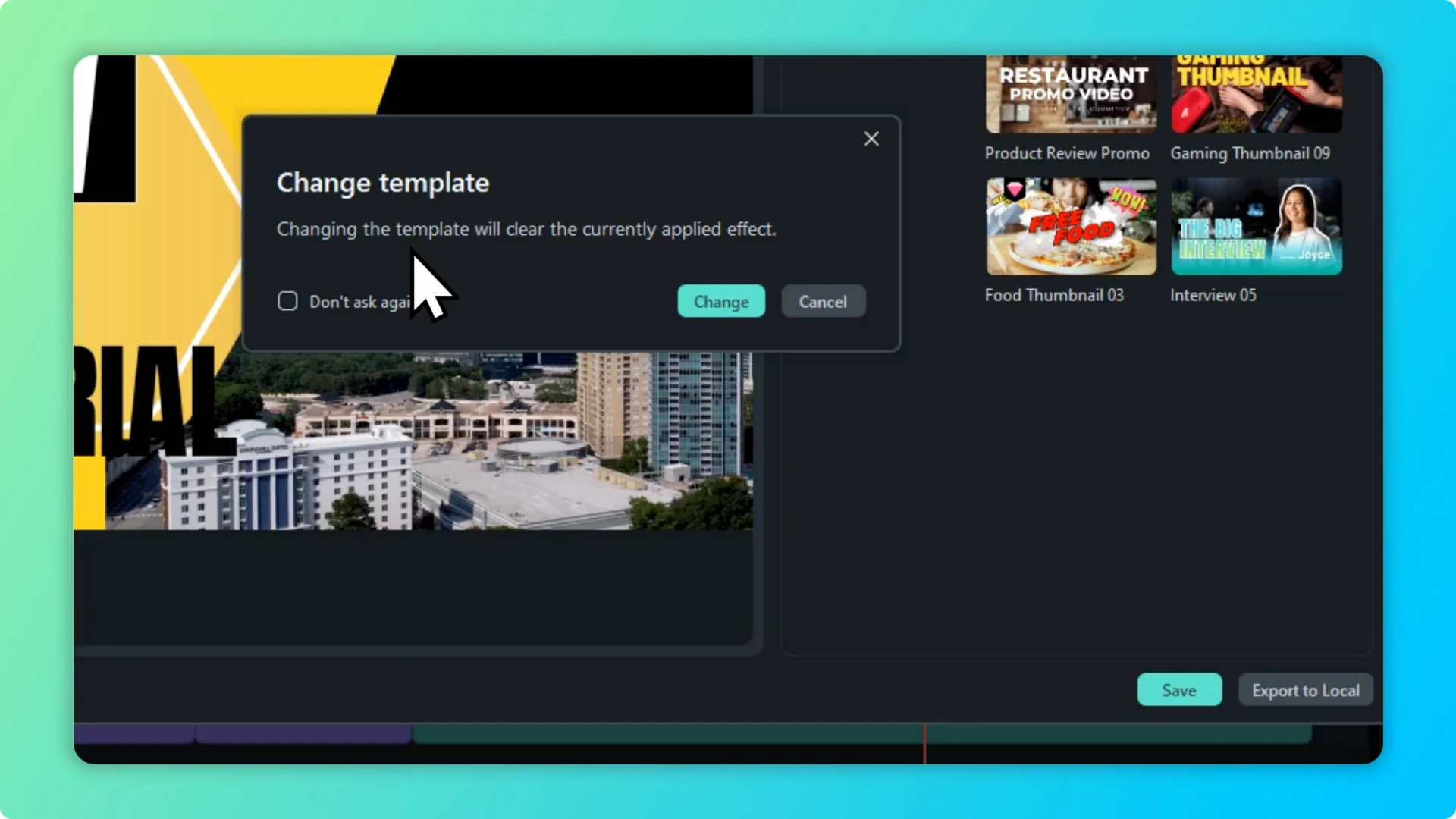
Filmora offers me to recreate the thumbnail using that format. I click Change, wait, and it is really quick, and this is a thumbnail that you can definitely use.
If you also want to clean up your footage, you can upgrade clarity with AI inside the editor. Here is a guide on improving video quality in Filmora using AI.
Edit text and images
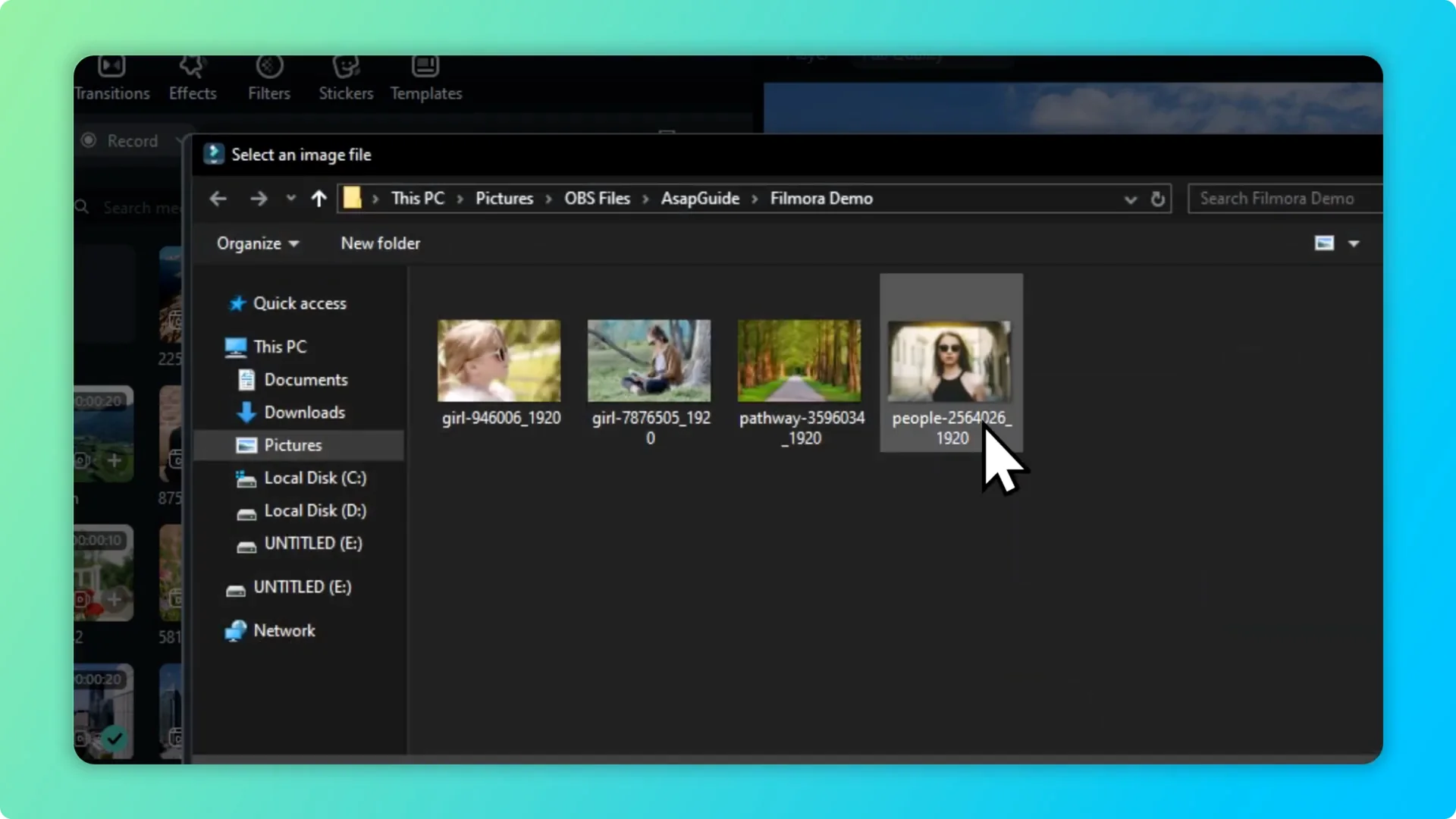
You can also change the text if you want to use a different text, and you can add more text and edit the text right here. Lastly you can add another image from your computer.
Export with Filmora AI Thumbnail Generator
If I am happy with this thumbnail I click Save, and when you export the video you should get the video and also this thumbnail. Export the video and Filmora will output the video file and the thumbnail image.
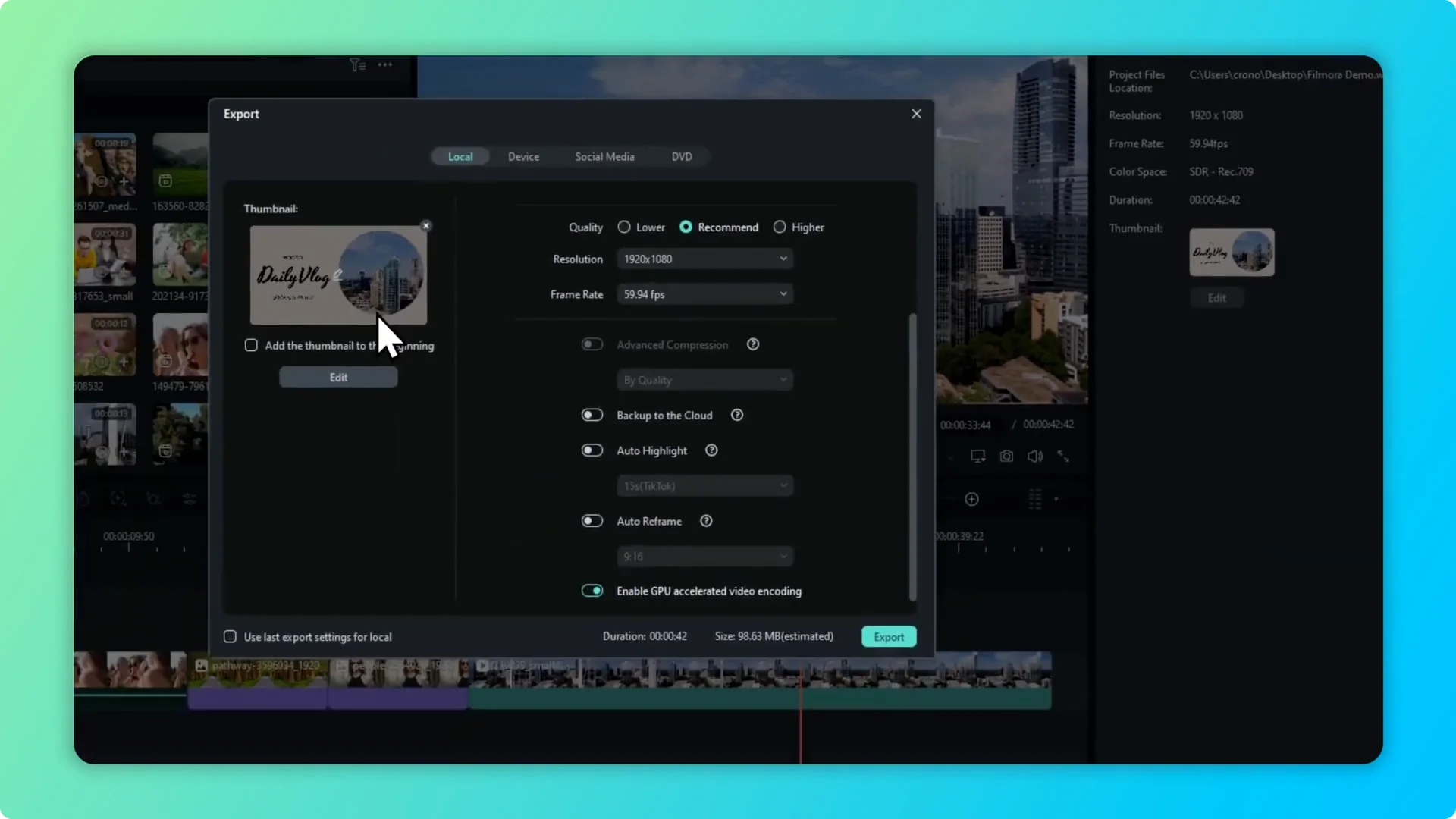
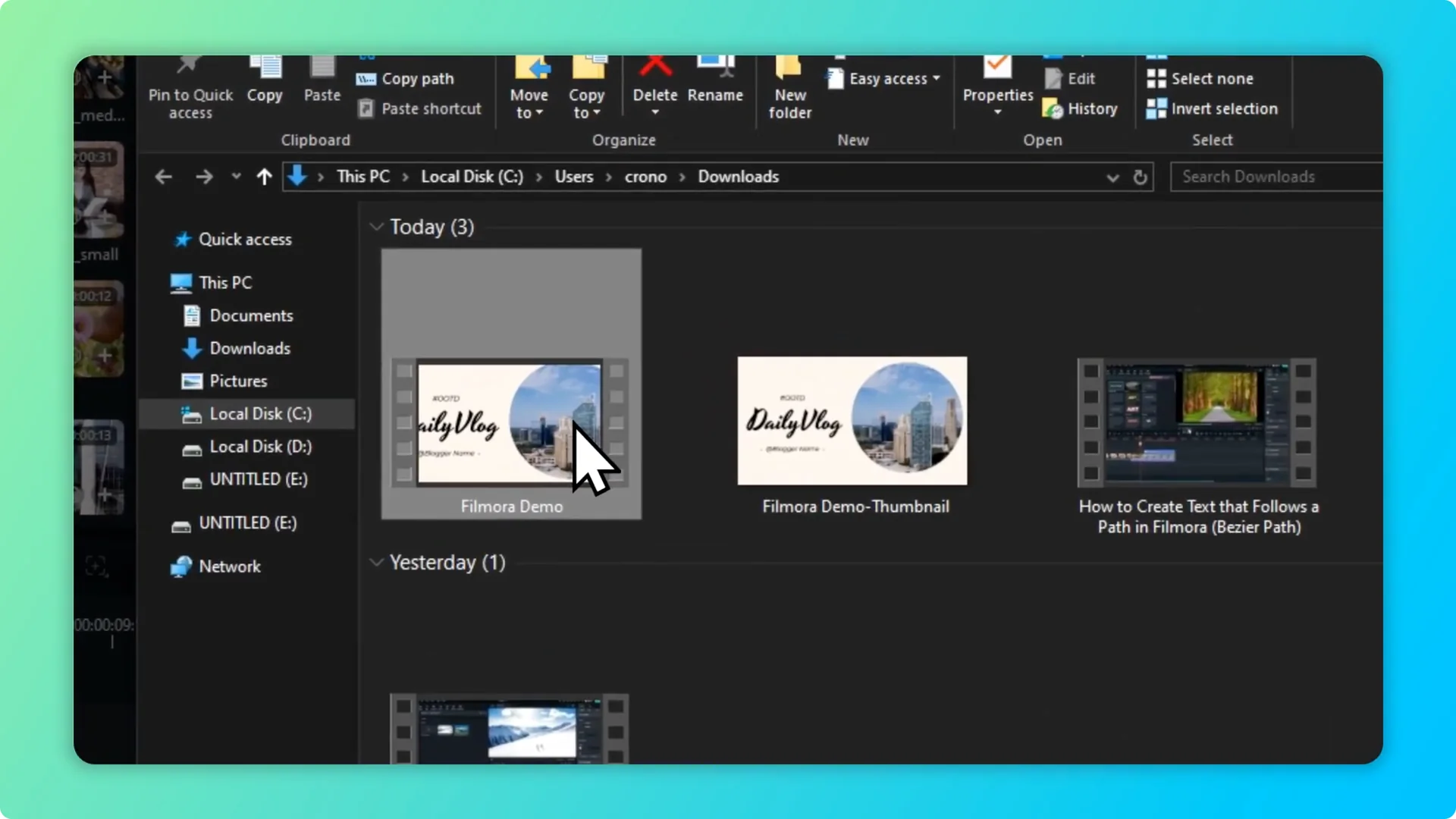
Open the output folder and you will see both items. One is the video and the other is the thumbnail image.
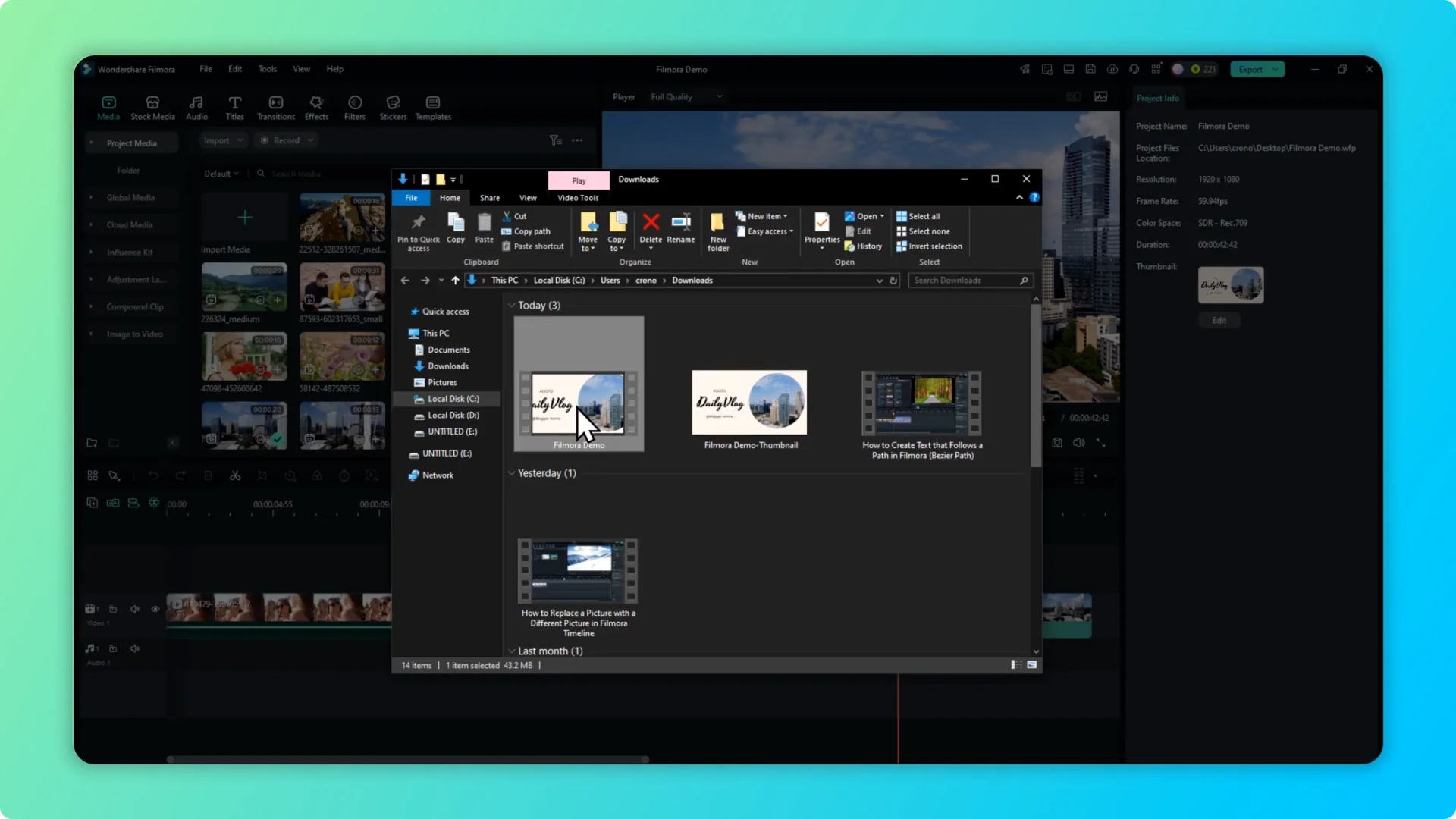
You might notice that it puts the thumbnail at the beginning of the video, which is good practice. TikTok and Instagram often use the first few frames as the thumbnail, so you might want to put the thumbnail right at the beginning of the video. If your edit also needs compositing, try the AI tool here: Green Screen AI in Filmora.
Final thoughts on Filmora AI Thumbnail Generator
That is how you can create an engaging and eye catching thumbnail using the Filmora AI Thumbnail Generator. Use the templates, adjust the text and images, and export with the included thumbnail.
It is quick, and the template library gives you many styles to try. Feel free to modify a template to match your video and brand.