
You can create text that follows a path easily. This effect is basically regular text that curves and follows a route, and it looks like a running text that bends. In many cases it looks a lot more pretty than just a horizontal or vertical running text.
This is how you can achieve the effect using Filmora. It is not difficult. You have to use Filmora version 14, otherwise this feature is not available.
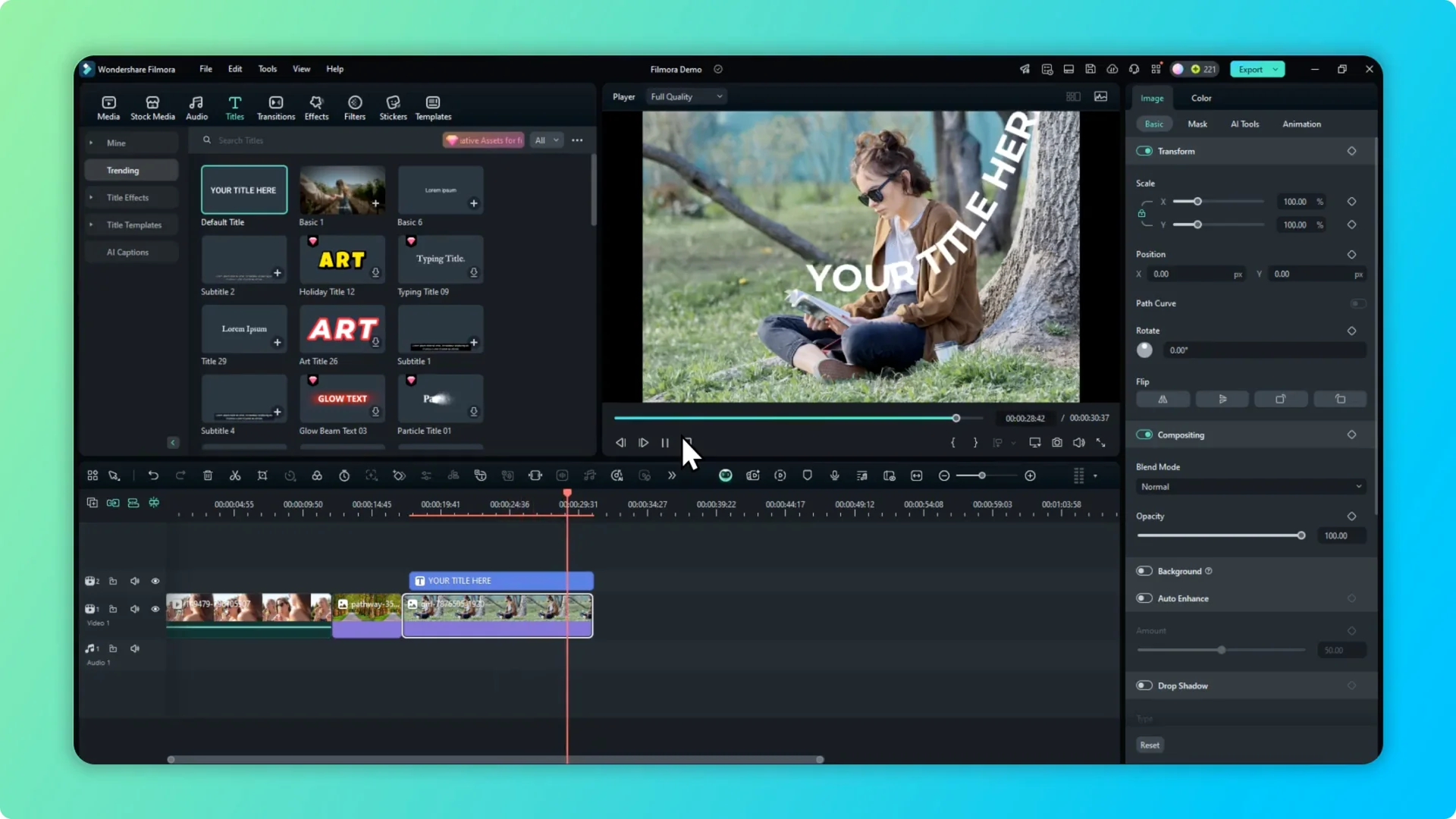
Filmora Bezier Text Path basics
I want the text to curve in one area and then climb uphill into the tree. The idea is to make the text follow a custom path with control points. You can fine tune the curve and animate how the text travels along it.
Filmora 14 setup and workspace
If you are upgrading from Filmora 13 to Filmora 14, there is a good chance you are not going to see the same panel layout. The properties or Edit panel that used to appear in the old area now sits on the right side in version 14. If you want that, go to View, then Layout Mode, and click Default.
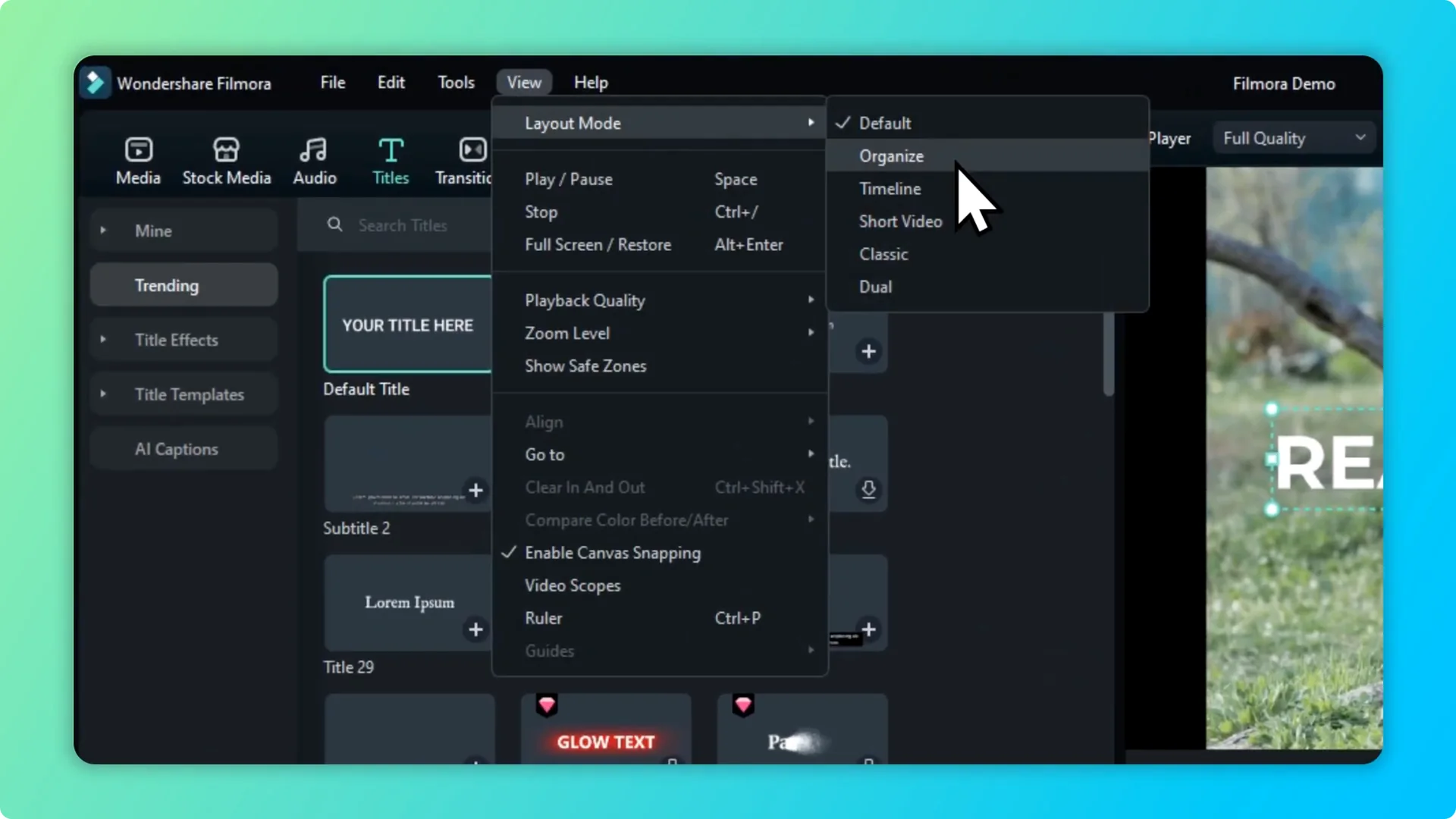
If you prefer the Classic version with no panel on the right side, you can use that, but it is easier if you have the panel always on the right side of your Filmora editor. Keeping this layout makes editing text on paths faster. If you also need captions while you edit, learn how to use speech to text in Filmora.
Filmora Bezier Text Path setup
Add media and text
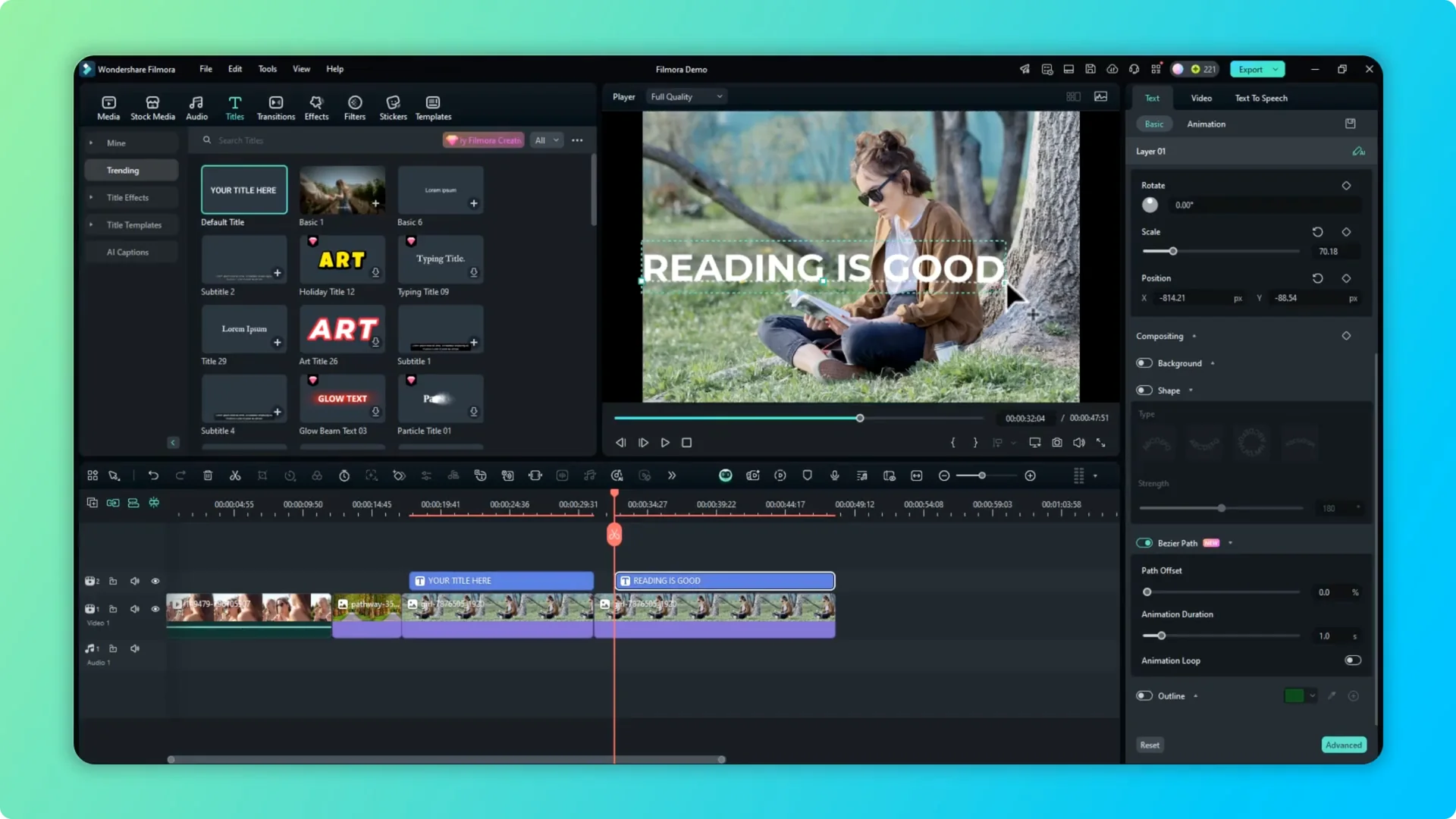
Insert a picture from Media and extend it on the timeline. Go to Titles and add a text layer. Double click the text to open Edit.
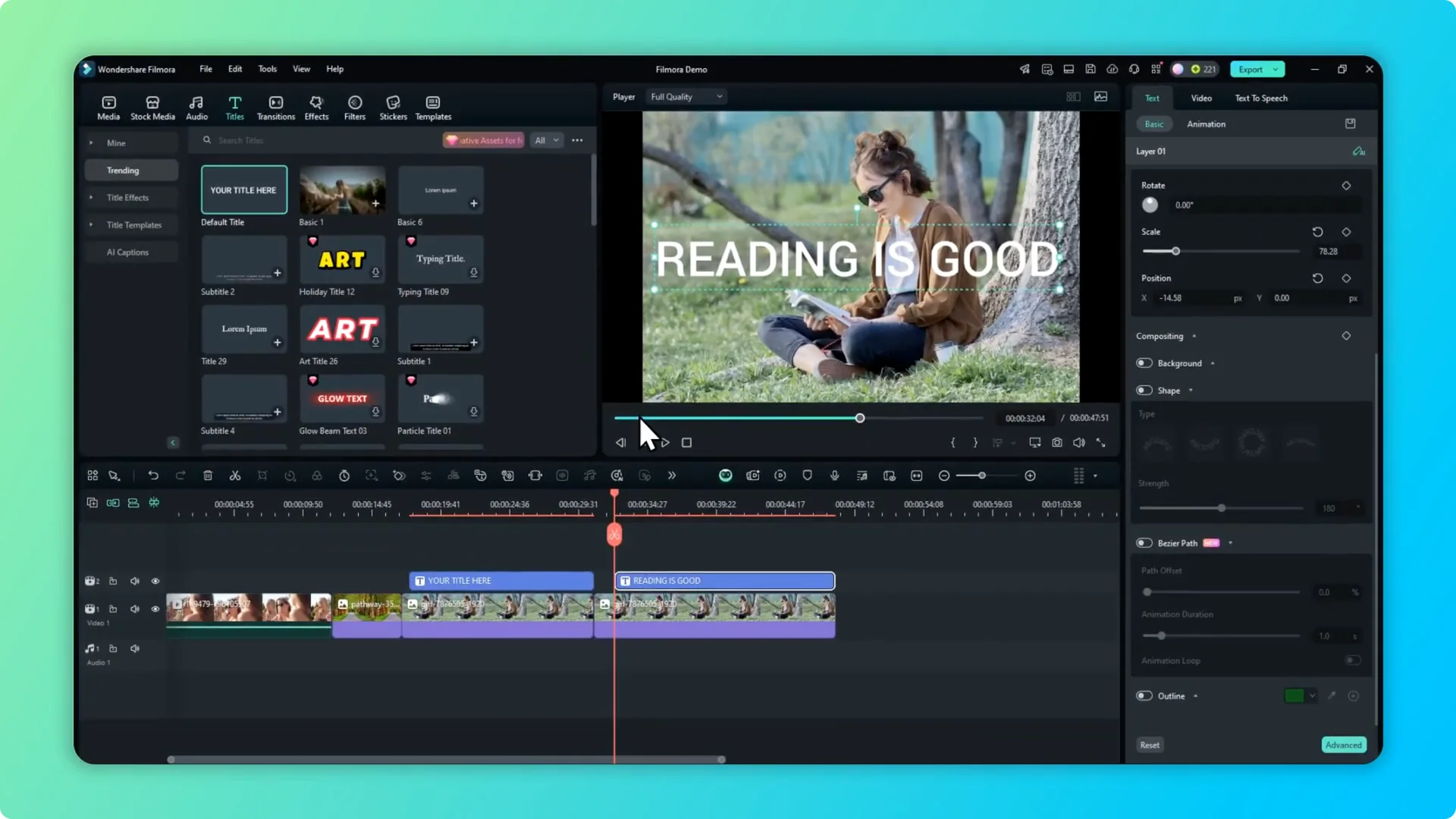
Edit your text
Change the text to something like “reading is good.” Try a different font and reduce the size a bit. Position the text roughly where you want the curve to start.
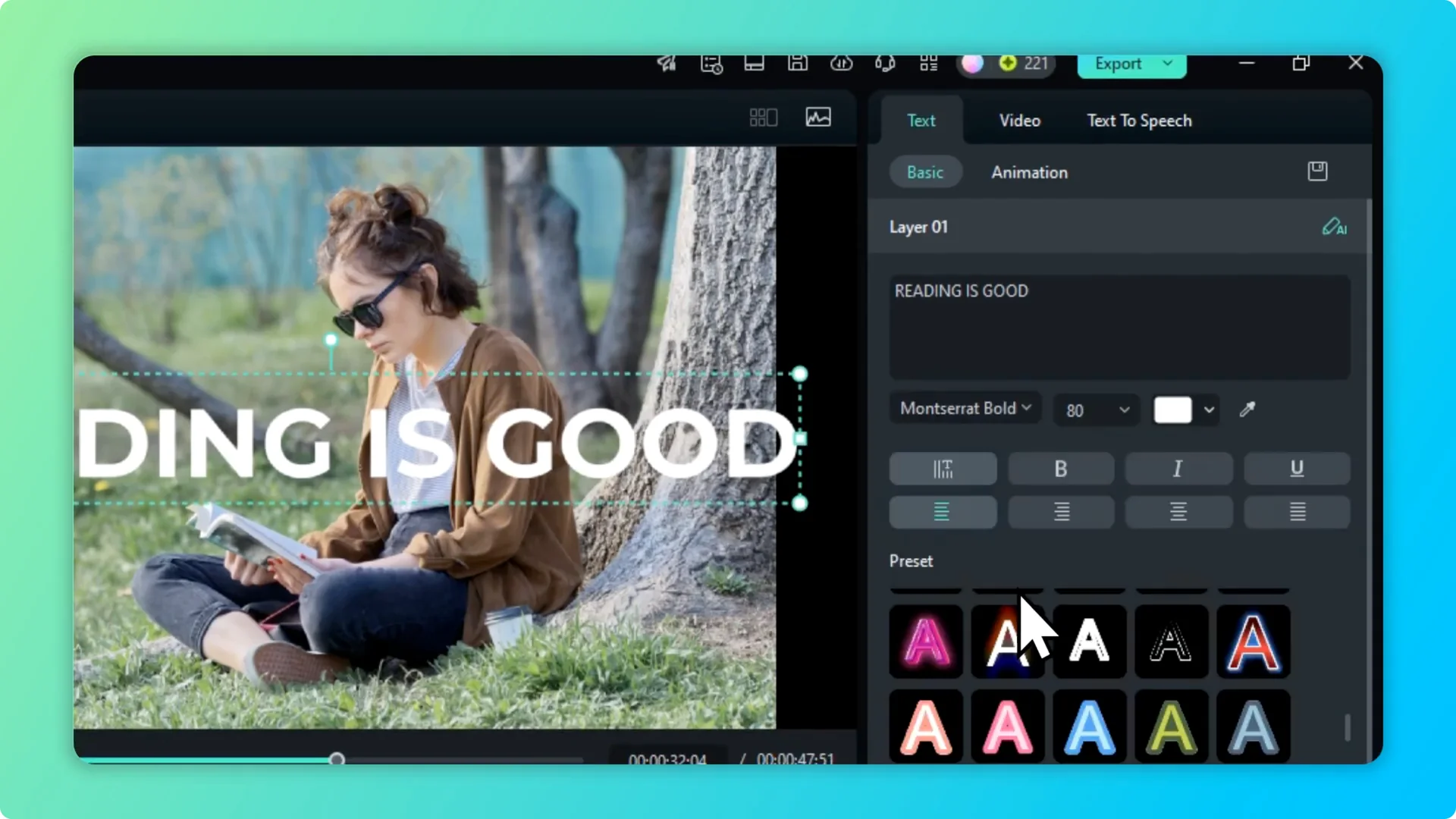
Enable Bezier Path
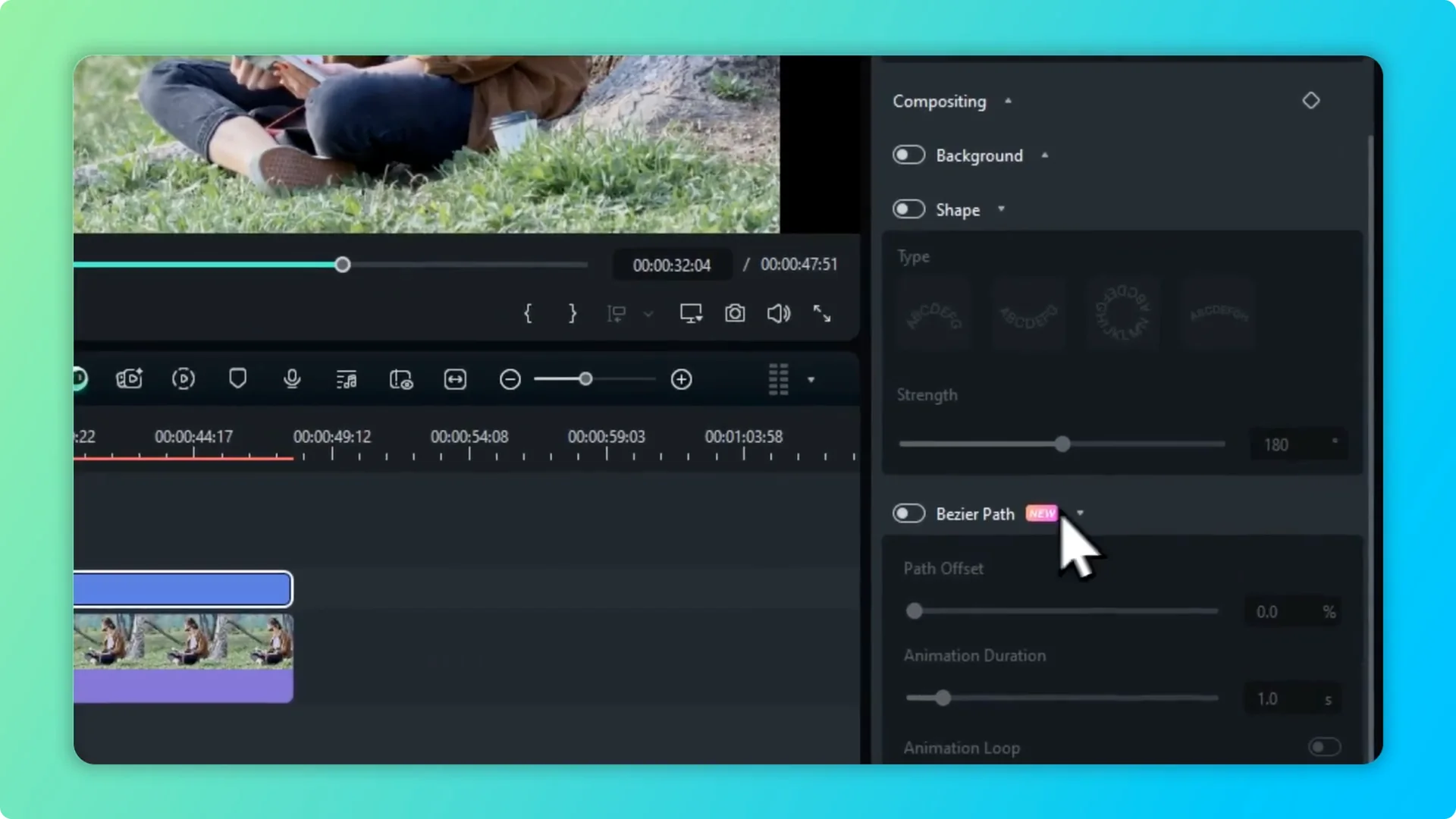
Select the text, go to the text menu, scroll down, and enable Bezier Path. This is a new feature in Filmora 14. Place the path near your subject or area where you want the curve to run.
Shape the curve
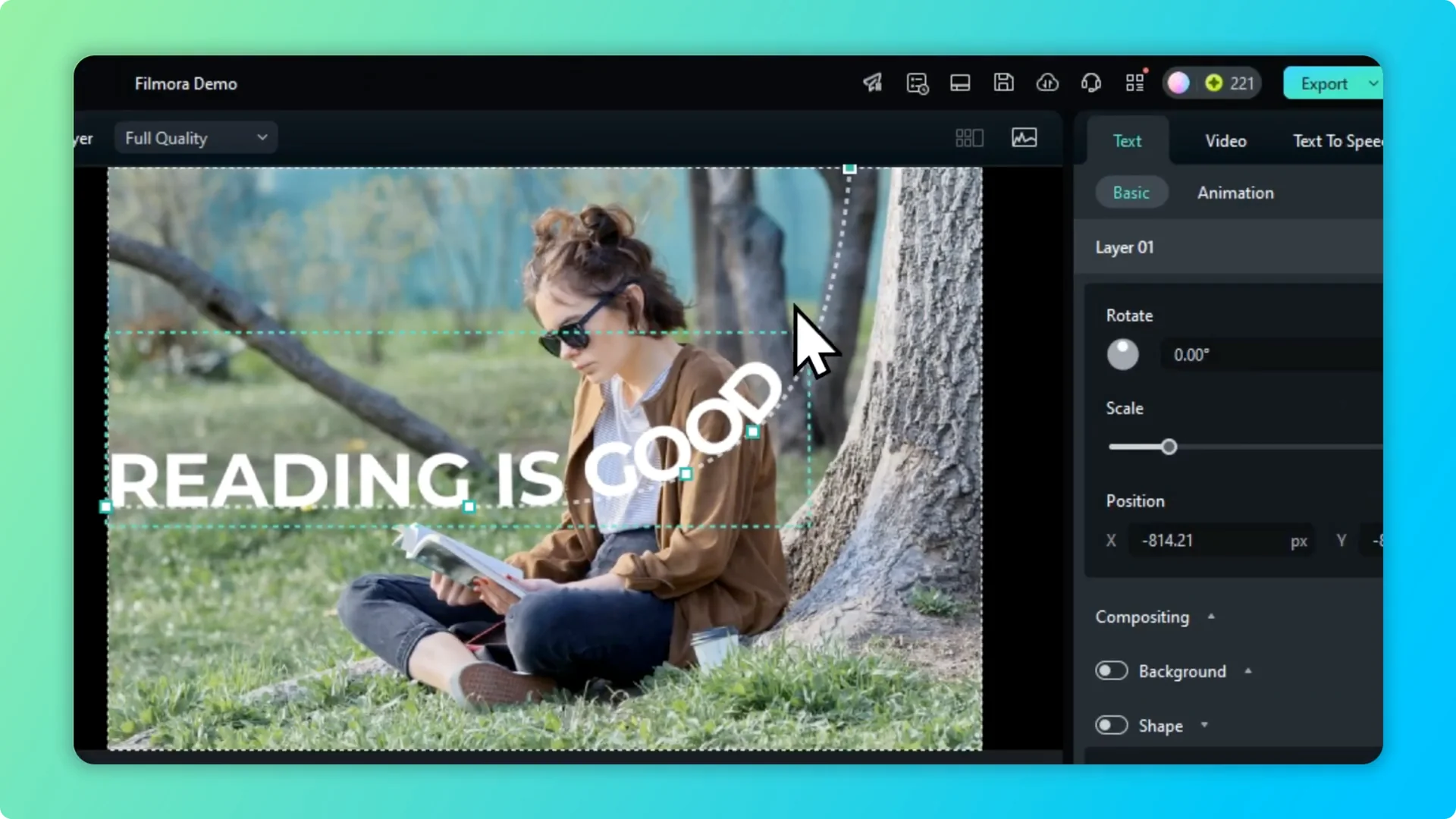
You will see control points on the path. Click a point and drag to shape the curve, for example pulling one point to the top. If you want it more curvy, click on any line segment to add another point and fine tune how curved the text should be.
Add as many points as you like until the curve looks right. You can increase the length of the path so the text climbs to the very top. Move points to smooth the transition along the route.
Animate and loop
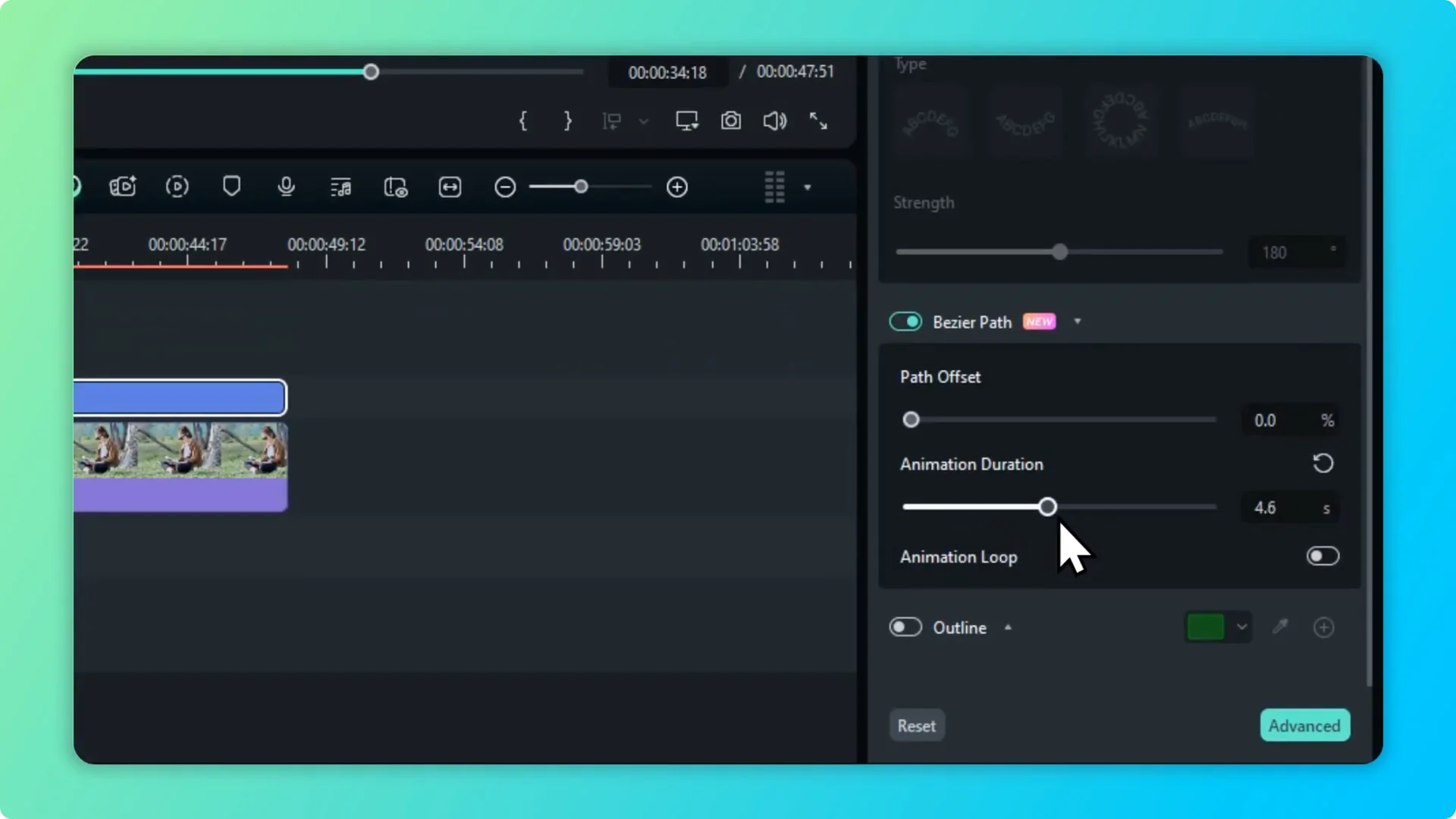
When you are done with the path, adjust Pos Offset to change the starting position of the text along the path. Set it back to default if you need a neutral start. Then set the Animation Duration, because the default one second is too fast.
Increase the duration to around 6 to 7 seconds for a smoother movement. Enable Loop so that once the text reaches the top, it starts over again. If you want to go beyond a path animation, you can also add animations to text for extra motion.
Preview and adjustments
Play it back to see the result. If something feels off, tweak the control points or the Pos Offset. Small moves on the points can dramatically change the feel of the curve.
You can also adjust the duration again to match the pace of your scene. Longer durations feel calmer, shorter ones feel more energetic. If your clip includes sound, polish transitions with an audio crossfade effect.
Final thoughts
That is how you can create text in Filmora that follows a path using the Bezier Text Path feature. Keep the layout panel on the right for faster edits, shape the curve with added points, and set a comfortable animation duration with looping. The result looks pretty good and adds character to scenes where straight text would feel flat.