I am going to show you how you can improve the quality or the look of your video in Filmora using AI. In the 14th version of Filmora we have plenty of new AI tools and some of them are dedicated to fixing the quality of the video.
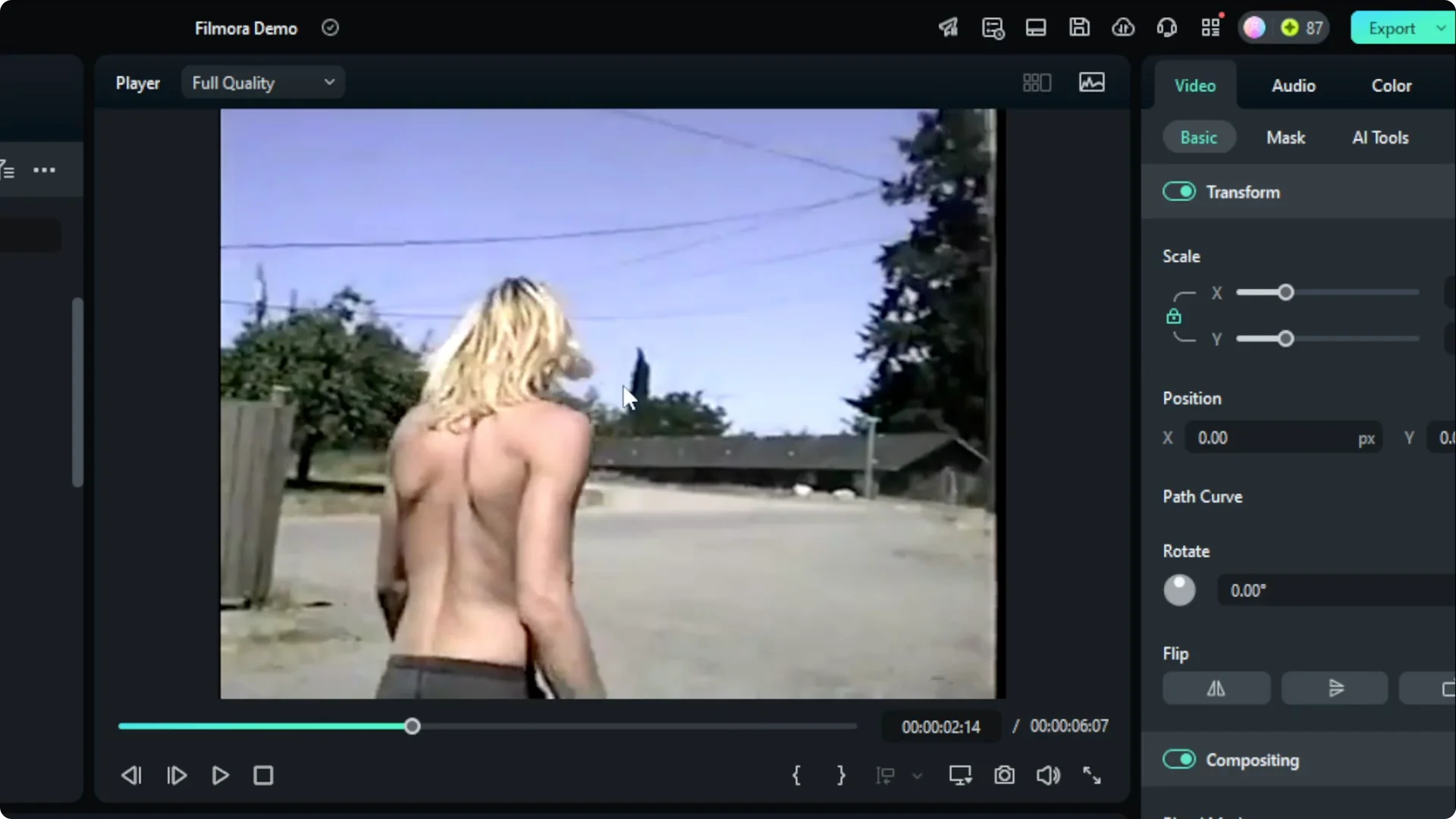
I have a home video from the ’90s. The quality is not the standard we often have today. The cable lines are not visible at all and noise is everywhere.
If audio noise is also a problem in your clip, see how to clean up sound with AI in Filmora here: improve audio with AI in Filmora.
Filmora AI Video Enhancement in Version 14
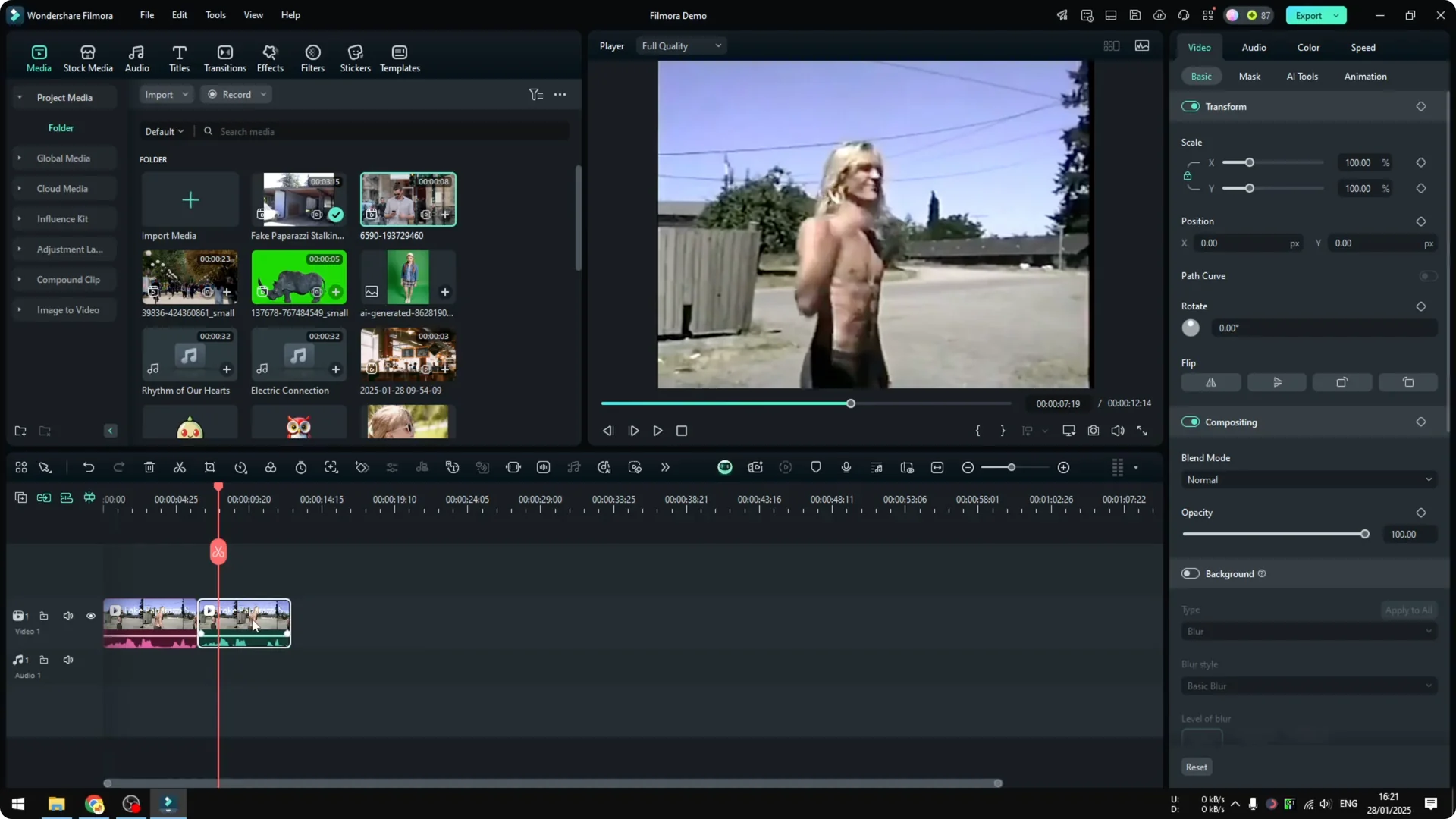
I am going to try to fix this video using AI. I copy the clip and paste it to create a working copy. The original is marked as red and the duplicate is the one I am going to modify.
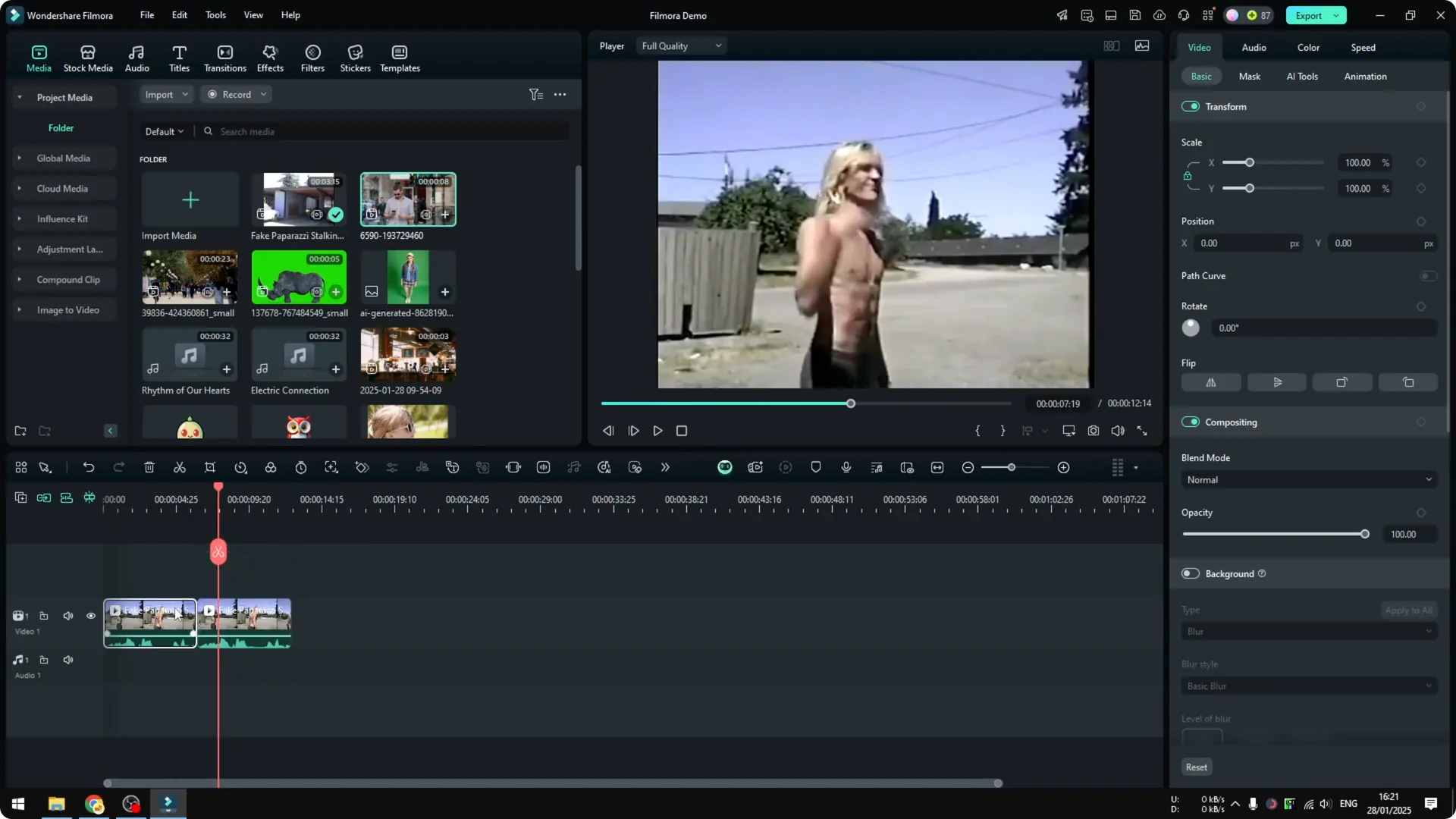
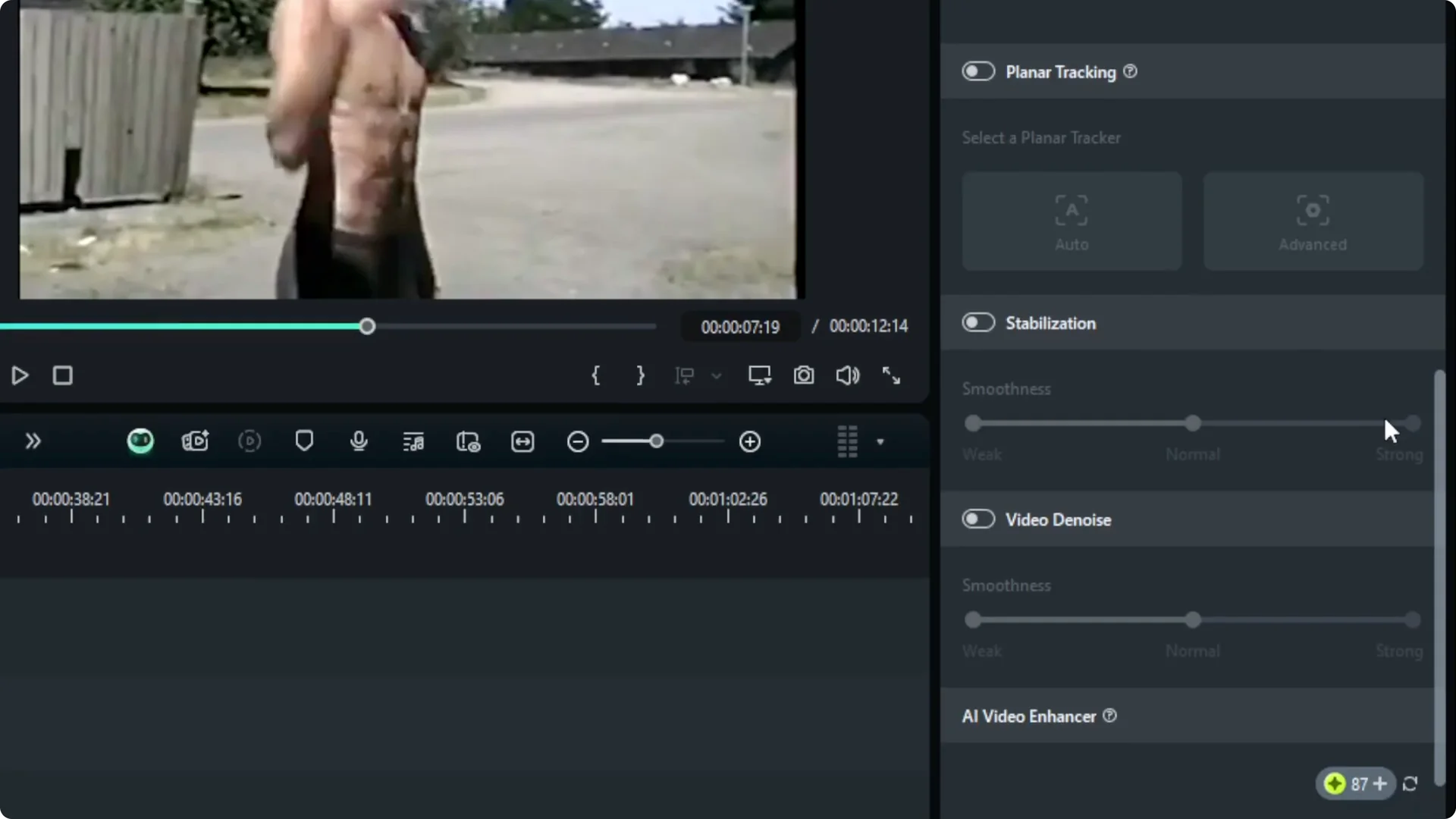
Click the clip, go to Video, and click AI Tools. If you scroll down you will see there are a lot of AI tools that Filmora just added. The one I want to try first is Video Denoise.
Filmora AI Video Enhancement with Video Denoise
Steps
Step 1: Click on the clip, open Video, and choose AI Tools.
Step 2: Scroll down and click Video Denoise to start processing.
Step 3: Wait for it to finish. The length of the video will dictate how long the process takes and short clips are almost instant.
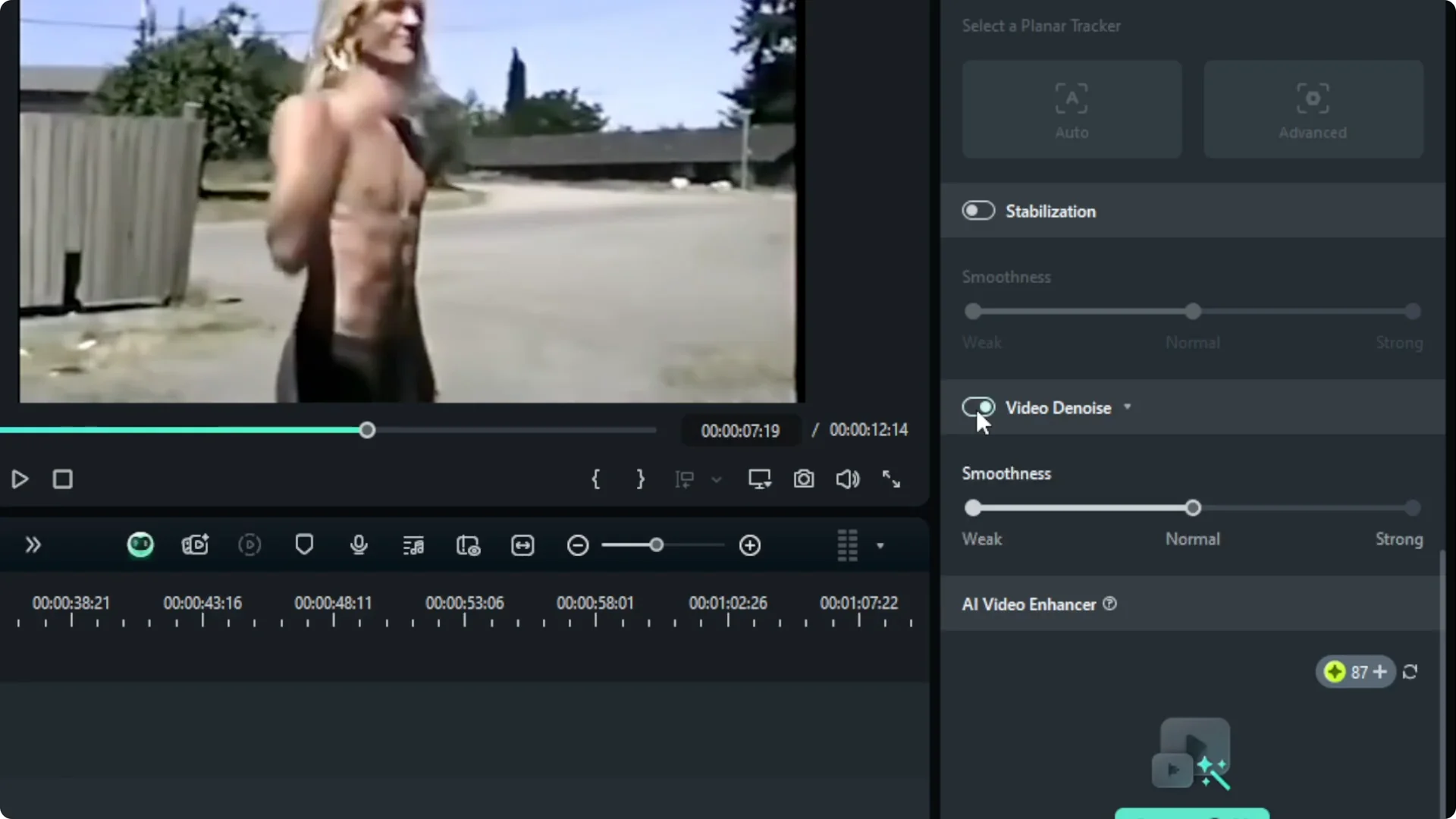
Result and comparison
It is kind of hard to tell because the smoothness is normal. It is definitely smoother but maybe not necessarily better. That was for Video Denoise and I can test other settings.
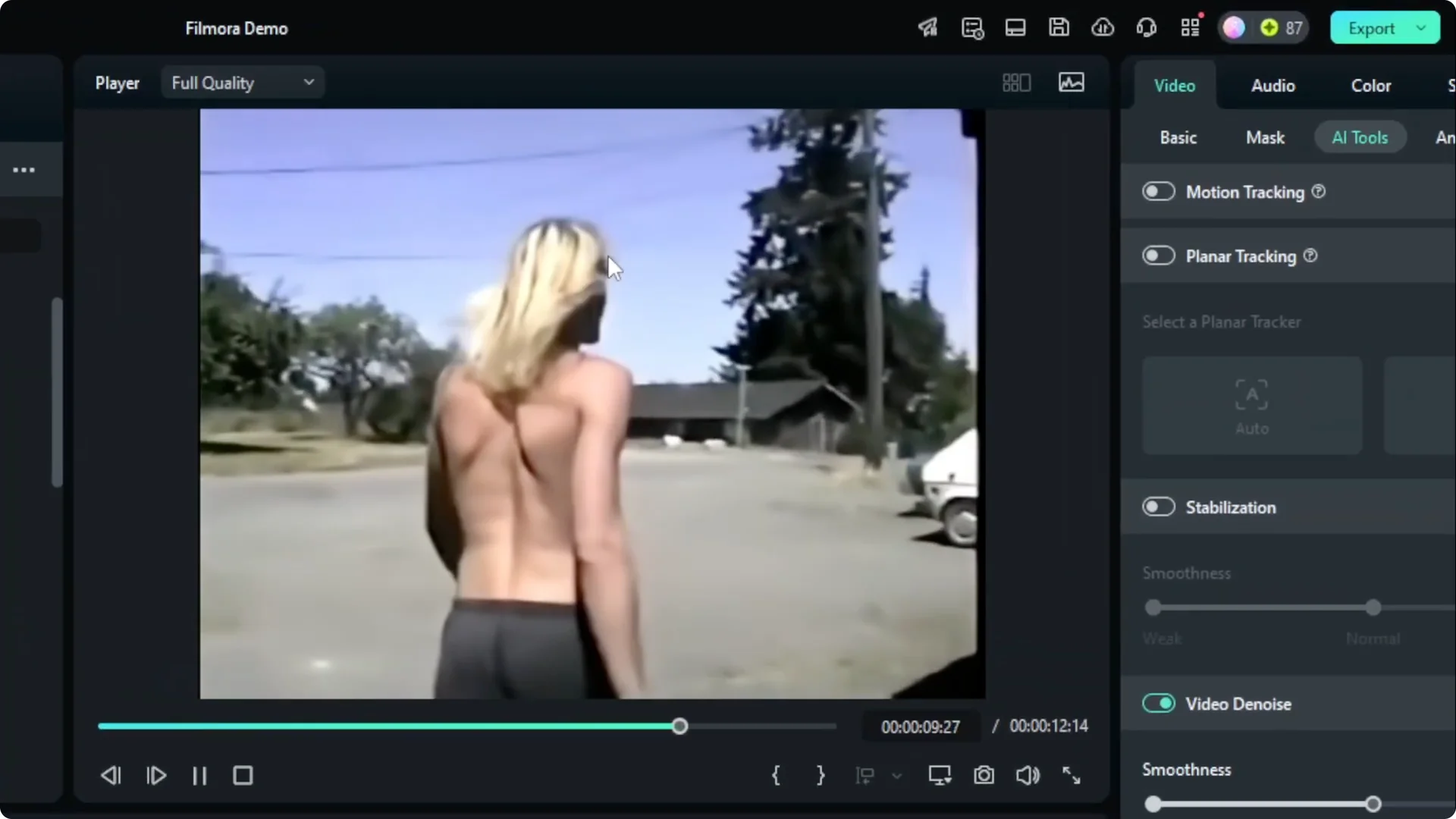
If your footage is shaky, you can also fix motion issues using AI. Here is a helpful walkthrough: stabilize shaky video with AI.
Filmora AI Video Enhancement with AI feed enhancer
This is another new AI feature and it is on Filmora 14. If you are using the 13 or 12 version it is not going to be available. Make sure you are running the latest version.
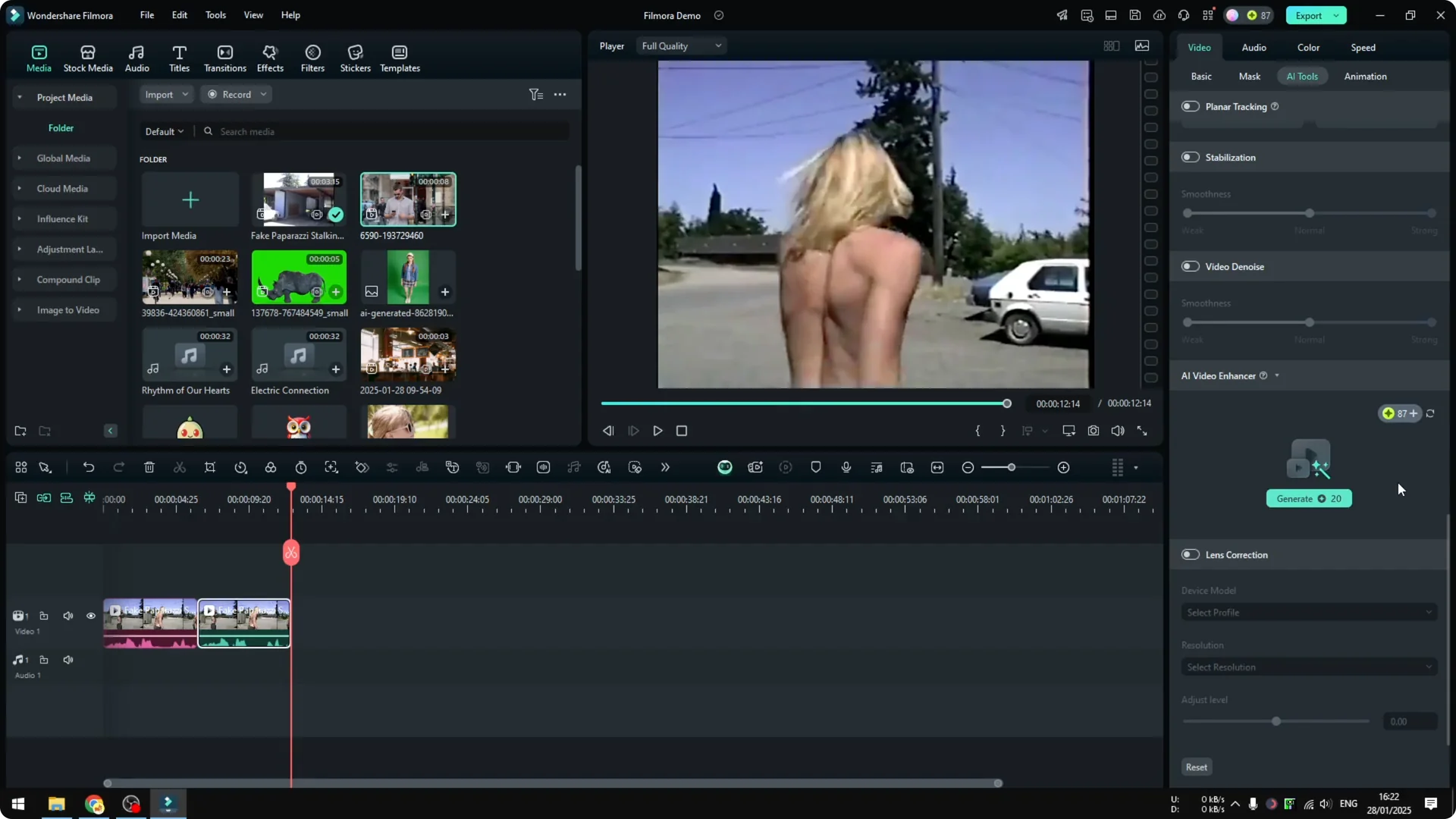
Generate and credits
Click Generate and wait until it finishes. This is using the credit that you have in Filmora. If you have limited credit then be careful and make sure you have enough credits.
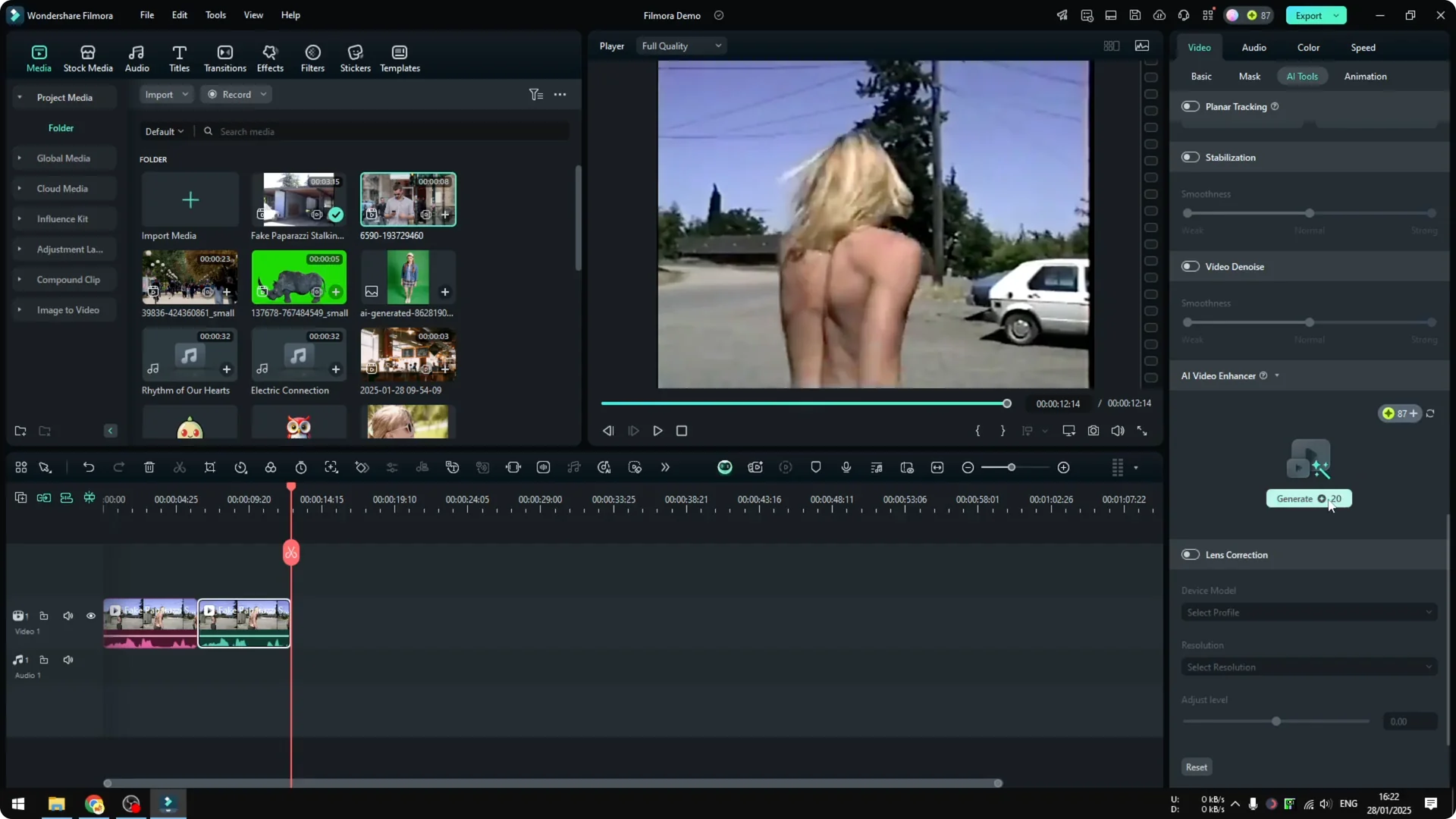
What changed
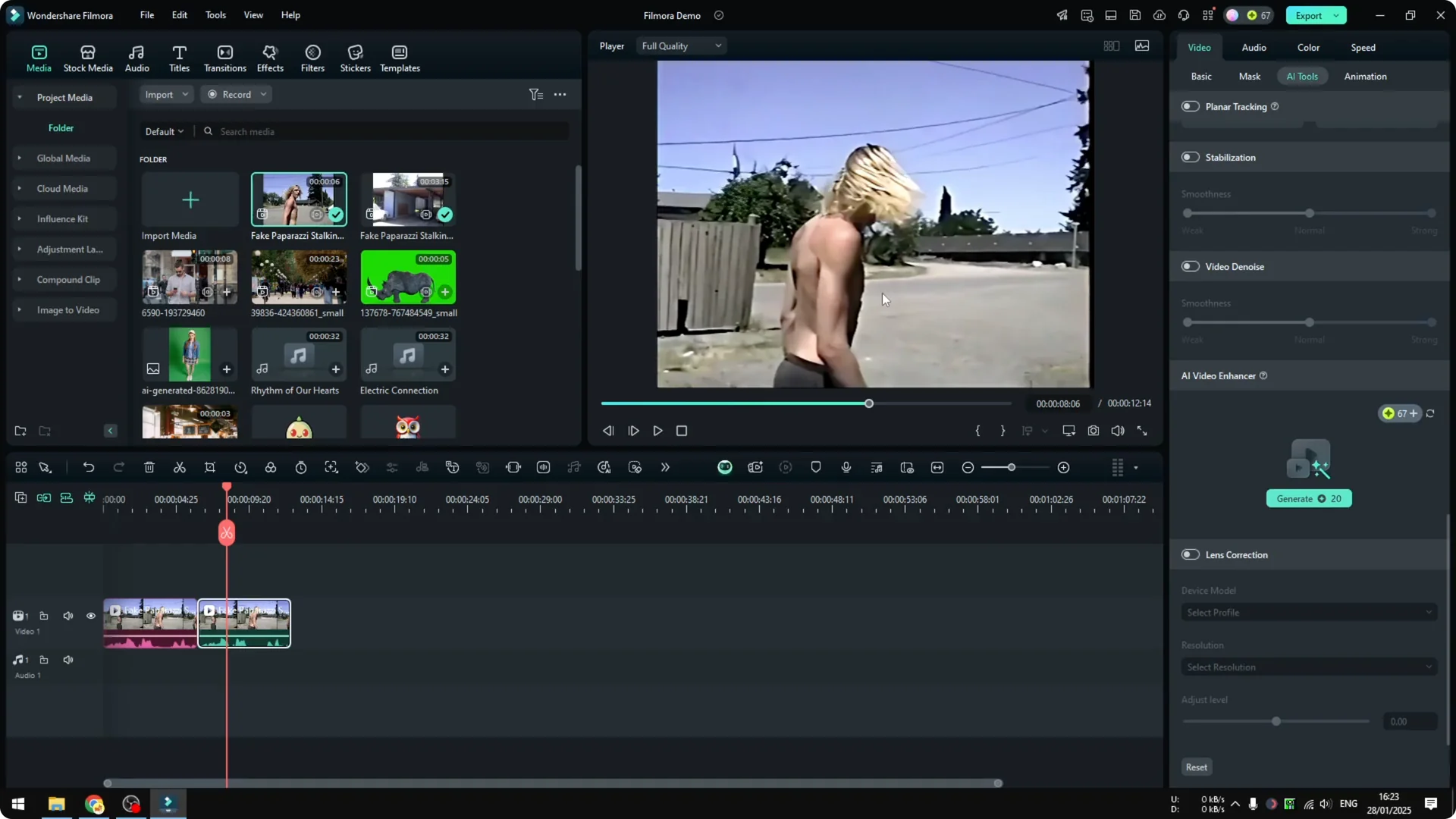
It can be difficult to tell at first, but I can see there is a difference. If you check the power lines, they used to be almost invisible, but in the new version they are much more visible. Maybe the input video is already in very low quality and that is why the changes are not very noticeable, but it is actually there.
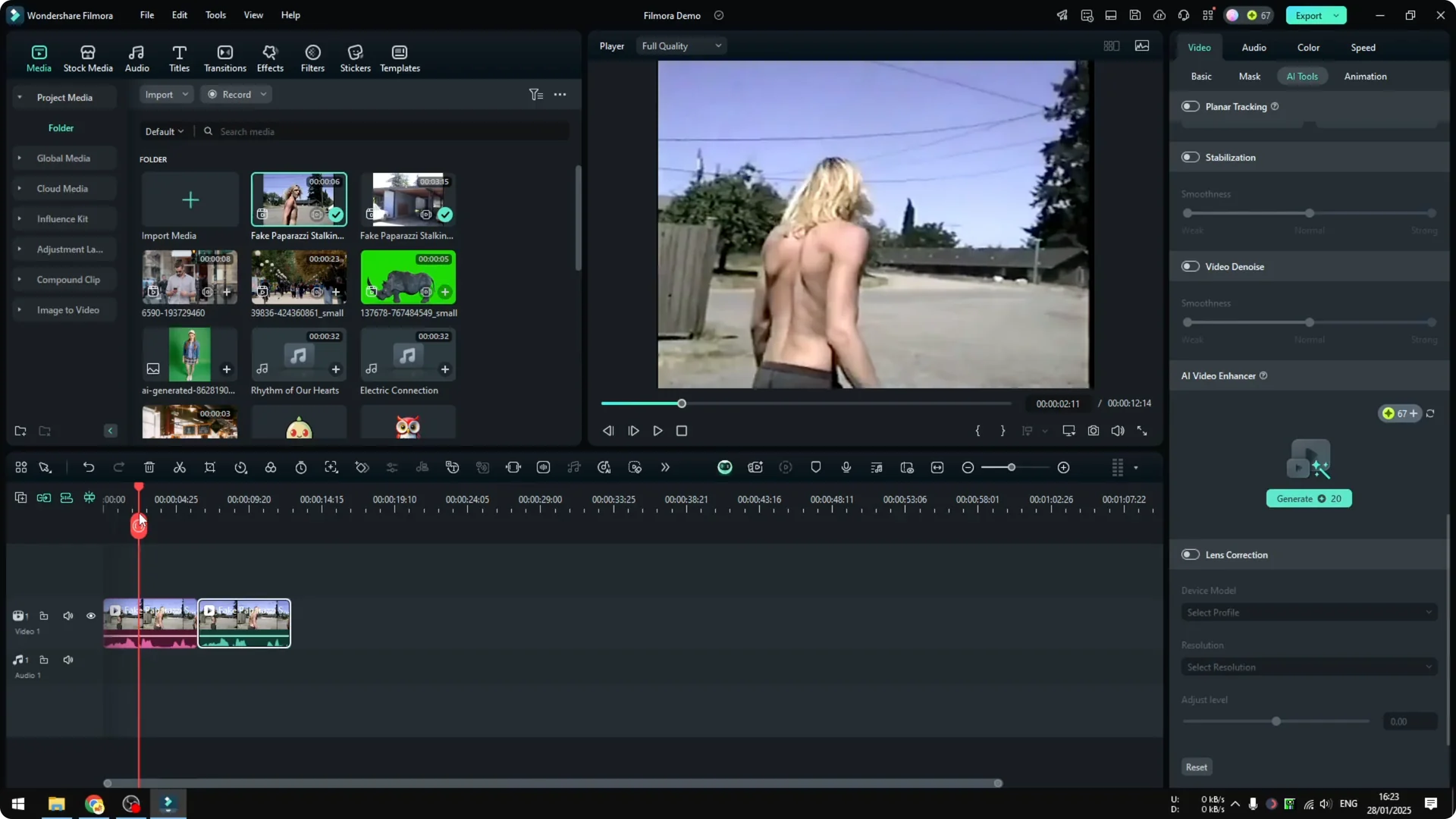
If you have slightly better footage or better equipment, using AI F enhancer and Video Denoise is going to make things better. For finishing touches on the look, you can also balance tones and contrast with AI tools in Filmora. See this guide on AI color grading in Filmora.
Final Thoughts
That is how you can use AI to improve the quality of your video in Filmora. Video Denoise helps with noise and smoothness, and AI feed enhancer can bring back fine details on footage that looks too soft. The improvements are clearer on clips with slightly better source quality.