I’m going to show you how to delete images and videos you generate in Higgsfield AI. That’s super easy to do.
For a broader context on managing both formats, see this overview of images and videos in Higgsfield AI.
Higgsfield AI Asset Deletion
Quick steps for Higgsfield AI Asset Deletion
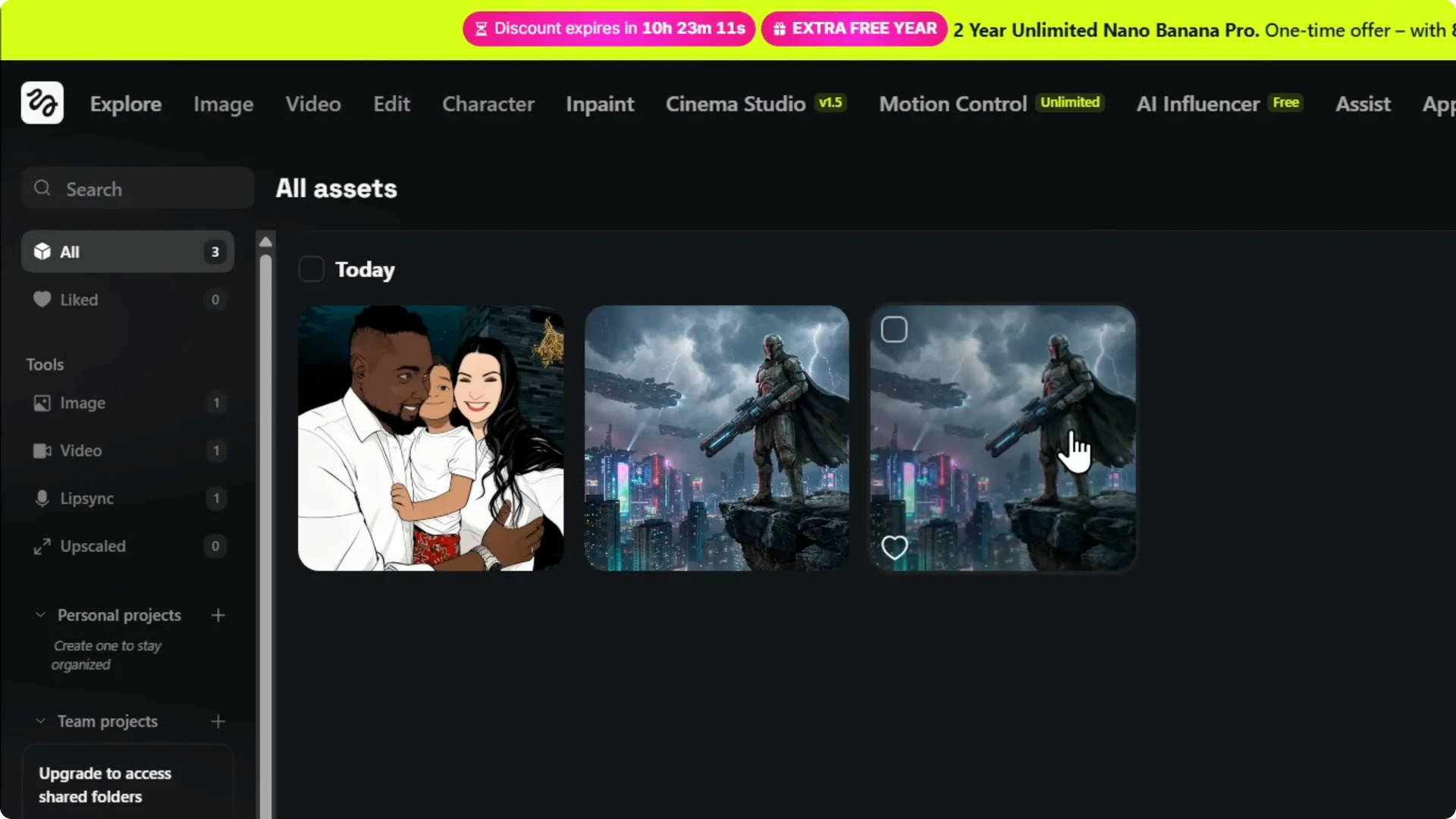
Step 1: Log into your account and look to the upper right. Click on Asset Library and you will find all your generations.
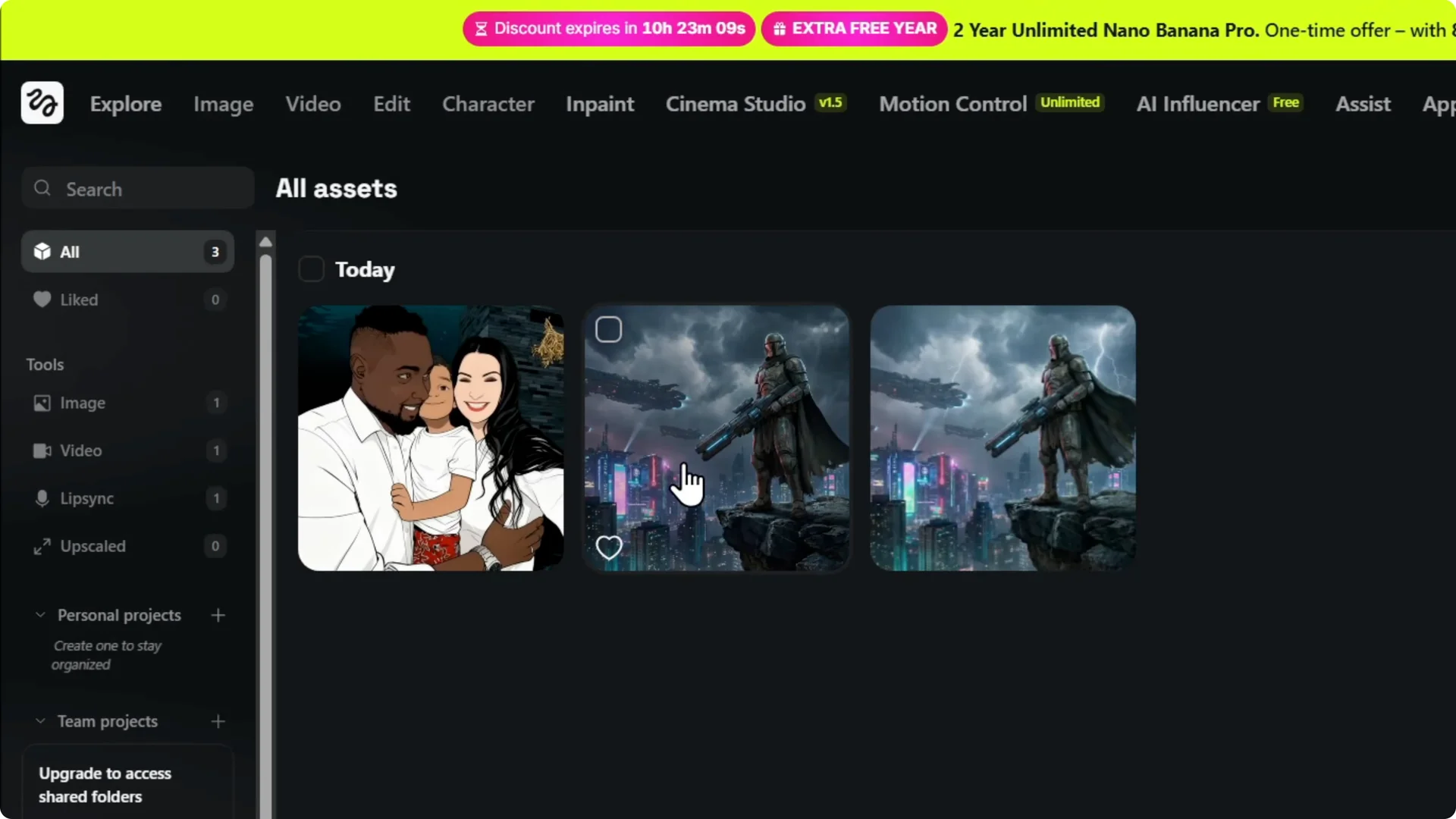
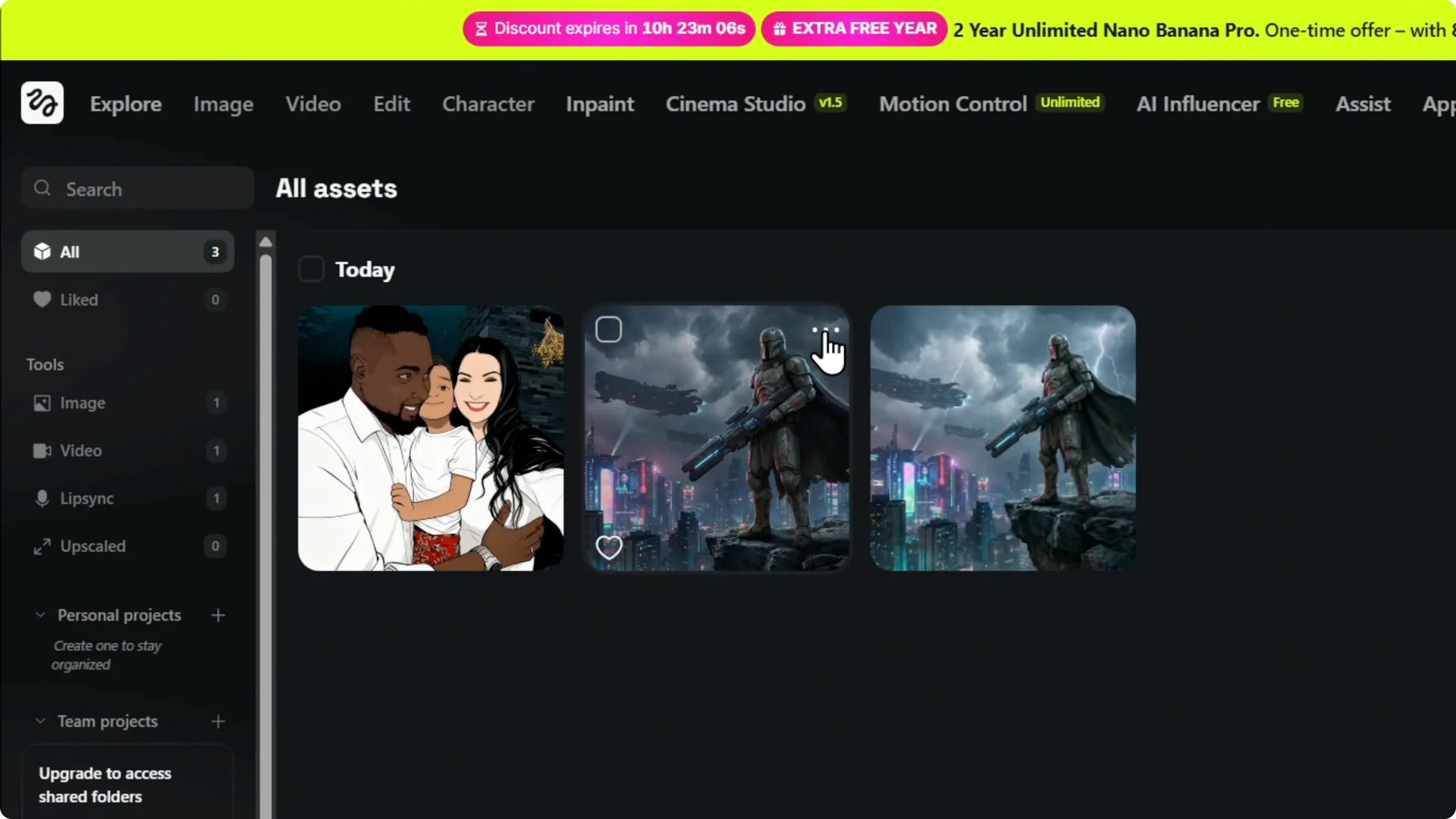
Step 2: Whatever you want to delete, it could be the image, it could be the video. Simply hover over it and you’ll find three dots.
If you only need to remove pictures, check how to delete images from a Higgsfield account.
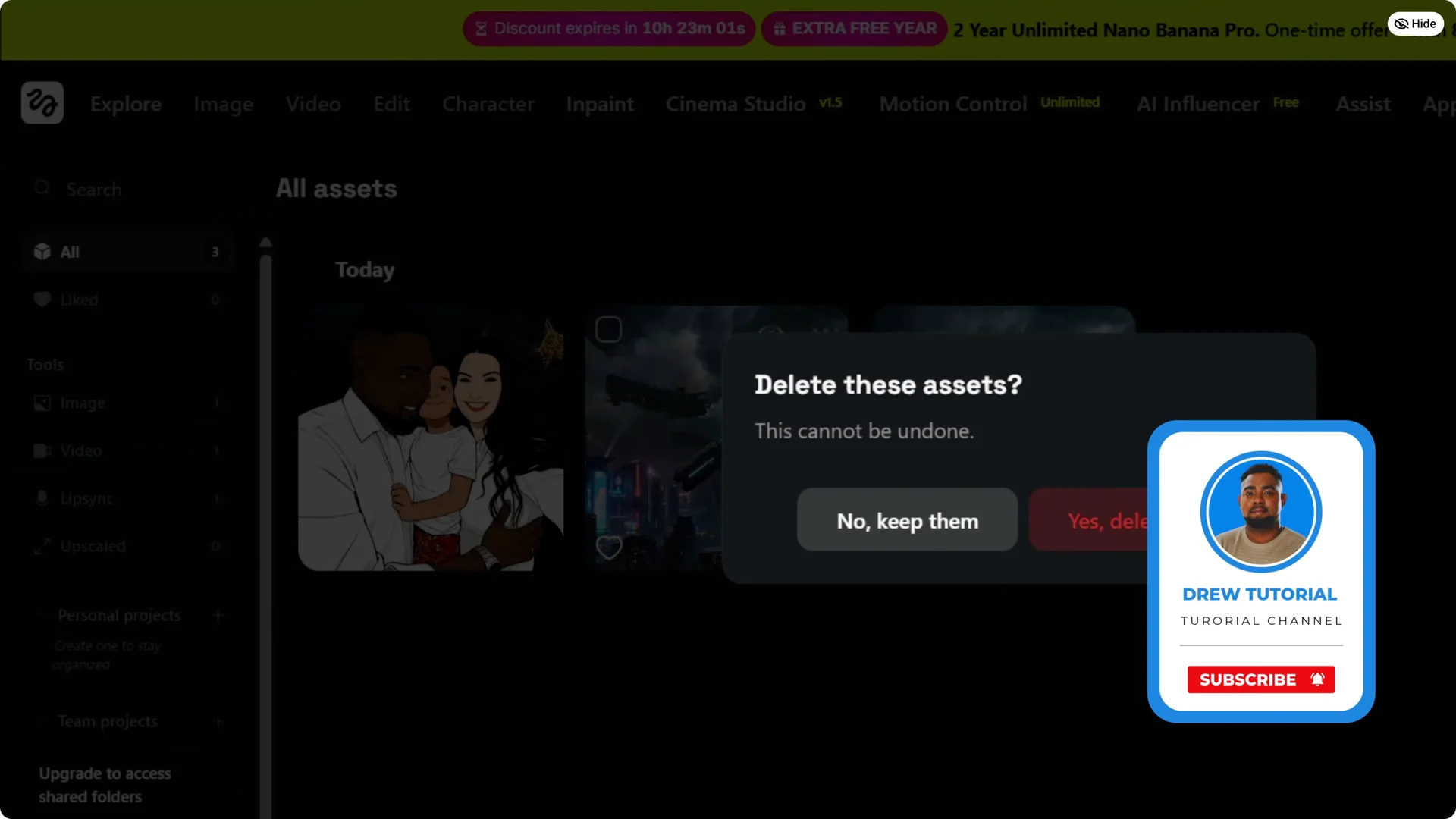
Step 3: You click on it and here is Delete. Click on Delete.
Step 4: Confirm it by Delete forever. That’s all that you have to do.
Final Thoughts on Higgsfield AI Asset Deletion
Removing generated assets is quick: open Asset Library, hover for the three dots, choose Delete, and confirm with Delete forever. This works the same for both images and videos you’ve created.
If you’re cleaning up to make room for new work, see these tips to create better AI images in Higgsfield.