I’m going to show you how you can update Filmora to the latest version. Before you do that, make sure you are using Filmora that is registered and original. It needs to be supported directly by the developer.
If you are using the Jack Sparrow version, you cannot update Filmora and you are stuck with that version. For everyone else using Filmora, either free or Pro, here is how to update the software.
Filmora Software Update: Steps
Check for updates
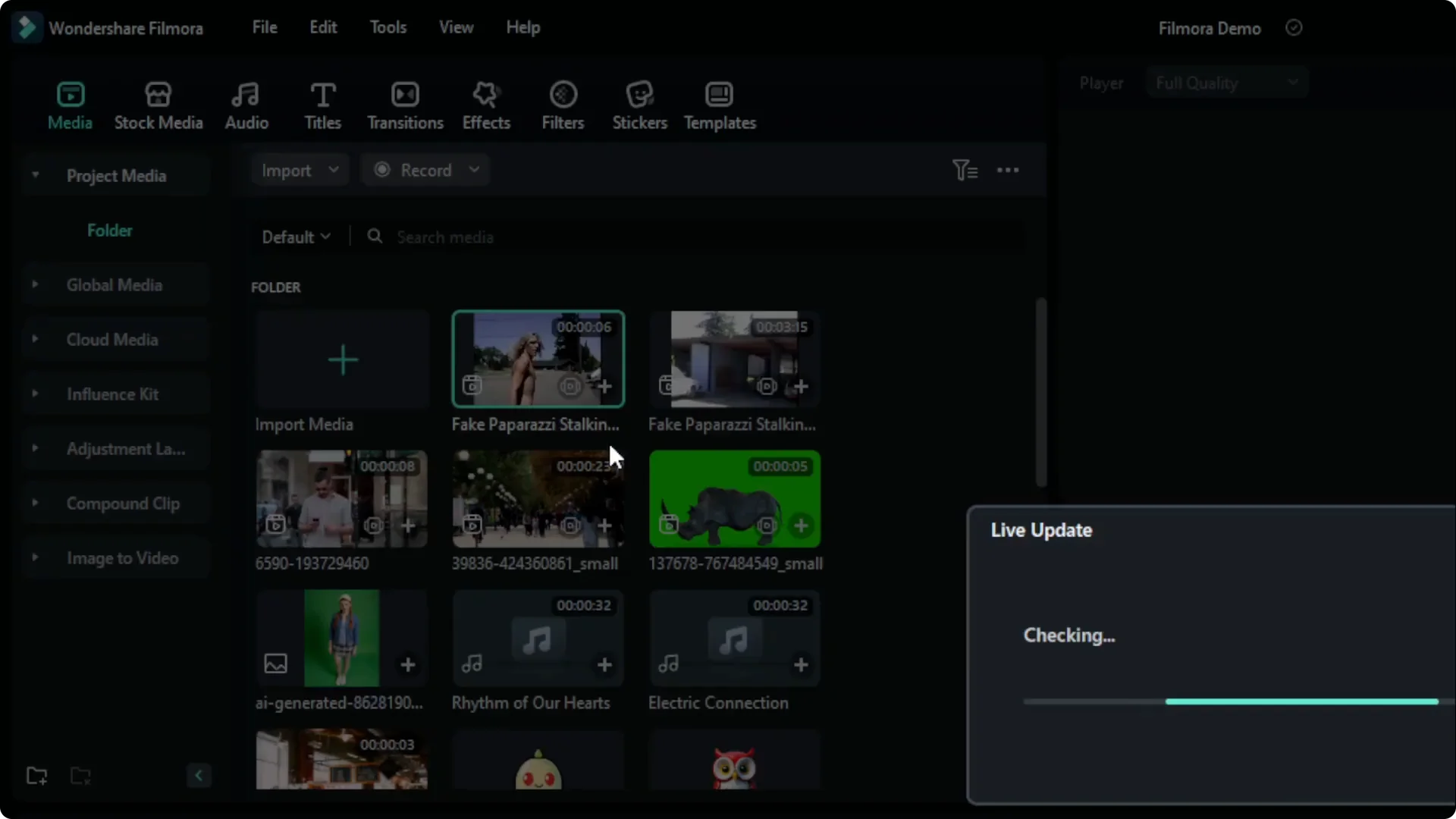
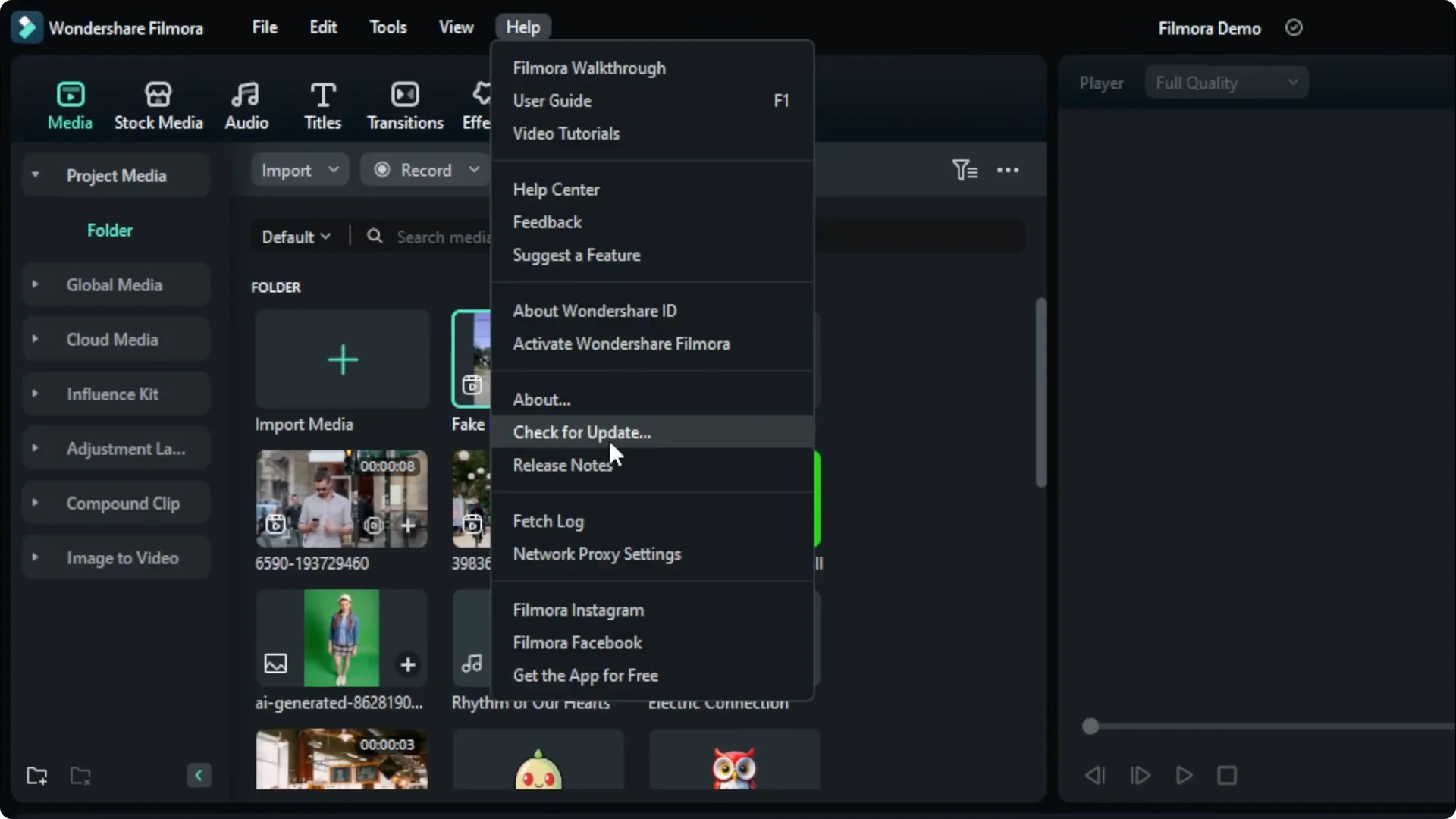
Go to the Help menu, then click Check for Update. Wait to be notified if there is a new update. You can update the software immediately.
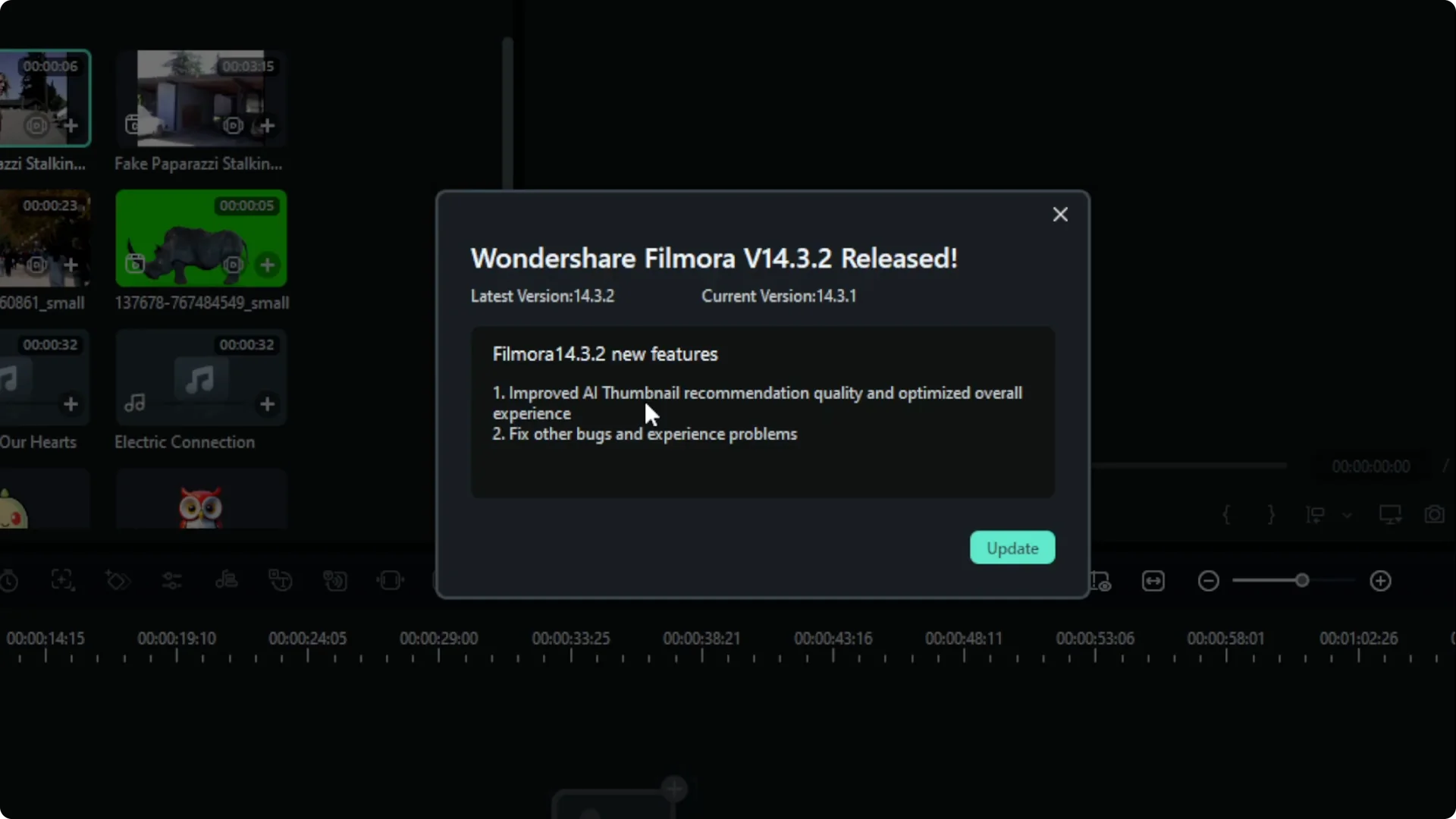
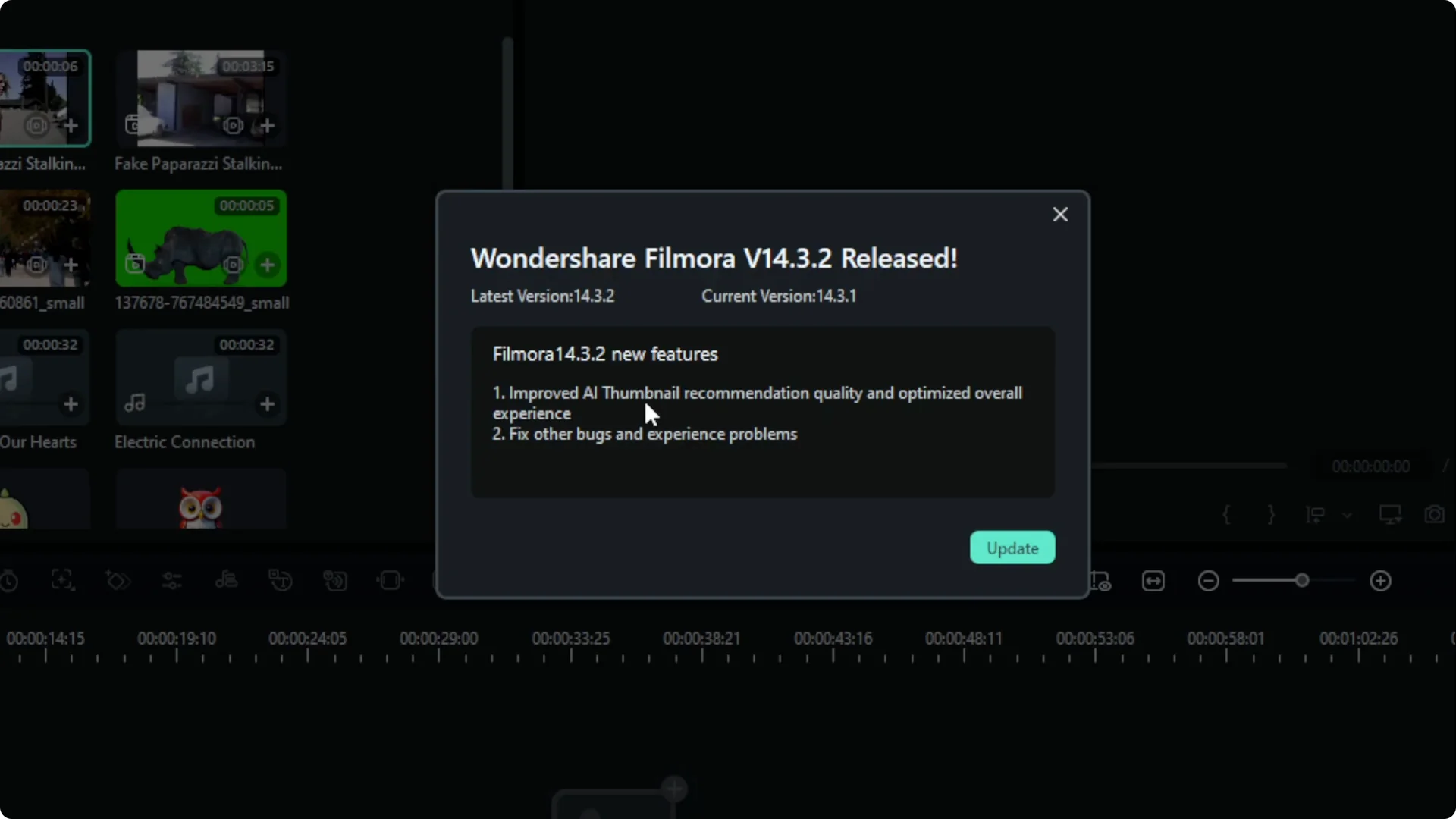
You will see the changelog that lists the changes you get when updating to the new version. Click Update to begin.
Read More: How To Stabilize Shaky Video Using Ai In Filmora
Install and keep working
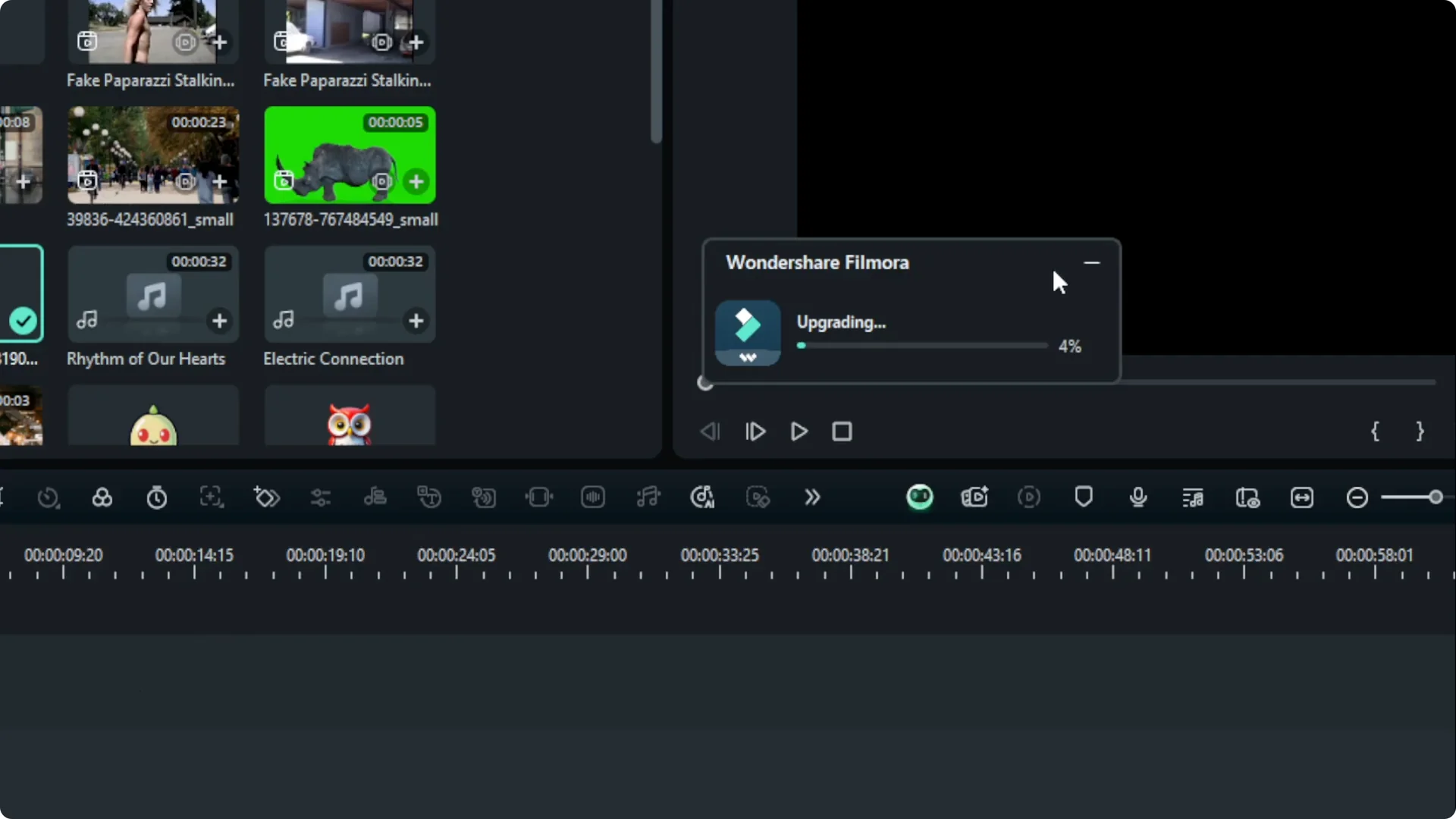
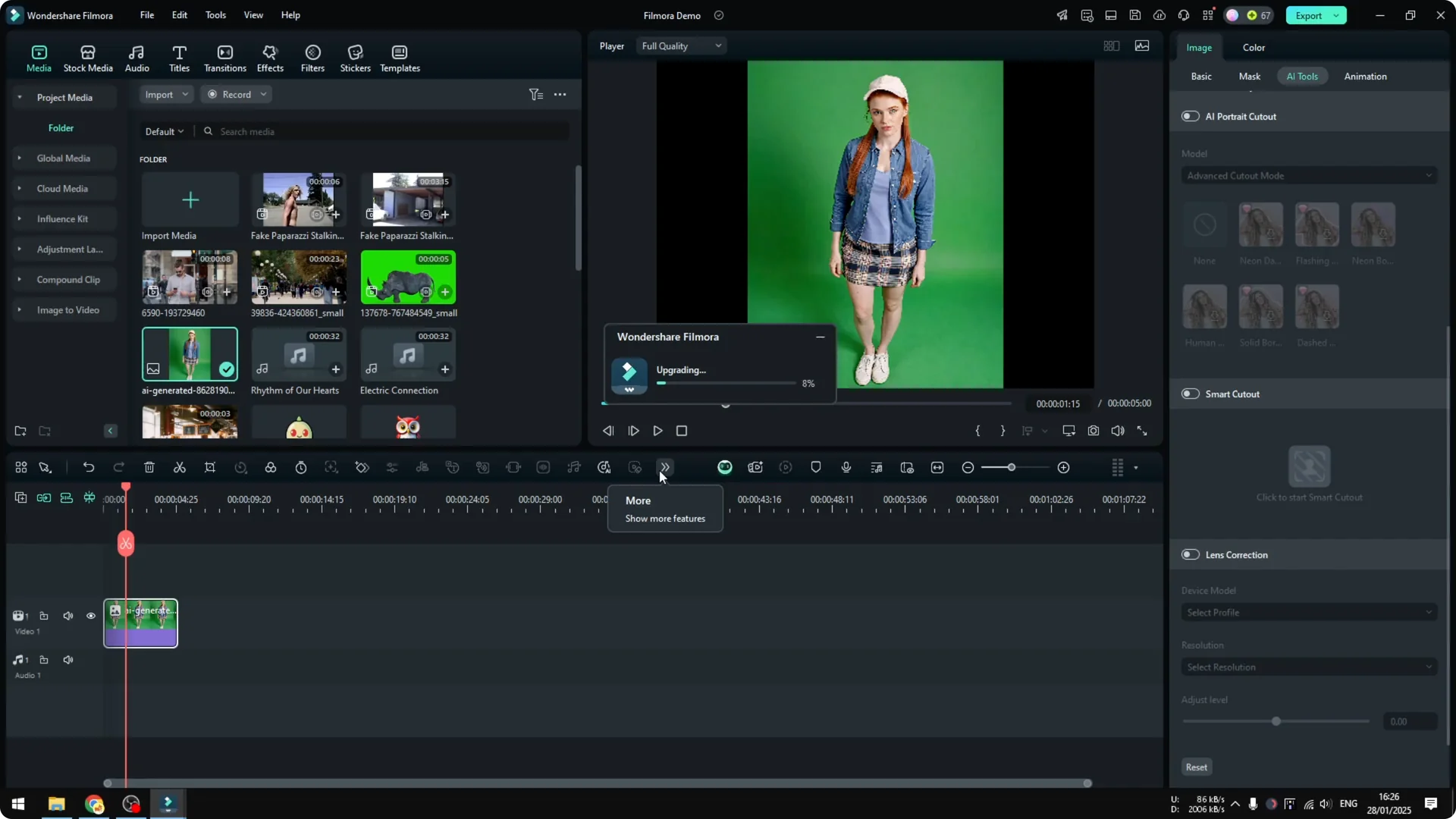
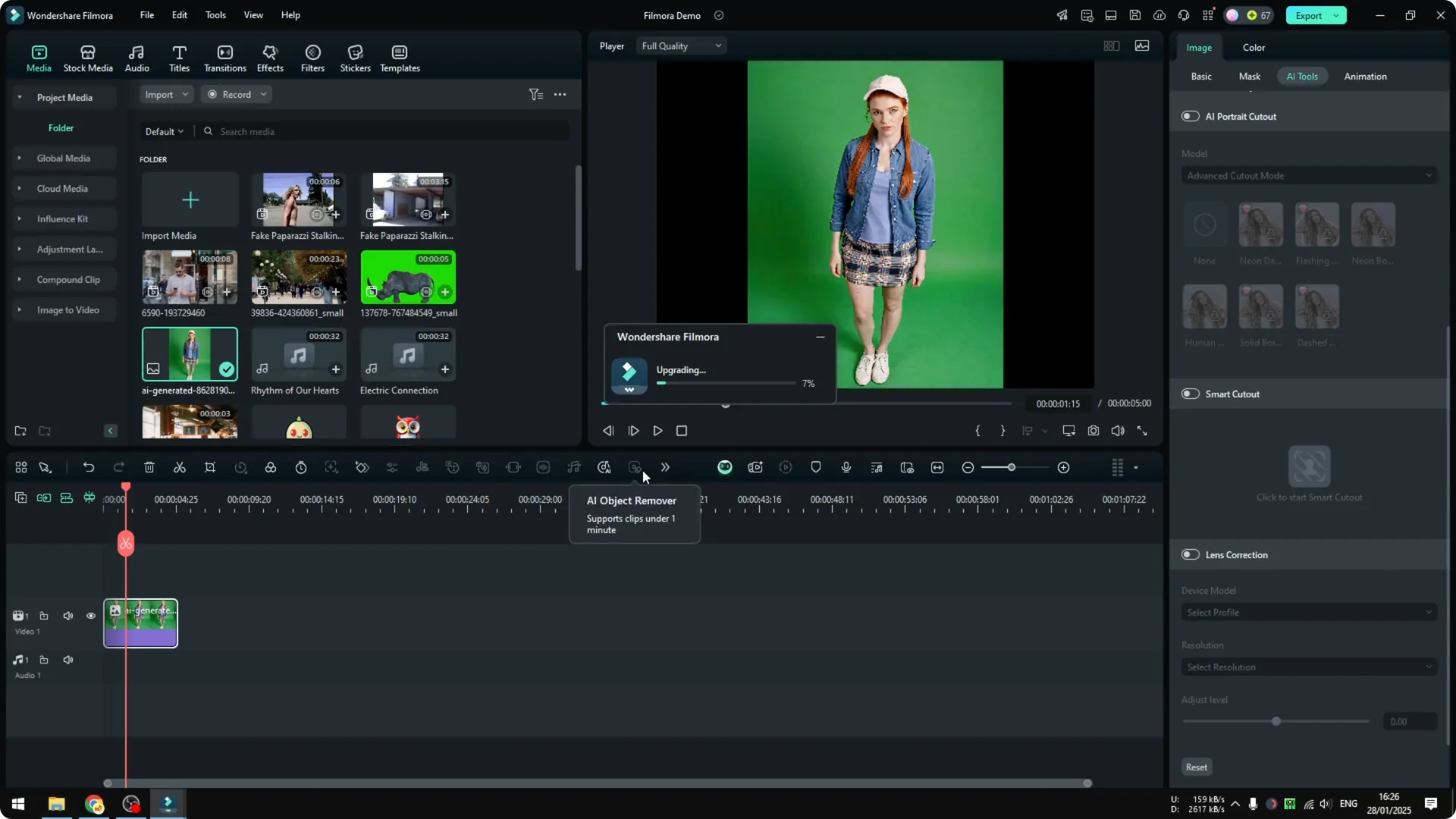
You just need to wait until it finishes. Many times you can keep the update running and continue editing normally while the update happens in the background.
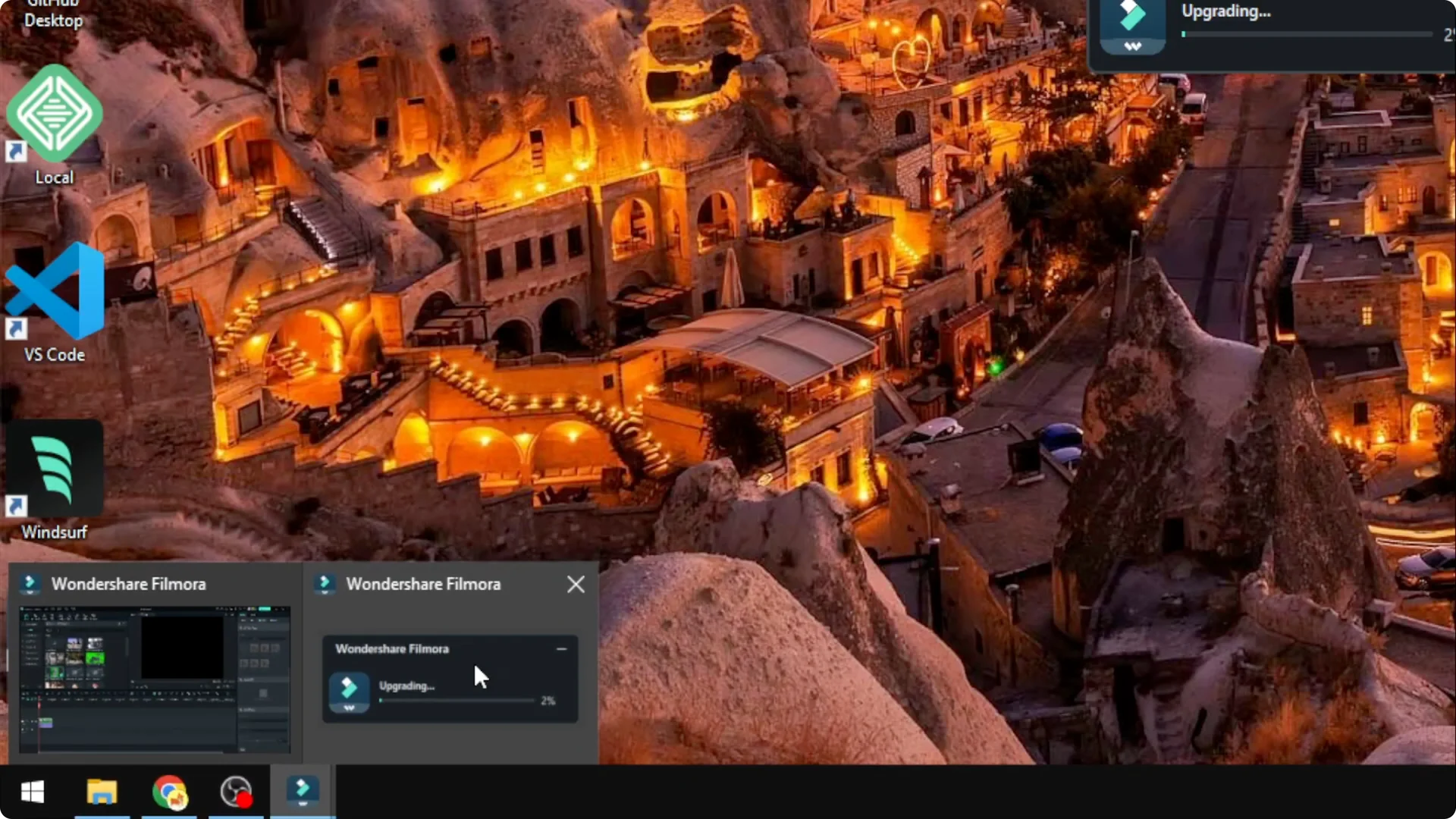
Filmora will run the update and you can minimize it and continue editing as normal. That is basically it: go to the Help menu, check for update, and proceed when notified.
Read More: How To Use Speed Ramping In Filmora To Make Video More Cinematic
Filmora Software Update: Finish and restart
When it is done, Filmora will notify you to continue the update. You may need to restart to complete the update, either the computer or the program.
Read More: How To Make Text Effect Respond To Audio In Filmora
Filmora Software Update: Final thoughts
Updating Filmora is straightforward if your copy is genuine. Check for updates from the Help menu, install the new version, and restart if prompted. You can keep working while the update installs in the background.