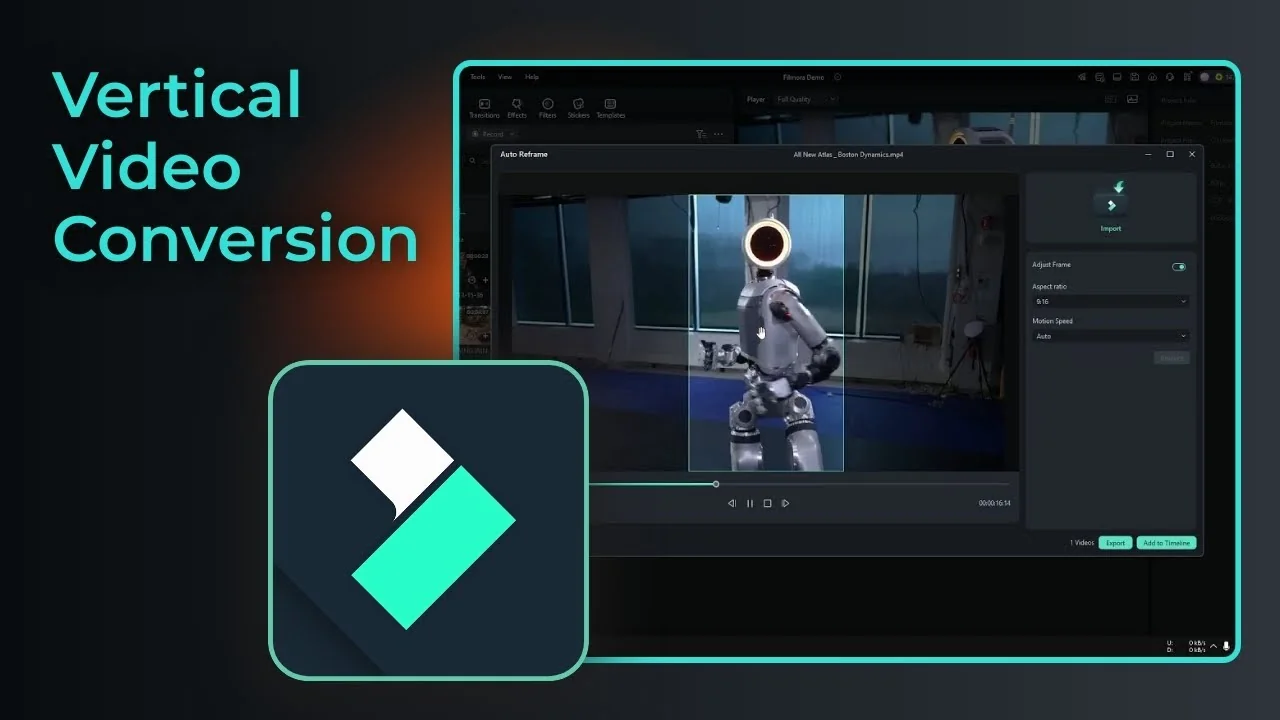
I am going to show you how to turn a horizontal video to vertical using Filmora Auto Reframe. Vertical video is pretty much the only format that is compatible on platforms like TikTok, Instagram Reels, and YouTube Shorts. It can be faster to convert an existing horizontal video into vertical rather than creating something new.
Filmora has a feature that lets you turn a horizontal video to vertical easily. I had an original horizontal video and a vertical version that is exactly the same, reframed to this aspect ratio. I literally did not have to do anything because it is done automatically.
Convert with Filmora Auto Reframe
Prepare your clip
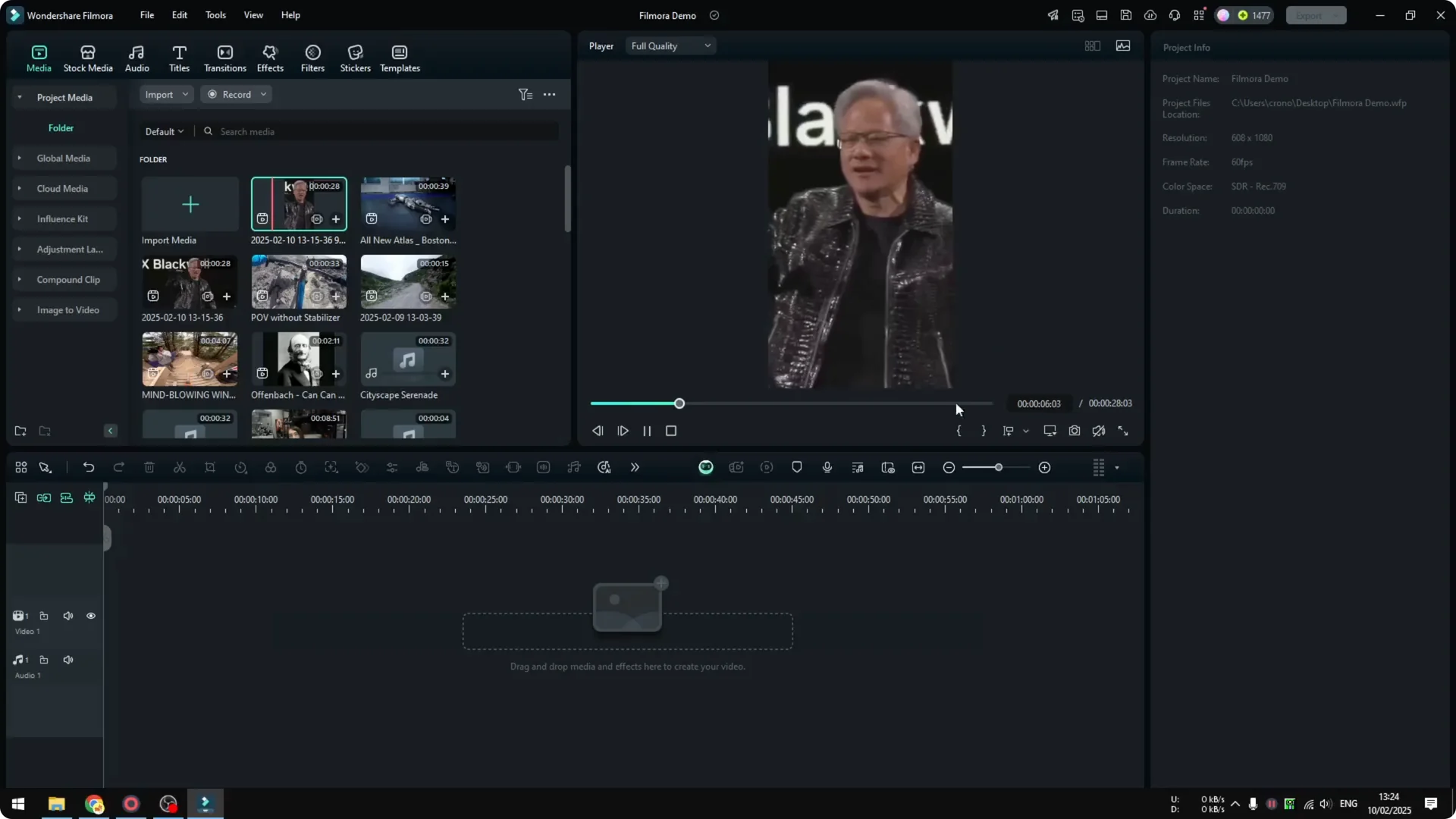
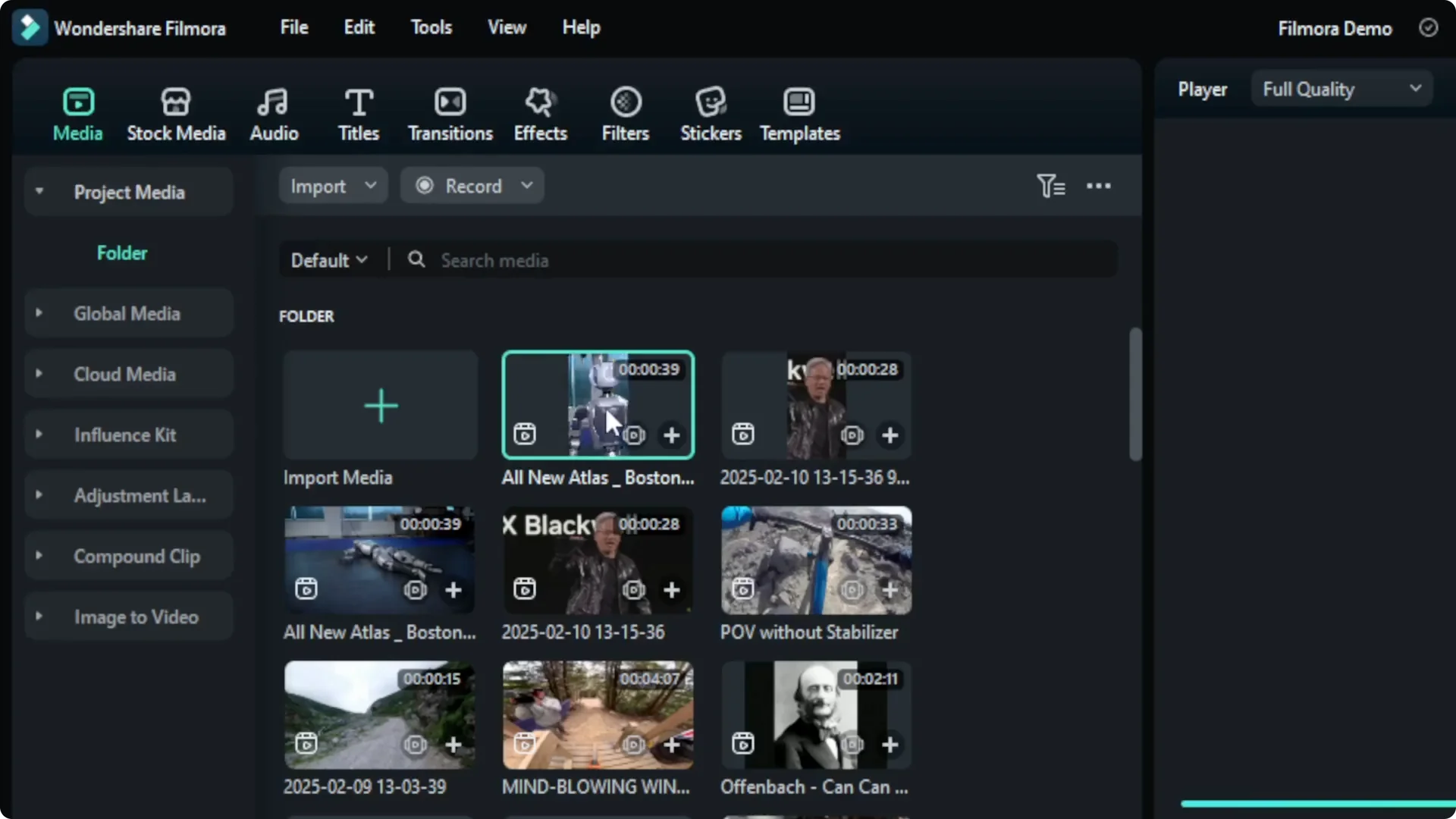
Import your clip into your Filmora project. Do not put it into the timeline yet.
Read More: How To Improve Video Quality In Filmora Using Ai
Open Filmora Auto Reframe
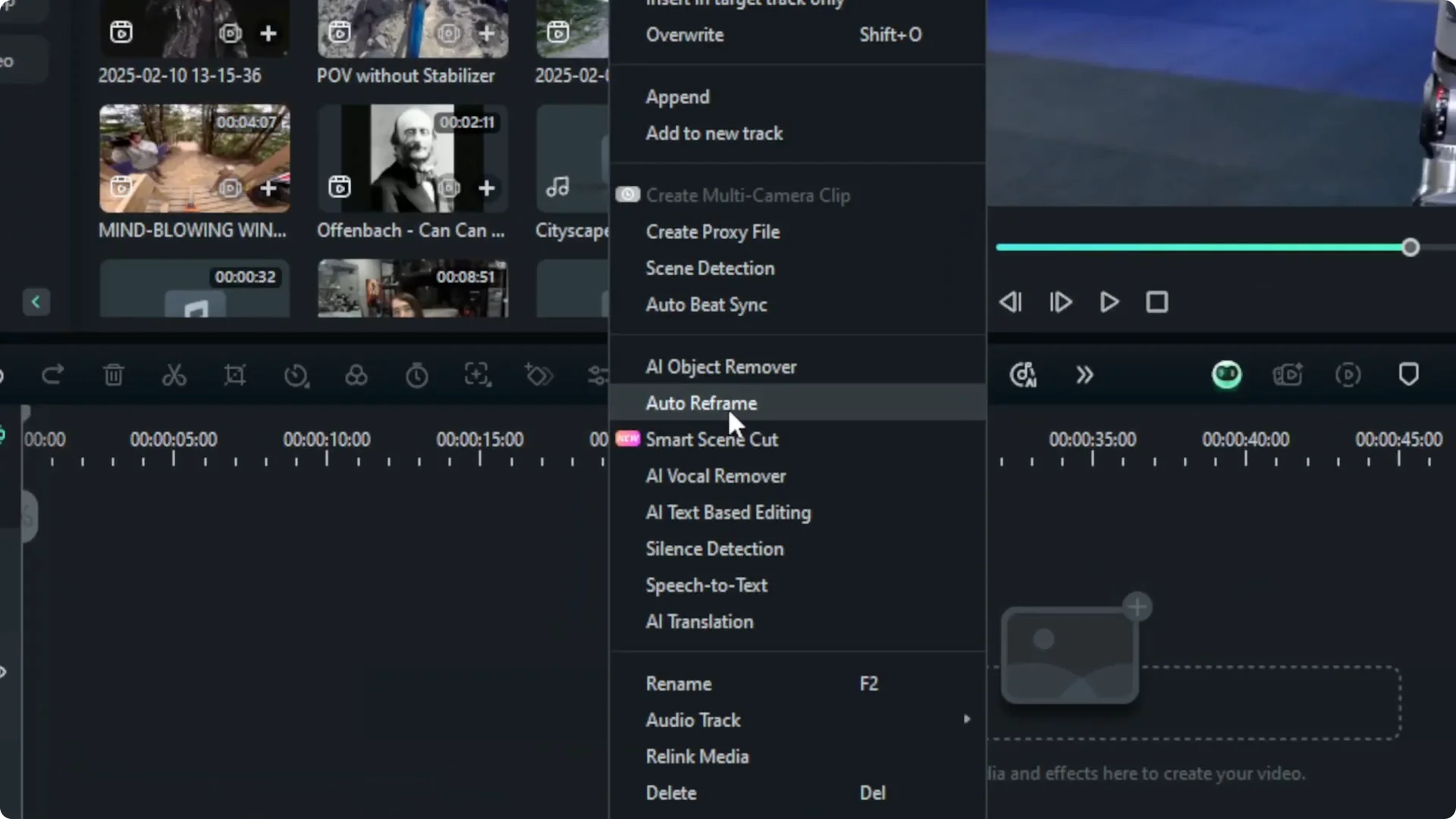
Right click on the clip you imported. Click Auto Reframe. This is the menu you are looking for.
Choose ratio and motion speed
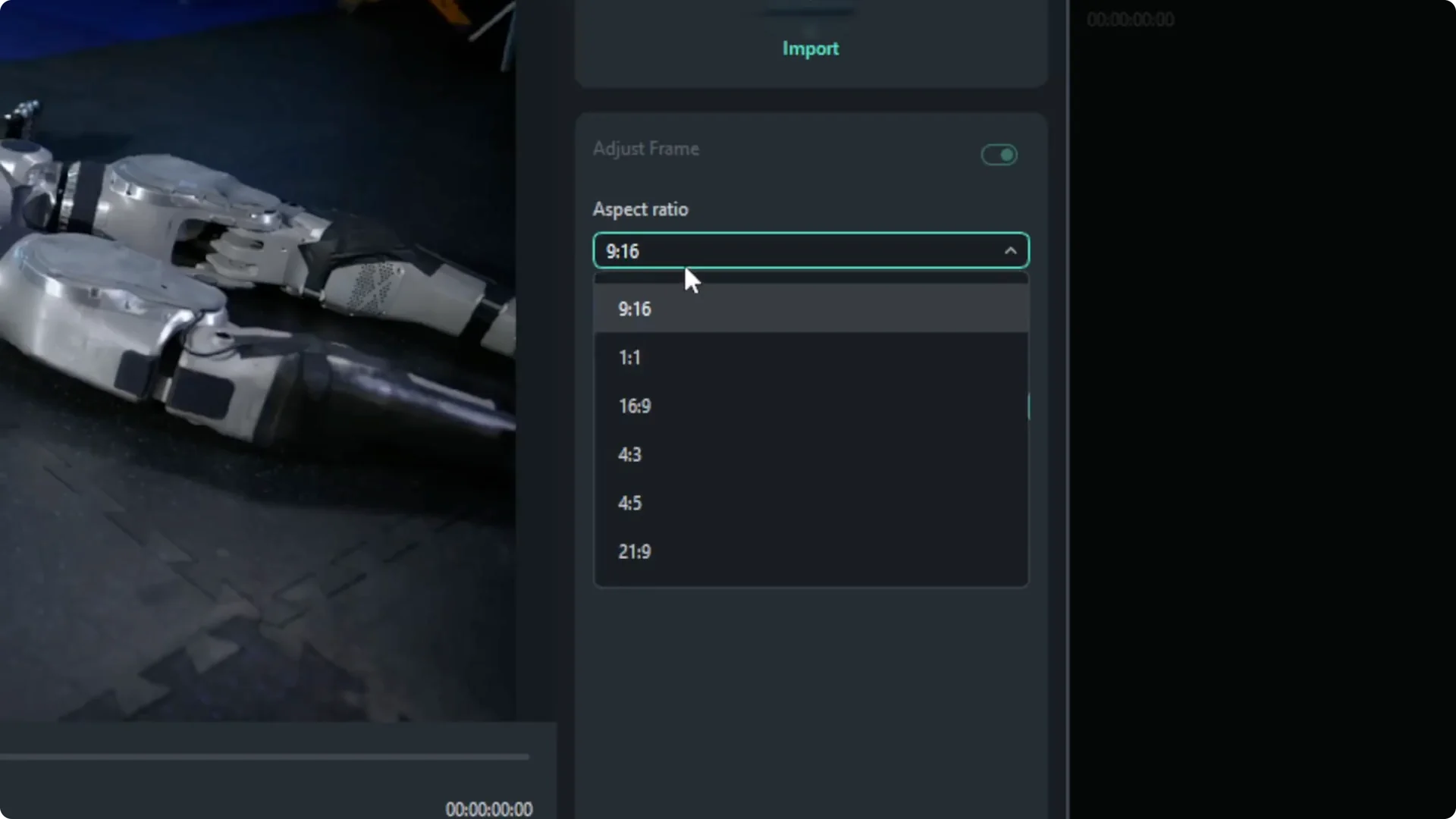
Select the ratio you want to turn the video into. There is 9×16 for vertical, 1×1, 4×3, and more. I am sticking with 9×16 for vertical video.
Set Motion Speed to Auto, which is usually good enough. It controls how the framing moves between sections of the video. I find the Auto setting better than choosing it manually.
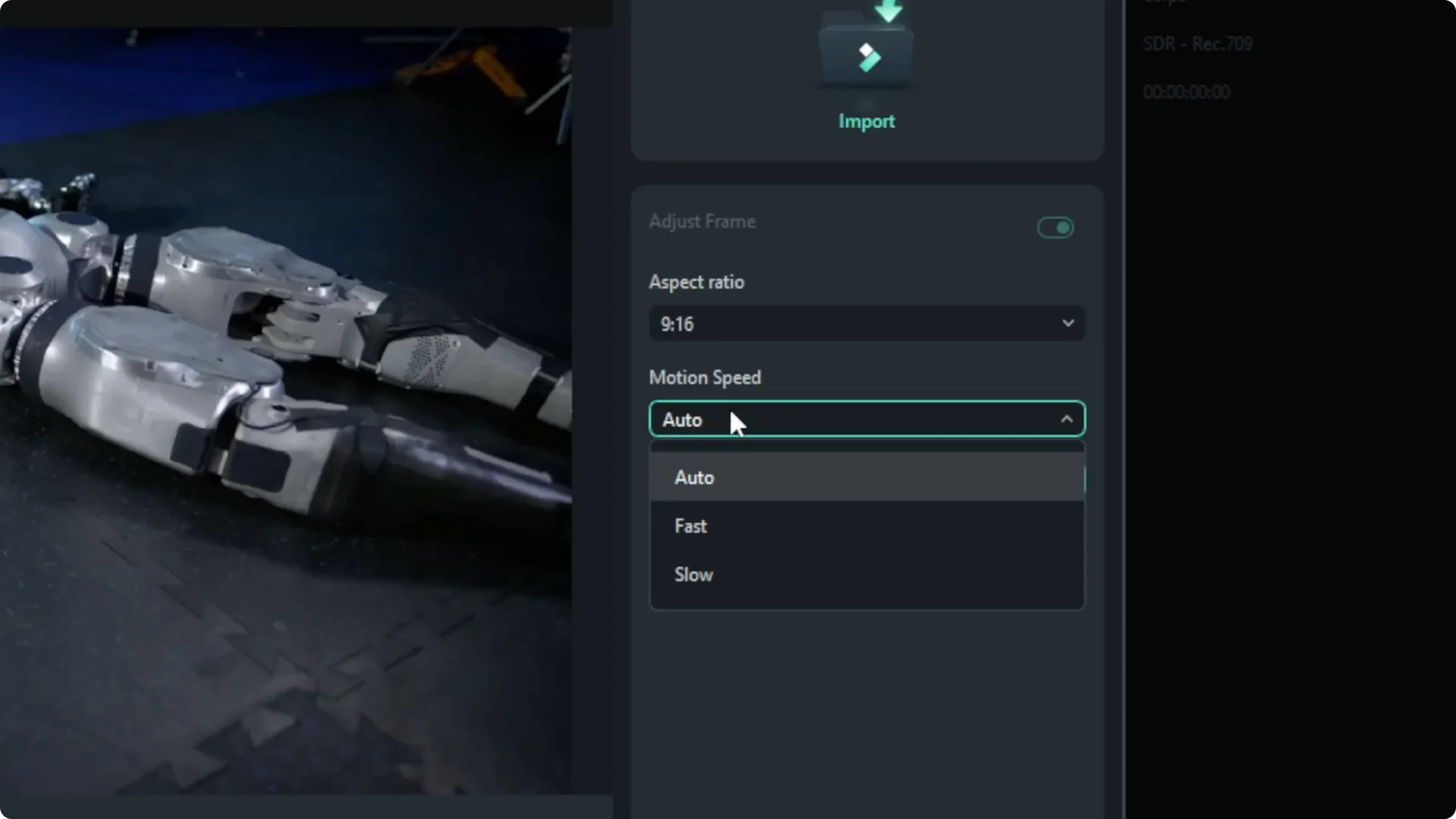
Analyze and review the framing
Click Analyze and wait until it finishes. This usually takes several seconds for a short clip, but for longer videos it could take several minutes depending on the power of your computer.
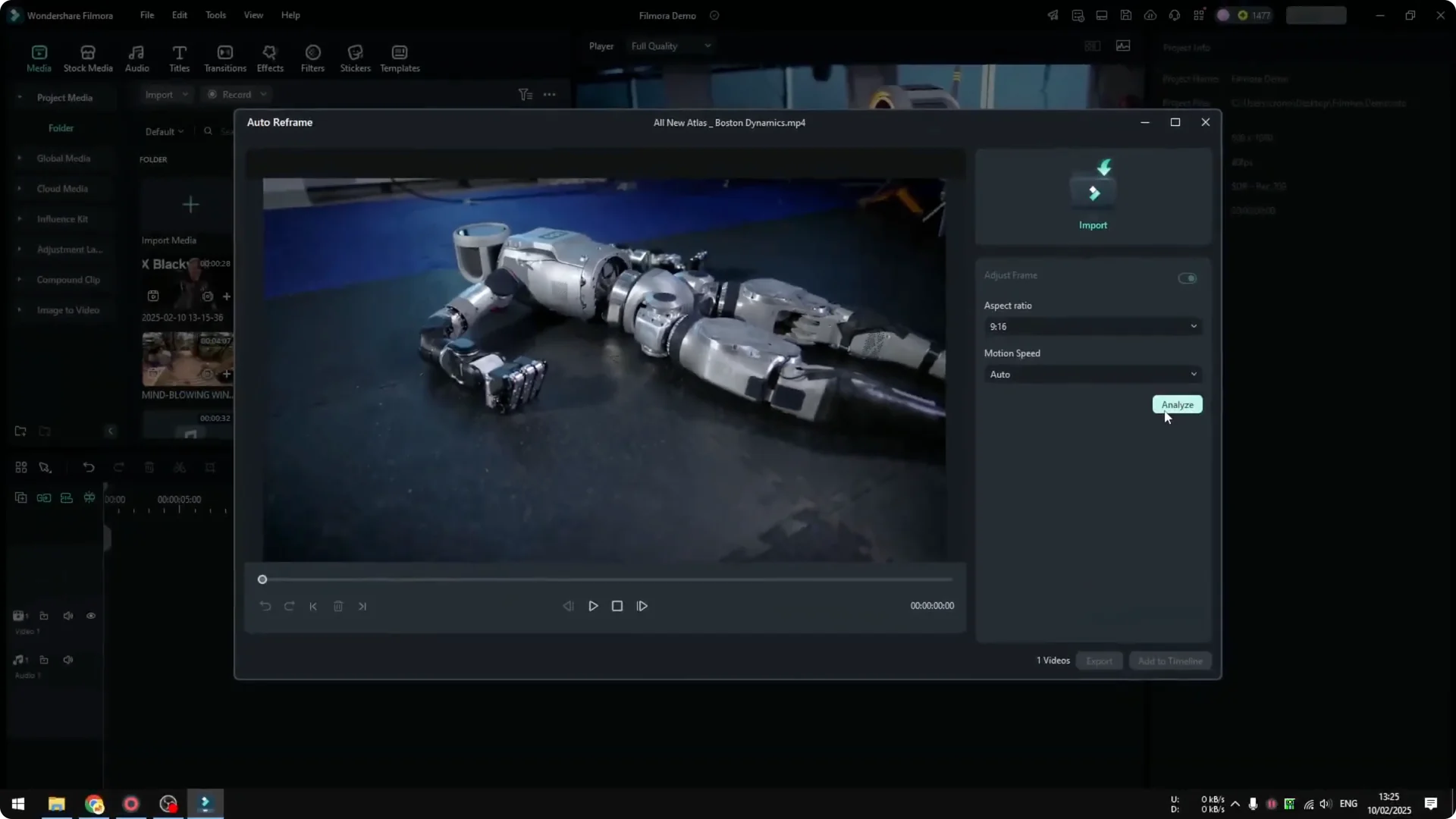
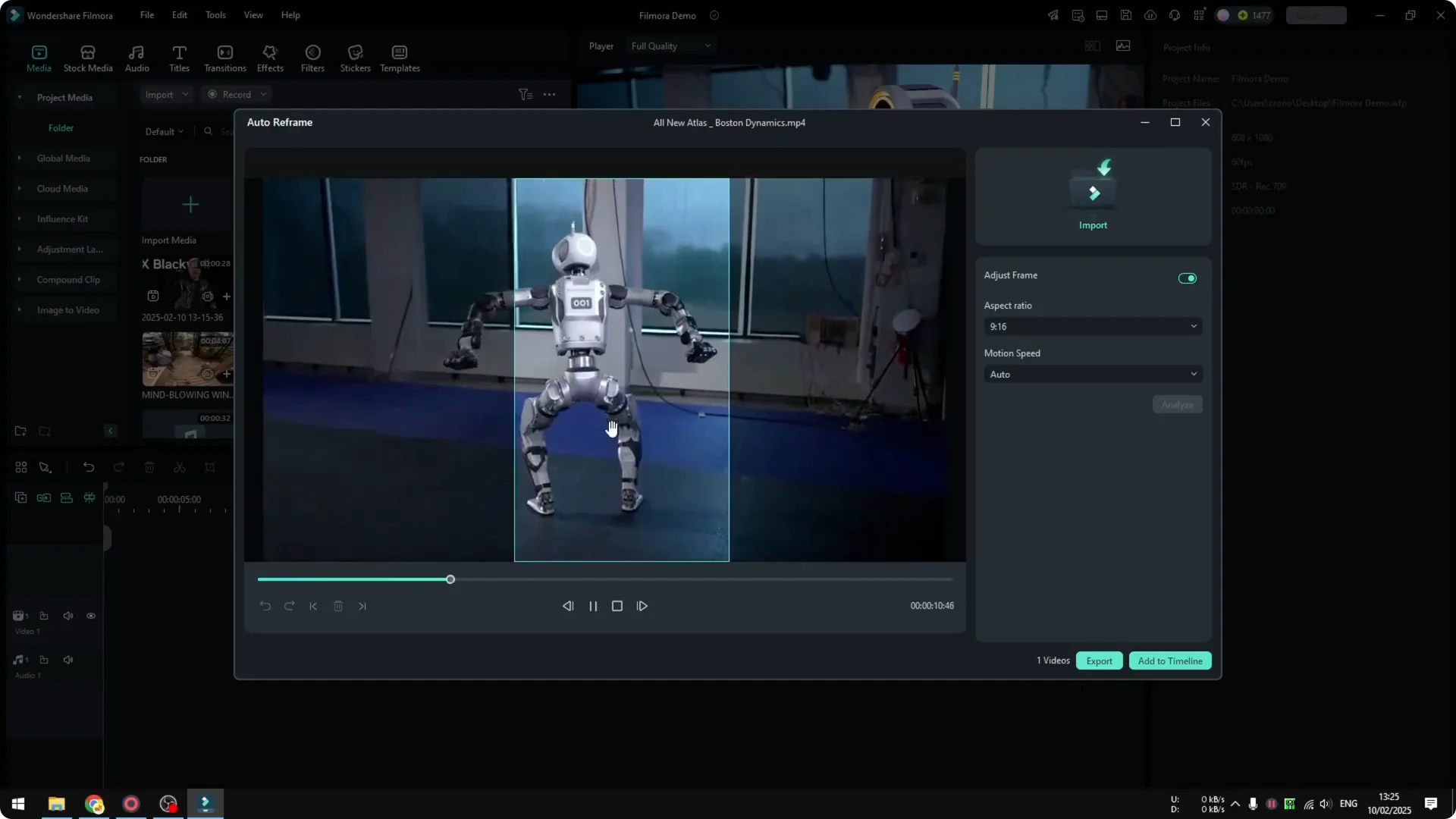
You will see the result with a frame that captures the action. When the robot rises, it is framed on the area of interest, the area with movement. There is AI running to detect movement in the scene, and it is very good at it.
Read More: How To Stabilize Shaky Video Using Ai In Filmora
Export or send to timeline
When you are done you have two options. Export it as a separate video, or import the reframed version into the timeline.
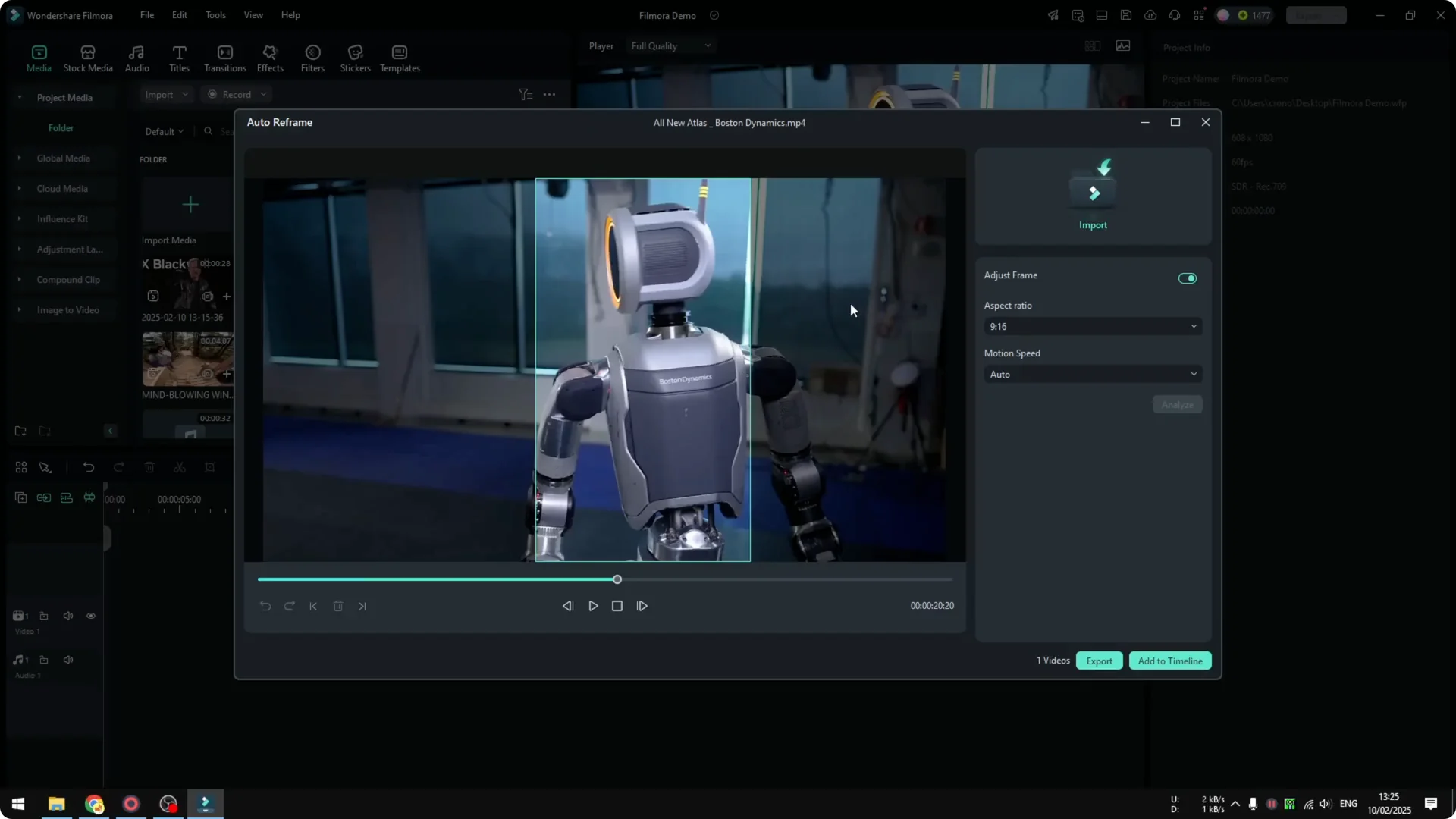
If you export, you will get another 9×16 video. The converted vertical video sits next to the original horizontal video. It is very simple and can take less than a minute on a short clip.
Read More: Turn Any Video To Slow Motion Filmora Ai
Final thoughts
Filmora Auto Reframe makes it easy to convert a horizontal clip into a vertical format. Pick the aspect ratio, keep Motion Speed on Auto, analyze, and export. You get a clean vertical version that is framed around the action with almost no manual work.