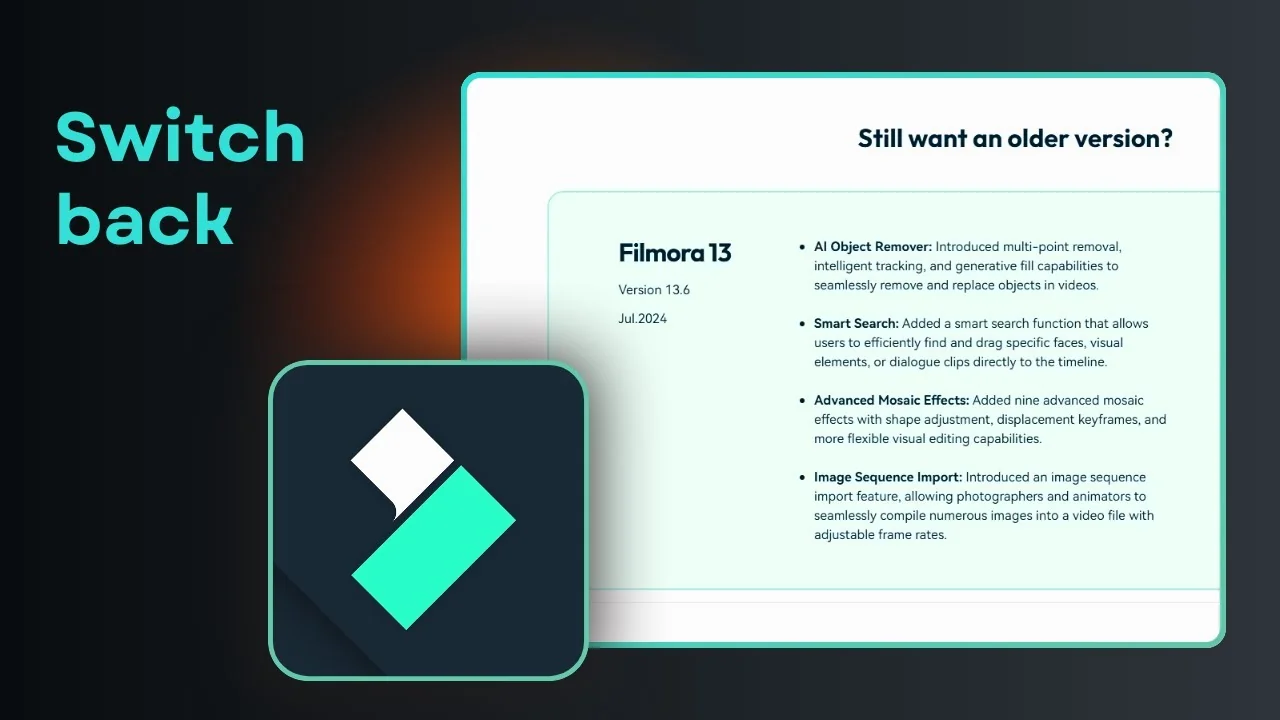
Filmora is probably one of the most prolific software tools when it comes to updates. If you have been using it for years, you probably see an update prompt every week or two. That is a good sign because it means the software is being constantly improved, which should make the experience better.
Sometimes an update changes a lot of things, and we have to change how we interact with the software. Filmora 14 is one obvious example. This version is a bit different than version 13.
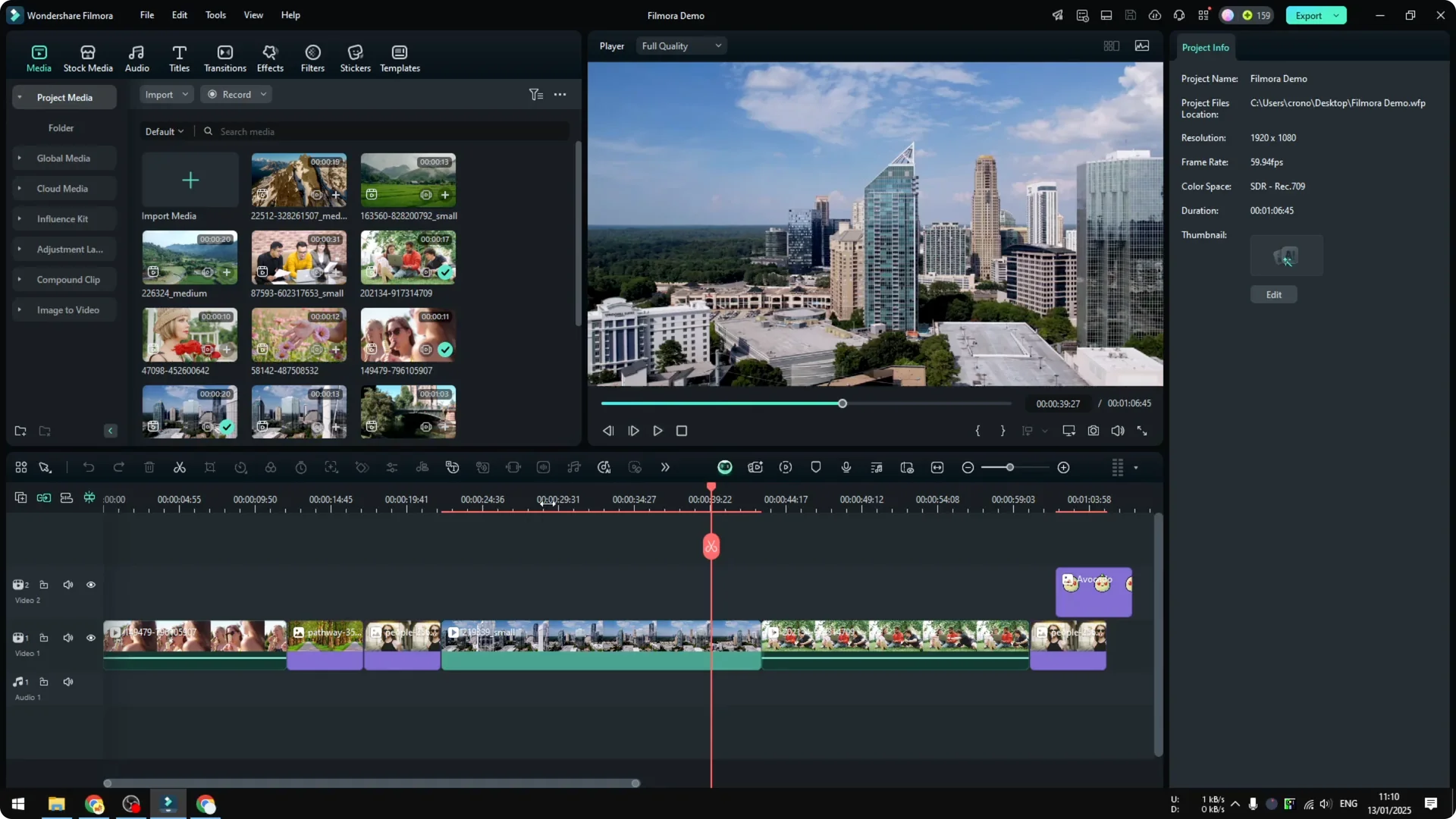
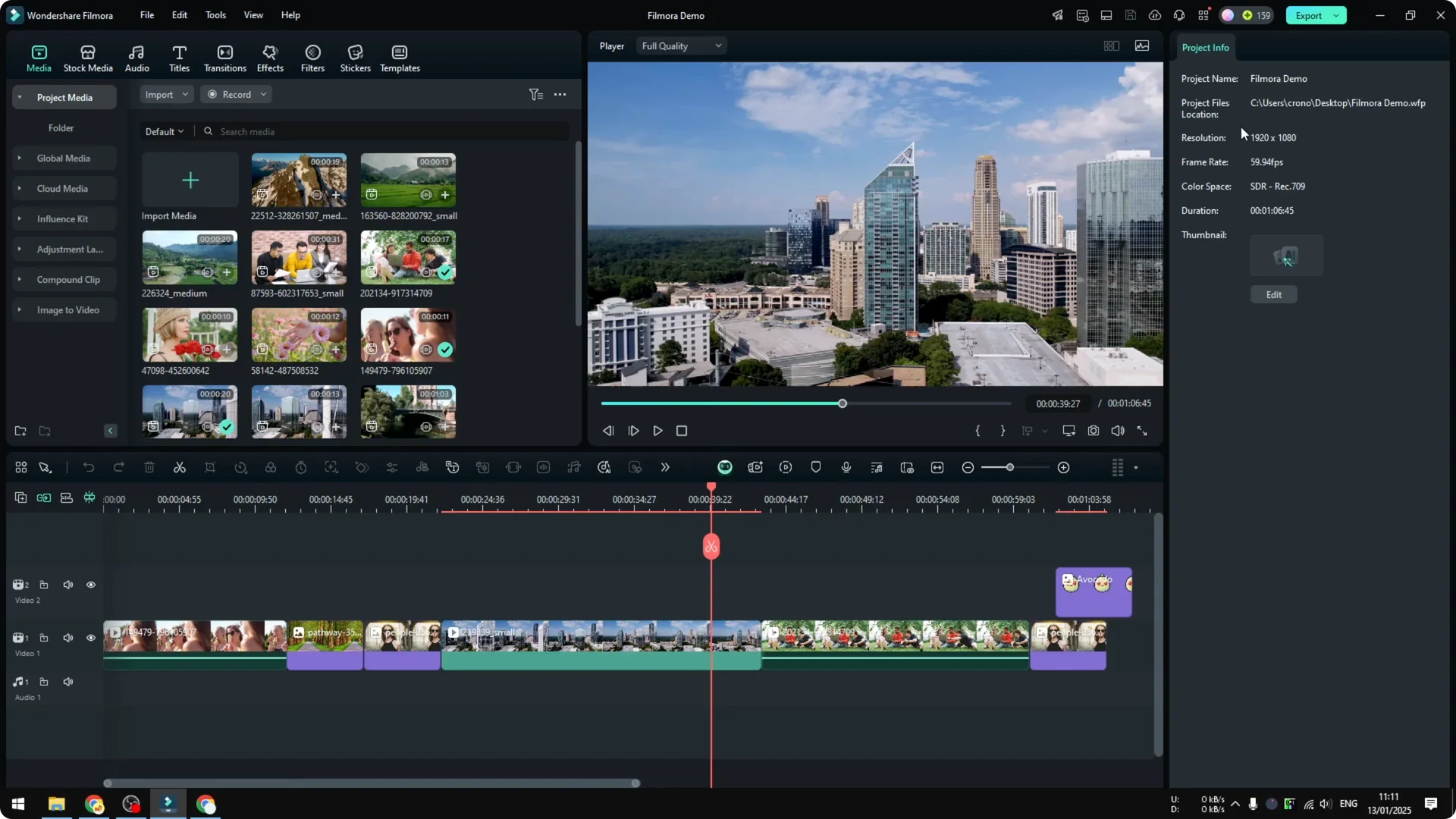
Previously the edit menu and keyframe controls were in a different spot compared to version 14. I think this change is not really a problem and was done for a good reason. But some people are accustomed to the previous layout and do not want to change their workflow.
Read More: How To Update Filmora To The Latest Version
Why a Filmora Version Downgrade Might Make Sense
If you prefer the older layout, going back from Filmora 14 to 13 can help. You might also want to revert from a future 15 back to 14. The process is the same.
Unfortunately there is no revert button in Filmora. You can look through the menus and you will not find anything that says revert to the previous version. There is no built in downgrade option.
Step by Step Filmora Version Downgrade
I have only done this once, and it is the only way I know to go back to a previous version. It works and keeps your workflow intact. Here is exactly what I do.
Step 1 Uninstall the current version
You need to uninstall Filmora from your computer. For example on Windows, open Control Panel and uninstall Filmora 14. Removing the installed version clears the way for the older installer.
Step 2 Find the official older installers
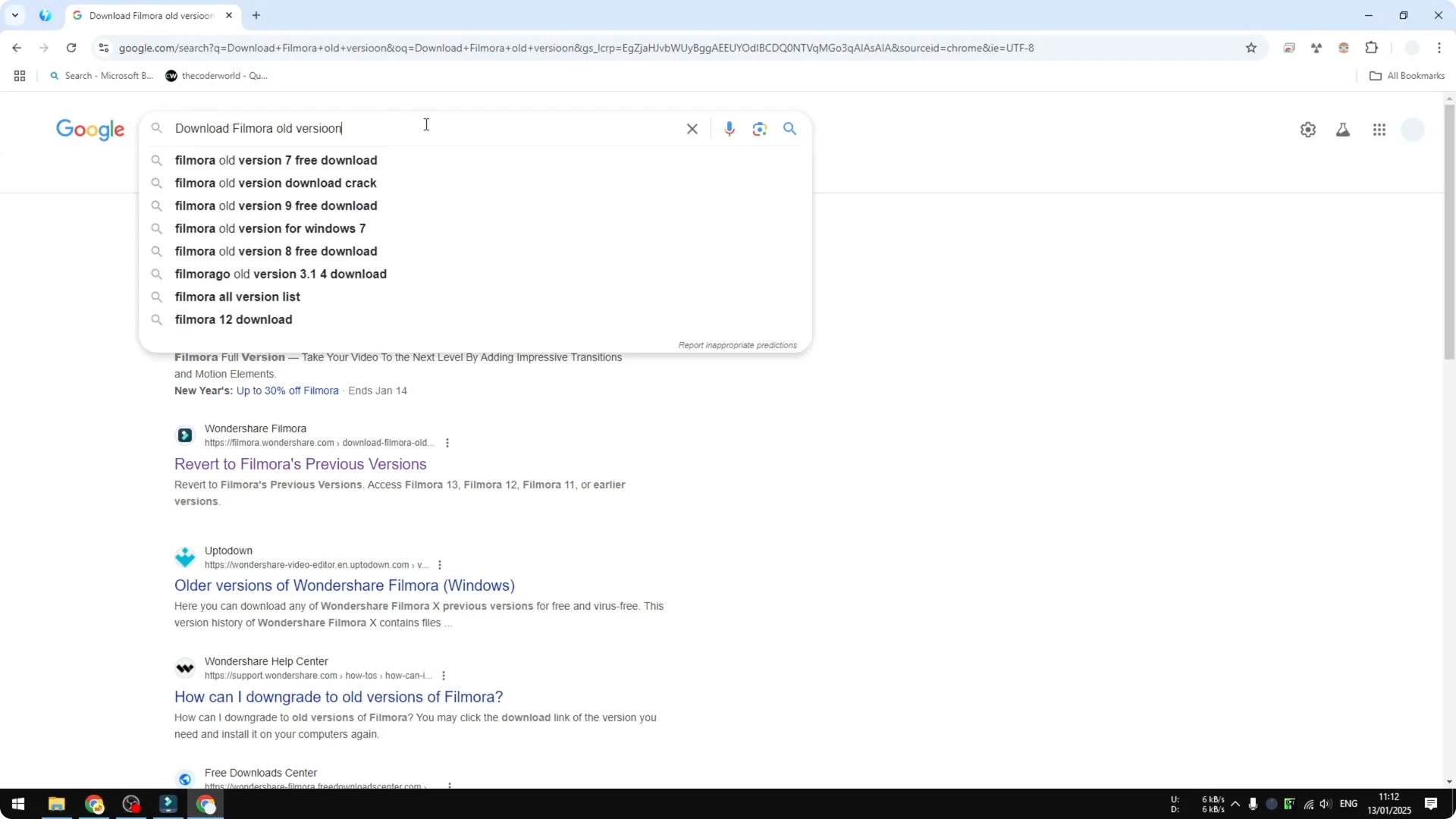
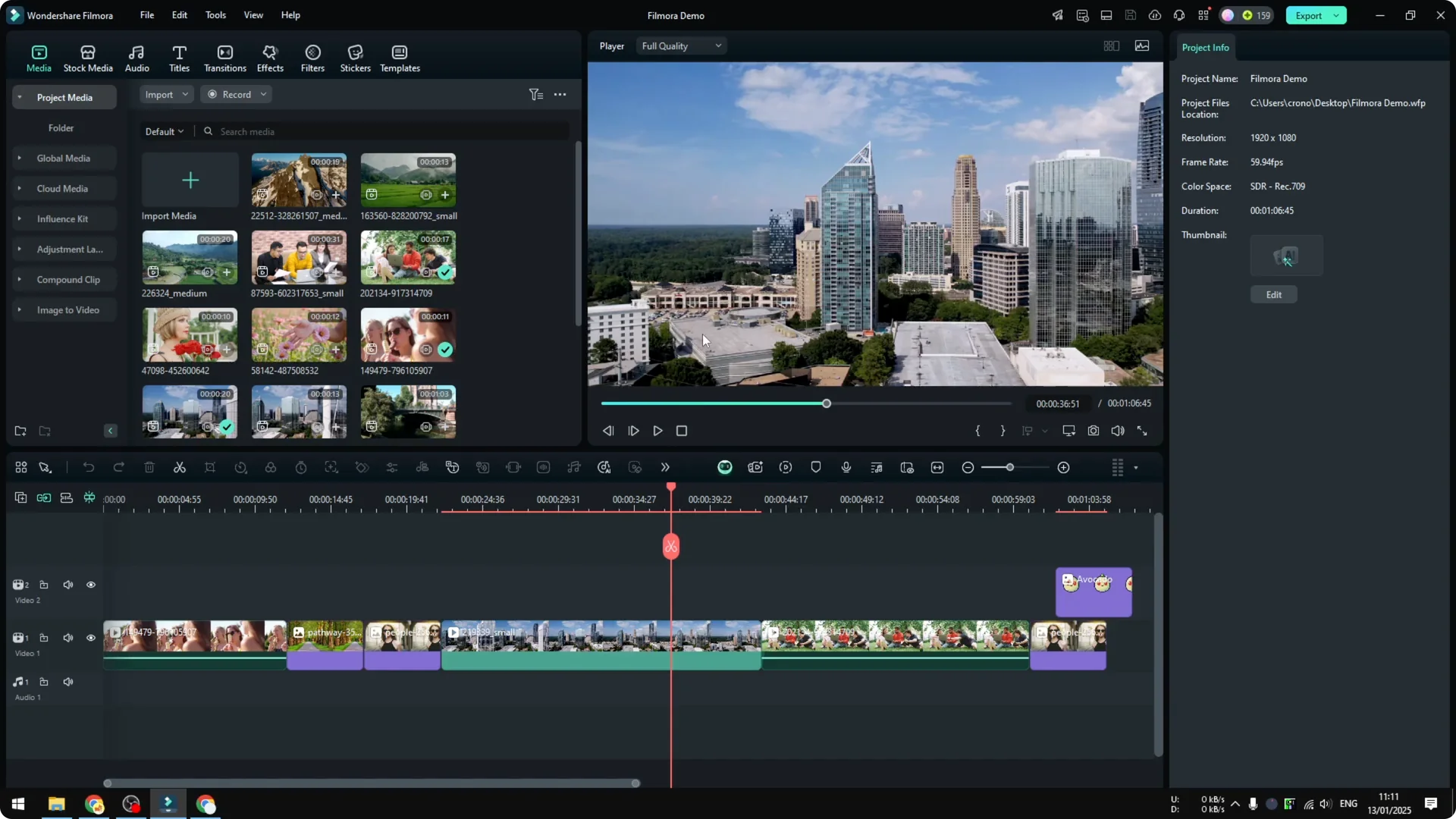
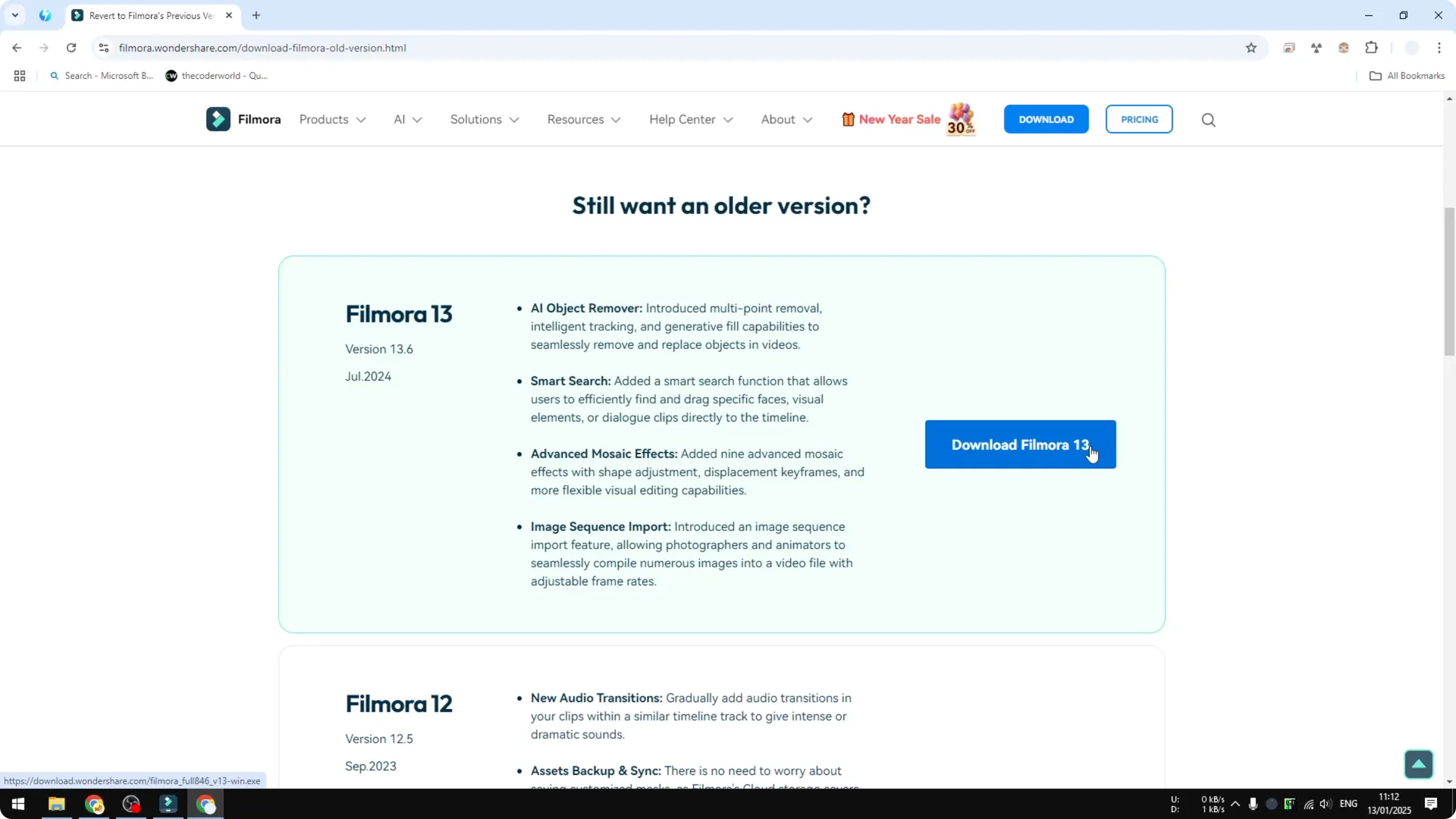
Go to Google and search for download Filmora old version. Open the official Wondershare Filmora page that lists previous versions. That page offers multiple older releases, including Filmora 13, 12, and 11.
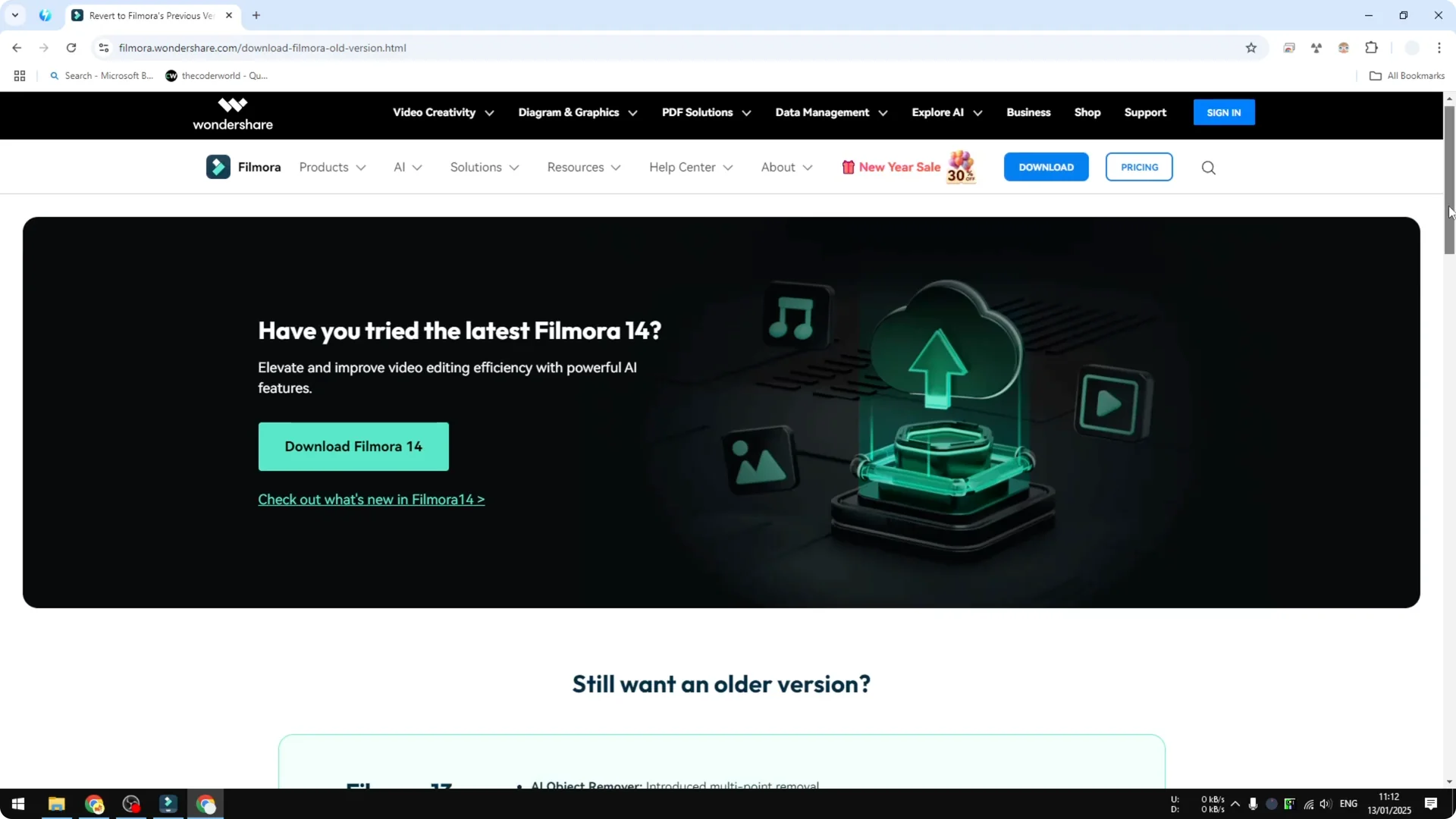
There is no Filmora 10 there because it is likely too outdated. Pick the version you want based on your comfort with the interface. Then proceed to download.
Read More: How To Add Cool Glitch Transition Effect In Filmora
Step 3 Download and install
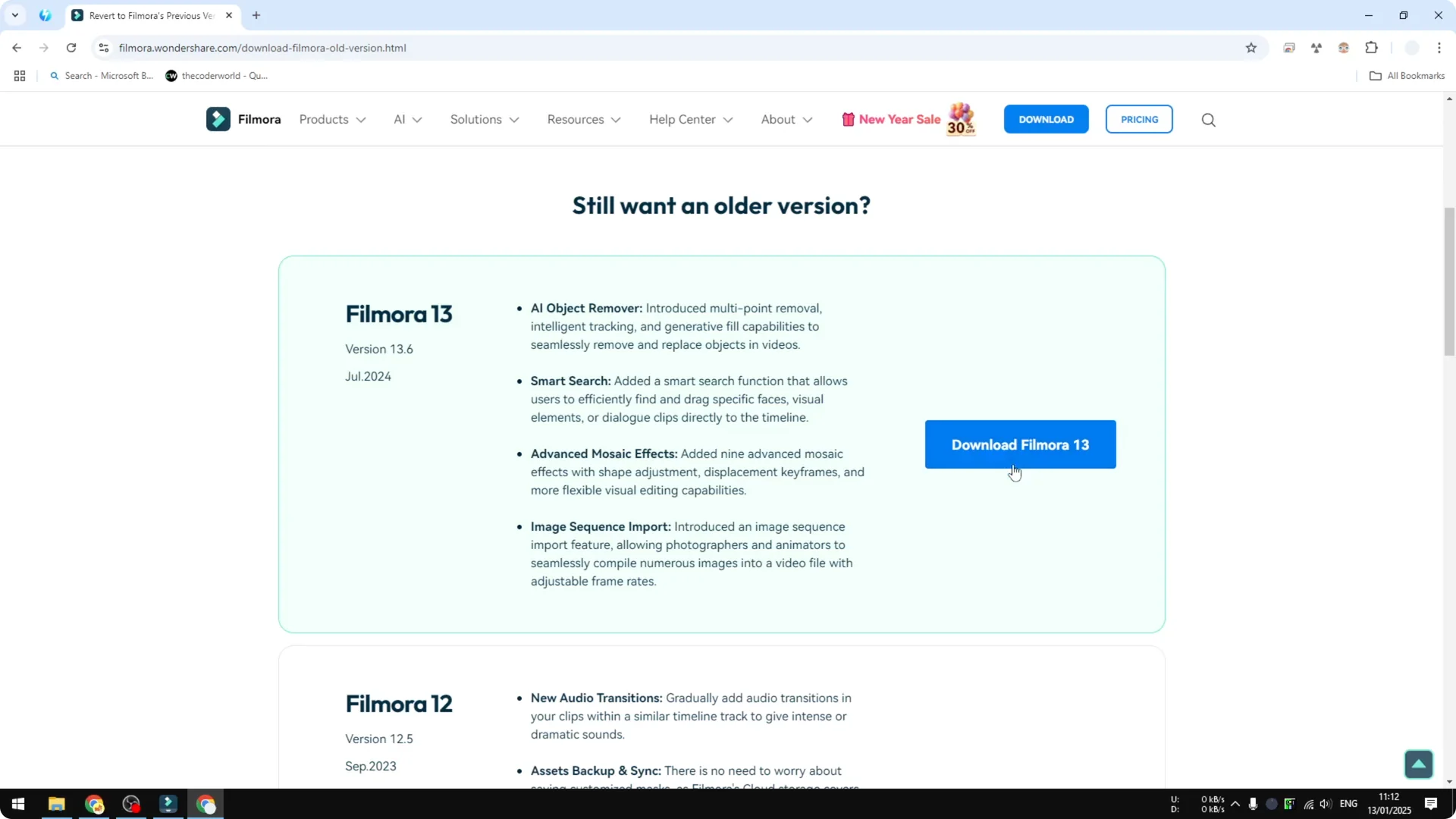
Click the download button for the version you want. It will download the installer, and then you install the software on your computer. After installation, log in to your Wondershare account to authenticate your license.
Step 4 Handle update prompts
Even after installing Filmora 13, you might still receive messages encouraging you to upgrade. They will remind you about new features and push the latest version. If you want to stay on your chosen version, ignore the message and click Cancel.
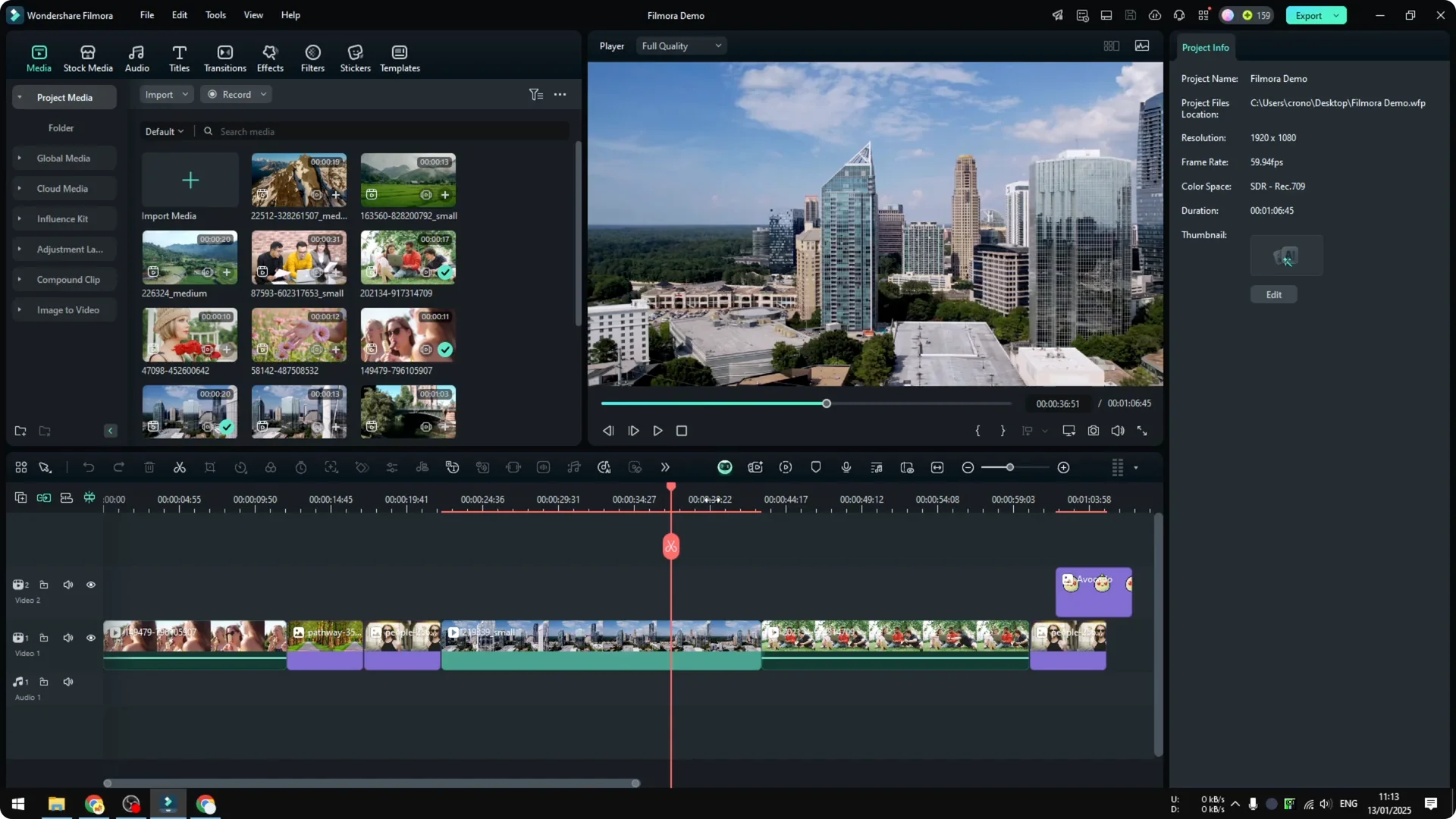
Do not upgrade if you plan to keep using Filmora 13 or any other older version. Just skip the update every time an upgrade prompt appears. After that, you can keep using Filmora 13 normally.
Read More: How To Remove Vocal From Song In Filmora Using Ai
Recap of the Filmora Version Downgrade
Uninstall the current version from your computer. Search for download Filmora old version and open the official page. Download the previous release, install it, sign in, and always skip upgrade prompts.
Final Thoughts on Filmora Version Downgrade
This is more like an overview of what you need to do to revert to a previous release. The approach is simple and lets you keep the layout you are comfortable with. As long as you ignore upgrade prompts, you can stay on the version that fits your workflow.