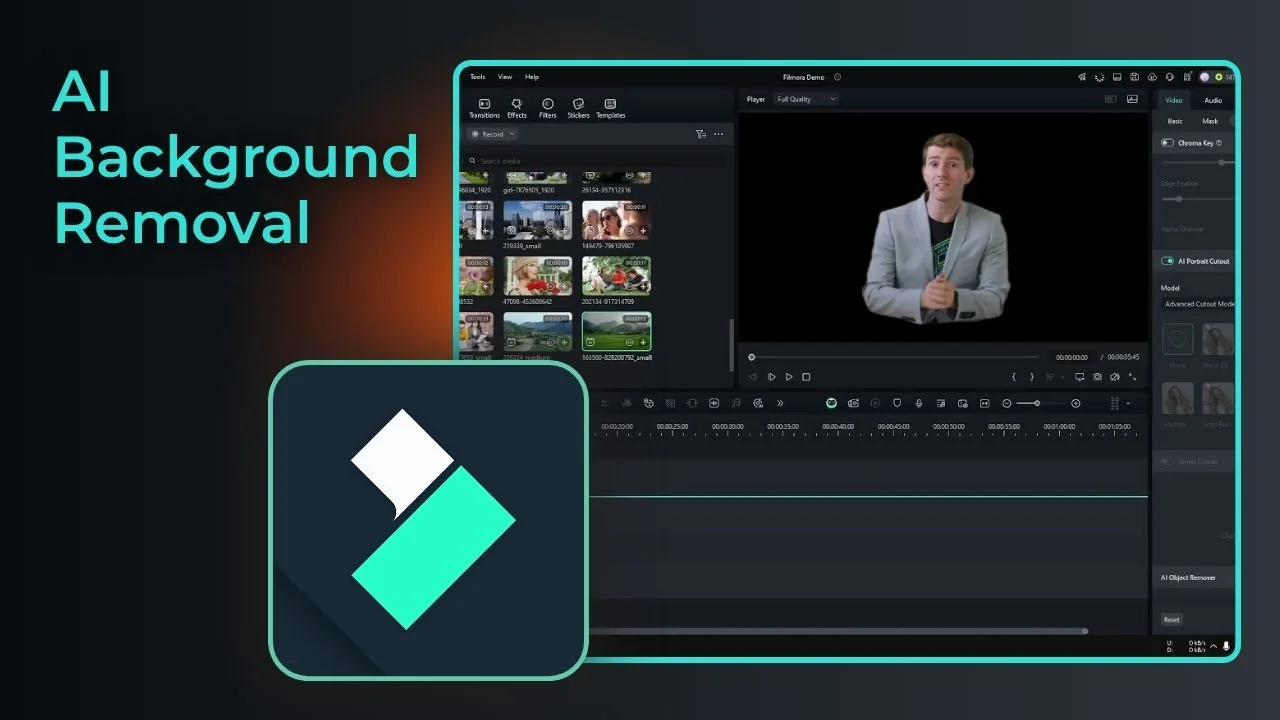
I am going to show you how to use Filmora AI Portrait Cutout to remove the background of a video while keeping a person in the frame. I have a clip where I only want the person to stay visible and the background to be removed. The steps below are simple and quick.
Filmora AI Portrait Cutout basics
AI Portrait Cutout is used to remove the background of a video that has a person in it. It gives you a clean subject so you can replace the background with anything you like.
This AI feature is not available in Filmora 13 or below. Make sure you are running Filmora 14 or above, otherwise you will not be able to use it.
If you also need to clear branded marks during edits, see how to remove a moving watermark in Filmora AI.
Enable Filmora AI Portrait Cutout
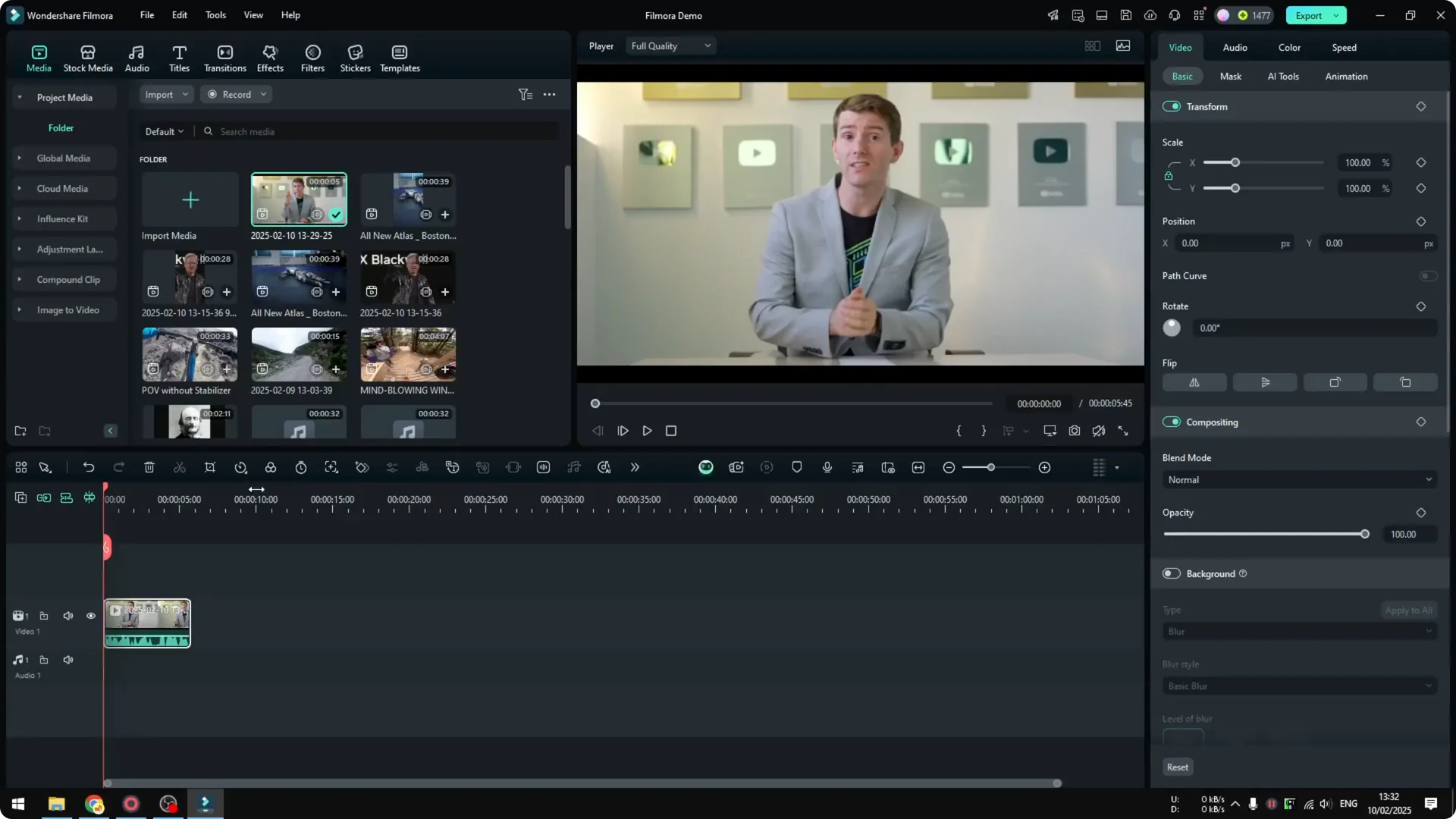
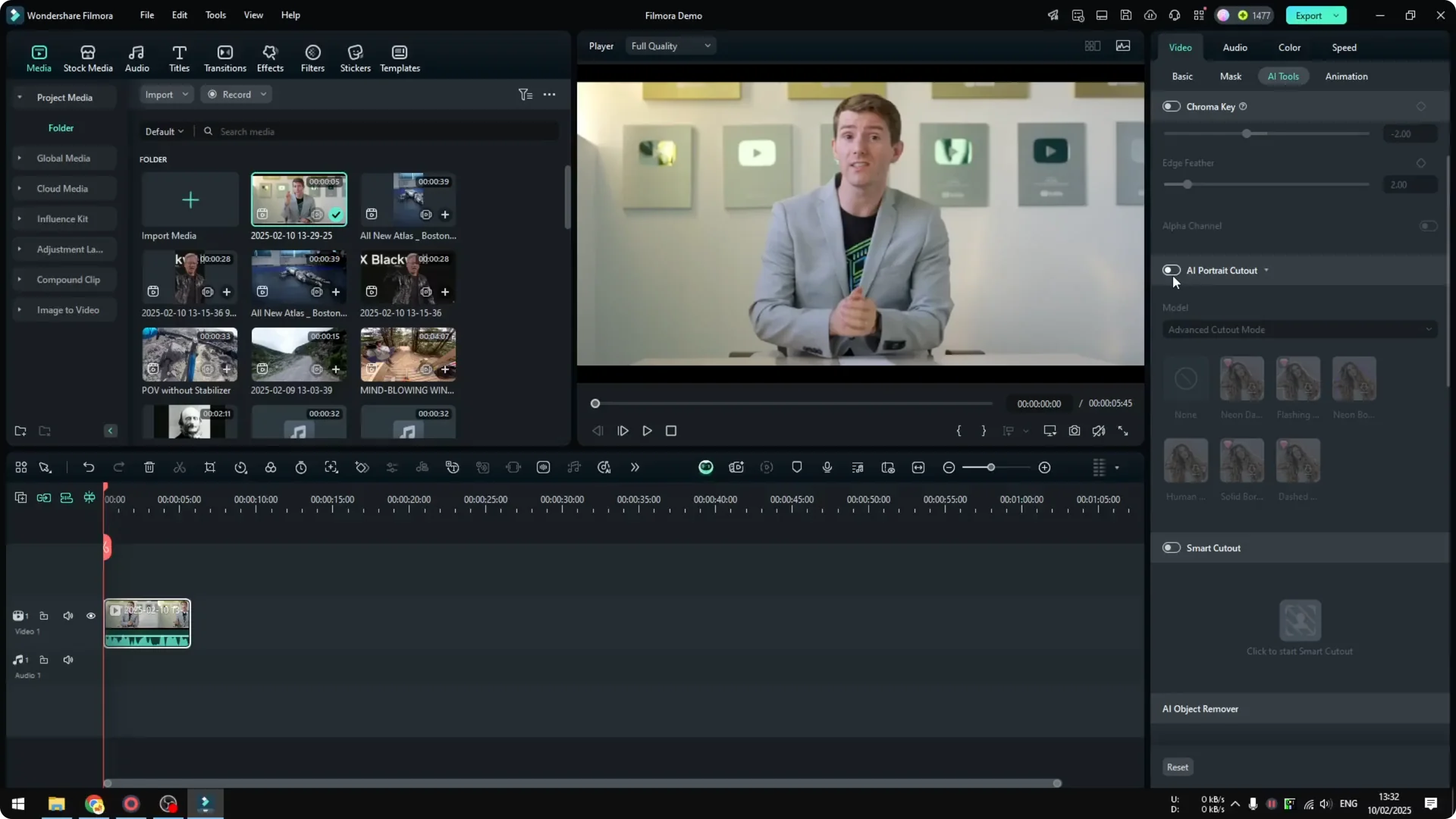
Put your video on the timeline. Double click the clip to open the settings.
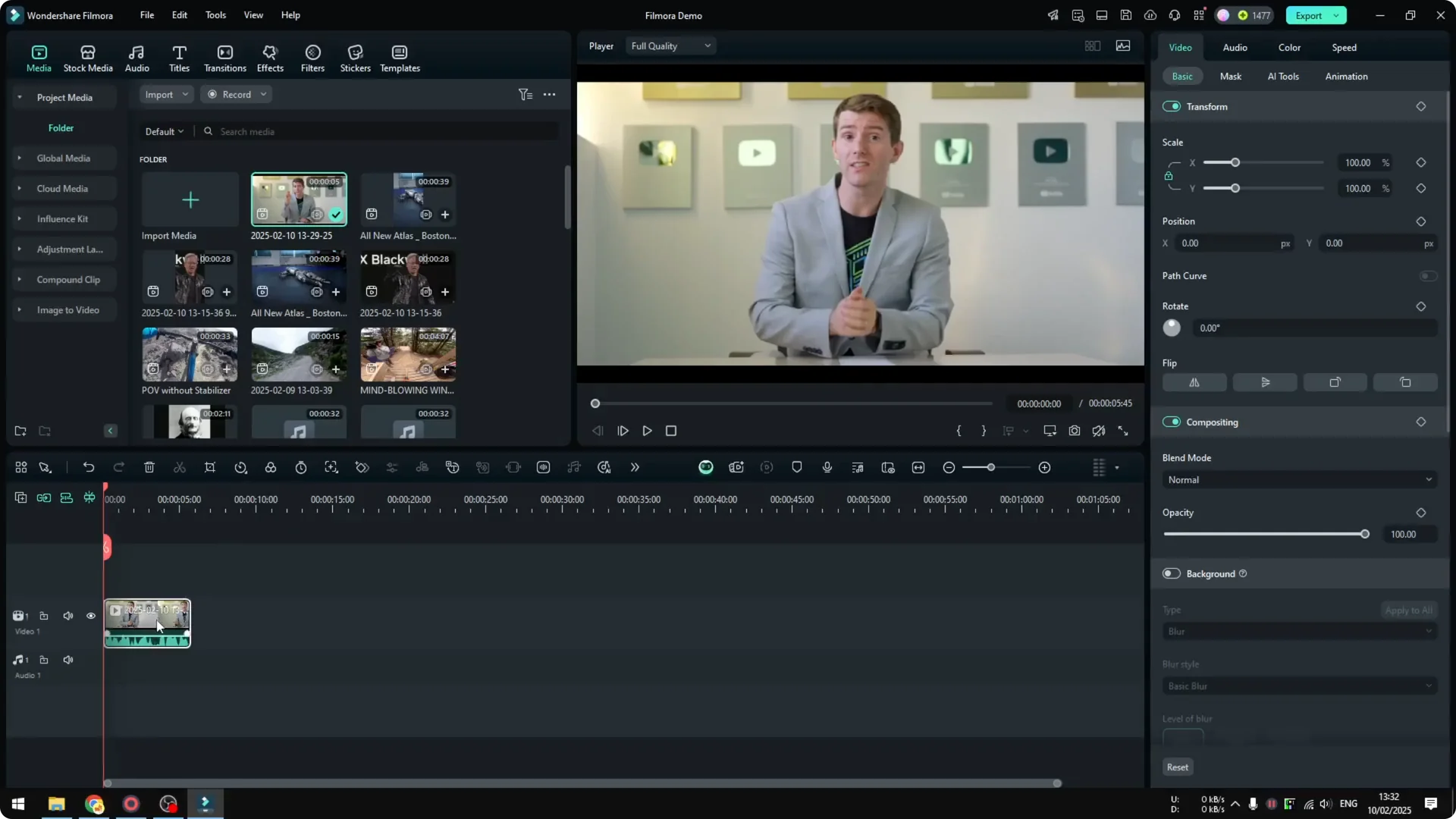
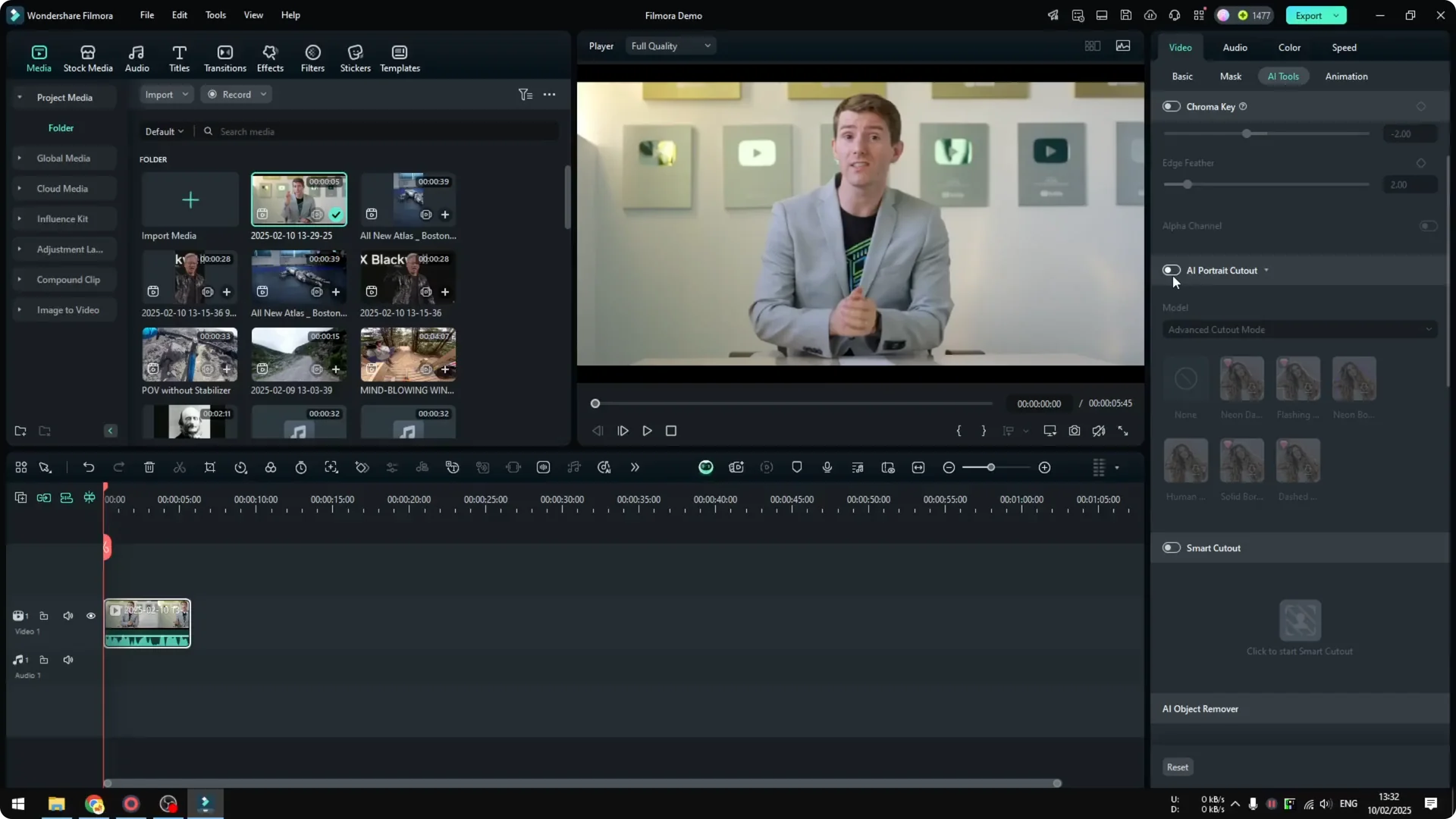
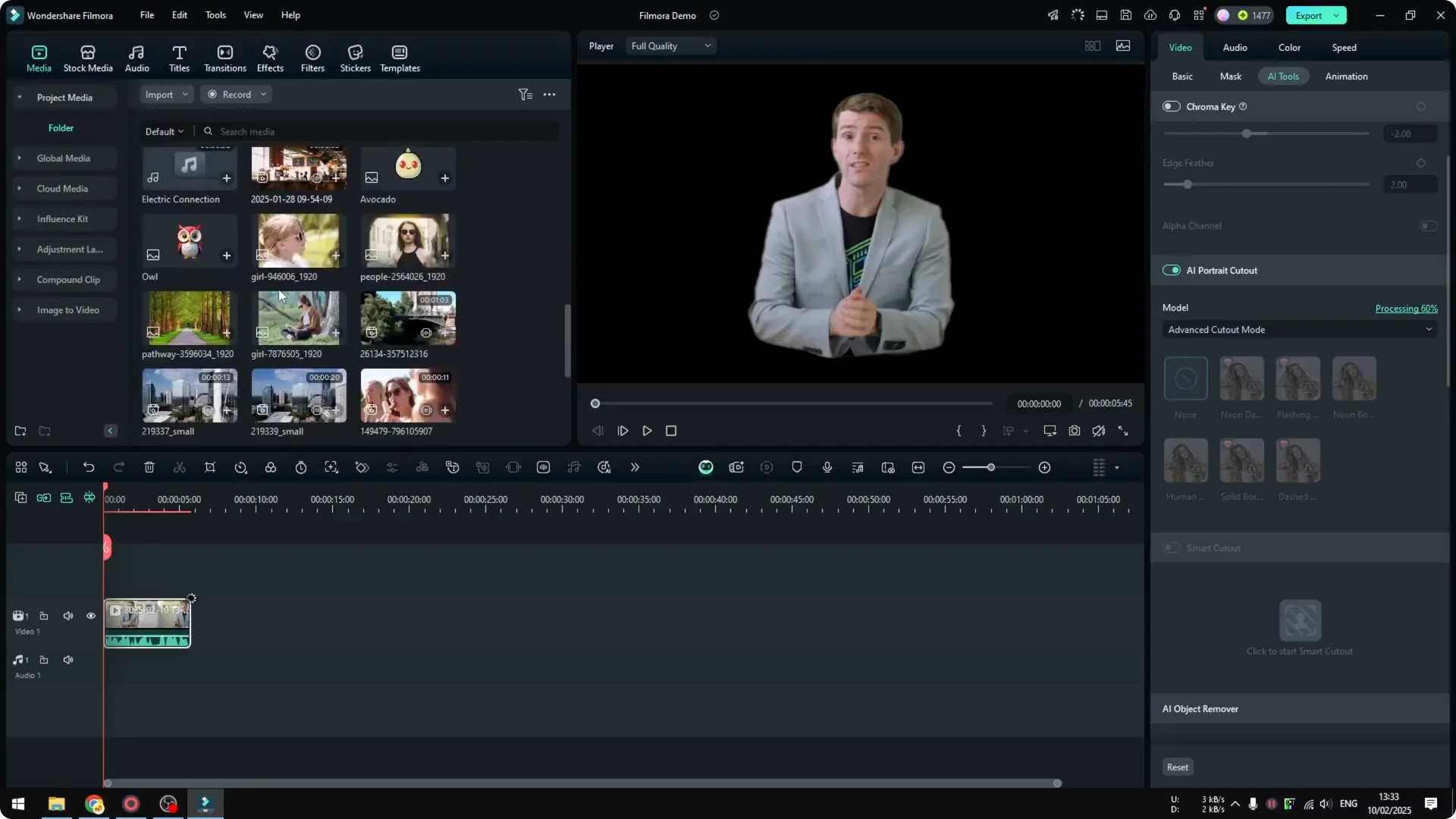
Go to Video, click Tools, and enable AI Portrait Cutout. The process is pretty quick, and the background goes away while it is still processing.
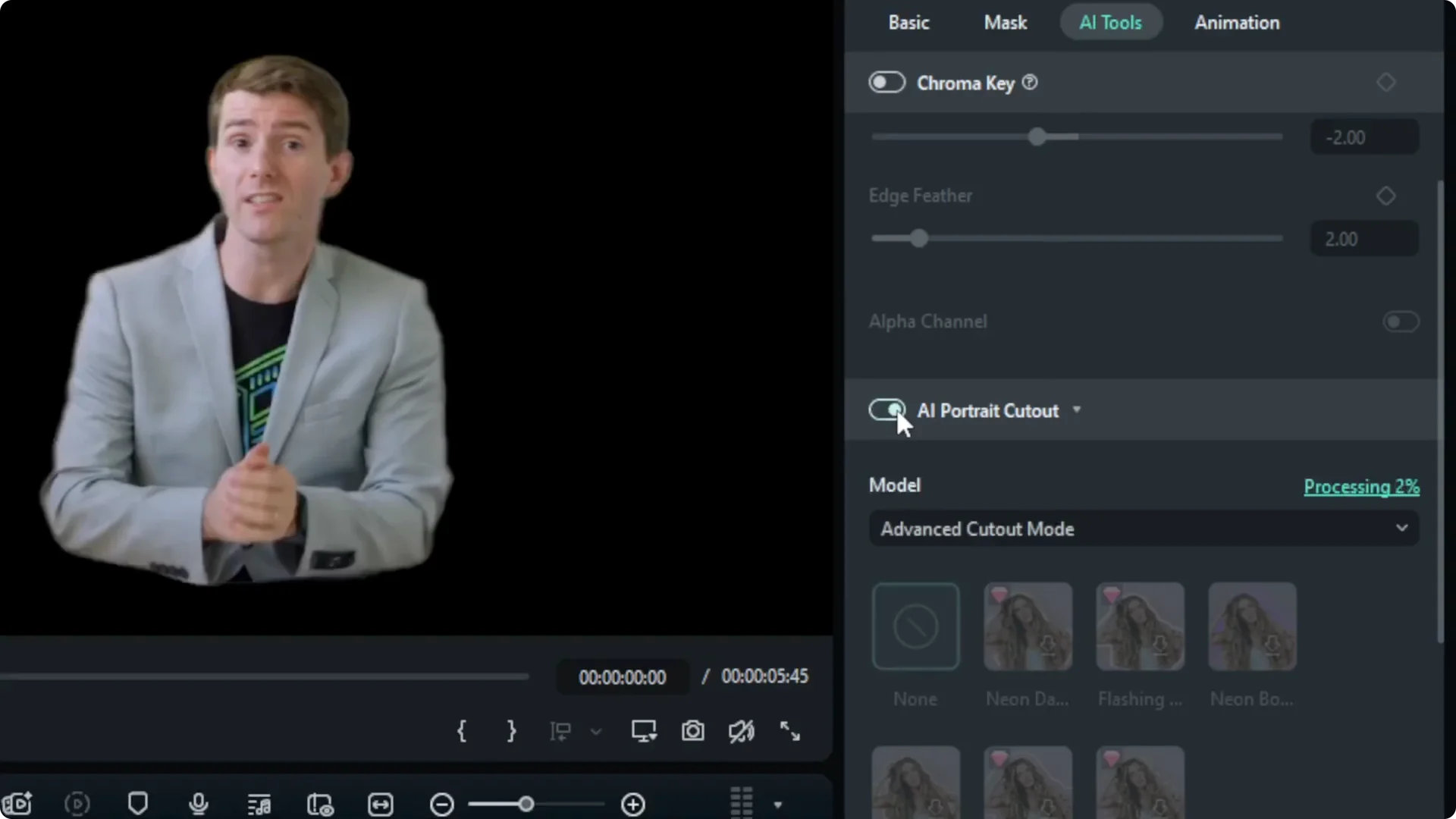
I can see the result right away once it kicks in. That is basically it for removing the background automatically.
Fill the empty background
Once the background is removed, you can fill it with something else. Pick a video or image you want to use as the new background.
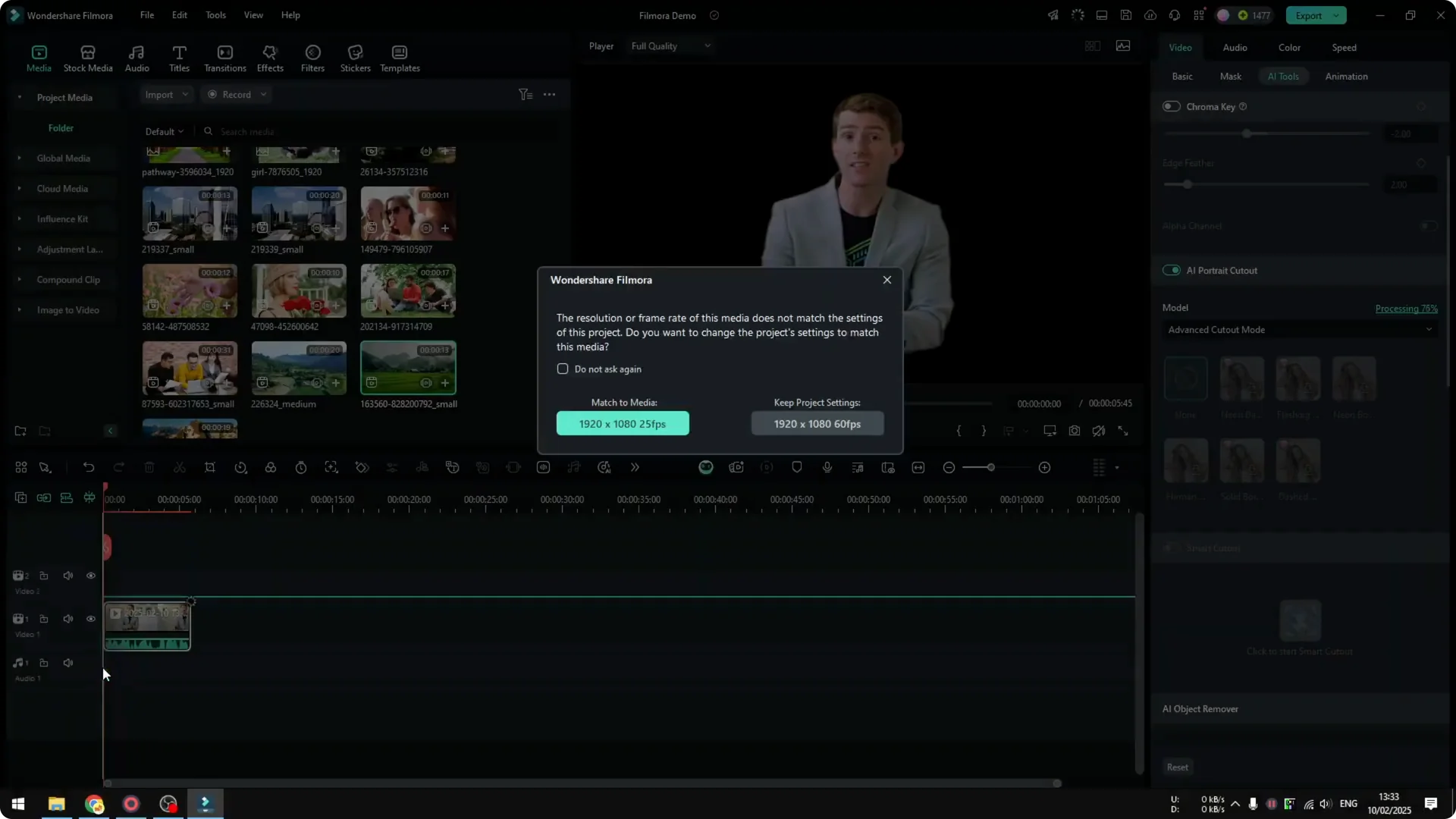
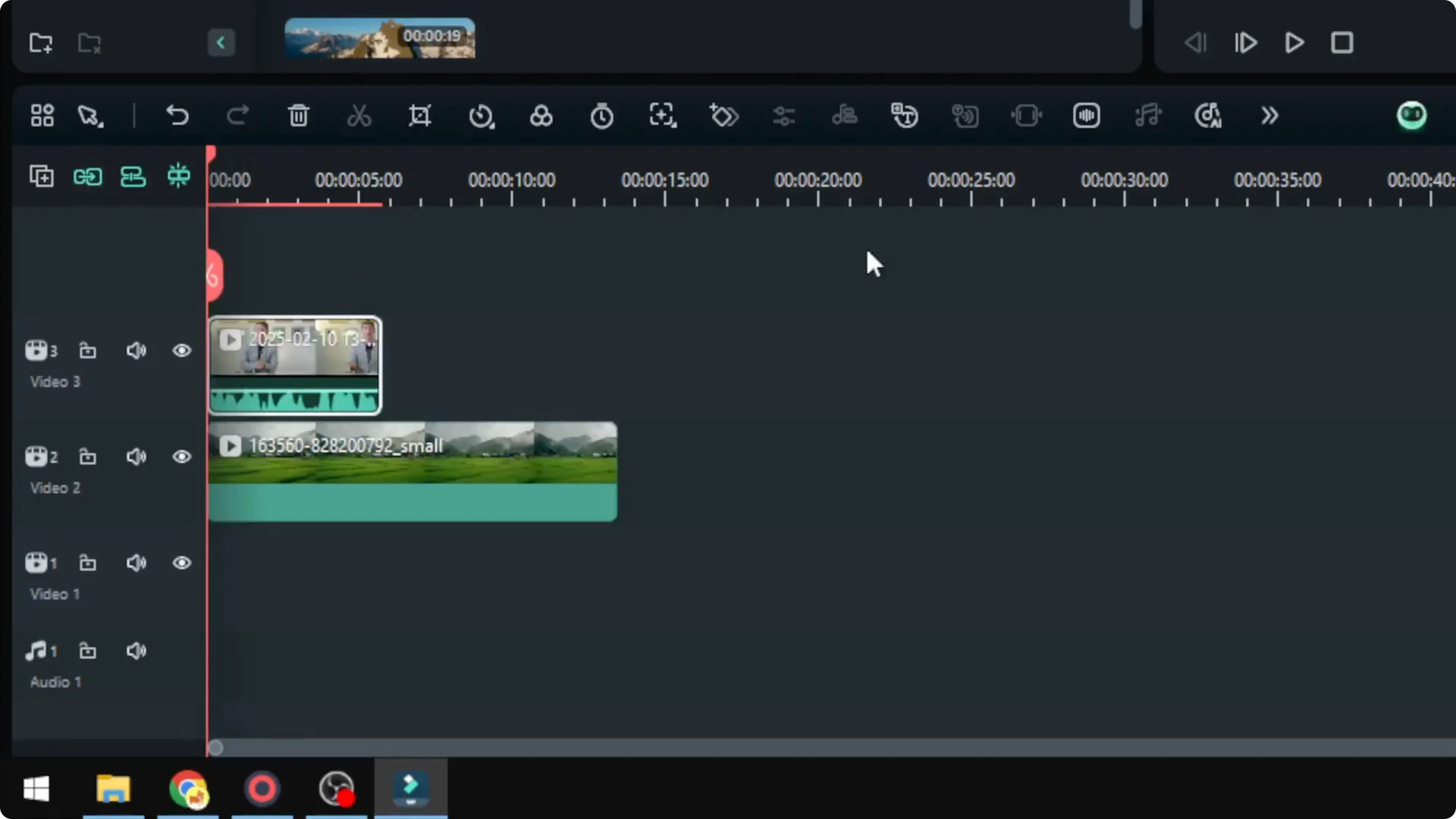
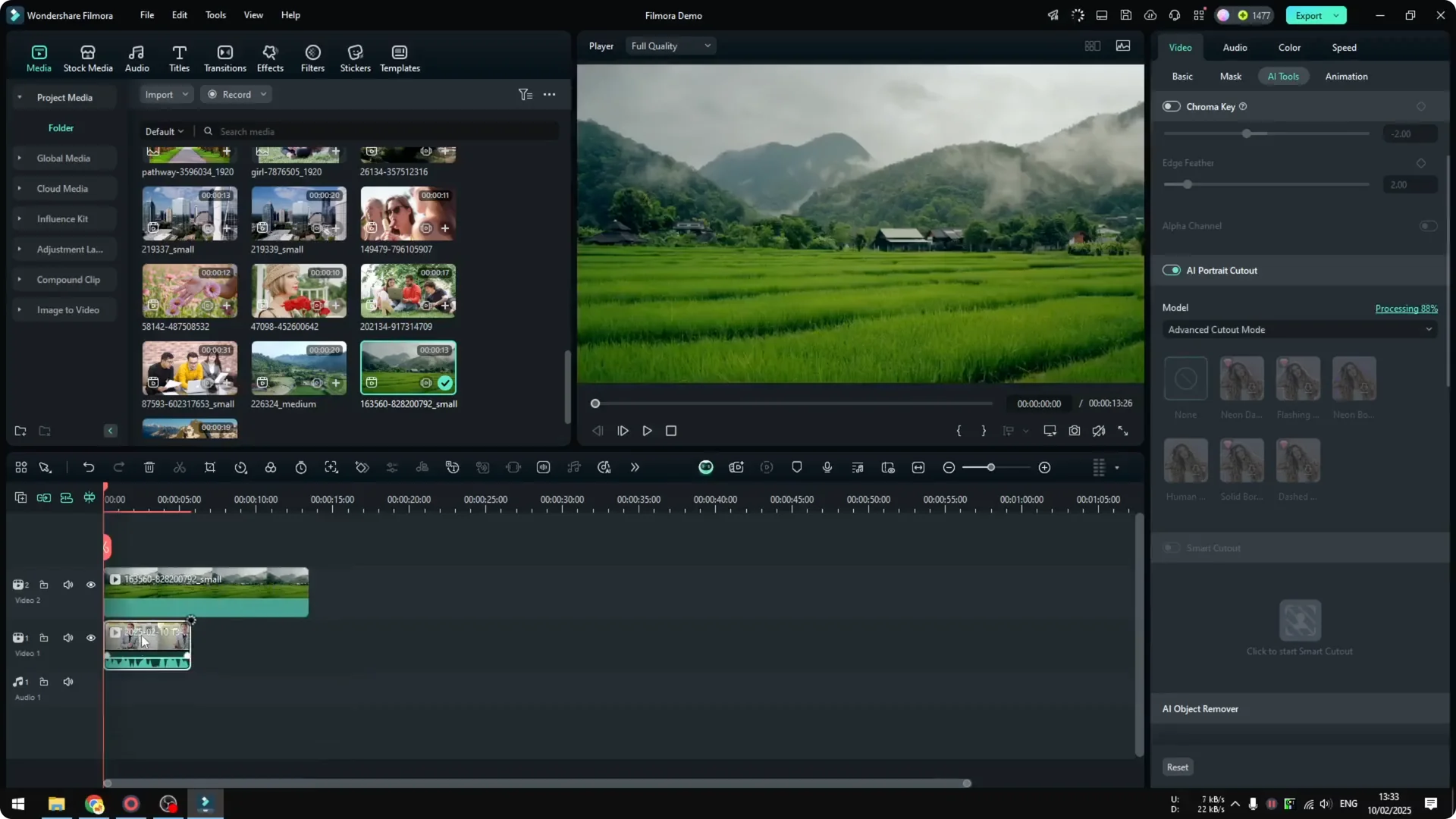
Drag the background clip into the timeline and place it on a track below the clip with AI Portrait Cutout enabled. Keep the project settings when prompted if you want to match your current timeline.
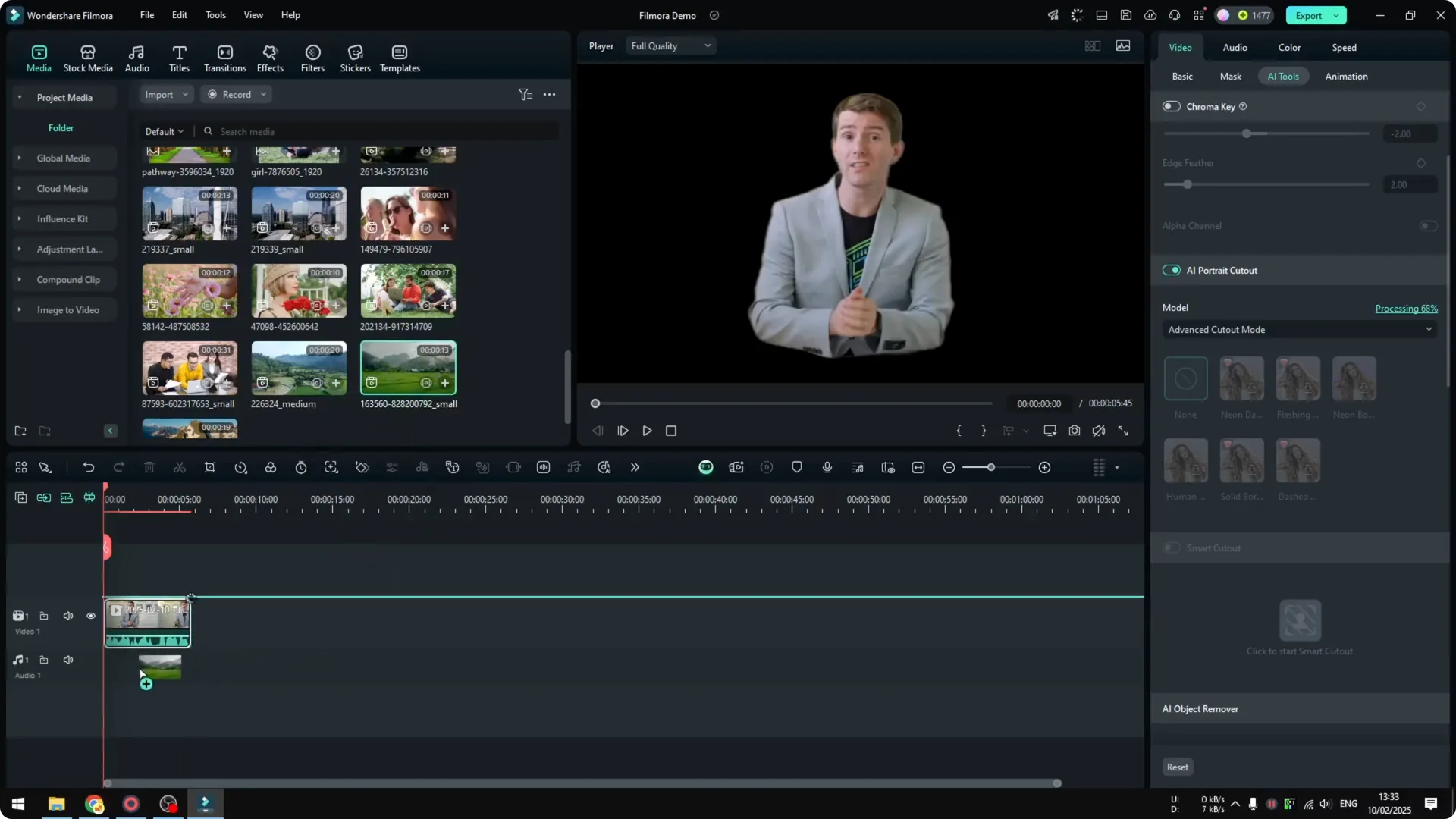
If you cannot place it below for some reason, try putting the background clip on a track above the subject clip. This can be due to your current track settings, so adjust the order until the subject appears over the new background. The result is that the person stands in front of your chosen scene.
If you plan to add a voiceover after your edit, you can generate it quickly with Filmora’s AI tools. For a simple walkthrough, check this guide on using AI text to speech in Filmora.
Smart Cutout in Filmora AI Portrait Cutout
There is another feature called Smart Cutout. It is similar to AI Portrait Cutout, but Smart Cutout lets you specify which area you want to remove and which area you want to keep.
Use Smart Cutout when the subject is not a person or when you need precise control over specific regions. It lets you refine the selection so you can isolate objects other than people.
Final thoughts
AI Portrait Cutout in Filmora removes a video’s background around a person with just a few clicks. Put your clip on the timeline, enable the feature, and then place a new background underneath the subject.
If you also manage creative accounts across tools, here is a quick resource on how to remove or disconnect social profiles in Higgsfield AI. This keeps your workflow tidy while you edit.