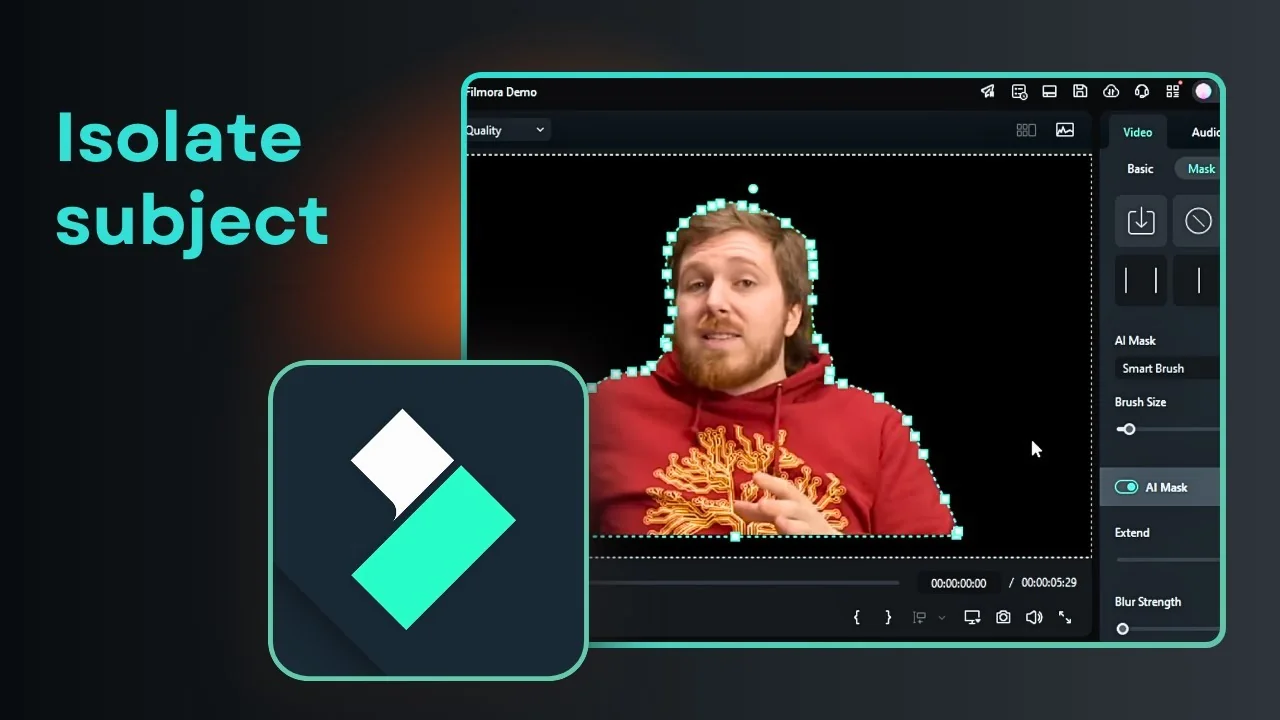
I am going to show you how you can use AI masking in Filmora. The idea of this tool is to isolate the subject from a video, so you can focus the editing on that subject without affecting the rest.
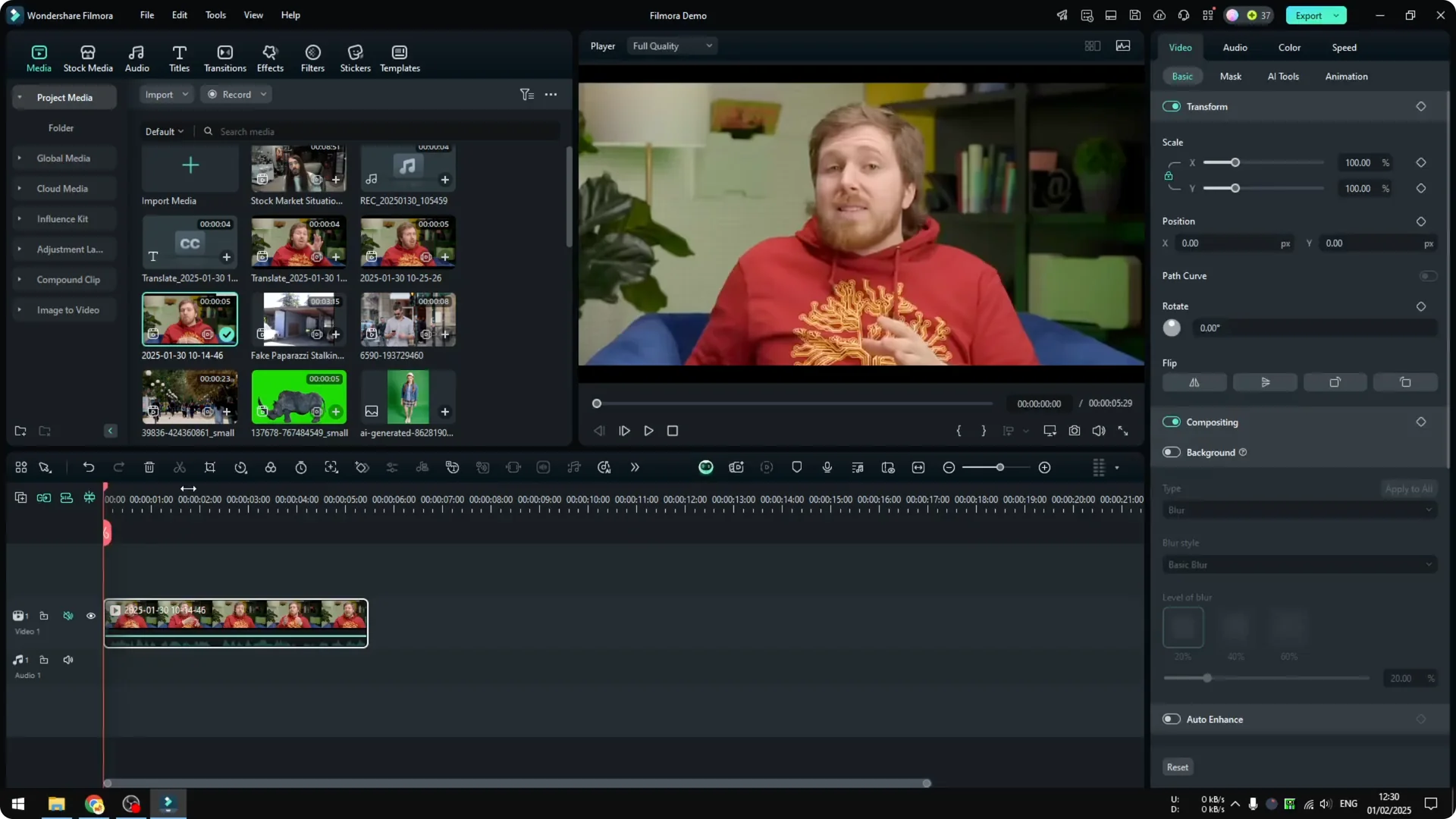
First, select and insert a video into the project timeline. I want to isolate this person so the background will be black and basically empty.
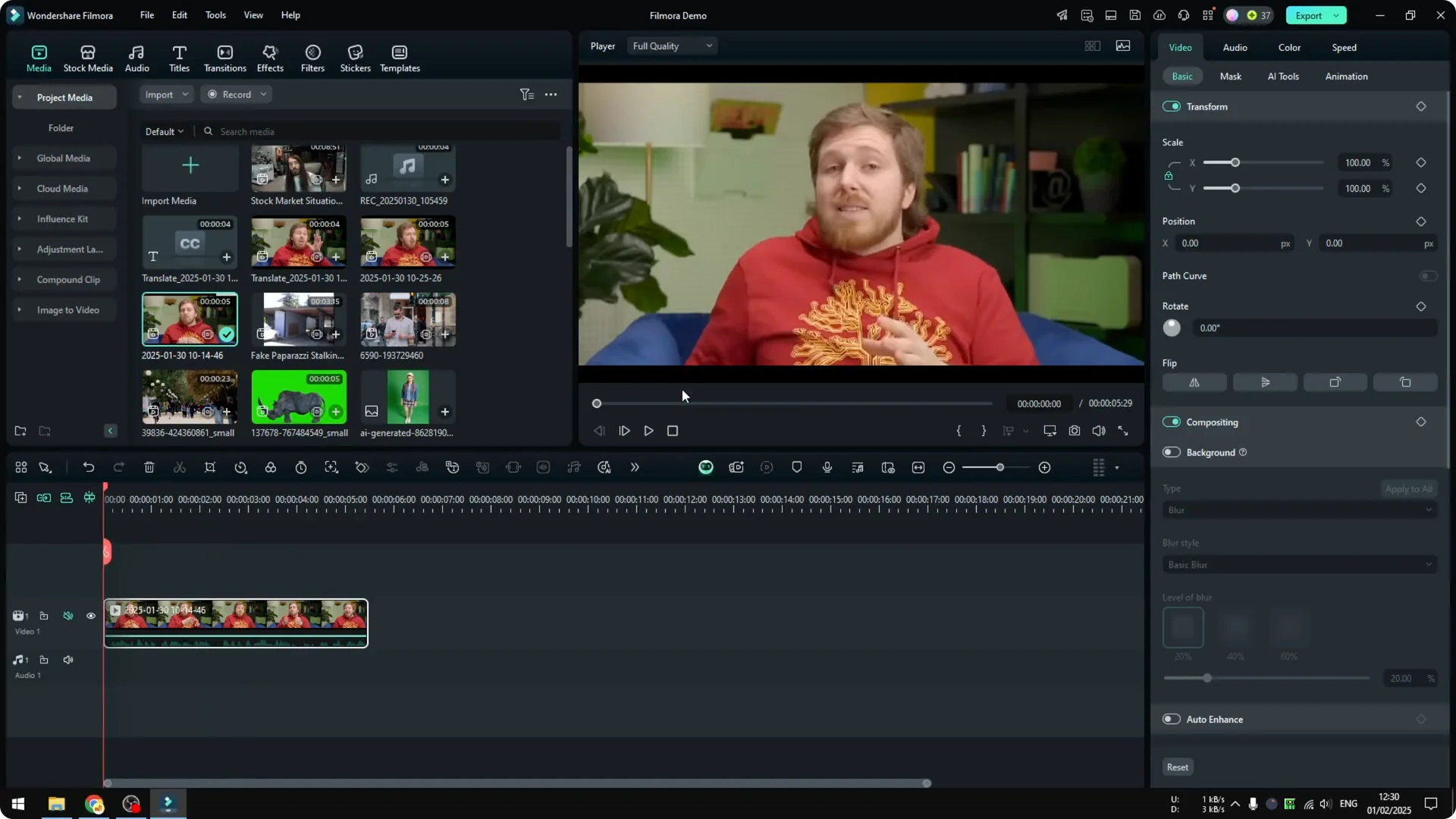
Filmora AI Masking basics
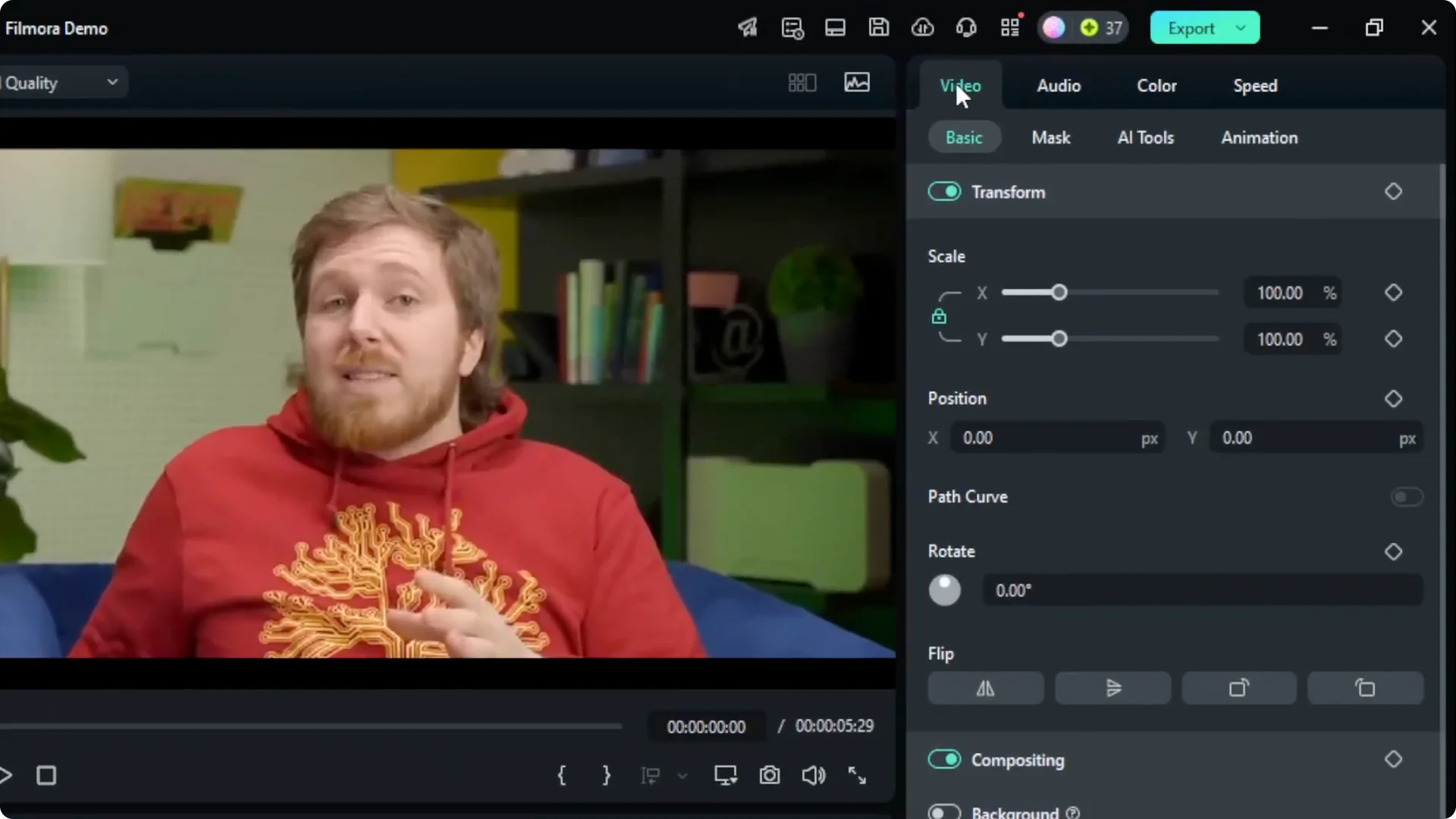
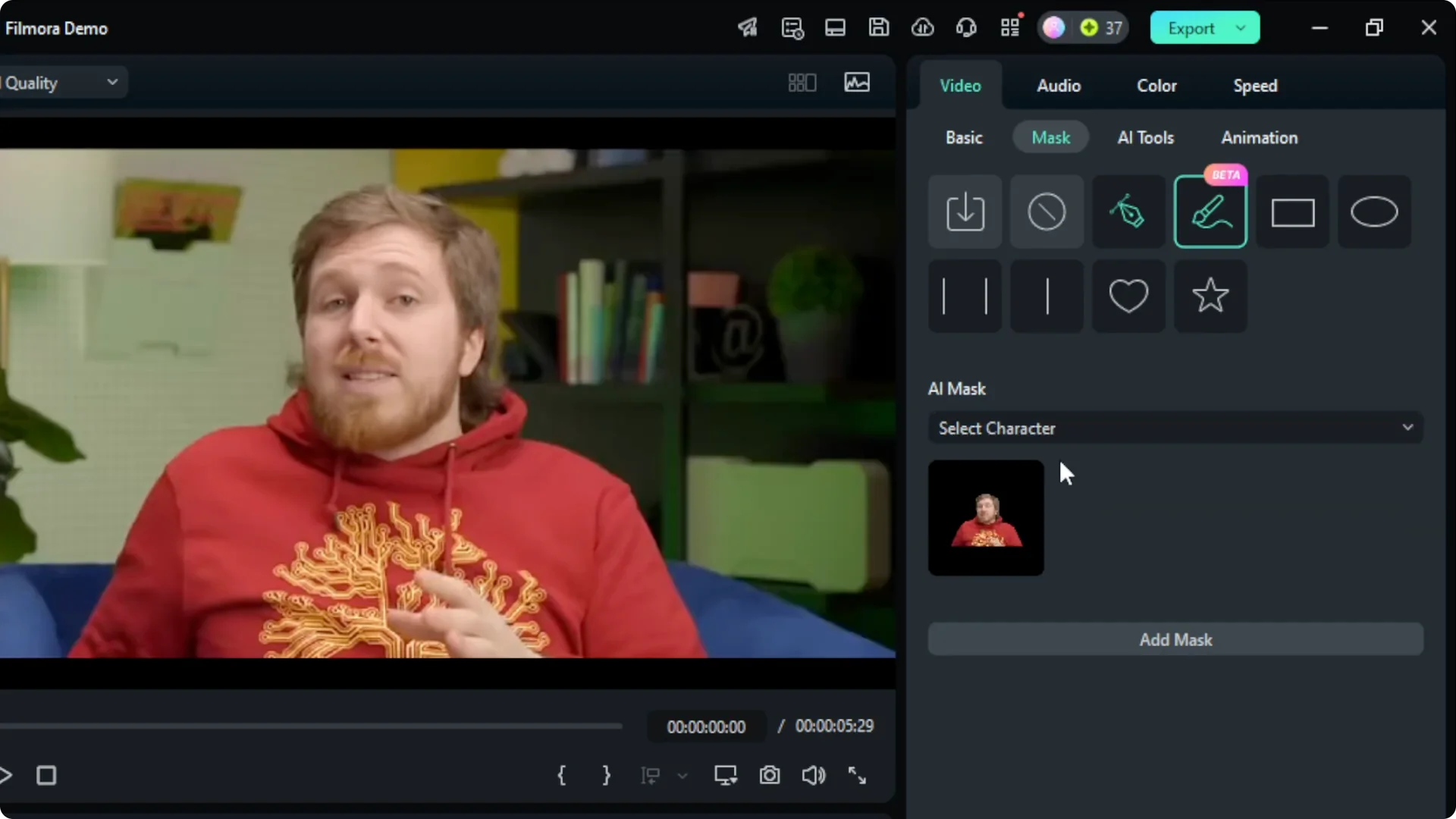
Click the video clip, go to Video, open Mask, then click AI Mask. There are three tools you can try: Smart Brush, Smart Character, and Select Subject.
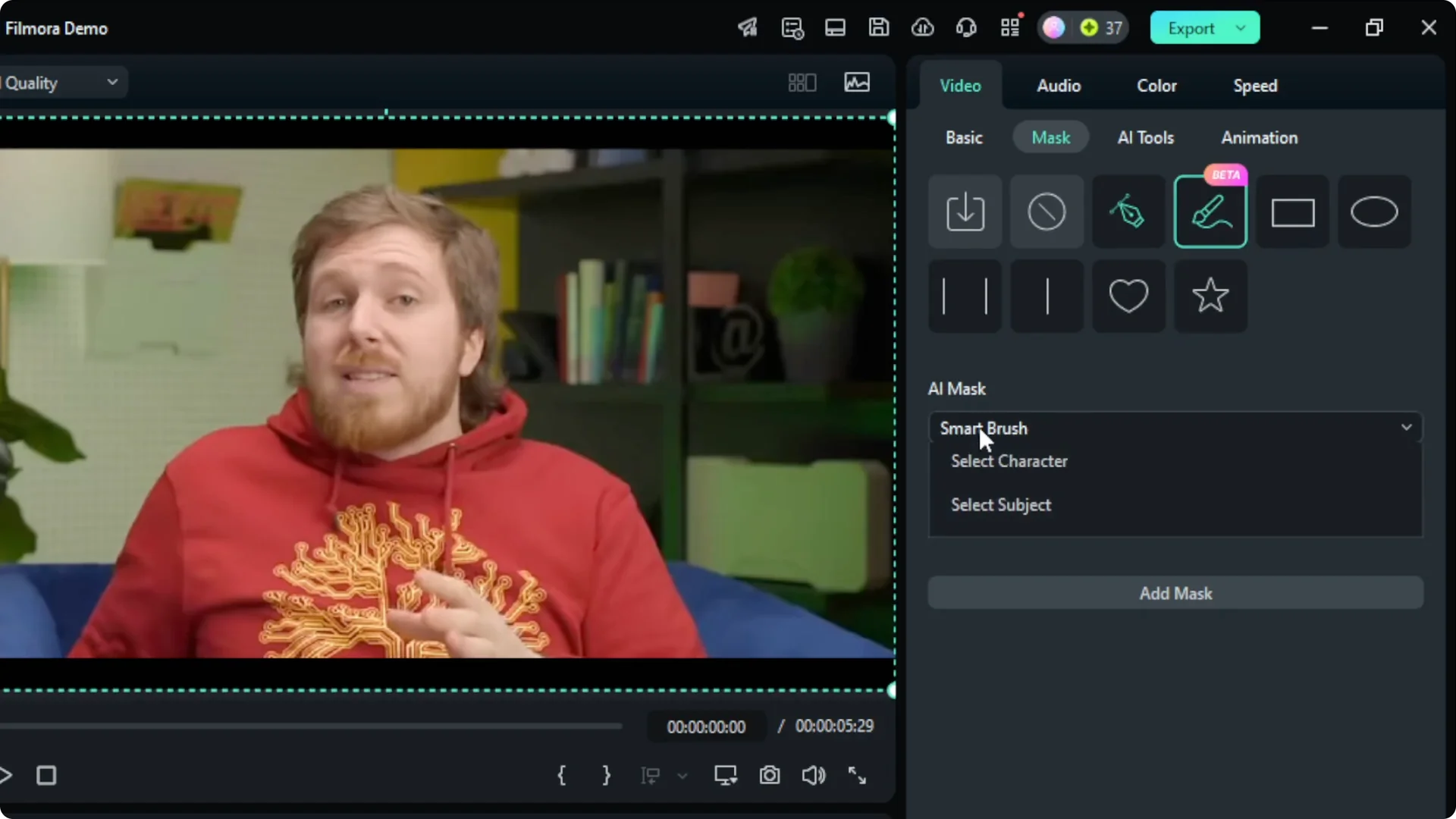
Character and Subject are very similar. They usually find the most interesting part of the video, which is usually the person. You can also use Smart Brush, where you manually select a rough area and the AI will do the rest.
Read More: Stabilize shaky footage with AI in Filmora
Filmora AI Masking results
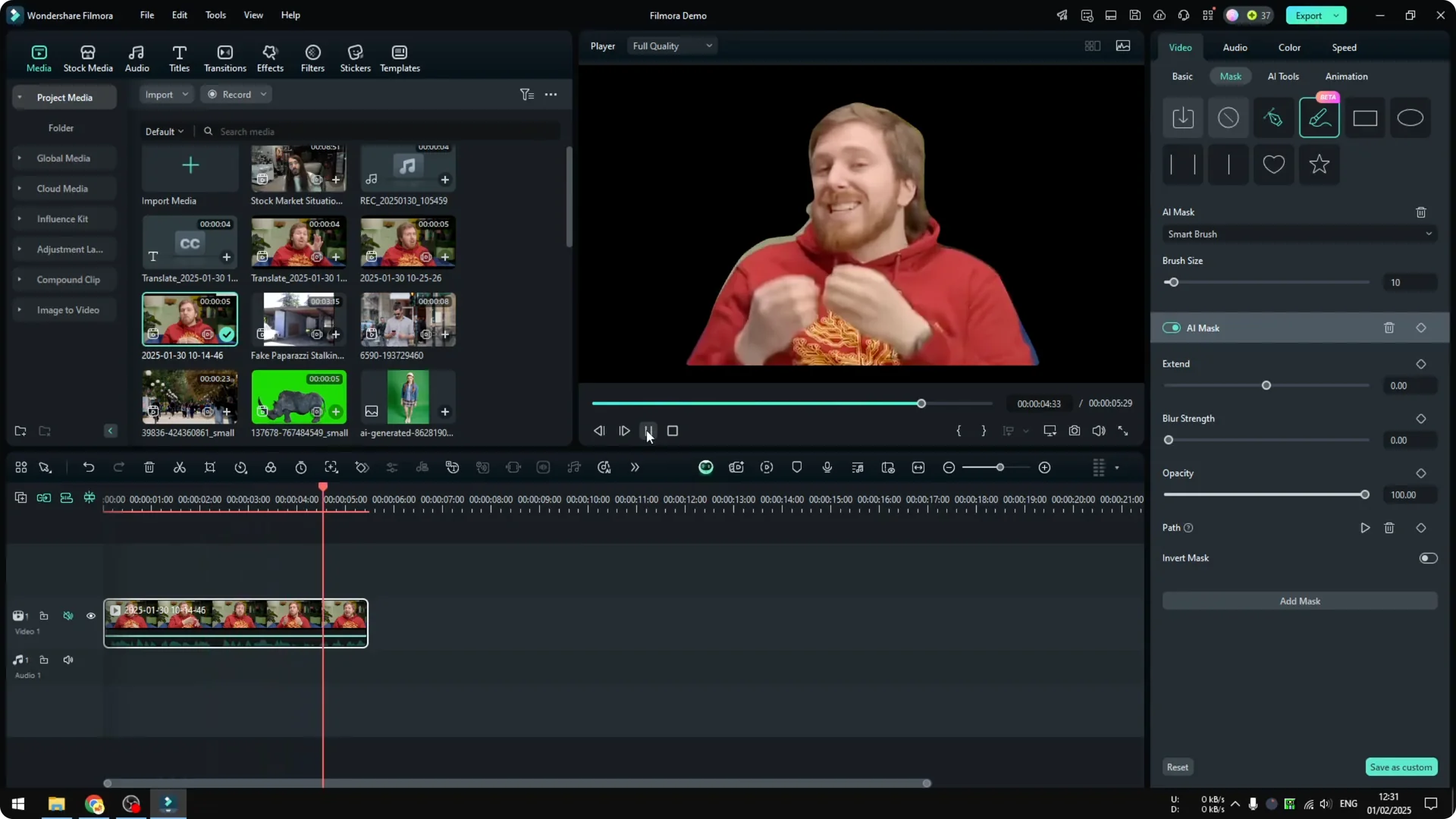
When you are done, this is the result. If you play the video, this is what you will see.
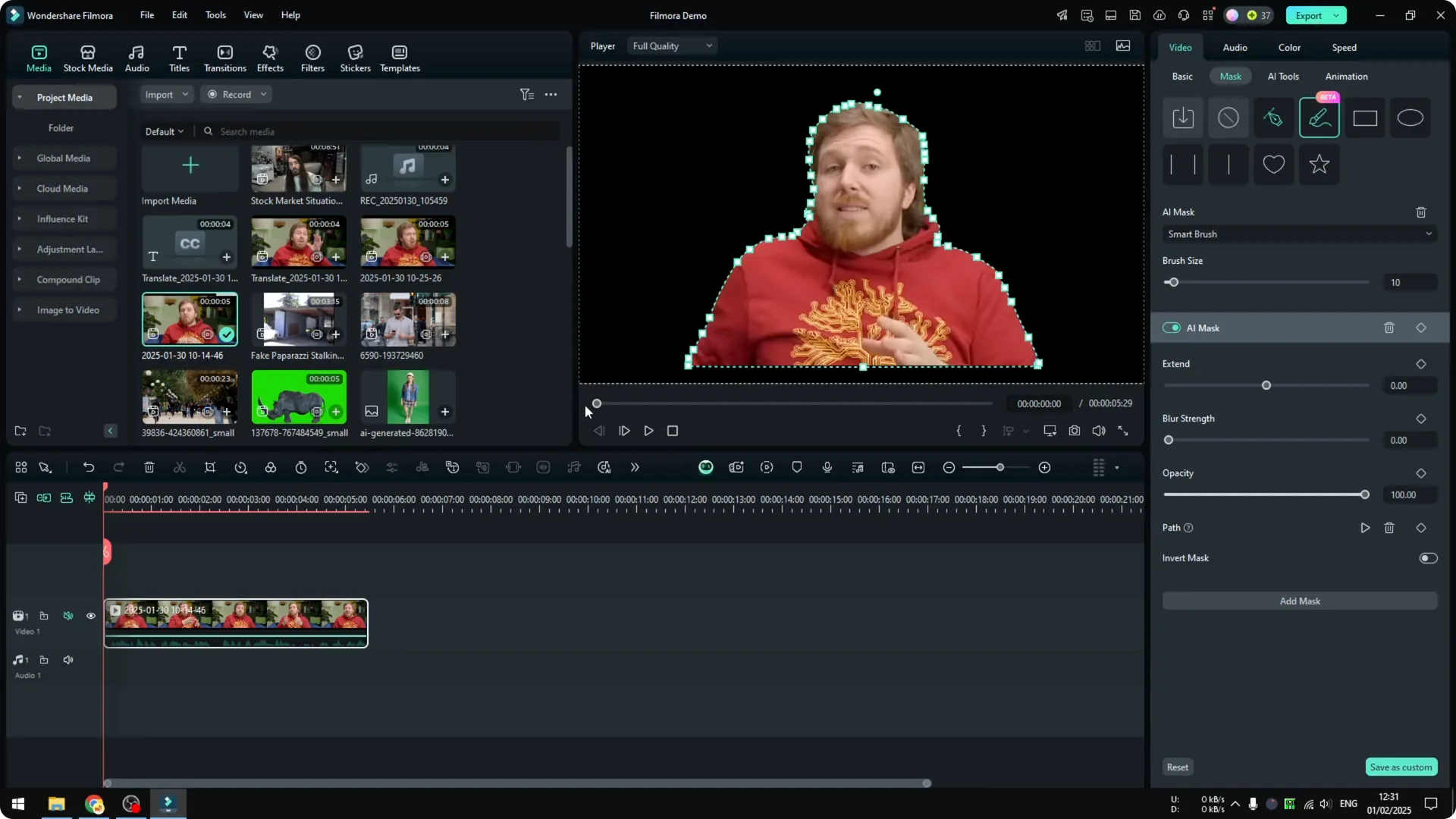
This is a mask, not a video cutout. It is different. If you want to replace a background, use the AI video cutout in Filmora, and follow this AI portrait cutout guide to remove the background.
Filmora AI Masking tracking
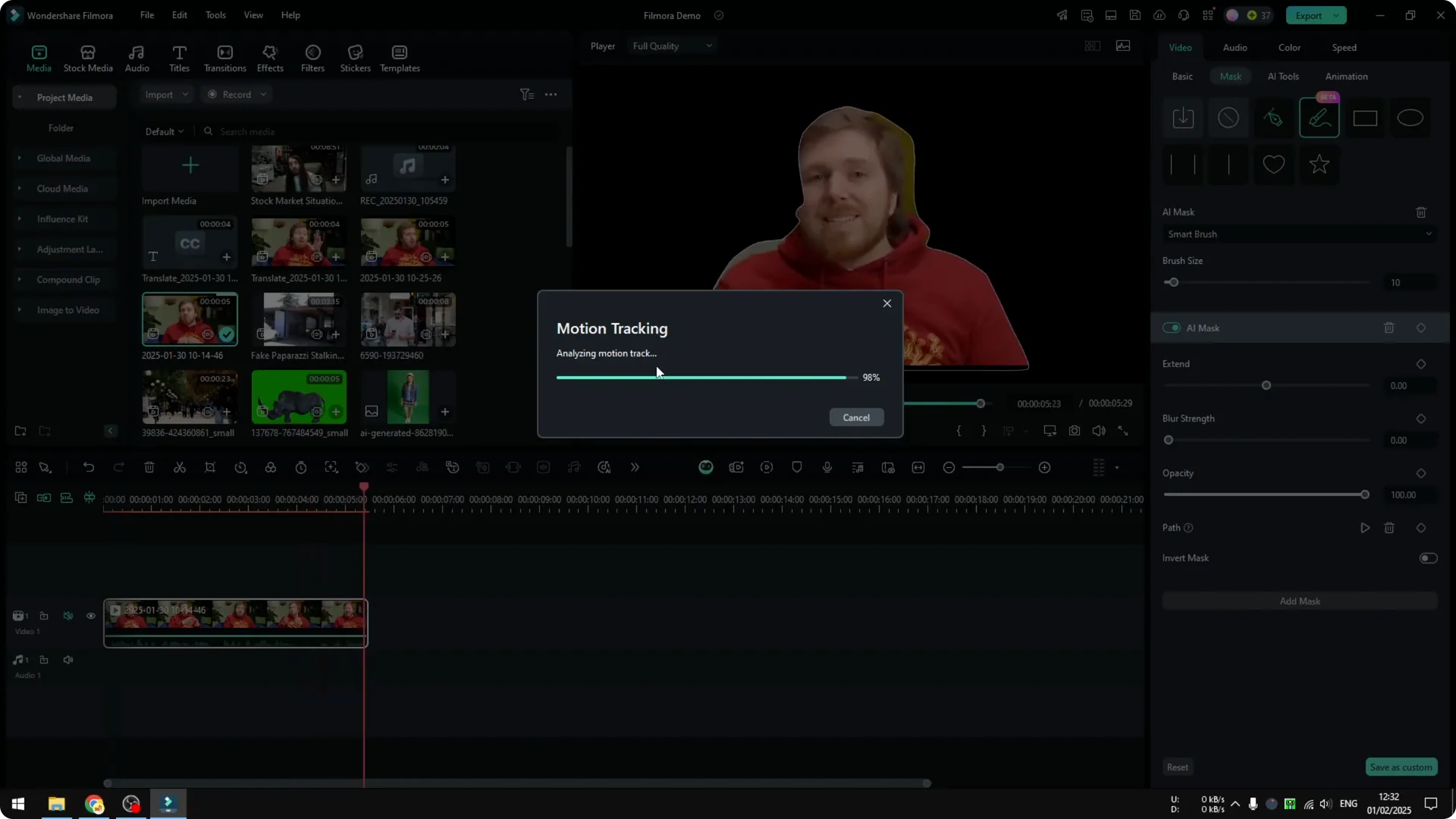
In case you want to track something and make the masking move based on the movement of the subject, enable the Path option. It will run the motion tracking feature and try to move the mask according to the movement of the subject.
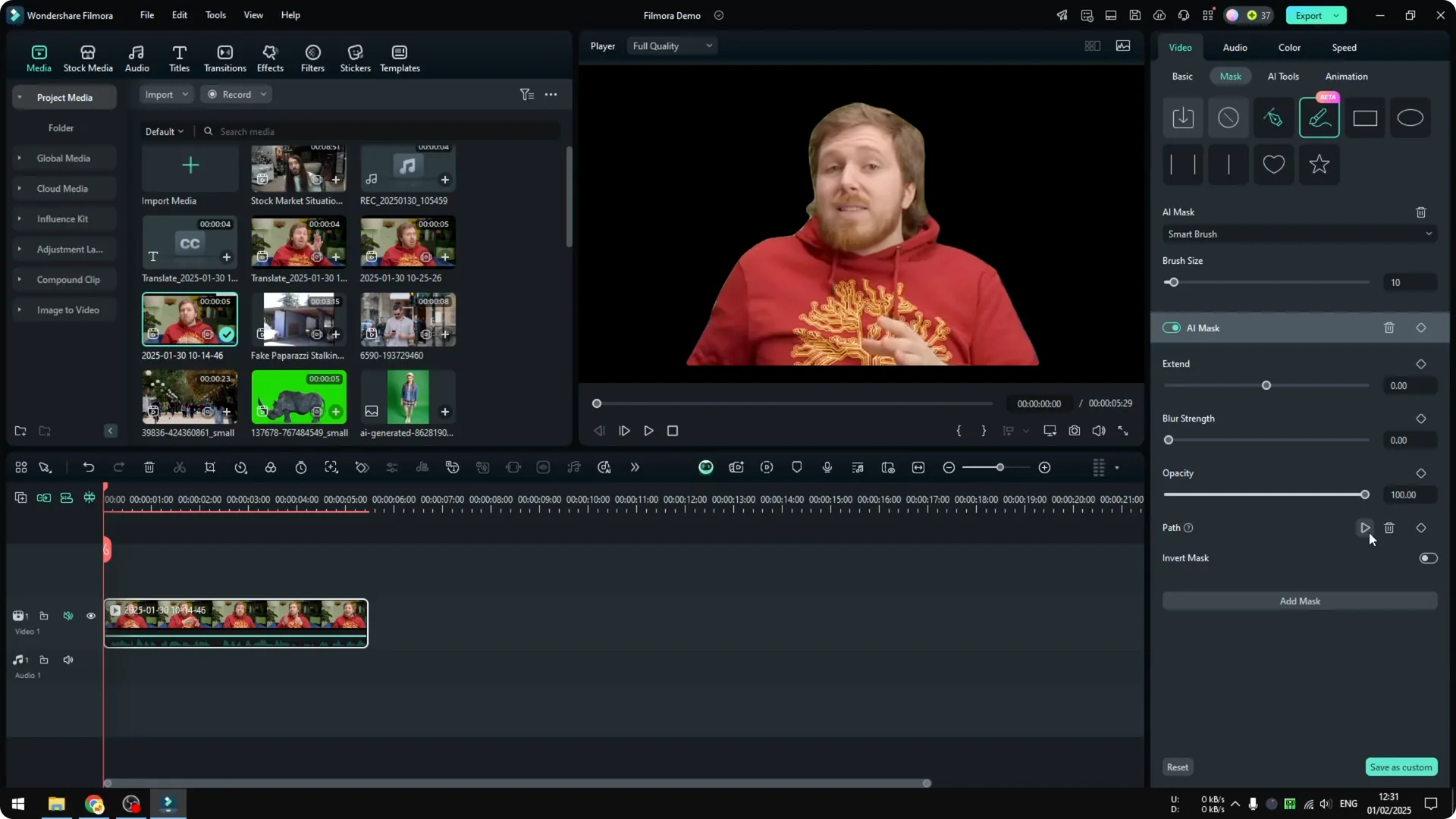
It does not change its shape. It stays on the original shape, but it moves accordingly. The masking looks the same and does not change at all, but it moves a little to compensate for the subject’s movement.
Read More: Add AI text to speech in Filmora
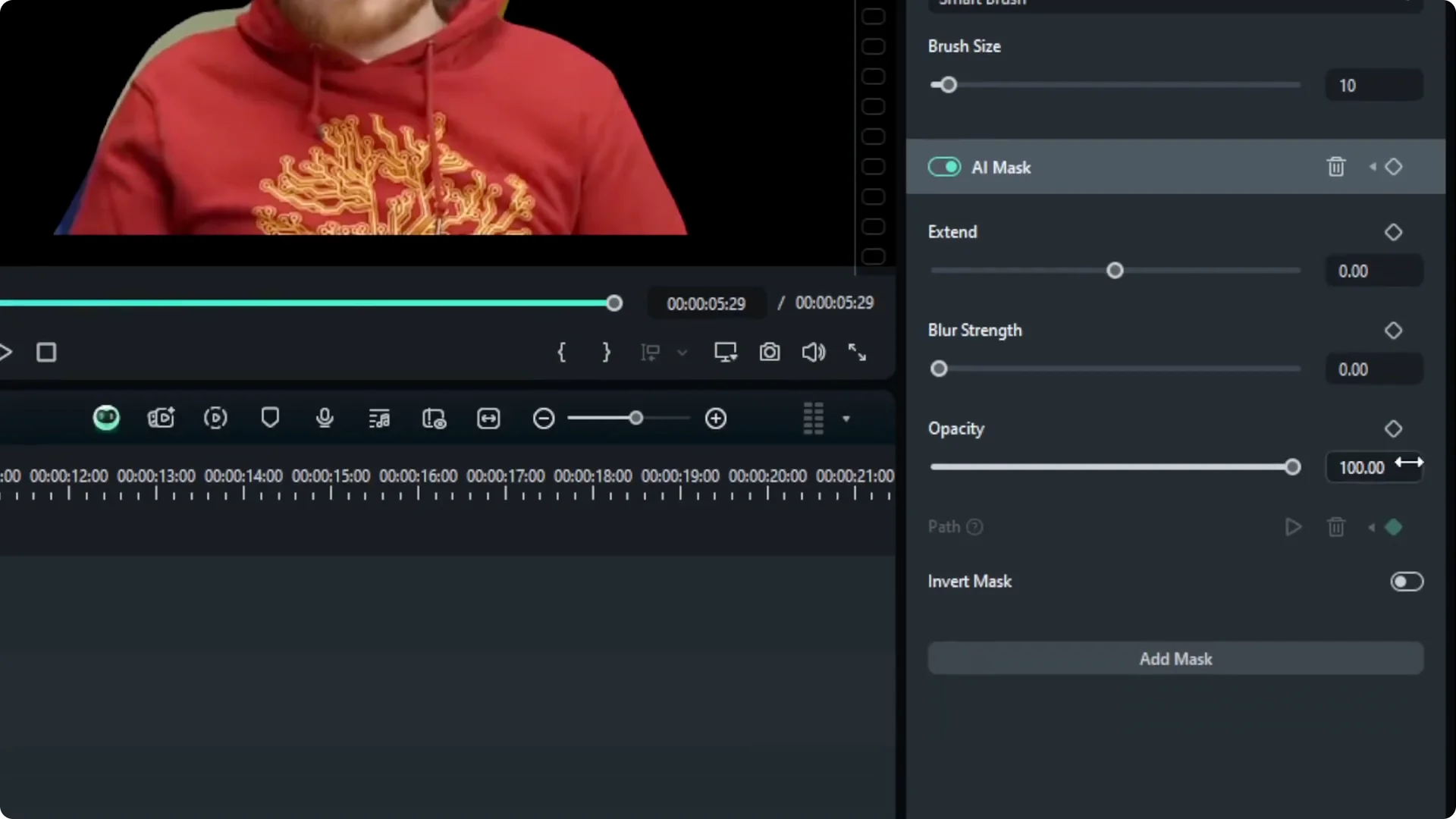
Filmora AI Masking settings and customizations
I do not know much about the masking application. I rarely use this, probably never use it.
In case you want to use it, there are plenty of features and customizations you can apply to masking in your video. Check it out and see which setting is the best for you.
Final thoughts
AI masking in Filmora lets you isolate a subject, focus edits on that area, and even track movement with Path. Remember, masking is different from a full cutout, so switch to AI video cutout if you need background replacement. Experiment with the tools to find the settings that fit your project.