I am going to show you how to use Filmora to write a video script for your YouTube video. Filmora has a new AI tool that lets you create an engaging script without bouncing between ChatGPT or Gemini.
You can stay inside Filmora to draft your outline and build a script that fits your idea.
Getting started with AI Scriptwriting in Filmora
Open the startup window for AI Scriptwriting in Filmora
Open the startup menu that appears when you launch Filmora. If a project is already open, go to File and click Return to Startup Window. This is the screen you need first.
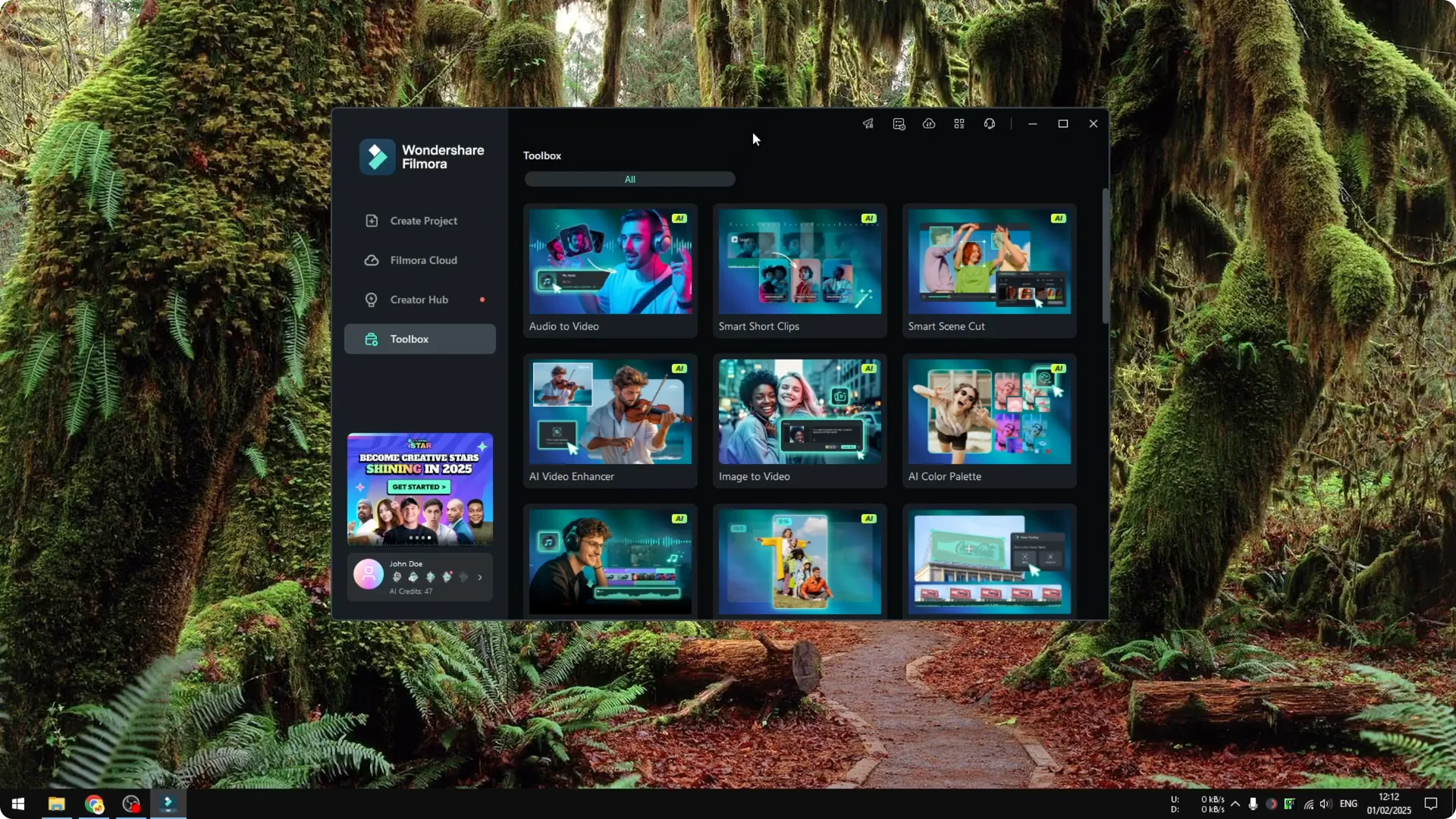
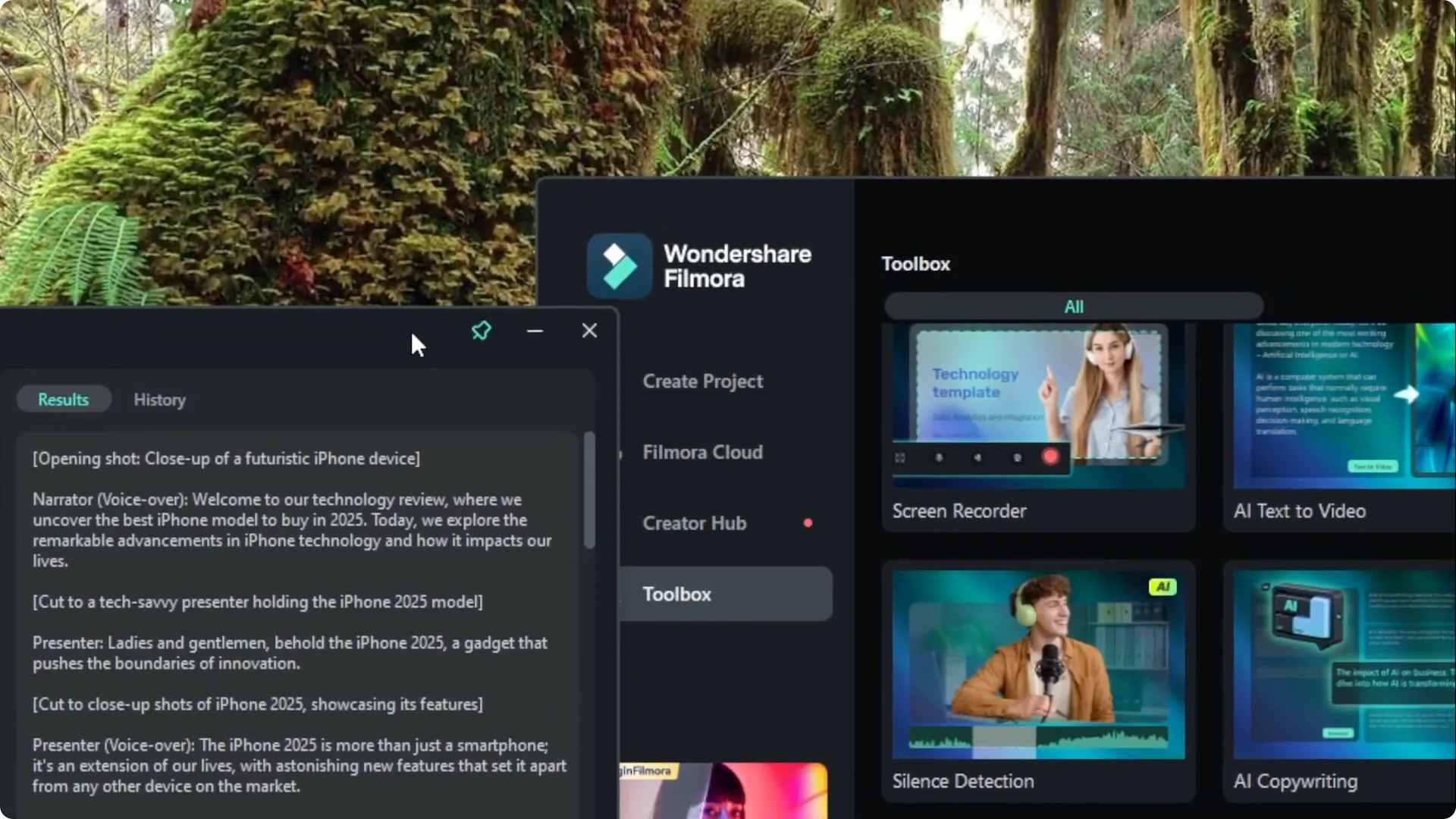
Find the Toolbox for AI Scriptwriting in Filmora
Navigate to Toolbox. Filmora updates the startup window from time to time, so it may look a bit different on your version. Look for a menu labeled Toolbox or AI tools.
If you plan to remove your background later, see how to do it with AI Portrait Cutout in Filmora.
Launch AI copywriting for AI Scriptwriting in Filmora
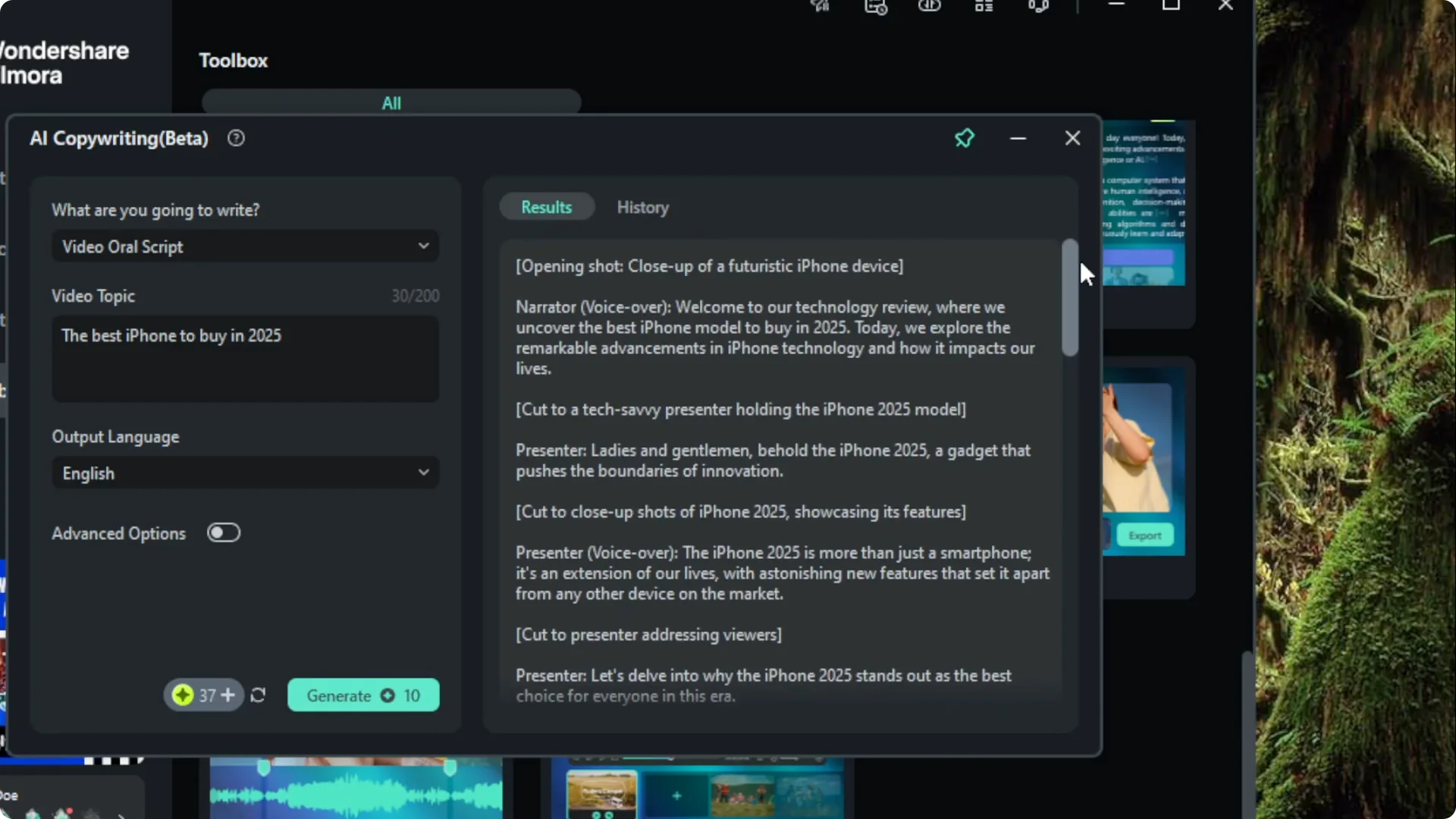
Open AI copywriting. Choose what you are going to write, and for YouTube pick video script. You can also generate descriptions and titles if you need them.
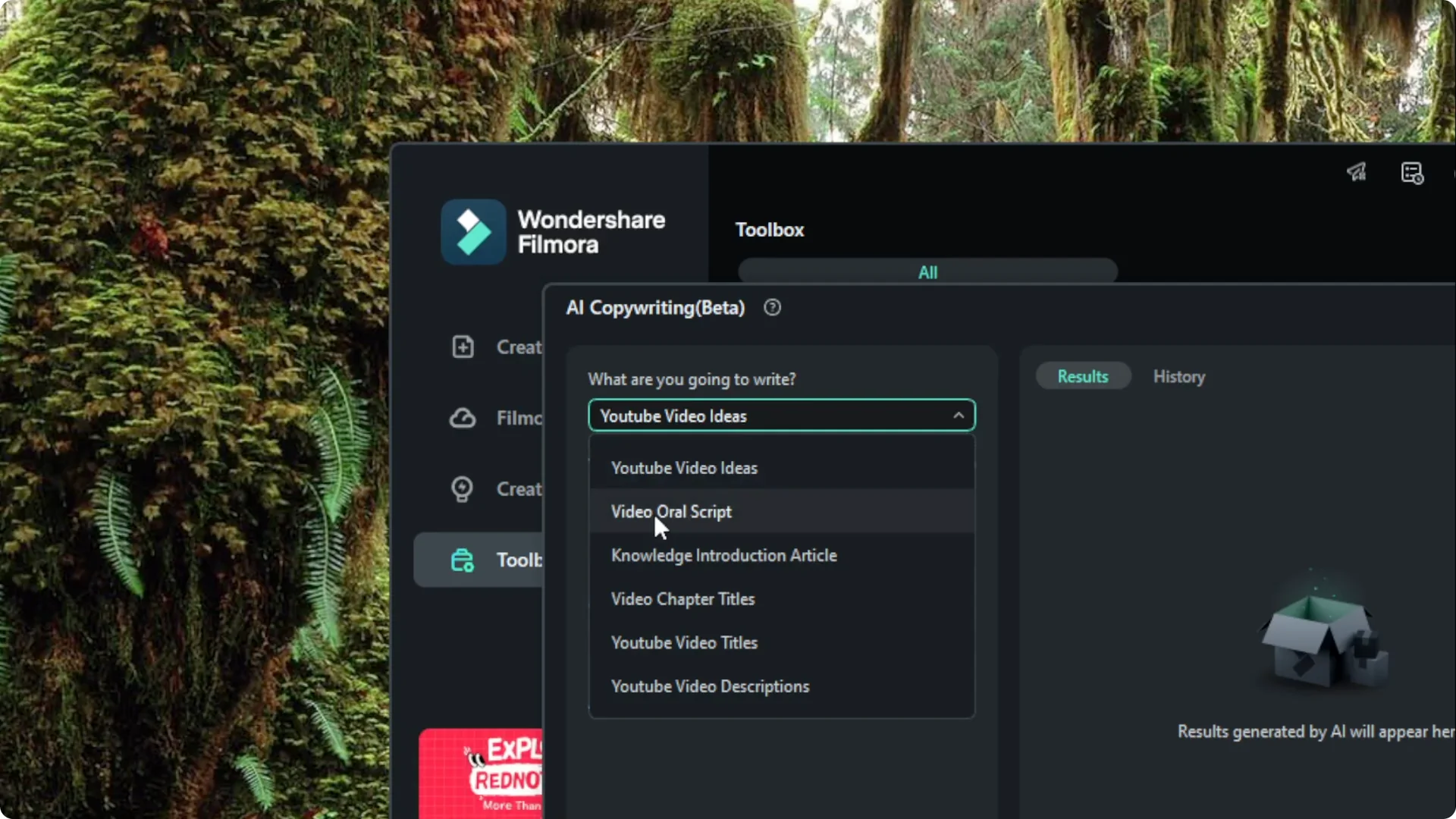
Generate a YouTube script with AI Scriptwriting in Filmora
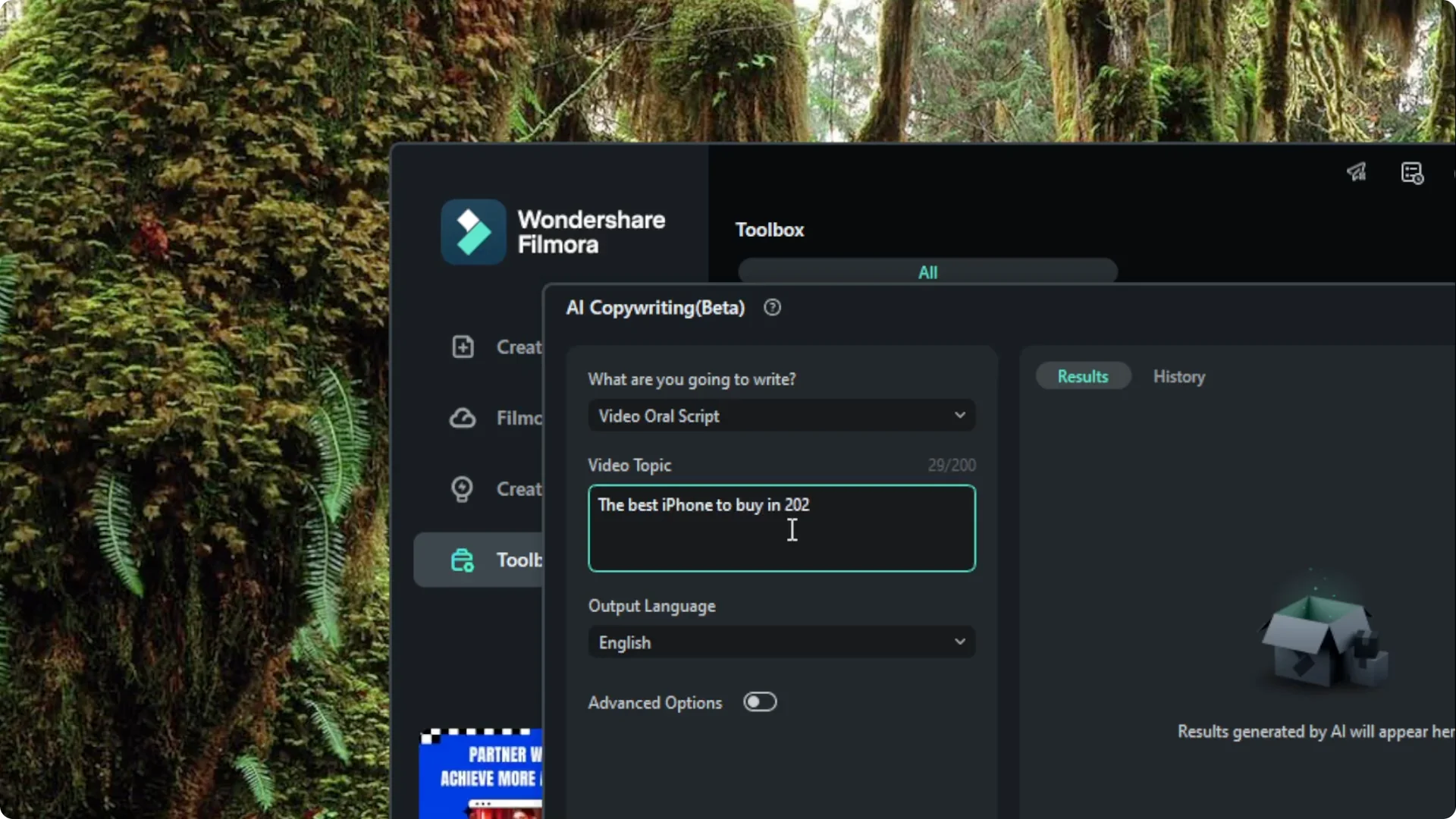
Set your topic
Type the topic of your video. For example, I tried “the best iPhone to buy in 2025”.
Know the offline limits of AI Scriptwriting in Filmora
Filmora’s AI is local and offline, so it does not connect to the internet for the latest information. It is not like ChatGPT that can access the web for up to date details. If you are fine with that, you can go ahead.
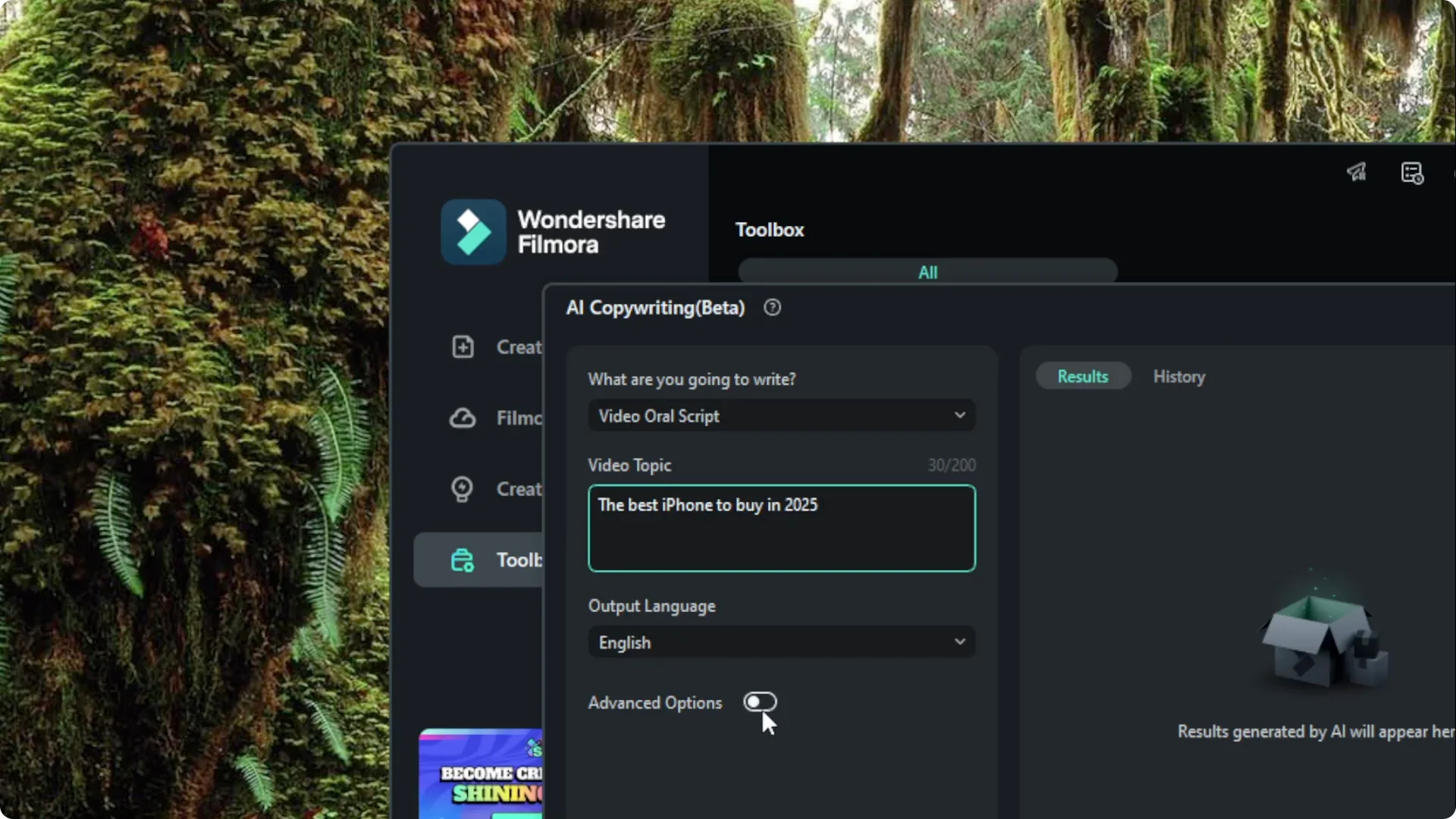
Pick language and check Advanced options
Select your language, I am sticking with English. There is an Advanced options toggle that claims to show multiple results, but I only see one option. This menu does not do anything for me.
Generate and review your draft
Click Generate to create a draft. I noticed it gives me a template to fill with my product details rather than a finished script. That works for a draft and is not meant to be final.
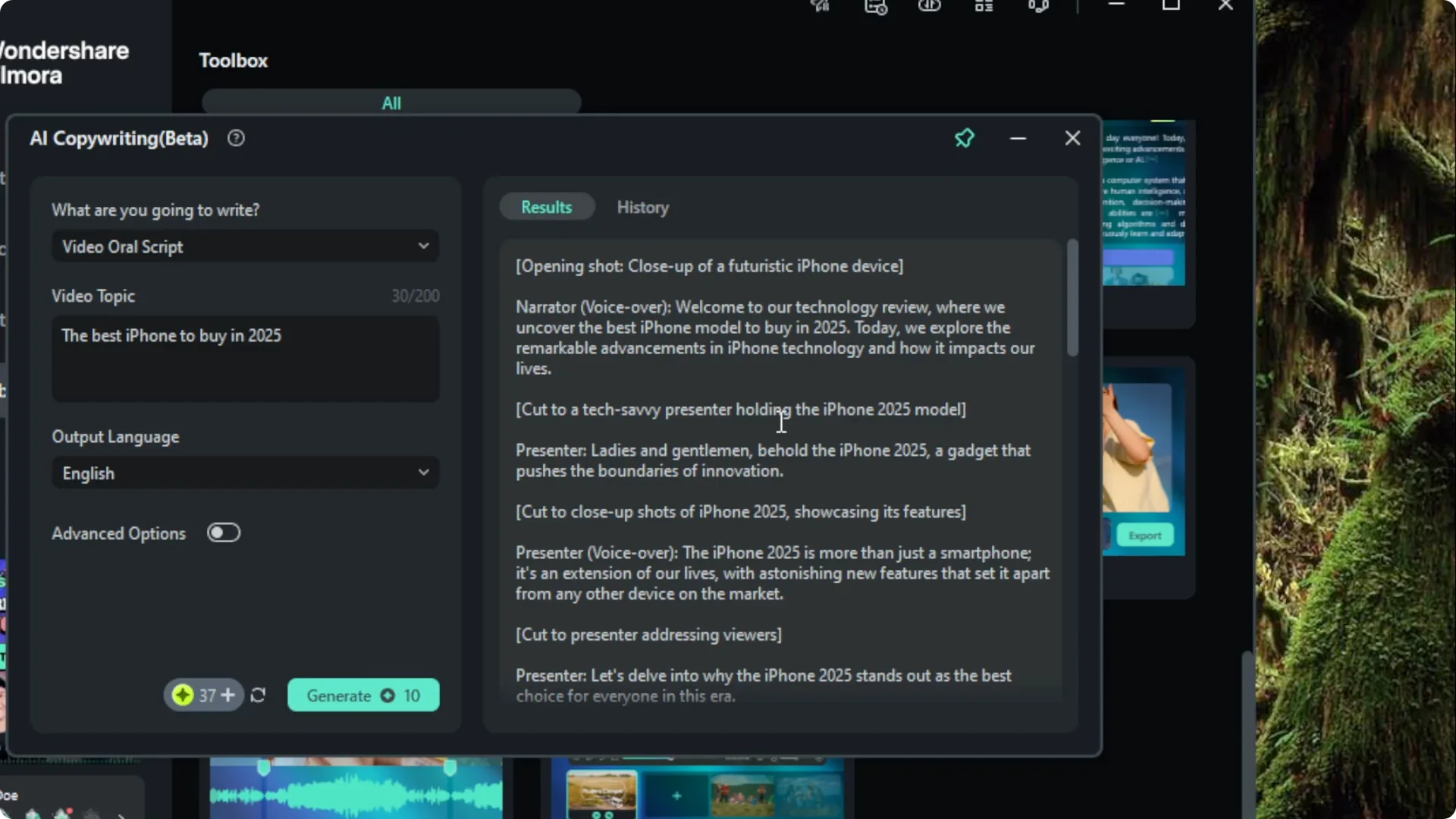
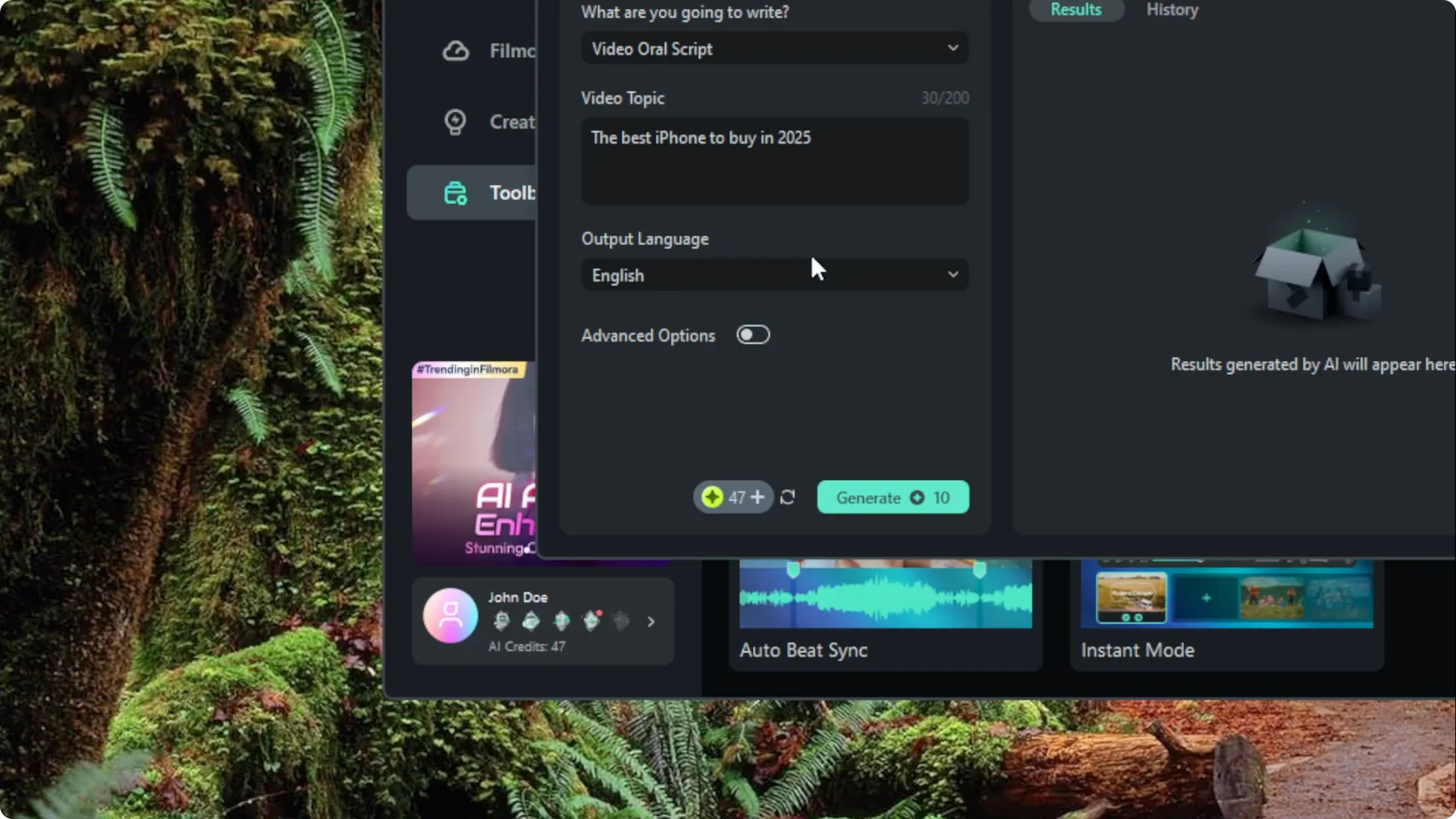
It does not display any model details.
Refine and use your script from AI Scriptwriting in Filmora
Copy the text to Google Docs or Microsoft Word to edit and expand it. Paste the refined version into your teleprompter program.
If you want a voiceover right inside Filmora, try the AI text to speech feature.
Keep the AI Scriptwriting in Filmora window pinned
You can pin the AI copywriting window. Continue working in Filmora while keeping your script visible.
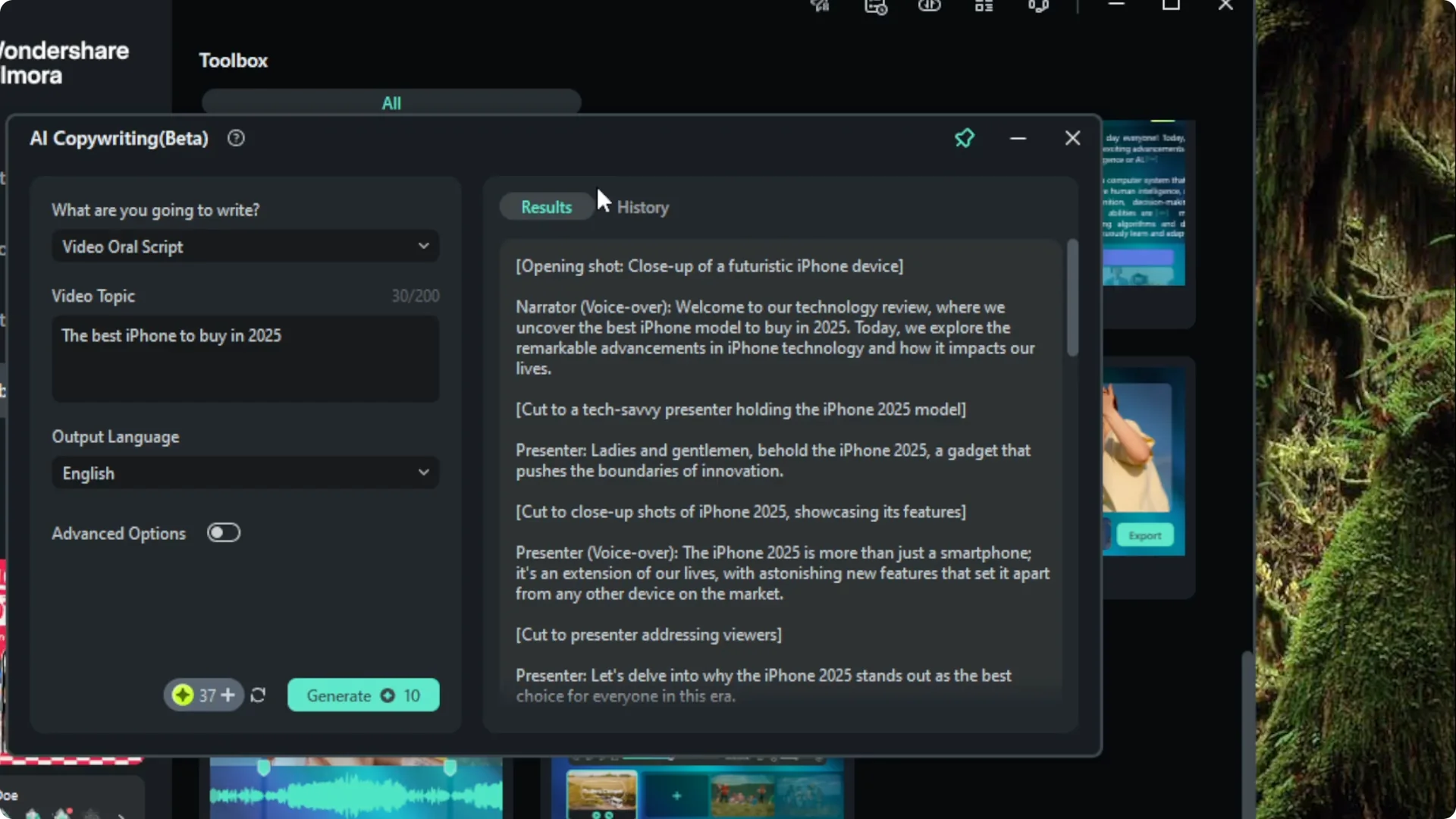
Edit your video and record yourself while the draft stays on screen. This keeps your process inside Filmora and helps you work faster.
If your footage is shaky, you can stabilize clips using AI in Filmora.
Final thoughts on AI Scriptwriting in Filmora
This is how I create a video script using AI inside Filmora. It is useful for quick drafts, offers a simple template, runs offline, and the pin option lets you keep editing while you write.