
I am going to show you how to remove a credit card from your Higgsfield AI account. Follow these quick steps to delete your saved card.
Higgsfield AI Payment Removal
Access your account
Step 1: Hover over your profile in the upper right and go into Manage account.
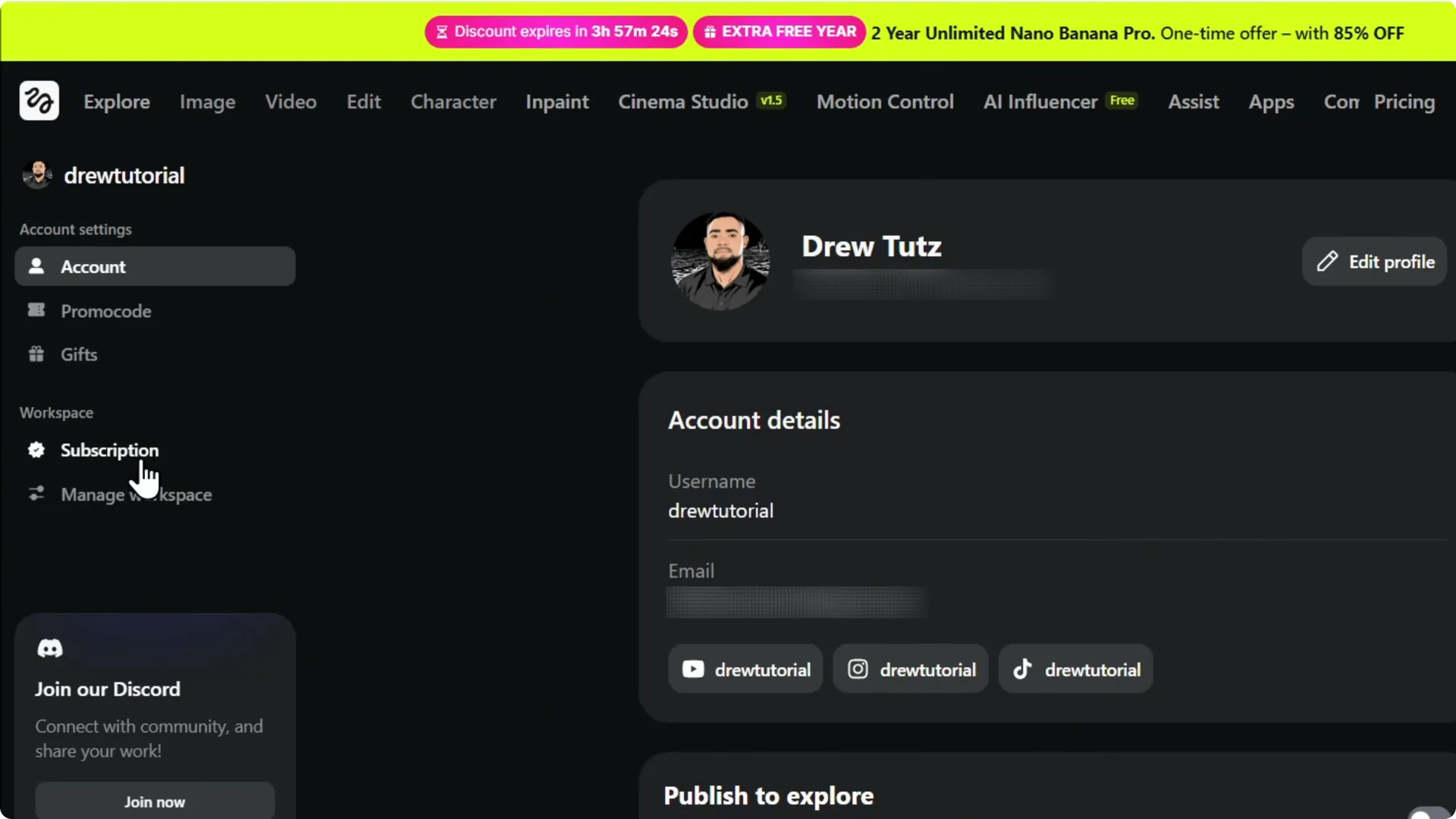
Step 2: Click Subscription on the left.
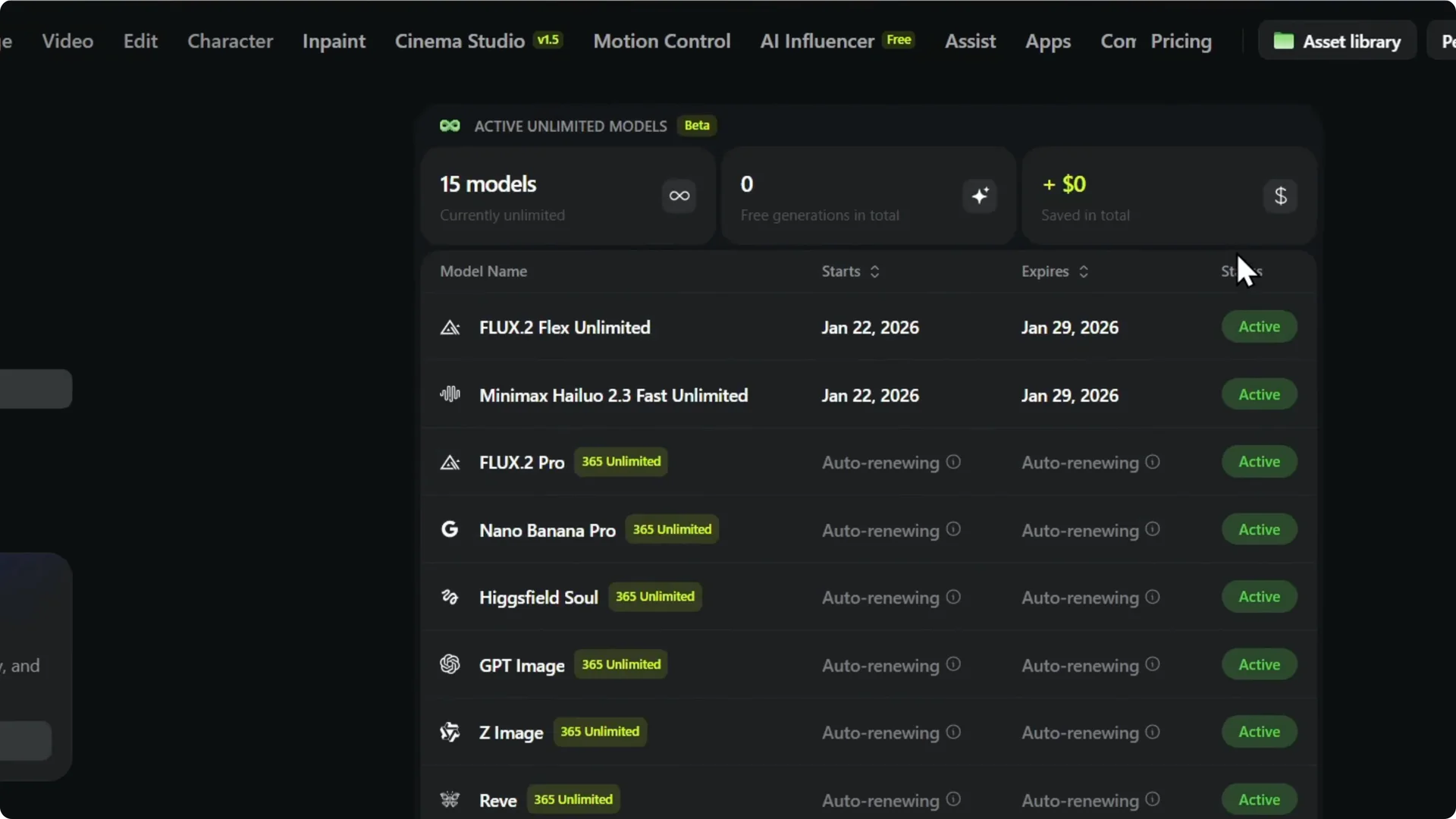
If you also need to disconnect a connected account, see how to remove or disconnect social profiles in Higgsfield AI.
Find the payment method
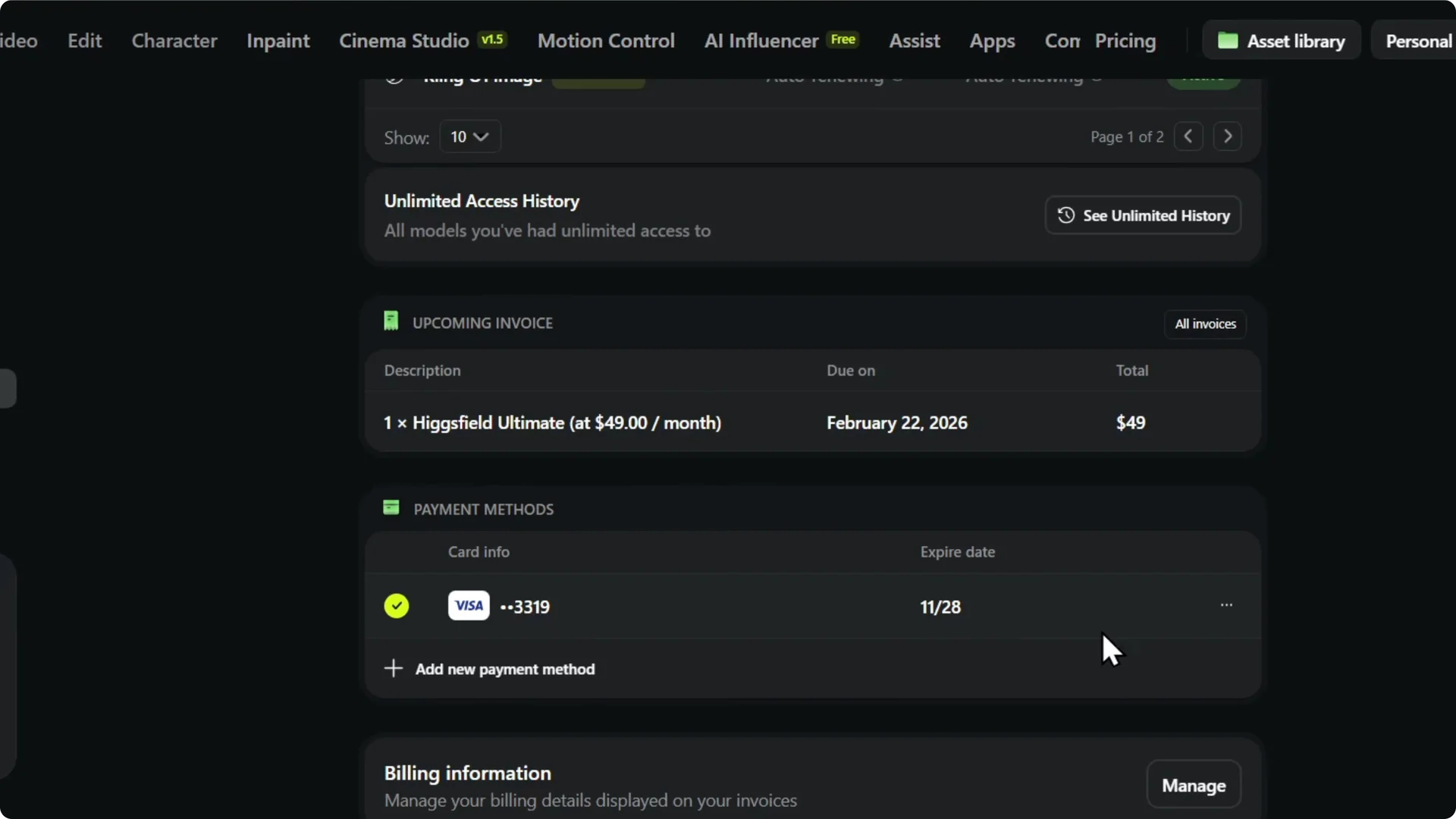
Step 3: Scroll down and find the payment method where it shows your card.
Remove the card
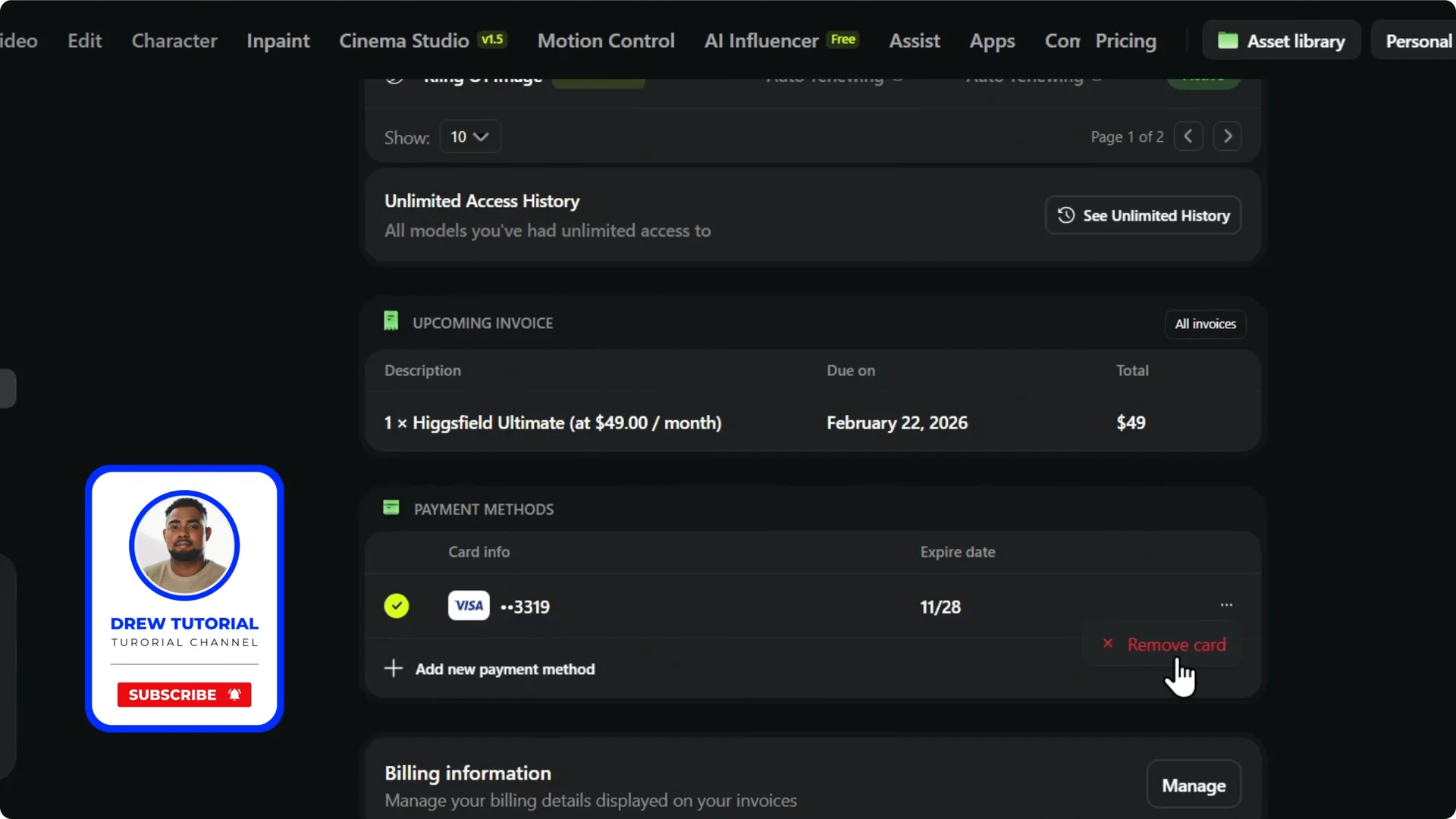
Step 4: Click the three dots toward the right and select Remove card.
If you want to add a new card after removal, follow this guide to add a payment method in Higgsfield AI.
After managing billing, you can continue your creative work and publish generations to Explore.
Final Thoughts
Removing a saved card in Higgsfield AI takes only a moment once you know where to look. Open account settings, go to Subscription, find your payment method, then use the three dots to remove the card. Keep your billing details up to date and you are set.